

When your Mac types duplicate letters like “hheelloo,” you do not necessarily have a broken keyboard. Stiff or arthritic finger joints often linger on keys slightly longer than the standard 250-millisecond macOS threshold.
This guide solves the problem by showing you how to calibrate macOS key repeat delay settings and Slow Keys to match your exact finger release speed.
Unlike generic cleaning advice, adjusting these millisecond timing controls stops accidental double strikes instantly without forcing you to buy replacement equipment.
In this guide9 sections
- Why Finger Stiffness Causes Mac Keys to Repeat
- Adjusting Key Repeat Delay Settings in macOS
- Calibrating Slow Keys for Joint Stiffness
- Eleanor’s 500-Millisecond Calibration Scenario
- Mac Keyboard Timing Comparison Table
- Cleaning Debris Under Mac Keycaps Safely
- Checking macOS Updates and Software Conflicts
- Hardware Repair Options and Support Safeguards
- Frequently Asked Questions

Why Finger Stiffness Causes Mac Keys to Repeat
A Mac keyboard registers a keypress the instant you press down on a switch. If you hold that switch down past a set pause, macOS assumes you want repeated characters.
If typing delays ever make your entire device feel sluggish, checking what to do when your computer is running slowly can help you confirm whether system lag is playing a role.
Unresponsive or erratic peripherals are among several common computer problems you can fix yourself without needing a costly repair shop.
Key repeat delay is the amount of time macOS waits after an initial keystroke before it begins typing that character repeatedly.
For someone with arthritis or morning joint stiffness, fingers lift off the keys more slowly than average. A normal release takes under 150 milliseconds, but joint inflammation can extend your contact time beyond 300 milliseconds.
When your finger stays pressed for a third of a second, the default macOS settings trigger an unwanted duplicate letter. The system functions exactly as programmed, but the factory timing does not match your hand mechanics.
A Pew Research Center study on tech adoption shows that older adults increasingly rely on personal computers daily. Adapting your operating system to your body prevents unnecessary fatigue and frustration.
Physical keyboard chatter can also cause this symptom. Key chatter occurs when an aging or dirty switch mechanism bounces rapidly, registering two distinct electrical signals from a single tap.
Fortunately, you can eliminate both joint-related repeats and minor switch chatter by adjusting macOS software sliders. We will begin with the standard keyboard delay adjustments.

Adjusting Key Repeat Delay Settings in macOS
Every Mac includes built-in controls to adjust how quickly keys repeat. As of 2026, macOS houses these options inside the main Keyboard preferences pane.
If the setting labels look too small to read clearly, take a moment to learn how to adjust the font size on your computer screen for easier navigation.
Once your timing is comfortable, exploring handy keyboard shortcuts to save time can help minimize repetitive keypresses even further.
Before changing these settings, know that slowing down your repeat delay will not slow down your overall typing speed. It only controls how long you must hold a key before duplicate letters appear.
Follow these numbered steps to calibrate your standard repeat delay sliders:
- Click the Apple menu in the top-left corner of your display screen.
- Select System Settings from the drop-down menu.
- Scroll down the left navigation sidebar and click Keyboard.
- Locate the slider labeled Key repeat rate and drag it toward Slow.
- Locate the slider labeled Delay until repeat and drag it toward Long.
- Click inside a text editor or email draft to test your typing response.
If you have difficulty seeing the sliders, press Option + Command + 8 to turn on macOS Zoom. This built-in magnifier enlarges the screen area around your mouse pointer.
You can find more details on general interface adjustments directly in the Apple Mac User Guide.
Moving the Delay until repeat slider all the way to Long increases the initial hold threshold from 250 milliseconds to approximately 1,000 milliseconds. This full second gives your fingers plenty of time to release cleanly.
If your keyboard still types duplicate letters after setting this slider to Long, you need the advanced filtering found in macOS Accessibility settings.
Calibrating Slow Keys for Joint Stiffness
When basic delay adjustments are not enough, macOS offers a dedicated accessibility feature called Slow Keys. Slow Keys instructs your Mac to ignore momentary taps and rapid tremors completely.
While audio confirmation can be reassuring on a computer, you can also learn how to turn off keyboard clicking sounds on your phone if tapping noises become distracting.
If you experience similar sensitivity issues on your mobile devices, you can also learn how to stop accidental taps on your touchscreen.
Slow Keys is an accessibility setting that requires you to hold a key down for a specified fraction of a second before the Mac accepts the character.
This setting helps individuals with hand tremors, joint stiffness, or reduced finger dexterity. It ensures that accidental brushing against adjacent keys produces no input on your screen.
Follow these steps to turn on and configure Slow Keys:
- Open System Settings from the Apple menu.
- Click Accessibility in the left sidebar.
- Scroll to the Motor section and click Keyboard.
- Turn on the toggle switch next to Slow Keys.
- Click the Info button located directly next to the Slow Keys toggle switch.
- Drag the Acceptance Delay slider to 0.30 seconds or 0.50 seconds.
- Turn on the toggle switch for Use click key sounds to hear an audio cue when a key registers.
- Click Done to save your timing preferences.
The audio feedback option helps tremendously if you have reduced tactile sensation in your fingertips. The Mac plays a distinct sound the moment your keypress registers.
Be careful not to set the acceptance delay higher than 0.75 seconds on your first try. An excessively long acceptance delay can make the keyboard feel unresponsive.

Eleanor’s 500-Millisecond Calibration Scenario
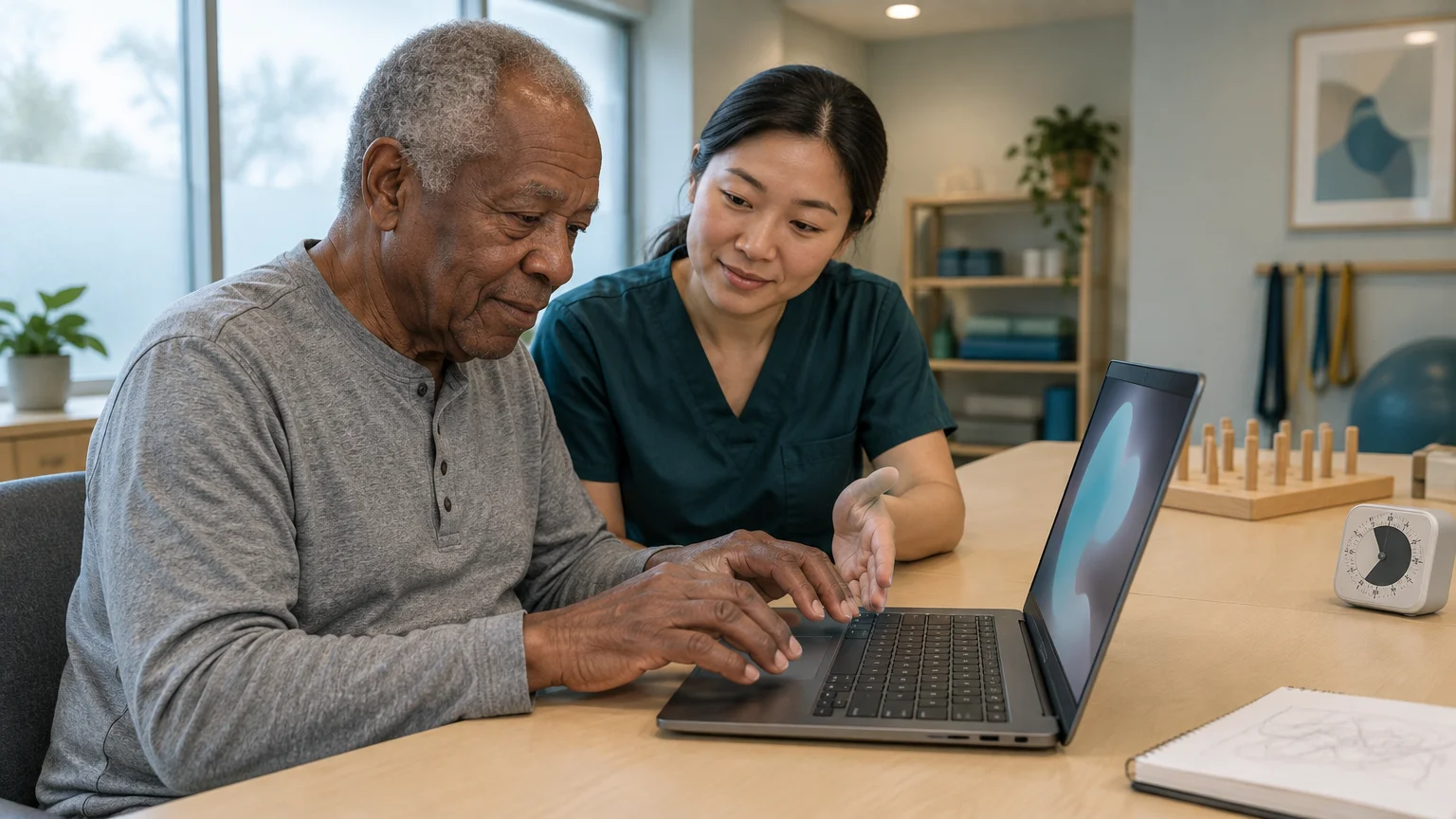
Consider the scenario of Eleanor, a 68-year-old retired accountant who experiences osteoarthritis in her dominant hand. Eleanor noticed her Mac typing duplicate letters whenever she typed notes or searched online.
When accidental repeats cause you to backspace too quickly and remove words you wanted to keep, discover how to undo deleted text on your smartphone to restore your messages easily.
For days when joint soreness makes physical typing too taxing, learning how to dictate documents by voice offers another helpful way to give your hands a break.
Words like “meeting” frequently appeared on her screen as “mmeeetiing.” Eleanor initially believed her Mac laptop keyboard had failed physically.
Eleanor’s stiff fingers remained on each keycap for an average of 320 milliseconds during normal typing. Because her Mac used factory settings, the computer initiated a key repeat after just 250 milliseconds.
That 70-millisecond overlap caused her computer to produce a second letter on nearly every word Eleanor typed. Her typing error rate reached 18 duplicate entries per paragraph.
Eleanor opened System Settings and moved the Delay until repeat slider to its maximum Long position. This single change raised the hold threshold to roughly 1,000 milliseconds.
She also opened Accessibility and enabled Slow Keys with an Acceptance Delay calibrated to 0.30 seconds (300 milliseconds). She enabled Use click key sounds for sound confirmation.
With those two settings active, Eleanor’s lingering finger releases no longer triggered repeats. Her duplicate letter rate fell from 18 errors per paragraph down to zero.
Her typing speed stabilized at a comfortable 35 words per minute without physical strain. She solved the issue in four minutes without purchasing external hardware.

Mac Keyboard Timing Comparison Table
Selecting the right settings depends on how long your fingers rest on the keys. The table below outlines standard factory values versus calibrated settings designed for joint stiffness.
Along with adjusting key delays, discovering simple ways to make your computer screen easier to read can create a far more comfortable overall computing experience.
| Setting Name | Default Mac Setting | Stiffness Calibrated Setting | Hold Window in Milliseconds | Primary Practical Benefit |
|---|---|---|---|---|
| Delay Until Repeat | Middle position (Medium) | Far right position (Long) | 1,000 milliseconds | Prevents slow releases from producing duplicate characters. |
| Key Repeat Rate | Fast position | Slow position | 200 milliseconds per repeat | Slows runaway repetition when you hold down a key intentionally. |
| Slow Keys Delay | Off (0.00 seconds) | On (0.30 to 0.50 seconds) | 300 to 500 milliseconds | Filters out hand tremors and accidental adjacent key bumps. |
| Click Key Sounds | Off | On | Instant audio feedback | Confirms keystroke registration for reduced finger sensation. |
We recommend starting with the Delay until repeat slider set to Long before enabling Slow Keys. If double letters persist, turn on Slow Keys at 0.30 seconds and test your results.
Cleaning Debris Under Mac Keycaps Safely
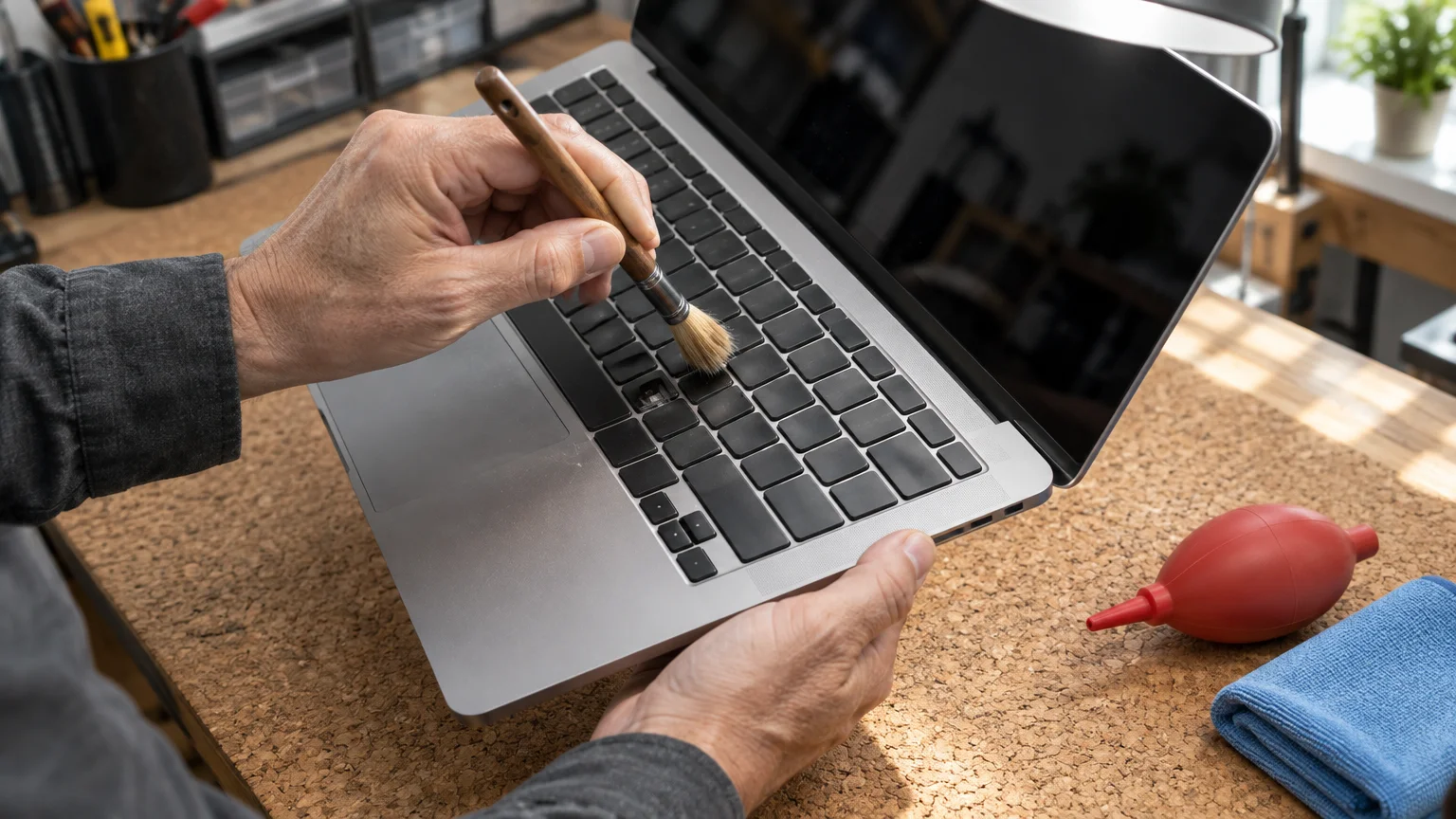
If only one specific key types twice while all other keys behave normally, a physical crumb or dust speck may be trapped under that switch. Cleaning your keyboard requires careful handling to protect delicate hardware.
Just like sticky keys, pointer issues can disrupt your flow, so review what to do if your wireless mouse cursor lags and stutters while working.
Liquid cleaners can permanently damage keyboard electronics and void hardware warranties. Never spray liquid cleaners directly onto your Mac keyboard.
Always shut down your computer completely before cleaning around the keys. If you use a desktop Mac with a wireless keyboard, slide the power switch to the off position.
Follow these safe steps to clear debris from beneath your Mac keycaps:
- Shut down your Mac and disconnect the charging cable from the wall outlet.
- Hold your Mac laptop or external keyboard at a 75-degree angle so it tilts downward.
- Hold a can of compressed air upright, keeping the nozzle at least four inches away from the keys.
- Spray the affected keys using short, controlled half-second bursts from left to right.
- Rotate the keyboard 90 degrees to the right and spray the key gaps again.
- Rotate the keyboard 90 degrees to the left and spray one final pass across the switches.
Never tilt the compressed air can sideways or upside down while spraying. Inverting the can releases freezing liquid refrigerant that can crack plastic key switches.
If you own an external keyboard, a dry microfiber cloth safely removes surface oils after you blow away loose debris.

Checking macOS Updates and Software Conflicts
Operating system glitches and corrupted preference files can occasionally cause keyboard typing duplicate letters. Running outdated system software leaves known input bugs unpatched.
Applying routine updates keeps your Mac running smoothly and protects your personal information. Review the CISA guidance on software updates for best practices on system maintenance.
Check for available macOS updates using these steps:
- Open System Settings from the Apple menu.
- Click General in the left sidebar.
- Click Software Update on the right pane.
- Click Update Now if a system update appears on screen.
If your software is up to date, check whether a Bluetooth connection issue affects your external keyboard. Wireless keyboards with dying batteries often stutter and produce repeated letters.
Recharge your external keyboard or replace its batteries to see if consistent electrical power resolves the symptom.
You can also restart your Mac in Safe Mode to isolate background software conflicts. To do this on modern Apple silicon Macs, shut down your Mac, then press and hold the power button until you see startup options.

Hardware Repair Options and Support Safeguards
If you adjusted your timing sliders, cleaned the switches, and updated macOS, yet a specific key still doubles every press, the switch mechanism may require physical repair.
Older Mac laptops manufactured between 2015 and 2019 used butterfly key switches that were particularly prone to failure. Modern Mac models use scissor switches, which are far more durable but can still wear out over years of use.
Be cautious when searching for computer repair help online. Fraudulent companies frequently run search ads designed to deceive seniors seeking tech assistance.
Consult the FTC guide on spotting tech support scams to learn how fraudulent operators trick computer owners into paying for fake repairs.
Never grant remote access to your computer to an unsolicited caller or a company you found through an emergency browser popup. Official computer makers will never prompt you with flashing telephone numbers.
Review the Apple official support warning on fraudulent calls to recognize legitimate communications from Apple technicians.
To arrange legitimate hardware service, book an in-person appointment at an Apple Store Genius Bar or an Apple Authorized Service Provider through Apple’s official website.
Frequently Asked Questions
Why does my Mac keyboard type double letters even when I tap quickly?
Rapid double typing usually happens because the switch beneath the keycap has minor dirt accumulation or switch bounce. If the issue occurs across all keys, your Key Repeat Delay slider is likely set too short for your hand release timing.
What is the difference between Delay Until Repeat and Slow Keys?
Delay Until Repeat controls how long you must hold an already-accepted key before the Mac types duplicate letters. Slow Keys controls how long you must press a key before the Mac accepts the initial keystroke at all.
Can a low battery in a wireless Apple Magic Keyboard cause double typing?
Yes, a low battery causes wireless signal drops and communication latency between the keyboard and Mac. This erratic signal often causes macOS to interpret a delayed keystroke as a prolonged hold, resulting in duplicate characters.
Will turning on Slow Keys make my Mac feel slow or sluggish?
Slow Keys only affects keyboard input timing, not your computer’s processing speed. If you calibrate the acceptance delay to 0.30 seconds, typing will feel normal while eliminating accidental duplicate letters.
Note: Menus and button names change with software updates. These steps were written for current versions as of 2026; if a screen looks different on your device, the maker’s support page linked above has the latest wording.
ClearTechGuide is independent and is not affiliated with Apple, Google, Microsoft, Amazon or any other company mentioned.
