
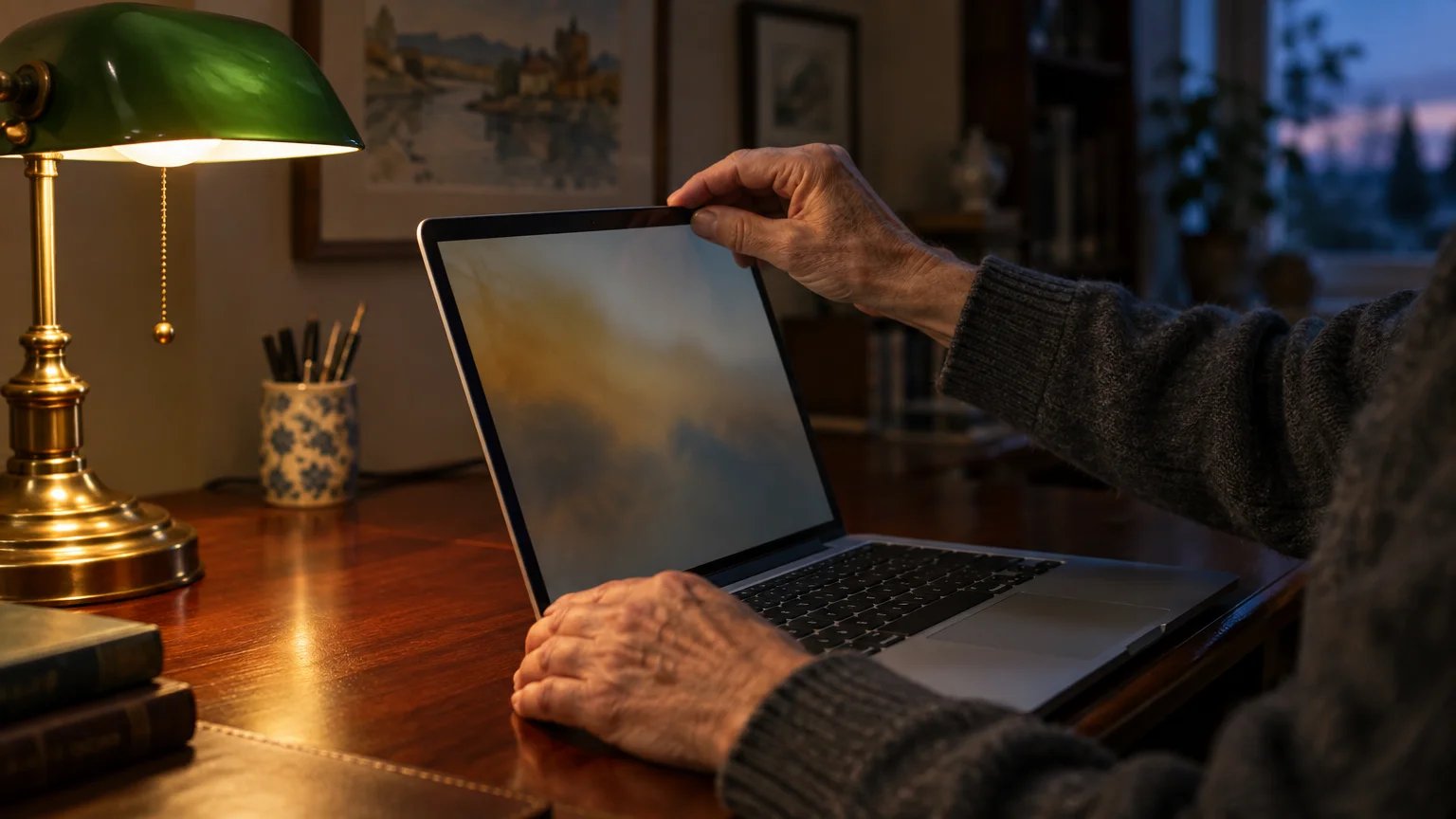
You can stop laptop screen flicker and eliminate harsh evening reflections by adjusting three specific hardware settings tonight. These adjustments relieve ocular strain, especially if you manage chronic dry eyes after sunset.
Display optimization is an essential part of basic computer maintenance that ensures everyday computing stays comfortable.
Most guides suggest dimming your screen to cut glare, but lowering brightness below specific hardware thresholds actually triggers pulse-width modulation flicker. Keeping brightness above that critical level stops hidden screen pulsations while software filters handle the glare.
This guide walks you through the exact display configurations across Windows 11, macOS, and ChromeOS to help you read comfortably.
In this guide10 sections
- The Difference Between Refresh Rates and Pulse-Width Modulation Flicker
- Safe Brightness Thresholds to Stop Laptop Screen Flicker
- How to Stop Laptop Screen Flicker on Windows 11
- How to Adjust Refresh Rate and Lighting on macOS
- How to Manage Screen Frequency and Night Light on ChromeOS
- Physical Lighting Adjustments to Fix Monitor Glare Evening Sessions
- Worked Scenario: Eleanor’s Evening Display Configuration
- Hardware and Software Solutions for Display Comfort
- Keeping Display Drivers Updated and Avoiding Support Scams
- Frequently Asked Questions

The Difference Between Refresh Rates and Pulse-Width Modulation Flicker
Display flicker comes in two distinct forms that affect your visual system differently. Understanding this technical distinction helps you stop laptop screen flicker without creating extra eyestrain.
Refresh rate describes how many times every second your computer redraws the full image on your screen. Computer hardware measures this frequency in Hertz (Hz).
A standard laptop screen refreshes at 60 Hz, meaning it paints 60 fresh image frames each second. When this rate stutters or drops to 30 Hz, text appears choppy during scrolling.
Pulse-width modulation (PWM) is an entirely different mechanism that controls display brightness. Instead of reducing electrical current to the LEDs, laptop makers switch the backlight on and off thousands of times per second.
When your screen brightness sits at 100%, the backlight stays continuously lit without turning off. Lowering your brightness slider lengthens the dark intervals between light pulses to simulate a dimmer panel.
Your brain merges these rapid flashes into a steady picture, but your visual reflexes still react to the pulsing illumination. Your iris muscles constantly constrict and dilate to compensate for each invisible flash.
For a 77-year-old reader with dry eyes, this continuous muscular movement causes severe ocular fatigue. The flashing also slows your blink rate, which dries out your tear film rapidly.
Safe Brightness Thresholds to Stop Laptop Screen Flicker
Most readers naturally lower their screen brightness to 15% or 25% when reading in a dim room. They assume a darker screen protects their vision.
If you also read on handheld devices in the evening, learning how to adjust screen brightness on your phone uses similar techniques to protect your vision.
On screens with PWM controls, excessive dimming actually worsens eye strain. The longer dark intervals between flashes force your eyes into deeper pupil spasms.
Most consumer laptops engage aggressive PWM cycles once screen brightness falls below 55% or 60%. Above 60%, the screen either disables PWM completely or maintains very short, gentle off-cycles.
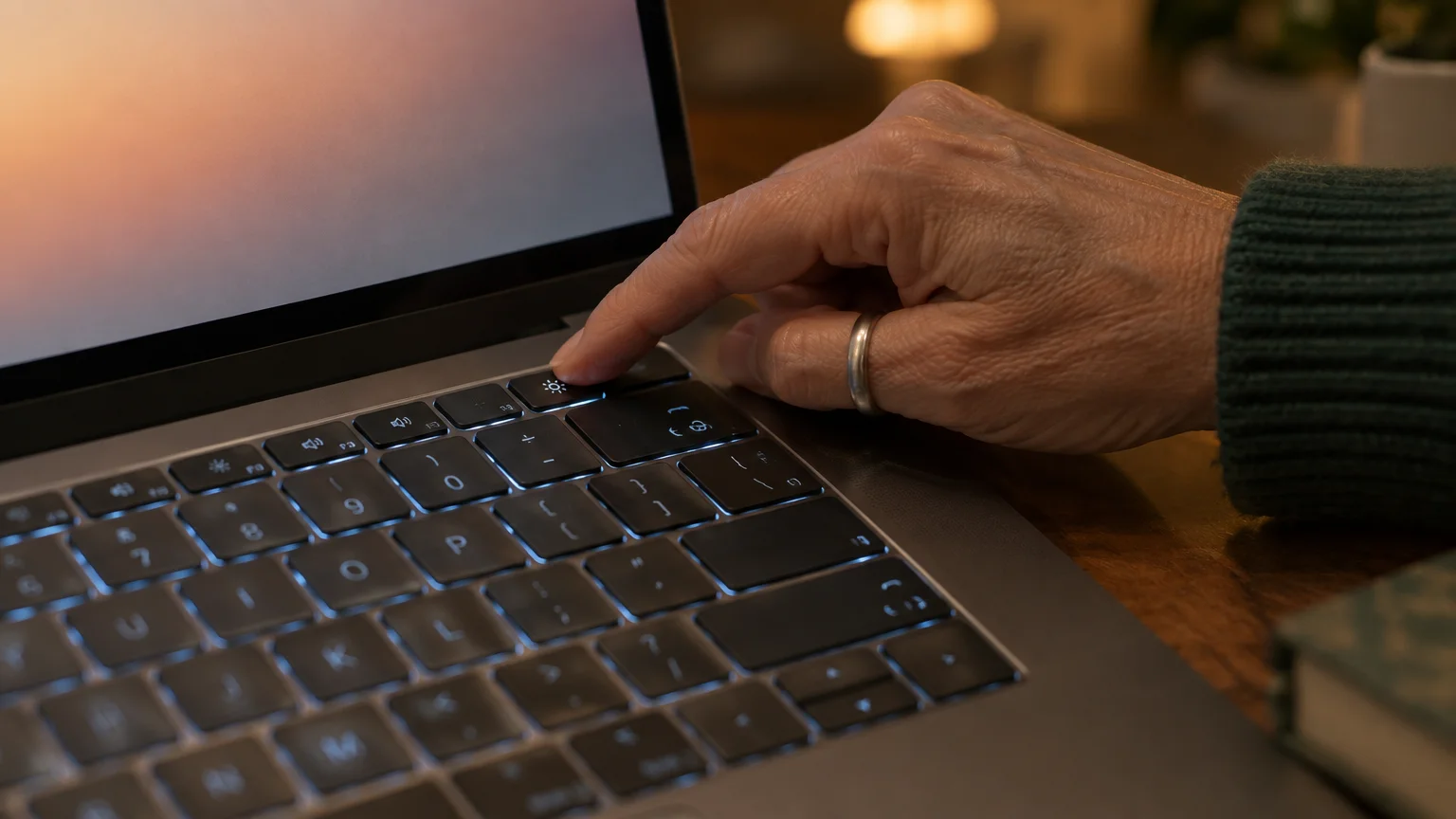
We recommend maintaining a hardware brightness floor between 60% and 70% during evening sessions. This setting keeps your LED backlight stable and prevents the deep pulses that irritate dry eyes.
To cut excess illumination, use software color filters rather than pulling down the hardware brightness slider. Software filters reduce harsh blue light without triggering backlight pulses.

How to Stop Laptop Screen Flicker on Windows 11
Configuring your Windows 11 laptop takes only a few minutes. You will first confirm your refresh rate, then activate the built-in color warmth filter.
While exploring your display controls, you can also review how to adjust your computer’s sound settings to make system alerts easier to hear.
Before opening system settings, press the Windows logo key and the Plus sign (+) together if you need larger text. This shortcut launches Windows Magnifier immediately.
Follow these steps to verify that your screen runs at its intended refresh rate:
- Select the Start button on your taskbar.
- Select the Settings icon shaped like a gear.
- Select System in the left sidebar menu.
- Select Display from the options on the right side.
- Scroll down to Related settings and select Advanced display.
- Select the dropdown menu next to Choose a refresh rate.
- Select 60 Hz, or select 120 Hz if your panel supports dynamic refresh.
Avoid selecting any refresh frequency below 60 Hz. Frequencies such as 30 Hz or 48 Hz produce visible text judder that exhausts dry eyes.
Next, adjust the Windows 11 Night light feature to reduce evening glare without dropping your hardware brightness below 60%:
- Select Display in the navigation trail at the top of the window.
- Locate the Night light row and move the toggle to On.
- Select the small arrow to the right of the toggle to view Night light properties.
- Drag the Strength slider to a value between 40 and 50.
- Turn on the toggle switch labeled Schedule night light.
- Select Sunset to sunrise to automate the schedule based on your local time.
Official troubleshooting resources for Windows display hardware are available through Microsoft Windows help & learning.
How to Adjust Refresh Rate and Lighting on macOS
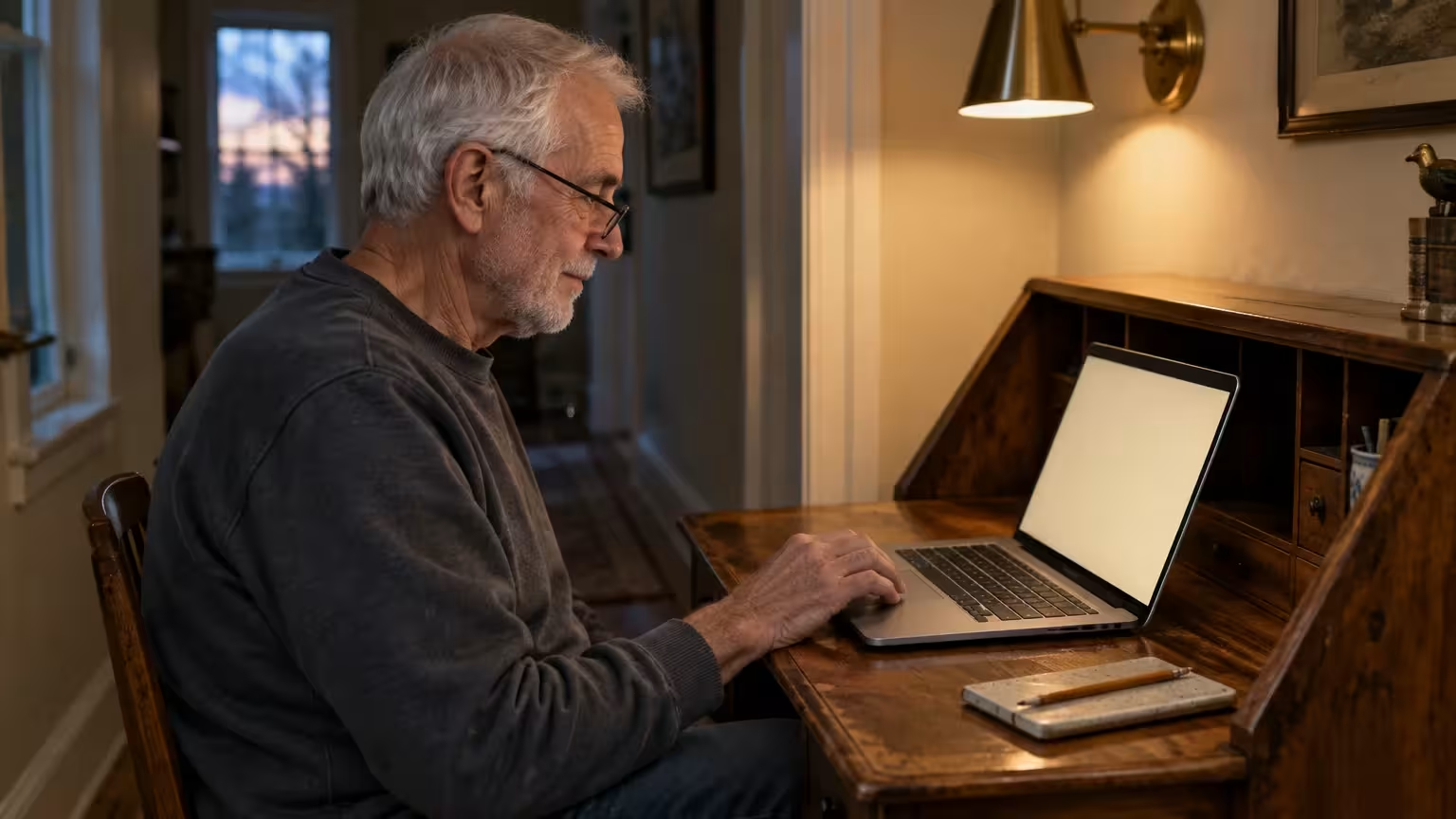
Apple laptops feature vivid screens with automated ambient color sensors. You can adjust these controls to stop laptop screen flicker and relieve ocular fatigue.
For Apple tablet users reading in bed, you can also make your iPad screen black with white text to cut glare without dimming the backlight.
If you often plug in an external display for work, learning how to connect a second monitor to your computer will help you manage its refresh rate separately.
If menu labels appear small, press Option + Command + 8 to toggle the macOS Zoom tool on your screen.
Follow these steps to lock your refresh frequency and configure color warming on macOS:
- Select the Apple menu in the top-left corner of your screen.
- Select System Settings from the dropdown list.
- Select Displays in the left navigation sidebar.
- Select the dropdown menu labeled Refresh Rate.
- Select 60 Hertz, or select ProMotion if you use a MacBook Pro.
- Turn on the toggle switch labeled True Tone to balance white tones against your room lighting.
- Select the Night Shift… button in the lower-right area of the pane.
- Select Sunset to Sunrise from the Schedule dropdown menu.
- Drag the Color Temperature slider toward the More Warm position.
- Select Done to apply your settings.
Leave your display brightness slider at roughly 65% in Control Center to stay above the PWM threshold.
You can review more detailed display customization options inside the official Apple Mac User Guide.
How to Manage Screen Frequency and Night Light on ChromeOS
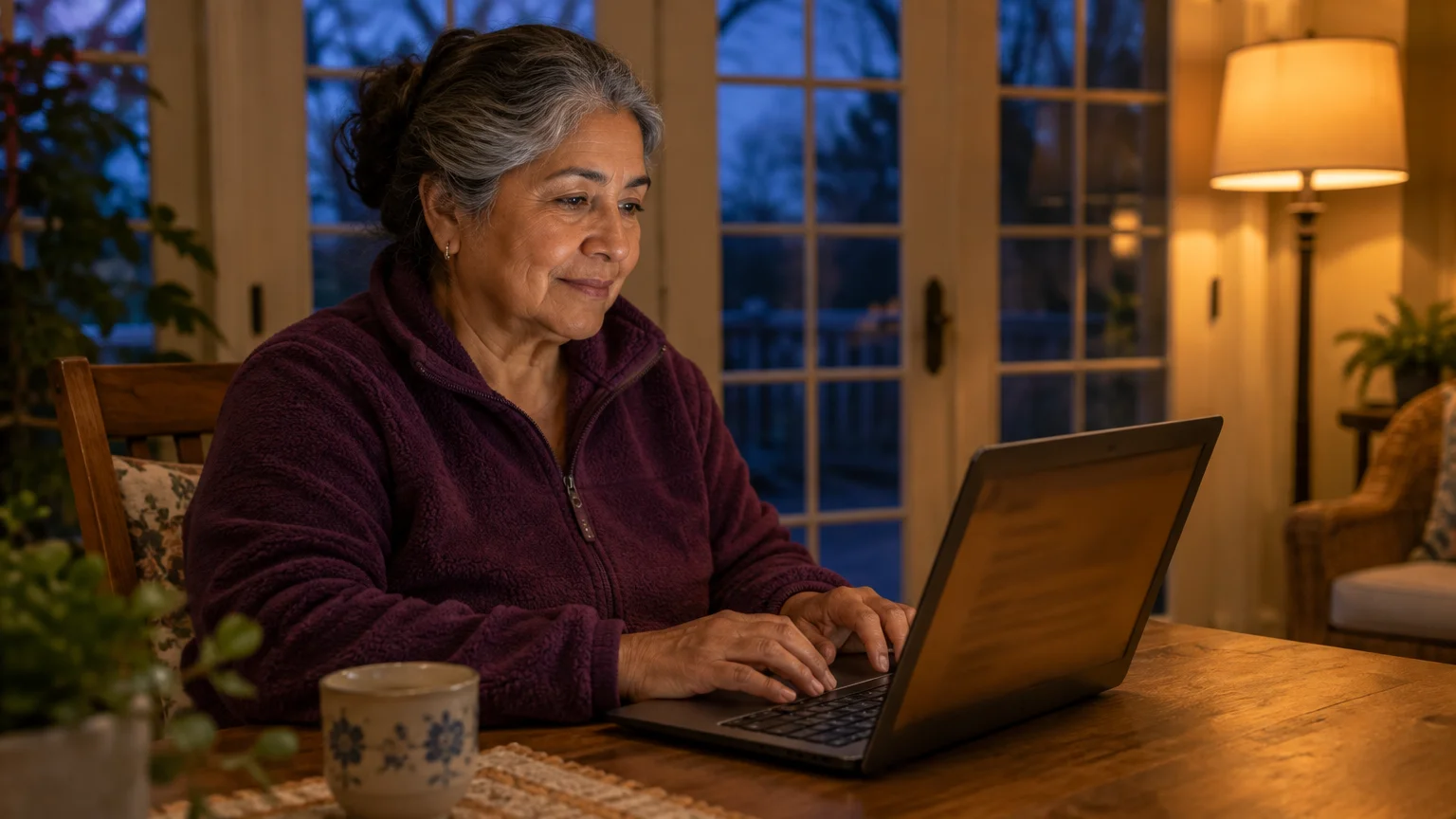
Chromebooks provide simple display controls that help you fix monitor glare evening fatigue. Adjusting these settings takes less than two minutes.
If your other mobile screens shut off unexpectedly while reading, see how to stop your phone screen from going black so fast during quiet sessions.
If you want larger text while reviewing settings, press Ctrl + Search + M to toggle the full-screen magnifier.
Follow these steps to adjust your Chromebook display settings:
- Select the clock in the bottom-right corner of your screen to open Quick Settings.
- Select the Settings gear icon.
- Select Device in the left-hand menu.
- Select Displays in the main window.
- Select the dropdown menu next to Refresh rate and select 60Hz.
- Move the hardware Brightness slider to at least 60%.
- Move the toggle switch next to Night Light to On.
- Drag the Color temperature slider toward the warm setting.
- Select Custom under the Schedule menu to set your preferred evening hours.
These adjustments soften screen glare while preventing the backlight pulsing that leads to dry eye irritation.
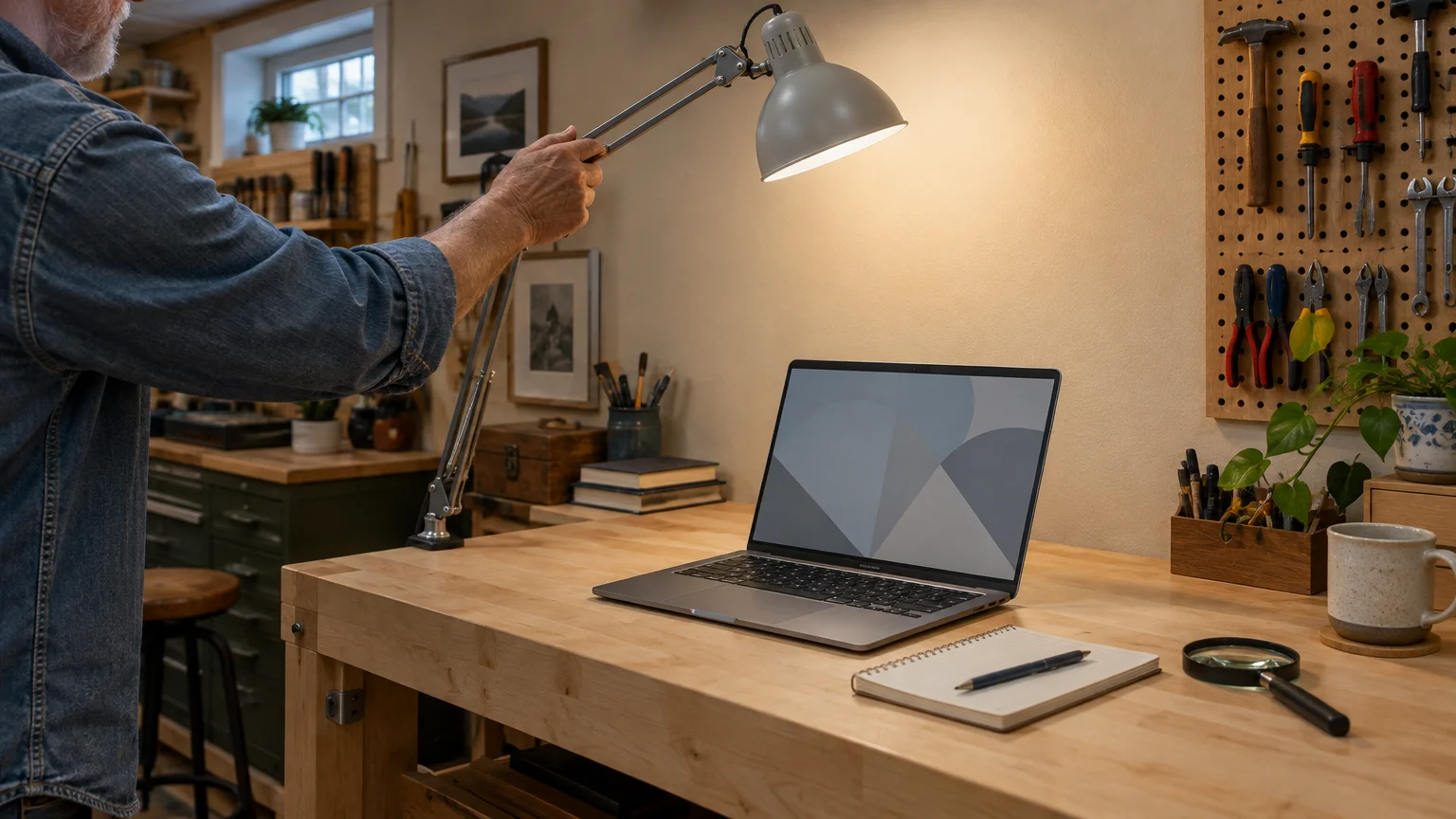
Physical Lighting Adjustments to Fix Monitor Glare Evening Sessions
Screen glare occurs when ambient room light bounces off your display glass directly into your pupils. This reflected light obscures text and triggers squinting.
While optimizing your desk setup, check that vents stay clear so you know why your laptop fan is loud when running demanding evening displays.
Glare presents serious challenges for readers with dry eyes because surface reflections disrupt tear film clarity. Proper room lamp placement stops glare before it hits the glass.
Sitting in a completely dark room while using your laptop creates extreme contrast glare. Your eyes must constantly readjust between the bright screen and the dark room.
Use these practical lighting rules to reduce computer eye strain seniors encounter during evening computer use:
- Position your desk lamp at a 90-degree angle to the side of your laptop screen rather than behind your chair or directly behind the display.
- Choose 2700K warm-white LED lightbulbs that emit soft yellow light instead of 5000K daylight bulbs that cast cold blue glare.
- Close window blinds before twilight to prevent directional streetlights and headlights from reflecting across your display glass.
- Avoid working beneath uncovered ceiling fixtures that cast harsh downward reflections across your laptop keyboard and screen.
- Keep overall room brightness at approximately 300 lux so ambient room illumination balances a 60% screen brightness setting.
Balancing your room lighting eliminates mirror-like reflections without forcing you to dim your screen into PWM flicker ranges.
Worked Scenario: Eleanor’s Evening Display Configuration
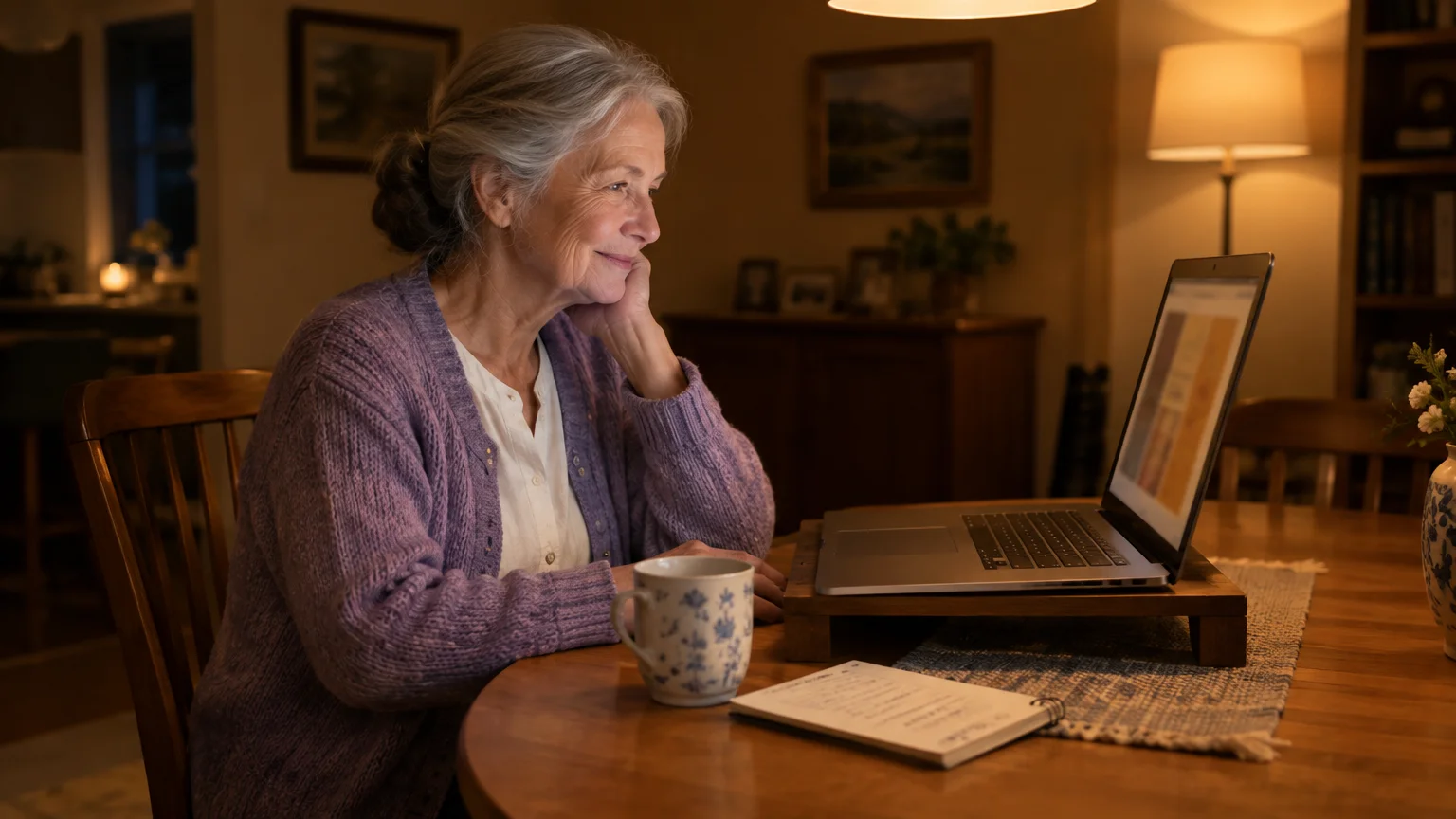
To understand how these changes work together, consider Eleanor, a 77-year-old reader who manages chronic dry eyes. Eleanor reviews personal finance documents on her Windows laptop between 7:00 PM and 9:00 PM.
Her laptop features a 15.6-inch glossy screen rated at 250 nits peak brightness. Eleanor previously dimmed her screen to 20% to avoid harsh evening reflections.
That low setting dropped the display into deep PWM flicker, causing severe eye burning after just 20 minutes. She also worked beneath an overhead 100-watt ceiling bulb that reflected off the glass.
Eleanor corrects her setup using four specific adjustments.
First, she raises her Windows display brightness slider to 65% to eliminate PWM backlight pulsing.
Second, she enables Windows Night Light at a strength level of 45 to soften white page backgrounds.
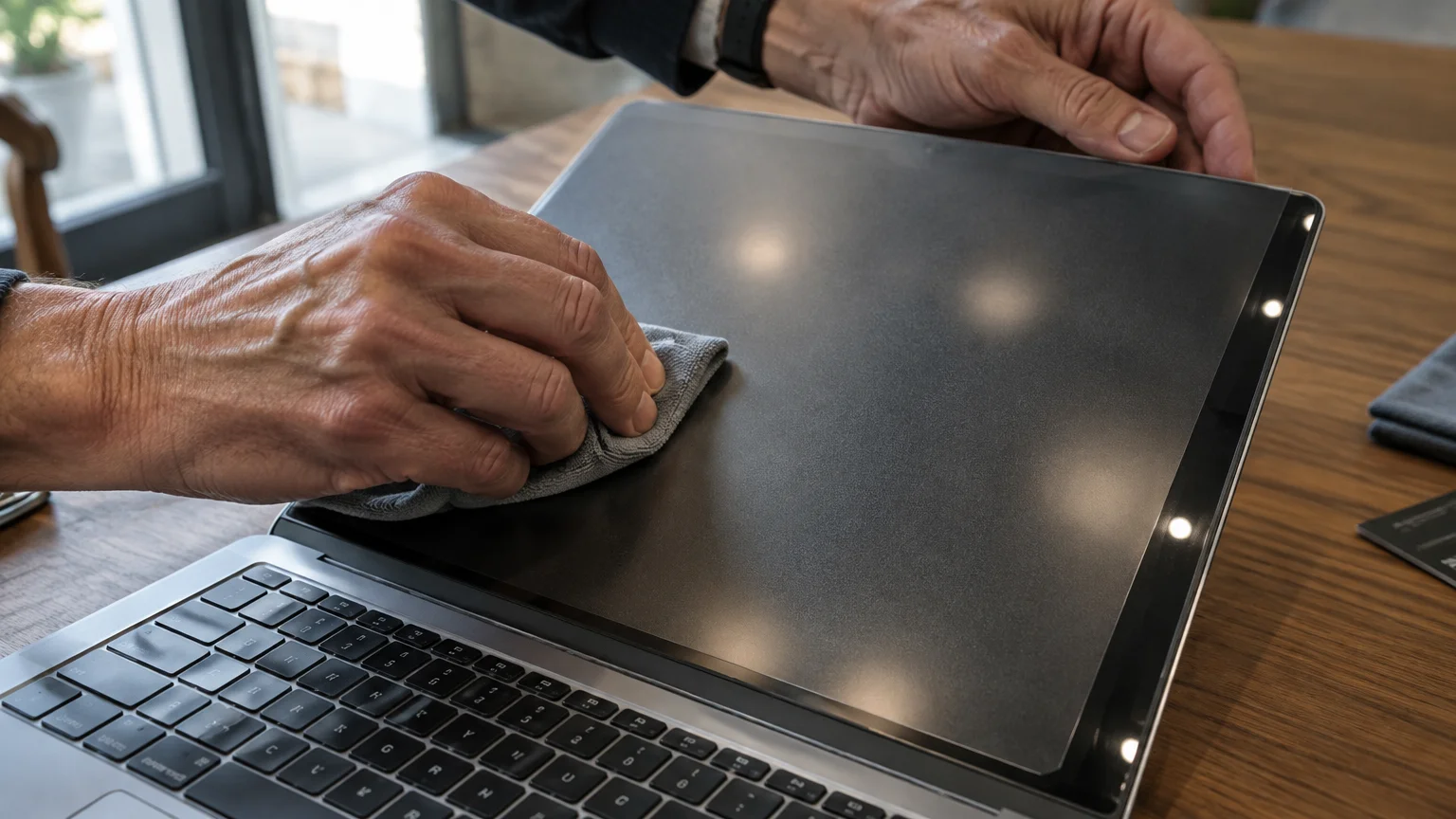
Third, she applies a 15.6-inch matte screen protector measuring 13.6 inches wide by 7.6 inches high, priced at $18.99 as of 2026. This physical layer diffuses 90% of surface glare.
Fourth, she switches off the ceiling light and turns on a 2700K desk lamp positioned three feet to her left side.
Eleanor now completes her two-hour reading sessions without eye drops, burning sensations, or visual fatigue.
Hardware and Software Solutions for Display Comfort
You can combine physical accessories with operating system settings to create a comfortable reading environment. The table below summarizes five practical interventions.
| Solution | Primary Mechanism | Flicker Reduction | Glare Reduction | Typical Cost (as of 2026) |
|---|---|---|---|---|
| Hardware Brightness Floor (60% to 70%) | Keeps LED backlight illuminated continuously | Eliminates deep PWM cycles | No direct glare reduction | $0 (Built-in setting) |
| OS Night Light or Night Shift | Shifts display color temperature toward warm amber | None (maintains backlight state) | Reduces high-contrast glare | $0 (Built-in setting) |
| Matte Screen Protector Film | Micro-etched PET surface diffuses incident light | None (operates on surface glass) | Eliminates 85% to 92% of reflections | $15 to $25 |
| Asymmetric Monitor Light Bar | Directs 300 lux across desk without hitting screen | Prevents ambient contrast flicker | Eliminates ceiling lamp reflections | $35 to $65 |
| Preservative-Free Lubricating Drops | Replenishes corneal tear film during screen sessions | Relieves ocular sensitivity to flicker | Reduces light-scattering irritation | $12 to $22 per box |
A physical matte screen protector solves surface glare permanently without changing display colors or reducing text sharpness.
Pairing that physical protector with a 65% hardware brightness floor creates an optimal reading environment for dry eyes.

Keeping Display Drivers Updated and Avoiding Support Scams
Graphics drivers are specialized system programs that direct how your computer sends video signals to your screen panel. Corrupt or outdated drivers can cause visible screen stutter or refresh rate errors.
Always install software and driver updates directly through your operating system rather than third-party download websites. The Cybersecurity and Infrastructure Security Agency offers guidelines on how to safely update software.
Be cautious if an unexpected web browser pop-up warns that your laptop screen is flickering due to an infection. Deceptive websites display fake system alerts designed to scare readers into calling fraudulent support phone numbers.
Legitimate hardware or driver issues never generate browser pop-up windows asking for remote access or credit card numbers.
If you encounter an aggressive screen alert demanding phone payment, consult the FTC guide to tech support scams before taking action.
Frequently Asked Questions
Why does my laptop screen flicker more when I dim the display?
Most laptop screens use pulse-width modulation to dim backlights. Lowering brightness lengthens the off-time between pulses, creating rapid invisible strobing that fatigues your eye muscles.
Can computer screen glare worsen dry eye symptoms in seniors?
Yes, reflected glare creates visual noise that forces your eyes to squint and refocus constantly. This extra effort reduces your blink rate and accelerates tear evaporation.
What refresh rate should I choose to reduce computer eye strain seniors experience?
Select 60 Hz or higher. A 60 Hz or 120 Hz refresh rate delivers smooth text motion, while lower frequencies produce noticeable stutter that strains your eye tracking.
Do anti-glare screen protectors make screen text blurry for readers with reduced vision?
High-quality matte protectors diffuse glare without compromising letter clarity. Select a screen protector made from optical-grade PET film so small text remains crisp and legible.
What should I do if my laptop screen flickers regardless of brightness settings?
Persistent screen flicker at high brightness often indicates an outdated graphics driver or a loose display cable. Install official system updates before seeking authorized hardware service.
Note: Menus and button names change with software updates. These steps were written for current versions as of 2026; if a screen looks different on your device, the maker’s support page linked above has the latest wording.
ClearTechGuide is independent and is not affiliated with Apple, Google, Microsoft, Amazon or any other company mentioned.
