
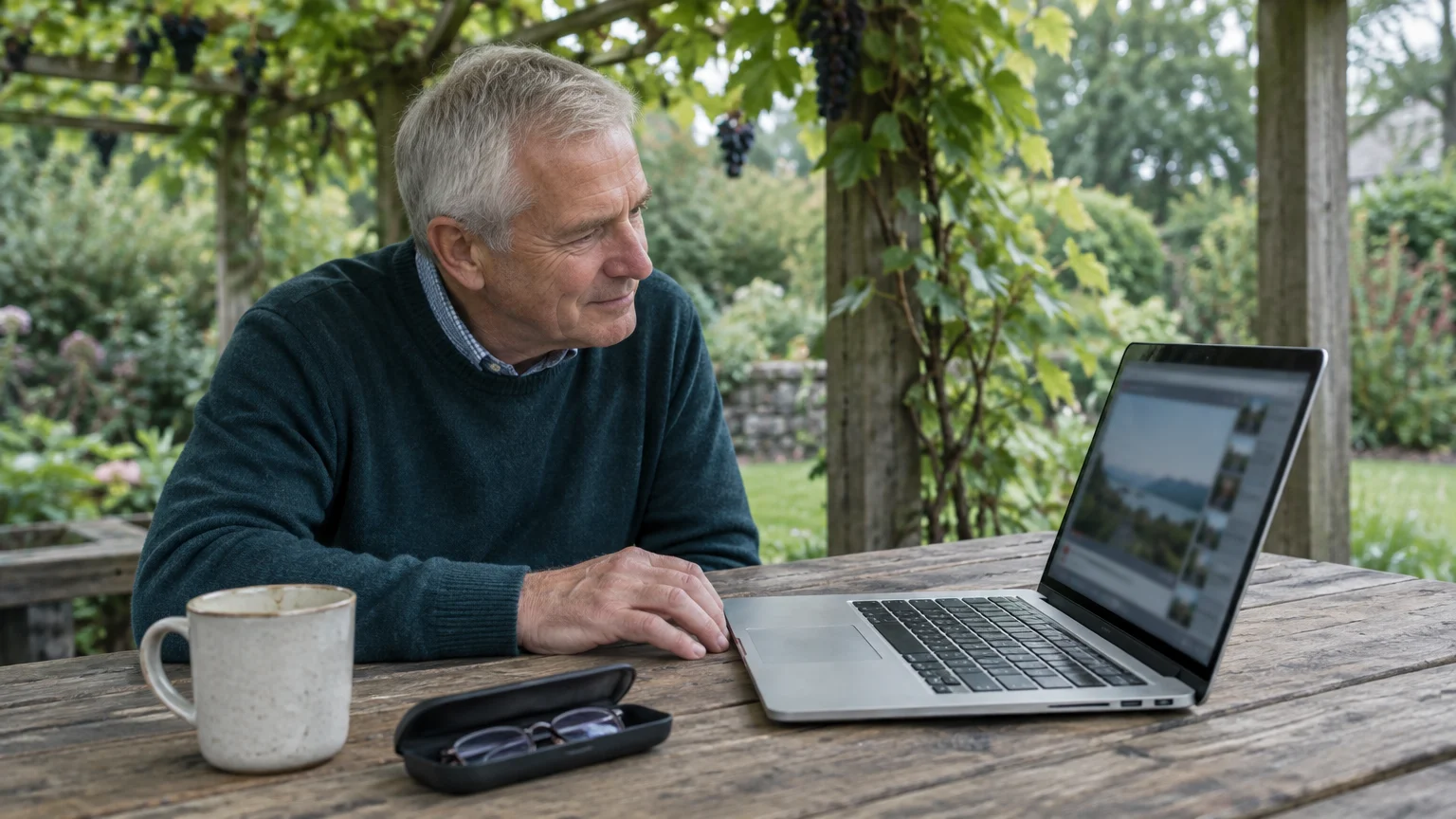
You can make quiet laptop speakers noticeably louder without buying external speakers or paying for risky software. A hidden setting inside Windows boosts whisper-soft speech past normal volume limits while keeping loud sound effects balanced.
Most online guides urge you to install paid booster programs or browser extensions. We show you how to unlock the free, built-in loudness equalization tool already resting on your laptop.
If you struggle to hear speech on YouTube videos even when your master volume slider shows 100 percent, this adjustment takes less than three minutes to set up.
In this guide8 sections
- Why Laptop Speakers Sound Too Quiet
- How to Enable Windows Loudness Equalization
- Worked Scenario: Boosting Soft YouTube Dialogue
- Browser and Media Player Volume Boosts Above 100%
- Sound Enhancement Options for Mac and Chromebook
- Comparing Laptop Audio Boosting Methods
- Avoiding Risky Software and Protecting Your Hearing
- Frequently Asked Questions
Why Laptop Speakers Sound Too Quiet
Modern laptop enclosures leave little physical space for speaker hardware. As a result, internal laptop speaker drivers measure less than one inch across and struggle to project low and mid-range audio frequencies.
If background humming makes audio even harder to hear, find out why your laptop fan is running loud and blowing hot air.
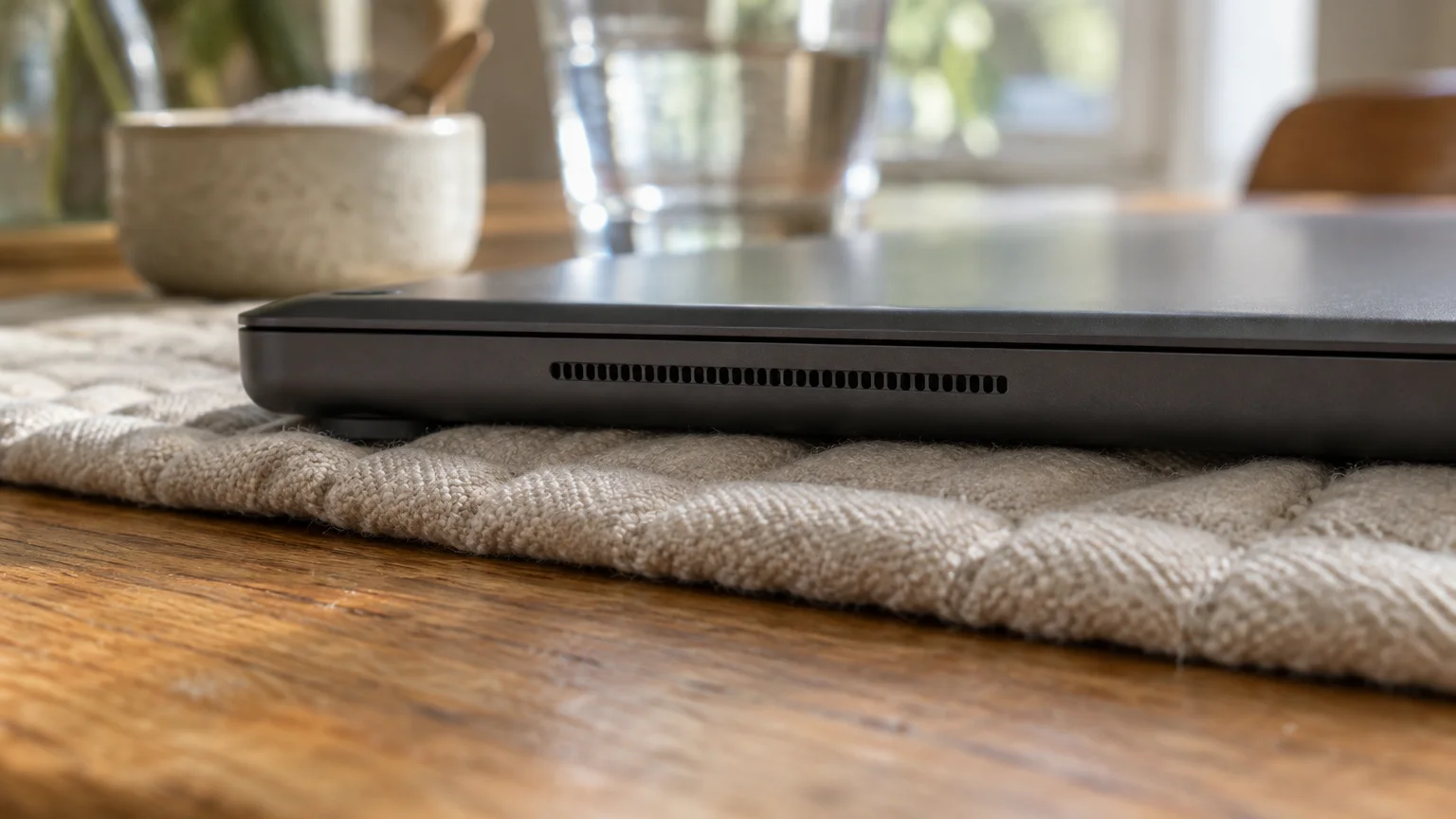
Many laptop manufacturers position speaker grilles along the bottom edge of the frame. Soft surfaces like tablecloths, blankets, or clothing absorb sound waves immediately before they reach your ears.
Uneven audio production in online videos creates another hurdle. Dynamic range refers to the difference in loudness between the quietest whisper and the loudest blast in an audio track.
When an online video features wide dynamic range, conversational speech sounds faint while background music roars. Raising your main volume slider to maximum does not fix this underlying imbalance.
According to Pew Research findings on tech adoption among adults 65+, older adults rely heavily on personal computers for news, family connection, and lifelong learning.
Mild high-frequency hearing loss makes distinguishing quiet consonants like “s,” “f,” and “th” difficult. Boosting total audio output through software processing lifts those muted frequencies without requiring expensive accessories.

How to Enable Windows Loudness Equalization
Loudness equalization is an automated sound setting that lifts quiet sounds like whispering while capping sudden loud noises like explosions. This single adjustment will make laptop speakers louder across all installed applications.
Along with volume improvements, there are several simple ways to make your computer screen easier to read when exploring control panels.
For permanent visual comfort while navigating system settings, learn how to adjust font sizes on your computer.
Windows 11 buries this utility deep inside legacy configuration windows rather than the modern Settings screen. You can access the legacy control panel directly with a quick keyboard shortcut.
If you have trouble reading small system fonts, press the Windows logo key and the Plus sign (+) to open Windows Magnifier before you begin.
Follow these numbered steps to configure the setting on your computer:
- Press the keyboard shortcut Windows logo key + R to open the Run dialogue box.
- Type mmsys.cpl into the text field and click OK to open the classic Sound window.
- Locate your default playback device, labeled Speakers, on the Playback tab.
- Click Speakers once to highlight it, then click the Properties button near the bottom right.
- Click the Enhancements tab located along the top edge of the Properties window.
- Scroll through the feature list and check the box beside Loudness Equalization.
- Click the Settings button below the list, drag the slider to Short, and click OK.
- Click Apply, then click OK to save your changes and boost sound windows 11 output.
You can review official device options anytime on the Microsoft Windows help and learning portal. The short release setting compresses dialogue immediately, delivering clearer vocal presence.
If your sound card manufacturer hides the Enhancements tab, check under the Advanced or Spatial sound tabs. Some Realtek audio drivers place loudness equalization within an audio console app provided by your laptop maker.

Worked Scenario: Boosting Soft YouTube Dialogue
Consider Arthur, a 67-year-old retired civil engineer with mild bilateral hearing loss. Arthur uses an HP Pavilion 15 laptop running Windows 11 as of 2026 to watch historical documentaries on YouTube.
Keep in mind that boosting speaker levels during virtual meetings can cause audio feedback, so learn why you hear an echo on video calls before joining your next chat.
If you still find speech difficult to follow in noisy rooms, you can also connect Bluetooth headphones to your computer to direct clear audio straight to your ears.
Arthur struggles with a 42-minute archival video where conversational dialogue averages only 48 decibels (dB). His quiet home office produces 42 dB of ambient background noise from air conditioning and outdoor traffic.
Because the vocal track sits only 6 dB above the room baseline, Arthur strains to comprehend proper names and dates. His laptop master volume stands at 100 percent, and the YouTube video slider also rests at 100 percent.
Arthur opens the Run box, inputs mmsys.cpl, and enables the windows loudness equalization dialogue. He shifts the release slider to Short to catch rapid dialogue shifts.
With loudness equalization active, the computer automatically amplifies the soft dialogue track from 48 dB up to 64 dB. Meanwhile, loud orchestral interludes remain capped at a safe 72 dB limit.
Arthur also presses Windows logo key + Ctrl + L to turn on Windows Live Captions. The system generates real-time subtitles across the top of his screen, confirming spoken dialogue alongside the boosted volume.
Browser and Media Player Volume Boosts Above 100%
Sometimes you need extra amplification for a single quiet media file rather than your entire operating system. Certain free media tools allow software pre-amplification past standard boundaries.
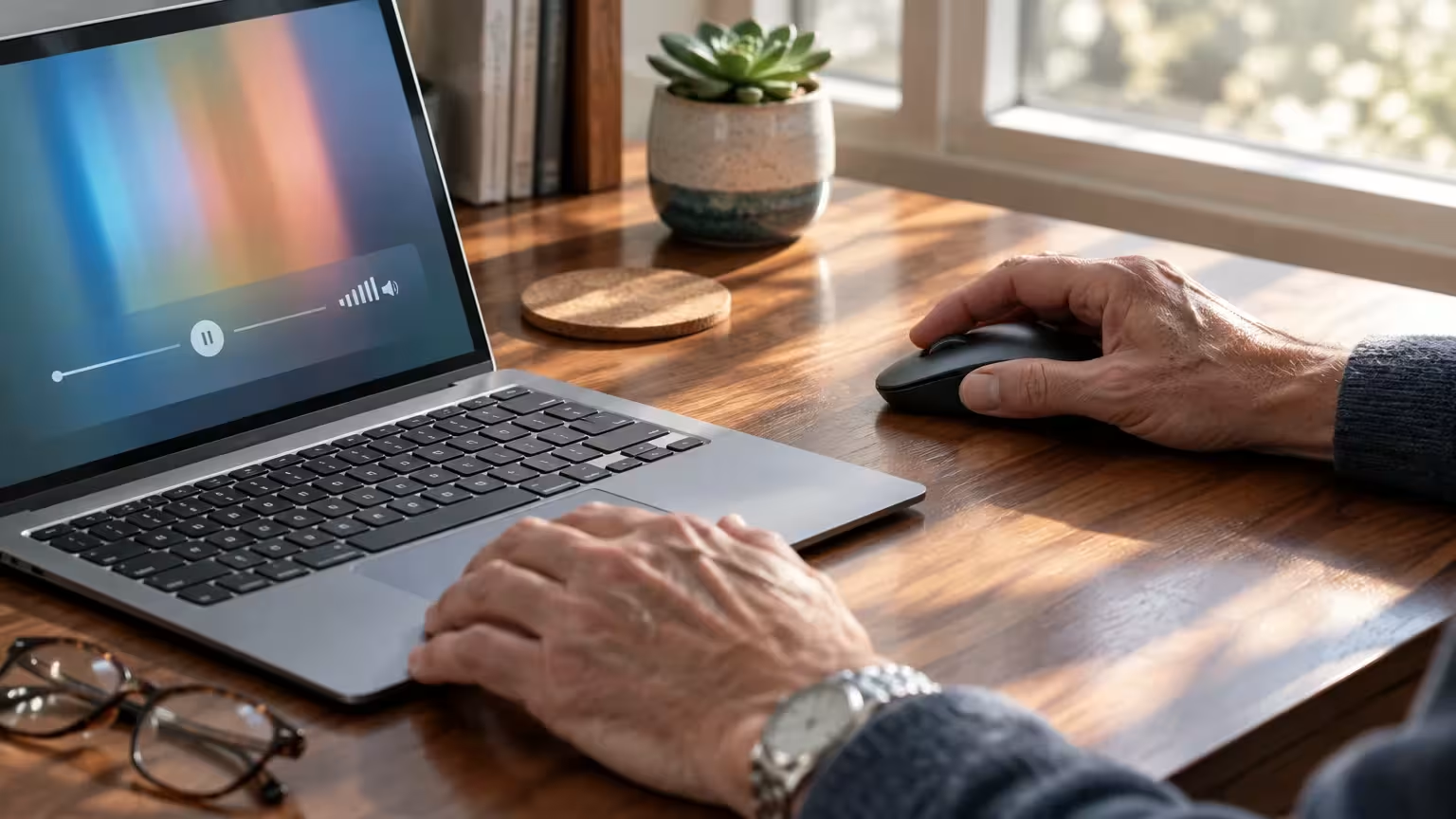
VLC Media Player includes a native feature that pushes playback levels past 100 percent up to 200 percent. It processes the digital audio stream before sending signals to your sound card.
Digital clipping occurs when an audio signal exceeds the maximum level a speaker can handle, causing harsh, distorted static. To avoid harsh clipping, raise playback volume in small increments.
Configure VLC playback amplification using these steps:
- Open VLC Media Player on your computer.
- Click Tools in the top menu bar, then click Preferences.
- Select the Audio tab on the left side of the preferences window.
- Locate the Maximum volume displayed field near the bottom.
- Type 200 into the box or drag the slider up to 200%.
- Click Save at the bottom of the window to apply your new threshold.
When playing downloaded videos in VLC, use the Ctrl + Up Arrow shortcut to raise volume above standard limits. Stop increasing the slider if you hear crackling or buzzing sounds.
When streaming inside web browsers like Chrome or Edge, check the on-screen video player first. Click inside the video window and tap the Up Arrow key to ensure the web player matches your master volume.

Sound Enhancement Options for Mac and Chromebook
Apple macOS and Google ChromeOS do not include an identical legacy loudness equalization toggle. However, both platforms offer built-in accessibility tools that deliver clear speech enhancement.
If you enjoy private listening from the couch as well, you can also connect wireless headphones to an older TV for crisp dialogue across all your entertainment.
Windows also includes helpful audio cues for keyboard entry, such as hearing a sound whenever you press Caps Lock.
Apple laptops feature a built-in equalizer inside the native Music application that adjusts system-wide acoustic profiles. Review detailed operating steps directly in the Apple Mac User Guide.
To optimize vocal clarity on a Mac, apply these steps:
- Open the Music app on your Mac.
- Click Window in the top menu bar, then select Equalizer.
- Check the box labeled On to activate acoustic adjustments.
- Click the drop-down preset menu and choose Spoken Word or Vocal Booster.
- Close the window to preserve the frequency curve for compatible media playback.
On a Chromebook running ChromeOS, click the digital clock in the bottom right corner of the shelf. Click the Audio settings icon next to the volume slider to confirm your chosen output speaker.
Chromebook users can also enable system-wide captions to supplement quiet speakers. Open Settings, click Accessibility, select Audio and captions, and switch on Live Caption.

Comparing Laptop Audio Boosting Methods
Different volume enhancement methods carry distinct trade-offs between cost, volume headroom, and audio distortion. Review the options below to pick the best method for your listening setup.
If your speakers still fail to produce sound or settings remain missing, review our advice on how to get computer tech support safely.
| Boosting Method | Effective Volume Gain | Distortion Risk | Cost as of 2026 | Safety Level |
|---|---|---|---|---|
| Windows Loudness Equalization | +10 dB to +16 dB on quiet speech | Low (automatic compression limiter) | Free (built into Windows) | High (official system feature) |
| VLC Player Volume Overdrive | Up to 200% on local video files | Moderate (clipping occurs above 140%) | Free (open-source software) | High (official application feature) |
| Browser Audio Booster Extensions | Up to 600% on web tab audio | High (severe harmonic distortion) | Free or subscription | Low (malware and tracking risks) |
| External 3.5mm Powered Desktop Speakers | +25 dB to +40 dB across all media | Very Low (dedicated audio drivers) | $20 to $45 | High (dedicated hardware) |
As shown in the comparison, Windows loudness equalization offers the most balanced volume lift. It raises quiet dialogue without the harsh distortion produced by third-party browser plugins.
Avoiding Risky Software and Protecting Your Hearing
Before downloading any third-party “volume booster” tool from internet searches, exercise caution. Unverified utilities often bundle intrusive software, collect browsing records, or demand subscription charges for standard Windows features.
Cybercriminals frequently use utility downloads to launch deceptive technical support schemes. Read guidance from the FTC on spotting and reporting tech support scams before installing unknown utilities.
Always keep your audio drivers updated through official channels rather than third-party driver tools. Follow recommendations from CISA on updating software safely using regular Windows Update routines.
If you wear modern prescription hearing aids, you can bypass your tiny laptop speakers entirely. Modern laptops support direct Bluetooth audio streaming directly into Oticon, Phonak, and Starkey hearing devices.
Consult the FCC hearing aid compatibility guide to understand wireless transmission standards. Streaming audio directly into your hearing aids provides sharp, personal clarity without disturbing other household members.
Simple physical adjustments also boost acoustic output without touching a single setting:
- Place your laptop on a hard wooden desk or glass table to reflect sound waves upward.
- Avoid using your laptop on top of soft quilts, plush pillows, or heavy rugs.
- Position your laptop three to four inches away from a wall corner to bounce acoustic energy toward your chair.
- Wipe dust and lint gently from speaker vents using an unbent paperclip wrapped in a microfiber cloth.
Frequently Asked Questions
Why does my Windows 11 laptop lack the Enhancements tab?
Some custom audio drivers replace the standard Enhancements tab with dedicated vendor software. Search your Start menu for Realtek Audio Console, Waves MaxxAudio, or HP Audio Center to locate dynamic range adjustments.
Will boosting laptop volume past 100 percent damage the speakers?
Windows Loudness Equalization will not harm your hardware because it compresses dynamic range within safe operating parameters. However, pushing software boosters past 150 percent for prolonged periods can tear delicate speaker membranes.
Can I make YouTube speech louder without altering system sounds?
Yes. You can open the Windows Volume Mixer by right-clicking the speaker icon in your system tray and selecting Open volume mixer.
This allows you to raise your browser volume while keeping system notification chimes low.
Do browser volume booster extensions steal personal information?
Many browser extensions request broad permission to read and change all data on websites you visit. Sticking to built-in Windows equalization protects your private web sessions while providing clearer sound.
Note: Menus and button names change with software updates. These steps were written for current versions as of 2026; if a screen looks different on your device, the maker’s support page linked above has the latest wording.
ClearTechGuide is independent and is not affiliated with Apple, Google, Microsoft, Amazon or any other company mentioned.
