
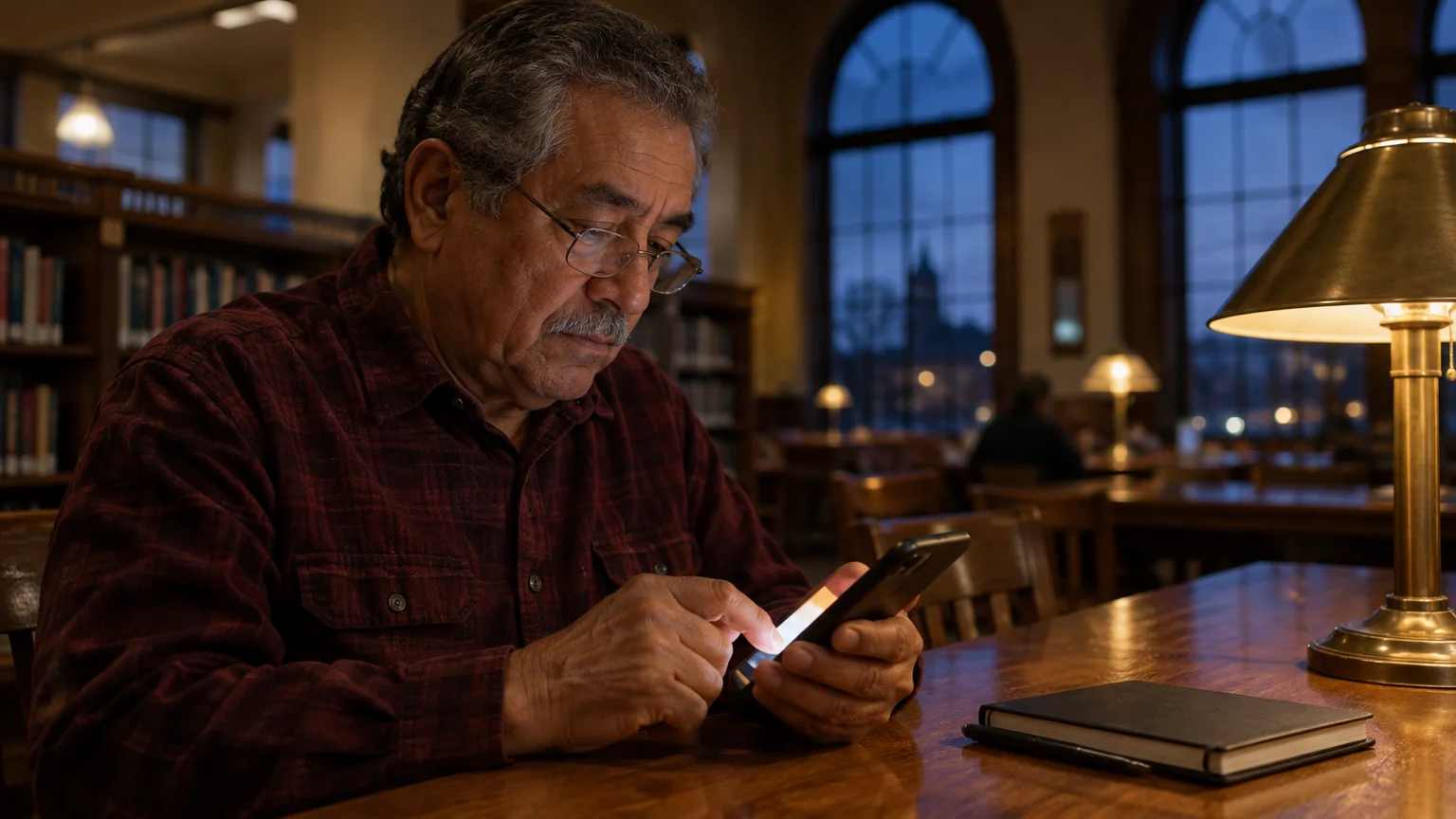
You can silence your phone keyboard entirely without losing the tactile sensation of typing under your fingertips. Removing keyboard audio keeps your late-night text messages private and lets your partner read in bed undisturbed.
Many people switch their entire phone ringer to silent to stop typing noises, but that causes missed calls from family members. Modern settings allow you to isolate and extinguish typing clicks alone.
This guide shows you how to mute keyboard clicks on Apple and Android devices while switching on quiet vibrations for physical confirmation.
In this guide10 sections
- Why Keyboard Clicks Disturb Quiet Rooms
- Turn Off Keyboard Clicks on iPhone and iPad
- Enable Tactile Haptic Feedback on Apple Devices
- Silence Keyboard Sounds on Google Pixel and Gboard
- Turn Off Keyboard Sounds on Samsung Galaxy Phones
- Audio Feedback Compared to Haptic Vibration
- Worked Example: Eleanor’s Bedside Setup
- Accessibility Adjustments for Visual and Tactile Feedback
- Troubleshooting Stubborn Typing Sounds
- Frequently Asked Questions
Why Keyboard Clicks Disturb Quiet Rooms
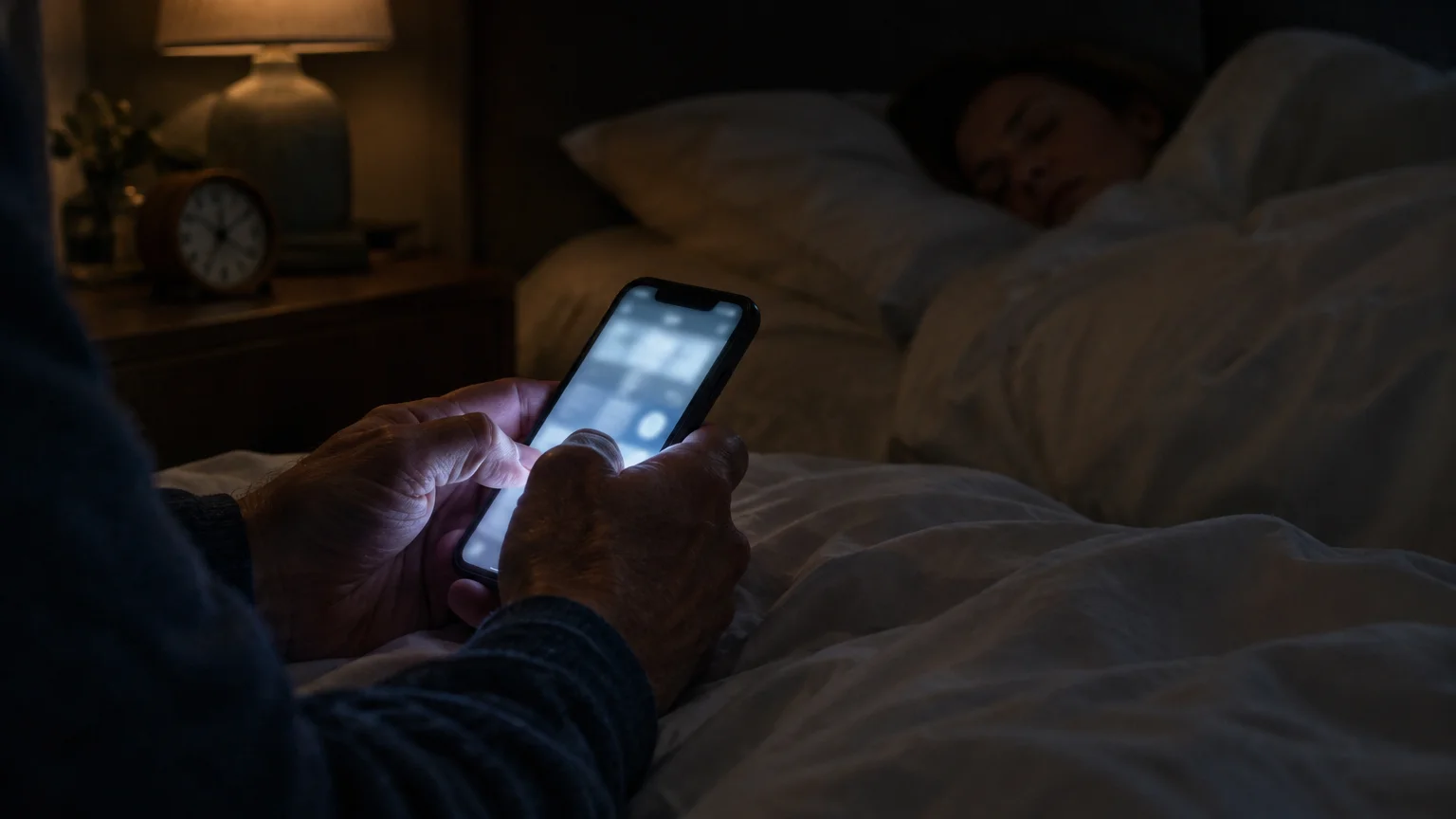
A quiet bedroom at night typically registers between 30 and 35 decibels of ambient background sound. In that environment, the sharp artificial click of a smartphone keyboard registers at 50 to 58 decibels.
If you also want audio confirmation when typing on a physical computer keyboard, you can configure your PC to hear a beep when you press Caps Lock.
That high-frequency clicking cuts across a quiet room with surprising sharpness. While you concentrate on composing a text message, your spouse hears dozens of rapid, erratic rhythmic taps right beside their pillow.
According to a Pew Research Center study on technology adoption among older adults, smartphones have become essential everyday tools for communication. More messaging happens late in the evening than ever before.
Phone manufacturers turn typing sounds on by default to mimic old physical push-button keypads. That audio feedback helps your brain confirm that a finger press registered on smooth glass.
Fortunately, you do not need audio to receive clear typing confirmation. You can replace acoustic noise with subtle touch pulses that only your fingers detect.
Turn Off Keyboard Clicks on iPhone and iPad
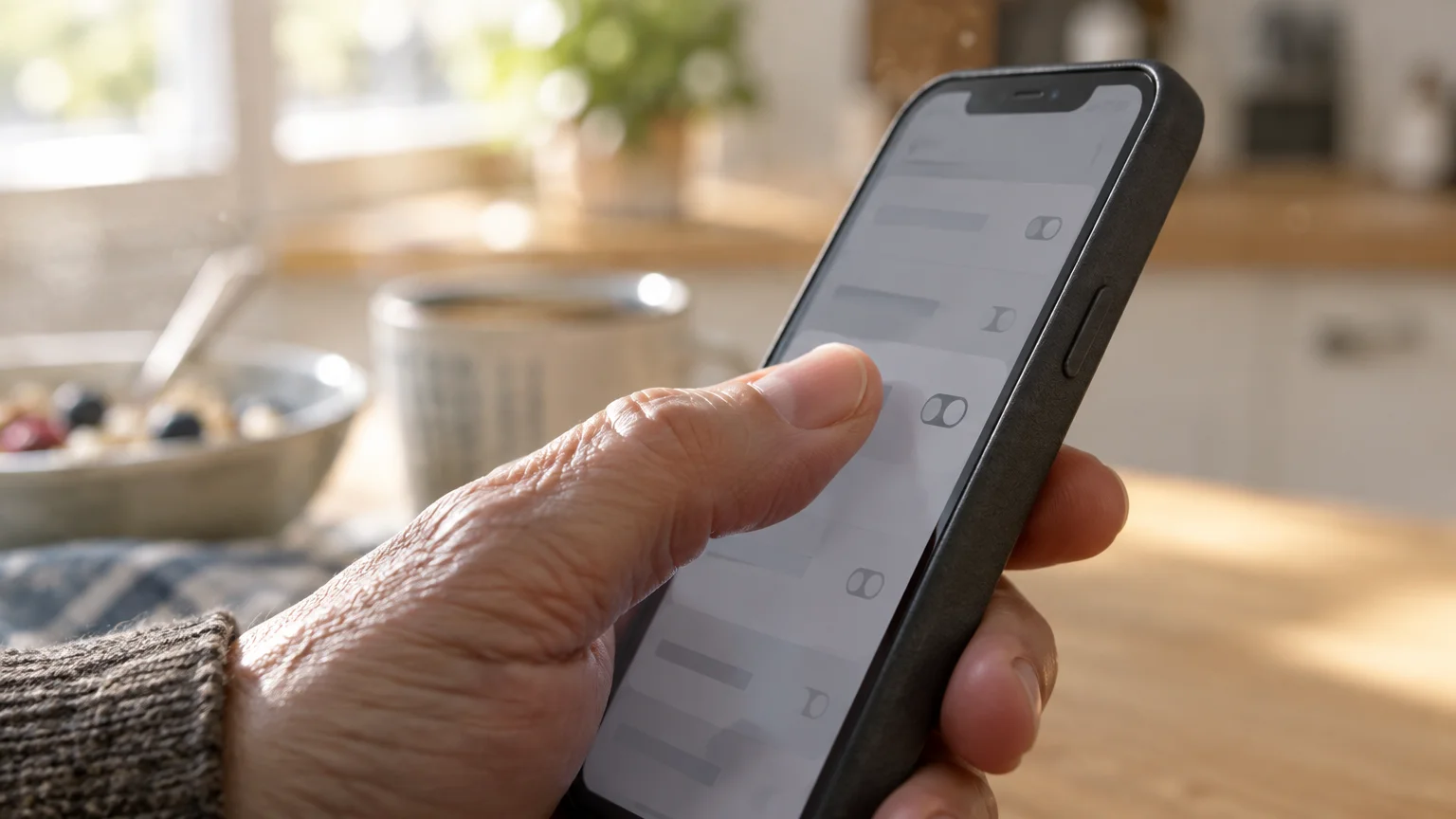
Apple organizes audio settings within a dedicated preferences menu. Following these steps silences the keys across all native apps, including Messages, Mail, and Notes.
If keeping your tablet quiet causes you to misplace it around your home, learn how to ring a silent iPad to find it even when all sounds are switched off.
These instructions apply to iOS 18 and iPadOS 18, current as of 2026. Consult the Apple iPhone User Guide if you run an older software version with slightly different labels.
- Open the Settings app on your Home Screen.
- Scroll down and tap Sounds & Haptics (labeled Sounds on select older iPad models).
- Scroll down to the middle of the screen and tap Keyboard Feedback.
- Tap the green switch next to Sound to turn it off.
The switch slides left and turns gray when the sound shuts off. Your keyboard will now operate in complete acoustic silence whenever you type.
This setting changes keyboard audio alone. It leaves your phone ringer, text notification chimes, and alarm clock sounds completely intact at their regular volume levels.
Enable Tactile Haptic Feedback on Apple Devices
Haptic feedback is a subtle physical vibration produced by your phone motor to simulate pressing a physical key. It restores the physical sensation of typing without creating room noise.
If you prefer to operate your device without touching the screen at all, you can set up and use Voice Control on your iPhone to dictate and tap buttons using your voice.
When you mute keyboard audio, flat glass screens can feel unresponsive under dry or calloused fingertips. Enabling haptic pulses restores that vital physical cue instantly.
- Open the Settings app.
- Tap Sounds & Haptics.
- Tap Keyboard Feedback.
- Tap the switch next to Haptic so the indicator turns green.
Now, whenever your thumb presses a letter, a tiny mechanical pulse buzzes softly against your skin. You feel each keystroke clearly, but someone sitting two feet away hears nothing.
Apple notes that activating keyboard haptics consumes a negligible amount of battery power. In routine daily messaging, this feature draws less than 1% of total daily battery capacity.
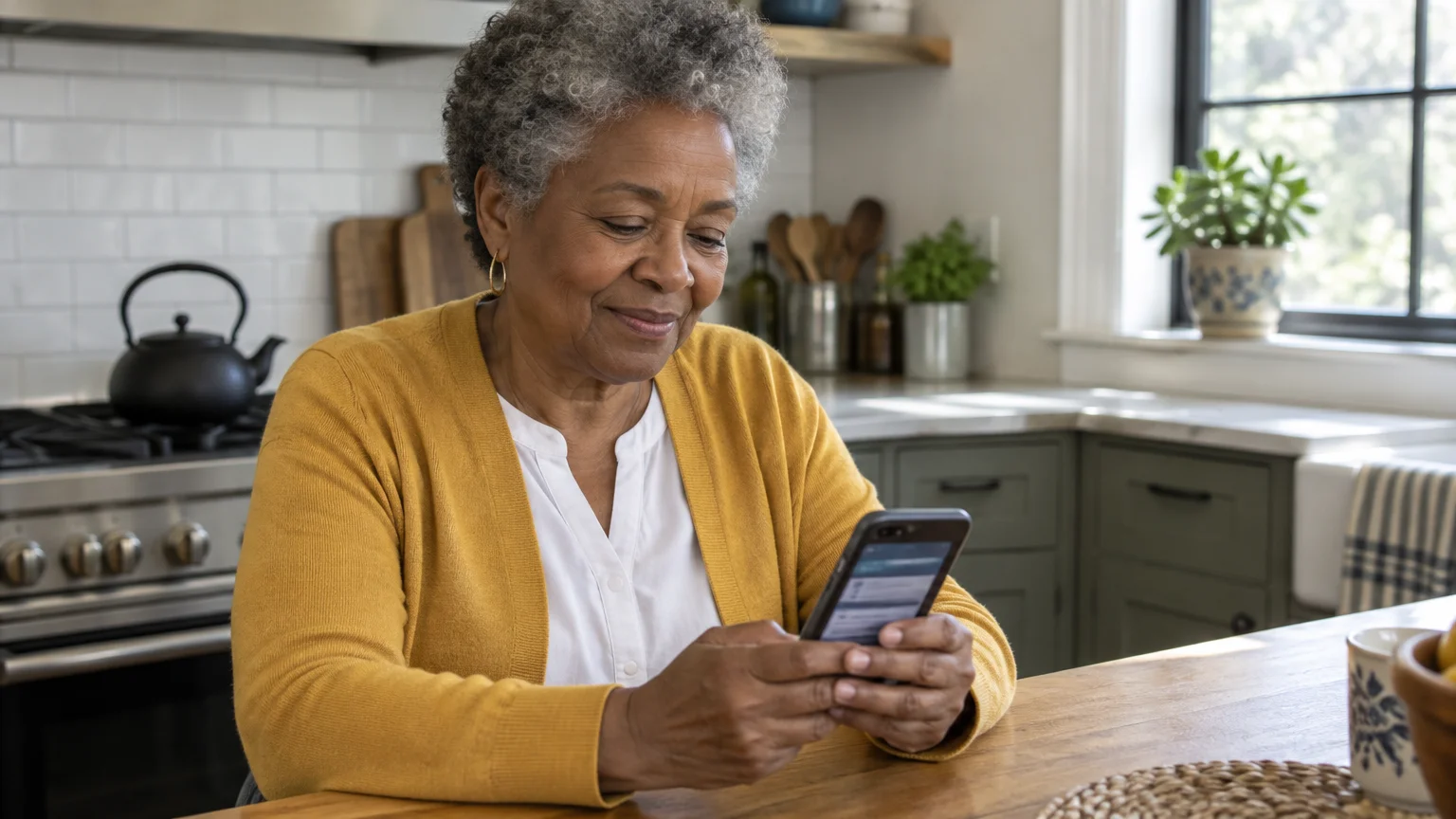
Silence Keyboard Sounds on Google Pixel and Gboard
Google Pixel devices and many Motorola phones use Gboard as their standard typing software. Gboard is the official Google virtual keyboard software preinstalled on most Android phones.
Along with muting typing sounds, understanding and using text-to-speech on your phone makes it easy to have incoming messages read aloud through headphones.
If you want to skip on-screen keys altogether, you can also learn how to send voice messages instead of typing to communicate effortlessly.
These steps are written for Android 15 and Android 16, current as of 2026. For general operating system guidance, visit the official Google Android Help center.
- Open any messaging conversation or note to bring up the on-screen keyboard.
- Tap the gear icon in the toolbar row just above the letter keys to open Gboard settings.
- Tap Preferences from the list of options.
- Scroll down to the header titled Key press.
- Tap the toggle switch next to Sound on keypress to turn it off.
- Tap the toggle switch next to Haptic feedback on keypress to turn it on.
- Tap Vibration strength on keypress to open the manual intensity slider.
- Move the slider to 15 ms (milliseconds) for a firm, subtle touch sensation, then tap OK.
If your Gboard toolbar hides the gear icon, tap the small four-square icon on the left edge of the keyboard bar. That opens the extended utility panel where the settings gear sits.
This adjustment silences your typing permanently across every app on your Android device while preserving physical thumb confirmation.
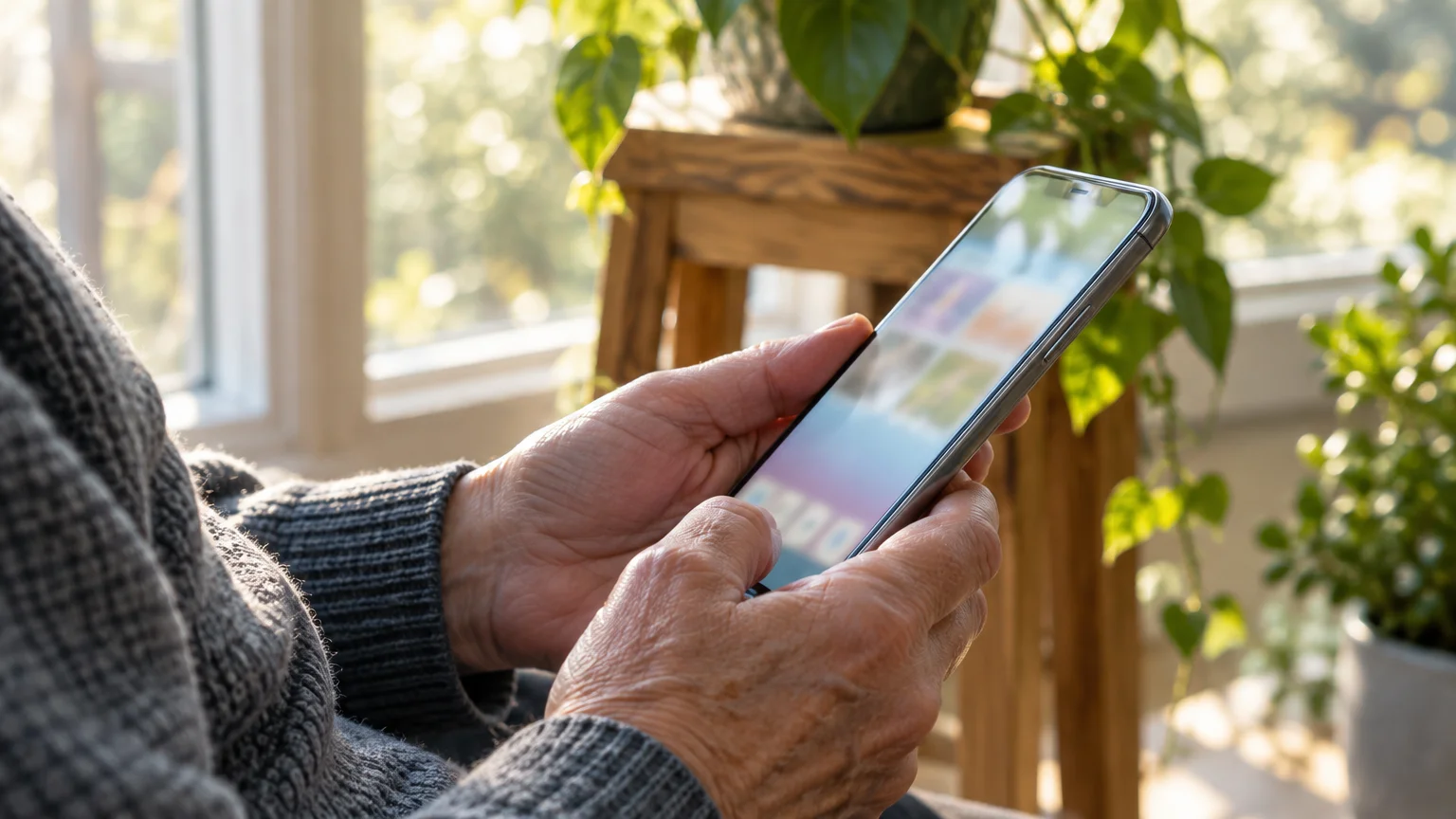
Turn Off Keyboard Sounds on Samsung Galaxy Phones
Samsung Galaxy smartphones run One UI software, which separates system sound controls from standard application settings. Samsung handles typing noise through the phone system settings rather than the keyboard layout.
If your display shuts off before you finish adjusting these menu sliders, learn how to stop your phone screen from going black so fast.
An operating system is the master program that runs your phone and coordinates all settings. These steps reflect One UI 6 and One UI 7 on Samsung Galaxy hardware as of 2026.
- Swipe down from the top of your screen and tap the gear icon in the top right corner to open Settings.
- Tap Sounds and vibration.
- Tap System sound (listed as System sound / vibration control on older Galaxy models).
- Tap the toggle switch next to Samsung keyboard under the Sound heading so it turns gray.
- Return to Sounds and vibration, then tap System vibration.
- Confirm that the toggle switch next to Samsung keyboard remains turned on.
- Drag the Vibration intensity slider to the middle mark so you can feel keystrokes clearly without rattling the device frame.
Samsung separates audio output from vibration motors cleanly. Disabling sound here will never mute your phone ringtone, navigation voice prompts, or morning wake-up alarms.
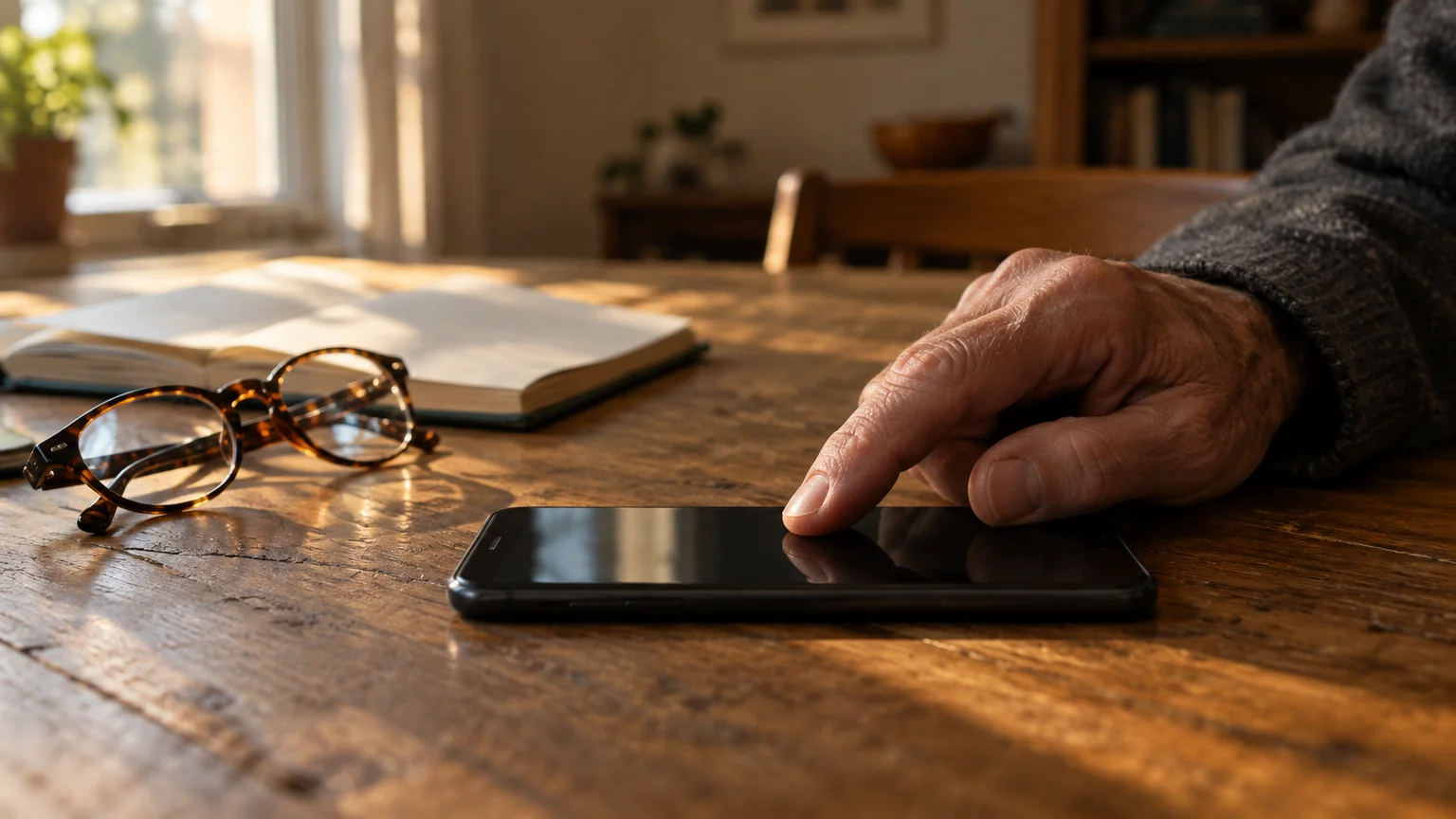
Audio Feedback Compared to Haptic Vibration
Choosing the correct keyboard feedback mode depends on your typing habits, hearing capabilities, and bedroom environment. You can compare the four standard operating modes using measurable attributes.
If an accidental keystroke wipes out a message before you finish typing, you can quickly undo deleted text on your smartphone with a simple shake or gesture.
| Keyboard Feedback Mode | Bedside Sound Output (dBA) | Physical Tactile Sensation | Battery Draw Impact |
|---|---|---|---|
| Standard Audio Clicks | 50 to 58 dBA | None (smooth glass only) | Minimal (< 0.5% per hour) |
| Tactile Haptic Pulses | 0 dBA (inaudible) | Firm 10–15 ms pulse | Negligible (< 1% per day) |
| Completely Silent (No Feedback) | 0 dBA (inaudible) | None (smooth glass only) | Zero power draw |
| Hardware Silent Mute Switch | 0 dBA (inaudible) | None (unless haptics set) | Zero power draw |
Relying solely on smooth glass with zero feedback frequently leads to double-typing letters or missing spacebar presses. Activating haptic pulses gives you the sensory certainty of physical typing without projecting room noise.
Worked Example: Eleanor’s Bedside Setup
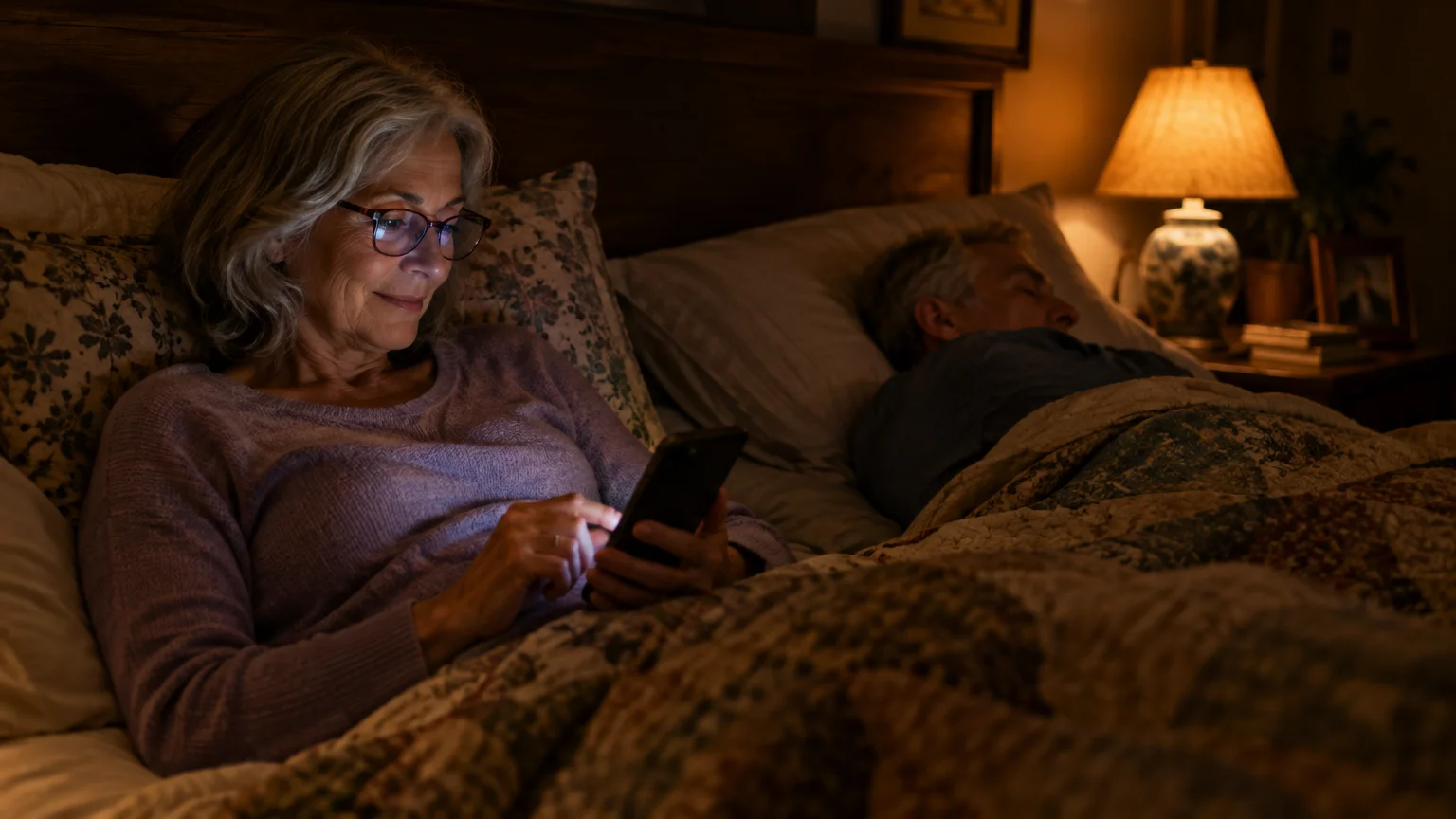
Eleanor is a 71-year-old texter who enjoys sending evening updates to her family group chat. Her husband Arthur, 73, reads paperbacks in bed beside her at 10:15 PM every night.
To keep nighttime conversations discreet without disturbing a resting partner, consider how to route phone calls to your hearing aids for private, clear listening.
For extra peace of mind at night without making sound, consider learning how to turn on flashlight alerts for ringing so incoming calls visually illuminate the room.
Arthur frequently complained about hearing a sharp, continuous clacking sound while trying to read. A simple room measurement showed their quiet bedroom sat at 32 decibels, while Eleanor’s typing clicks spiked to 52 decibels.
Eleanor initially used the physical mute switch on the side of her iPhone 14. However, muting the entire phone caused her to sleep through an urgent 11:30 PM call from her sister.
To fix the issue permanently, Eleanor opened Settings, selected Sounds & Haptics, and tapped Keyboard Feedback. She turned off Sound and turned on Haptic.
The entire reconfiguration took 45 seconds. Eleanor’s typing sound dropped immediately to 0 decibels, while her phone ringer remained set at 65% volume for family emergencies.
Eleanor now texts comfortably in bed. Arthur reads in complete silence, and Eleanor’s thumb receives a crisp 10-millisecond physical vibration with every letter she types.
Accessibility Adjustments for Visual and Tactile Feedback
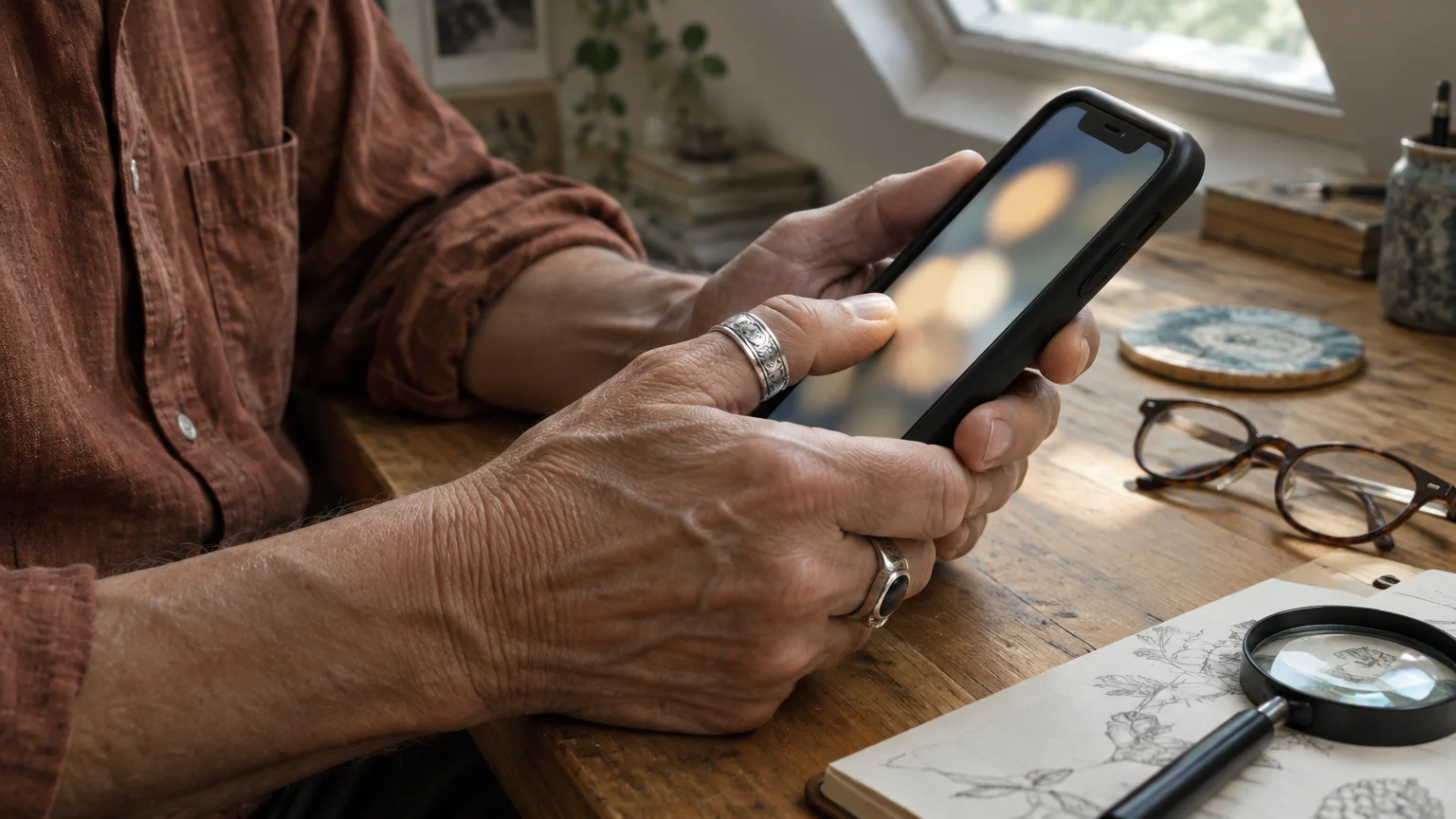
If you experience arthritis, neuropathy in your fingers, or reduced vision, relying on subtle vibrations alone can sometimes feel insufficient. Device makers provide assistive display and touch tools to make silent typing easier.
You can review display adjustments in the Apple guide on making text larger. These settings enlarge keyboard letter labels significantly across iPhones and iPads.
For Android hardware, consult the Google Android accessibility overview to discover built-in motor assistance tools. These features give you greater control over touch recognition.
- Key Borders (Gboard): Open Gboard Theme settings and turn on Key borders to place high-contrast outlines around every letter.
- Character Preview: Keep Character preview on keypress enabled so an enlarged letter bubble pops up visually over your thumb as you press.
- Touch and Hold Delay: In your device accessibility settings, set the touch response delay to 0.30 seconds so trembling fingers do not trigger unwanted alternate symbols.
Combining visual pop-ups with haptic motor pulses gives you two independent sensory cues. You gain complete typing confidence without disturbing anyone nearby.
Troubleshooting Stubborn Typing Sounds
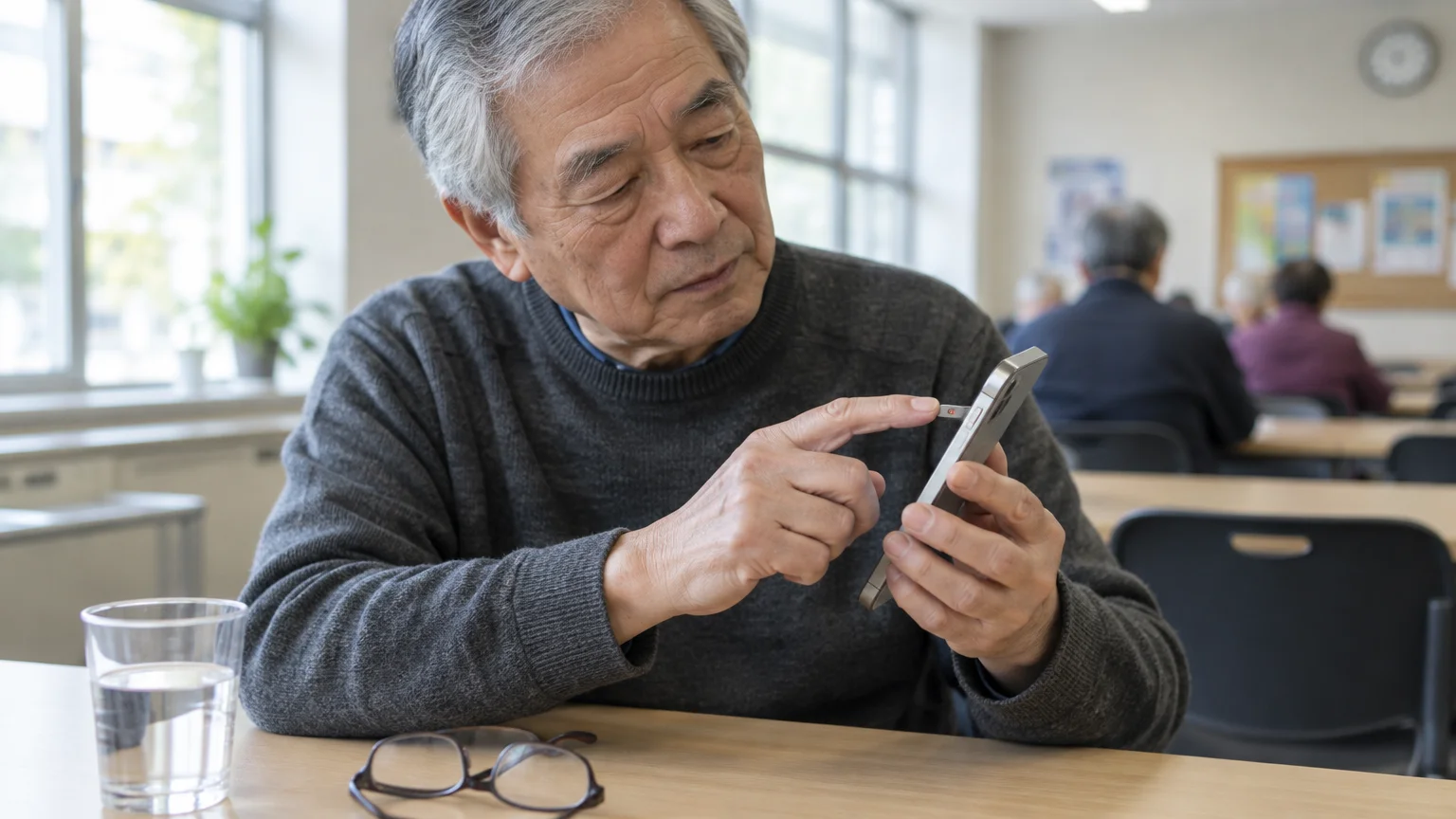
Occasionally, typing sounds linger even after you adjust the primary operating system menus. These lingering sounds stem from application-specific overrides or secondary system settings.
Work through this troubleshooting sequence if your phone continues to make noise while you type:
- Third-Party Chat Apps: Applications like WhatsApp feature their own in-app sound settings. Open WhatsApp Settings, tap Notifications, and turn off In-App Sounds.
- Lock Screen Audio: If your phone makes a loud click when you finish typing and turn off the screen, open Sounds & Haptics and toggle off Lock Sound.
- Alternative Keyboards: If you installed third-party keyboards like SwiftKey, open that specific app icon on your Home Screen to mute its internal audio options.
- Device Restart: If a software glitch holds audio active after a settings change, restart your device to clear cached sound profiles.
Restarting your phone forces the operating system to load your newly selected audio configuration fresh. Once restarted, your keyboard will remain completely silent.
Frequently Asked Questions
Does turning off keyboard sounds mute my incoming phone calls or text alerts?
No. Keyboard audio operates on an independent software channel separate from your ringtone and notification alerts. Your incoming phone calls, alarm clock alerts, and message chimes will sound at their normal volume levels.
Why does my keyboard still click in certain messaging apps like WhatsApp?
Some social messaging applications maintain their own internal audio sound schemes for conversation bubbles and outgoing messages. To silence them, open that app’s specific internal settings menu, find the notifications section, and turn off in-app sounds.
Does using keyboard haptic vibration drain my phone battery quickly?
No. Modern smartphone vibration motors use highly efficient haptic engines designed for micro-bursts of physical movement. Regular daily typing with haptic feedback enabled consumes less than 1% of total battery life over a 24-hour period.
Can I make the typing vibration stronger if my fingers have trouble feeling it?
On Android phones, you can increase vibration strength inside Gboard preferences under Vibration strength on keypress by moving the slider up to 30 milliseconds. Apple devices use a fixed, factory-calibrated haptic pulse that cannot be adjusted manually.
Note: Menus and button names change with software updates. These steps were written for current versions as of 2026; if a screen looks different on your device, the maker’s support page linked above has the latest wording.
ClearTechGuide is independent and is not affiliated with Apple, Google, Microsoft, Amazon or any other company mentioned.
