

A wireless mouse pointer that stutters across your screen often stems from microscopic light reflection on high-gloss furniture rather than a broken device. You can fix jerky mouse pointer behavior in seconds without buying new equipment.
Resolving simple accessory issues is a practical part of learning how to keep your computer running smoothly with basic maintenance.
Like many common computer problems you can fix yourself, erratic cursor movement is usually simple to resolve once you know what causes it.
Polished wood finishes bounce the mouse sensor’s red or invisible beam unevenly, while adjacent USB ports emit radio noise that interrupts the signal.
Placing an ordinary cereal box flap beneath your mouse solves the optical reflection immediately while you reposition your wireless receiver.
In this guide9 sections
- Why High-Gloss Dining Tables Confuse Optical Mouse Sensors
- The USB 3.0 Radio Frequency Interference Problem
- Instant Zero-Cost Fixes Using Everyday Household Cardboard
- Adjusting Pointer Speed and Accessibility Settings in Windows 11
- Troubleshooting Pointer Stutter on macOS and Chromebooks
- Power Levels and Optical Sensor Hygiene
- Surface Tracking Comparison for Wireless Optical Mice
- Steering Clear of Driver Update Scams
- Frequently Asked Questions
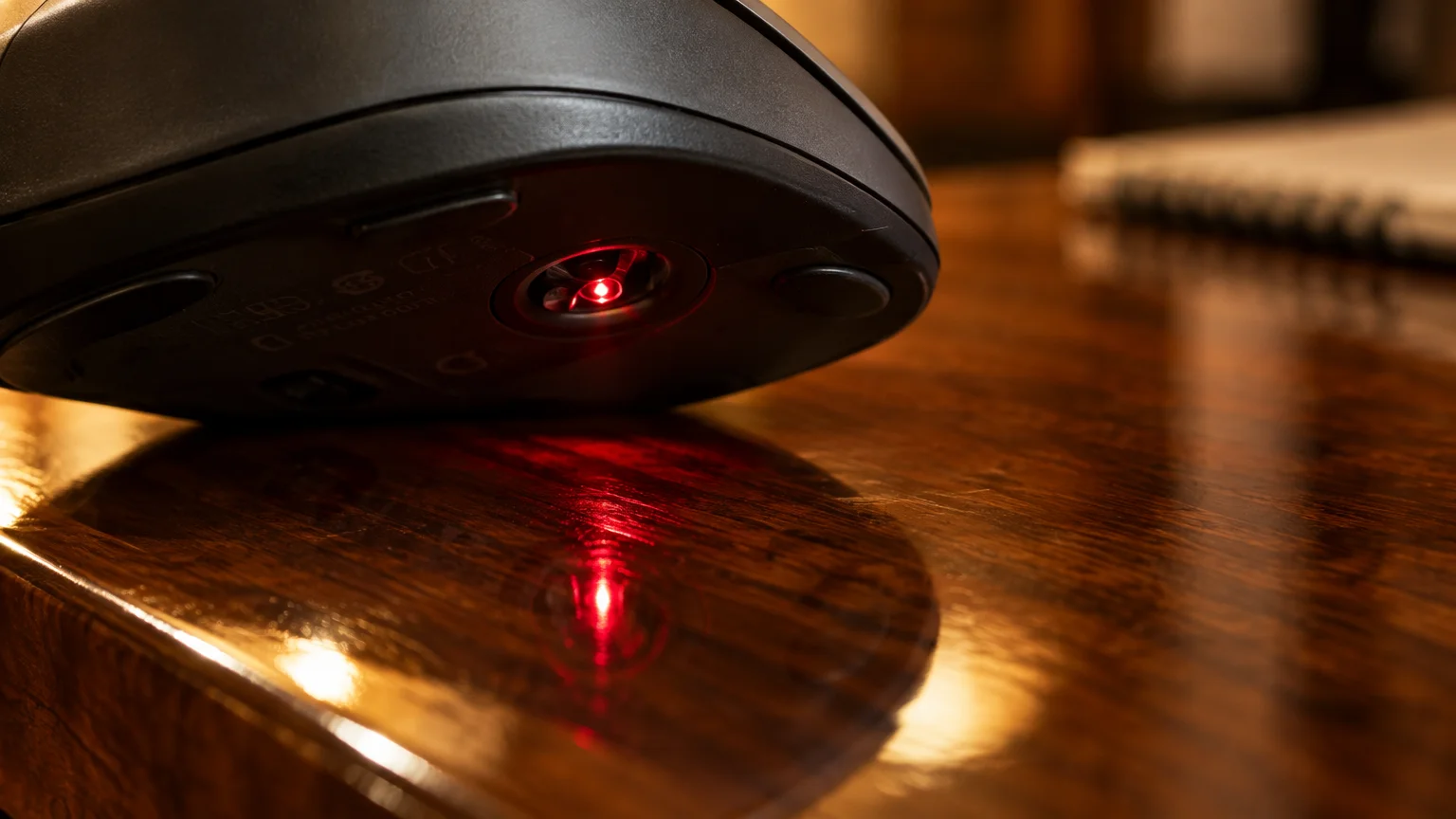
Why High-Gloss Dining Tables Confuse Optical Mouse Sensors
An optical sensor is a tiny digital camera beneath your mouse that photographs the desk surface thousands of times every second.
Working directly on flat wooden desks can also restrict airflow; discover why your laptop fan is loud and blowing hot air when surfaces trap heat.
If you are still getting comfortable with hand coordination, reviewing tips for using a computer mouse can also help make navigating your screen feel much smoother.
The mouse processor compares these microscopic images to determine exactly how far and how fast your hand moves across the table.
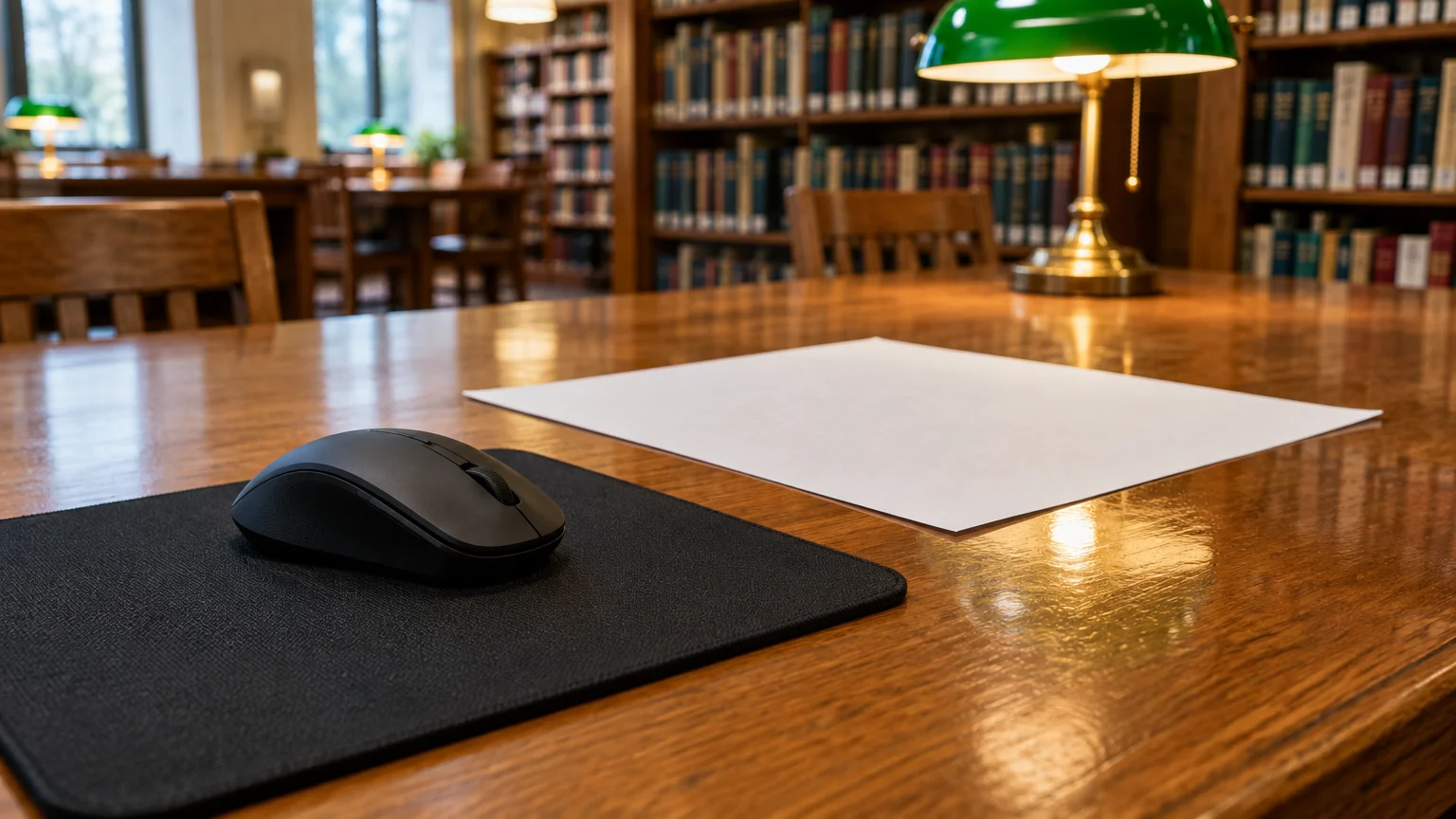
When you work on a traditional dining table, smooth clear coats cause tracking failures.
Consider Eleanor, a 69-year-old reader sitting at her cherry dining table, attempting to highlight text in an email.
Her table features a 0.5-millimeter clear polyurethane varnish that protects the stained wood beneath it.
To Eleanor’s eyes, the tabletop looks rich, textured, and completely solid.
To the mouse’s light beam, that clear finish acts like a mirror rather than an opaque surface.
This glossy finish causes specular reflection, which scatters the sensor’s light in random directions rather than bouncing it straight back into the camera.
The mouse camera receives white glare instead of crisp surface detail.
Because the internal camera cannot identify stationary landmarks in the wood grain through the glare, it miscalculates movement coordinates.
This tracking error results in your mouse cursor jumping on wood table surfaces unexpectedly.
The pointer leaps across your monitor or freezes completely until the sensor encounters a duller patch of finish.
The USB 3.0 Radio Frequency Interference Problem
Radio frequency is the wireless channel that battery-powered electronics use to transmit data through the air without cables.
If your whole system freezes rather than just the mouse pointer, see what to do when your computer is running slowly to identify other background bottlenecks.
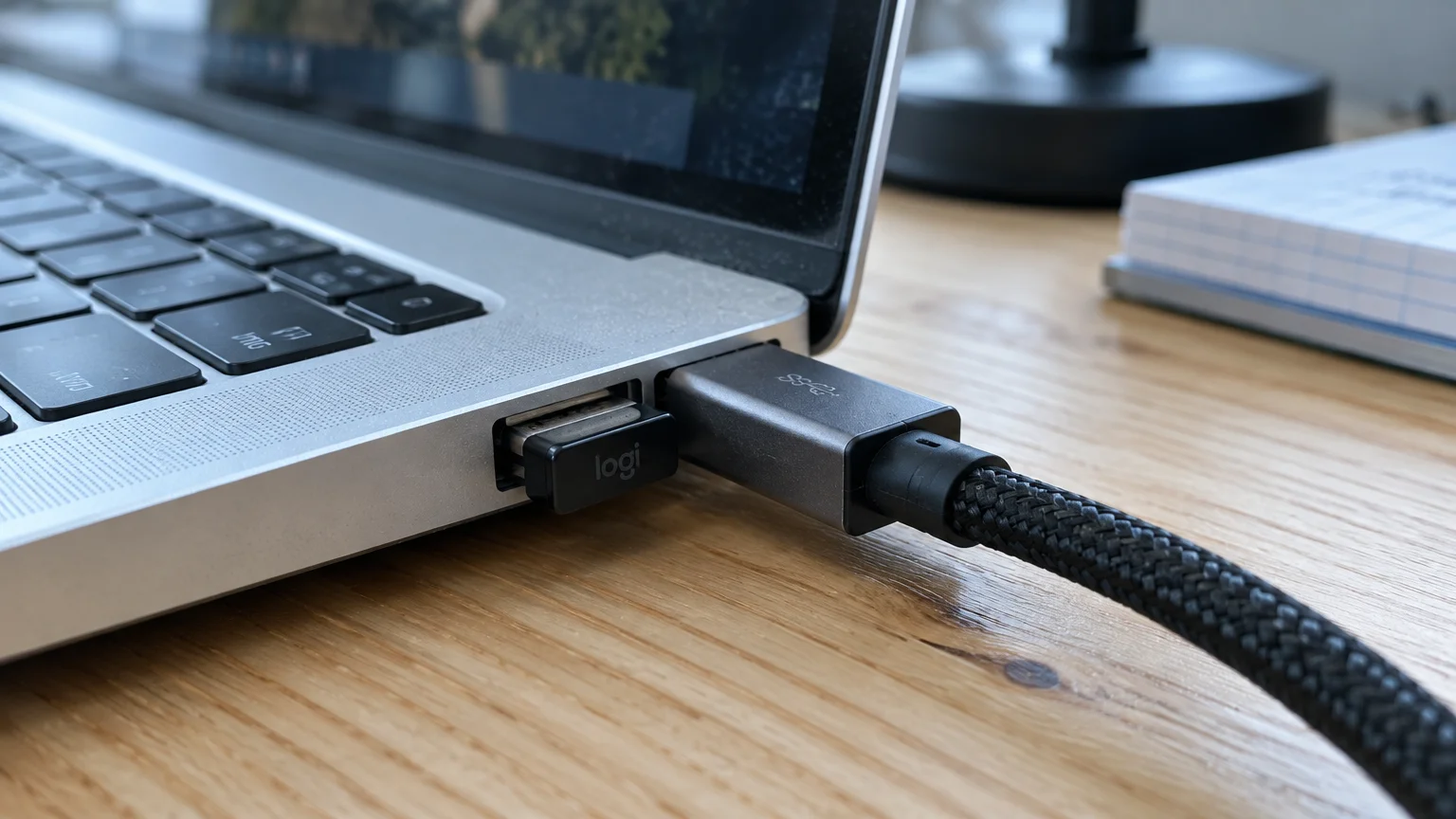
Most wireless mice communicate with your computer using a small plug-in receiver operating on the 2.4 gigahertz (GHz) radio band.
Computer manufacturers place high-speed USB 3.0 ports directly alongside these receiver ports.
Active USB 3.0 ports generate electrical noise that radiates across the exact same 2.4 GHz frequency spectrum.
In Eleanor’s setup, her wireless nano receiver sits in a port located one inch away from an external backup hard drive.
That nearby hard drive cable creates an electronic fog that drowns out the mouse’s low-power transmission.
This signal conflict causes wireless mouse stuttering windows systems cannot process smoothly.
Your computer misses every third or fourth positional update sent by the mouse hardware.
The pointer stalls on your screen for a fraction of a second, then snaps across your desktop to catch up with your hand.
You can identify this interference by watching how the cursor behaves during large file transfers.
When the adjacent external drive transfers files, the pointer stutters more severely because port electrical noise surges.
Moving your mouse receiver to an isolated USB port on the opposite edge of your laptop resolves this radio bottleneck immediately.
Instant Zero-Cost Fixes Using Everyday Household Cardboard
You do not need to order a specialty computer accessory to test your optical sensor.
While optimizing your desk setup, you can also clear the cache on your computer to help your web browser load pages more crisply.
Everyday household cardboard provides a reliable tracking surface because pressed paper fibers absorb stray light instead of reflecting glare.
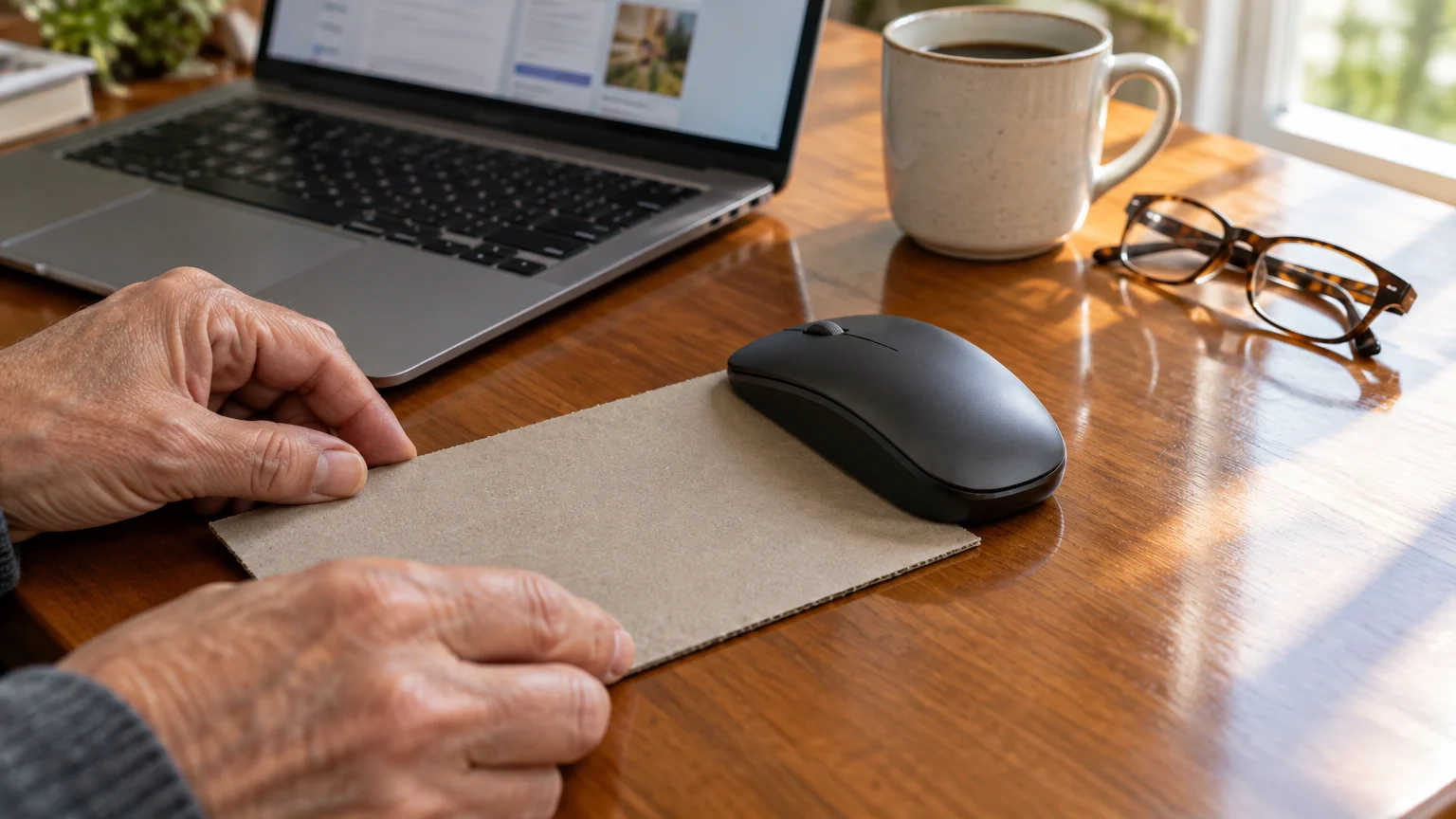
Eleanor retrieves an empty 12-ounce cereal box from her pantry and flattens it with kitchen scissors.
She trims the back panel into a clean rectangle measuring 7.5 inches wide by 10 inches long.
Eleanor places the cardboard panel on her dining table with the unprinted, matte gray interior facing upward.
The microscopic roughness of untreated cardboard gives the mouse camera distinct landmarks in every photographic frame.
Follow these steps to build your own temporary tracking pad:
- Locate a clean, dry food carton, cracker box, or corrugated shipping box flap.
- Trim a flat rectangular section measuring at least 8 inches by 10 inches using scissors.
- Inspect the cardboard surface to confirm it has no glossy wax coatings, foil embossing, or plastic film.
- Lay the unprinted matte surface facing upward on your table.
- Secure the four corners with small pieces of masking tape if the cardboard slides on your polished table.
Standard white printer paper performs poorly as an alternative because thin sheets slide under your palm and bunch up.
Bright white office paper can also reflect excessive light back into sensitive red LED optical sensors.
Dense kraft cardboard or corrugated fiberboard maintains a flat, opaque plane that stays stable under your wrist.
Once Eleanor sets her mouse on the matte cardboard, her cursor moves predictably across her screen with zero jumping.

Adjusting Pointer Speed and Accessibility Settings in Windows 11
Windows includes software acceleration settings that can cause pointer stutter when misconfigured.
An enlarged cursor also makes it much easier to track your mouse if you decide to connect a second monitor to your computer for extra viewing room.
Mouse acceleration is a software feature that moves the screen pointer farther when you flick your hand quickly.
If your hand trembles or hesitates, this feature misinterprets small twitches as deliberate rapid movements.
Disabling this feature stabilizes the pointer so your hand movement matches screen movement at a steady one-to-one ratio.
If small on-screen text makes these menus difficult to read, press the Windows logo key and the Plus sign (+) to start Windows Magnifier.
Follow these steps on your Windows 11 computer to stabilize tracking:
- Click the Start button on your taskbar or press the Windows logo key.
- Click Settings, which displays a gear icon.
- Click Bluetooth & devices in the left navigation column.
- Click the Mouse option in the main list.
- Click Additional mouse settings near the bottom of the window.
- Click the Pointer Options tab at the top of the new window.
- Uncheck the box labeled Enhance pointer precision to fix jerky mouse pointer behavior.
- Move the Select a pointer speed slider to the exact center position, which represents the sixth tick mark out of eleven.
- Click Apply, and then click OK to confirm your changes.
For additional details regarding operating system device settings, consult Microsoft: Windows help & learning.
You can also enlarge your pointer to locate it faster when it moves across wide screens.
Open Settings, click Accessibility, select Mouse pointer and touch, and drag the Size slider toward the right.

Troubleshooting Pointer Stutter on macOS and Chromebooks
Apple computers and Google Chromebooks can also exhibit pointer hesitation due to system speed settings.
If pointer hesitation continues across multiple devices, explore trustworthy avenues on how to get tech support for your computer safely.
If your keyboard is also behaving strangely alongside mouse issues, learn how to stop keys from typing twice on a Mac with a quick settings tweak.
On Apple computers, macOS includes a feature that rapidly enlarges the cursor when you shake the mouse.
If your hand changes direction abruptly on a glossy table, macOS may trigger this magnification repeatedly, causing the pointer to obscure your text.
Follow these steps on macOS to calibrate your mouse pointer:
- Click the Apple menu icon in the top-left corner of your screen.
- Click System Settings from the dropdown list.
- Click Mouse in the left sidebar menu.
- Drag the Tracking speed slider toward the middle to prevent rapid cursor jumps.
- Click Accessibility in the left sidebar, and then click Display.
- Adjust the Pointer size slider if you require higher visibility without abrupt shaking effects.
For step-by-step assistance with Apple pointer preferences, read the official Apple: Mac User Guide.
Chromebook computers run ChromeOS, which provides a dedicated hardware adjustment menu.
Follow these steps on a Chromebook to adjust tracking sensitivity:
- Click the digital clock located in the lower-right corner of your shelf.
- Click the Settings gear icon inside the menu panel.
- Click Device in the left-hand navigation list.
- Click Touchpad and mouse or select Mouse from the center menu.
- Drag the Mouse speed slider leftward to establish steadier cursor tracking.
Lowering tracking speed slightly gives your optical sensor more processing time between positional updates.
Power Levels and Optical Sensor Hygiene
A fresh standard alkaline AA battery produces 1.50 to 1.60 volts of direct electrical current.
Keeping your mouse and other accessories clean is an easy part of basic computer maintenance that prevents frustration down the road.
When battery voltage drops below 1.20 volts, the mouse enters an aggressive power-saving state.
The mouse conserves remaining power by reducing how many surface photos the optical sensor takes each second.
This power drop causes severe pointer lag because the mouse skips tracking cycles during normal movement.
In Eleanor’s worked example, her alkaline battery had remained inside the mouse casing for eight months.
A battery check revealed the cell output had fallen to 1.15 volts.
Installing a brand-new alkaline cell measuring 1.55 volts restored full camera snapshot frequency immediately.
Physical debris inside the sensor housing also interferes with normal tracking.
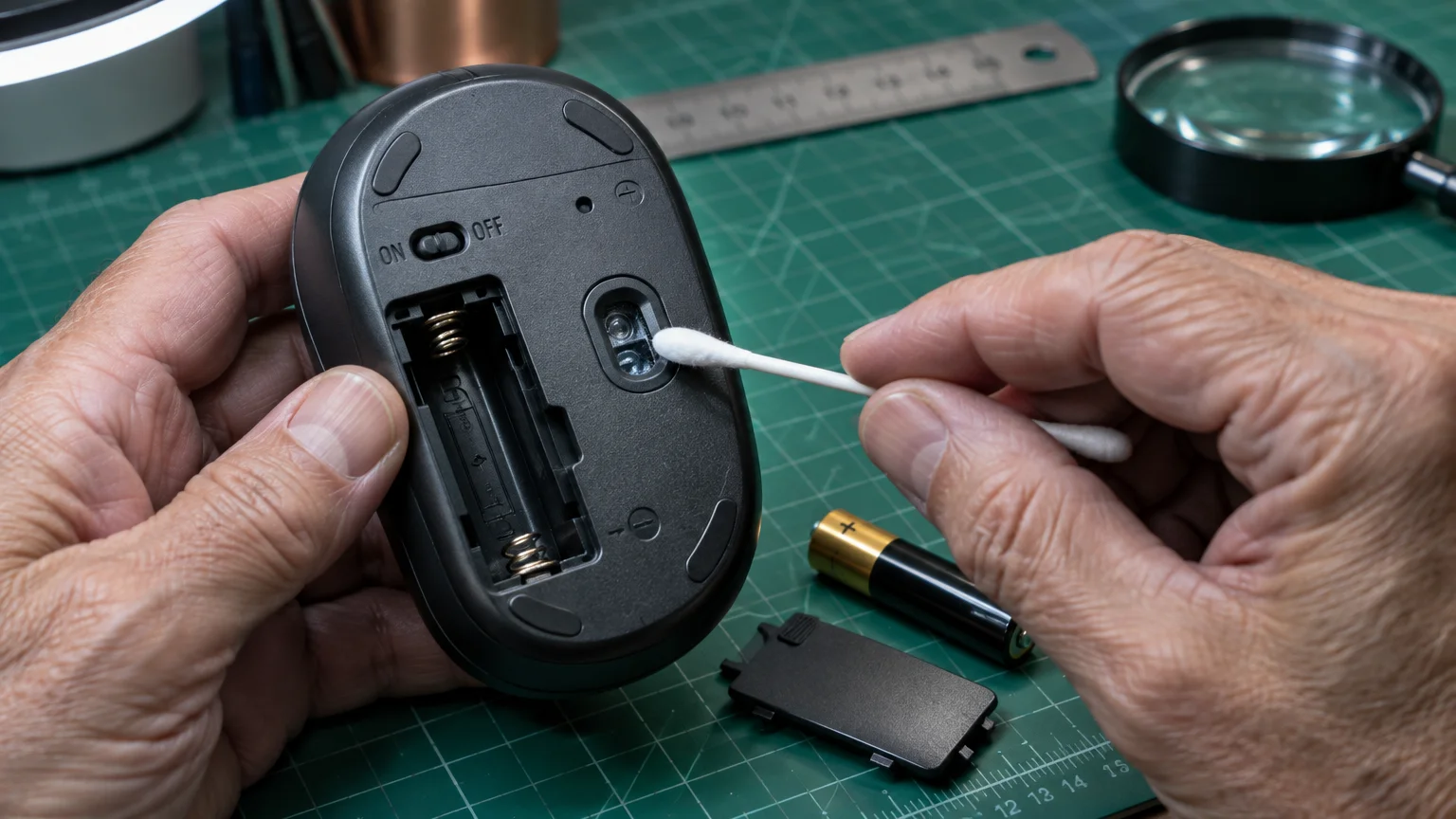
Dust, clothing fibers, and pet hair settle inside the recessed optical opening beneath the mouse casing.
A single stray eyelash lodged across the clear sensor lens refracts the light beam before it reaches the camera sensor.
Inspect and clean your mouse hardware using these steps:
- Slide the physical power switch on the bottom of the mouse to the Off position.
- Open the battery door, remove the cell, and wipe the metal terminal contacts using a dry cotton cloth.
- Hold the mouse beneath a bright reading lamp to inspect the clear optical aperture on the underside.
- Gently blow away loose dust using your breath or a can of compressed air held upright.
- Swab the clear plastic sensor lens using a dry cotton swab without applying rubbing alcohol or household cleaners.
- Insert a fresh battery, replace the hatch, and slide the power switch to the On position.
Surface Tracking Comparison for Wireless Optical Mice
Different household materials reflect optical light differently, directly affecting pointer tracking accuracy.
The following table compares common household surfaces and their performance with standard wireless optical sensors.
| Surface Material | Surface Reflectivity Rating | Tracking Reliability Rate | Estimated Cost |
|---|---|---|---|
| High-Gloss Polyurethane Dining Table | High (Specular Glare) | 45% (Frequent Stutters) | $0.00 (Existing Furniture) |
| Clear Glass Dining Table | Extreme (Total Refraction) | 10% (Complete Tracking Loss) | $0.00 (Existing Furniture) |
| Matte Cereal Box Cardboard | Low (Evenly Diffused) | 98% (Smooth Movement) | $0.00 (Recycled Material) |
| Fabric Micro-Weave Desk Mat | Minimum (No Glare) | 99% (Optimal Movement) | $8.00 to $15.00 (as of 2026) |
| Glossy Magazine Cover | High (Specular Glare) | 38% (Frequent Jumps) | $0.00 (Household Paper) |
Untreated cardboard provides tracking performance comparable to commercial fabric desk pads because both diffuse optical beams evenly.
Glass and high-gloss varnishes score lowest because light passes directly through the surface or reflects back as glare.
If you prefer a permanent solution over cardboard, an inexpensive micro-weave fabric mouse pad offers dependable tracking on any table.

Steering Clear of Driver Update Scams
When computer owners experience pointer stutter, online searches often suggest updating hardware drivers.
A driver is a core software program that allows your computer operating system to communicate with attached hardware devices.
Deceptive websites create fraudulent advertisements claiming your computer suffers from missing mouse drivers or corrupt system files.
These sites attempt to trick you into downloading dangerous programs or paying for unnecessary technical support subscriptions.
Standard wireless mice use universal drivers that come built directly into Windows, macOS, and ChromeOS.
You never need to pay money or download third-party software tools to run a basic wireless computer mouse.
To identify deceptive repair offers, review the FTC’s guide to spotting tech support scams.
Legitimate hardware updates install automatically through your regular operating system update channels.
To keep your system running safely, consult CISA’s guidance on updating software.
Never permit an unknown remote caller or pop-up window to install software on your machine to fix a lagging mouse pointer.
Frequently Asked Questions
Why does my wireless mouse work on paper but jump on my wood table?
Paper diffuses the mouse sensor’s light evenly, whereas polished wood reflects the light back like a mirror. That glare blinds the tiny camera beneath the mouse, causing erratic jumps.
How far away can my wireless mouse be from the USB receiver?
Most wireless mice operate reliably within 6 to 10 feet under ideal conditions. Placing the receiver within 18 inches of your mouse avoids interference from other electronics.
Will switching to a Bluetooth mouse fix cursor stuttering on wood?
No, because Bluetooth changes only the radio signal connection between the mouse and computer. The optical sensor on the bottom still suffers from the same reflection issues on high-gloss finishes.
How do I know if my mouse battery is dying without an indicator light?
A depleting battery makes the cursor freeze, lag during quick movements, or disconnect for several seconds. Replacing the battery immediately rules out low voltage as the cause of your stutter.
Note: Menus and button names change with software updates. These steps were written for current versions as of 2026; if a screen looks different on your device, the maker’s support page linked above has the latest wording.
ClearTechGuide is independent and is not affiliated with Apple, Google, Microsoft, Amazon or any other company mentioned.
