

You tap out a long message, rest your hand on the screen edge, and watch the entire paragraph vanish. A resting palm easily brushes the delete key or highlights all text by mistake.
If you are searching for an unsaved message in your inbox rather than a text, learn how to find forgotten drafts in your email.
You can restore your vanished words in seconds using hidden recovery gestures. Standard guides tell you to shake your phone, but they ignore why text vanishes in the first place.
This guide shows you how to undo deleted text message drafts instantly. We also show you how to calibrate touch sensitivity so resting hands never erase your words again.
In this guide8 sections
- Three-Finger Tap and Shake Shortcuts on iPhone
- Undo Tools for Gboard and Samsung Keyboard
- Calibrating iPhone Touch Accommodations for Resting Palms
- Adjusting Android Touch-and-Hold Delay to Stop Accidental Deletions
- Restoring Deleted Messages from Trash Folders
- Recovery Methods and Sensitivity Settings Compared
- Worked Scenario: Eleanor Recalibrates Her Phone Settings
- Frequently Asked Questions
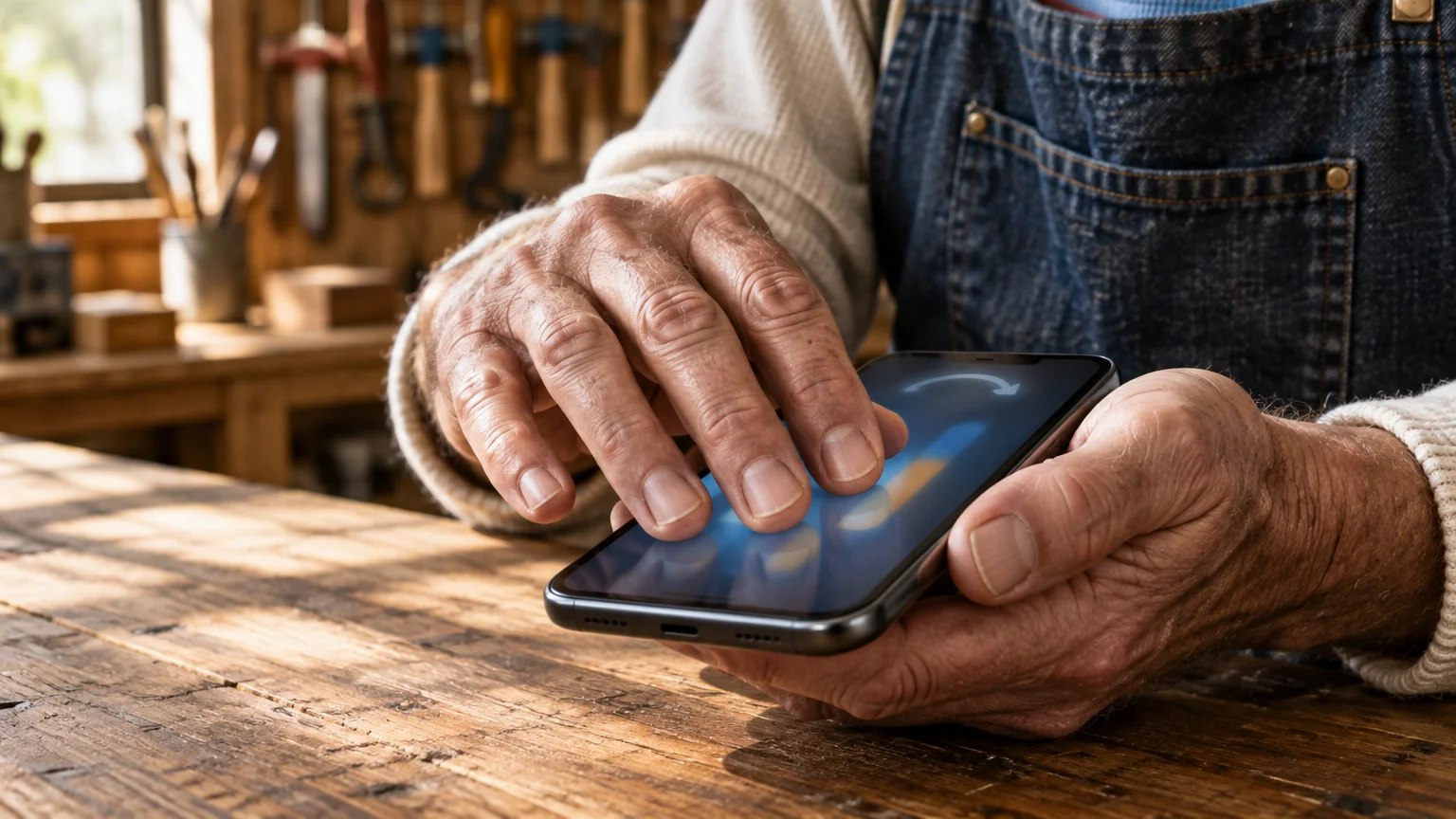
Three-Finger Tap and Shake Shortcuts on iPhone
Apple includes two primary tools to bring back deleted typing on phone screens. These gestures work inside Apple Messages, Mail, Notes, and third-party communication apps on iOS 18 and iOS 19 as of 2026.
If you also have trouble seeing what you type, learn how to make text bigger on your iPhone for easier reading.
The fastest recovery tool uses a three-finger tap. This gesture displays a floating clipboard menu right above your text box without requiring any physical movement of your handset.
Follow these steps to recover text using three fingers:
- Tap the middle of your screen once with three fingers spaced slightly apart.
- Look for the floating horizontal menu bar that appears across the top of your display.
- Tap the Undo icon, which appears as a curved arrow pointing to the left.
- Watch your deleted text return to the text entry field immediately.
If you prefer gestures, swipe left across the screen using three fingers simultaneously. This motion instantly triggers the undo action without displaying the icons first.
The second option is the classic shake to undo iphone shortcut. This tool uses the internal motion sensors of your handset to detect quick side-to-side movements.
Before using this shortcut, ensure you hold your device firmly with both hands so it does not slip from your grip.
- Hold your iPhone firmly in your hand away from hard surfaces.
- Shake the device side-to-side twice in quick succession.
- Read the dialog box that appears on screen labeled Undo Typing.
- Tap the blue Undo button to restore your missing sentence.
You can review additional editing gestures in Apple’s official iPhone User Guide. If shaking feels uncomfortable or strains your wrists, turn it off in your system settings.
- Open Settings on your iPhone.
- Tap Accessibility.
- Select Touch under the physical motor category.
- Locate Shake to Undo and toggle the switch to the off position.

Undo Tools for Gboard and Samsung Keyboard
Android devices do not offer a universal system shake gesture out of the box. Recovery depends directly on the on-screen keyboard installed on your Android 15 or Android 16 device as of 2026.
To make small keyboard letters and typed words easier to see, check our guide on how to make text bigger on your Android phone.
While customizing your typing tools, you can also turn off keyboard clicking sounds to keep your device quiet in public spaces.
Most Google Pixel and Motorola phones use Google Gboard as their default typing tool. Samsung Galaxy smartphones rely on Samsung Keyboard, which includes its own distinct gesture recovery controls.
Gboard contains an undo button located directly in its accessory toolbar. The accessory toolbar is the horizontal strip of icons sitting right above the top row of letter keys.
Follow these steps to restore text in Gboard:
- Look at the strip of tool icons located directly above your number or letter rows.
- Tap the four-square grid icon or the three horizontal dots on the far left of the strip if the arrow is not visible.
- Locate the Undo button, displayed as a curved arrow pointing left.
- Tap Undo to bring back your erased words.
- Press and drag the Undo button into your main top bar so it remains visible permanently.
Samsung Keyboard uses a two-finger swiping gesture on the keyboard surface. This shortcut functions only when your keyboard swipe mode is set to cursor control rather than continuous glide typing.
Follow these steps to undo deletions on Samsung devices:
- Place two fingertips together flat against the middle of the Samsung keyboard keys.
- Swipe both fingertips to the left in a single smooth stroke.
- Observe the deleted sentence reappearing in the text box.
- Swipe two fingers to the right if you accidentally bring back text you wanted to remove.
You can review detailed keyboard troubleshooting steps within Google’s Android Help documentation. If you frequently lose typed notes, installing Gboard on any Android phone provides the clearest recovery button.
Calibrating iPhone Touch Accommodations for Resting Palms
Touch sensitivity refers to how quickly and lightly your screen responds when your finger makes physical contact. Modern screens stretch to the extreme edges of the glass, leaving little space to grip the phone frame.
If typing on glass continues to cause frustration, consider using voice memos on your phone to remember important things instead.
When you rest the base of your thumb or palm near the edge, the screen detects touch contact. That contact can activate the delete key repeatedly or highlight entire paragraphs for immediate erasure.
Apple includes touch accommodation tools designed to prevent accidental contact. Adjusting these values stops resting hands from triggering unintentional commands.
Hold duration defines the exact length of time your finger must touch the glass before the phone registers an action. Setting this timer prevents fleeting palm brushes from pressing keys.
Follow these steps to activate hold duration on iOS:
- Open Settings on your iPhone.
- Tap Accessibility.
- Tap Touch.
- Select Touch Accommodations near the top of the menu.
- Tap the switch next to Touch Accommodations to turn it on.
- Tap the toggle next to Hold Duration to enable it.
- Tap the plus button to increase the duration timer to 0.30 seconds.
Ignore repeat is a related tool that prevents a single rested finger from typing or deleting ten times in a row. It forces the keyboard to treat multiple rapid contacts as one single touch.
- Stay within the Touch Accommodations screen.
- Tap the toggle next to Ignore Repeat.
- Set the interval time to 0.35 seconds using the plus icon.
- Test the keyboard in your messaging app to ensure keys register smoothly under your normal typing speed.
For additional details regarding motor tools, consult Apple’s guide to accessibility features on iPhone. These adjustments protect your draft messages without interfering with standard taps.
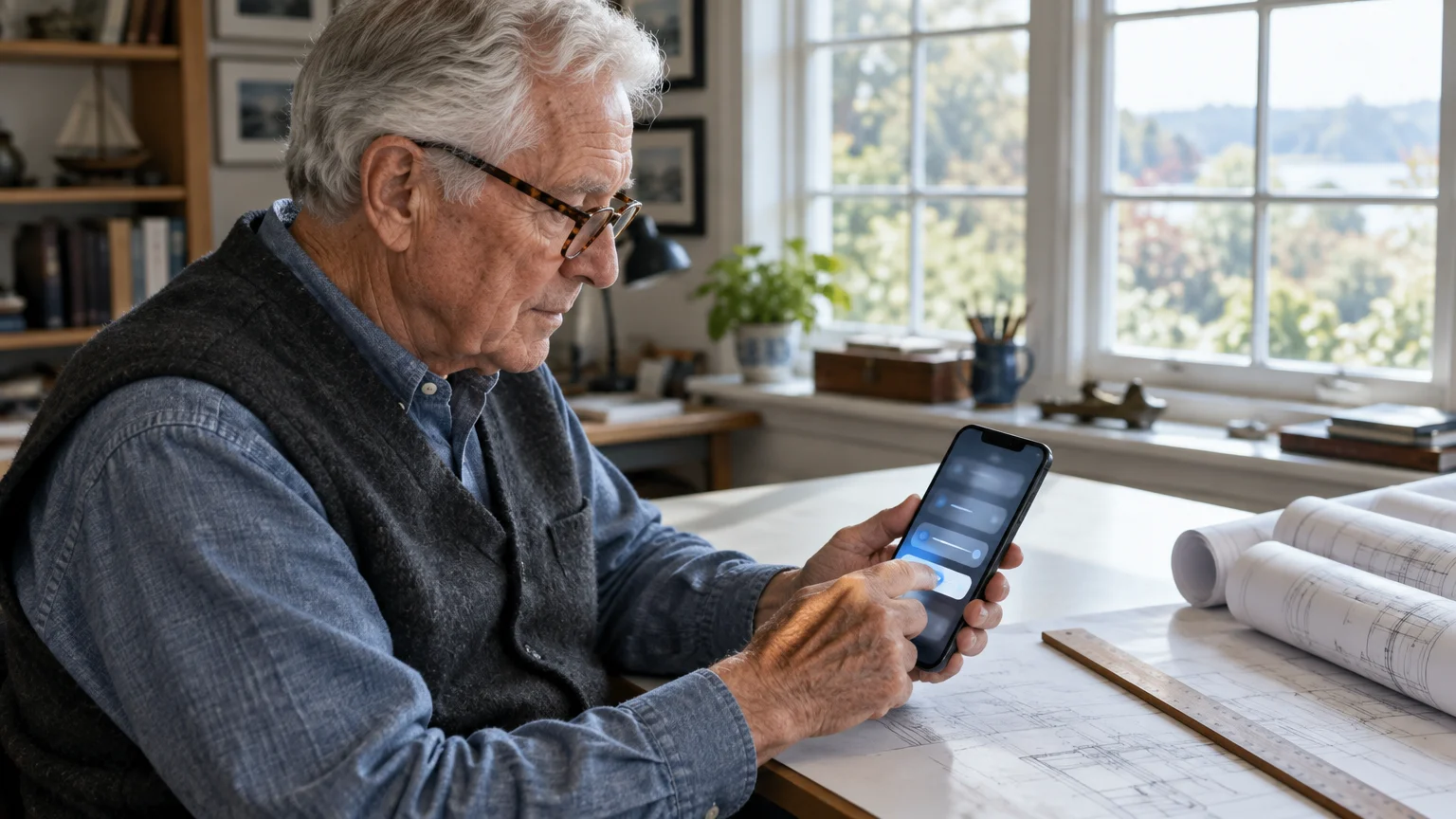
Adjusting Android Touch-and-Hold Delay to Stop Accidental Deletions
Android devices provide system settings to manage resting hands and edge touches. Menu names vary slightly between phone makers like Samsung, Google Pixel, and Motorola on Android 15 and 16 as of 2026.
Giving yourself more time to read and type is easy once you know how to stop your phone screen from going black so fast.
If you struggle with other unwanted gestures from the lock screen, learn how to stop opening the camera by mistake.
If your screen starts ignoring regular taps after changing these settings, see our advice for when your phone is not responding to your finger taps.
The primary setting to adjust is the touch-and-hold delay. This control changes how long you must press a key before your phone triggers secondary actions like deleting entire word blocks.
Follow these steps to adjust touch delay on Google Pixel or Motorola devices:
- Open Settings.
- Tap Accessibility.
- Select Timing controls.
- Tap Touch & hold delay.
- Select Medium (1.0 second) instead of Short (0.5 seconds).
Samsung Galaxy devices running One UI provide dedicated settings for palm interference. You can set a custom millisecond delay and activate software edge rejection.
Palm rejection is a software filter that ignores wide, flat touches from the base of your hand. Samsung includes this feature under display settings.
- Open Settings on your Samsung phone.
- Tap Accessibility.
- Tap Interaction and dexterity.
- Select Touch and hold delay.
- Choose Custom and press the screen for roughly 0.40 seconds to set a custom response threshold.
- Return to the main Settings menu and tap Display.
- Scroll down and toggle the switch labeled Accidental touch protection to on.
You can discover more configuration options through Google’s Android accessibility overview. These adjustments stop the delete key from running continuously when the heel of your thumb rests against the bottom bezel.
Restoring Deleted Messages from Trash Folders
There is an important distinction between losing unsent draft text and deleting an active conversation thread. When you delete a message thread you already sent or received, undo gestures will not bring it back.
You can also have your restored incoming messages read aloud by understanding and using text-to-speech on your phone.
When messaging family or friends together, see our tips on how to send a group text without reply-all chaos.
To ensure you notice future replies right away, check our guide on how to make text message alerts louder and repeat.
Before proceeding, note that deleted conversations remain in recovery folders for exactly 30 days. After 30 days, your phone permanently purges the data to free up internal storage.
Both Apple and Android messaging apps provide dedicated trash folders for sent and received texts. You can retrieve complete message logs with photos and voice notes directly from these folders.
Follow these steps to recover a deleted conversation on iPhone:
- Open the Messages app.
- Tap Filters in the top left corner of your conversations list, or tap Edit.
- Tap Recently Deleted.
- Tap the circle next to the conversation you want to restore.
- Tap Recover in the bottom right corner of the screen.
- Tap Recover Message to return the conversation to your active inbox.
Android message recovery depends on whether you use Samsung Messages or Google Messages. Both store deleted items temporarily before erasing them permanently.
Follow these steps for Samsung Messages:
- Open Messages.
- Tap the three vertical dots located next to the search bar.
- Tap Trash from the drop-down menu.
- Touch and hold the conversation you need to bring back.
- Tap Restore all or Restore at the bottom of the screen.
If you use Google Messages, deleted conversations do not go to a trash folder. Instead, check the Archived folder by tapping your profile icon in the search bar and choosing Archived to locate hidden threads.
Recovery Methods and Sensitivity Settings Compared
Choosing the correct recovery shortcut depends on your physical comfort and device model. Shaking a phone requires arm strength, while screen gestures require steady finger coordination.
The table below compares each recovery method alongside physical calibration adjustments. Review the technical limits and requirements for each option before selecting your preferred method.
| Recovery or Calibration Tool | Operating System | Physical Action Required | Primary Benefit | Limitations and Risks |
|---|---|---|---|---|
| Three-Finger Tap Menu | Apple iOS 18 / 19 | Single tap with three fingertips | Instant visual menu with Undo button | Requires steady coordination of three fingers |
| Shake to Undo | Apple iOS 18 / 19 | Vigorous horizontal wrist shake | Simple motion without precise finger taps | Risk of dropping handset; wrist fatigue |
| Gboard Undo Key | Android 15 / 16 | Single tap on keyboard toolbar arrow | Clear visual icon above the keyboard | Must unhide icon in keyboard settings first |
| Samsung Two-Finger Swipe | Android One UI | Swipe two fingertips left across keys | Rapid restoration directly on keys | Does not work if glide typing is active |
| Hold Duration Calibration | Apple iOS 18 / 19 | Increase delay to 0.30 seconds | Stops rested palms from pressing keys | Slows down rapid typing speeds slightly |
| Touch & Hold Delay Calibration | Android 15 / 16 | Set delay slider to 0.40–1.0s | Stops accidental mass deletion loops | Slight pause when accessing key accents |
| Recently Deleted Folder | iOS and Android | Tap folder inside Messages menu | Recovers full conversations and media | Items permanently purged after 30 days |
Pairing a quick recovery gesture with sensitivity adjustments gives you reliable protection. You spend less time retyping lost thoughts and prevent the keyboard from misinterpreting resting hands.
Worked Scenario: Eleanor Recalibrates Her Phone Settings
Eleanor is 75 years old and uses an iPhone 15 running iOS 18 as of 2026. She frequently types thoughtful, detailed updates to her family using the default Messages app.
According to a Pew Research study on technology adoption among older adults, smartphone ownership among adults aged 65 and older has grown steadily. However, edge-to-edge screen designs create physical typing obstacles that hardware makers rarely explain.
Eleanor holds her phone in her left hand and types using her right index finger. Because she holds the phone close, the heel of her right palm rests against the bottom-right corner of the glass.
While typing a 52-word message about Sunday dinner plans, her resting palm brushed the delete key. In 1.4 seconds, the auto-repeat delete function wiped out 38 words of her draft.
Eleanor immediately used the three-finger tap gesture. She tapped three fingers flat against the center of the display, bringing up the top editing toolbar.
She tapped the curved Undo icon once. The entire 38-word paragraph returned to her message bubble without missing a single punctuation mark.
To ensure this problem would not repeat, Eleanor adjusted her hardware settings using these exact values:
- She opened Settings, selected Accessibility, and tapped Touch.
- She turned on Touch Accommodations and enabled Hold Duration.
- She set the hold timer from the default 0.10 seconds to exactly 0.30 seconds.
- She enabled Ignore Repeat and selected a threshold of 0.35 seconds.
- She disabled Shake to Undo to prevent accidental pop-ups when placing her phone in her handbag.
With these calibration values saved, Eleanor tested her typing. Her resting palm no longer triggered the delete key, while her regular index finger taps registered accurately.
Frequently Asked Questions
Can I undo deleted text if I already closed the messaging app?
No, closing an application clears the temporary typing cache from your phone memory. Once you swipe an app closed or lock the screen, unsent text drafts cannot be recovered using undo gestures.
Why does shaking my iPhone fail to bring up the undo prompt?
The feature may be disabled in your settings, or the shake motion lacked sufficient speed. Check Settings > Accessibility > Touch and verify that Shake to Undo is switched on.
Does Android have a universal shake to undo gesture like Apple?
Android does not have a native system-wide shake gesture for text recovery. Instead, Android relies on keyboard tools such as the Gboard toolbar arrow or third-party accessibility apps.
How do I stop my phone from deleting letters too quickly when holding the backspace key?
Adjust your touch-and-hold delay under accessibility settings to at least 0.40 seconds or medium delay. This setting introduces a slight pause before the keyboard begins rapid automatic letter deletion.
Does pressing undo restore photos or attachments removed from a draft message?
Yes, the three-finger tap undo menu on iPhone restores recently deleted inline images and pasted links. On Android, tapping the Gboard undo icon restores pasted items if the action occurred seconds prior.
Note: Menus and button names change with software updates. These steps were written for current versions as of 2026; if a screen looks different on your device, the maker’s support page linked above has the latest wording.
ClearTechGuide is independent and is not affiliated with Apple, Google, Microsoft, Amazon or any other company mentioned.
