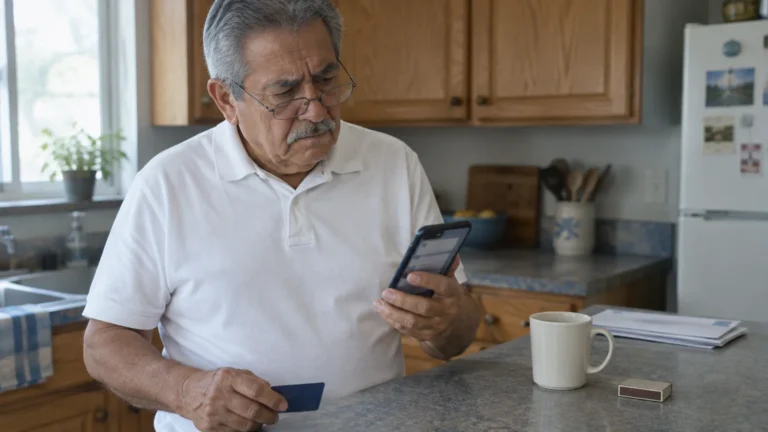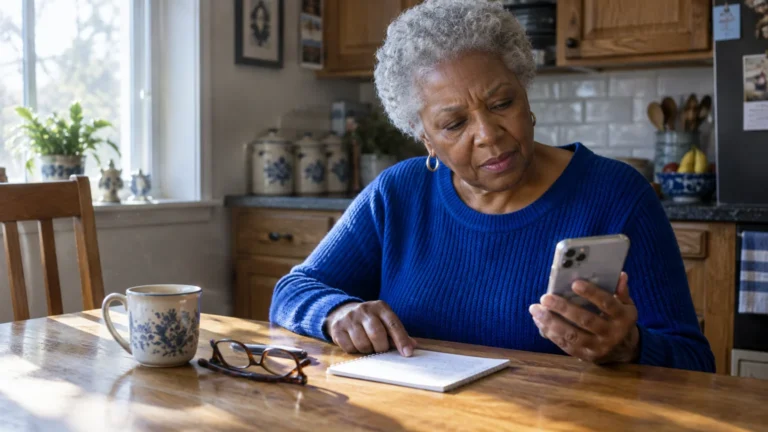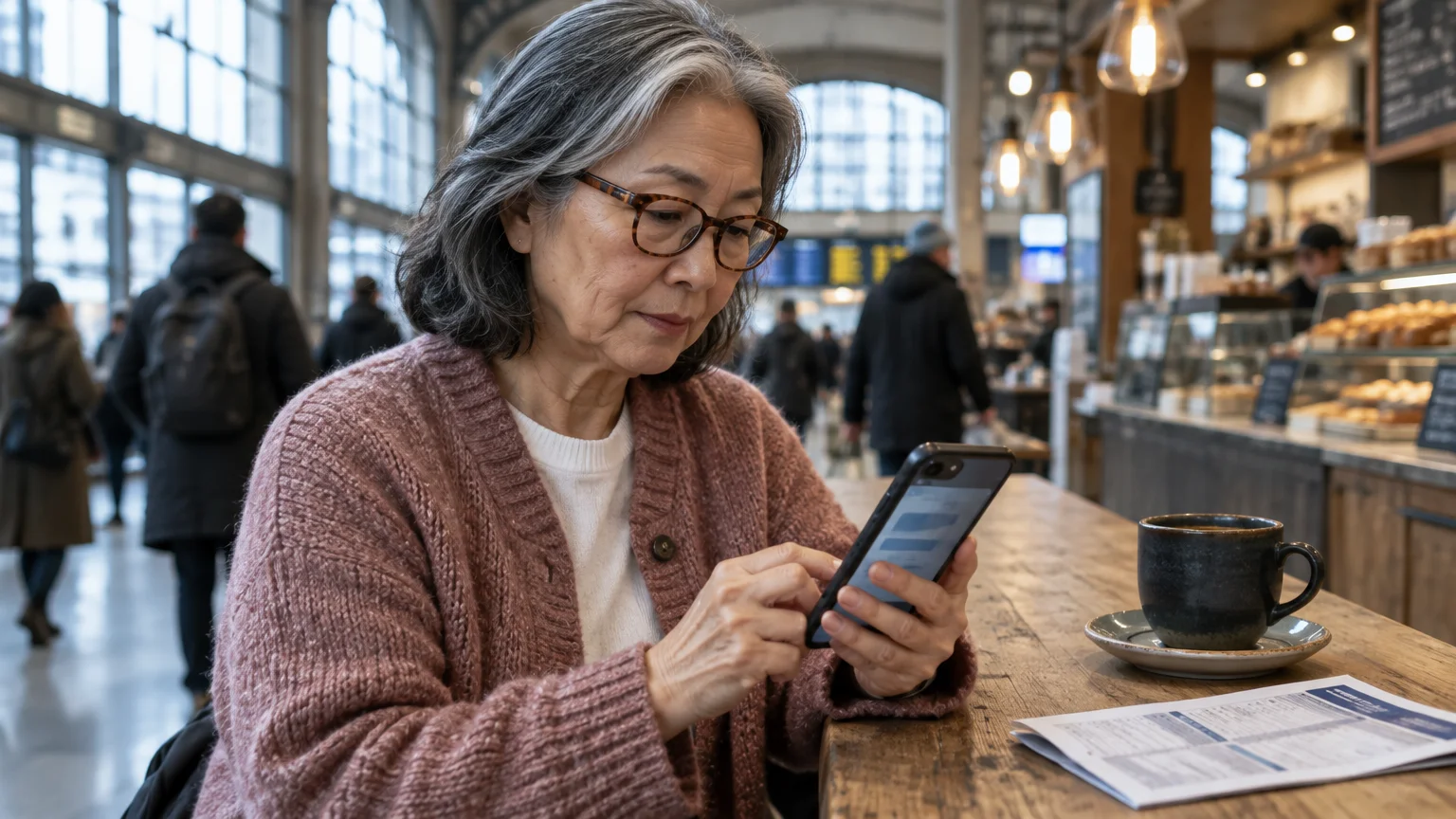
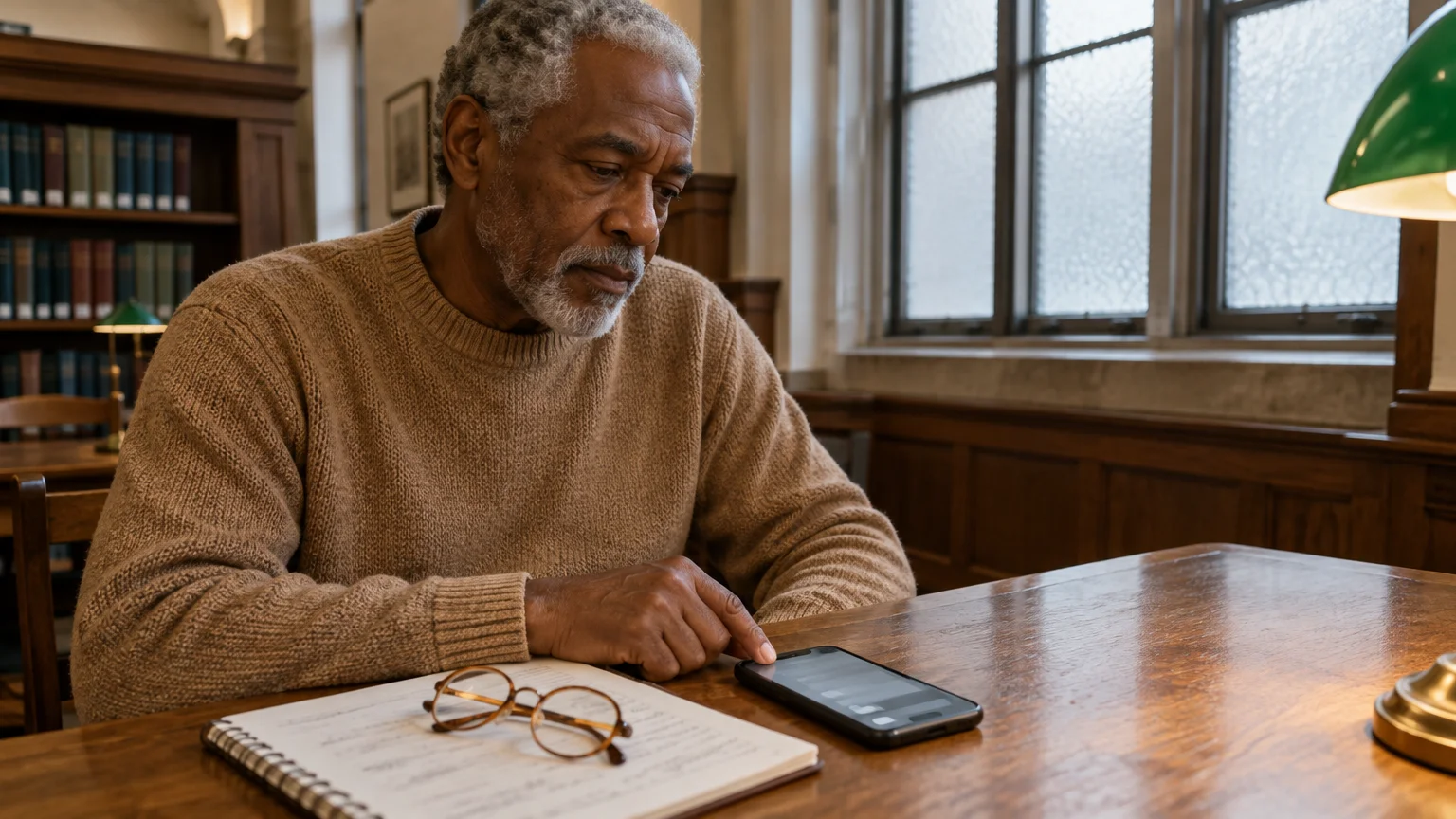
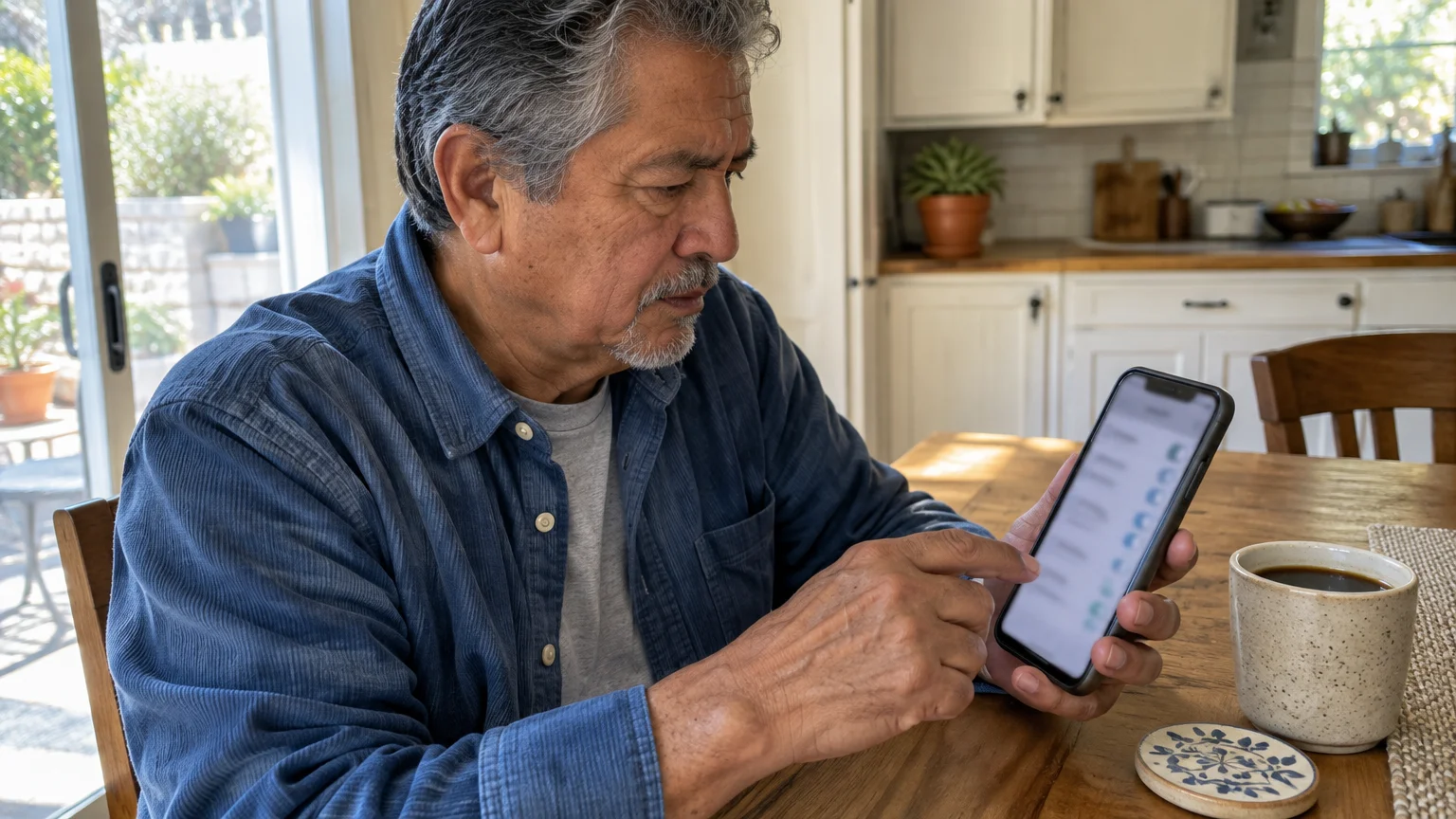
This guide is for one situation. You are around 69, your thumbs are stiff with arthritis, you wear reading glasses, and you check your bank balance on an iPhone 13 at a busy coffee shop.
Every letter you tap pops up in a bubble above the key, where the next table can read it. Most guides tell you to switch that bubble off.
For you, that is the wrong switch to reach for first. Set up Face ID for your bank app so the password is never typed in public.
Then keep the key bubble on if you need it to see which key you hit.
The reason is simple. A password box shows only dots, so the bubble is the only sign of which letter your finger actually pressed.
Without it, a slip shows up only as “incorrect password.”
In this guide8 sections
- The Two Flashes, and What Hiding Them Costs
- What Each Setting Hides, Side by Side
- iPhone: Face ID First, Then Character Preview
- If Your Phone Runs Android
- Worked Example: A Balance Check at the Coffee Shop
- Four Ways to Check a Password You Cannot See
- What to Do if Someone Saw Your Password
- Frequently Asked Questions
The Two Flashes, and What Hiding Them Costs
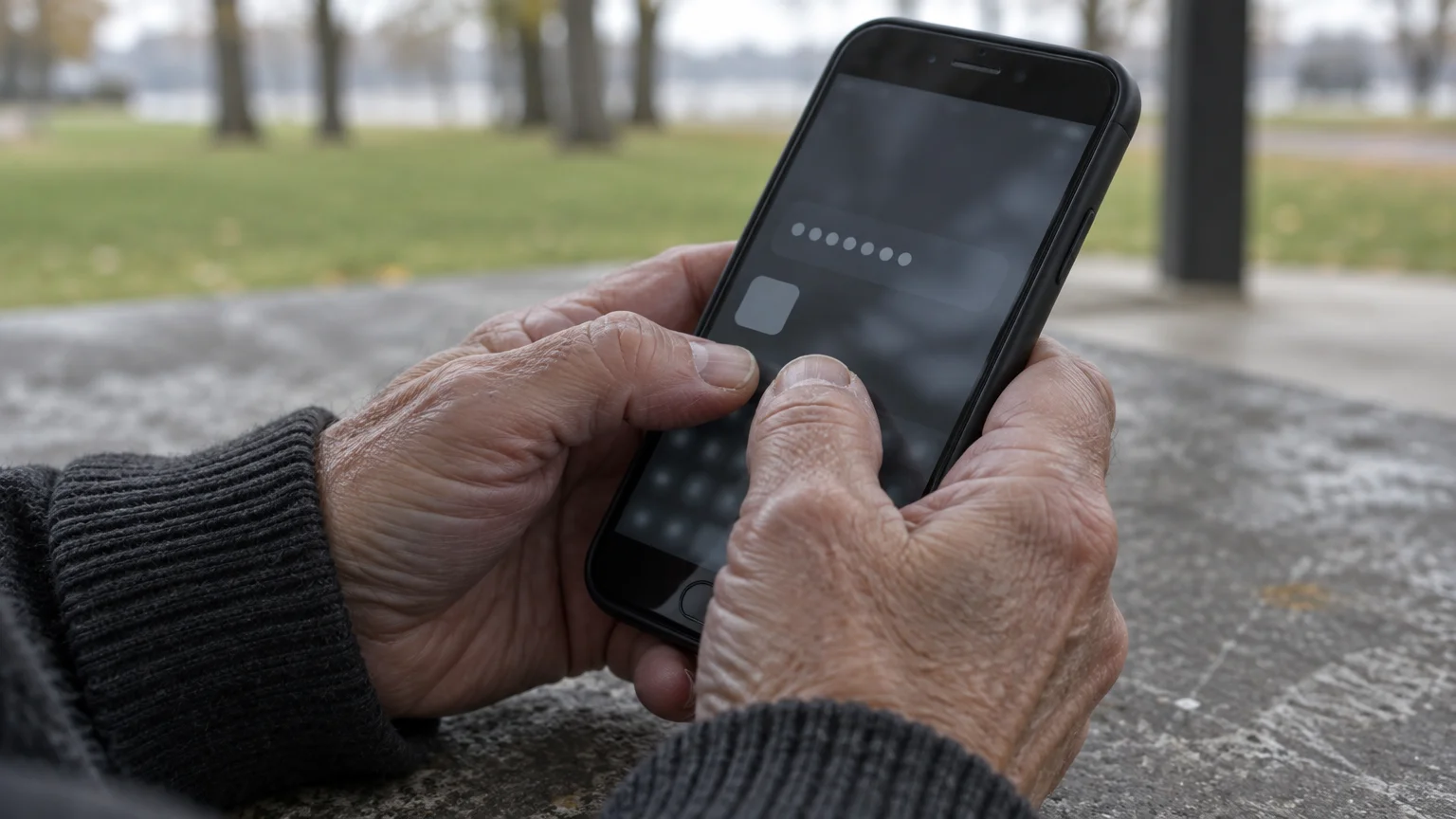
Your phone can reveal a password in two places. The keyboard can pop up an enlarged copy of each key you press, and the password box can show your newest letter for a moment before it turns into a dot.
Staying secure in busy public places goes beyond guarding against peering eyes; understanding whether airport USB charging stations are safe to use is another helpful step when managing your devices away from home.
Watching someone’s screen to steal a password is called shoulder surfing. Both flashes help a shoulder surfer, but both also help you catch mistakes on smooth glass that has no real keys to feel.
With arthritis, a tremor or blurry vision, that help is real. Turn the bubble off and you are typing blind into a row of identical dots.
The bubble also hides less than you might expect. It appears right above your fingertip, so anyone close enough to read it can usually watch where your finger lands, too.
That is why skipping the keyboard beats hiding the keyboard. Face ID, a fingerprint or a saved password fills the box without a single key showing.
What Each Setting Hides, Side by Side
Every row below is something you can open and check on your own phone. None of these settings needs Wi-Fi to switch on.
| Setting | Where it lives | What it hides | What you give up | Needs Wi-Fi? |
|---|---|---|---|---|
| Character Preview (iPhone) | Settings > General > Keyboard | The enlarged key bubble | Your only on-screen check of which key you hit | No |
| Make passwords visible (Android; may read Show passwords) | Settings > Security & privacy (wording varies by model) | The letter flash inside the password box | A brief look at your last letter | No |
| Popup on keypress (Gboard) | Gboard > Preferences | The enlarged key bubble | Same as Character Preview | No |
| Face ID for your bank app | Settings > Face ID & Passcode, plus the bank app’s own settings | The whole password; no keyboard appears | Nothing; keep the password for backup | No (the app itself needs Wi-Fi or cellular to load) |
| Saved passwords (AutoFill) | Settings > General > AutoFill & Passwords | The whole password; filled from storage | Nothing; you save it once at home | No |
Look at the last two rows. The only settings that cost you no typing help are the ones that remove typing altogether.

iPhone: Face ID First, Then Character Preview
Start with the step that keeps your password off the screen. These paths are for a Face ID iPhone such as the iPhone 13; phones with a Home button say Touch ID instead.
If you recently upgraded from an older phone, our tutorial on how to unlock an iPhone without a Home button will help you master the facial recognition and swipe gestures needed here.
- Open Settings and tap Face ID & Passcode.
- Enter your phone passcode.
- Make sure iPhone Unlock is on, then tap Other Apps and check that your bank’s app is switched on.
- Open the bank app and turn on its Face ID sign-in. The wording varies by bank; look under Settings, Security or Profile.
Next, let the phone remember passwords for websites. Go to Settings > General > AutoFill & Passwords and turn on AutoFill Passwords and Passkeys.
Only then decide about the bubble. If you can hit keys reliably without it, switch it off:
- Open Settings and tap General.
- Tap Keyboard.
- Scroll to Character Preview and tap the switch so it turns gray.
If keys feel tiny under stiff thumbs, try Settings > Display & Brightness > Display Zoom > Larger Text. It enlarges the whole screen, keyboard included.
For bigger lettering everywhere else, follow Apple’s instructions to make text bigger on iPhone.
The password box still shows each newest letter briefly; iPhone has no separate switch for that. Some login boxes also have an eye icon that reveals the whole password, so leave it alone in public.
If Your Phone Runs Android
Android puts the two flashes on separate switches, so you can drop one and keep the other. Labels differ between Pixel, Samsung and other makers.
While exploring these security menus, it is also a great idea to review how to manage app permissions on your phone to ensure background apps cannot access sensitive screen data.
Along with adjusting visual bubbles, you can also turn off keyboard clicking sounds to keep your typing discreet in public places.
Turn off the box flash first. It helps you least, because your eyes are on the keyboard, not on the box.
- Open Settings.
- Tap Security & privacy (or Privacy on older menus).
- Tap Privacy controls (on Pixel) or More security settings (on Samsung).
- Switch off Make passwords visible. Some phones call it Show passwords.
Then decide on the bubble. In Gboard, go to Settings > System > Keyboard or Languages & input > On-screen keyboard > Gboard > Preferences > Popup on keypress.
Samsung Keyboard calls the same thing Character preview. Leave it on if you need it, and turn on your bank app’s fingerprint sign-in instead.
If you need a closer look at small text, the Google Android accessibility overview explains magnification.
Worked Example: A Balance Check at the Coffee Shop
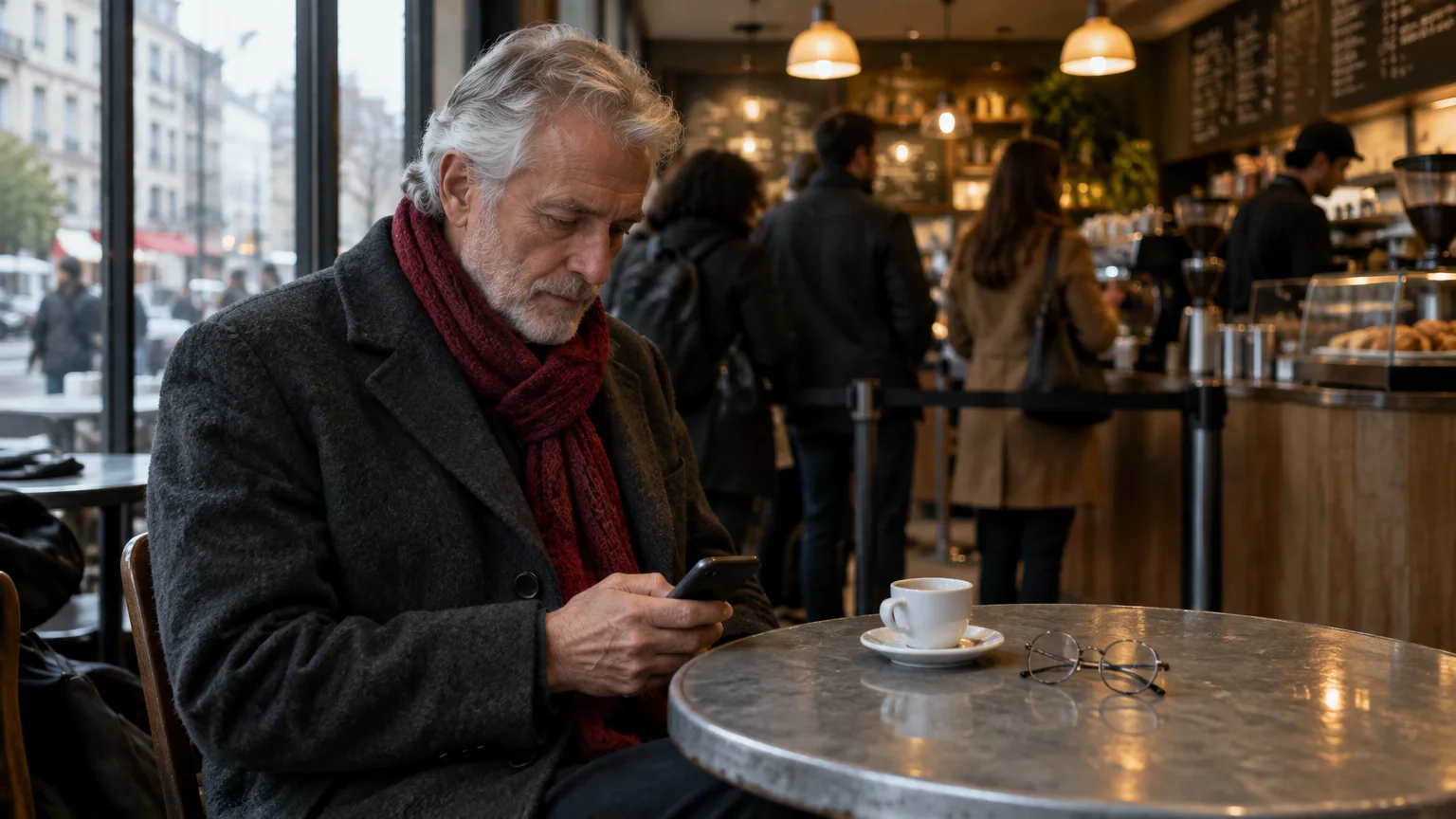
Here is our reader’s case end to end: iPhone 13, arthritic thumbs, reading glasses, and a long, unique passphrase of the kind CISA’s strong password guidelines recommend.
Reviewing how to use mobile banking apps safely provides extra peace of mind whenever you manage accounts away from home.
The evening before, at home. Face ID is on for the bank app, Display Zoom is set to Larger Text, and Character Preview stays on.
At the café. Our reader picks a seat with their back to a wall, so nobody walks behind the screen. They use cellular data, since the FTC’s guidance on public Wi-Fi safety explains the risks of café networks.
The bank app opens, Face ID looks, and the balance appears. The keyboard never shows, so neither bubbles nor thumbs give anything away.
The harder moment. Next, they sign in to a pharmacy website for the first time, so nothing is saved. Now the keyboard appears, and the bubble earns its keep.
They hold the phone low and close, cup the other hand over the keyboard, and type slowly. Before tapping Sign In, they count the dots against the length of the passphrase.
If the count is wrong, they clear the box and retype once. If it fails again, the errand waits until home, where the eye icon is safe and the password can be saved.
Four Ways to Check a Password You Cannot See
If you do switch the bubble off, you still need a way to confirm what you typed. These checks work without showing letters to the room.
- Count the dots. Know how many characters your password has; the box should show exactly that many.
- Peek only in private. Tap the eye icon at home, or with the screen tilted against your chest.
- Clear and retype. Holding backspace and starting over is easier than hunting for one wrong dot.
- Let the phone type it. A saved password or passkey fills the box from storage, so stiff fingers never touch the keys.
An adhesive privacy screen protector adds one more layer. It darkens the display for people sitting to your side.
What to Do if Someone Saw Your Password
If you think a bystander saw your password, act before they can use it.
If you receive unexpected security alerts shortly after, learn how to check if a bank fraud text is real before responding.
- Leave the café network and switch to cellular data.
- From somewhere private, sign in and change the password.
- In the account’s security settings, choose Sign out of all devices if offered.
- Turn on two-factor authentication, so a stolen password alone cannot get in.
- Check recent transactions and contact details for changes you did not make.
For a bank account, call the number printed on the back of your card. Tell the fraud department someone may have seen your password.
If you suspect a scam or exploitation, use the FBI elder fraud resource center or call the National Elder Fraud Hotline at 1-833-372-8311.
For wider phone security, read the FTC guide on protecting phones from hackers.
Frequently Asked Questions
Will my saved passwords still fill in if I turn off Character Preview?
Yes. AutoFill places the password straight into the box without using the keyboard, so the bubble setting makes no difference to it.
I keep mistyping since I switched the bubble off. Should I turn it back on?
Yes. Repeated wrong guesses can lock you out, and the bubble is your best typing check; protect yourself with Face ID and a careful seat instead.
Can someone work out my password just from watching my fingers?
Sometimes, on a standard keyboard layout. Face ID, a fingerprint or a saved password removes that risk, because no keys are pressed.
Does Character Preview change typing in Messages and email too?
Yes. It is a keyboard-wide setting, so bubbles disappear in every app.
Your taps still register normally.
Note: Menus and button names change with software updates. These steps were written for current versions as of 2026; if a screen looks different on your device, the maker’s support page linked above has the latest wording.
ClearTechGuide is independent and is not affiliated with Apple, Google, Microsoft, Amazon or any other company mentioned.