If you fly with your boarding pass on your iPhone and Bluetooth hearing aids paired to it, a low battery at the gate is a real problem. A hacked USB port is not.
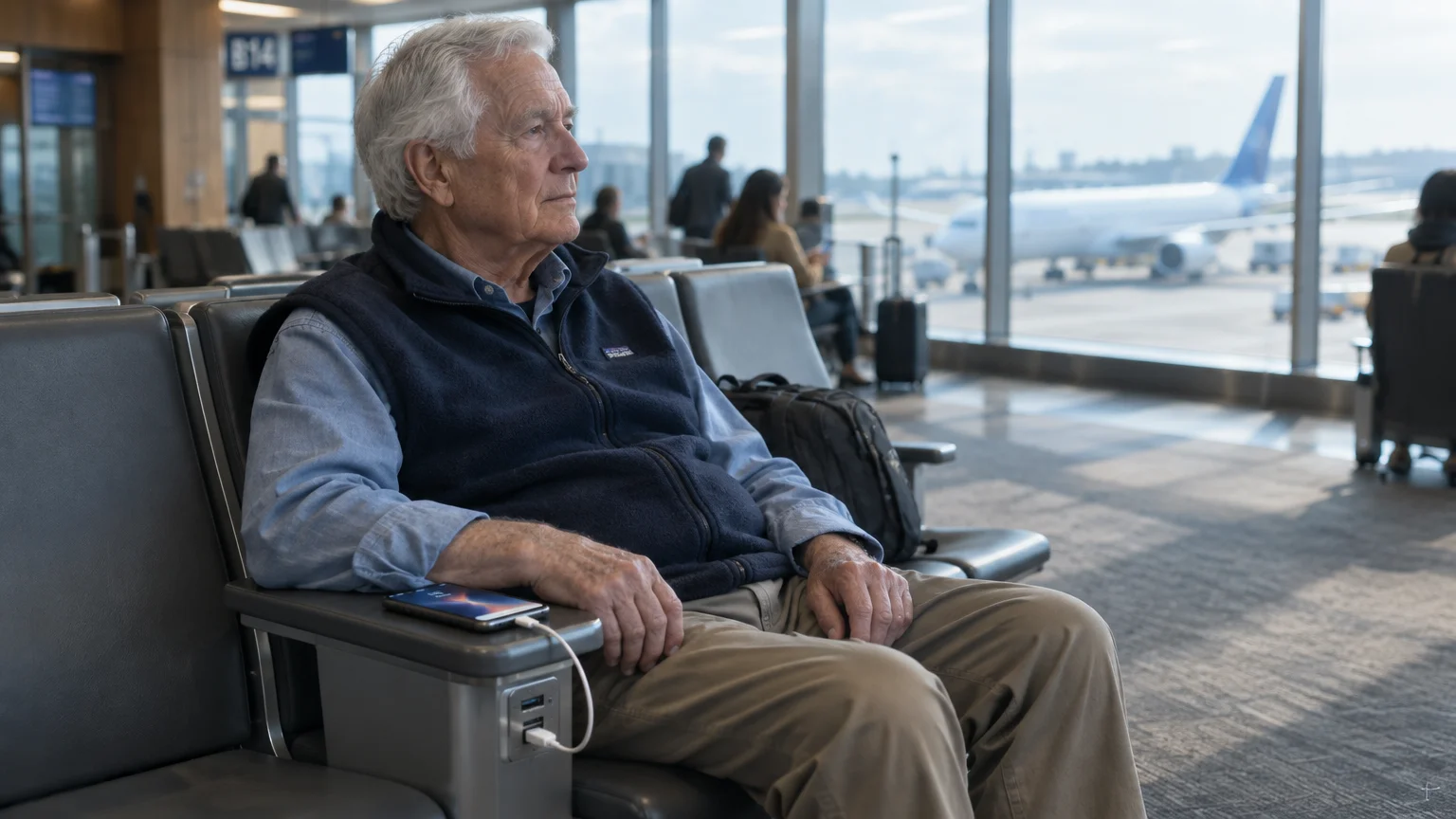
This guide follows one trip: a long walk from security to gate B14, a battery icon gone red, and about 45 minutes until boarding.
Our judgement: airport USB ports are safe for your data on an up-to-date phone, but they are often slow. Protect the battery first, then plug your own charger into a wall outlet.
In this guide8 sections
The Situation: A Red Battery at Gate B14
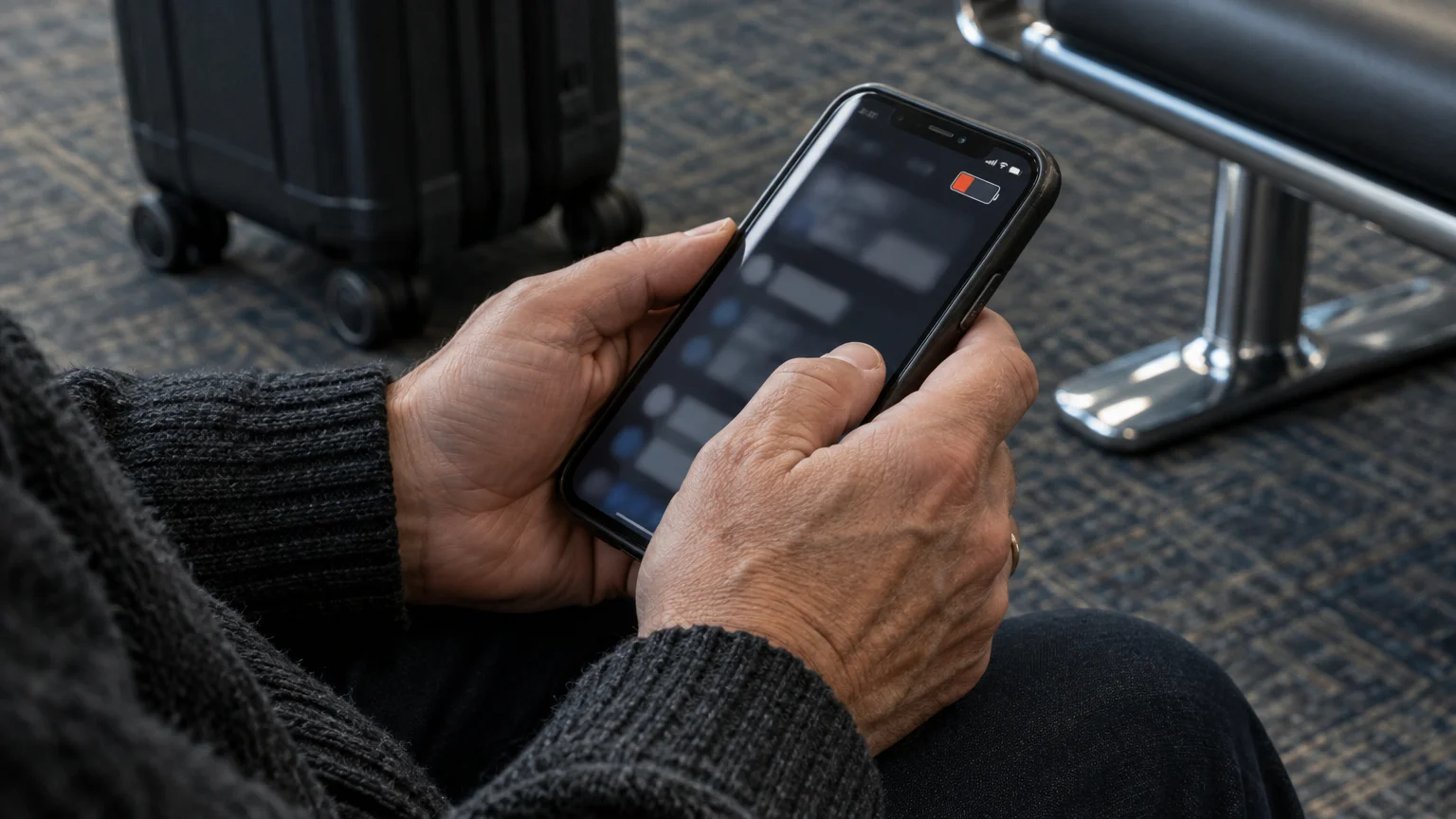
Picture a traveler in their late 70s with an iPhone a grandchild set up. The boarding pass sits in Apple Wallet, and two Bluetooth hearing aids stream calls from the phone.
Streaming audio and running travel apps in crowded terminals also consumes mobile data, so understanding data usage on your smartphone can help you manage your plan during trips.
When sitting in a crowded gate area, it also helps to know how to hide passwords while typing on your phone so nearby travelers cannot glance at your screen.
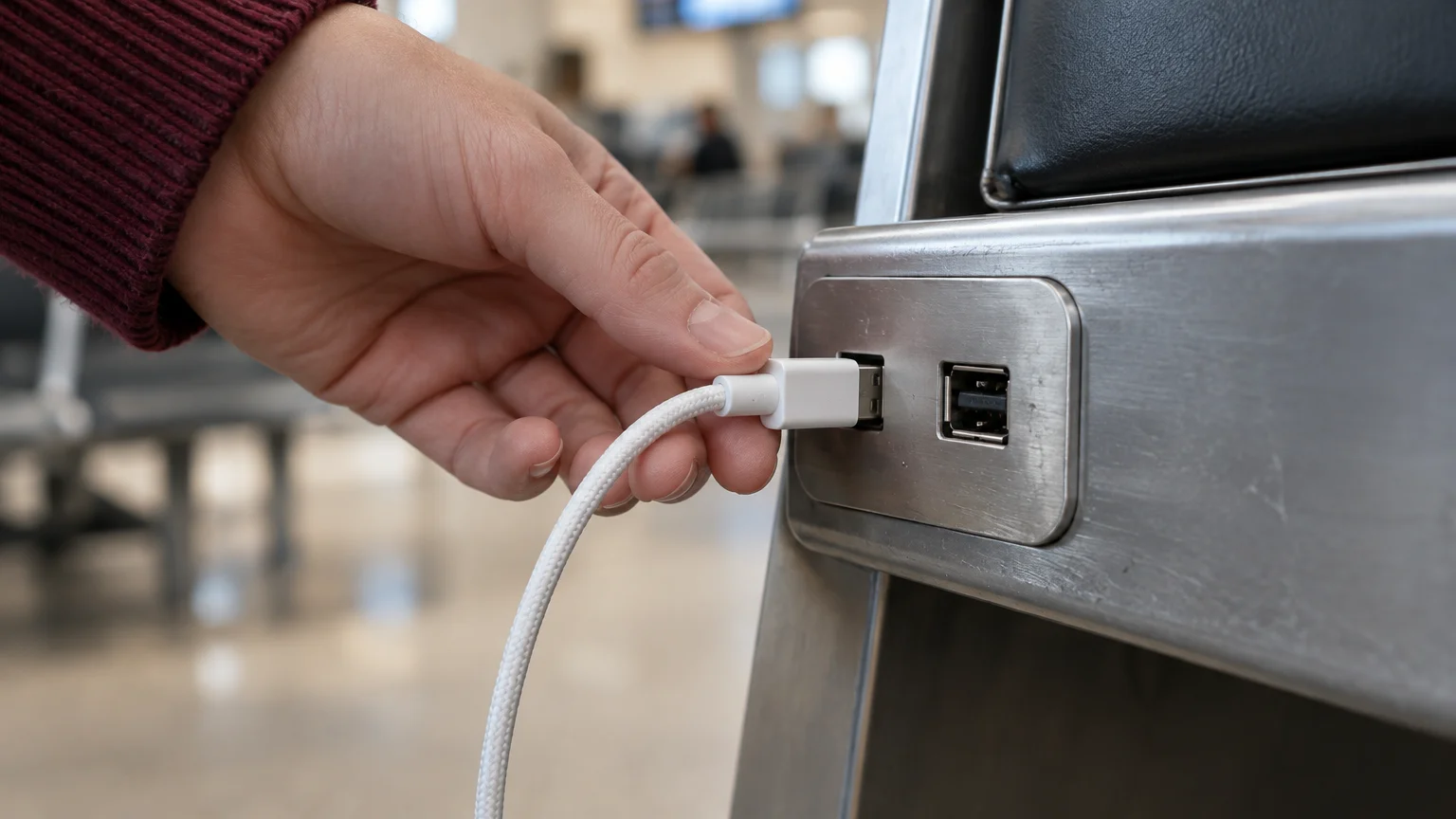
The walk from the checkpoint took longer than planned. Now the battery icon is red, the gate is crowded, and the only free spot to charge is a USB port in the seating.
Two worries compete: will this port steal my information, and will my phone last until the agent scans my pass? The second one deserves your attention.
If the phone dies, you lose the digital pass and the streaming. Most hearing aids keep working on their own, but streamed calls and app controls stop; the details vary by model.
Why the USB Port Is Not the Real Danger
“Juice jacking” means tampering with a public USB port so it steals data or installs harmful software. Researchers have shown it can work in demonstrations.
The FBI, FCC and TSA have all posted warnings about public charging. The FBI later described its post as a general reminder, not a response to actual attacks.
We know of no confirmed real-world case outside research settings. That fits how phones are built: a charging cable gets no access to your files by default.
On an iPhone, any data connection needs your permission. If a port asks for data, the screen shows Trust This Computer? Tap Don’t Trust, and only power flows.
A locked iPhone adds a second barrier, USB Restricted Mode. Open Settings > Privacy & Security > Wired Accessories and keep Automatically Allow When Unlocked (or Ask for New Accessories) selected.
Android phones default to charging only. Data transfer needs you to unlock the phone and choose it, usually under Settings > Connected devices > USB; the wording varies by model.
Researchers later found a trick, called ChoiceJacking, that could fake approval of those prompts. Apple and Google patched it, so updates matter: follow CISA’s advice to update software and leave automatic updates on.
That Trust prompt is small. If dialog boxes are hard to read, use Apple’s guide to make text bigger on iPhone and iPad before you travel.
Which Setting Matters More
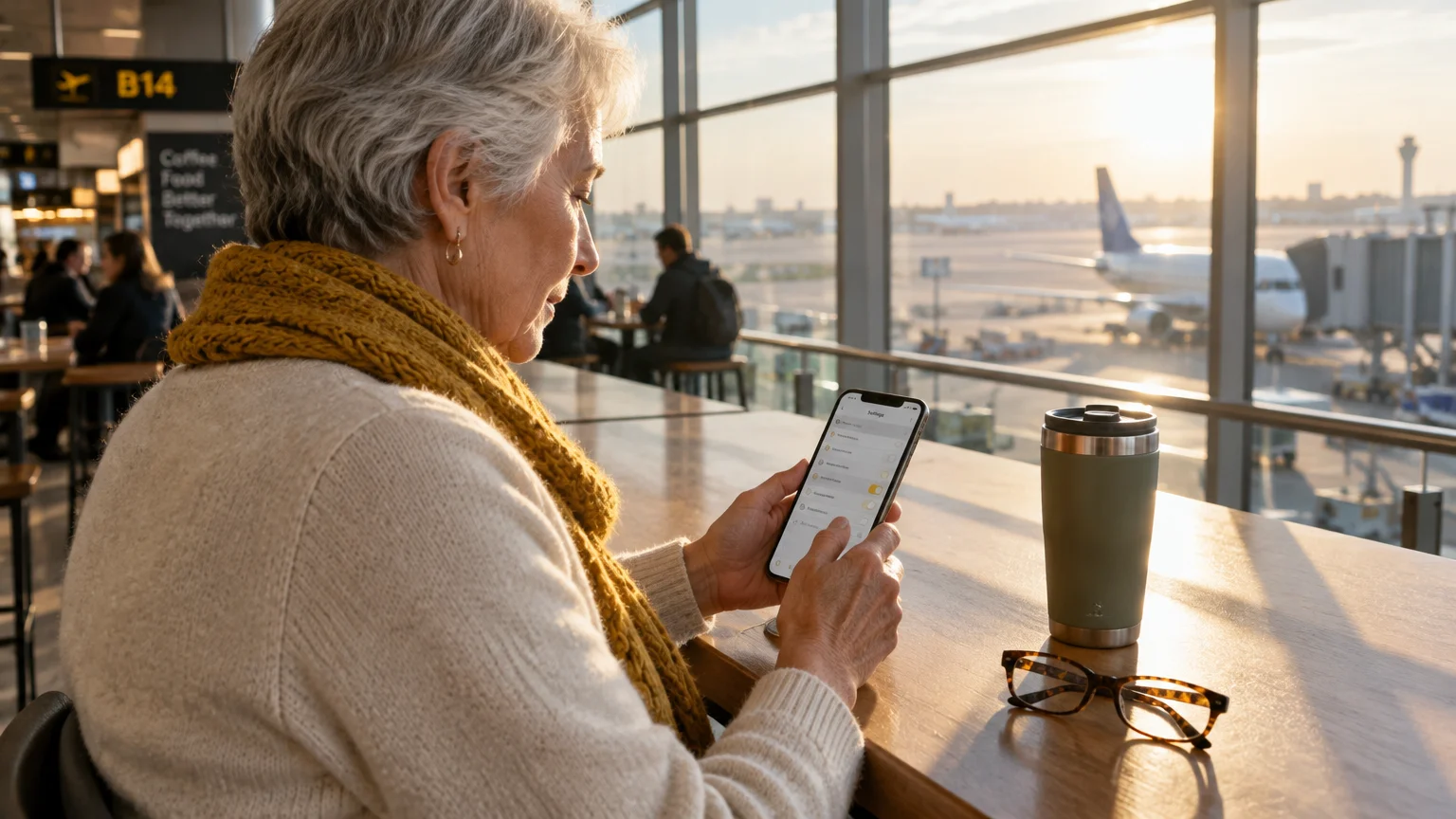
For this traveler, Low Power Mode matters more than any security gadget. A data blocker guards against an attack with no confirmed real-world case; a dead phone at the boarding door is an everyday failure.
To preserve even more battery and keep background activity to a minimum on travel days, review how to stop apps from updating on cellular data.
To prevent low-battery anxiety before your trip starts, remember that charging your phone overnight before travel day is safe for modern batteries.
Low Power Mode cuts background work such as mail fetching and some visual effects. It does not switch off Bluetooth, so your hearing aids stay connected.
Turn it on at Settings > Battery > Power Mode > Low Power Mode (or Settings > Battery > Low Power Mode on iPhone 14 and earlier). On Android 16, look for Battery Saver under Settings > Battery; the wording varies by model.
The second setting is where your boarding pass lives. A pass saved in Apple Wallet is stored on the phone, so it opens without Wi-Fi; an airline app may need a connection.
Most airline apps show an Add to Apple Wallet button on the boarding pass screen; on Android, look for Add to Google Wallet. The exact wording varies by airline.
Worked Example: 45 Minutes at Gate B14
Here is the whole wait, step by step, for the iPhone and hearing aids described above.
If you are boarding an international flight, use this downtime to verify how to turn off data roaming on your phone before departure so you avoid surprise cellular charges overseas.
- Sit down and check the battery. To see an exact number, turn on Settings > Battery > Battery Percentage.
- Turn on Low Power Mode before hunting for an outlet. The battery icon turns yellow to confirm it is on.
- Open Wallet and tap your boarding pass. If it appears now, it will open at the door even without Wi-Fi.
- Check Settings > Accessibility > Hearing Devices. If your hearing aids show as connected, leave them alone.
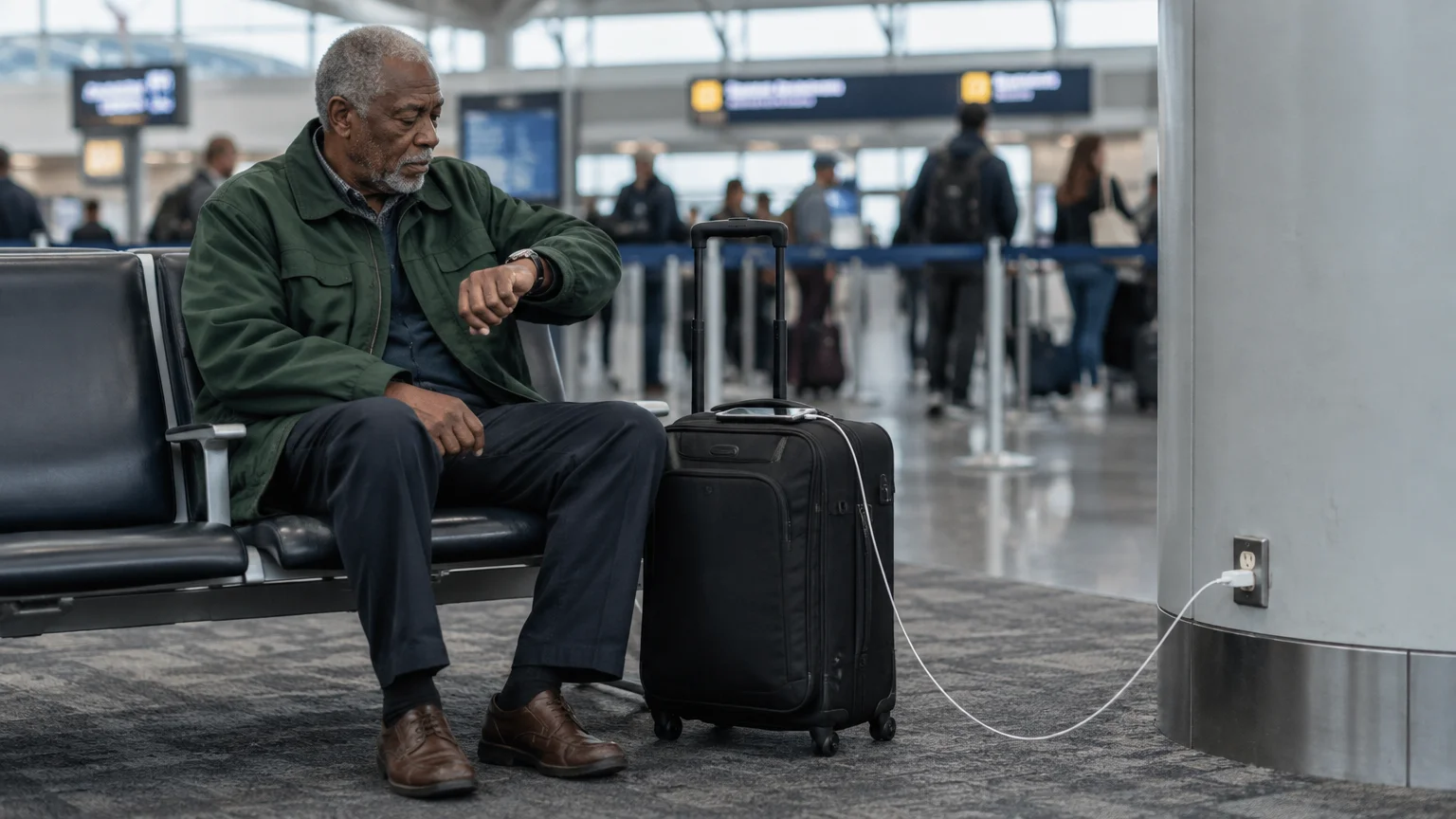
- Look for a regular electrical outlet near the gate and use your own wall charger and cable. A wall outlet carries power only, so there is no data path.
- If only the seat’s USB port is free, use it and watch the screen. A charging symbol is fine; if Trust This Computer? appears, tap Don’t Trust and unplug.
- After 15 minutes, check the percentage again. If it has barely moved, the port is weak or worn; move to an outlet.
- Before boarding, unplug and lock the phone. If Double-Click Side Button is on under Settings > Wallet & Apple Pay, a double-click opens your pass quickly.
If the battery still looks too low, ask the gate agent for a printed boarding pass. Paper never runs flat.
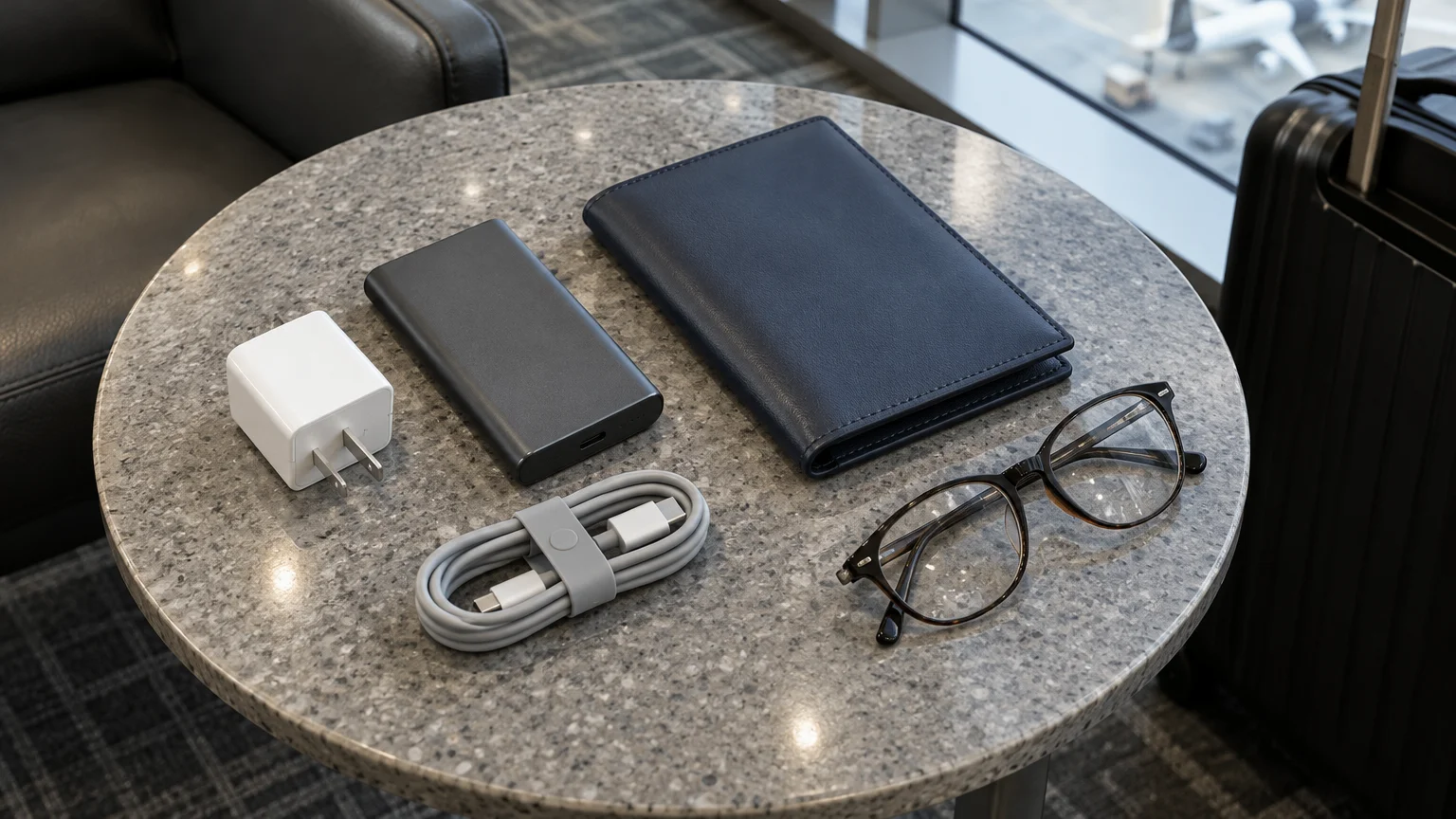
Comparing Your Charging Options
Public USB ports are often slow and take heavy wear from constant use. Worn pins can loosen your cable or strain your phone’s charging port.
If you wear a fitness band or digital watch on your trip, knowing when to charge your smartwatch ensures you never get caught with an empty battery on travel days.
If your adapter feels hot after a few minutes, knowing why your charger gets warm in the wall can reassure you that normal warmth is entirely safe.
| Option | What it plugs into | Data path to your phone? | Speed | Packing rules |
|---|---|---|---|---|
| Airport USB port | Port built into seats or kiosks | Possible in theory; blocked unless you tap Trust | Often slow; check your percentage | Nothing to pack |
| USB port with data blocker | Small adapter between port and cable | None; data wires not connected | No faster than the port | Carry-on or checked bag |
| Your own wall charger | Regular electrical outlet | None | Usually the fastest choice | Carry-on or checked bag |
| Power bank | Your own battery, no outlet needed | None | Depends on the model | Carry-on only; airline limits apply |
A power bank saves you hunting for outlets, but lithium batteries must stay in the cabin. If your roller bag is checked at the aircraft door, take the power bank out first.
Airlines set their own rules on how many power banks you may carry and whether you may use them in flight. Check your airline’s website before packing.
If You Still Want a Data Blocker
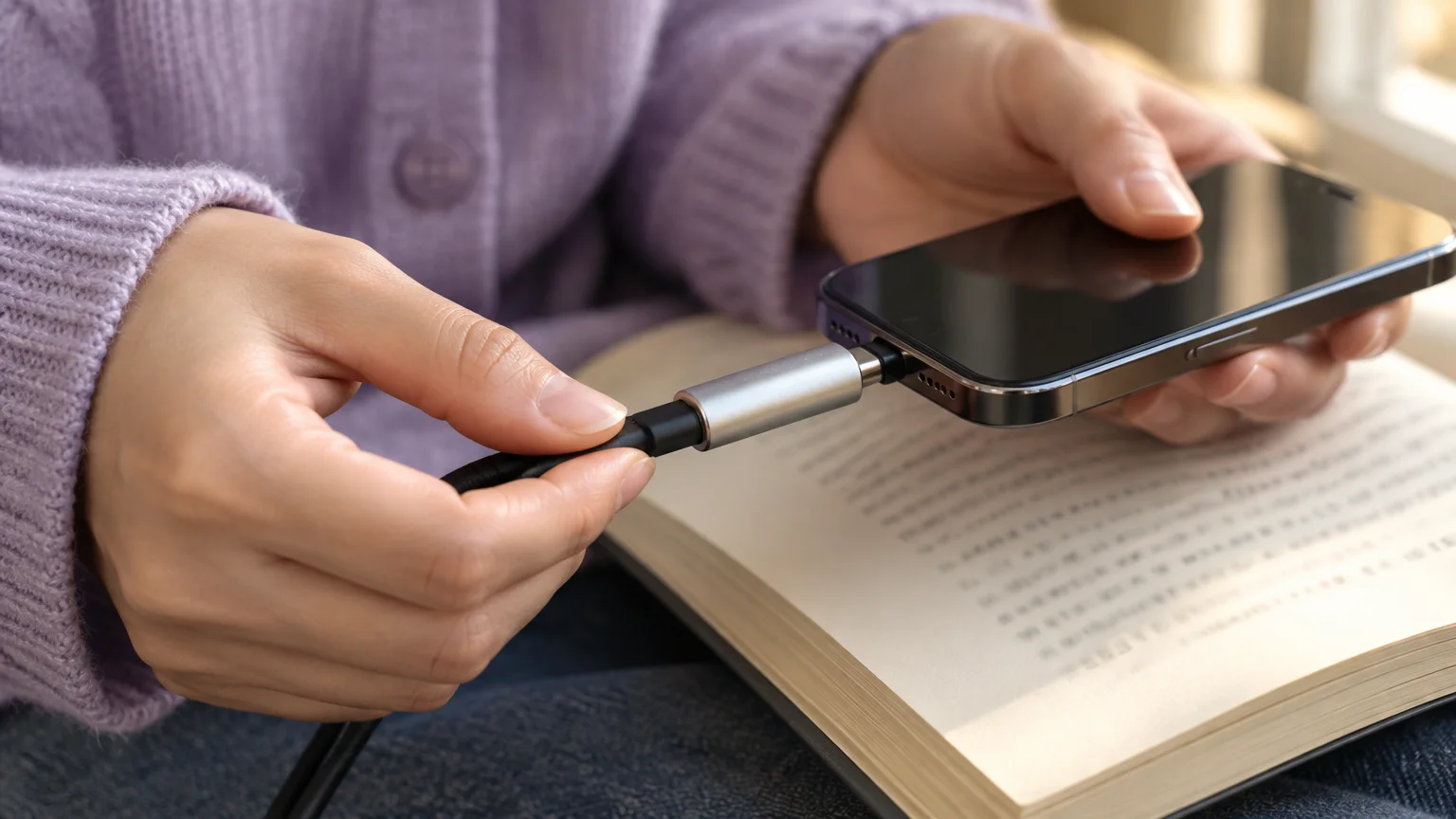
A data blocker is a small adapter that passes power but leaves the data wires unconnected. It does no harm; it just is not where we would start.
- Check the adapter for cracks or loose metal parts.
- Plug the blocker into the airport USB port.
- Plug your cable into the blocker, then into your phone.
- Confirm the charging symbol appears on screen.
If a Trust prompt appears with a blocker attached, the adapter is faulty. Unplug it and charge another way.
What to Do If Your Phone Acts Strangely
Tampering at charging stations is rare, and the response is simple. The FTC’s guide to protecting your phone from hackers covers the basics.
Warning signs to watch for:
- A trust, pairing or accessory prompt while plugged into a public port.
- The phone getting very hot or draining fast soon after connecting.
- Apps, bookmarks or profiles you do not recognize.
- Unplug from the port right away.
- Restart the phone. On most iPhones, hold the side button and either volume button, then drag the slider. On Android, hold the power button and tap Restart; the wording varies by model.
- Install updates: Settings > General > Software Update on iPhone, or usually Settings > System > Software updates on Android 16.
- Delete any app you did not install yourself.
Back up your photos before any reset so nothing irreplaceable is lost.
If you see charges you did not make, report them through the FTC identity theft recovery portal or call 1-877-438-4338.
For scams aimed at older adults, contact the FBI elder fraud team or the National Elder Fraud Hotline at 1-833-372-8311.
Frequently Asked Questions
Can an airport USB port steal my photos?
Not on an up-to-date phone unless you approve it. iPhones ask Trust This Computer? and Android charges only by default, so tapping Don’t Trust keeps your photos private.
Will my hearing aids stop working if my phone dies?
Most hearing aids keep working as hearing aids, but streamed calls and phone-app controls stop until the phone has power. Check your hearing aid maker’s instructions, because details vary by model.
Is it OK to pack a power bank in my checked suitcase?
No. Lithium power banks must travel in your carry-on bag inside the cabin. Airlines also set their own limits, so check your airline’s website.
Why do the FBI and TSA warn about public charging at all?
The warnings are precautions based on research demonstrations. The FBI described its post as a general reminder rather than a response to documented attacks.
Note: Menus and button names change with software updates. These steps were written for iOS 26 and Android 16; if a screen looks different, check the maker’s support pages.
ClearTechGuide is independent and is not affiliated with Apple, Google, Microsoft, Amazon or any other company mentioned.