
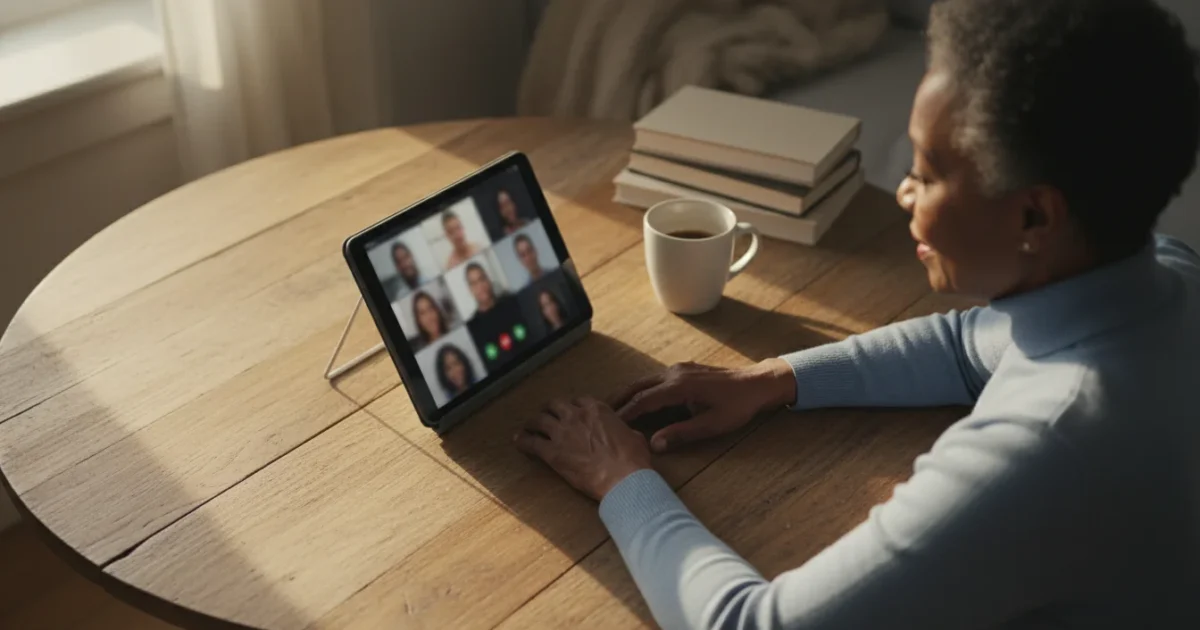
Staying connected with family and friends across distances brings immense joy and comfort. Video calls have become a wonderful way to see your loved ones, share smiles, and catch up on life’s moments. However, holding your tablet steady during a long chat often leads to tired arms, a shaky picture, or an awkward camera angle that makes you look up at the ceiling. These small frustrations can detract from the experience.
A stable tablet makes it much easier to read bedtime stories to grandchildren during your calls without your hands getting tired.
A simple yet incredibly effective solution exists: a tablet stand. This straightforward accessory transforms your video call experience, making it more comfortable, stable, and enjoyable. You gain hands-free convenience, better posture, and a clearer view of the person you are talking to. This guide explains how to choose, set up, and get the most out of a tablet stand for all your video calling needs, ensuring you can focus on the conversation, not on keeping your tablet balanced.
Table of Contents
- What Is a Tablet Stand and What Can It Do?
- Is a Tablet Stand Right for You?
- Choosing the Best Tablet Stand for Your Needs
- Setting Up Your Tablet Stand for Optimal Video Calls
- Maximizing Comfort and Clarity During Your Calls
- Beyond Video Calls: Other Practical Uses for Your Tablet Stand
- Maintaining Your Tablet Stand and Tablet
- Common Problems and Solutions
- Frequently Asked Questions
What Is a Tablet Stand and What Can It Do?
A tablet stand is a device specifically designed to hold your tablet upright, freeing your hands from needing to grip the device. Think of it as a personal easel for your iPad or Android tablet. Stands come in various shapes and sizes, from simple foldable supports that prop your tablet at a fixed angle to more elaborate models with adjustable heights, rotation, and tilt capabilities.
Having your tablet securely mounted makes it much easier to join family Zoom calls without worrying about your device slipping mid-conversation.
The primary benefit of using a tablet stand for video calls is the stability it provides. Your tablet remains still, eliminating the common issue of a shaky image caused by holding it. This stability means your loved ones see a steady picture of you, making the conversation feel more natural and less distracting. Furthermore, a good tablet stand allows you to position your tablet at eye level, improving your posture and making you appear more engaged during your calls.
Consider the benefits:
- Hands-Free Convenience: You can gesture freely, take notes, or even enjoy a cup of tea without needing to balance your tablet. This makes the experience feel less like a chore and more like a relaxed conversation.
- Improved Ergonomics: Holding a tablet for extended periods strains your neck, shoulders, and wrists. A stand elevates your tablet to a comfortable viewing height, reducing strain and promoting better posture. This directly addresses the discomfort many experience during long video chats.
- Optimal Camera Angles: A well-placed tablet stand allows you to adjust the camera to eye level, preventing unflattering upward angles or cutting off your forehead. You present yourself clearly and naturally to your conversation partners.
- Enhanced Stability: No more accidental drops or jostling. Your tablet remains securely in place, ensuring a smooth, uninterrupted video feed. This is especially important if you often move or shift position during calls.
- Versatility: While excellent for video calls, a tablet stand, sometimes called an iPad holder, also serves many other purposes. You can use it for following recipes in the kitchen, reading e-books, watching streaming movies, or even as a second screen for your computer.
Is a Tablet Stand Right for You?
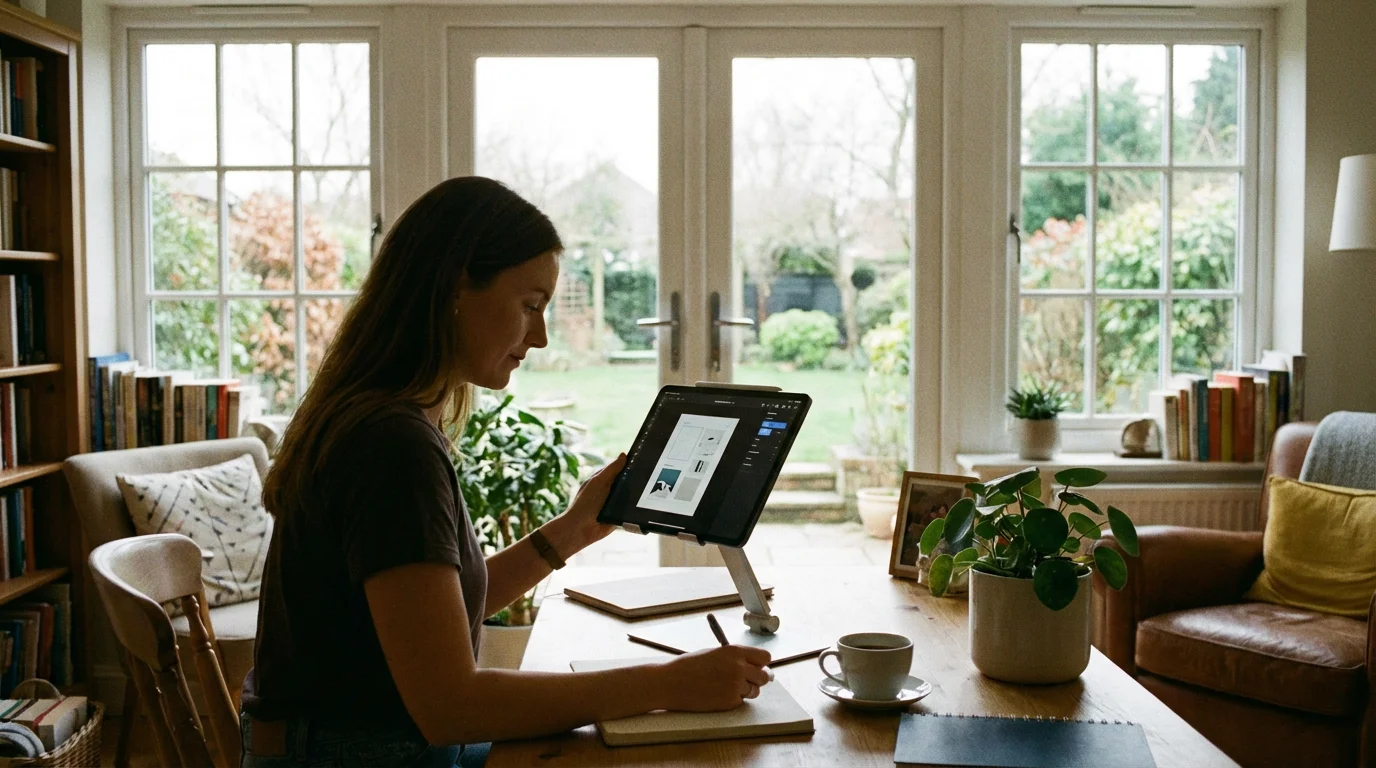
You might wonder if a tablet stand is truly necessary or just another gadget. The answer lies in how you currently use your tablet, particularly for video calls and other activities requiring hands-free viewing. If you identify with any of the following scenarios, a tablet stand will significantly improve your experience:
Comfortable equipment makes it much easier to establish a weekly video call routine with your loved ones.
- You frequently make video calls: Whether it is with family, friends, or for telehealth appointments, a stand ensures these interactions are comfortable and clear.
- You experience arm, neck, or shoulder strain: Holding your tablet for more than a few minutes can lead to discomfort. A stand eliminates this physical burden, allowing you to relax.
- Your video calls often suffer from shaky images or awkward angles: If people frequently comment on your shaky camera or that they can only see the top of your head, a stand provides the stability and adjustable positioning you need.
- You use your tablet for following recipes: Trying to cook while balancing your tablet on a cookbook or propped against a spice rack is a recipe for disaster. A sturdy stand keeps it clean and visible.
- You enjoy watching movies or reading on your tablet: For extended viewing or reading sessions, propping your tablet on a stand offers a cinema-like experience without needing to hold it.
- You want to use your tablet as a digital photo frame or display: A stand allows you to feature your tablet prominently and securely on a countertop or shelf.
A tablet stand offers a clear value proposition for anyone seeking to enhance their tablet experience, moving beyond the hassle of manual support to truly hands-free enjoyment. It is a small investment that delivers substantial benefits in comfort and convenience.
“I used to dread long video calls because my arms would ache, and I could never get the camera angle right. My daughter suggested a tablet stand, and it has made all the difference. Now I can chat comfortably for an hour without any strain, and my grandkids can see my face clearly!” – Martha T., 72
Choosing the Best Tablet Stand for Your Needs
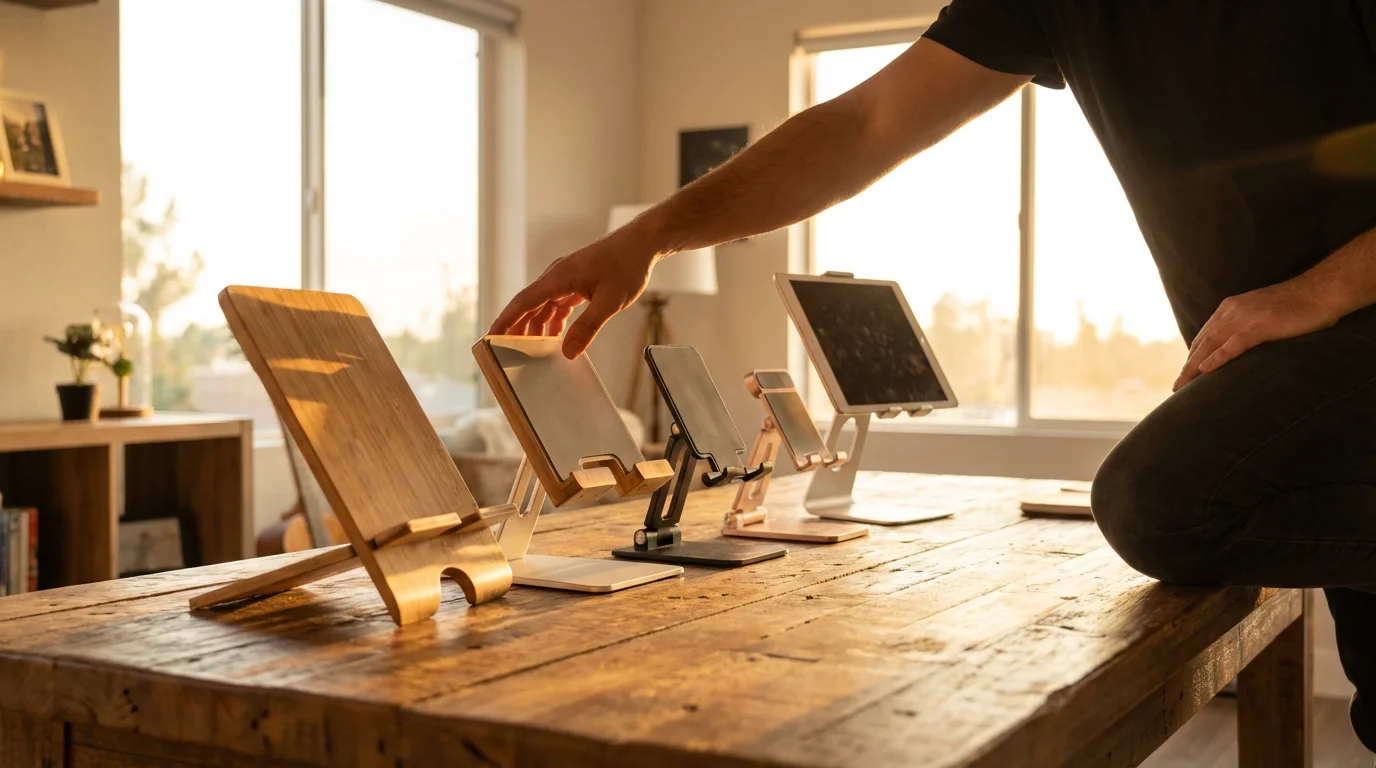
Selecting the right tablet stand depends on your specific tablet model, where you plan to use it, and your budget. With many options available, focusing on key features helps you find the perfect match. When looking for the best tablet stands for video calls, prioritize stability and adjustability.

Consider These Factors:
- Compatibility with Your Tablet:
- Size: Most stands specify a range of screen sizes they support (e.g., 7-13 inches). Ensure your tablet, whether an iPad, Samsung Galaxy Tab, or another brand, fits securely into the stand’s clamps or cradle.
- Weight Capacity: Larger, heavier tablets require a stand built to support their weight without tipping over.
- Case Compatibility: If you use a protective case, check if the stand can still grip your tablet with the case on. Removing the case every time can be a nuisance.
- Adjustability: This is crucial for optimal comfort and camera angles.
- Height Adjustment: For desktop stands, adjustability allows you to raise your tablet to eye level, reducing neck strain. Floor stands offer even greater height range.
- Angle Adjustment: Look for stands that offer a wide range of tilt angles. This helps you eliminate screen glare and find the perfect viewing angle for your eyes and camera.
- Rotation: Some stands allow you to rotate your tablet from portrait (vertical) to landscape (horizontal) mode easily. This versatility is useful for different types of video calls or content viewing.
- Stability and Build Quality:
- Base: A wide, heavy base provides excellent stability, preventing your tablet from wobbling or falling over, especially with heavier tablets.
- Materials: Stands made from aluminum alloy or sturdy ABS plastic often offer better durability than flimsy plastic models. Silicone pads on the tablet holder prevent scratches and offer a secure grip.
- Joints: Check for sturdy, tight joints that hold their position once adjusted. Loose joints lead to your tablet slowly drooping.
- Type of Stand:
- Desktop Stand: The most common type, perfect for desks, kitchen counters, or nightstands. They are generally compact and portable.
- Floor Stand: Taller and often more robust, ideal for using your tablet while seated on a couch or bed. These often have a gooseneck or articulated arm for maximum flexibility.
- Clamp Stand: These attach to the edge of a desk, table, or bed frame. They save space but require a suitable surface to clamp onto.
- Portability:
- If you plan to move your tablet stand between rooms or travel with it, look for lightweight, foldable designs.
- Price Range:
Tablet stands are quite affordable, ranging from about $15 for basic, non-adjustable models to $50-$80 for premium, highly adjustable, sturdy stands. Floor stands or specialized models can sometimes exceed $100. There are no ongoing costs associated with a tablet stand itself.
Reading user reviews on reputable sites like Wirecutter or Consumer Reports can offer practical insights into a stand’s real-world performance. You gain understanding of how a particular iPad holder performs for others before you buy it.
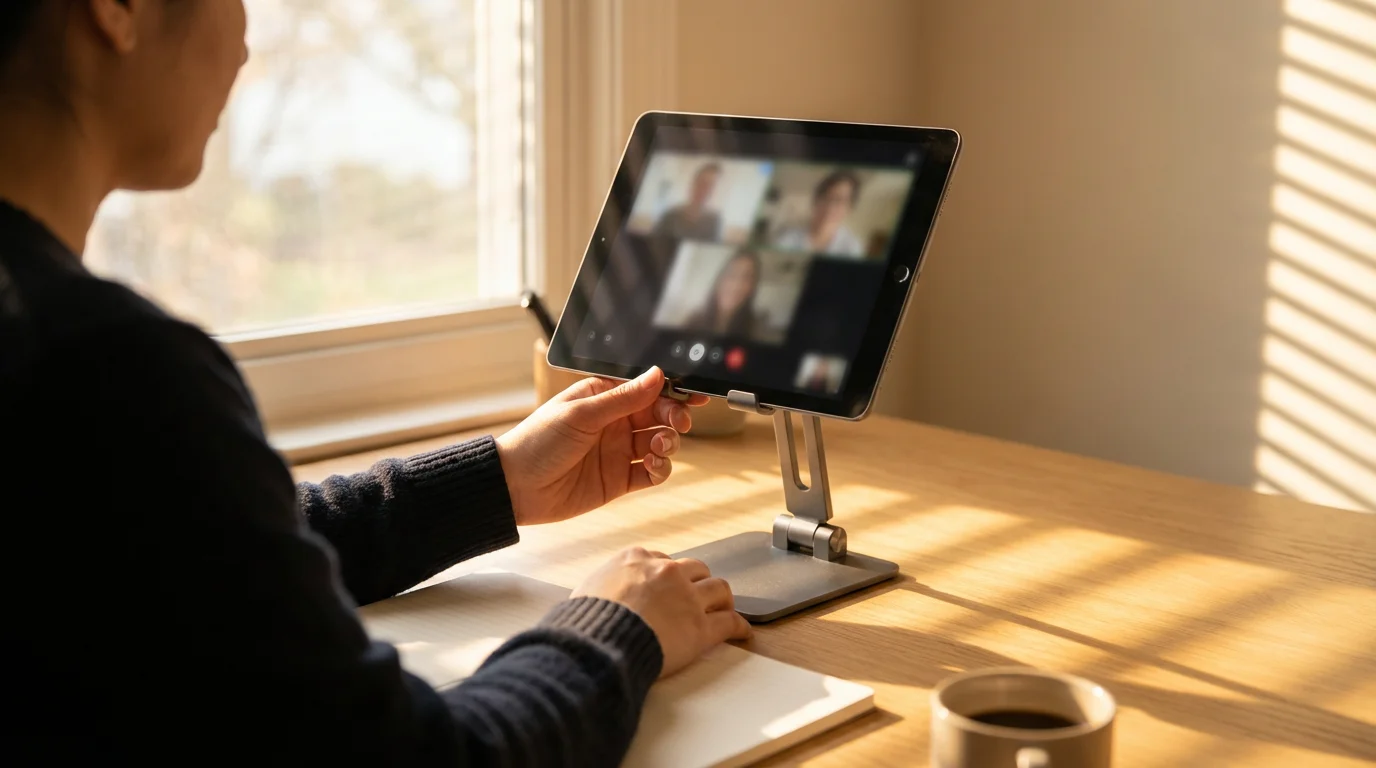
Setting Up Your Tablet Stand for Optimal Video Calls
Once you have chosen your tablet stand, setting it up for effective video calls is a straightforward process. A proper video call setup ensures you look and feel your best during your conversations.
With your tablet at the perfect height, you are ready to learn how to use FaceTime for a crystal-clear connection.

Step-by-Step Instructions:
- Assemble the Stand (if necessary):
Many tablet stands come pre-assembled, but some adjustable or floor models might require a few simple steps, like attaching the base or the holding arm. Follow the included instructions carefully. Tools are rarely needed beyond your hands.
- Place Your Tablet Securely:
Open the stand’s clamps or cradle and carefully insert your tablet. Ensure it sits firmly and securely without wiggling. Most stands have soft silicone or rubber pads to prevent scratches and provide a good grip. Double-check that your tablet will not fall out if you tilt the stand.
- Position the Stand:
Place the tablet stand on a stable, flat surface where you typically make your video calls. This could be a desk, a kitchen counter, a bedside table, or next to your favorite armchair. Ensure the surface can support the weight of the stand and your tablet without being easily bumped.
- Adjust Height and Angle for Eye Level:
This is the most critical step for a comfortable tablet viewing experience and flattering camera angle.
- Height: Adjust the stand’s height so the top edge of your tablet screen is roughly at your eye level when you are seated comfortably. This positions the camera directly in front of you, making it seem like you are looking directly at the person you are talking to.
- Angle (Tilt): Tilt your tablet slightly downwards. This prevents the camera from looking up your nose and offers a more natural, head-on view. Experiment with the angle until your face fills the frame nicely without too much empty space above your head.
- Rotation: Decide whether you want your tablet in portrait (vertical) or landscape (horizontal) mode. Landscape is generally preferred for video calls as it mimics a wider television screen, often providing a more spacious view.
- Check Lighting and Background:
Once your tablet is positioned, take a moment to assess your surroundings.
- Lighting: Ensure the primary light source comes from in front of you, not from behind. Facing a window or having a lamp in front of you illuminates your face evenly. Backlighting makes you appear as a silhouette.
- Background: Keep your background tidy and uncluttered. A plain wall or a bookshelf can work well. You can also use virtual backgrounds offered by most video call apps, but remember these often work best with good lighting.
- Test Your Setup:
Before an important call, open your video calling app (Zoom, FaceTime, Google Meet) and start a test call or use the self-view feature. Observe your camera angle, lighting, and sound. Adjust as needed until you are happy with how you look and sound. This simple step ensures a smooth experience every time.
By following these steps, you create an ideal setup for comfortable and clear video calls, allowing you to enjoy connecting with others without any technical fuss.
Maximizing Comfort and Clarity During Your Calls
Setting up your tablet stand is a great start, but a few additional tips can further enhance your video call experience, making it even more comfortable and ensuring clear communication.
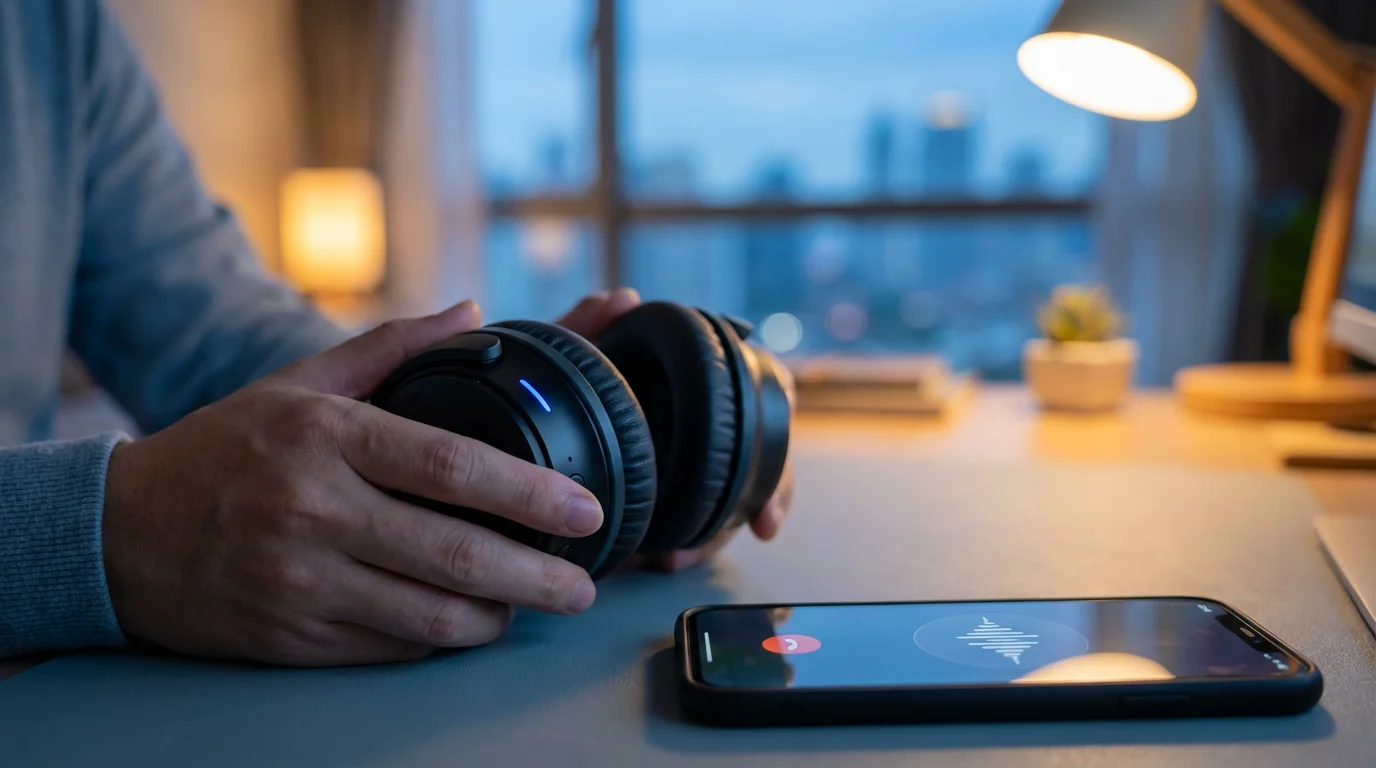
To keep your audio clear and private, consider using Bluetooth headphones while your tablet remains steady on the stand.

Optimize Your Posture and Positioning:
- Sit Up Straight: Since your tablet is now at eye level, you can comfortably sit with good posture. Keep your feet flat on the floor and your back supported. This reduces strain during longer calls.
- Maintain a Good Distance: Position yourself about an arm’s length from the tablet screen. This distance keeps your face framed well without being too close or too far, and it helps you avoid eye strain.
- Eye Contact: While it is natural to look at the faces on your screen, try to occasionally glance directly at your tablet’s camera. This creates the impression of making direct eye contact with the person you are speaking to, making the interaction feel more personal.

Enhance Audio Quality:
- Reduce Background Noise: A tablet stand allows you to place your tablet closer to you, which can help your built-in microphone pick up your voice more clearly. However, if you are in a noisy environment, consider using headphones with a built-in microphone. Headphones greatly improve sound quality for both you and the person you are talking to by minimizing echoes and filtering out ambient sounds.
- Mute When Not Speaking: Most video call applications offer a mute button. Actively muting your microphone when others are speaking helps reduce background noise from your end, contributing to a clearer conversation for everyone.

Mind Your Environment:
- Control Lighting: Beyond initial setup, be aware of changes in natural light. If the sun shifts, you may need to adjust your blinds or tablet’s position slightly to avoid glare or shadows.
- Minimize Distractions: Inform others in your household you are on a call. Close unnecessary tabs on your tablet. A focused environment helps you remain present and engaged in the conversation.
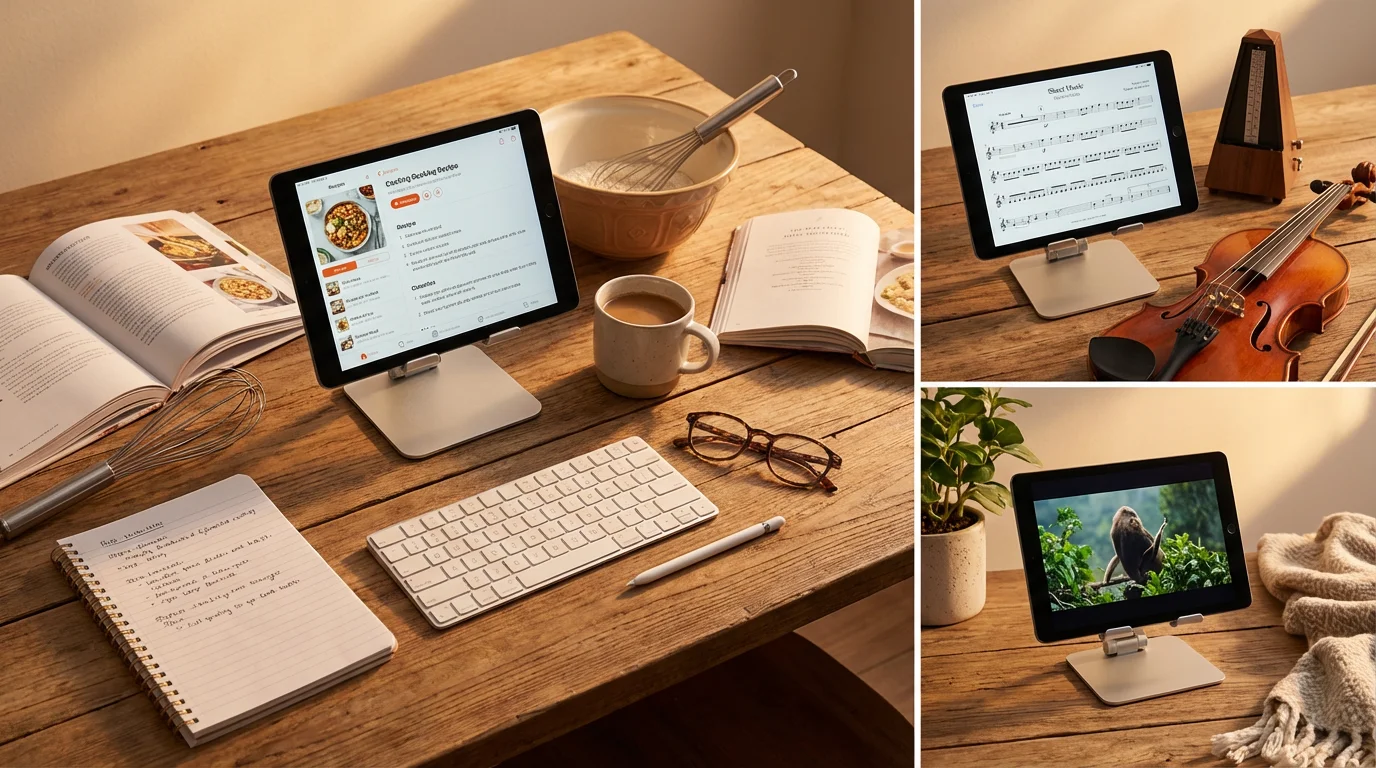
Beyond Video Calls: Other Practical Uses for Your Tablet Stand
While a tablet stand excels at making video calls more comfortable, its utility extends far beyond just connecting with loved ones. Investing in a good tablet stand means you are investing in a versatile tool that enhances many aspects of your daily tablet use. Here are some of the most popular and practical ways you can leverage your tablet stand:
A stand is also useful if you frequently use WhatsApp for messaging and calls throughout the day.
A hands-free setup is also perfect for reading bedtime stories to grandchildren over video call while you both look at the pages together.
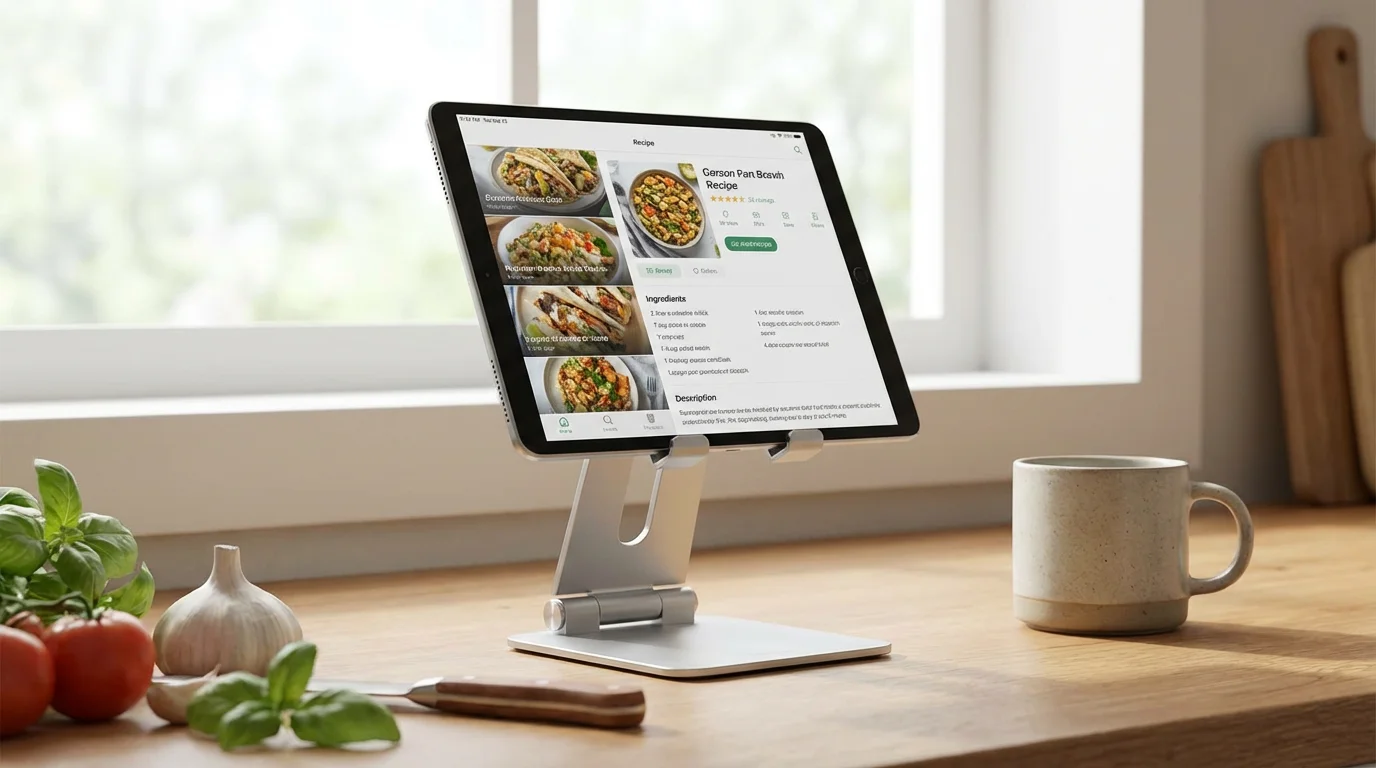
- Cooking and Baking: Place your tablet stand on your kitchen counter to follow digital recipes hands-free. You keep your tablet away from spills and splashes, and the recipe remains at an easy-to-read eye level. This is a common and highly appreciated application for the kitchen.
- Reading and E-books: For long reading sessions, a tablet stand holds your device at a comfortable angle, eliminating the need to hold it yourself. This is particularly beneficial for those with arthritis or hand pain, offering a comfortable tablet viewing experience for hours.
- Watching Movies and Streaming Content: Turn your tablet into a personal entertainment center. Prop it up on a nightstand or coffee table to enjoy movies, TV shows, or YouTube videos without needing to hold it. This setup offers a superior experience to handheld viewing. “Streaming” refers to watching shows or movies over the internet instead of cable, and your tablet stand makes this more enjoyable.
- Exercising: Follow along with online fitness classes or guided exercise routines. The tablet remains visible and stable while you focus on your movements.
- Gaming: For certain games, especially those that do not require intense screen tapping, a stand allows you to use a separate Bluetooth controller, creating a more console-like gaming experience. “Bluetooth” is a wireless connection between devices that are close together.
- Digital Photo Frame: When not in active use, place your tablet on the stand and set it to display a slideshow of your favorite photos. It turns your tablet into a beautiful, ever-changing digital frame.
- Second Screen for Your Computer: If you use a laptop or desktop computer, some apps allow you to extend your computer screen onto your tablet. A tablet stand holds your tablet perfectly as an additional monitor, which can be very useful for multitasking.
These varied applications demonstrate that a tablet stand is far from a single-purpose gadget. It is a practical accessory that adds comfort, convenience, and functionality to virtually every way you use your tablet.
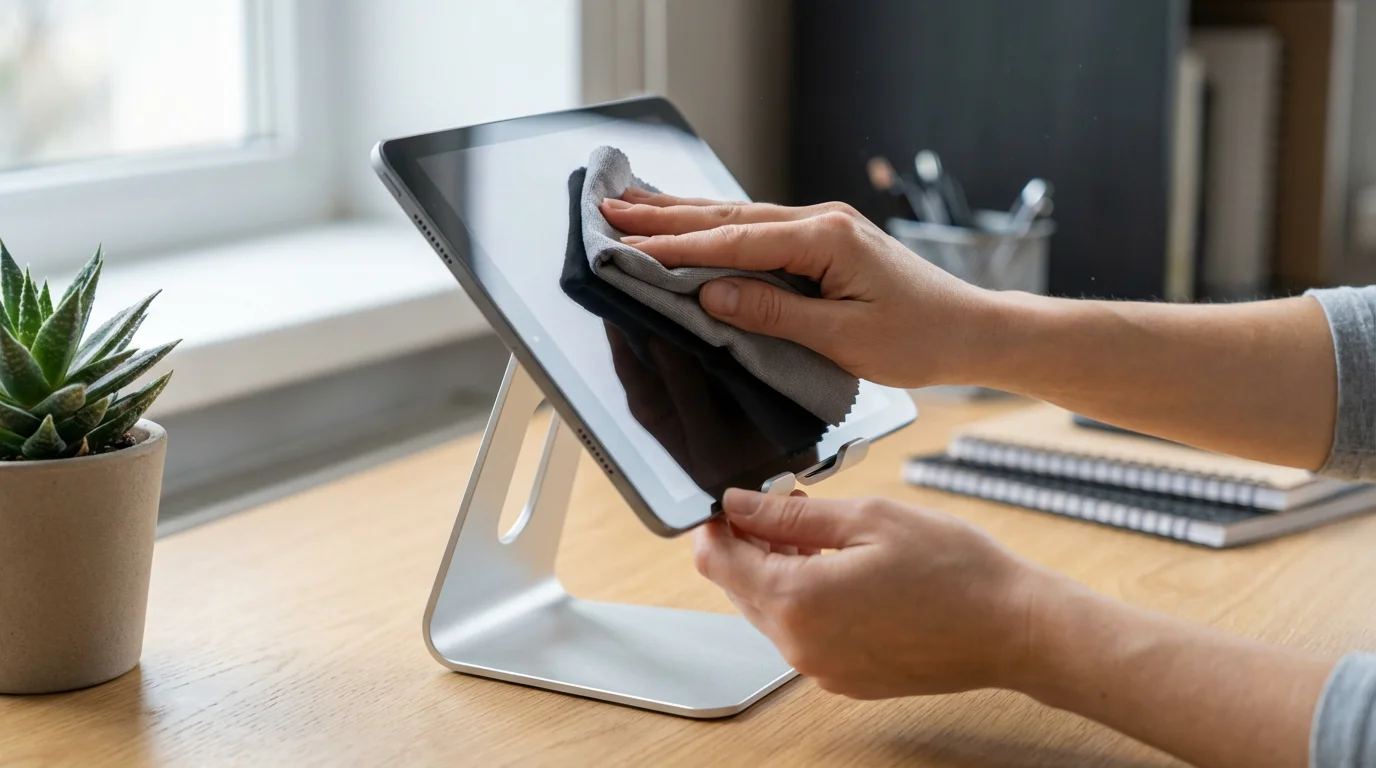
Maintaining Your Tablet Stand and Tablet
A tablet stand requires minimal maintenance, but a few simple practices ensure its longevity and keep your tablet operating at its best while on the stand.

Caring for Your Tablet Stand:
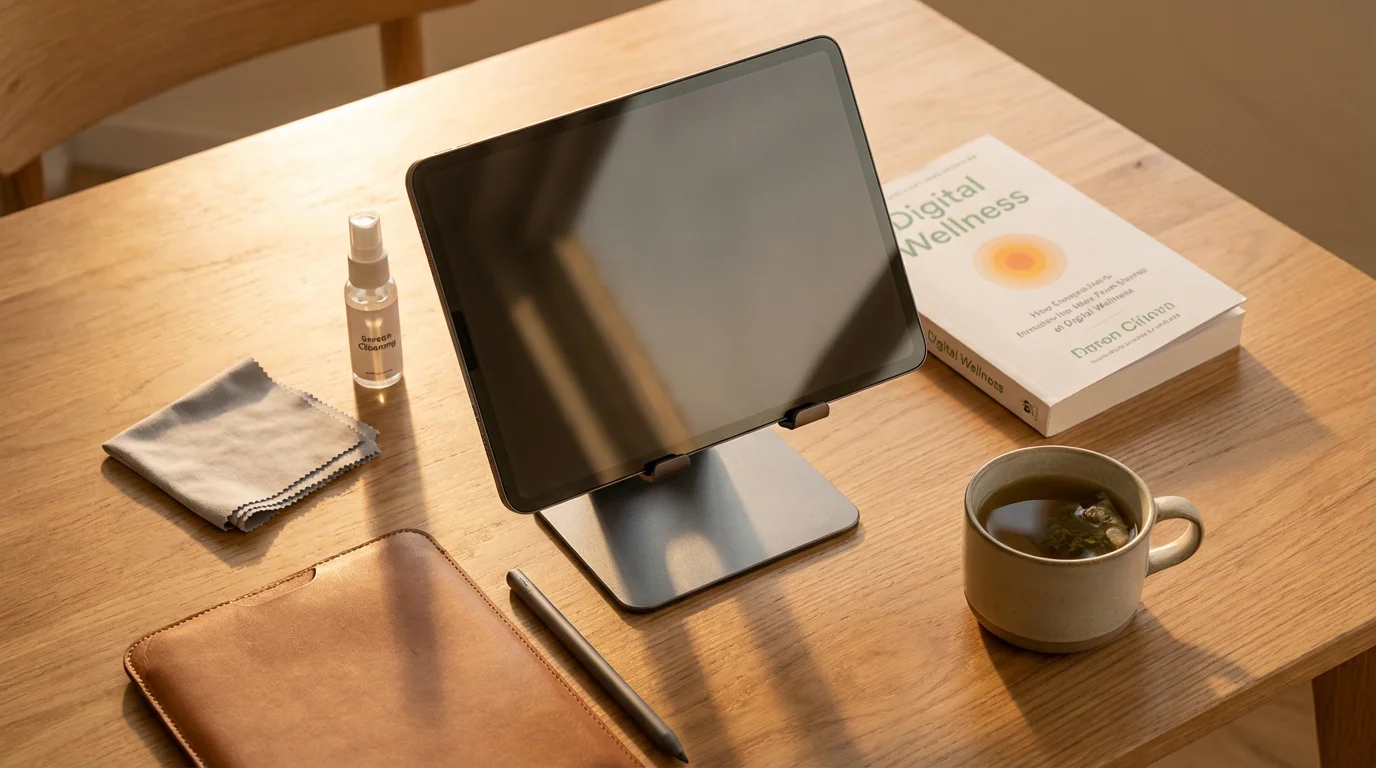
- Cleaning: Wipe down your stand periodically with a soft, damp cloth. Avoid harsh chemical cleaners, as these can damage finishes or rubberized grips. For stands with silicone pads, ensure they remain clean to maintain their non-slip properties.
- Inspecting Joints: If your stand has adjustable joints, occasionally check that they remain tight. If they become loose, your tablet might slowly tilt downwards. Most adjustable stands have screws you can gently tighten with a small screwdriver, if necessary.
- Proper Storage: If your stand is foldable, collapse it when not in use, especially if you move it frequently. This protects the moving parts and makes it easier to store or transport.
Caring for Your Tablet While on the Stand:
- Dust and Debris: Ensure the stand’s cradle or clamps are free of dust or small particles before placing your tablet. These can scratch your device over time.
- Temperature Control: Avoid placing your tablet on the stand in direct sunlight for extended periods, especially if the stand itself is dark colored. Tablets can overheat, which affects battery life and performance.
- Charging Cable Management: Many tablet stands feature cutouts or channels for charging cables. Use these to keep your charging cable tidy and prevent it from becoming a tripping hazard or bending at awkward angles, which can damage the cable over time.
By following these easy maintenance tips, you ensure your tablet stand remains a reliable accessory for years to come, providing comfortable tablet viewing and secure placement for your valuable device.

Common Problems and Solutions
Even with a well-chosen tablet stand, you might encounter minor issues. Knowing how to address these quickly ensures your video calls remain smooth and enjoyable.
- Problem: My Tablet Feels Wobbly or Unstable on the Stand.
- Solution: First, ensure your tablet is fully seated and securely clamped in the holder. Check if the stand’s base sits flush on a flat, even surface. If your stand has adjustable joints, tighten them slightly. Sometimes, a stand might not be compatible with your tablet’s specific dimensions, especially if you have a very thick case. Consider a stand with wider or deeper grips. If the issue persists, the stand might be too lightweight for your tablet. A heavier, more robust stand or one with a wider base often provides better stability.
- Problem: I cannot get the camera angle right; I always look too low or too high.
- Solution: Adjustability is key here. If your stand has height adjustment, raise or lower it until the top of your tablet screen is roughly at your eye level when you sit naturally. Then, fine-tune the tilt angle. Many people find a slight downward tilt from the camera (meaning the top of the tablet tilts slightly back) produces the most flattering angle. Experiment during a test call. If your stand lacks adequate height adjustment, consider adding a sturdy book or two underneath the stand to elevate it further.
- Problem: There is a lot of glare on my tablet screen.
- Solution: Glare usually comes from a light source reflecting off the screen. Try adjusting the tablet’s angle on the stand. Often, a slight tilt up or down can eliminate the reflection. Also, check your room’s lighting. If a window or bright lamp is directly behind you or to your side, try repositioning yourself or closing blinds to minimize the reflection.
- Problem: My tablet slips out of the stand occasionally.
- Solution: This often happens if the stand’s grips are worn, dirty, or not designed for your tablet’s size or case. Clean the silicone or rubber pads on the stand with a damp cloth to remove any grease or dust. If the pads are worn, some manufacturers offer replacement pads. If your tablet uses a thick case, ensure the stand’s clamps are wide enough to accommodate it. If not, you might need to remove the case during use or get a stand specifically designed for thicker devices.
- Problem: My tablet stand takes up too much space when not in use.
- Solution: If space is a concern, consider a foldable or collapsible tablet stand. These models are designed to fold flat or compact, making them easy to store in a drawer or carry in a bag. Clamp-on stands also save desk space as they attach to the side of a surface rather than sitting on top of it.
Addressing these common concerns helps you maximize the utility and enjoyment of your tablet stand, making your video call setup truly effortless.
Frequently Asked Questions
We receive many questions about tablet stands and their use. Here are some common inquiries to help you decide if one is right for you.
Using a stand also makes it much easier to manage a family group chat while keeping your hands free for typing or other tasks.
Q: Are tablet stands stable enough to prevent my tablet from falling?
A: Yes, well-designed tablet stands prioritize stability. Look for stands with a wide, heavy base and sturdy construction, often made from metal or robust plastic. These features ensure your tablet remains securely in place during video calls or other uses. Always check the stand’s specifications for compatible tablet sizes and weight capacity to ensure it matches your device.
Q: Can a tablet stand damage my tablet?
A: No, a properly used tablet stand should not damage your tablet. Reputable stands incorporate soft silicone or rubber pads on all contact points to prevent scratches and provide a secure, non-slip grip. Ensure you choose a stand that is compatible with your tablet’s size and avoid forcing your tablet into a stand that is too small or does not fit properly.
Q: Do all tablets fit every stand?
A: No, not all tablets fit every stand. Tablet stands usually specify a compatible screen size range, for example, “fits 7 to 13-inch tablets.” Before purchasing, check your tablet’s screen size and compare it to the stand’s specifications. If you use a tablet case, also consider if the stand’s clamps are wide enough to accommodate the combined thickness of your tablet and its case.
Q: Are tablet stands worth the investment for occasional video calls?
A: Even for occasional video calls, a tablet stand significantly enhances comfort and convenience. It eliminates arm fatigue, ensures a stable picture, and allows for better camera angles, making every call more enjoyable. Given their affordable price point, the benefits in terms of ergonomics and ease of use generally make a tablet stand a worthwhile investment for any tablet user.
Q: What is the difference between a tablet stand and an iPad holder?
A: Functionally, there is no difference. An “iPad holder” is simply a tablet stand specifically marketed or designed for Apple’s iPad line of tablets. Many tablet stands are universally compatible and work as an iPad holder, a Samsung tablet holder, or for other brands. The terms are often used interchangeably, referring to a device that holds your tablet upright and hands-free.
A tablet stand is a simple yet impactful accessory that fundamentally changes how you interact with your tablet, particularly for video calls. You move from an often uncomfortable, shaky experience to one of ease and clarity. By selecting the right stand and setting it up correctly, you reclaim the joy of connecting with loved ones, following a recipe, or enjoying a favorite show, all without the strain or hassle of holding your device. This small addition enhances your daily tech use, bringing comfort and stability to your digital life.
Disclaimer: This article is for informational purposes only. Product features and prices change frequently. Always check current specifications and reviews before purchasing. We recommend buying from authorized retailers with good return policies.





Leave a Reply