
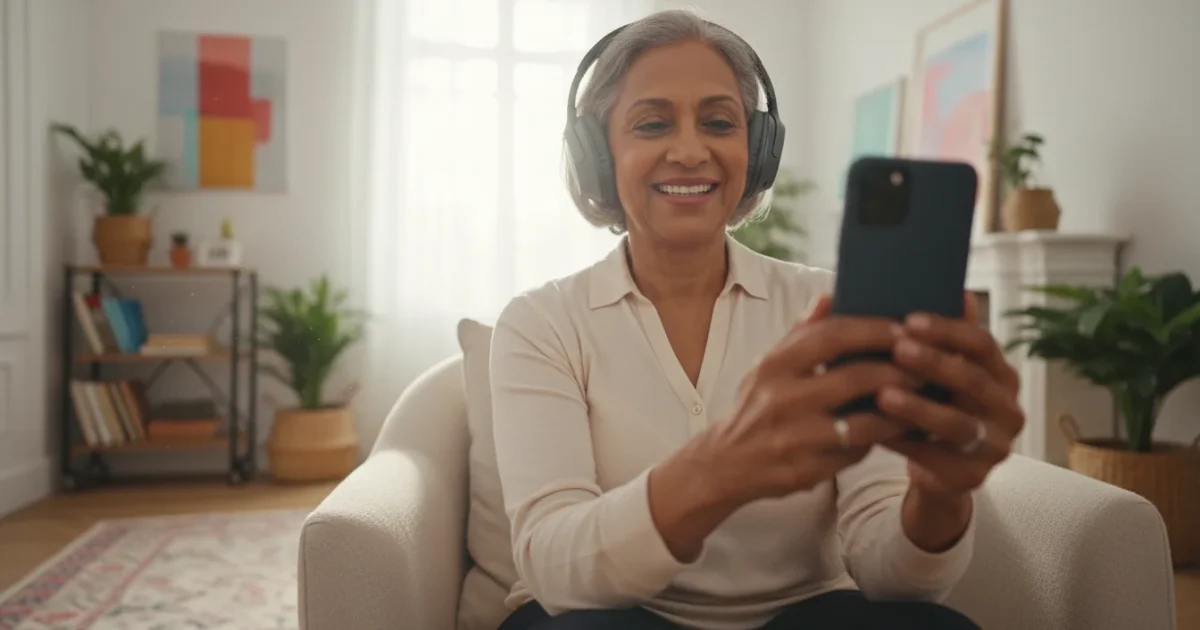
Bluetooth headphones offer a wonderful way to enjoy audio without the hassle of tangled wires. You get the freedom to move around your home, listen to music or podcasts with clarity, or take private phone calls. Many people find wireless listening makes daily tasks easier, allowing them to hear their favorite audio while doing chores, exercising, or relaxing.
This guide helps you understand Bluetooth headphones, choose the right pair, and connect them to your smartphone or computer step-by-step. We focus on practical benefits and straightforward instructions, helping you decide if this technology is right for you and how to get the most out of it.
Table of Contents
- What Are Bluetooth Headphones and Why Might You Want Them?
- Are Bluetooth Headphones Right for You?
- Choosing the Right Bluetooth Headphones or Wireless Earbuds
- What You’ll Need Before You Start
- Step-by-Step Pairing: Connecting to Your Smartphone
- Step-by-Step Pairing: Connecting to Your Computer
- Using Your Headphones After Pairing
- Common Problems and Simple Solutions
- Privacy and Security with Bluetooth Devices
- Frequently Asked Questions

What Are Bluetooth Headphones and Why Might You Want Them?
Bluetooth headphones are devices that play sound from your phone, tablet, or computer without needing a cable. They use a technology called Bluetooth, which creates a short-range wireless connection between two devices. Think of it like an invisible cord that stretches about 30 feet, letting your headphones talk to your phone.

Key Benefits for You:
- Freedom from Wires: No more tangled cables to untangle or accidentally snag. This means you can listen to an audiobook while moving around the kitchen, or enjoy music during your walk without worrying about a cord catching on something. You gain freedom of movement.
- Enhanced Sound Clarity: Many Bluetooth headphones offer excellent sound quality, making voices clearer in phone calls, podcasts, or television programs. If you have some hearing loss, a good pair can help you hear dialogue better without disturbing others.
- Personalized Listening: You can adjust the volume to your personal comfort without affecting others in the room. This proves especially useful when watching TV or listening to music while someone else sleeps or works nearby.
- Hands-Free Communication: Most Bluetooth headphones include a built-in microphone. You can answer calls, talk to loved ones, or participate in video chats without holding your phone. This keeps your hands free for other tasks, like cooking or gardening.
- Compatibility: Bluetooth is a universal standard. This means most Bluetooth headphones work with almost any smartphone, tablet, or modern computer. You usually do not need special brands to ensure they work together. We call devices that work together “compatible.”
For example, if you enjoy listening to audiobooks, you can pair your Bluetooth headphones with your phone and listen while you go for a walk, leaving your phone safely in your pocket. Or, you can watch a late-night show on your tablet without disturbing your spouse. These small conveniences genuinely improve your daily experience.
“I was skeptical about wireless headphones, thinking they would be too complicated. But now I use them every day. I listen to podcasts while I do dishes, and I can walk around the house without my phone constantly in my hand. The sound quality is surprisingly clear for phone calls too. It’s a small change that made a big difference in my routine.”
— Eleanor R., 72, Avid Podcast Listener
Are Bluetooth Headphones Right for You?
Bluetooth headphones offer many advantages, but they are not for everyone in every situation. Consider these points to decide if they fit your lifestyle:

Who Benefits Most?
- Those seeking convenience: If you find wires bothersome or restricting, wireless offers unparalleled freedom. You can move up to 30 feet from your device.
- Individuals with specific listening needs: If you struggle to hear phone conversations, TV dialogue, or music clearly, many models offer excellent sound isolation and volume control directly at your ear. Some even boost speech frequencies.
- Active individuals: If you enjoy walking, gardening, or light exercise, wireless headphones prevent cables from getting caught or pulling on your device.
- Those who make frequent calls: Hands-free calling capabilities make phone conversations much more comfortable, allowing you to multitask.
- People who want privacy: You can listen to anything without others hearing, which works well in shared living spaces or public transport.

Consider These Factors:
- Charging: Bluetooth headphones require charging, typically every few days depending on usage. You must remember to charge them, a step not needed with wired headphones.
- Connectivity: While usually straightforward, occasional connection issues can arise. This guide helps troubleshoot common problems, but some users prefer the simplicity of plugging in a wire.
- Fit and Comfort: Finding headphones that fit comfortably can take some trial and error, particularly with in-ear styles (earbuds). Over-ear models often offer more consistent comfort.
- Cost: Quality Bluetooth headphones generally cost more than basic wired ones, ranging from $30 for entry-level models to $200 or more for premium ones.
- Hearing Aids: If you wear hearing aids, certain types of Bluetooth headphones or earbuds might not fit well or could cause feedback. Over-ear headphones often work better in these situations, fitting over your hearing aids. Consult an audiologist or the product manufacturer if you have concerns.
Ultimately, if the benefits of freedom and clear, personalized sound appeal to you, the minor adjustments like charging become a small price for the convenience they offer.
Choosing the Right Bluetooth Headphones or Wireless Earbuds
The market offers a wide variety of Bluetooth headphones. Understanding the main types and key features helps you make an informed choice:
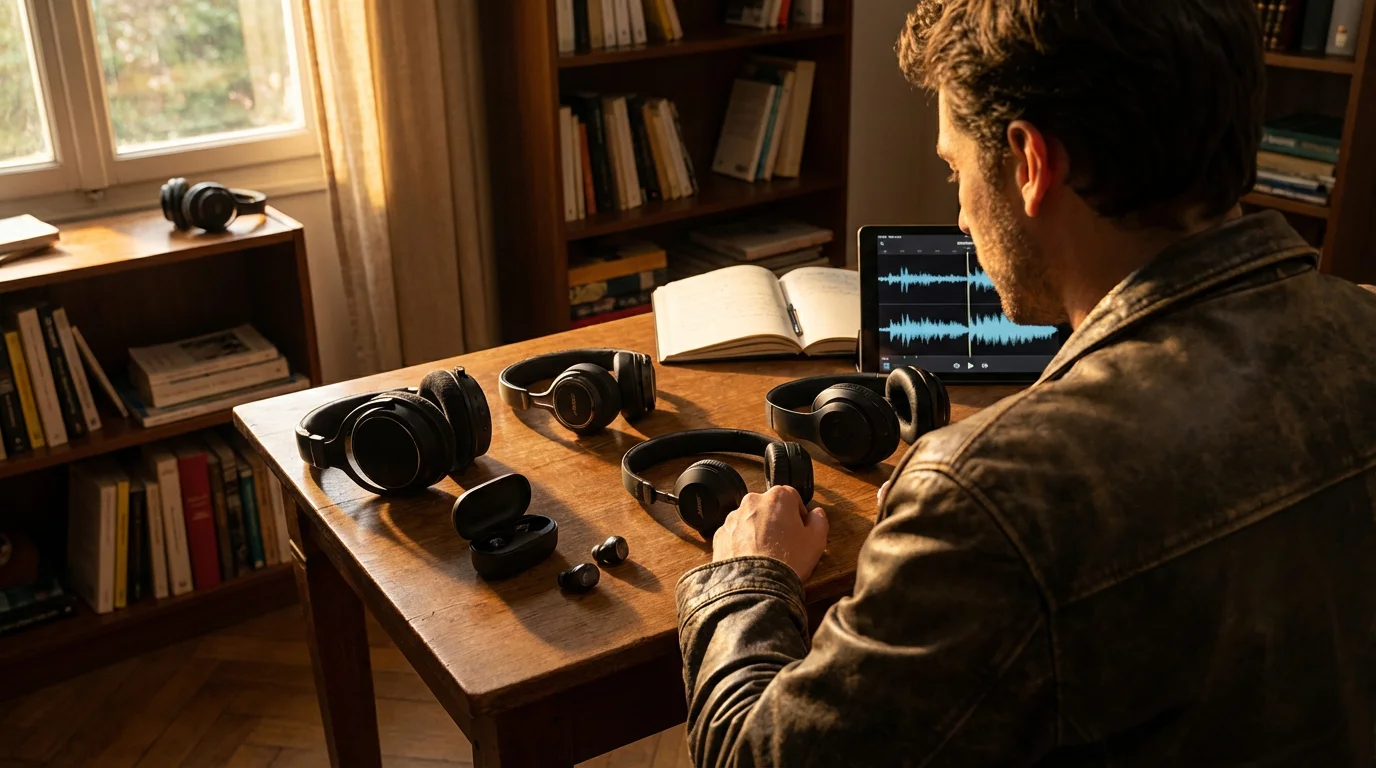
Types of Headphones:
- Over-Ear Headphones: These large headphones cup your entire ear.
- Pros: Excellent sound quality, often very comfortable for long periods, good noise isolation. Many models work well over hearing aids.
- Cons: Bulky, can feel warm on your ears, less portable.
- Price Range: Typically $50 – $300+.
- On-Ear Headphones: These rest on top of your ears.
- Pros: More compact than over-ear, generally lighter.
- Cons: Can press on your ears, potentially causing discomfort over time, less noise isolation.
- Price Range: Typically $30 – $150.
- In-Ear Headphones (Earbuds): These fit directly into your ear canal. Many come in a “true wireless” format, meaning no wire connects the two earbuds.
- Pros: Very small, highly portable, often discrete. True wireless earbuds offer the most freedom.
- Cons: Can be difficult to find a comfortable fit, easily lost, may not be suitable with some hearing aids. Battery life for true wireless earbuds can be shorter, though their charging cases extend total listening time.
- Price Range: Typically $25 – $250+.
Key Features to Look For:
- Comfort and Fit: This is paramount. If headphones feel uncomfortable, you will not use them. Look for adjustable headbands and soft earcups for over-ear models. For earbuds, try different sizes of ear tips.
- Battery Life: Over-ear headphones typically offer 20-30 hours of listening. True wireless earbuds offer 4-8 hours per charge, with their charging case providing an additional 20-30 hours. Consider how often you want to charge.
- Sound Quality: Most modern Bluetooth headphones deliver good sound for everyday listening. If audio fidelity is crucial, read reviews from sources like Wirecutter or Consumer Reports.
- Ease of Controls: Check for large, easy-to-press buttons for volume, play/pause, and answering calls. Some models use touch controls, which can be less intuitive for some users.
- Durability: If you plan to use them frequently or during activities, look for models with some water resistance and sturdy construction.
- Microphone Quality: If you plan to use them for phone calls, check reviews for microphone performance. You want people to hear your voice clearly.
- Price: Set a budget. You can find excellent options across various price points.
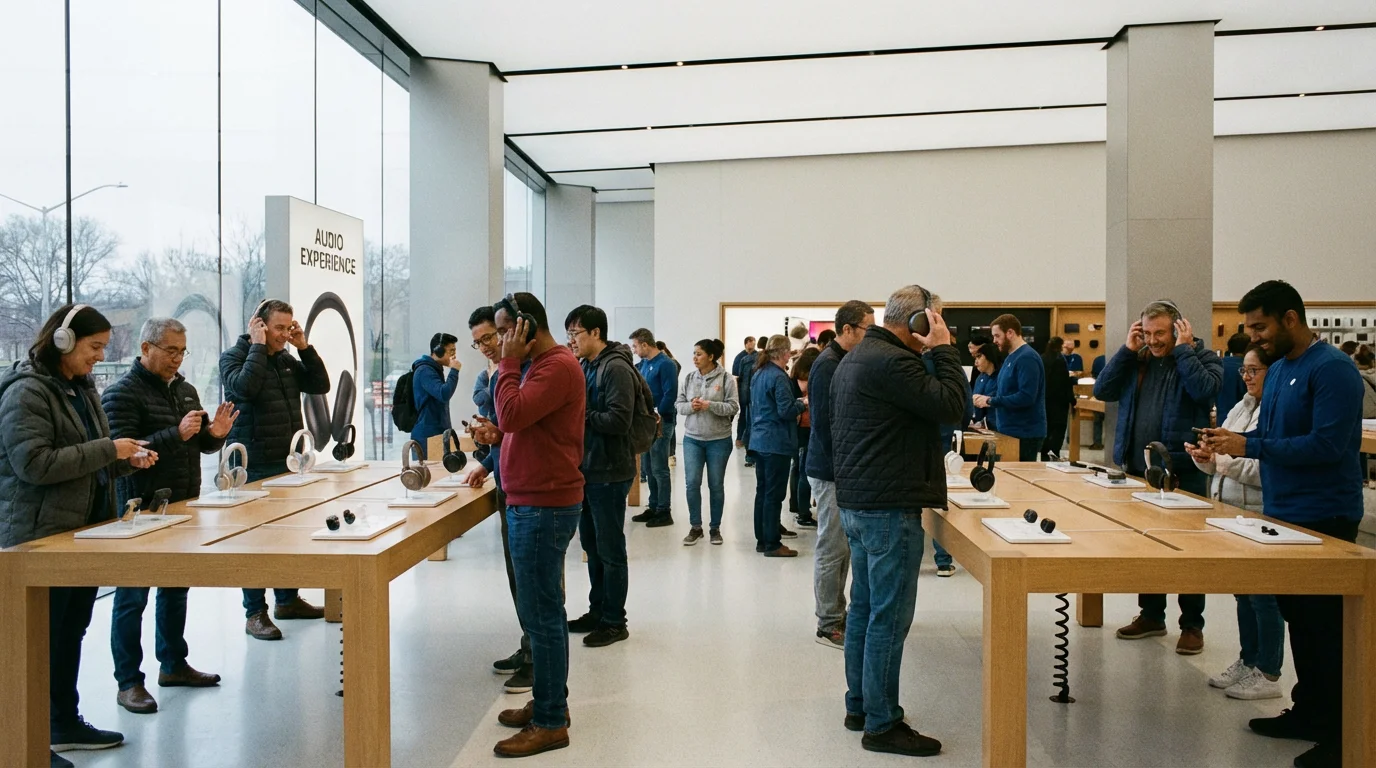
Visiting an electronics store can help you try on different styles to find what feels best. Remember, comfort outweighs fancy features if you will not wear them.

What You’ll Need Before You Start
Connecting your Bluetooth headphones is a simple process, but ensure you have these items ready:
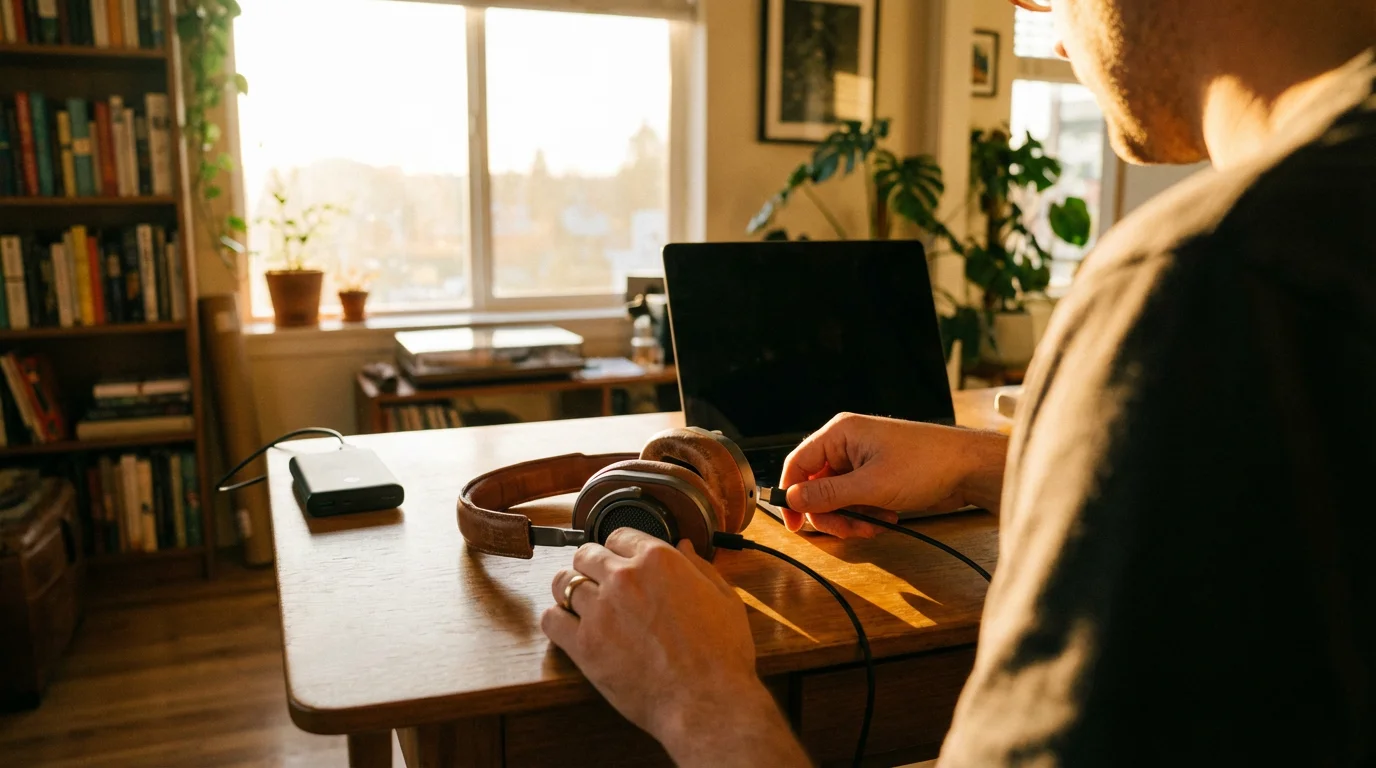
- Fully Charged Bluetooth Headphones: Before you begin, charge your new headphones completely. Most come with a USB charging cable. Plug them into a wall adapter or your computer’s USB port until the indicator light shows a full charge. This ensures the headphones have enough power to complete the pairing process without interruption.
- A Device with Bluetooth: You need a smartphone (iPhone or Android) or a computer (Windows PC or Mac) that has Bluetooth capabilities. Most modern phones and computers come with Bluetooth built in. You will find the Bluetooth setting in your device’s settings menu.
- Your Device’s Manual (Optional but Helpful): If you encounter issues, your phone or computer manual, or the headphone manual, can offer specific troubleshooting tips. You can usually find these online on the manufacturer’s support website, such as Apple Support or Google Support.
With these items ready, you are prepared to connect your headphones and enjoy wireless audio.
Step-by-Step Pairing: Connecting to Your Smartphone
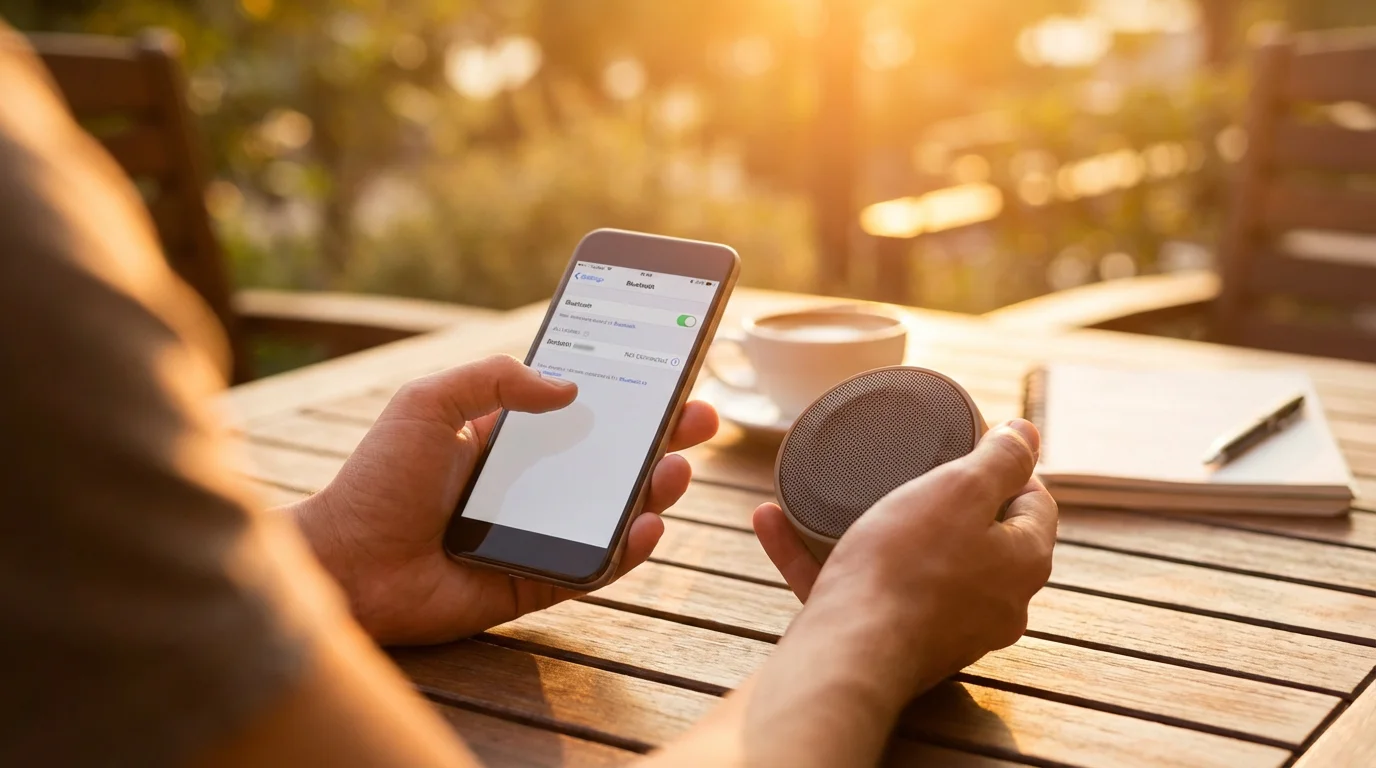
Connecting Bluetooth headphones to your smartphone, whether an iPhone or Android, follows a similar process. The key is to put your headphones into “pairing mode” and then tell your phone to look for them.
Step 1: Charge Your Headphones
Ensure your headphones are fully charged as mentioned above.
Step 2: Put Your Headphones into Pairing Mode
This is the most crucial step and varies slightly by headphone model:
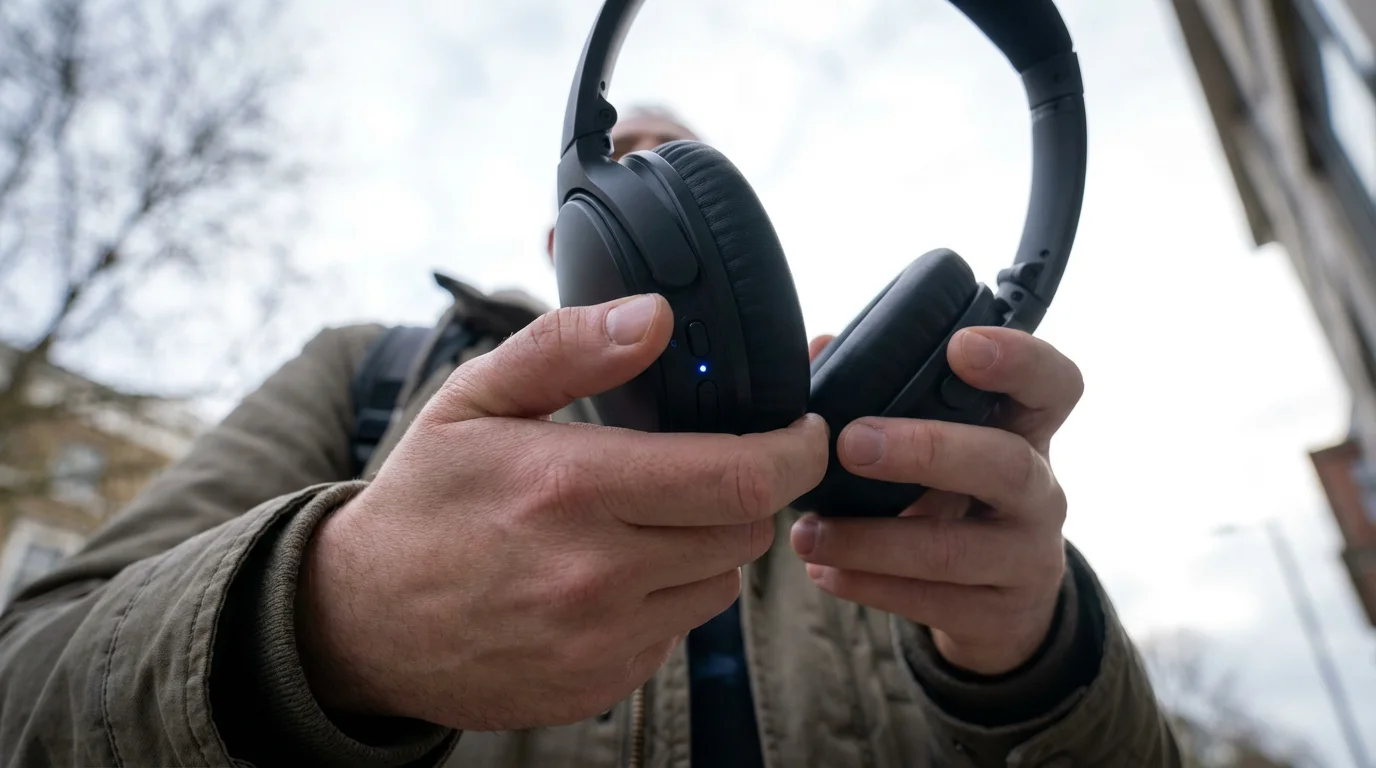
- Look for a power button or a specific pairing button. Many headphones use the power button. You often need to press and hold this button for several seconds, usually 5-7 seconds, until you see a flashing light (often blue or white) or hear a voice prompt saying “Pairing” or “Ready to connect.”
- Consult your headphone’s manual if you cannot find the pairing button or specific instructions. Sometimes, a new pair enters pairing mode automatically the first time you turn them on.
Keep your headphones near your phone during the pairing process, ideally within a few feet.
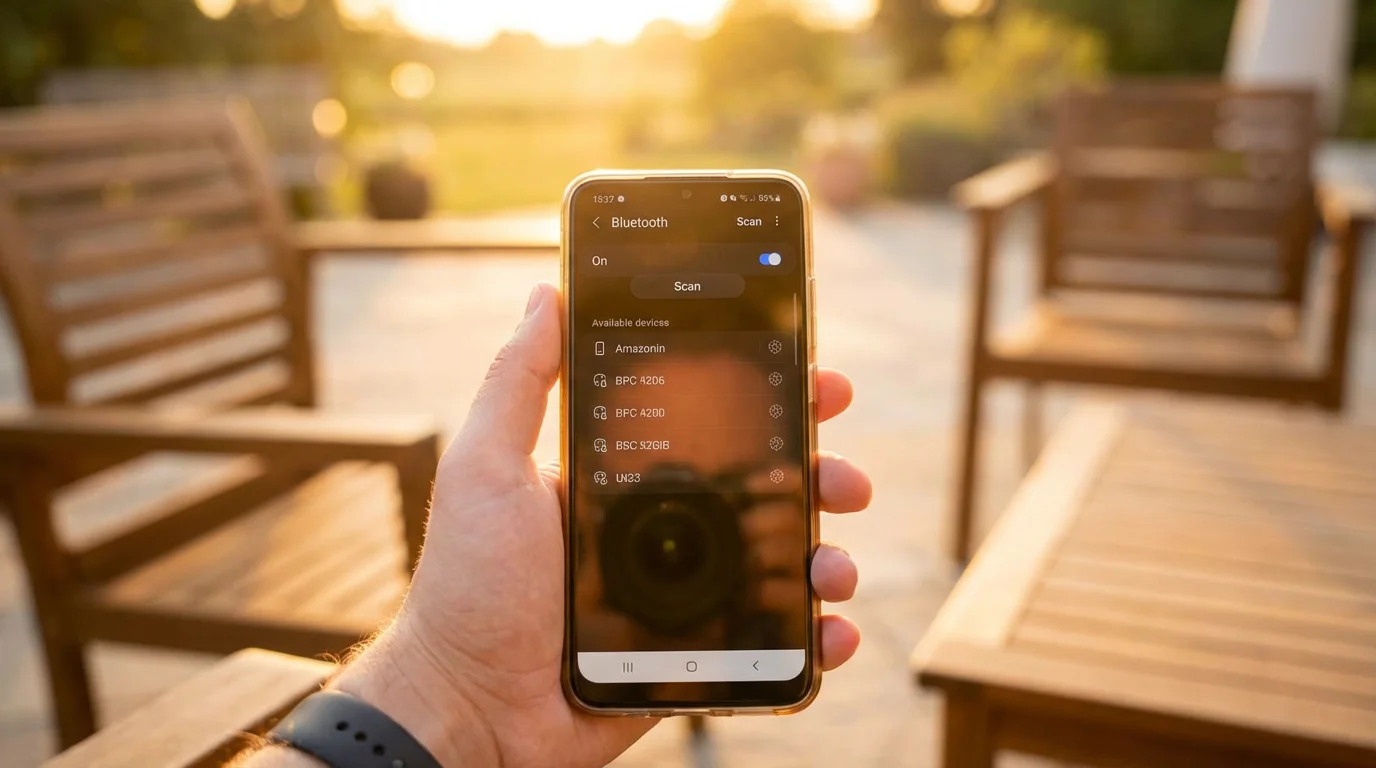
Step 3: Enable Bluetooth on Your Phone and Scan for Devices
For iPhone (iOS):
- Open Settings: Tap the “Settings” icon on your iPhone’s home screen. It looks like a gear.
- Select Bluetooth: Tap “Bluetooth.”
- Turn Bluetooth On: If the toggle switch next to “Bluetooth” is green, it is already on. If it is gray, tap it to turn it green. Your iPhone will now start searching for nearby Bluetooth devices.
- Select Your Headphones: Under “Other Devices,” you should see the name of your headphones appear (e.g., “ClearSound Headphones,” “AirPods,” “Sony WH-1000XM4”). Tap on the name of your headphones.
- Confirm Connection: After a few moments, your phone should show “Connected” next to your headphone’s name. You might hear an audible chime or voice prompt from your headphones confirming the connection.
For Android Phones (Varies slightly by model, but the core steps are similar):
- Open Settings: Swipe down from the top of your screen to open the Quick Settings panel, then tap the gear icon (Settings). Alternatively, find the “Settings” app on your home screen or app drawer.
- Find Bluetooth Settings: Look for “Connected devices,” “Connections,” or simply “Bluetooth.” Tap on it.
- Turn Bluetooth On: Ensure the Bluetooth toggle switch is “On.” Your phone will begin scanning for available devices.
- Select Your Headphones: Under “Available devices” or “Pair new device,” you should see your headphone’s name. Tap on it.
- Confirm Connection: Your phone will show “Connected” or “Active” next to the headphone’s name. Your headphones may also confirm the connection with a sound.
Congratulations, your headphones are now paired with your phone. You can usually tell they are connected when you see an icon (often a small headphone or a “B” for Bluetooth) in the status bar at the top of your phone screen.
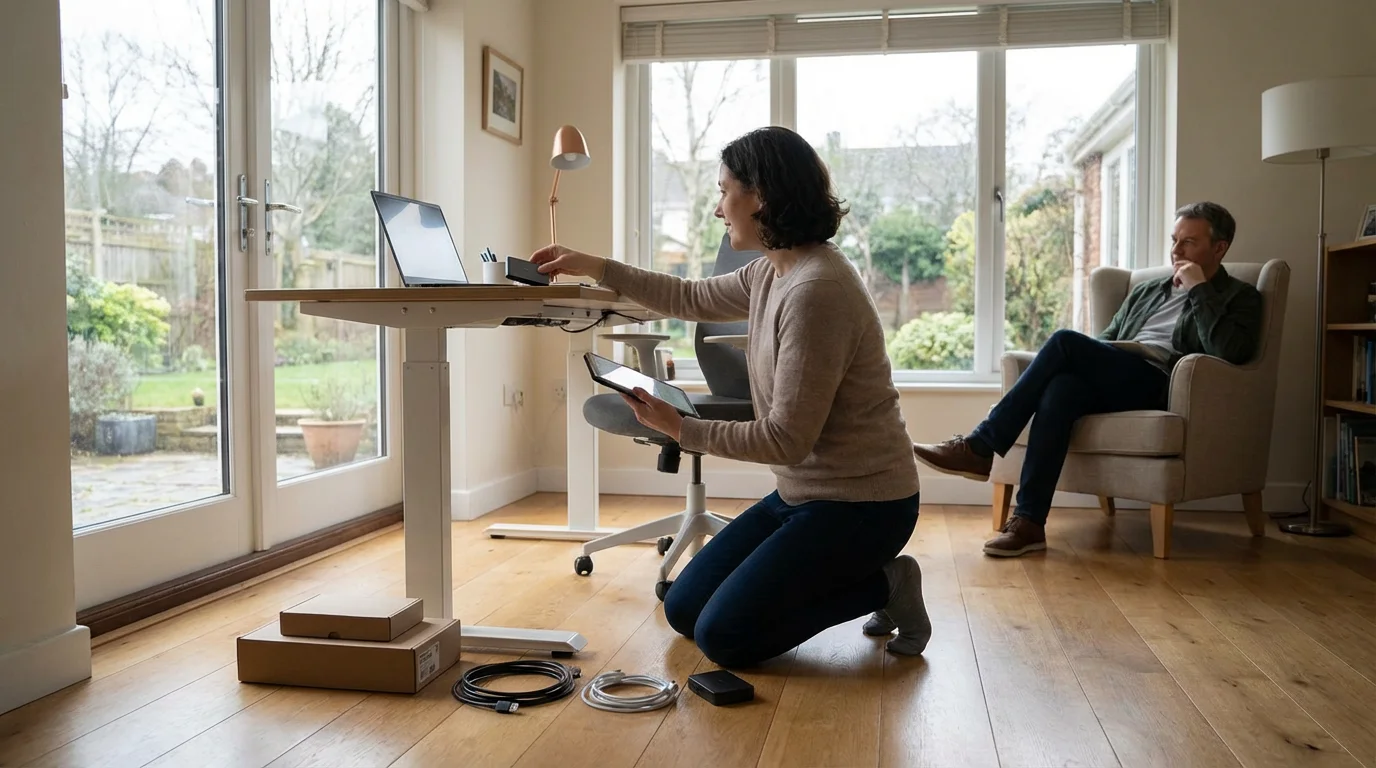
Step-by-Step Pairing: Connecting to Your Computer
Connecting Bluetooth headphones to your computer, whether a Windows PC or a Mac, also involves putting the headphones in pairing mode and then using your computer’s settings to find and connect them.
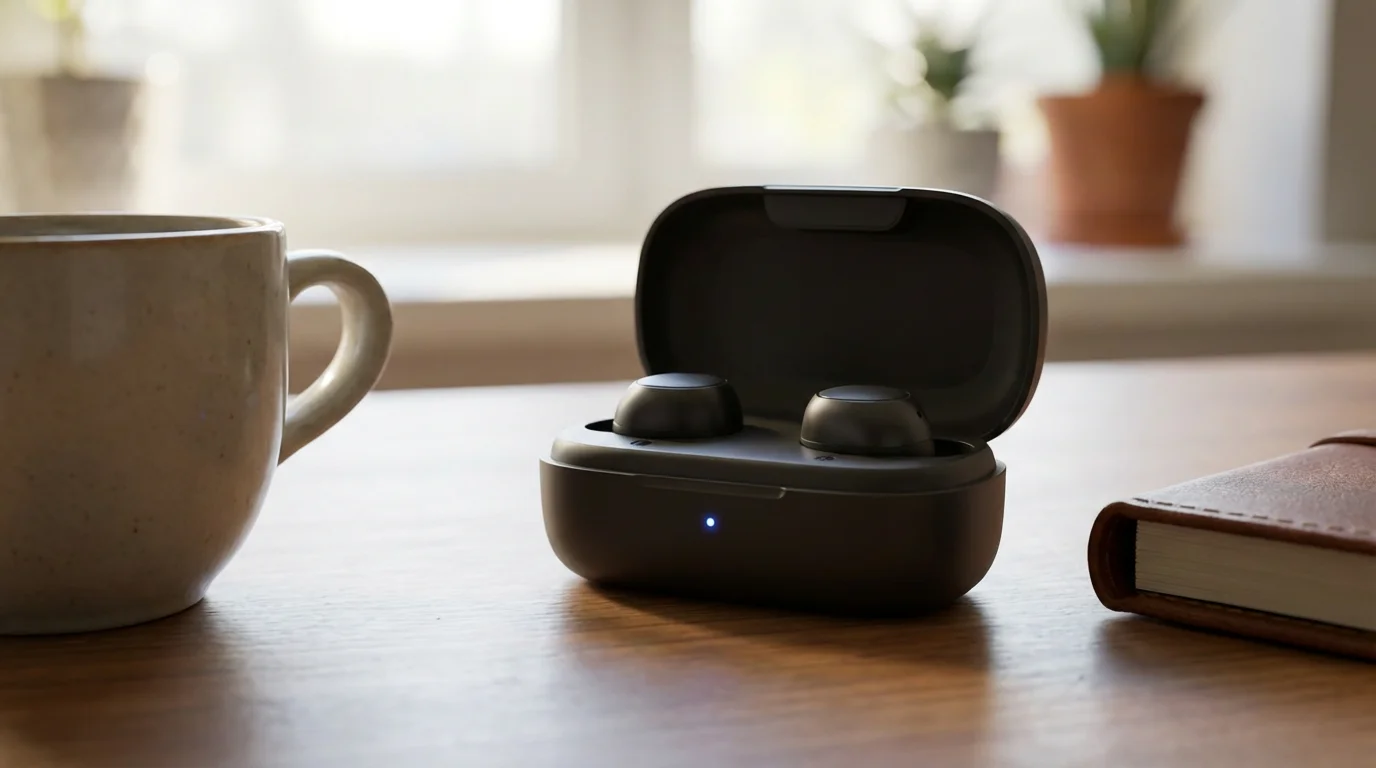
Step 1: Charge and Enter Pairing Mode
Just like with a phone, ensure your headphones are charged and put them into pairing mode (flashing light, voice prompt).
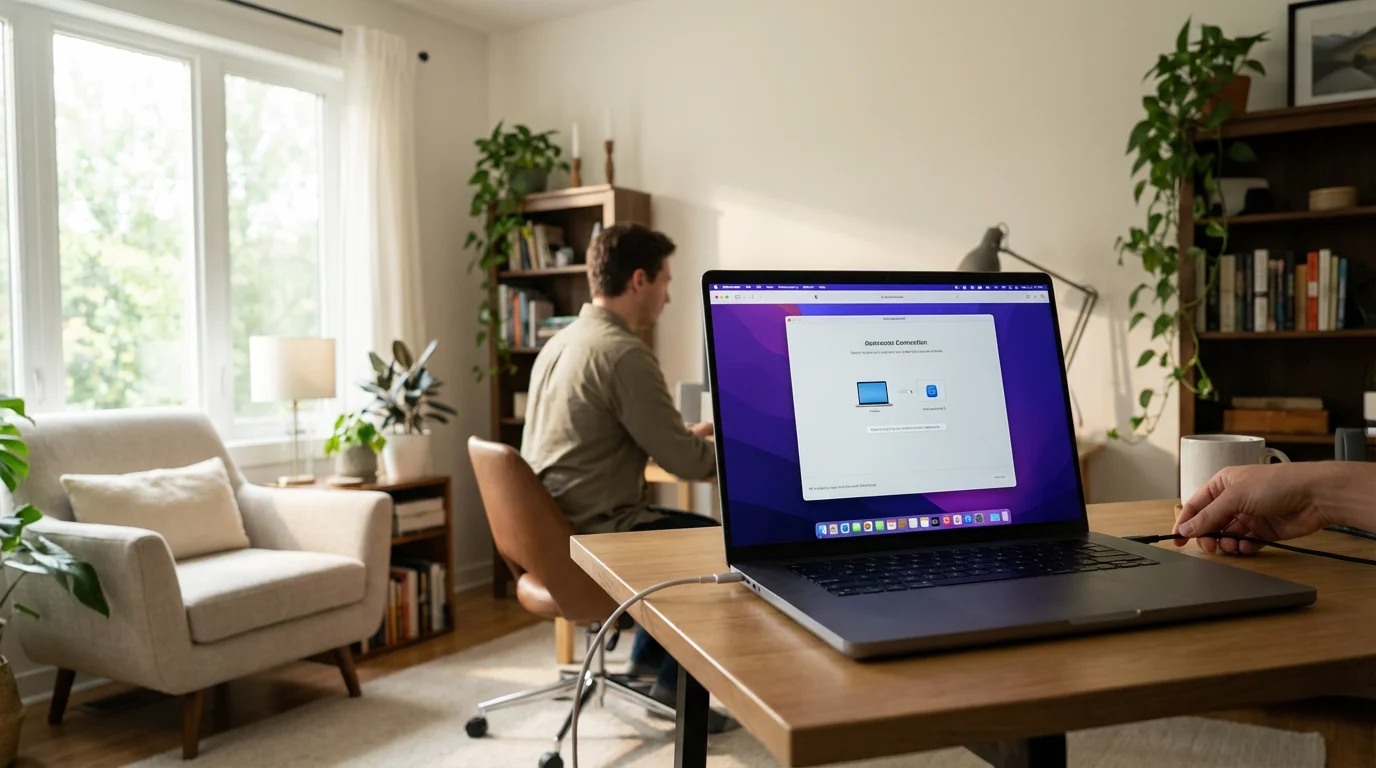
Step 2: Connect via Windows PC
- Open Settings: Click the “Start” button (Windows icon, usually in the bottom-left corner of your screen), then click the gear icon for “Settings.”
- Go to Devices: In the Settings window, click on “Devices.”
- Select Bluetooth & devices: On the left sidebar, click “Bluetooth & devices” or “Bluetooth & other devices.”
- Turn Bluetooth On: Ensure the “Bluetooth” toggle is switched “On.” It should appear blue.
- Add a Device: Click “Add device” or “Add Bluetooth or other device.” A new window will appear.
- Choose Bluetooth: In the “Add a device” window, select “Bluetooth.” Your computer will start scanning.
- Select Your Headphones: Your headphones’ name should appear in the list (e.g., “ClearSound Headphones”). Click on it.
- Confirm Connection: Windows will indicate that your device is “Connected.” Click “Done.” You may need to select your headphones as the audio output device by clicking the speaker icon in your system tray (bottom-right of your screen) and choosing your headphones from the list.
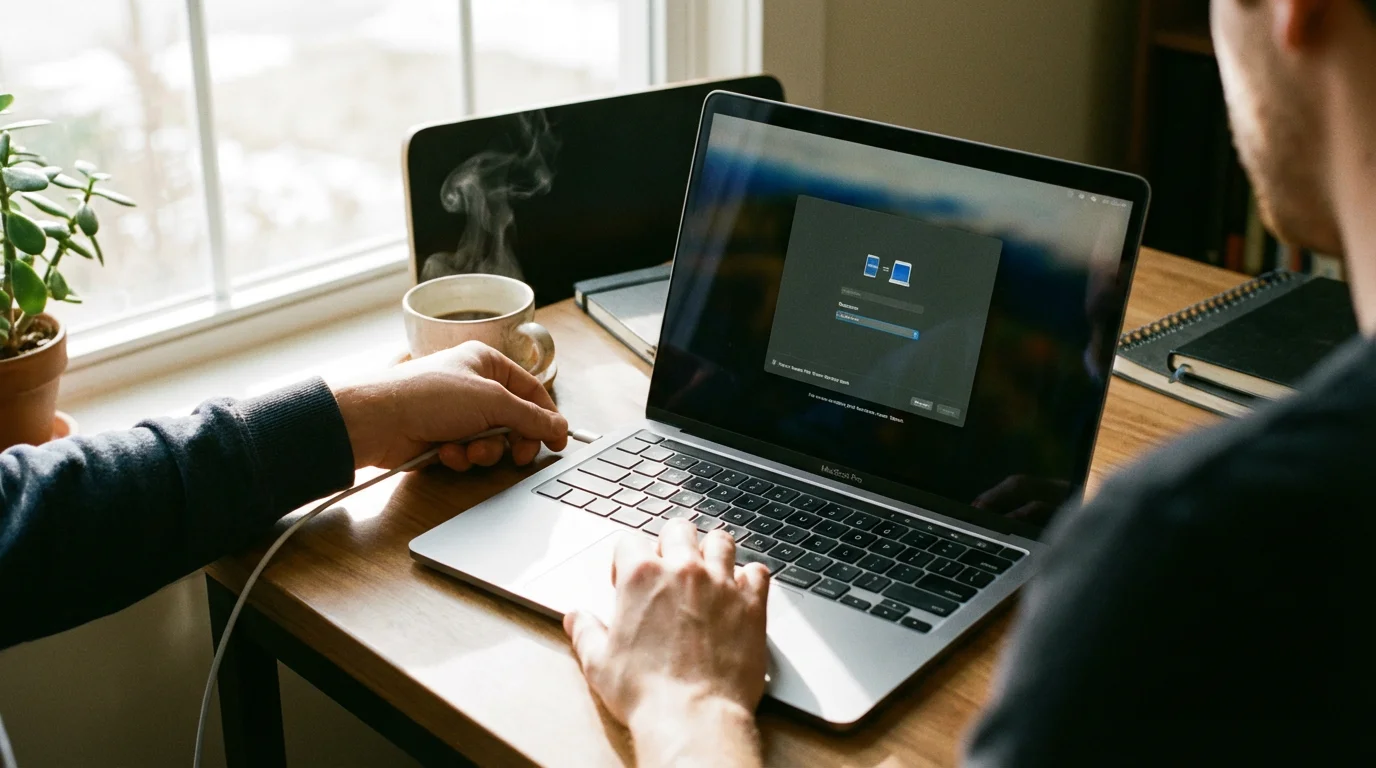
Step 3: Connect via Mac (macOS)
- Open System Settings: Click the Apple menu (top-left corner of your screen), then select “System Settings” (or “System Preferences” on older macOS versions).
- Select Bluetooth: In the sidebar, click “Bluetooth.”
- Turn Bluetooth On: If “Bluetooth” is off, click the “Turn Bluetooth On” button. Your Mac will start searching.
- Select Your Headphones: Your headphones’ name should appear under “Devices.” Click the “Connect” button next to their name.
- Confirm Connection: The status next to your headphones’ name will change to “Connected.” Your Mac should automatically switch to using your headphones for audio. If not, click the speaker icon in your menu bar (top-right of your screen) and choose your headphones from the “Output” section.
Your computer now sends its audio to your Bluetooth headphones. You are ready to enjoy music, videos, or calls wirelessly.
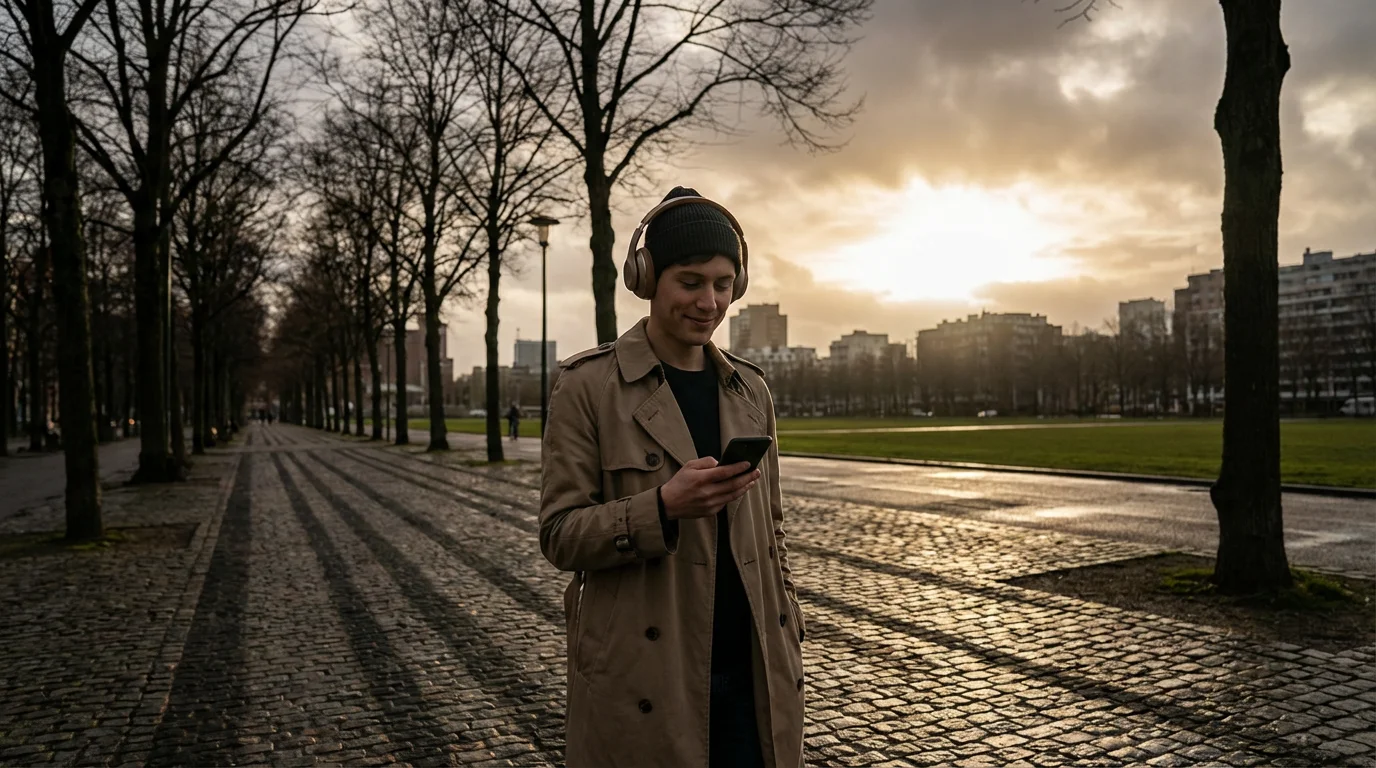
Using Your Headphones After Pairing
Once you successfully pair your Bluetooth headphones with a device, the process becomes much simpler:
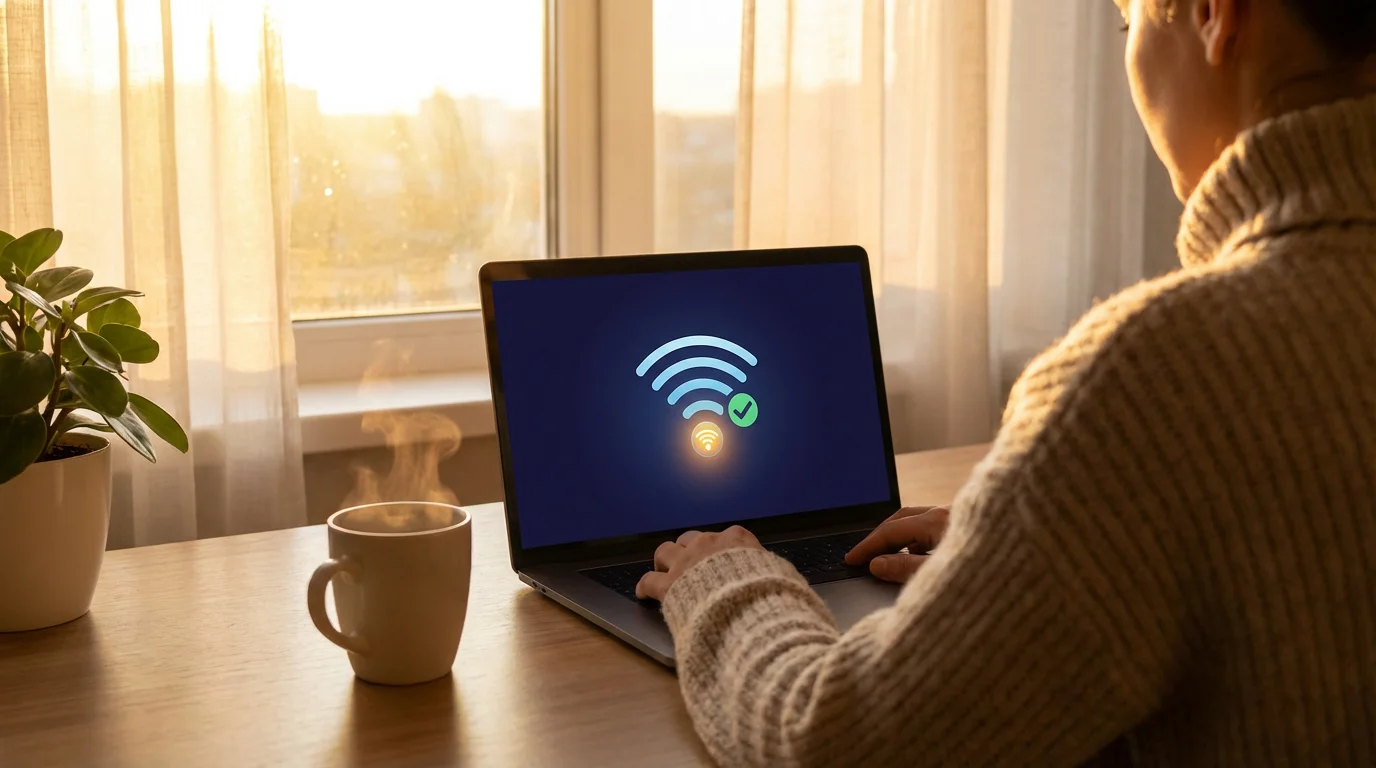
Automatic Reconnection
Most Bluetooth headphones automatically reconnect to the last device they paired with when you turn them on and the device’s Bluetooth is active. For example, if you paired them with your phone, simply turn on your headphones, and they will usually connect to your phone within a few seconds, assuming your phone’s Bluetooth is on and the phone is nearby.
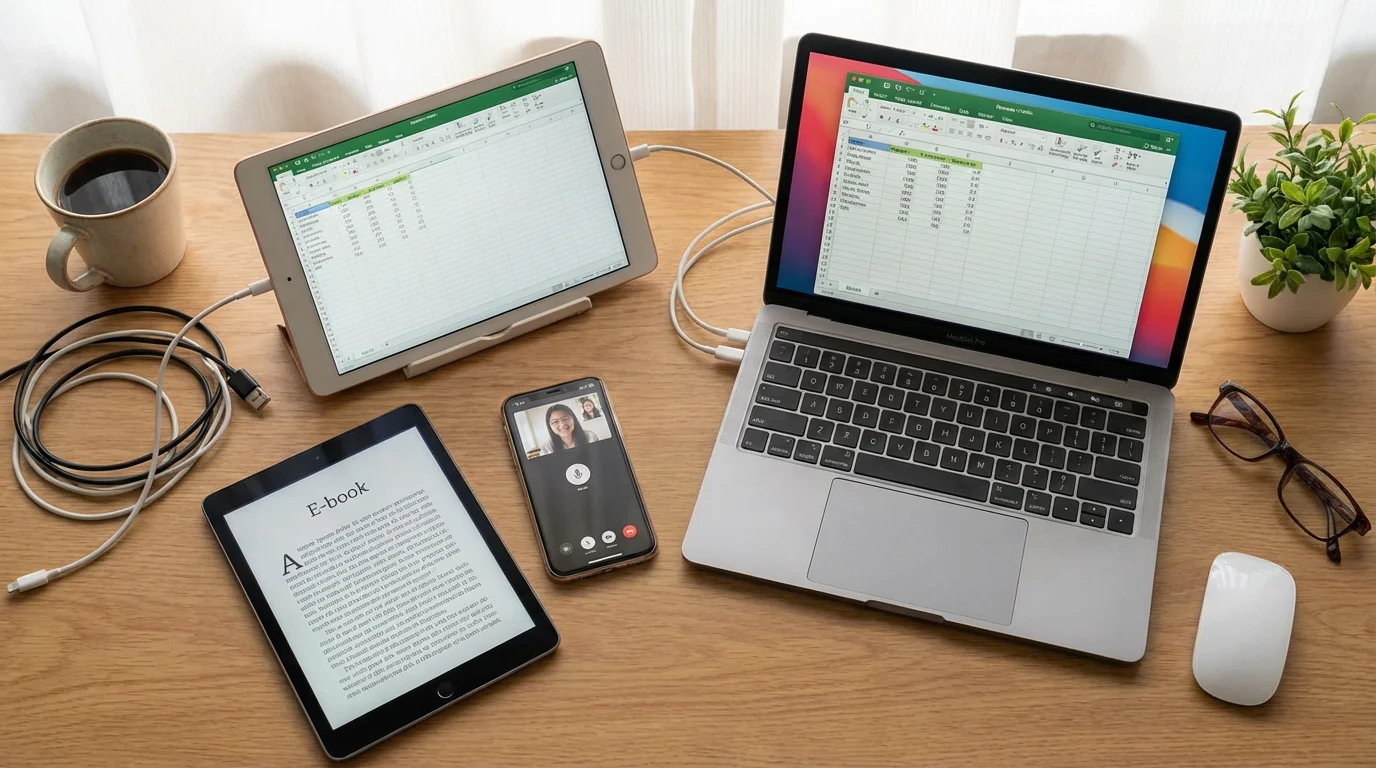
Switching Between Devices
If you paired your headphones with both your phone and your computer, they will usually connect to whichever device you turn on first. To switch:
- Disconnect from the current device: Go into the Bluetooth settings of the device currently connected and “Disconnect” or “Forget” the headphones. Some headphones allow you to simply turn them off, which will release the connection.
- Connect to the new device: Turn on Bluetooth on the device you want to use. Then, either turn your headphones on (they might automatically connect if it is the only remembered device) or go to the Bluetooth settings of the new device and tap/click your headphones’ name to connect.
Some advanced headphones support “multipoint pairing,” allowing them to connect to two devices simultaneously and intelligently switch audio. Check your headphone’s manual if this feature interests you.
Basic Controls
Most Bluetooth headphones feature physical buttons or touch controls for common functions:
- Volume: Dedicated buttons (often labeled + and -) on the earcups or along the cable.
- Play/Pause: A single press of a central button.
- Skip Track: Often a double-press or long-press of the play/pause button, or dedicated skip buttons.
- Answer/End Call: A single press of the play/pause button when a call comes in.
- Activate Voice Assistant: A long-press or specific button to summon Siri, Google Assistant, or Alexa on your connected phone.
Familiarize yourself with these controls for a seamless listening experience.

Common Problems and Simple Solutions
Even with straightforward technology, occasional hiccups happen. Here are common issues with Bluetooth headphones and how to fix them:
- Headphones Will Not Connect or Pair:
- Solution:
- Ensure pairing mode: Double-check that your headphones are truly in pairing mode (flashing light, voice prompt).
- Reboot devices: Turn off your headphones, turn off Bluetooth on your phone/computer, then turn them both back on. Sometimes a simple refresh resolves the issue.
- Forget and re-pair: On your phone/computer’s Bluetooth settings, find your headphone’s name and choose “Forget this device” or “Remove.” Then, start the pairing process from the beginning. This clears old, potentially corrupted connection data.
- Charge them: A low battery often prevents successful pairing.
- Proximity: Keep your headphones and device very close together during pairing, within a few feet.
- Solution:
- Sound Quality Is Poor or Cuts Out:
- Solution:
- Distance: Bluetooth works best within 30 feet. Walls or other obstacles can reduce this range. Move closer to your device.
- Interference: Other wireless devices (Wi-Fi routers, microwaves) can sometimes cause interference. Try moving away from these.
- Battery Level: Low battery on either the headphones or the connected device can affect performance. Charge both.
- One device at a time: Ensure your headphones are only connected to one device. If they are trying to connect to both your phone and computer simultaneously, it can cause issues.
- Solution:
- Headphones Connected, But No Sound:
- Solution:
- Check volume: Ensure the volume on both your headphones and your connected device (phone/computer) is turned up. Sometimes one or the other gets muted.
- Select audio output: On your computer, click the speaker icon in the system tray (Windows) or menu bar (Mac) and manually select your Bluetooth headphones as the audio output device. On phones, check media output settings.
- Restart the app: If only one app has no sound, close and restart that application.
- Solution:
- Battery Drains Quickly:
- Solution:
- Volume level: Listening at very high volumes drains the battery faster.
- Age of battery: Like all rechargeable batteries, headphone batteries degrade over time. If your headphones are several years old, reduced battery life is normal.
- Fully charge: Ensure you are fully charging them each time.
- Solution:
Most issues are temporary and resolve with one of these simple steps. Do not get discouraged if a connection does not happen immediately.
Privacy and Security with Bluetooth Devices
Many people express concerns about privacy and security with new technologies. It is natural to wonder how Bluetooth headphones affect these areas. We can address these concerns directly:
Privacy Considerations:
- No “Always Listening” for General Use: Unlike a smart speaker with a voice assistant, standard Bluetooth headphones do not “listen” to your conversations all the time. The microphone only activates when you are making a phone call, using your phone’s voice assistant (like Siri or Google Assistant) by pressing a button, or recording audio. They do not send your private conversations to the internet.
- Data Transmission is Limited: Bluetooth primarily transmits audio data. It does not access your personal files or browsing history on your phone or computer. The connection only allows for sound transfer.

Security Considerations:
- Short Range: Bluetooth connections are designed for short distances, typically up to 30 feet. This means someone would need to be very close to you to even attempt to intercept a Bluetooth signal, making it much less of a risk than, say, an open Wi-Fi network.
- Pairing Process: The initial pairing process requires you to manually confirm the connection on both devices. This prevents random devices from connecting to your headphones without your permission. Once paired, the connection is typically encrypted, adding a layer of security.
- Software Updates: Keep your phone and computer’s operating systems updated. These updates often include security patches that protect against potential vulnerabilities across all connected devices, including Bluetooth. You can find information on general technology safety and privacy from reliable sources like AARP Technology Resources.
The privacy and security risks associated with Bluetooth headphones are generally very low for everyday use. Focus on keeping your devices updated and only pairing with your own trusted devices.
Frequently Asked Questions
Q: Are Bluetooth headphones always listening to me?
A: No, standard Bluetooth headphones do not constantly listen to your conversations. The microphone activates only when you are on a call, recording a voice memo, or actively engaging your phone’s voice assistant by pressing a button. They do not record your personal interactions or send data to the internet without your direct input.
Q: Do I need to pay monthly for Bluetooth headphones?
A: No, you do not pay any monthly fees to use Bluetooth headphones themselves. You purchase them once. Any costs you might incur relate to the audio content you choose to listen to, such as music streaming subscriptions or audiobook purchases, but these are separate from the headphones’ functionality.
Q: Can I use Bluetooth headphones with my TV?
A: It depends on your TV. If your TV has built-in Bluetooth, yes, you can connect your headphones directly through the TV’s settings, similar to how you connect to a phone or computer. If your TV does not have Bluetooth, you can purchase a small, inexpensive Bluetooth audio transmitter that plugs into your TV’s audio output (like a headphone jack) and then pairs with your headphones.
Q: What is the difference between Bluetooth headphones and wireless earbuds?
A: Both are types of Bluetooth headphones. “Bluetooth headphones” is a general term. “Wireless earbuds” specifically refers to the small, in-ear style that fits directly into your ear canal. “True wireless earbuds” take this a step further, meaning there are no wires at all, not even between the left and right earbud.
Q: How far can I go from my phone or computer with Bluetooth headphones?
A: Typically, Bluetooth headphones maintain a reliable connection up to about 30 feet (10 meters) from your connected device in an open area. Walls and other obstructions can reduce this range. If you move too far, the audio will cut out, but it usually reconnects automatically when you come back into range.
Disclaimer: This article is for informational purposes only. Product features and prices change frequently. Always check current specifications and reviews before purchasing. We recommend buying from authorized retailers with good return policies.


![[FEATURED]](https://cleartechguide.com/wp-content/uploads/2026/01/how-to-use-google-maps-on-your-phone-or-computer-featured-16x9-1-800x450.webp)
Leave a Reply