

Staying connected with family and friends brings immense joy, and modern technology provides wonderful ways to do it. Imagine seeing your grandchildren’s smiles as you chat, or catching up with a sibling face-to-face, even if they live hundreds of miles away. FaceTime, an amazing program built into your Apple devices, makes these video calls simple and free. You can use it on your iPhone, iPad, or Mac computer to see and talk with anyone else who also has an Apple device.
If you are specifically looking to see your family more often, our guide on how to video call your grandchildren offers additional tips for those special moments.
This comprehensive guide will walk you through every step of using FaceTime. We will cover how to ensure it is set up on your device, how to make a call, how to answer a call, and offer useful tips to make your video chats enjoyable. You will learn everything you need to confidently use FaceTime to connect with your loved ones.
Table of Contents
- What is FaceTime and Why Use It?
- Getting Started: What You Need for FaceTime Calls
- Activating FaceTime on Your Device
- Making Your First FaceTime Call on iPhone or iPad
- Making Your First FaceTime Call on Mac
- Receiving FaceTime Calls
- FaceTime Settings and Useful Tips
- Common FaceTime Questions and Solutions
- Frequently Asked Questions

What is FaceTime and Why Use It?
FaceTime is a special program, also called an app, that comes pre-installed on all Apple devices. This means you do not need to download or install it separately. Its main purpose is to let you make video calls or audio-only calls to other people who also use an Apple device, such as an iPhone, iPad, or Mac computer. Think of it as a phone call where you can also see the person you are talking to.
If your friends do not use Apple devices, you can use Facebook Messenger for video calls as another easy way to see them while you talk.
To make these visual connections a regular part of your life, you might consider setting up a weekly video call routine with your relatives.
While FaceTime is perfect for Apple users, you might also want to learn how to use Zoom for video calls if you need to connect with friends who use Windows or Android devices.

The Benefits of Using FaceTime
- See Your Loved Ones: The biggest advantage is the ability to see the faces of family and friends. This visual connection is especially meaningful when connecting with grandchildren, children, or friends who live far away.
- It’s Free: FaceTime uses your existing internet connection, whether that is Wi-Fi at home or your cellular data plan when you are out and about. This means FaceTime calls do not use up your phone plan’s voice minutes and are free, beyond your regular internet costs.
- Easy to Use: Apple designed FaceTime to be very straightforward. Once activated, starting a call is as simple as finding a contact and tapping a button.
- High Quality: FaceTime provides clear video and audio quality, making your conversations feel natural and enjoyable.
- Secure and Private: Apple takes your privacy seriously. FaceTime calls are encrypted, meaning only you and the person you are talking to can hear and see the conversation.
Connecting with family and friends should be easy and joyful. FaceTime helps you bridge distances with a personal touch, bringing smiles and laughter right into your home. You will be amazed at how quickly you become comfortable using it.

Getting Started: What You Need for FaceTime Calls
Before you begin making or receiving FaceTime calls, you need to ensure you have a few things in place. These requirements are simple and likely already met if you own an Apple device.
If you plan on having long chats, you may want to use a tablet stand to keep your device steady and your hands free.

1. An Apple Device
FaceTime is exclusive to Apple products. You need one of the following:
- An iPhone (any model that supports the latest iOS updates)
- An iPad (any model that supports the latest iPadOS updates)
- A Mac computer (iMac, MacBook, Mac mini, Mac Studio, Mac Pro)
The person you want to call also needs one of these Apple devices.

2. An Apple ID
Your Apple ID is your personal login that grants you access to all Apple services, including FaceTime, the App Store, iCloud, and more. It typically consists of an email address and a password you created. If you have an iPhone or iPad, you almost certainly already have an Apple ID, as you use it to download apps and manage your device. You can verify your Apple ID by going to Settings on your iPhone or iPad and tapping your name at the top. On a Mac, open System Settings (or System Preferences on older macOS versions) and click on your name.

3. An Internet Connection
FaceTime calls require an active internet connection. You can use:
- Wi-Fi: This is a wireless internet connection, typically found at home, in cafes, or other public places. Using Wi-Fi is usually recommended for the best call quality and because it does not consume your cellular data.
- Cellular Data: If you have an iPhone or an iPad with cellular capabilities, you can use your mobile network’s internet connection (like 4G or 5G) to make FaceTime calls when you are away from Wi-Fi. Be mindful that video calls can use a significant amount of data, so it is always best to use Wi-Fi when available to avoid potential extra charges from your phone carrier.

Activating FaceTime on Your Device
Since FaceTime comes built into your Apple devices, you do not need to download or install it. However, you do need to ensure it is turned on and set up with your Apple ID. This process is very quick and you typically only do it once.
For a truly hands-free experience, you can also set up and use voice control to start your calls using just your voice.

On iPhone or iPad:
- Open Settings: Find the grey gear icon on your home screen and tap it. This opens your device’s settings menu.
- Scroll and Tap FaceTime: Scroll down the list until you see “FaceTime” and tap on it.
- Turn On FaceTime: At the top of the FaceTime screen, you will see a switch next to “FaceTime.” If it is grey, tap it to turn it green. This means FaceTime is now active.
- Verify Your Apple ID: Below the switch, you will see “You can be reached by FaceTime at.” Make sure your phone number and/or your Apple ID email address are checked. These are the ways people can call you using FaceTime. If you are not signed in, you may see an option to “Use your Apple ID for FaceTime.” Tap this and follow the on-screen prompts to enter your Apple ID email and password. This links your FaceTime to your personal account.

On Mac:
- Open the FaceTime App: You can find the FaceTime app in your Applications folder, or by searching for it using Spotlight (press Command + Spacebar, then type “FaceTime” and hit Enter). The icon looks like a green camera.
- Sign In (If Needed): When you first open FaceTime on a Mac, it might ask you to sign in with your Apple ID. Enter your Apple ID email and password when prompted.
- Check Preferences: Once signed in, click “FaceTime” in the menu bar at the top of your screen, then select “Settings” (or “Preferences” on older macOS versions).
- Verify Settings: In the Settings window, ensure the “Enable this account” checkbox is ticked. Under “You can be reached for FaceTime at,” make sure your phone number and/or Apple ID email are selected.
Activating FaceTime is a one-time setup that unlocks a world of visual communication. Take your time with these steps, and remember that your Apple ID is the key to all your Apple services. You are doing great!

Making Your First FaceTime Call on iPhone or iPad
Once FaceTime is activated, making a call is straightforward. You have a few ways to initiate a FaceTime call on your iPhone or iPad.
If you are calling in the evening, you might even enjoy learning how to read bedtime stories to grandchildren over video call.
Once you are connected, there are many fun things to do with grandchildren over video call to make the time together even more memorable.
If you find that some contacts don’t have Apple devices, you can also set up and use WhatsApp as a great alternative for video calling.

Method 1: Using the FaceTime App
- Open the FaceTime App: Locate the green square app with a white camera icon on your home screen and tap it.
- Tap New FaceTime: At the top right of the screen, you will see a “+” sign or a “New FaceTime” button. Tap it.
- Enter Contact Name: A field will appear where you can type the name of the person you want to call. As you type, your device will suggest contacts from your address book.
- Select Contact: Tap on the name of the person you want to call from the suggestions. You can add multiple people to start a group FaceTime call, though for your first call, we recommend starting with one person.
- Choose Video or Audio: After selecting a contact, you will see two buttons: “Video” (camera icon) and “Audio” (phone icon). Tap “Video” to start a video call where you can see each other, or “Audio” for a voice-only call.
- Wait for Them to Answer: Your device will start ringing, and you will see a message like “Calling…” or “Connecting…”. The call begins when the other person answers.
- During the Call: Once connected, you will see the other person on your screen. At the bottom, you will find several controls that appear when you tap the screen.
- Mute Microphone (microphone icon): Tap this to mute your microphone so the other person cannot hear you. Tap again to unmute.
- Turn Camera Off (camera icon): Tap this to turn off your video, so the other person cannot see you, but you can still hear them. Tap again to turn your camera back on.
- Flip Camera (arrows icon): This switches between your front-facing camera (for selfies and video calls) and your rear-facing camera (to show what is in front of you).
- End Call (red phone icon): Tap this to hang up and end the FaceTime call.

Method 2: From Your Contacts App or Phone App
This is often the quickest way to start a FaceTime call if the person is already in your contacts.
- Open Contacts or Phone: Go to your “Contacts” app (looks like an address book icon) or your “Phone” app (green phone receiver icon).
- Find the Contact: Locate the person you want to call. You can scroll through your list or use the search bar at the top.
- Tap FaceTime: On their contact card, look for the “FaceTime” section. You will see either a “Video” button (camera icon) or an “Audio” button (phone icon) next to “FaceTime.” Tap the “Video” button to start a video call.
- The Call Connects: The call will initiate directly from there.

Making Your First FaceTime Call on Mac
Making a FaceTime call on your Mac computer is just as simple as on an iPhone or iPad, using a slightly larger screen for your conversation.

Steps to Make a FaceTime Call on Mac:
- Open the FaceTime App: Click the green camera icon in your Dock (the row of apps at the bottom of your screen) or find it in your Applications folder.
- Search for a Contact: In the search bar at the top of the FaceTime window, start typing the name of the person you want to call. As you type, your Mac will suggest contacts from your Address Book.
- Select the Contact: Click on the name of the person you wish to call from the list of suggestions.
- Start the Call: After selecting a contact, you will see buttons for “Video” (a camera icon) and “Audio” (a phone icon) next to their name. Click the “Video” button to start a video call.
- Connecting: The FaceTime window will show “Calling…” or “Connecting…” until the other person answers.
- Manage Your Call: During the call, controls will appear when you move your mouse cursor over the FaceTime window.
- Mute (microphone icon): Click this to turn off your microphone.
- Disable Video (camera icon): Click this to turn off your camera.
- End Call (red X or red phone icon): Click this to finish the conversation.
- Flip Camera (arrows icon): If your Mac has multiple cameras, you can switch between them.
You can also quickly initiate a FaceTime call from your Contacts app on your Mac. Just open the “Contacts” app, find the person, and click the “FaceTime” video icon next to their contact details.

Receiving FaceTime Calls
When someone calls you on FaceTime, your device will alert you with a notification. The appearance of this notification varies slightly depending on whether your device is locked or unlocked, and whether you are actively using it.
If you cannot answer a call, you can send a quick response and learn how to use emoji in your text messages to express yourself better.
On iPhone or iPad:
- If your device is locked or asleep: Your screen will light up, and you will see a full-screen notification showing the caller’s name or number. You will have two options:
- “Accept” (green button): Tap this to answer the video call.
- “Decline” (red button): Tap this to send the caller to voicemail (for audio calls) or simply end the ringing.
You may also see a “Remind Me” or “Message” option, allowing you to quickly send a text or set a reminder to call them back.
- If your device is unlocked and in use: A small banner notification will appear at the top of your screen, showing who is calling. You can swipe down on this banner to reveal “Accept” and “Decline” options, or just tap “Accept” directly from the banner. If you do nothing, the banner will disappear after a few seconds, but the call will continue to ring in the background until the caller hangs up or you swipe down to see the options.
On Mac:
When someone calls you on FaceTime on your Mac, a small notification window will appear in the top right corner of your screen. This notification will show the caller’s name or number.
- “Accept” (green button): Click this to answer the video call.
- “Decline” (red button): Click this to reject the call.
- “Message” or “Remind Me”: These options allow you to send a quick text response or set a reminder to call the person back later, without answering the call directly.

FaceTime Settings and Useful Tips
Understanding a few key settings and tips helps you get the most out of your FaceTime experience. You can customize how people reach you and ensure the best call quality.

Manage How People Reach You
You can choose which phone numbers or email addresses people can use to FaceTime you. This is helpful if you prefer to be reached by your phone number or a specific email.
- On iPhone/iPad: Go to Settings > FaceTime. Under “You can be reached by FaceTime at,” you can check or uncheck your phone number and any email addresses associated with your Apple ID.
- On Mac: Open the FaceTime app, then go to FaceTime > Settings (or Preferences). Under “You can be reached for FaceTime at,” you can check or uncheck your contact details.

Enhance Call Quality and Experience
- Use Wi-Fi for Best Quality: Whenever possible, connect your device to a strong Wi-Fi network. Wi-Fi generally provides a more stable and faster internet connection than cellular data, leading to clearer video and audio.
- Good Lighting: Position yourself in a well-lit area. Natural light from a window works wonders. Avoid having a bright light source directly behind you, as this can make your face appear dark to the other person.
- Stable Device: Hold your iPhone or iPad steady, or prop it up. On a Mac, ensure your computer is on a stable surface. This prevents shaky video and allows the other person to focus on your conversation.
- Keep Your Software Updated: Apple regularly releases updates for its operating systems (iOS for iPhone/iPad, macOS for Mac). These updates often include improvements to apps like FaceTime, enhancing performance and adding new features. An “update” means getting the newest version of an app or your device’s operating system, usually free. To update:
- iPhone/iPad: Go to Settings > General > Software Update.
- Mac: Go to System Settings (or System Preferences) > General > Software Update.
Always ensure your device is charged or connected to power before starting an update.
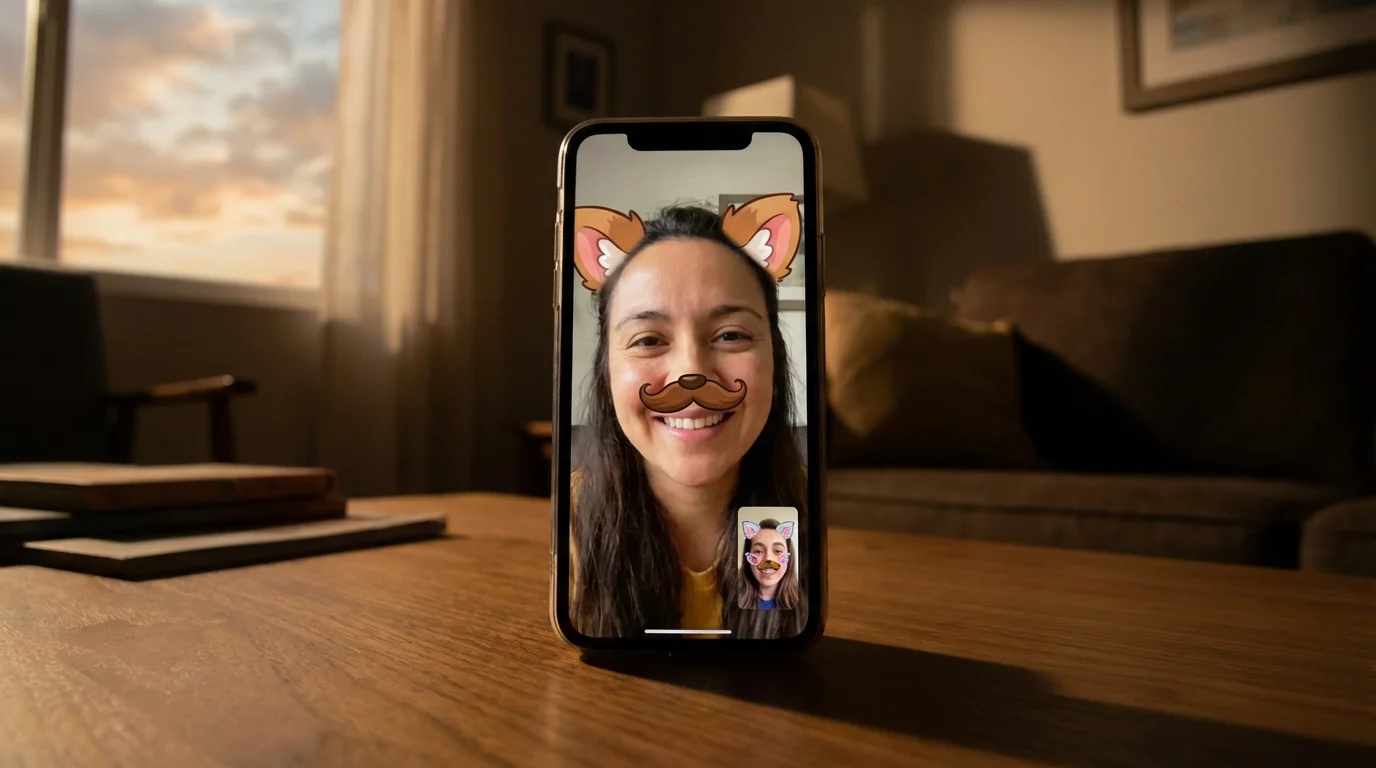
Fun FaceTime Features
- Live Photos during FaceTime: If both you and the other person have this feature enabled, you can capture a “Live Photo” during your call. This takes a short video clip and still photo of the moment. To enable this, go to Settings > FaceTime on your iPhone/iPad and toggle on “FaceTime Live Photos.” On Mac, in FaceTime Settings, check “Allow Live Photos capture during video calls.” During a call, you will see a shutter button to capture a Live Photo.
- Spatial Audio: This feature, available on newer Apple devices, makes voices sound like they are coming from the direction the person is displayed on your screen. It creates a more immersive and natural conversation experience.
A few simple adjustments can make a big difference in your FaceTime calls. Thinking about lighting or using Wi-Fi can greatly improve your connection. Remember, these small efforts lead to clearer, more enjoyable chats with your loved ones.

Common FaceTime Questions and Solutions
Even with clear instructions, you might encounter a small hiccup or have a specific question. Here are some common issues and their straightforward solutions.

1. “Why can’t I make a FaceTime call?”
- Check Internet Connection: FaceTime requires an active internet connection. Ensure you are connected to Wi-Fi or have cellular data turned on and a strong signal. You can check this by trying to load a website in your browser.
- Is FaceTime Enabled?: Double-check that FaceTime is turned on in your device’s Settings (Settings > FaceTime on iPhone/iPad; FaceTime > Settings on Mac).
- Correct Apple ID: Make sure you are signed in with your correct Apple ID and that your phone number or email is checked under “You can be reached by FaceTime at.”
- Recipient Has Apple Device: Confirm the person you are calling also has an Apple device and has FaceTime activated. FaceTime only works between Apple devices.
- Blocked Contacts: Accidentally blocking someone can prevent calls. On iPhone/iPad, go to Settings > FaceTime > Blocked Contacts to review your list.

2. “My video quality is poor or blurry.”
- Internet Speed: A slow or unstable internet connection is the most common cause. Try moving closer to your Wi-Fi router or switching to a stronger Wi-Fi network. If using cellular data, try to find an area with better signal.
- Lighting: Poor lighting can make video appear grainy. Ensure you have good, even lighting on your face.
- Close Background Apps: On older devices, having many apps running in the background can sometimes slow performance. Close any apps you are not actively using.

3. “My microphone is not working, they can’t hear me.”
- Check Mute Button: During a call, tap your screen to bring up the controls. Make sure the microphone icon is not red or crossed out, indicating it is muted. Tap it to unmute yourself.
- Device Volume: Ensure your device’s volume is turned up so you can hear others, and check if their volume is up too.
- Permissions: Sometimes, apps might ask for permission to access your microphone. While FaceTime typically has this by default, if you have restored your device or changed settings, check Settings > Privacy & Security > Microphone on iPhone/iPad to ensure FaceTime has access.

4. “Can I FaceTime with someone who has an Android phone or a Windows computer?”
No, FaceTime is an exclusive Apple-to-Apple service. You cannot directly FaceTime with someone using an Android phone or a Windows computer. However, many other video calling apps are available that work across different devices, such as Zoom, Google Meet, or Skype. These apps allow you to connect with anyone, regardless of their device, making them excellent alternatives for cross-platform communication. You can find many guides on these alternatives at AARP Technology Resources.
Frequently Asked Questions
Here are answers to some common questions about using FaceTime.
Is FaceTime a safe and private way to communicate?
Yes, Apple designed FaceTime with strong security and privacy features. All FaceTime calls, both video and audio, use end-to-end encryption. This means that your conversations are scrambled from your device to the recipient’s device and cannot be intercepted or listened to by anyone, including Apple. You can feel confident that your calls are private.
Do I have to pay to use FaceTime?
No, FaceTime is completely free to use. It comes pre-installed on all Apple devices. The only cost involved is your existing internet connection, whether that is your home Wi-Fi or your cellular data plan. FaceTime calls do not use your phone plan’s voice minutes, making them a cost-effective way to stay connected.
Can I use FaceTime with someone who does not have an Apple device?
No, FaceTime is an Apple-exclusive service. Both you and the person you are calling must have an Apple device, such as an iPhone, iPad, or Mac, to use FaceTime. If you need to video call someone with an Android phone or a Windows computer, you will need to use a different video calling app that supports multiple platforms, like Zoom or Google Meet.
What if I have trouble setting up FaceTime or making a call?
If you encounter difficulties, do not worry. Technology can sometimes present challenges, but solutions are usually at hand. First, double-check all the steps in this guide, especially ensuring FaceTime is activated and you have a strong internet connection. If problems persist, consider asking a tech-savvy family member or friend for assistance. You can also visit Apple Support, which offers extensive troubleshooting guides and direct support options. Many local senior centers or community colleges also offer technology help classes that could be beneficial.
Disclaimer: This article is for informational purposes only. App interfaces change frequently with updates, so screens may look slightly different from what’s described. Always download apps from official app stores (Apple App Store or Google Play Store) to ensure safety.
For better privacy and audio clarity, you can use Bluetooth headphones with your phone or computer during your video calls.
Before you call, make sure to add contacts to your phone so all your family members are easy to find.
If you are having a long conversation, you might want to learn how to use a tablet stand for comfortable video calls to keep your hands free.
Check our step-by-step guide on how to update your iPhone to the latest software to ensure your device remains secure and FaceTime runs smoothly.









Leave a Reply