
This guide is for one situation. You are in your 70s and wear behind-the-ear hearing aids that do not stream Bluetooth.
A relative set up your iPhone, and your aids squeal whenever you hold it to your ear for the weekly family call.
If your hearing aids support Bluetooth streaming instead, you can route phone calls directly to your hearing aids without having to hold the handset against your ear.
Most advice stops at “tilt the phone.” Our advice is different.
First find out whether your aids have a telecoil, because switching to it removes the cause of the whistle instead of working around it.
Android owners can follow along. Where the menu wording differs, we say so.
In this guide8 sections
- Why Behind-the-Ear Aids Squeal on Calls
- Why the Telecoil Matters More Than the Angle
- How to Check Whether Your Aids Have a Telecoil
- Turn On Your Phone’s Hearing Aid Setting
- Worked Example: The Sunday Call, Start to Finish
- Comparing Your Options
- Video Calls: Where the Telecoil Stops Helping
- Frequently Asked Questions
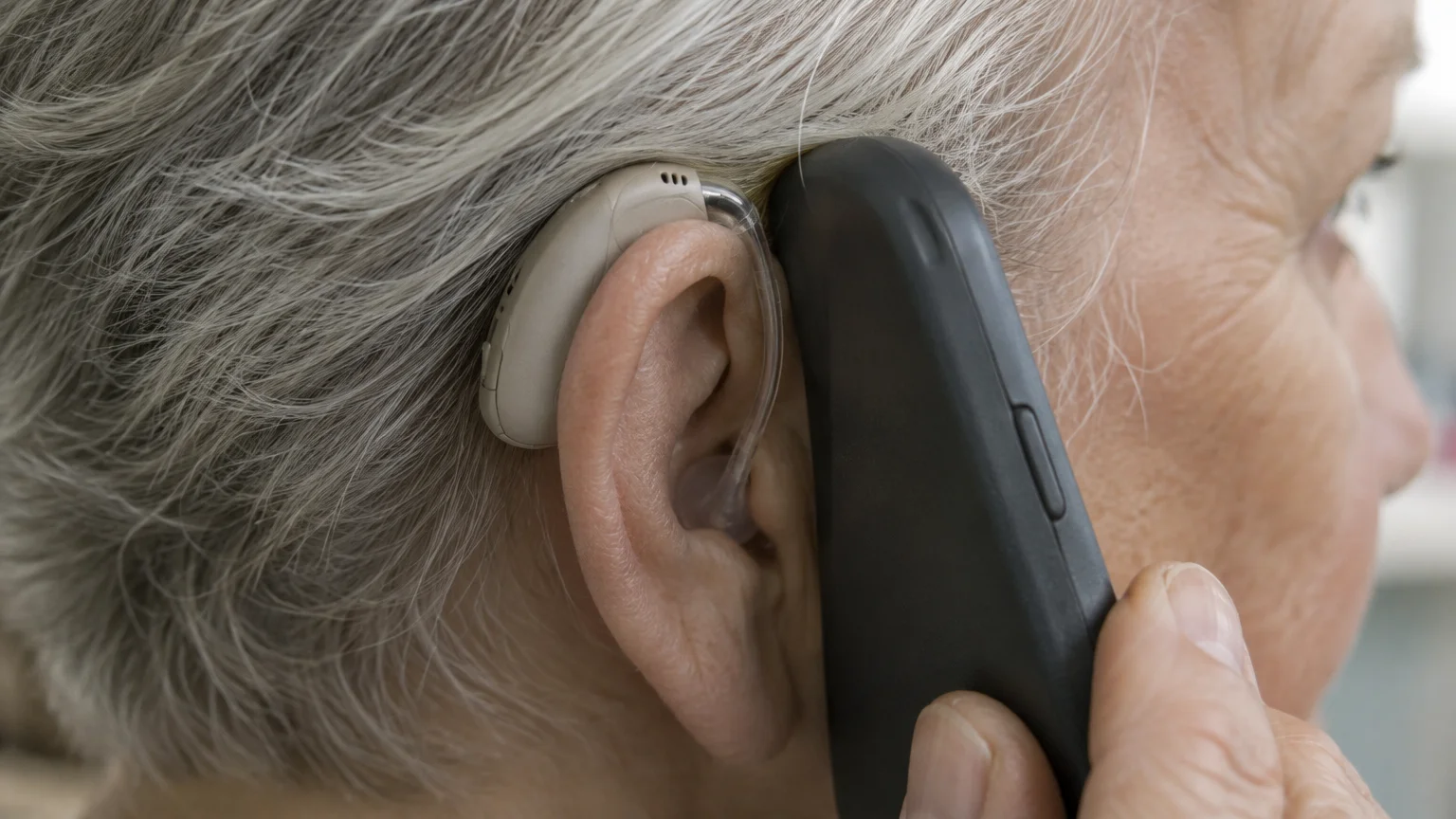
Why Behind-the-Ear Aids Squeal on Calls
The squeal is acoustic feedback. Sound from the phone’s earpiece leaks back into the hearing aid’s microphone, gets amplified, comes out again and loops until it whistles.
The Hearing Loss Association of America guide explains that acoustic feedback occurs whenever sound escaping the ear is picked up by the microphone again.
On a behind-the-ear aid, the microphones sit on the case above and behind your ear, not in your ear canal. Pressing the phone flat over your ear traps sound right beside those microphones.
The FCC hearing aid compatibility guide explains that phones are tested for two ways of working with hearing aids: through the aid’s microphone, and through its telecoil.
That second route is the one generic articles skip. For a reader with behind-the-ear aids and no Bluetooth, it matters most.
Why the Telecoil Matters More Than the Angle
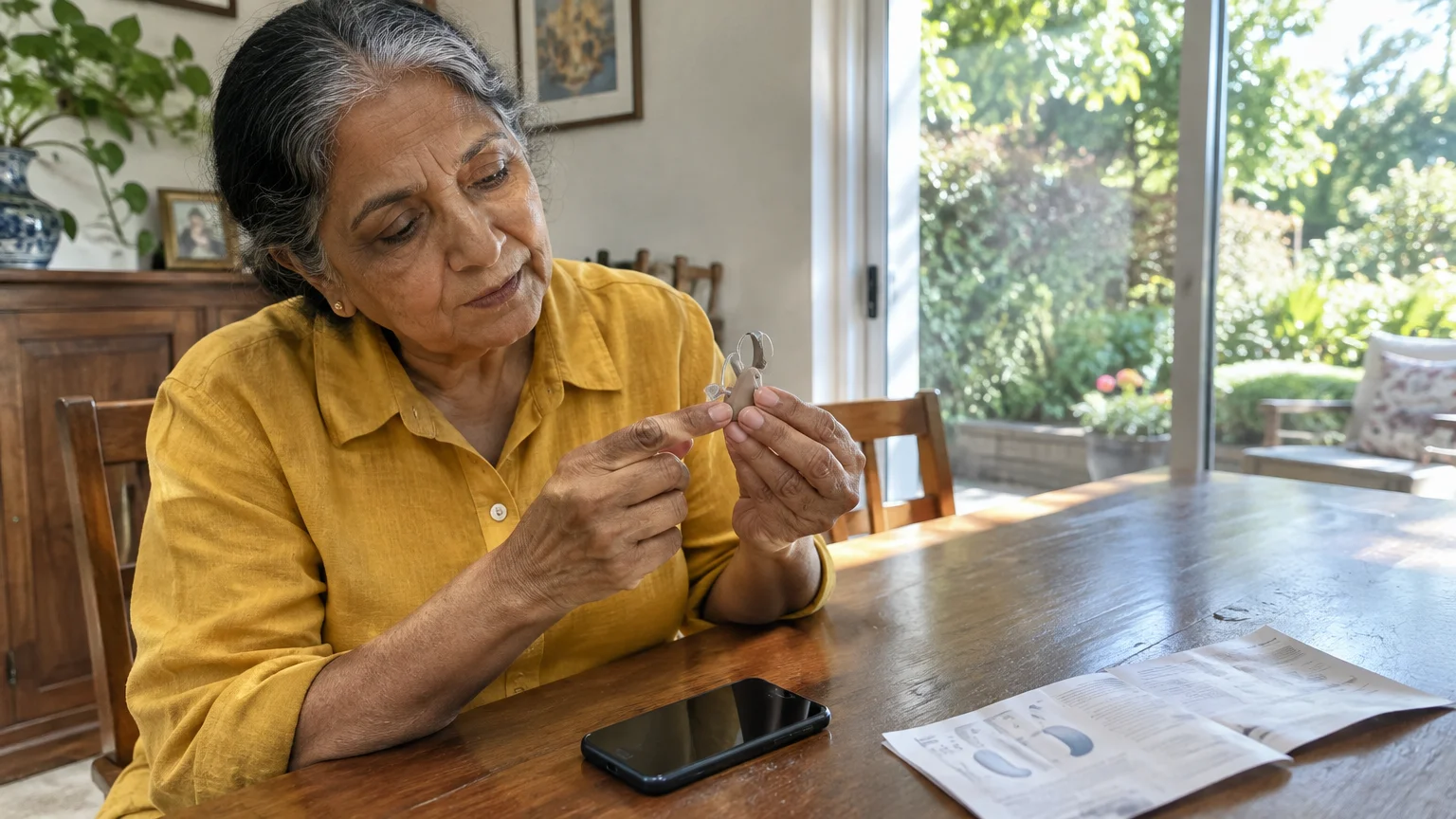
A telecoil is a small coil of wire inside many hearing aids. It picks up the magnetic signal the phone’s earpiece gives off, rather than the sound traveling through the air.
In a telecoil-only program, the aid’s microphone is turned down or off. With no microphone listening, there is nothing for sound to loop back into, so feedback cannot start.
Holding the phone at a careful angle only reduces how much sound leaks back. It depends on steady hands, and one slip mid-sentence brings the whistle back.
The telecoil also shuts out room noise, such as a television, because the aid is listening to the phone instead of the room.
Two limits are worth knowing. Some programs mix microphone and telecoil, sometimes labeled MT, so slight feedback is still possible.
And the telecoil only hears the earpiece, not the loudspeaker.
How to Check Whether Your Aids Have a Telecoil
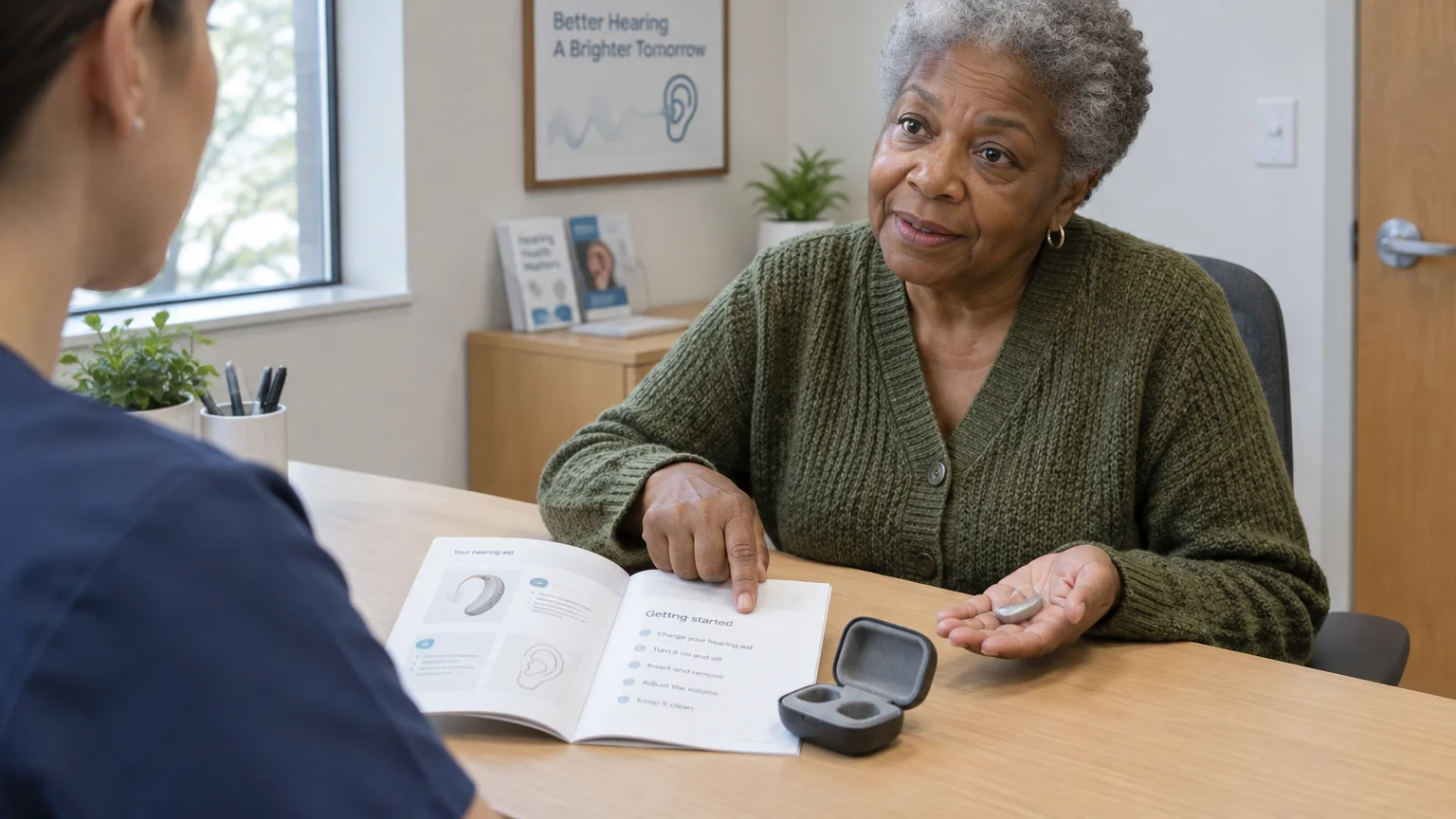
Behind-the-ear cases often have room for a telecoil, but having the part is not the same as having it switched on. An audiologist may need to turn the program on in the fitting software.
- Look in your hearing aid booklet for “telecoil,” “T-coil,” “T program” or “phone program.”
- Check the aid for a program button. Some older models have a small switch marked M, T and MT.
- Call your audiologist or hearing aid provider and ask: is a telecoil fitted, is it activated, and is it telecoil-only or mixed with the microphone?
- Ask how many button presses reach that program and what beep or voice prompt confirms it. This varies by model.
If there is no telecoil, ask about an acoustic phone program instead. Audiologists can set one up for holding a phone near the microphones, with its feedback control tuned for that use.
Turn On Your Phone’s Hearing Aid Setting
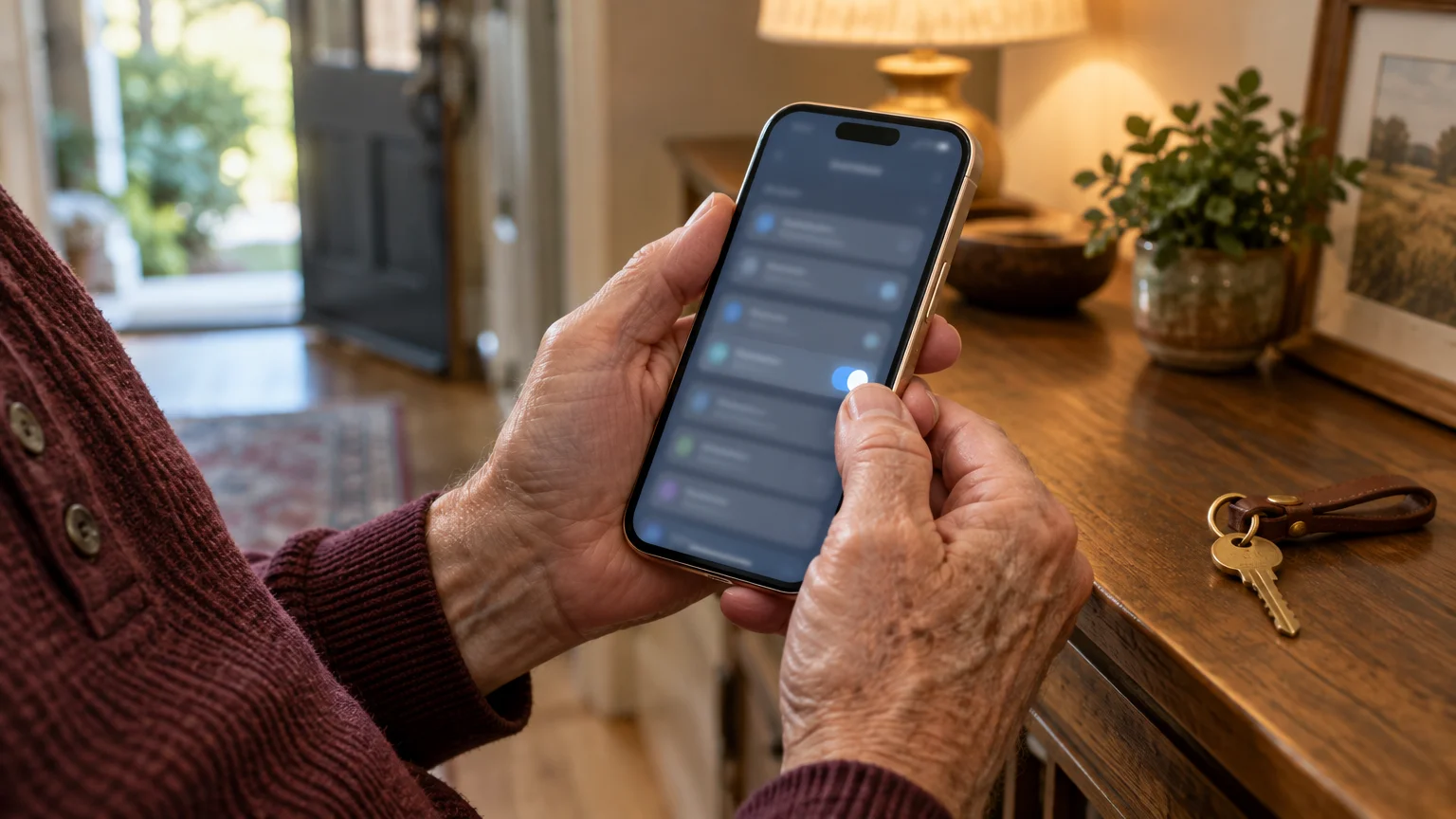
Your phone has a matching switch. On an iPhone, the Apple iPhone accessibility guide covers the Hearing Devices settings.
- Open Settings.
- Tap Accessibility.
- Under the Hearing heading, tap Hearing Devices.
- Turn on Hearing Aid Compatibility.
Apple describes this switch as improving audio quality with some hearing aids. It pairs nothing and needs no Bluetooth, so it suits aids that do not stream.
On Android, the Google Android accessibility help center lists the hearing features. The wording varies by model.
Look under Settings > Accessibility for Hearing devices (on Pixel and newer Android phones), Hearing aids, or Hearing enhancements (on Samsung). On some phones, the switch is in the Phone app’s own settings, labeled Hearing aid compatibility.
If you are choosing a new phone, the FCC guide explains how phones are labeled for hearing aid compatibility.
Check the box or the maker’s website for telecoil support (older models list a T3 or T4 rating, while newer phones certified under the 2019 ANSI standard are simply labeled “hearing aid-compatible” without M or T numbers).

Worked Example: The Sunday Call, Start to Finish
Here is the whole process for one reader: a 73-year-old with behind-the-ear aids, no Bluetooth, an iPhone a grandson set up, and a weekly call that keeps whistling.
- During the week, read the hearing aid booklet. Say it lists a telecoil program reached by pressing the button on the aid; write the number of presses on a sticky note by the phone.
- Call the audiologist’s office to confirm the program is activated. If it is not, book a visit to have it turned on.
- On the iPhone, open Settings > Accessibility > Hearing Devices and turn on Hearing Aid Compatibility.
- On Sunday, answer the call, then press the hearing aid button until the telecoil prompt plays.
- Hold the top of the phone against the back of your ear, near the hearing aid case, not over your ear canal. The coil sits inside the case, so that is where the signal needs to reach.
- Slide the phone slowly in small steps until the voice is loudest and clearest. Remember that spot for next week.
- Adjust the call volume with the side buttons, starting near the middle of the bar on screen.
- After hanging up, press the button to return to your everyday program. In telecoil-only mode, you hear very little of the room.
If step 2 shows there is no telecoil, steps 4 to 6 change. Switch to the acoustic phone program if you have one.
Then hold the earpiece near the microphones on top of the aid, leaving a small air gap rather than pressing it flat. Sealing the phone against your ear traps the very sound that feeds back.
Comparing Your Options
Each row is something you can check yourself, on the phone, on the aid, or in its booklet.
| Option | Where it lives | What it changes | Needs Wi-Fi or Bluetooth? | Who sets it up |
|---|---|---|---|---|
| Telecoil program | Program button or switch on the hearing aid | Aid listens to the earpiece’s magnetic signal; microphone turned down or off | Neither | Audiologist activates; you switch each call |
| Acoustic phone program | Program button on the hearing aid | Aid settings tuned for a phone held near its microphones | Neither | Audiologist |
| iPhone Hearing Aid Compatibility | Settings > Accessibility > Hearing Devices | Improves audio quality with some hearing aids, per Apple | Neither | You |
| Android hearing aid setting | Settings > Accessibility, or Phone app settings (wording varies) | Turns on the phone’s hearing aid compatibility mode | Neither | You |
| Live Captions | iPhone: Settings > Accessibility > Live Captions | Shows spoken words as text on screen | The video call itself needs internet | You |
| Mono Audio | iPhone: Settings > Accessibility > Audio & Visual | Sends the same sound to left and right; matters mostly with headphones | Neither | You |
| Holding position only | Your hand | Reduces how much sound leaks back into the microphones | Neither | You, every call |
Only the first two rows act inside the hearing aid, where the feedback loop actually forms. That is why we put them ahead of holding technique.

Video Calls: Where the Telecoil Stops Helping
FaceTime video and Google Meet normally play sound through the phone’s loudspeaker. The telecoil listens to the earpiece, so on a video call it has little to pick up.
Stay in your everyday microphone program for video calls. Put the phone on a stand at arm’s length rather than near your ear, because distance is what keeps loudspeaker sound from feeding back.
The Apple iPhone User Guide explains how to switch FaceTime audio between the speaker and other outputs. On Android, the Google Meet Help center covers Meet’s audio and caption settings.
- Put the phone on a stand at about eye level, facing you.
- Make sure nothing covers the speaker grille on the phone’s bottom edge.
- Turn on captions: on iPhone, Settings > Accessibility > Live Captions; in Google Meet, tap the captions button during the call.
- Raise volume gradually with the side buttons, stopping before speech sounds harsh.
Captions are the backup for video calls in the same way the telecoil is the fix for voice calls.
Frequently Asked Questions
Why does my hearing aid whistle when I hold the phone to my ear?
Sound from the earpiece leaks back into the hearing aid’s microphone and loops. A telecoil program avoids this by turning the microphone down and listening to the phone’s magnetic signal instead.
How can I tell if my hearing aids have a telecoil?
Check the booklet for “telecoil” or “T program,” look for a program button or T switch, and ask your audiologist whether it is fitted and switched on.
Will the telecoil work on a FaceTime video call?
Usually not, because video calls use the loudspeaker rather than the earpiece. Use a stand, your everyday program and Live Captions instead.
What if my aids have no telecoil at all?
Ask about an acoustic phone program, hold the earpiece near the aid’s microphones with a small gap, and keep volume moderate. If whistling continues, have your audiologist check the fit.
Note: Menus and button names change with software updates. These steps were written for current versions as of 2026; if a screen looks different on your device, the maker’s support page linked above has the latest wording.
ClearTechGuide is independent and is not affiliated with Apple, Google, Microsoft, Amazon or any other company mentioned.