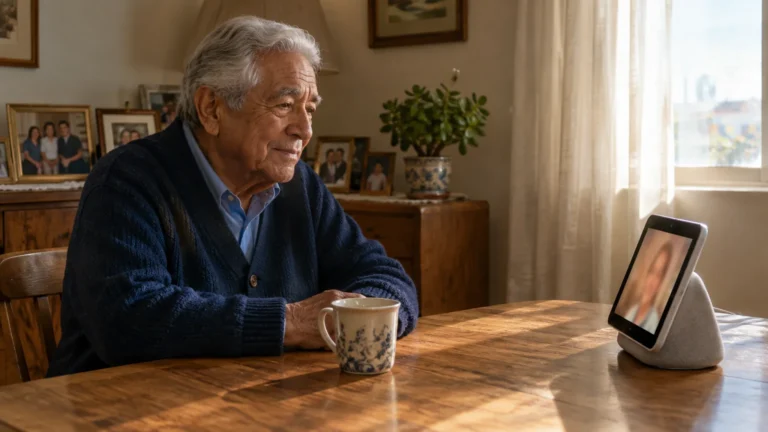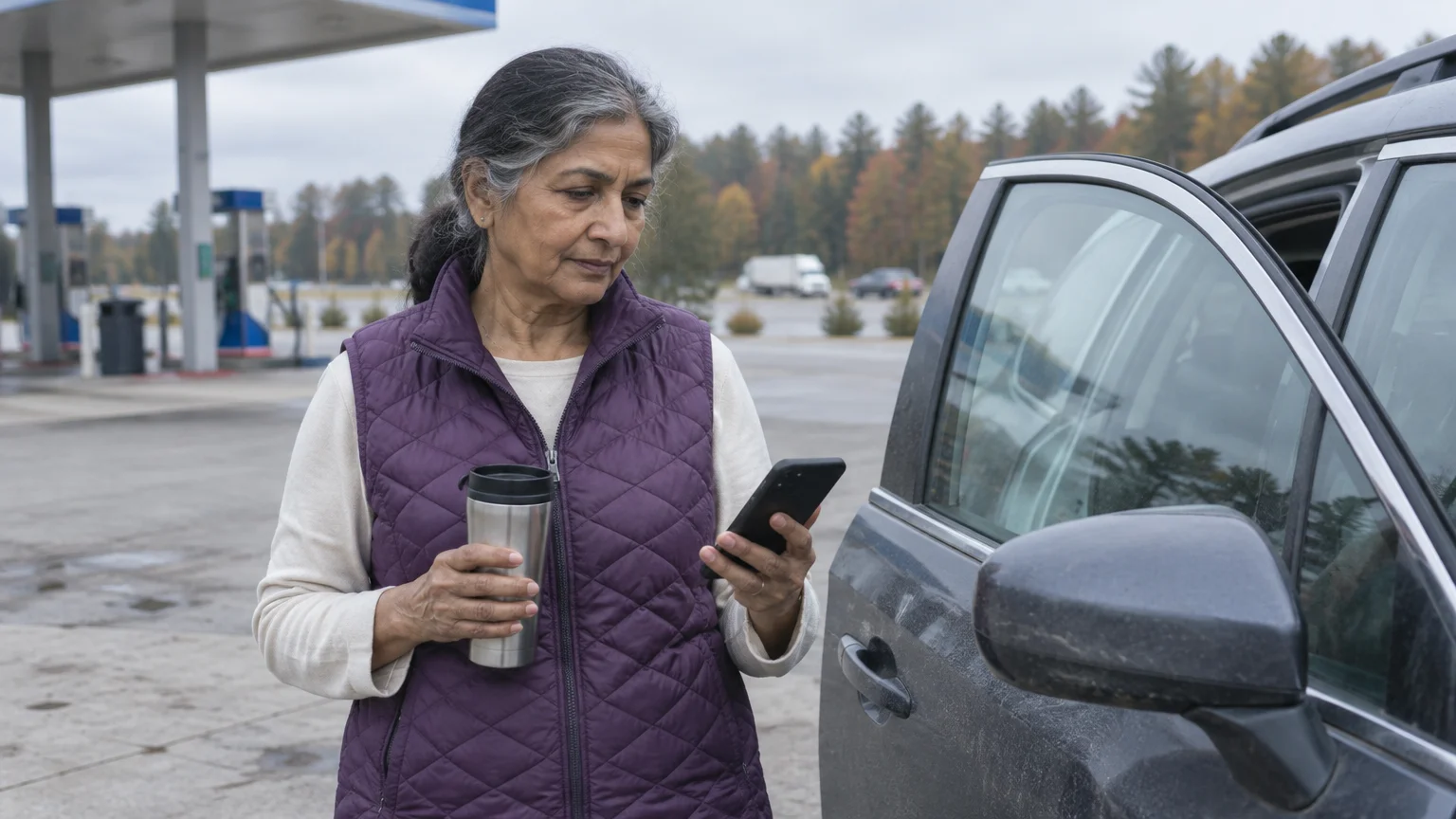
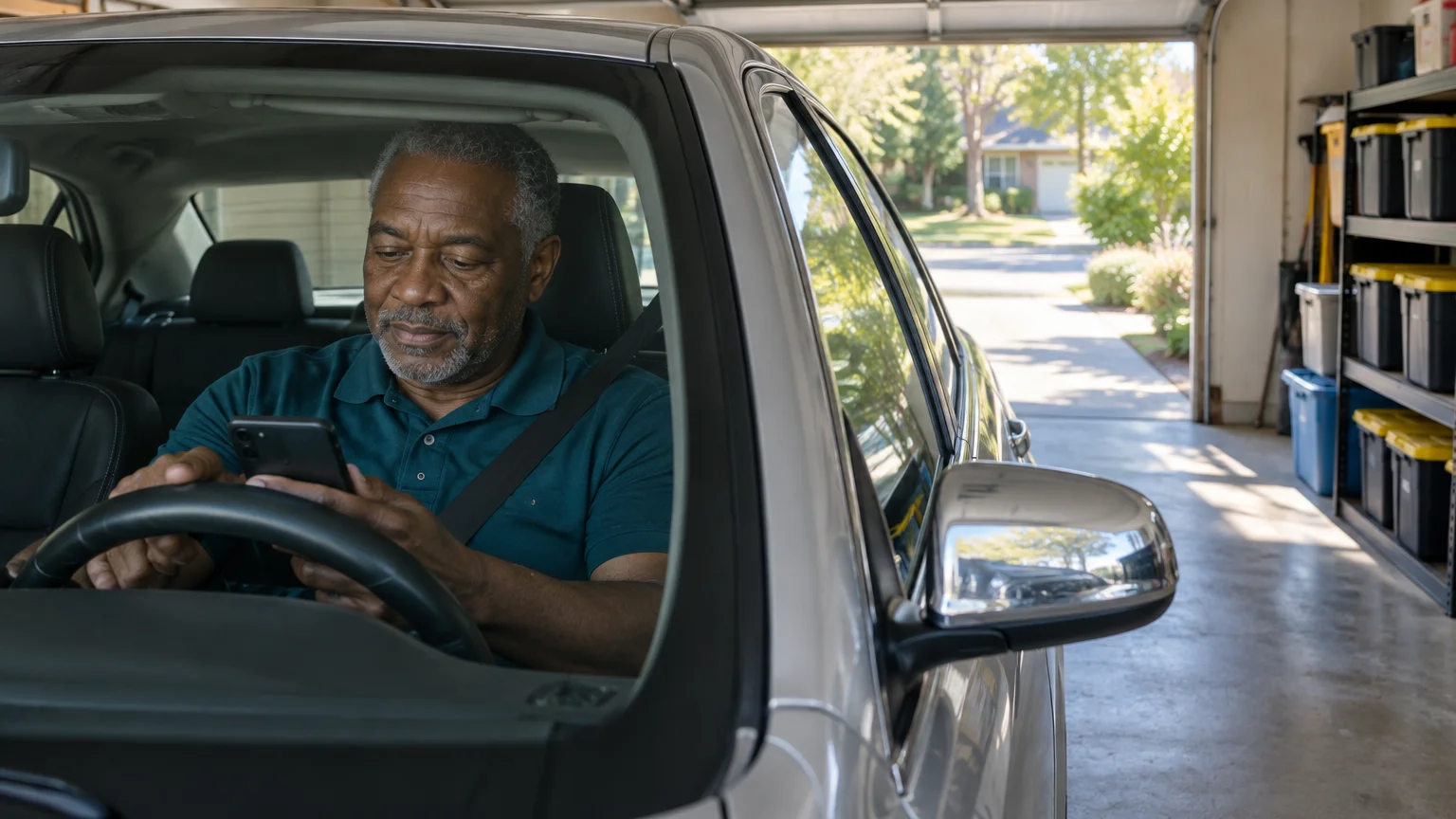
You are 66 and about to drive 300 miles alone on Interstate 95, with an Android phone in a dashboard mount. Your grown children want to watch your progress.
Your daughter carries an iPhone and your son an Android phone.
You want them to see this trip, not every pharmacy run afterward. Route-based trip sharing does that.
It broadcasts only while a navigation route is running and stops by itself when you arrive.
Our recommendation for your drive: use Google Maps’ Share trip progress. Then put as much care into one conversation as into the settings.
Before you leave, tell your children what a dot that stops moving means.
Here is why. Your phone can send its position only when it has a data signal.
In a stretch with no coverage, the link keeps showing the last place your phone reported. A frozen dot looks the same at a rest stop, in a dead zone, or in trouble.
In this guide8 sections
- Why Trip-Only Sharing Fits This Drive
- What Your Family Sees When Your Signal Drops
- How to Share Trip Progress in Google Maps
- If the Phone in the Car Is an iPhone: Share ETA
- The iPhone Check In Feature
- Comparing Temporary Driving Tools
- A Worked Example: Driving 300 Miles on Interstate 95
- Frequently Asked Questions

Why Trip-Only Sharing Fits This Drive
Some phone tools share your live position indefinitely until you switch them off. Forget, and your family can follow every trip to the grocery store or the doctor.
While tools like Find My Device are helpful for locating misplaced gear, route-based sharing is better suited for travel updates without sacrificing everyday privacy.
Trip sharing ties the broadcast to the route you typed in. When the car reaches that address, sharing ends on its own, with no extra taps.
According to Pew Research data on technology adoption among older adults, smartphone ownership among older Americans has climbed steadily. More families now keep in touch across state lines this way.
The FTC guide to protecting your phone from hackers is a reminder that careful phone habits matter. Sharing your location only when there is a reason keeps less of your life on other screens.
For this drive, trip sharing gives you three things:
- It stops broadcasting when you reach the address you entered.
- It sends your Estimated Time of Arrival (ETA), so your children need not call while you drive.
- It is built into Google Maps, with no subscription.

What Your Family Sees When Your Signal Drops
Live sharing needs two things. GPS, the satellite system that works out where your phone is, works almost anywhere outdoors.
A cellular data connection then carries that position to your children’s screens.
GPS keeps working in a dead zone. The data connection does not, so the sharing link cannot update until your phone finds signal again.
On your children’s screens, the car simply sits at its last reported spot. Once your phone reconnects, the dot catches up to where you really are and the ETA refreshes.
That is why the conversation matters more than which app you pick. Agree before you leave that a stopped dot is not an emergency unless you miss a check-in you both chose, such as a text from your planned rest stop.
Your own directions can keep working without signal if you download the area first. In Google Maps, tap your profile picture at the top right, tap Offline maps, then Select your own map.
Fit the blue box over your route and tap Download. Do this on home Wi-Fi the day before you leave.
An offline map keeps your turn-by-turn guidance going, but it cannot send your location to anyone. Sharing resumes only when signal returns.
How to Share Trip Progress in Google Maps
Google Maps runs on Android phones and iPhones, and the link it sends opens in any phone’s web browser. That is why it suits a family split between both kinds of phone.
If highway traffic makes it hard to hear your spoken directions, you can easily make the Google Maps navigation voice louder before pulling out of your driveway.
If buttons are hard to read in a car mount, the Google guide to Android accessibility features shows how to enlarge screen text first.
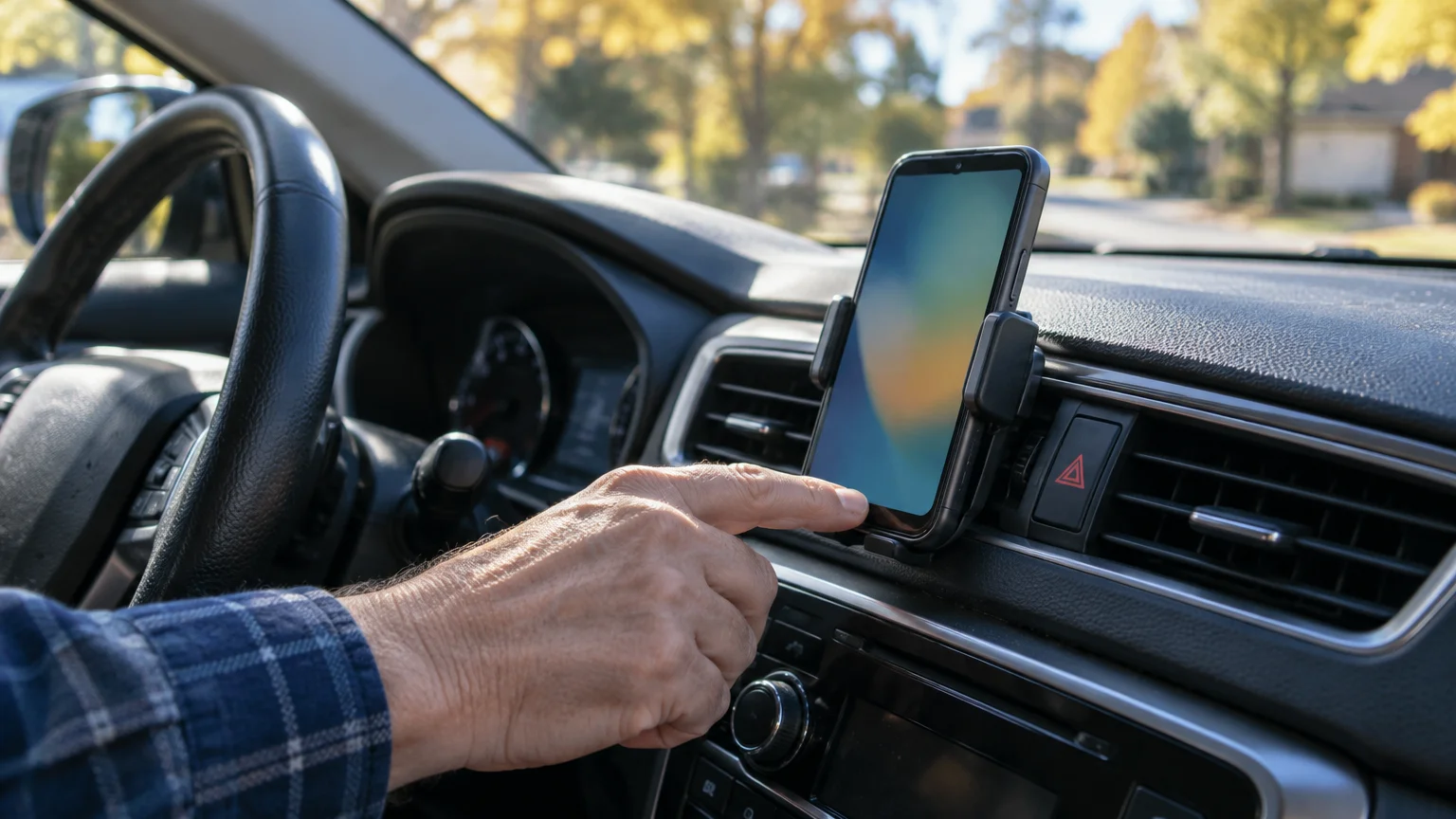
Do every step below while parked. Never adjust these settings while the car is moving.
- Open the Google Maps app.
- Type your destination address into the search bar at the top.
- Tap the blue Directions button.
- Tap Start to begin turn-by-turn directions.
- Swipe up gently on the bottom card that shows your remaining trip time.
- Tap Share trip progress.
- Choose your son or daughter, or tap More to pick from your contacts.
- Tap Share.
Each child gets a text message with a link. Tapping it shows your car on the planned route, along with your ETA.
When you arrive at the address you entered, sharing ends automatically. To stop early, swipe up on the same card and tap Stop sharing.
If the Phone in the Car Is an iPhone: Share ETA
If you drive with an iPhone instead, Apple Maps offers Share ETA. Apple’s instructions to make text bigger on iPhone and iPad can enlarge the labels before you start.
- Open Maps and search for your destination.
- Tap Go next to your preferred route.
- Swipe up on the route card at the bottom of the screen.
- Tap Share ETA and choose your contact.
Your daughter, on her iPhone, could follow your progress. Your son, on Android, would get text messages when your ETA changes, not a live map.
That split is the main reason we point an Android-and-iPhone family toward Google Maps. Share ETA also ends automatically when you arrive.

The iPhone Check In Feature
Check In, inside the Messages app, is the one tool built to react to silence, which is exactly the dead-zone worry. It works only between iPhones.
The Apple iPhone User Guide explains that Check In needs iOS 17 or later on both phones. It does not work in green-bubble text threads with Android phones.
- Open Messages and the conversation with your child.
- Tap the + button beside the text box, then Check In (tap More if you do not see it).
- Tap Edit, choose When I arrive, enter the address and pick driving.
- Tap Done, then the send arrow.
If you stop making progress, Check In asks whether you are OK. If you do not respond within 15 minutes, it shares your details with your child.
You choose how much it shares in Settings > Apps > Messages > Check In Data: Limited or Full. That alert also needs a connection to be sent, so keep your agreed check-in as the backstop.
On your Android phone, Check In is not available. For you, the agreement with your children does the job Check In does for iPhone pairs.

Comparing Temporary Driving Tools
Every column below is something you can check on your own phone or confirm with your children before the trip.
When messaging updates to several relatives during your trip, knowing how to send a group text without reply-all chaos keeps your notification bar uncluttered.
| Tool | Where to find it | Your children’s phones | What they see | When it ends | If your signal drops |
|---|---|---|---|---|---|
| Google Maps: Share trip progress | Swipe up on the bottom card during navigation | Any smartphone with a web browser | Live map, route and ETA | Arrival at the address you entered | Car stays at last reported spot, then catches up |
| Apple Maps: Share ETA | Swipe up on the route card during navigation (iPhone only) | iPhone for progress; Android gets texts | Progress on iPhone; ETA texts on Android | Arrival at the address you entered | Updates pause until your phone reconnects |
| Messages: Check In | Messages, + button (iPhone, iOS 17 or later) | iPhone with iOS 17 or later | Arrival alert; details only if you do not respond | Arrival at the selected destination | Its alert also waits for a connection |
None of the three needs switching off after you arrive. The real difference for your family is the third column: only Google Maps gives both children a live map.
A Worked Example: Driving 300 Miles on Interstate 95
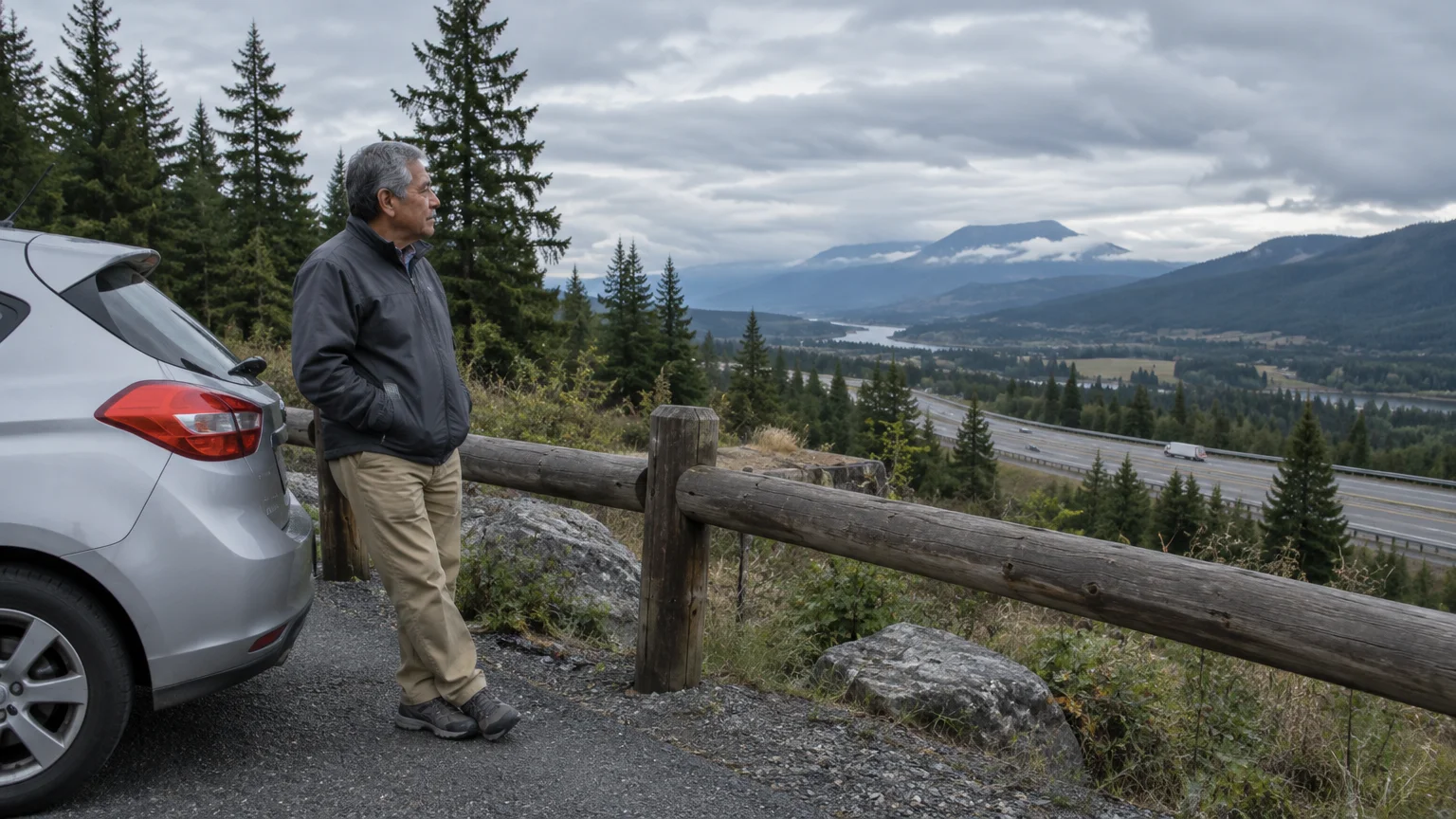
Your trip runs from Richmond, Virginia, to a hotel in Florence, South Carolina. You plan to leave at 8:00 AM, using Google Maps on your Android phone.
If you pack a tablet for evening reading at your hotel or roadside diner, you can also use your smartphone as a mobile hotspot to get online anywhere.
The evening before, on home Wi-Fi, you download an offline map covering the route. You also tell both children: if my dot stops, wait for my text from the rest stop near Rocky Mount.
In the morning you plug the phone into a 12-volt car charger. Navigation keeps GPS, the screen and data running together, so a wired charger matters on a drive this long.
Parked in the driveway, you enter the hotel address, tap Directions, then Start. Google Maps shows about five hours of driving and an arrival time of 1:00 PM.
You swipe up, tap Share trip progress, and choose your daughter, then repeat for your son. Each gets a text with the link, which opens on her iPhone and his Android phone alike.
Suppose your phone loses signal for a while past the state line. Your directions keep coming from the offline map, but on your children’s screens the car sits still.
Because of last night’s agreement, nobody panics or calls. When your phone reconnects, the dot catches up and the ETA refreshes.
At 10:30 AM you stop at the rest area near Rocky Mount for 20 minutes. You text both children as agreed and glance at the battery percentage at the top of your screen.
Back on the road, Google Maps moves your arrival to 1:20 PM. A traffic delay near Fayetteville pushes it to 1:35 PM, and their screens update without you touching the phone.
At 1:36 PM you park at the Florence hotel. Google Maps announces your arrival and the sharing ends.
When your daughter taps the link a few minutes later, it says the trip has ended. Neither child can see your drive to a restaurant that evening.
Frequently Asked Questions
Will my phone’s battery last the whole drive?
Navigation with sharing keeps GPS, the screen and data working at once, which drains faster than ordinary use. Keep the phone on a car charger.
You can check the percentage in Settings > Battery; the wording varies by model.
What do my children see if I drive through an area with no signal?
Your car stays at the last spot your phone reported. Once you have signal again, the dot catches up and the ETA refreshes, which is why agreeing on a check-in beforehand matters.
Can the person tracking me see how fast I’m driving?
Google Maps and Apple Maps share your location and estimated arrival time, not a speedometer reading. Check In shares extra details only if you stop responding.
How do I stop sharing before I get there?
Pull over safely, swipe up on the navigation card and tap Stop sharing. Tapping the red End navigation button also ends the session.
Note: Menus and button names change with software updates. These steps were written for current versions as of 2026; if a screen looks different on your device, the maker’s support page linked above has the latest wording.
ClearTechGuide is independent and is not affiliated with Apple, Google, Microsoft, Amazon or any other company mentioned.