

Distance should never diminish the warmth of family bonds. Whether your children have moved to another state, your grandchildren live across the country, or dear friends have relocated, staying connected feels more important than ever. You want to see their smiles, hear their stories, and celebrate their milestones, even when miles separate you. Technology offers a beautiful bridge for these long distance family connections, turning what used to be a challenge into a daily joy.
If your schedules don’t align for a live chat, you can still share special moments by learning how to record a video message for family to watch whenever they like.
To make these visual connections a regular part of your life, consider setting up a weekly video call routine with family.
This guide empowers you to use technology confidently, ensuring you remain a vibrant part of your loved ones’ lives. We focus on practical, actionable steps for remote connection, moving beyond simple calls to truly feel present. You will discover how to stay close to distant family, embracing the digital tools that make it easy and heartfelt. It is time to transform your longing for connection into a fulfilling reality. Let’s make every moment count.
Table of Contents
- The Power of Seeing Their Faces: Video Calling Basics
- Your Video Calling Toolkit: Popular Apps Explained
- Mastering Your Video Calls: Tips for Success
- Sharing Moments: Photos and Videos
- Group Chats and Family Hubs: Staying in the Loop
- Beyond Calls: Digital Tools for Long-Distance Grandparenting
- Making Every Occasion Special: Holidays and Milestones
- When Technology Pushes Back: Common Issues and Simple Solutions
- Frequently Asked Questions

The Power of Seeing Their Faces: Video Calling Basics
Imagine seeing your grandchild’s gap-toothed grin as they tell you about their day, or watching your daughter’s eyes light up as she shares exciting news. This is the magic of a video call: a phone call where you can see each other’s faces. It adds a whole new dimension to staying in touch, making conversations richer and more personal. Many people, motivated by the desire to connect during recent times, found incredible joy in these virtual meetings.
Research consistently shows the positive impact of visual connection on emotional well-being. A study by the Pew Research Center, for example, highlighted that video calls help maintain stronger relationships across distances, fostering a sense of presence. This visual connection is especially crucial for long distance relationship tips, helping you feel truly involved in your family’s daily lives and special moments.

What You Will Need
Before you dive into a video call, gather a few essentials. You likely own most of them already:
- A Device: This can be a smartphone (like an iPhone or Android phone), a tablet (like an iPad or Kindle Fire), or a computer (laptop or desktop). Most modern devices come with a built-in camera and microphone.
- Internet Access: You need a reliable internet connection, usually Wi-Fi at home. A strong connection prevents choppy video and dropped calls.
- An Account (Sometimes): Some apps require you to create an account, usually with your email address or phone number. We will cover this for each app.
That is it. You do not need fancy equipment. Your existing smartphone or tablet is often all you need to bridge the miles.

Your Video Calling Toolkit: Popular Apps Explained
Many wonderful tools exist to help you make video calls. Each has unique strengths, but they all share the common goal of bringing you closer to your loved ones. We will explore the most popular options, providing a clear path to setting them up and making your first call.
In addition to video, many of these apps allow you to send voice messages instead of typing, which is a wonderful way to share your voice quickly.

FaceTime (Best for Apple Devices)
If you or your family members use iPhones, iPads, or Mac computers, FaceTime is an incredibly simple and reliable option. It comes pre-installed on all Apple devices, meaning you rarely need to download anything new.
- Why It Is Great for Family Connections: FaceTime offers unparalleled ease of use for Apple users. Its high-quality video and audio make conversations feel incredibly natural. You can connect with loved ones instantly, seeing their expressions clearly and sharing laughter with ease.
- Setting Up: If you have an Apple device, FaceTime is usually ready to go. You will simply need to ensure it is activated. Go to your device’s “Settings,” scroll down to “FaceTime,” and make sure the switch is turned “On.” It typically uses your phone number or Apple ID for calls.
- Making Your First Call:
- Open the “FaceTime” app (it looks like a green camera icon).
- Tap the plus (+) sign at the top right (on iPhone/iPad) or click “New FaceTime” (on Mac).
- Type your family member’s name or phone number. If they are in your contacts, their name will appear.
- Tap their name, then tap the “Video” button to start a video call.
You can also start a FaceTime call directly from your contacts list or a text message conversation by tapping the video camera icon next to their name.

Zoom (Great for Group Calls and Easy Invitations)
Zoom gained immense popularity during the pandemic for its ability to host many people at once. It works on almost any device, including smartphones, tablets, and computers, regardless of whether they are Apple or Android.
- Why It Is Great for Family Connections: Zoom excels at connecting multiple family members simultaneously, perfect for virtual holiday gatherings or family game nights. Its scheduling features allow you to plan calls in advance, sending clear invitations to everyone. You can host large family reunions effortlessly.
- Setting Up:
- You will need to download the “Zoom” app on your device. Search for “Zoom” in your device’s app store (App Store for Apple, Google Play Store for Android) or visit zoom.us on your computer.
- You do not always need an account to *join* a meeting, which makes it very convenient. To *host* your own meetings, you will need to create a free account with your email address.
- Making/Joining a Call:
- To Join a Call: Your family member will send you a “meeting link.” Simply tap or click this link. It will open Zoom and connect you. They will also provide a “Meeting ID” and “Passcode” if the link does not work automatically; you can enter these manually after opening the app and selecting “Join Meeting.”
- To Host a Call (with an account): Open the Zoom app and tap “New Meeting” or “Schedule.” You can then invite participants by sharing the meeting link with them.

Google Meet (Linked with Gmail, Good for Scheduled Calls)
Google Meet is Google’s video calling service, often integrated with Gmail and Google Calendar. It is another versatile option that works across different devices and operating systems.
- Why It Is Great for Family Connections: If your family uses Gmail, Google Meet integrates seamlessly, making scheduling and joining calls straightforward. It is reliable and excellent for both one-on-one chats and small group meetings, ensuring you do not miss a moment of interaction.
- Setting Up:
- You need a free Google account (which you have if you use Gmail).
- You can use Google Meet directly in your web browser on a computer (meet.google.com) or download the “Google Meet” app on your smartphone or tablet.
- Making/Joining a Call:
- To Join a Call: Your family will send you a link. Click or tap the link, and it will take you directly to the meeting.
- To Host a Call: Open the Google Meet app or visit the website. Click “New meeting” to start an instant meeting or “Schedule in Google Calendar” to plan one for later. You can then invite people by sharing the meeting link.
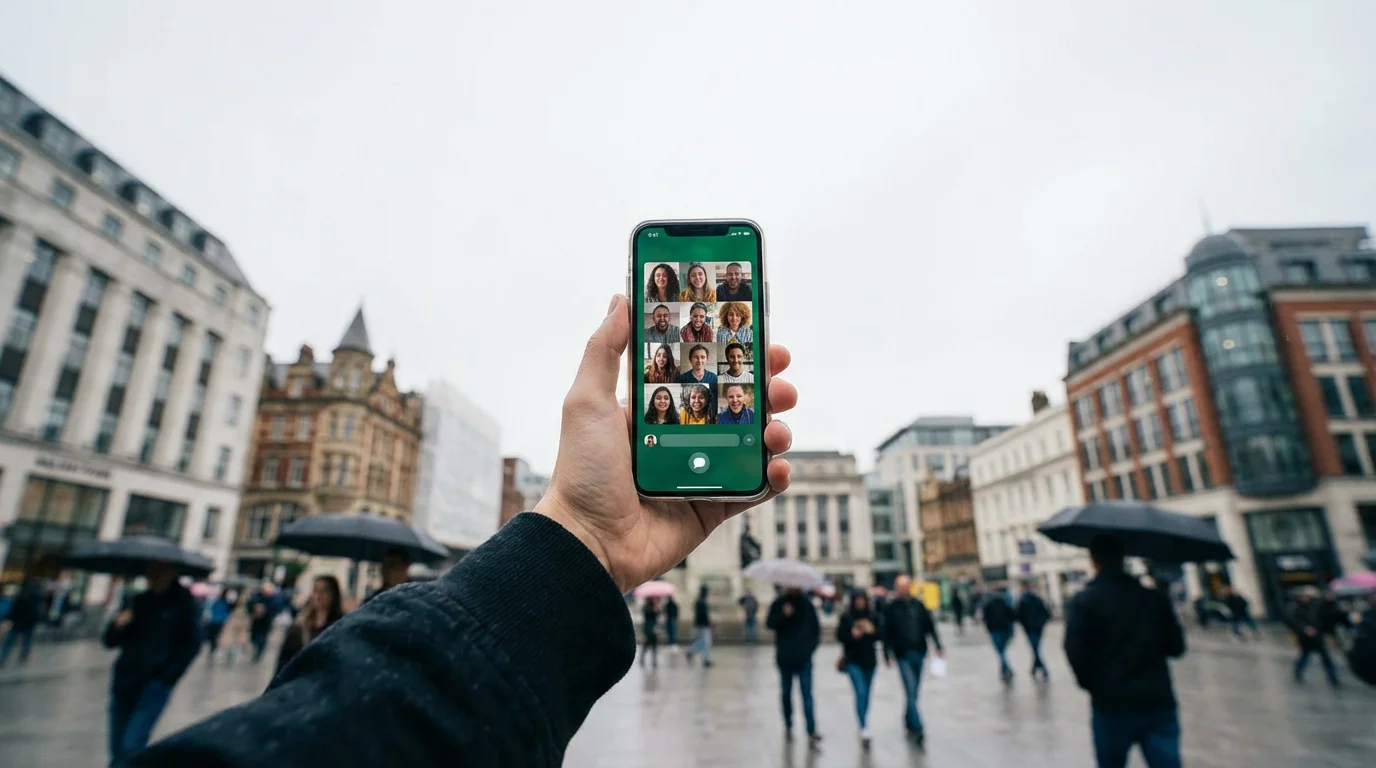
WhatsApp (Popular for International Calls and Messaging)
WhatsApp is a globally popular messaging app that also offers excellent video calling. It is especially useful if you have family overseas, as it uses your internet connection rather than traditional phone minutes, which can save on international calling fees.
- Why It Is Great for Family Connections: WhatsApp combines messaging and video calls in one convenient place, making it easy to transition from a text conversation to seeing someone’s face. It is widely used internationally, providing an invaluable link to family members abroad, ensuring everyone can stay in touch.
- Setting Up:
- Download the “WhatsApp Messenger” app from your device’s app store.
- You will verify your phone number during setup. This links WhatsApp to your phone number and allows it to find other WhatsApp users in your contacts.
- Making a Call:
- Open WhatsApp and go to the “Chats” tab.
- Find the person you want to call and tap on their name to open the chat.
- At the top right of the chat screen, tap the video camera icon. This will start a video call.

Facebook Messenger (Connects to Your Facebook Friends)
If you use Facebook to connect with friends and family, Messenger is a natural extension for video calls. It is built right into the Facebook ecosystem.
- Why It Is Great for Family Connections: Messenger connects seamlessly with your Facebook network, allowing you to quickly video call anyone on your friends list. It is convenient for instant chats and works well for both individual and group video calls with people you already interact with on Facebook.
- Setting Up:
- You will need a Facebook account.
- Download the “Messenger” app (a blue chat bubble icon) on your device. You can also use it directly on the Facebook website.
- Making a Call:
- Open the Messenger app.
- Tap on the name of the person or group you want to call to open their chat.
- Tap the video camera icon at the top right of the chat screen to start a video call.

Mastering Your Video Calls: Tips for Success
Your first few video calls might feel a bit awkward, and that is perfectly normal. Remember, the goal is connection, not perfection. A few simple adjustments can significantly improve your experience and make you feel more confident on camera. These long distance relationship tips make your calls more enjoyable for everyone.
To keep your device steady and your hands free during long chats, you might find using a tablet stand for comfortable video calls makes the experience much more enjoyable.
If you are worried about the technical side of receiving a call, our guide on how to answer a video call will help you feel prepared when the phone rings.

Lighting: See and Be Seen Clearly
Good lighting makes a huge difference. You want the light source to illuminate your face, not come from behind you.
- Face a Window: Position yourself facing a window or a lamp. The light will brighten your face, making you look clear and natural.
- Avoid Backlighting: Do not sit with a bright window or lamp directly behind you. This turns you into a silhouette, making it hard for others to see your expressions.

Camera Angle: Look Them in the Eye
Where you place your camera changes how you appear.
- Eye Level is Best: Prop up your device so the camera is at eye level. Use books, a stack of magazines, or a dedicated stand. This creates a more natural, engaging look, as if you are making eye contact.
- Avoid Looking Up: Placing your device too low can create an unflattering “up-your-nose” angle. Avoid this by raising your device.
- Center Yourself: Make sure your head and shoulders are comfortably within the frame. You want to be the main focus.

Background: Keep it Pleasant and Tidy
Your background is part of the “scenery” for your loved ones.
- Choose a Simple Background: A plain wall, a bookshelf, or a tidy corner of your room works best.
- Add Personal Touches: A favorite plant, a cherished photo, or a piece of art can make your background feel warm and inviting, sparking conversation.
- Avoid Clutter: A messy background can be distracting. Take a moment to tidy up the area visible behind you before a call.

Sound: Ensure Clear Audio
Being heard clearly is as important as being seen.
- Reduce Background Noise: Turn off televisions, radios, or other noisy appliances. Choose a quiet room.
- Speak Clearly: Talk at your normal volume. You do not need to shout.
- Consider Headphones: If you often struggle with echoes or background noise, simple earbuds with a built-in microphone can make a big difference.

Conversation Starters: Keep the Chat Flowing
Sometimes, staring at a screen can make conversations feel stiff. Have a few ideas ready:
- “What was the highlight of your week?”
- “Tell me about something funny that happened today.”
- “What are you looking forward to this weekend?”
- “Show me something new you are working on, or something you are proud of.”
Remember, the goal is natural conversation, just like if they were sitting next to you. Do not hesitate to ask simple, open-ended questions.
ClearTechGuide.com believes that every video call is a precious opportunity. Do not worry about being perfect. Focus on the joy of seeing their faces and sharing your presence, even from afar. Your efforts to stay in touch are a gift they will cherish.

Sharing Moments: Photos and Videos
Beyond live video calls, sharing photos and videos is a powerful way to keep family and friends updated on your life and to witness theirs. It allows you to send a photo or video to someone else, painting a vivid picture of your daily experiences and major milestones. This helps bridge the gap in your long distance family dynamic.
Learning how to share photos with family allows you to exchange visual updates throughout the day, keeping everyone in the loop.
There is immense emotional benefit in seeing those small, everyday moments: a photo of your grandchild’s latest drawing, a short video of your son’s dog playing, or a picture of your blooming garden. These small visual updates make your remote connection feel continuous and real.

How to Share Your Visual World
You have several straightforward options for sharing photos and videos:
- Text Messages (MMS): The simplest way for quick shares.
- How it works: Open your regular “Messages” app. Start a new message or open an existing conversation. Look for a camera icon or a plus (+) sign next to the message box. Tap it, then select a photo or video from your device’s gallery, or take a new one on the spot. Hit “Send.”
- Best for: Sending a single photo or short video quickly to one or a few people.
- Email: Good for larger files or multiple photos.
- How it works: Open your email app. Start a new email. Look for a paperclip icon (which means “attach file”). Tap it, then navigate to your device’s photo gallery to select the images or videos you want to send.
- Best for: Sending several high-quality photos or longer videos that might be too large for a text message.
- Dedicated Photo Apps (Shared Albums): Excellent for ongoing sharing with specific groups.
- How it works: Many devices have built-in photo management apps, like Apple Photos (on iPhones/iPads) or Google Photos (on Android and Apple devices). Both allow you to create “shared albums.” You add photos and videos to these albums, and anyone you invite can view them automatically. When you add new pictures, they appear instantly for everyone in the album.
- Best for: Creating a continuous stream of photos for specific family members or groups, like a “Grandchildren’s Album” or “Family Vacation Photos.” Everyone can contribute if you allow it.
- WhatsApp or Facebook Messenger: Perfect for sharing within existing chat conversations.
- How it works: In any chat, look for the camera icon or a small square picture icon. Tap it, select your photo or video, and send. These apps compress images slightly, making them quick to send and receive.
- Best for: Sharing photos and videos directly within your active conversations, especially if you are already using these apps for group chats.

Creating a Photo-Sharing Tradition
Consider establishing a simple routine. Maybe you send a “photo of the day” to a grandchild, or a weekly “family update” photo to your children. This small, consistent effort creates anticipation and keeps everyone feeling connected to your world. You do not need to post to a public social media “feed” to enjoy the benefits of sharing; direct, private sharing with your family is incredibly powerful.

Group Chats and Family Hubs: Staying in the Loop
Imagine a digital family bulletin board where everyone can quickly share news, ask questions, and make plans. That is essentially a group chat: a text conversation with multiple people at once. It is an incredibly effective way to keep your long distance family connected and involved in each other’s lives without needing a full video call every time.
Group chats cultivate a sense of shared community. You can instantly share updates about your day, coordinate plans for visits, or even just swap funny stories and emojis (small pictures you can add to messages, like smiley faces). This constant, low-pressure interaction reinforces your remote connection.

Benefits of a Family Group Chat
- Quick Updates: Share a photo of your blooming roses, announce a doctor’s appointment, or send a quick “thinking of you” message to everyone at once.
- Coordinated Plans: Easily discuss holiday plans, potential visit dates, or even what to cook for a virtual family dinner.
- Shared Jokes and Memories: Keep the family humor alive. Someone might share a nostalgic photo, and everyone can chime in with their memories.
- Feeling Present: Even if you are just reading the messages, you are part of the ongoing family conversation.

Popular Apps for Group Chats
Many of the apps you use for video calls also excel at group messaging:
- WhatsApp: Widely used for group chats, especially for families with international members. You can create groups, name them (e.g., “The Miller Family Chat”), and send texts, photos, videos, and even quick voice messages to everyone in the group.
- Facebook Messenger: If your family is active on Facebook, Messenger group chats are a natural fit. You can easily start a group chat with any of your Facebook friends and family.
- iMessage (Apple’s Messages app): If everyone in your family has an iPhone, iPad, or Mac, iMessage (the blue bubble texts) automatically creates group chats when you send a message to multiple Apple users. It offers rich features like shared photos, videos, and even games.

Tips for Managing Group Chats
- Give Your Chat a Name: A clear name, like “Smith Family Updates,” helps everyone know its purpose.
- Mute Notifications (if needed): Group chats can be active! If you find notifications overwhelming, most apps allow you to “mute” a specific group for an hour, a day, or indefinitely. You will still see the messages when you open the app, but your device will not constantly alert you.
- Keep it Positive and Respectful: Just like in person, treat everyone with kindness.
- Do not Be Afraid to Participate: Even a simple “haha” or a thumbs-up emoji shows you are engaged.

Beyond Calls: Digital Tools for Long-Distance Grandparenting
Being a long-distance grandparent is a unique joy and challenge. You want to nurture those special relationships, watch your grandchildren grow, and share your wisdom and love. Technology provides wonderful tools to make your remote connection feel incredibly close and interactive, far beyond just occasional calls.
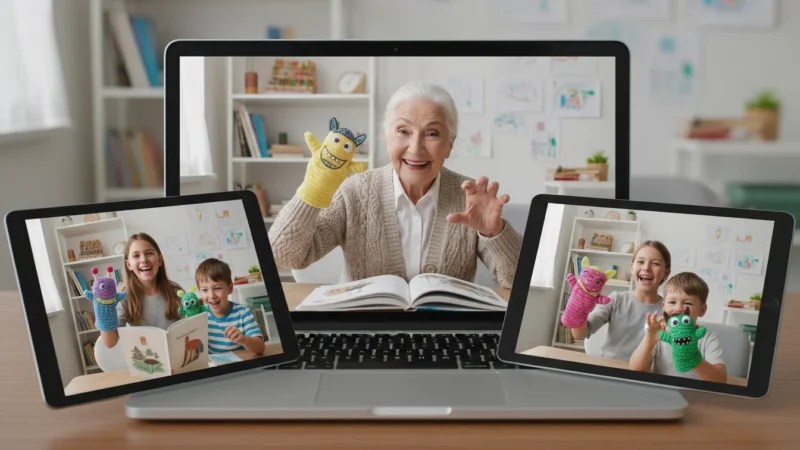
You might even enjoy reading bedtime stories to grandchildren over video call to stay involved in their nightly routines.

Creative Ways to Connect with Grandchildren Digitally
- Read Stories Together on Video Call:
- How it works: Hold a book up to your camera, read the pages aloud, and turn them so your grandchild can follow along. This is a wonderful way to share a bedtime story or afternoon read-aloud.
- Benefit: Creates a shared, intimate experience. Many children’s books have big, colorful pictures that translate well to video.
- Play Simple Online Games Together:
- How it works: Websites like ABCya.com or PBSKids.org offer many free, simple games. You can both be on a video call, and one person can share their screen (if you are on a computer and know how) or you can simply play the same game separately and talk through it together.
- Benefit: Encourages interaction, problem-solving, and shared fun.
- Virtual Show-and-Tell:
- How it works: Ask your grandchild to bring a favorite toy, drawing, or recent creation to the video call. You can do the same, showing them something interesting from your home or a memento from your past.
- Benefit: Sparks conversation, shows interest in their world, and helps them practice communication skills.
- “Cook” or Craft Together:
- How it works: Choose a simple recipe or craft project. Both you and your grandchild gather the ingredients or supplies. You then guide them through the steps on a video call, making the same thing in your respective kitchens or craft spaces.
- Benefit: A fun, hands-on activity that creates a shared memory and a tangible result.
- Send Digital Cards and E-Gifts:
- How it works: Websites like Hallmark.com or PaperlessPost.com let you send beautiful, animated digital cards for any occasion. Many retailers also offer e-gift cards that can be delivered instantly via email.
- Benefit: A thoughtful, convenient way to celebrate birthdays, holidays, or just send a special message.
- Use Emojis to Express Feelings:
- How it works: When you are texting or in a group chat, you can add emojis to your messages. These are small pictures, like smiley faces, hearts, or thumbs-up signs. Your device’s keyboard usually has a special button (often a smiley face or globe icon) to access them.
- Benefit: Emojis add personality and emotion to your messages, making them more engaging and fun for everyone, especially younger grandchildren.
These activities allow you to actively participate in your grandchildren’s lives, building a rich, lasting relationship that thrives despite the miles. Remember, it is about the connection, and technology simply provides the tools.

Making Every Occasion Special: Holidays and Milestones
Holidays, birthdays, anniversaries, and other special occasions are moments when we most acutely feel the distance from our long distance family. However, technology offers powerful ways to ensure you remain an integral part of these celebrations, making your remote connection just as heartfelt and memorable. These tips help you stay in touch during the most important times.

Virtual Celebrations and Traditions
- Virtual Toasts During Holidays:
- How it works: During a holiday meal or gathering, set up a video call with your family. Before dinner, or at a designated time, raise your glasses together for a virtual toast. Share what you are grateful for or send well wishes.
- Benefit: It creates a shared ritual and makes you feel present at the family table, even if you are in different locations.
- Opening Gifts Together on Video:
- How it works: Coordinate with your family to open gifts from each other while on a video call. You can see their reactions as they unwrap your thoughtful present, and they can watch you open theirs.
- Benefit: Captures the excitement and joy of gift-giving and receiving, making the experience interactive and personal.
- Sending Personalized Digital Greetings:
- How it works: Use apps like Canva (online graphic design tool with free templates) or simply your phone’s photo editor to create a personalized digital greeting card with a photo and a heartfelt message. Send it via email or a group chat. You can also record a short video message for a birthday.
- Benefit: These custom greetings feel more personal and warm than a generic e-card, showing you took extra time.
- Creating Shared Digital Photo Albums for Special Events:
- How it works: After a holiday or family event, ask everyone to contribute their photos and videos to a shared digital album (using Google Photos, Apple Photos, or similar services).
- Benefit: This creates a collective memory book that everyone can access, relive, and add to, keeping the spirit of the occasion alive long after it is over. It also allows you to see the event through their eyes, and them to see it through yours.
Your physical presence may be missed, but your virtual presence can be incredibly powerful. By actively participating in these special moments through technology, you reinforce your central role in the family, making every occasion feel special and ensuring your long distance family knows you are always “there” in spirit.

When Technology Pushes Back: Common Issues and Simple Solutions
Even with the best intentions, technology sometimes does not cooperate. Do not let a frozen screen or a dropped call discourage you. Most common issues have simple solutions. Remember, everyone experiences tech glitches sometimes, so you are not alone in figuring out how to stay in touch. A little troubleshooting helps maintain your remote connection.

“I Can’t Hear You!” or “You Sound Muffled!”
- Check Your Volume: Ensure your device’s volume is turned up. Look for the volume buttons on the side of your phone/tablet or on your computer keyboard.
- Check Your Microphone: Make sure you have not accidentally muted your microphone. On most video call apps, there is a microphone icon; if it has a line through it, tap it to unmute.
- Reduce Background Noise: As mentioned before, a noisy environment makes it hard for others to hear you. Move to a quieter room if possible.
- Internet Connection: A weak internet connection can distort audio. Try moving closer to your Wi-Fi router.
- Headphones: Using headphones with a built-in microphone often significantly improves audio quality by reducing echoes and focusing your voice.

“Your Screen is Frozen!” or “The Call Keeps Dropping!”
- Check Your Internet Connection: This is the most common culprit.
- Is your Wi-Fi turned on?
- Are you too far from your Wi-Fi router? Try moving closer.
- If you are using mobile data, do you have a strong signal (look for 4G or 5G indicator on your phone)?
- You can quickly test your internet by trying to load a webpage like Google.com.
- Restart the App: Close the video calling app completely and then reopen it. Sometimes apps get “stuck.”
- Restart Your Device: If restarting the app does not work, try turning your phone, tablet, or computer off and then back on again. This often resolves many temporary glitches.
- Too Many Apps Open: If you have many apps running at once, your device might slow down. Close any apps you are not actively using.

“My Camera Isn’t Working!” or “They Can’t See Me!”
- Check Permissions: Most apps need permission to access your camera. When you first use a video calling app, it usually asks, “Allow [App Name] to access your camera?” You must tap “Allow.” If you accidentally denied it, you can usually change this in your device’s “Settings” under “Privacy” or “Apps.”
- Physical Obstruction: Is something blocking the camera lens? A finger, a case, or even a sticky note can cover it.
- Incorrect Camera Selected: Some apps allow you to switch between the front-facing (selfie) camera and the rear camera. Make sure you have selected the one that shows your face. Look for a camera-switching icon (often two arrows forming a circle).
- Restart: Again, restarting the app or your device often fixes camera issues.

When All Else Fails: Getting Help
You do not have to solve every problem alone. Remember these resources:
- Ask a Tech-Savvy Family Member: Your children or grandchildren are often your best first line of support. Call them on a regular phone call and ask them to walk you through it.
- Online Support: Many resources exist to help you learn. GCFGlobal offers free, easy-to-understand tutorials on a wide range of technology topics, including specific apps. GCFGlobal — Technology Tutorials. You can also find help directly from Apple Support (support.apple.com) or Google Support (support.google.com).
- Senior-Focused Resources: Organizations like AARP and Senior Planet also provide technology guides tailored for seniors. AARP Technology Resources and Senior Planet from AARP are excellent places to look for general advice.
Patience is key. Take a deep breath, try the simple fixes, and do not hesitate to ask for help. Your family values your effort to connect, and they will be happy to assist you in overcoming any tech hurdles.
Frequently Asked Questions
What if my grandchildren are too busy for regular video calls?
It is common for grandchildren, especially teenagers and young adults, to have busy schedules with school, sports, and friends. Instead of feeling discouraged, try to adapt your approach to fit their availability. Suggest shorter, more frequent check-ins, even just 5-10 minutes, rather than trying to schedule a long call. Ask them what times work best for them. For instance, a quick video call while they are walking home from school or during a quiet moment before dinner might be easier than a dedicated weekend slot. You can also rely more on asynchronous communication, which means messages that do not require an immediate response. Send them quick texts, funny photos, or short video messages through group chats. These small gestures show you are thinking of them without demanding their immediate attention. They can respond when they have a free moment. The goal is consistent, low-pressure interaction rather than highly structured calls, ensuring you stay in touch without adding stress to their busy lives.
How do I look better on camera during video calls?
Looking better on camera is often about simple adjustments, not complex makeup or lighting setups. First, ensure your face is well-lit. Position yourself so a window or lamp faces you, illuminating your features. Avoid having a bright light source directly behind you, as this will cast your face in shadow. Second, place your camera at eye level. Prop up your phone, tablet, or laptop on a stack of books or a stand so you are looking straight at the camera, not up or down. This creates a more natural, engaging angle. Third, pay attention to your background; a tidy, uncluttered space with perhaps a personal touch like a plant or a photo makes for a more pleasant visual experience. Finally, remember to smile! Your genuine warmth and happiness are the most important elements of your appearance. These small tips significantly enhance your presence and confidence during video calls, strengthening your remote connection.
Is my information safe on these video calling and messaging apps?
The apps we discussed, such as FaceTime, Zoom, Google Meet, WhatsApp, and Facebook Messenger, all employ various security measures to protect your information. They generally use encryption, which scrambles your messages and calls so only the sender and intended recipient can read or hear them. This is like putting your conversation in a locked box that only you and your family member have the key to open. However, no digital platform is entirely immune to all risks. It is important to practice good online habits: use strong, unique passwords for any accounts you create, be cautious about sharing personal information with strangers, and keep your apps updated to their latest versions, as updates often include security enhancements. While these apps work hard to protect your privacy, your vigilance also plays a significant role in keeping your information safe as you stay connected.
Can I use video calls on my TV?
Yes, you can often enjoy video calls on your TV, which offers a larger screen experience, making it feel even more like your family is in the room with you. The simplest way is if you have a smart TV or a streaming device (like an Apple TV, Google Chromecast, or Amazon Fire Stick) that supports screen mirroring or casting. You can then “mirror” your smartphone or tablet’s screen directly onto your TV, so whatever is on your device, including a video call, appears on the big screen. Some smart TVs also have built-in apps for services like Zoom or Google Meet, or you might connect a dedicated camera and microphone system designed for TVs. For detailed instructions on casting or mirroring, check your TV or streaming device’s manual, or search for guides online. This method can truly enhance the feeling of closeness with your long distance family.
What is the best app for group calls with my family?
The “best” app for group calls largely depends on what your family already uses and their devices. If everyone has Apple devices (iPhones, iPads, Macs), FaceTime is incredibly easy and offers excellent quality. For families with a mix of Apple and Android devices, or if you regularly have a larger number of participants, Zoom and Google Meet are excellent choices because they are platform-agnostic and robust for group sessions. WhatsApp is also fantastic for group calls, especially if many family members are already using it for messaging, or if you have international family due to its cost-effective internet-based calling. Facebook Messenger works well if most of your family is active on Facebook. The most important factor is choosing an app that most, if not all, of your family members are comfortable using or willing to learn, as ease of access ensures more frequent and successful remote connection. You might even use different apps for different groups within the family.
You now hold the keys to transforming your long distance family connections into a vibrant, ongoing reality. We explored the power of video calls, the convenience of photo sharing, and the warmth of group chats, all designed to keep you feeling close, no matter the miles. You possess the practical knowledge and actionable insights to confidently navigate these tools, ensuring you stay in touch and fully participate in your loved ones’ lives.
Embrace these digital bridges. Each call, each shared photo, each message strengthens your bond and creates new, cherished memories. Remember, technology is simply the vehicle; your love and desire to connect are the powerful drivers. Start today, reach out, and celebrate the joy of seeing their faces, hearing their voices, and knowing you are an active, beloved part of their world.
Disclaimer: This article is for informational purposes only. App interfaces change with updates, so screens may look slightly different. The most important thing is making the connection—the technology is just the tool to help you do that.








Leave a Reply