

Staying connected with your loved ones, no matter the distance, brings immense joy and comfort. You want to see your grandchildren grow, celebrate family milestones, and share everyday moments with friends. Technology offers wonderful ways to bridge those miles, and Facebook stands out as a powerful tool for maintaining these precious connections. Many of you discovered the magic of video calling during recent times and now feel ready to explore more digital avenues to stay close.
Beyond simple updates, there are many fun things to do with grandchildren over video call that can strengthen your bond through the screen.
It is helpful to learn how to stay connected when family lives far away using these digital tools.
This guide will show you how to use Facebook to build and nurture those meaningful relationships. You do not need to be a tech wizard to use Facebook effectively. We will focus on the practical steps, explaining every term, and celebrating the wonderful emotional benefits this platform offers. Your goal is connection, and Facebook helps you achieve it with ease.
Table of Contents
- Why Facebook Is Great for Family Connections
- What You Will Need to Get Started
- Setting Up Your Facebook Account: A Step-by-Step Guide
- Connecting with Family and Friends on Facebook
- Navigating Your Facebook Feed: Staying Informed
- Sharing Photos and Videos: Your Family’s Digital Scrapbook
- Using Facebook Messenger for Group Chats and Video Calls
- Digital Tools for Long-Distance Grandparenting on Facebook
- Staying in Touch During Holidays and Special Occasions
- When Things Go Wrong: Common Facebook Issues and Simple Fixes
- Frequently Asked Questions
- A Final Word on Connection

Why Facebook Is Great for Family Connections
Imagine seeing photos of your grandchild’s first steps as they happen, receiving a warm “Happy Birthday” from a friend across the country, or joining a live video of your niece’s graduation. Facebook makes these moments possible. It serves as a central hub where family and friends share life’s updates, photos, and messages. This platform offers a unique window into their daily lives, helping you feel more involved, even when you live far apart. Research from the Pew Research Center shows a significant number of older adults use social media, indicating its growing role in maintaining social ties. You can use it to feel closer to your loved ones and never miss a beat.
Once you feel comfortable with the basics, you might consider setting up a weekly video call routine to keep the conversation going regularly.
If your relatives are spread out, you can set up a family group chat so everyone can talk in one place.
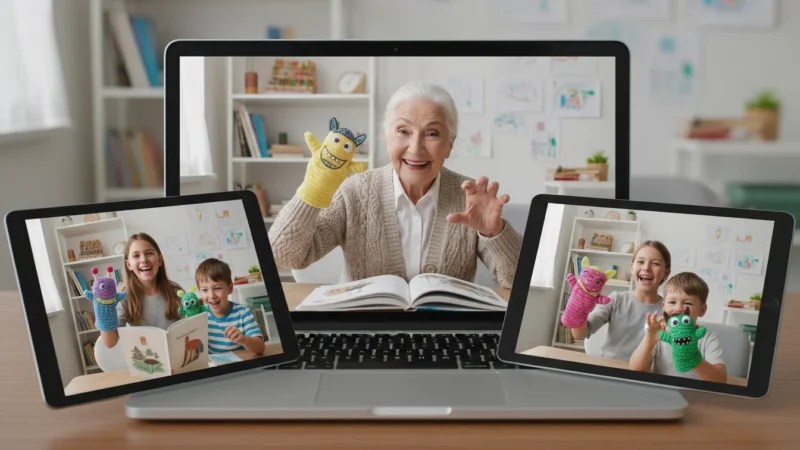
For a special treat, you can even read bedtime stories to your grandchildren over video call to stay involved in their nightly routine.
One of the greatest joys of Facebook is seeing my grandkids’ pictures pop up on my screen every day. It feels like I am right there with them, watching them grow. It truly brightens my mornings.
This social media platform offers a variety of ways to interact. You can view updates from your loved ones, comment on their posts, or send private messages. It helps you stay connected to many people at once, making it incredibly efficient for large families or widespread friend groups. It allows you to participate in shared experiences, celebrate successes, and offer support when needed. Facebook creates a vibrant, ongoing conversation that keeps you at the heart of your family’s world.

What You Will Need to Get Started
Beginning your Facebook journey requires only a few simple items. Chances are, you already have most of them readily available:
- A Device: You can use a smartphone, tablet, laptop, or desktop computer. Most modern devices work well. If you are reading this on a device, you likely have what you need.
- Internet Access: A reliable internet connection is essential. This can be Wi-Fi at home, cellular data on your phone, or a wired connection for a desktop computer.
- An Email Address or Phone Number: Facebook uses this to verify your identity and help you log in. If you do not have an email address, consider setting one up. It is a fundamental tool for online activity.
- A Facebook Account: This is what we will create together. It is free to sign up.
You do not need to buy anything new to start. Work with what you have. Your comfort with your device is the most important factor.

Setting Up Your Facebook Account: A Step-by-Step Guide
Creating your Facebook profile is the first step to connecting. This process is straightforward, and you will have a profile ready in no time. You will want to be at your device, ready to follow along.
While setting up your profile, it is a good time to learn how to recognize the grandparent scam to keep your account safe.

Step 1: Go to the Facebook Website or Download the App
- On a computer: Open your internet browser (like Chrome, Firefox, or Safari) and type
www.facebook.cominto the address bar, then press Enter. - On a smartphone or tablet: Go to your device’s app store (App Store for Apple devices, Google Play Store for Android devices). Search for “Facebook” and tap “Get” or “Install.” Once it downloads, open the app.

Step 2: Create a New Account
- On the Facebook homepage or in the app, look for a button that says “Create New Account” or “Sign Up.” Click or tap it.
- The system will ask for your first name, last name, mobile phone number or email address, a new password, your birthdate, and your gender. Fill in this information. Use your real name so family and friends can easily find you.
- Choose a password you will remember but that is also strong. A combination of uppercase and lowercase letters, numbers, and symbols works best. Write it down in a safe place if you need to.
- Facebook requires users to be at least 13 years old. Your birthdate helps Facebook verify your age and offers relevant features.

Step 3: Confirm Your Account
- Facebook will send a confirmation code to the email address or phone number you provided. Check your email inbox or your phone’s text messages for this code.
- Enter the code into the box on the Facebook screen. This verifies that you own the email or phone number.

Step 4: Add a Profile Picture
- After confirming, Facebook will prompt you to add a profile picture. Choose a clear, friendly photo of yourself. Your loved ones will easily recognize you this way. You can upload a photo from your device’s photo library.
- This picture appears next to your name whenever you post or comment. It gives your profile a personal touch.

Step 5: Adjust Your Privacy Settings (Basics)
- Facebook will offer some privacy options. You can usually choose who sees your posts. For now, you might select “Friends” for most settings, meaning only people you add as “Facebook friends” can see your information. You can always adjust these later.
- Facebook aims to keep you safe. You control who sees your content.
Congratulations, your Facebook account is now set up! You have completed the first major step in becoming a part of this digital community.

Connecting with Family and Friends on Facebook
Now that you have your account, the most exciting part begins: finding and connecting with your loved ones. This process involves searching for people and sending or accepting “friend requests.”
In addition to Facebook, many people also use Instagram to see family photos and stay updated on life events.

Finding People on Facebook
- Use the Search Bar: At the top of the Facebook page or app, you will see a search bar. Type in the full name of a family member or friend. For example, “Jane Smith.”
- Look for Familiar Faces: After you type a name, Facebook shows a list of people who match. Look for their profile picture to confirm it is the right person. If your grandchild has a unique name, it is often easy to find them. If a name is common, look for shared connections or a profile picture you recognize.

Sending a Friend Request
- Once you find the right person’s profile, click or tap the “Add Friend” button. This sends them a “friend request.”
- A “friend request” is simply a digital invitation to connect. When they accept, you become “Facebook friends.” This means you can see their posts, and they can see yours.

Accepting a Friend Request
- Your family and friends might also search for you and send you requests.
- Look for a small bell icon (Notifications) or a person icon (Friend Requests) at the top of your Facebook page or app. A red number often appears on these icons, indicating new activity.
- Click or tap on the “Friend Requests” icon. You will see a list of people who want to connect with you.
- To accept a request, click “Confirm” next to their name. If you do not recognize someone, you can click “Delete Request.”
As you gather more `Facebook friends`, your `feed` will become a lively stream of updates from your personal network. You are building your own community on Facebook.

Navigating Your Facebook Feed: Staying Informed
Your Facebook `feed` is the central place where you see all the updates from your `Facebook friends` and any pages you follow. Think of it as your personalized digital newspaper, constantly updating with new stories and photos.

What Your Feed Shows You
- When you log in to Facebook, your `feed` is usually the first thing you see. It is a long, scrolling list of “posts.”
- A “post” can be a status update (a few written words), a photo, a video, or an article someone has shared.
- Your `feed` displays posts from your `Facebook friends` and any groups or businesses you have chosen to follow.

Scrolling and Interacting
- Scrolling: To see more posts, simply move your finger up on a touchscreen device or use your mouse wheel on a computer. This action allows you to “scroll” through your `feed`.
- Liking: When you see a post you enjoy, click the “Like” button (a thumbs-up icon) below it. This is a quick way to show appreciation or acknowledge you saw the post. You might also see other reaction buttons, like “Love” (a heart), “Haha” (a laughing face), or “Wow” (a surprised face).
- Commenting: To write a response to a post, click “Comment” below it. A box will appear where you can type your message. Click “Post” or press Enter to share your comment. This is a great way to engage in conversations, ask questions, or offer congratulations.
- Sharing: If you see a post from a `Facebook friend` that you think your other friends would enjoy, you can click the “Share” button. This allows you to re-post it on your own `feed`. Be mindful of what you `share` and always consider the original poster’s privacy.
Interacting with posts helps you stay connected. Your comments and likes show your loved ones that you are paying attention and care about what they are sharing. It makes Facebook a two-way street for communication.

Sharing Photos and Videos: Your Family’s Digital Scrapbook
One of the most heartwarming aspects of Facebook involves sharing photos and videos. This feature allows you to capture and `share` precious memories with your family and `Facebook friends`, creating a lasting digital scrapbook. It offers a wonderful way to see your grandchildren grow, celebrate special moments, and keep everyone updated on your life.
Beyond social media posts, there are easy ways to share photos with your family using your smartphone or computer.

Uploading Photos and Videos
- Find the “Photo/Video” Option: On your Facebook `feed`, at the top where it says “What’s on your mind?”, you will usually see an option to “Add Photo/Video” or a camera icon. Click or tap this.
- Select from Your Device: A window or screen will open, allowing you to browse the photos and videos stored on your phone, tablet, or computer. Select the ones you wish to `share`. You can often select multiple items at once.
- Add a Caption: Before you `share`, Facebook will give you a space to write a short message or “caption” about the photo or video. For example, “Grandkids at the park last weekend!” or “A lovely sunset from my porch.”
- Choose Your Audience: Below your post, you will see a dropdown menu (often defaulted to “Friends”). Click this to select who can see your post. “Friends” is usually a good choice for personal photos.
- Post It: Once you are ready, click the “Post” button. Your photo or video will then appear on your `feed` and in the `feeds` of your chosen audience.

Tagging People in Photos
- When you upload a photo that includes your `Facebook friends` or family members who are also on Facebook, you can “tag” them.
- What “Tagging” Means: To `tag` someone means to link their Facebook profile to the photo. This lets them know they are in the picture, and the photo might also appear on their profile. It is a great way to make sure everyone sees photos they are in.
- How to Tag: After uploading a photo, look for a “Tag Photo” option or click directly on the faces in the picture. Facebook will often suggest `Facebook friends` based on facial recognition. Select the names of the people in the photo.

Privacy Considerations
When you `share` photos and videos, remember that you control who sees them. Always double-check your audience setting before posting. If you `share` a photo of your grandchildren, ensure their parents are comfortable with it. Most families set up private groups or `group chat`s for sharing children’s photos, which offers an extra layer of privacy and control.

Using Facebook Messenger for Group Chats and Video Calls
While your `feed` keeps you updated, Facebook Messenger provides a direct, private way to communicate. It is a separate app, or accessible within Facebook, dedicated to messaging, `group chat`s, and `video call`s. Think of it as a super-powered digital phone and text message service, all rolled into one.
You can also use this app to see your loved ones face-to-face by learning how to use Facebook Messenger for video calls.

Opening Facebook Messenger
- On a computer: On the Facebook website, look for a speech bubble icon at the top right of the page. Clicking this opens your Messenger window.
- On a smartphone or tablet: You will likely need to download the “Messenger” app from your device’s app store. It is a separate app from the main Facebook app. Once downloaded, open it.

Starting a Group Chat (Text Conversation)
- What is a `group chat`? A `group chat` is a text conversation that includes multiple people at once. It is perfect for family discussions, planning events, or just sharing daily updates with several loved ones simultaneously.
- How to Start: In Messenger, look for an icon that resembles a pencil and paper or a plus sign (+) to start a new message. Select “Create New Group” or “Start New Chat.”
- Add Participants: Begin typing the names of your `Facebook friends` or family members you want to include. As you type, their names will appear, and you can tap to add them.
- Send a Message: Once you have added everyone, type your message in the text box at the bottom and tap the send icon (often a paper airplane). Everyone in the `group chat` will see your message and can reply.
- Adding `Emoji`s: You can add small pictures, called `emoji`s, to your messages. Look for a smiley face icon next to the text box. Tapping it brings up a selection of smiley faces, hearts, and other fun images to express yourself.

Making a Video Call (Seeing Each Other’s Faces)
- What is a `video call`? A `video call` is a phone call where you can see each other’s faces on your screen, and they can see yours. It is like having a face-to-face conversation, even when you are miles apart.
- Starting a `Video Call`: In a one-on-one chat or a `group chat` in Messenger, look for a video camera icon at the top of the chat screen. Tap this icon to initiate a `video call`. The app will then ring the other person or people.
- Answering a `Video Call`: When someone `video call`s you, your device will ring, and a notification will pop up. Tap “Answer” or “Accept” to join the call.

Tips for Better Video Calls
A good `video call` makes all the difference in feeling truly connected. Follow these simple tips to enhance your experience:
- Good Lighting: Position yourself facing a window or a lamp. Light shining on your face helps others see you clearly. Avoid having a bright light source behind you, as this can make you appear as a silhouette.
- Camera Angle: Position your device so the camera is at eye level. This creates a more natural conversation. If using a laptop, stack some books underneath it. If on a phone, use a stand or prop it up.
- Quiet Background: Choose a quiet spot where you will not have distractions. A simple, uncluttered background works best.
- Practice Makes Perfect: It might feel a little awkward at first. That is normal! Practice with a close family member or friend. The more you use `video call`s, the more comfortable you will become.
- Conversation Starters: Have a few topics in mind. Ask about their day, what they had for dinner, or share a small story from your week. The goal is easy, natural conversation.
Facebook Messenger allows you to make these moments count, bringing the smiles and voices of your loved ones directly to you.

Digital Tools for Long-Distance Grandparenting on Facebook
Grandparenting from a distance can present challenges, but Facebook offers several features that help you remain an active, cherished part of your grandchildren’s lives. These tools allow you to engage beyond just simple messages, fostering a deeper connection.

Facebook Events: Never Miss a Milestone
- Your children or `Facebook friends` might create “Events” for birthdays, graduations, school plays, or family gatherings.
- When invited, you will receive a notification. You can then mark yourself as “Going,” “Interested,” or “Decline.”
- Even if you cannot attend in person, being marked as “Interested” allows you to see updates, photos, and videos posted within the event. This helps you feel part of the celebration.
- You can also post a happy birthday message or a congratulatory note directly on the event page, showing your support and love.
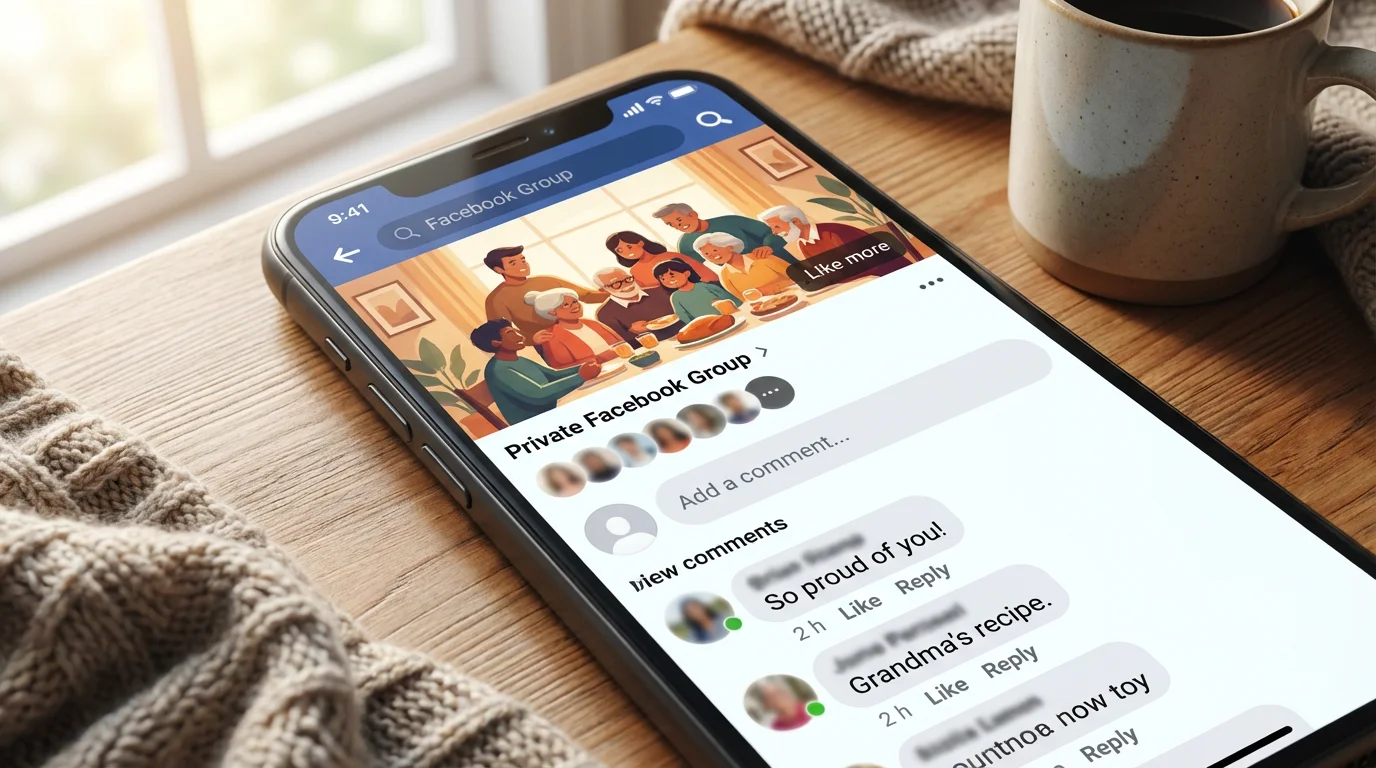
Private Facebook Groups: Your Family’s Exclusive Hub
- Many families create “private groups” on Facebook. These are exclusive spaces where only invited members can see posts and interact.
- Ask your family if they have a private family group, or consider suggesting starting one. This provides a safe, intimate space to `share` photos, videos, and updates that might not be suitable for a public `feed`.
- In a private group, you can `share` cherished memories, plan family reunions, and even discuss sensitive topics, knowing only your chosen family members can see the conversation.
- This is an excellent option for long-distance `grandparenting` as it allows for frequent, private updates on your grandchildren’s activities and achievements.

Watching Live Streams: Being “There” in Real Time
- Sometimes family members will broadcast a “live stream” of an event, like a school concert, a baby’s first steps, or a holiday gathering.
- When someone goes “live,” you will often see a notification in your `feed`. Click on it to watch the event unfold in real time.
- You can comment and react to the live stream as it happens, creating a shared experience with others watching. It is the closest thing to being there in person without leaving your home.
These `Facebook basics` and advanced features empower you to stay deeply involved in your grandchildren’s lives, fostering unbreakable bonds across any distance.

Staying in Touch During Holidays and Special Occasions
Holidays and special occasions often amplify the desire to connect with loved ones. Facebook provides wonderful avenues to celebrate together, even when miles separate you. These moments are when the emotional benefits of Facebook truly shine.

Virtual Celebrations
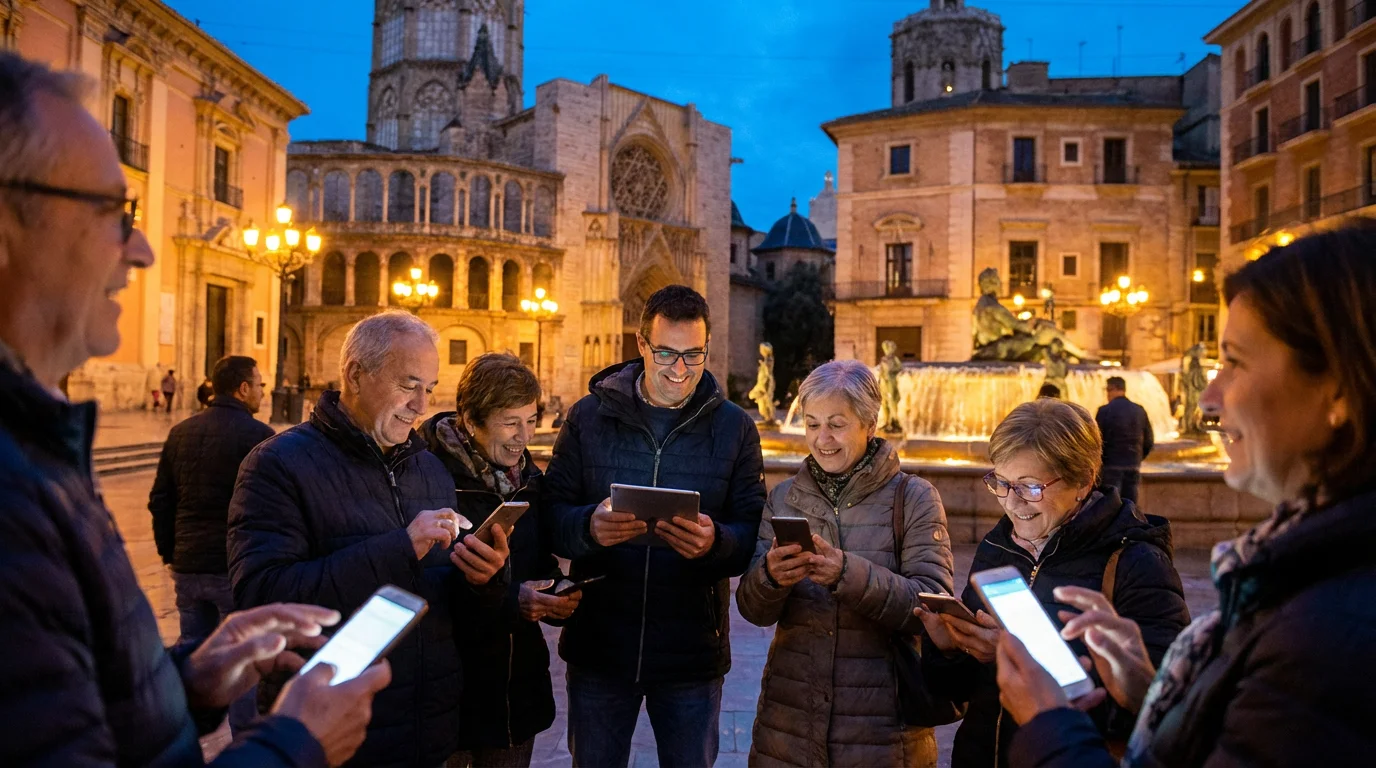
- Schedule a `Video Call`: Arrange a specific time for a family `video call` on holidays. You can use Facebook Messenger for this. Seeing everyone’s faces as they open gifts or share a holiday meal feels incredibly special.
- Group Photos: Encourage family members to take `selfie`s (a photo you take of yourself) or group photos during their celebration and `share` them in a `group chat` or private Facebook group. You can then comment and react in real-time.
- Online Games: Some families play simple online games together during `video call`s, or use features in Messenger that allow for shared activities. These can be lighthearted ways to enjoy each other’s company.
Greeting Posts and Messages
- Public Greetings: Post a festive message or photo on your `feed` wishing all your `Facebook friends` happy holidays. This is a broad gesture of goodwill.
- Personal Messages: For closer family members and friends, send a personal message through Messenger. A thoughtful, direct message feels much more personal than a general post.
- Event Participation: As mentioned before, if your family creates a Facebook Event for a holiday gathering, actively participate by commenting, liking photos, and sending warm wishes. This shows you are engaged and thinking of them.
The key is proactive engagement. Reach out, `share` your joy, and make an effort to be “present” digitally. Your family and friends will appreciate your efforts to stay connected during these important times. This commitment helps you maintain strong, loving relationships throughout the year.

When Things Go Wrong: Common Facebook Issues and Simple Fixes
Technology can sometimes be unpredictable, but most common Facebook issues have simple solutions. Do not get discouraged if something does not work perfectly on the first try. You can usually fix these issues quickly and get back to connecting.

Login Problems
- Forgotten Password: If you cannot remember your password, go to the Facebook login page and click “Forgotten password?” or “Forgot account?” Facebook will guide you through steps to recover or reset it, usually by sending a code to your registered email or phone number.
- Incorrect Email/Phone Number: Double-check that you are typing the correct email address or phone number associated with your account. A common mistake is a typo.

App Not Working or Freezing
- Restart the App: Close the Facebook or Messenger app completely and then reopen it. On a smartphone, this usually involves swiping up from the bottom of the screen to see open apps, then swiping the app off the screen.
- Restart Your Device: If restarting the app does not work, try turning your phone, tablet, or computer off and then back on again. This often resolves minor software glitches.
- Check for Updates: Ensure your Facebook and Messenger apps are up to date. Outdated apps can cause problems. Go to your device’s app store, search for Facebook or Messenger, and see if an “Update” button is available.

Privacy Concerns or Unwanted Content
- Adjust Privacy Settings: If you are concerned about who sees your posts, revisit your privacy settings. On Facebook, go to “Settings & Privacy” then “Settings” and look for “Privacy.” You have control over who sees your future posts and past posts.
- Unfriend or Block: If someone is posting content you do not wish to see, you can “unfollow” them (you remain `Facebook friends` but do not see their posts) or “unfriend” them (they are removed from your `Facebook friends` list). For more serious issues, you can “block” someone, which prevents them from seeing your profile or contacting you.
- Report Content: If you see content that violates Facebook’s community standards (e.g., hate speech, harassment), you can report it to Facebook for review. Look for a “…” menu next to the post.

Poor Video Call Quality
- Check Internet Connection: A slow internet connection is a common cause of choppy `video call`s. Try moving closer to your Wi-Fi router or ensuring other devices are not hogging bandwidth.
- Close Other Apps: Close any unnecessary apps running in the background on your device. This frees up resources for your `video call`.
If you need more help, many online resources offer tutorials. Websites like GCFGlobal.org provide free technology guides for beginners. Your family members might also be excellent resources for troubleshooting.
Frequently Asked Questions
What if my grandchildren are too busy for `video call`s?
It is common for grandchildren to have busy schedules. Instead of regular `video call`s, try asking their parents about the best times for short check-ins. You could also suggest a quick weekly photo or video exchange through Messenger. Sometimes, a short message saying “Thinking of you!” with an `emoji` can mean a lot without requiring a full conversation. Remember, consistent small efforts often build stronger connections than infrequent, long ones.
How do I look better on camera during a `video call`?
Good lighting makes a big difference. Position yourself so a light source, like a window or lamp, faces you, illuminating your face directly. Elevate your device so the camera sits at eye level. This creates a more flattering and natural angle. Check your background for clutter or distracting elements. A simple background helps keep the focus on you. Most importantly, smile and relax. Your warmth and genuine connection are what truly shine through.
Is Facebook safe for seniors to use?
Yes, Facebook is generally safe for seniors when you use it with awareness. You control your privacy settings, deciding who sees your posts and information. It is crucial to use a strong password, be cautious about clicking unfamiliar links, and only accept `friend requests` from people you know. Never `share` personal financial details. Facebook invests heavily in security measures, and many organizations like Senior Planet from AARP offer resources to help you use social media safely.
How do I know if someone has seen my message on Messenger?
In Messenger, after you send a message, you will see a small circle icon next to it. When the message has successfully sent, the circle will have a checkmark inside it. Once the other person has seen your message, that circle often changes to a tiny version of their profile picture, indicating they have read it. For `group chat`s, you might see small profile pictures for each person who has read the message.
Can I use Facebook to celebrate my birthday or anniversary with family?
Absolutely! Many people `share` birthday or anniversary celebrations on Facebook. You can create a post on your `feed` with a celebratory photo and a message. Your `Facebook friends` can then comment their well wishes. For a more interactive celebration, you can plan a family `video call` through Messenger, gather everyone online, and toast to the occasion together. You could also create a private Facebook Event and invite family to `share` photos or memories throughout the day.

A Final Word on Connection
You now possess the knowledge to confidently use Facebook to stay in touch with your family and friends. This platform offers so much more than just a place to read news. It is a vibrant community where you can `share` your life, witness the growth of your grandchildren, and participate in the daily joys and challenges of your loved ones. Remember, technology serves as the tool, but your heartfelt desire for connection drives the magic.
Do not fear making mistakes. Every click and every post helps you learn a little more. Embrace the opportunities Facebook provides to bridge distances and strengthen the bonds that truly matter. Your active participation in their digital lives will bring smiles to their faces and fill your own life with more joy and connection.
Disclaimer: This article is for informational purposes only. App interfaces change with updates, so screens may look slightly different. The most important thing is making the connection—the technology is just the tool to help you do that.








Leave a Reply