
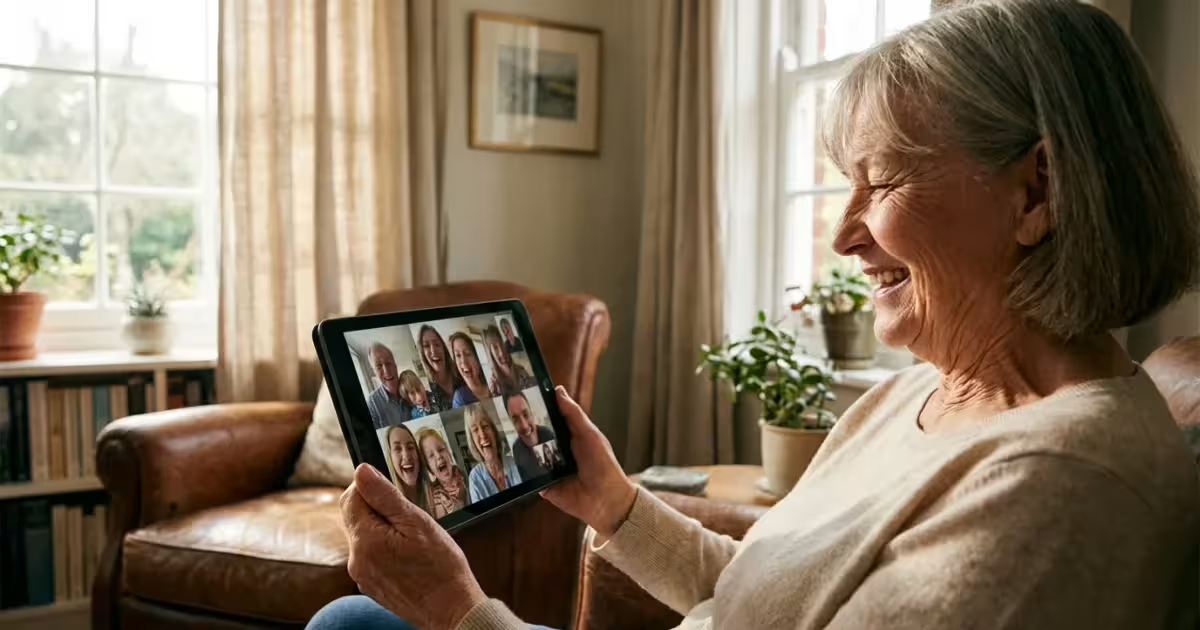
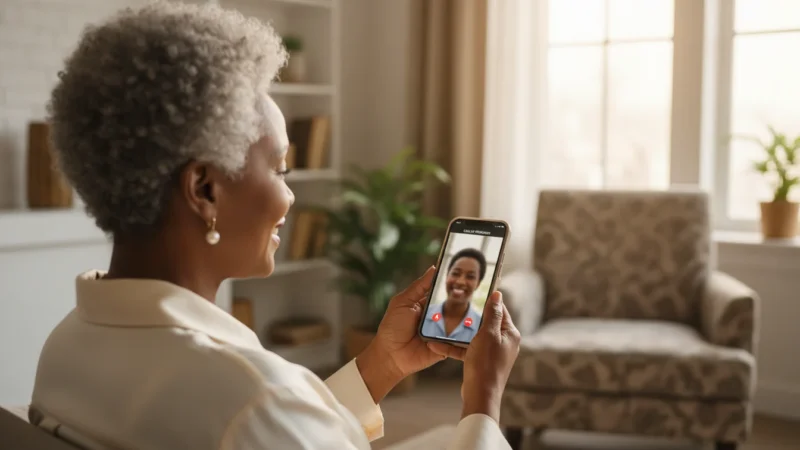
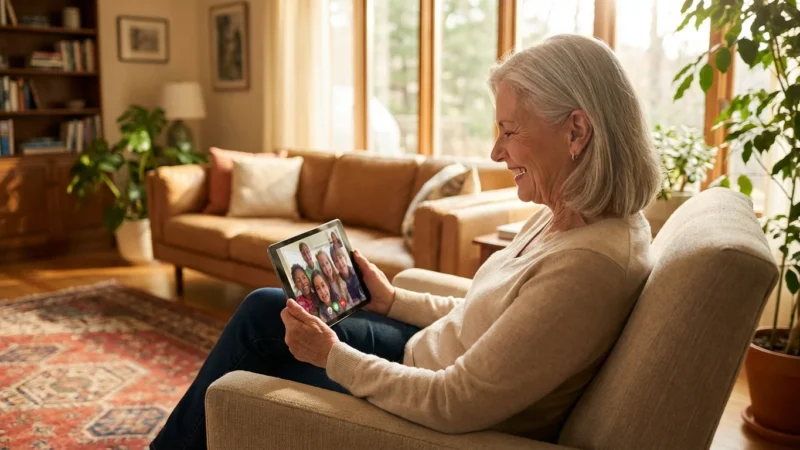
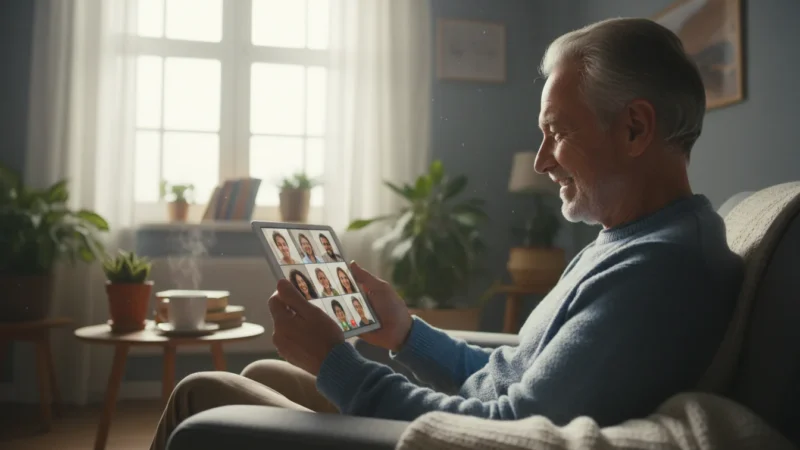
Distance should never be a barrier to hearing the laughter of your grandchildren or sharing a morning coffee with a dear friend. While the miles between you might be many, technology has provided us with a bridge that feels almost as warm as a hug. Video calls allow you to see the sparkle in someone’s eye and the subtle smile that a regular phone call might miss. According to the Pew Research Center, roughly 61% of adults age 65 and older now own a smartphone, and a growing number of seniors use video calling to maintain vital family bonds. Among the many tools available, Google Meet stands out as a reliable, high-quality, and remarkably simple way to bring your loved ones into your living room.
You might feel a bit of hesitation when trying a new app; that is perfectly normal. Remember that learning to use a new tool is like learning a new recipe—it takes a few tries to get it just right, but the result is well worth the effort. Google Meet is designed to be accessible, whether you are using a computer, a tablet, or a smartphone. This guide will walk you through every step, from setting up your first call to sharing your screen so you can look at family photos together. Your family wants to see you, and with a few simple clicks, you can make that happen today.
Table of Contents
- Why Google Meet Is Great for Family Connections
- What You Will Need to Get Started
- Setting Up Your Google Account
- Making Your First Call: Step-by-Step
- Understanding Your Video Call Screen
- Tips for Better Video Calls: Lighting and Sound
- Fun Things to Do Together During a Call
- When Things Go Wrong: Simple Fixes
- Frequently Asked Questions

Why Google Meet Is Great for Family Connections
Google Meet is one of the most popular choices for video calls because it balances professional-grade quality with a very simple user interface. Unlike some platforms that require complex software installations, Google Meet often works right inside your web browser. If you already use Gmail for your email, you are halfway there; Google Meet is already integrated into your existing account.
One of the most significant benefits for you is the “unlimited” feel of the service. While some free apps cut you off after 40 minutes, Google Meet allows for much longer one-on-one calls, giving you the time to really catch up without watching a ticking clock. This is especially helpful during the holidays or special occasions when you want the call to linger while you watch the grandchildren open their presents. Furthermore, Google employs high-level security to ensure your private family conversations stay private.
“The first time I saw my grandson take his first steps over a Google Meet call, I didn’t feel like I was looking at a screen. I felt like I was right there in the kitchen with them. It changed everything about how I handle living three states away.” — Margaret, 72
Beyond just seeing faces, Google Meet allows for “closed captions.” This means if you sometimes have trouble hearing soft voices or high-pitched laughter, you can turn on a feature that displays the words being spoken as text on your screen in real-time. This ensures you never miss a word of the story being told.

What You Will Need to Get Started
Before you place your first call, you should gather a few essentials. You do not need the latest, most expensive gadgets to enjoy a clear video call. Most devices made in the last five years work beautifully. Here is your checklist:
- A Device with a Camera: This can be a laptop with a built-in “webcam” (the tiny lens at the top of the screen), a tablet like an iPad, or a smartphone. If you are using a desktop computer without a camera, you can purchase an inexpensive one that clips onto your monitor.
- A Reliable Internet Connection: Video calls use a fair amount of data. If you are at home, connecting to your Wi-Fi is the best way to ensure a smooth, clear picture. If you are on a smartphone, try to stay near your router for the strongest signal.
- A Google Account: If you have a @gmail.com email address, you already have this. If not, it only takes a few minutes to create a free account.
- The Google Meet App (for Mobile): If you plan to use your tablet or phone, visit the Apple App Store or Google Play Store and download the “Google Meet” app. On a computer, you don’t need to download anything; you can simply go to a website.
For more detailed information on choosing the right hardware, AARP’s technology resources offer excellent reviews on senior-friendly tablets and computers that make video calling even easier.

Setting Up Your Google Account
If you do not have a Google account yet, do not worry. It is a simple process that provides access to many helpful tools beyond video calls. To start, go to accounts.google.com and click “Create account.” Follow the prompts to enter your name and choose a username. This username will also be your new email address.
When choosing a password, pick something memorable but secure. Many seniors find it helpful to write their password down in a dedicated notebook kept in a safe place. Once your account is active, you can sign in to Google Meet. On a computer, you can find Google Meet by clicking the “waffle” icon (the nine small dots in a square) at the top right corner of your Google home page or Gmail inbox. It looks like a small colorful video camera icon.
If you prefer using your smartphone, open the Google Meet app you downloaded earlier. Sign in using your new email and password. The app will ask for permission to use your camera and microphone. It is important to click “Allow” or “OK” when these prompts appear; otherwise, your family won’t be able to see or hear you.

Making Your First Call: Step-by-Step
There are two ways to start a video call: you can start one yourself and invite others, or you can join a call that someone else has organized. Joining a call is usually the easiest way to start when you are first learning.
To join a call: Your family member will likely send you a link via email or a text message. It will look like a web address (for example, meet.google.com/abc-defg-hij). Click that link. Your computer or phone will automatically open Google Meet. You will see a “preview” screen where you can check your hair and make sure you are centered. When you are ready, click the button that says “Join now” or “Ask to join.”
To start your own call:
- Open the Google Meet app or go to meet.google.com.
- Click the button that says “New meeting.”
- Choose “Start an instant meeting.”
- A window will pop up with a link. Copy that link and email it or text it to the person you want to talk to.
- Wait for them to click the link and appear on your screen!
It might feel a little clunky the first time you copy and paste a link, but you will find it becomes second nature after two or three calls. Think of it as sending an invitation to your home—you are just sending it digitally.
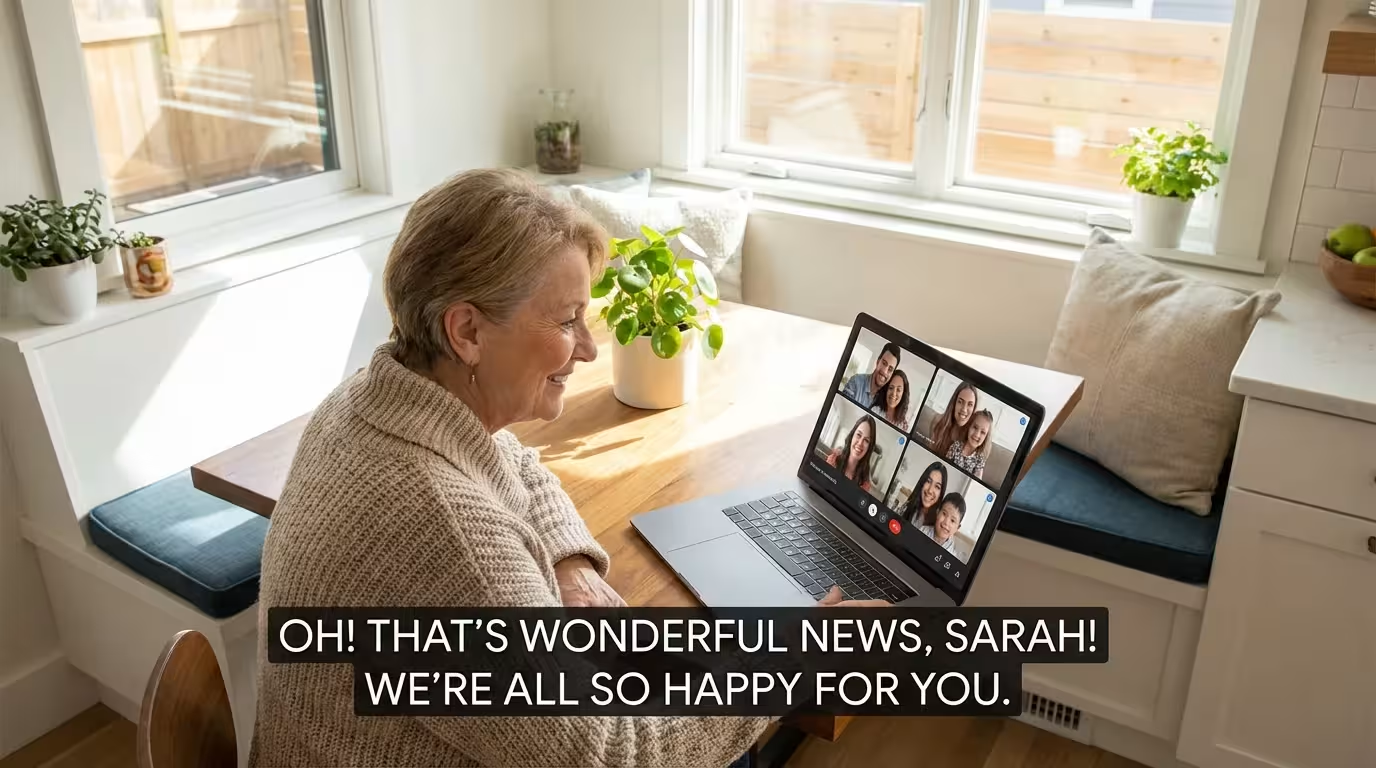
Understanding Your Video Call Screen
When you are in the middle of a call, you will see several icons at the bottom of your screen. These are your “controls.” Understanding these will make you feel much more in control of the experience. Generally, these icons disappear if you don’t move your mouse or touch the screen for a moment; simply move your mouse or tap the screen to bring them back.
The most important buttons are:
- The Microphone: This allows you to “mute” yourself. If the icon is red with a line through it, no one can hear you. This is useful if a loud dog starts barking in your house!
- The Camera: This turns your video on or off. If it is red with a line through it, you can see them, but they cannot see you.
- The Red Phone: This is the “End Call” button. Click this when you are finished with your conversation. It is just like hanging up a physical telephone.
- The Three Dots (More Options): This opens a menu where you can find “Visual Effects.” This is a fun feature that allows you to blur your background or pretend you are at the beach!
If you find the technical side overwhelming, remember that the most important buttons are the ones that turn your voice and face on. Everything else is just extra. For a comprehensive guide on every single button, you can visit Google’s official support page.

Tips for Better Video Calls: Lighting and Sound
Have you ever been on a call where the person looks like they are in a dark cave, or perhaps their face is so bright you can’t see their features? A few small adjustments can make you look and sound like a pro. These tips help your loved ones feel more connected to you because they can see your expressions clearly.
1. Find the Light: Always try to have the primary light source in front of you, not behind you. If you sit with a bright window behind you, you will appear as a dark silhouette. Instead, face the window. The natural light will illuminate your face beautifully. If it is evening, place a lamp behind your computer or tablet so it shines toward you.
2. Eye Level is Key: Many people place their laptop on their lap or their phone on a low table. This results in the “up the nose” camera angle. Try to prop your device up on a stack of books so the camera is at the same level as your eyes. This makes it feel like you are looking directly at your family members, making the conversation feel much more natural.
3. Reduce Background Noise: Microphones on tablets and laptops are very sensitive. They will pick up the sound of a humming refrigerator or a television in the next room. Choose a quiet spot for your calls. If you have a pair of headphones with a built-in microphone (like the ones that come with many smartphones), using them can significantly improve how clearly others hear you.
4. Look at the Camera, Not Yourself: It is tempting to look at the small box showing your own face. However, if you look at the tiny camera lens at the top of your device, your grandchildren will see you looking directly at them. It creates a much stronger emotional connection.

Fun Things to Do Together During a Call
Video calls do not have to be limited to just talking. You can use this time to “do” things together, which is especially wonderful for bonding with younger children who might have a shorter attention span for conversation.
Read a Bedtime Story: Hold a physical book up to the camera or use the “Share Screen” feature to show a digital book. You can read to your grandchildren even if they are halfway across the country. This creates a special tradition they will look forward to every week.
Cook Together: Prop your tablet up on the kitchen counter and bake the same recipe at the same time. You can share tips, laugh over flour messes, and then “eat” together once the timer goes off. It turns a chore into a shared memory.
Virtual Show and Tell: Ask your grandchildren to show you their latest drawing or a new toy. In return, you can show them something from your house—a photo from when you were young, a souvenir from a trip, or even the flowers blooming in your garden. This keeps the conversation moving and gives you both something concrete to talk about.
Play Simple Games: “I Spy” works wonderfully over video. You can also play games like Charades or even do a crossword puzzle together using the screen sharing tool. These activities reduce the “awkwardness” some feel when they don’t know what to say next.

When Things Go Wrong: Simple Fixes
Technology isn’t perfect, and occasionally you will run into a hiccup. Do not let this discourage you! Most issues are very easy to fix with the “Golden Rule of Tech”: turn it off and turn it back on again.
| Problem | Potential Solution |
|---|---|
| They can’t hear me. | Check the microphone icon at the bottom. If it is red, click it to “unmute.” Also, check your device’s physical volume buttons. |
| I can’t hear them. | Turn up the volume on your device. Ensure you don’t have headphones plugged in that you aren’t wearing. |
| The picture is “frozen.” | Your internet might be struggling. Try moving closer to your Wi-Fi router or leave the call and click the link to join again. |
| The screen says “Waiting for Host.” | This means you arrived before the person who started the meeting. Just stay on the line; they will be there shortly! |
If you find yourself stuck, GCFGlobal offers free tutorials that walk you through basic computer troubleshooting in a very patient, clear manner. Most importantly, don’t be afraid to tell the person you are calling, “I’m having a little trouble with my sound, can you wait a moment?” They will understand.
Frequently Asked Questions
How do I look better on camera?
As mentioned earlier, lighting is your best friend. Facing a window provides the most flattering, natural light. Also, try wearing a solid, bright color. Patterns can sometimes look “busy” or “vibrate” on a video screen. Most importantly, don’t worry too much about your appearance—your family is just happy to see your face!
What if my grandchildren are too busy for a long call?
Busy schedules are a reality, but that doesn’t mean you can’t connect. Suggest a “15-minute Check-in.” Sometimes knowing the call has a set end time makes it easier for busy parents to fit it into the schedule. You can also send a Google Meet link for a “Sunday Coffee” where people can hop in and out as they are able.
Does Google Meet cost money?
For most personal use, Google Meet is completely free. There are paid versions for large businesses, but for calling your family and friends, you will not have to pay a cent. You just need a free Google account.
Is Google Meet safe to use?
Yes. Google Meet encrypts your calls, which is a fancy way of saying it scrambles the data so outsiders cannot listen in. To stay safe, only click on meeting links from people you know and trust.
Taking the first step to learn Google Meet is an act of love for your family and yourself. It may feel like a lot of buttons and icons right now, but soon, you won’t even see the technology. You will only see the faces of the people you love. Go ahead and send that first invitation. Your family is waiting to see you.
Disclaimer: This article is for informational purposes only. App interfaces change with updates, so screens may look slightly different. The most important thing is making the connection—the technology is just the tool to help you do that.
Keywords: Google Meet, video calls, online meetings, family video calling for seniors, how to use Google Meet
Meta Description: Master Google Meet with our easy, senior-friendly guide and start enjoying clear, heartfelt video calls with your children and grandchildren today.




Leave a Reply