

There’s nothing quite like the joy of seeing your grandchildren grow, sharing their laughter, and witnessing their milestones. Distance can sometimes feel like a barrier, but it doesn’t have to separate your hearts. Technology now offers a wonderful bridge, allowing you to connect in ways that feel almost as good as being in the same room. Imagine seeing their smiling faces, hearing their stories, and being part of their everyday moments, no matter how many miles lie between you.
Beyond live calls, you can also learn how to use Instagram to see family photos and stay updated on all their special moments.
This guide empowers you to master video calling, a powerful tool for maintaining those precious family bonds. A video call is a phone call where you can see each other’s faces, creating an incredibly personal and engaging experience. You gain practical, actionable insights on how to video call your grandchildren, ensuring you stay connected and present in their lives. We understand this journey might feel a little daunting at first, but remember, every step you take brings you closer to those you love. Many grandparents successfully learned how to use these tools during the pandemic, proving that you can absolutely master them too.
You are about to discover how simple it is to use platforms like FaceTime, Zoom, and others to see family online. This complete guide provides step-by-step instructions, helpful tips, and encouraging advice to make your video calling experience smooth, enjoyable, and filled with meaningful connections. Let’s make sure you never miss another moment.
Table of Contents
- Why Video Calling Makes Grandparenting Even Better
- What You Need to Start Video Calling
- Choosing the Right Video Calling App for Your Family
- Setting Up Your Chosen Video Calling App Step by Step
- Making Your First Video Call: A Gentle Start
- Mastering Your Video Call Setup for Clear Connections
- Fun Ways to Connect and Play with Your Grandchildren Online
- Sharing Memories Beyond Video Calls: Photos, Videos, and Group Chats
- Troubleshooting Common Video Calling Hiccups
- Building a Connection Routine: Consistency is Key
- Frequently Asked Questions
- Final Thoughts on Connecting with Grandkids

Why Video Calling Makes Grandparenting Even Better
Connecting with your grandchildren enriches both your lives. Video calling transforms distant relationships into vibrant, interactive ones. It offers a unique window into their world, allowing you to witness their milestones firsthand, even when you cannot physically be there. Imagine seeing your granddaughter’s first lost tooth or your grandson’s latest creation built from blocks, all through a simple screen. This is the power of video calls.
Research consistently shows the positive impact of strong intergenerational bonds. Grandparents who actively engage with their grandchildren report higher levels of well-being and a stronger sense of purpose. For children, regular connection with grandparents contributes to emotional resilience and a broader understanding of family history. A 2016 study published in the journal Family Relations indicated that frequent contact between grandparents and grandchildren is linked to better adjustment outcomes for children.
Video calls bridge geographical gaps. You become a consistent, visible presence in their lives. You can read them a bedtime story, virtually attend a school play, or simply chat about their day. This regular, face-to-face interaction helps your grandchildren feel your love and support, solidifying your special role in their lives. It’s a way to be “there” for the big moments and the small, everyday joys that truly build lasting relationships. This is what makes a video call guide for grandparents so invaluable.
“Seeing my grandson’s face light up when I pop up on the screen is truly magical. We live across the country, but with video calls, it feels like he’s just in the next room. I’ve watched him learn to walk, blow kisses, and tell me about his drawings. It’s an irreplaceable connection.”

What You Need to Start Video Calling
Beginning your video calling journey requires just a few essential items. You likely own most of them already. Do not feel overwhelmed; these are simple foundations.
For longer conversations, using a tablet stand can make your video calls much more stable and comfortable.
- A Device: You need a device with a camera, microphone, and speakers.
- Smartphone: Most modern smartphones (like an iPhone or Android phone) are perfect for video calls. They are portable and easy to use.
- Tablet: Devices like an iPad or Android tablet offer a larger screen, which can be easier on your eyes and great for seeing multiple family members.
- Computer: A desktop or laptop computer with a built-in webcam and microphone (or external ones) also works wonderfully, providing the largest screen experience.
- An Internet Connection: Video calls require a stable internet connection.
- Wi-Fi: This is a wireless connection at your home. Most homes have Wi-Fi provided by an internet service provider.
- Cellular Data: If you use a smartphone or a tablet with a data plan, you can also video call using cellular data (like 5G or LTE) when you are away from Wi-Fi. Be mindful of your data plan limits, as video calls can use a fair amount of data.
- A Video Calling App: This is the software that enables the call. We will discuss various popular options in the next section, but you and your family need to agree on one app to use.
- An Account (for some apps): Some apps require you to create a free account with an email address or phone number. Your family can help you with this if needed.
Make sure your device is charged, connected to the internet, and ready to go. You are already halfway there to connecting with your family online.

Choosing the Right Video Calling App for Your Family
Many excellent apps facilitate video calls, and the best choice often depends on what your children and grandchildren already use. Consistency across the family simplifies the process for everyone. Here are some of the most popular and user-friendly options:
If you prefer social networks, discover how to use Facebook to stay in touch with all your family members and friends.
- FaceTime:
- What it is: FaceTime is Apple’s built-in video calling app, perfect for connecting Apple users.
- Why it’s great: It is incredibly easy to use and already on iPhones, iPads, and Mac computers. It offers excellent video and audio quality. You do not need to download anything extra if your family uses Apple devices.
- Things to note: Primarily works between Apple devices. While Apple has introduced ways for non-Apple users to join FaceTime calls via a web link, it is still most seamless for Apple-to-Apple connections.
- Zoom:
- What it is: Zoom is a popular video conferencing tool that many people used during the pandemic for work, school, and family gatherings.
- Why it’s great: It works on almost any device, including smartphones, tablets, and computers, regardless of brand. Zoom excels at group calls, allowing many family members to join simultaneously. It is ideal for large family reunions or seeing several grandchildren at once.
- Things to note: Free Zoom calls have a time limit (typically 40 minutes) for group meetings, but one-on-one calls are unlimited. You need to download the Zoom app.
- Google Meet:
- What it is: Google Meet is Google’s video calling service, often integrated with Google accounts (like Gmail).
- Why it’s great: Like Zoom, it works across various devices and is excellent for group calls. If you or your family use Gmail, you likely already have access. It is reliable and easy to access through a web browser or a dedicated app.
- Things to note: Requires a Google account for the host, but participants can often join with just a link.
- WhatsApp:
- What it is: WhatsApp is a widely used messaging app that also offers voice and video calls.
- Why it’s great: It is free, secure, and works on both Apple and Android devices. If your family primarily uses WhatsApp for texting (or “group chat,” a text conversation with multiple people at once), the video calling feature is right there within the app, making it convenient.
- Things to note: It ties to your phone number, so you need a working phone number to set it up.
- Facebook Messenger:
- What it is: Messenger is Facebook’s messaging and calling app, often used by those with Facebook accounts.
- Why it’s great: If your family is already on Facebook, Messenger is an easy way to connect. It allows for both one-on-one and group video calls and is simple to navigate if you are familiar with Facebook.
- Things to note: Requires a Facebook account to use all features.
Actionable Insight: Talk to your children or grandchildren. Ask them, “What app do you use most often to video call?” Choosing an app they already have and feel comfortable with significantly simplifies your learning process and makes it easier for everyone to connect. This helps you figure out how to video chat with grandkids using the most convenient methods.

Setting Up Your Chosen Video Calling App Step by Step
Once you decide on an app, setting it up is your next step. While specifics vary slightly by app, the general process is very similar. Your family can be a wonderful resource to walk you through this the first time.
As you enjoy these new connections, it is also important to learn how to recognize common scams to keep your online interactions safe and secure.
Once you have the app installed, adding your grandchildren as contacts will make it even faster to start your next call.
Here is a typical setup process:
- Download the App (if needed):
- For smartphones/tablets: Go to your device’s app store (App Store for Apple devices, Google Play Store for Android). Search for the app name (e.g., “Zoom,” “WhatsApp”). Tap “Get” or “Install.” You may need to enter your device’s password or use your fingerprint/face ID.
- For computers: Open your web browser (like Chrome, Safari, or Edge) and go to the app’s official website (e.g., zoom.us, meet.google.com). Look for a “Download” or “Get Started” button and follow the on-screen instructions to install the program.
- Open the App and Create an Account:
- Launch the app you just downloaded.
- If it is your first time, the app will likely prompt you to “Sign Up” or “Create Account.” Tap or click on this.
- Follow the prompts to enter your name, email address, and create a password. Some apps, like WhatsApp, will ask for your phone number and send a verification code via text message. You will enter this code into the app to confirm your identity.
- Tip: Write down your new username and password in a safe place. This will prevent frustration later.
- Grant Permissions:
- Apps need permission to use your device’s camera and microphone to make video calls. When prompted, always choose “Allow” or “Grant Access” for both the camera and microphone. If you decline, your family will not be able to see or hear you during calls.
- Add Contacts (Optional, but Recommended):
- Many apps allow you to add people you want to call to a contact list within the app. This makes future calls much easier. You typically look for an “Add Contact” or “+” symbol.
- You can often find contacts by their phone number or email address, or by searching for their name if they also have an account. Your children or grandchildren can share their specific usernames or phone numbers for the app you choose.
Practical Tip: Ask a family member to help you with the initial setup. They can often do it quickly and ensure everything is correctly configured, giving you peace of mind. GCFGlobal offers excellent free technology tutorials if you prefer to learn at your own pace. Visit GCFGlobal.org for step-by-step guides on various apps.

Making Your First Video Call: A Gentle Start
The first call might feel a bit like launching a rocket, but it is much simpler. Approach it with patience and a sense of adventure. Remember, the goal is connection, not perfection.
Before You Call:
- Charge Your Device: Ensure your phone, tablet, or computer has enough battery.
- Connect to Wi-Fi: A strong Wi-Fi connection usually provides the best video quality.
- Find a Quiet Spot: Choose a place with minimal background noise.
- Communicate with Your Family: Text or call your grandchild’s parent beforehand to arrange a specific time for your first video call. This ensures everyone is ready and available, reducing any potential frustration.
Steps to Make a Call (General Guide):
- Open the App: Tap the app icon on your device’s screen.
- Locate Your Contact:
- Look for a “Contacts” tab or icon.
- If you previously added your grandchild or their parent, tap their name.
- Some apps allow you to search for a contact’s name.
- Initiate the Call:
- Once you select a contact, you will usually see options for “Video Call” or “Voice Call.” Tap the “Video Call” button (often represented by a small video camera icon).
- For apps like Zoom or Google Meet, your family might send you a “meeting link.” You simply tap that link, and it will open the app and connect you to the call.
- Wait for Them to Answer: Just like a regular phone call, your family needs to answer.
- Start Talking and Seeing: Once they answer, you will see their faces and hear their voices.
- Ending the Call: Look for a button that resembles a red phone receiver icon. Tap this to end the video call.
Embrace the Learning Curve: It is completely normal for your first few video calls to have small glitches. The audio might cut out, the video might freeze, or you might accidentally tap the wrong button. These are common experiences. Do not let them discourage you. Each call builds your confidence. Your grandchildren will love seeing you, regardless of any technical hiccup. The act of reaching out means the most. This is your personal how to video chat with grandkids tutorial.

Mastering Your Video Call Setup for Clear Connections
Once you are comfortable initiating calls, you can enhance your video calling experience with a few simple adjustments. These tips make you look and sound your best, ensuring a more enjoyable interaction for everyone.
- Optimal Lighting:
- Use Natural Light: Position yourself facing a window during the day. Natural light is flattering and brightens your face. Avoid having a window directly behind you, as this will cast your face in shadow, making you appear as a silhouette.
- Avoid Overhead Lighting: Overhead lights can create harsh shadows under your eyes. If you use artificial light, aim for soft, diffused light coming from in front of you.
- Camera Angle and Positioning:
- Eye Level is Best: Position your device so the camera is roughly at eye level. If your camera is too low, it can create an unflattering “up-the-nose” angle. If it is too high, it might make you look small.
- Use a Stand or Stack of Books: Prop your smartphone or tablet on a stand, a stack of books, or a sturdy box to achieve the ideal height.
- Center Yourself: Sit or stand in the middle of the frame, leaving a little space above your head.
- Mind Your Background:
- Keep it Tidy: A simple, uncluttered background helps keep the focus on you. A plain wall, a bookshelf, or a neat corner of a room works well.
- Consider What’s Visible: Ensure there is nothing distracting or too personal in view.
- Clear Audio:
- Find a Quiet Space: Minimize background noise. Turn off the TV, radio, or anything that creates competing sounds.
- Speak Clearly: Speak in your normal voice. You do not need to shout.
- Consider Headphones: Using headphones with a built-in microphone (like earbuds) can significantly improve sound quality by reducing echo and capturing your voice more clearly.
- Camera Awareness:
- Look at the Camera: Try to look directly into the small camera lens at the top of your device’s screen, rather than at your own image or your grandchild’s face on the screen. This creates eye contact and makes the conversation feel more personal to your grandchildren.
These small adjustments make a big difference, helping you look confident and creating a professional yet warm impression on your video calls.

Fun Ways to Connect and Play with Your Grandchildren Online
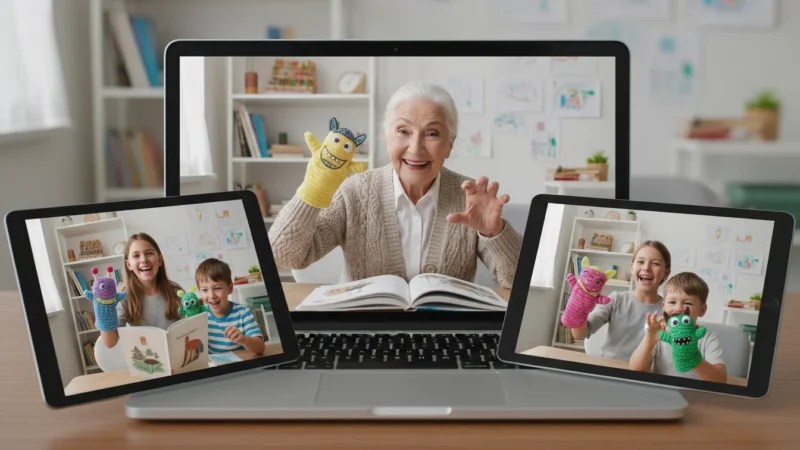
Video calls are not just for quick chats. They open up a world of shared activities, making the experience dynamic and memorable. Think of it as a virtual playdate or storytelling session. Here are some engaging ideas to help you connect with your grandchildren online:
To keep the energy high, you can try several fun things to do with your grandchildren during a video call like playing games or sharing a snack together.
- Read a Story Together: Hold up a book to your camera and read aloud. Encourage your grandchildren to follow along or point out pictures. This is a classic grandparenting activity that translates beautifully to video.
- Virtual Show-and-Tell: Ask your grandchildren to show you their favorite toy, a drawing they made, or something interesting from their room. You can also show them something from your home. It sparks conversation and gives you a peek into their daily lives.
- Play Simple Games:
- “I Spy”: Look around your respective rooms and play “I Spy” through the camera.
- Pictionary or Charades: Take turns drawing or acting out words.
- Simon Says: A timeless game that works well virtually.
- Share a Meal or Snack: Arrange a “virtual dinner” or snack time. You can eat your dinner while they eat theirs, sharing stories about your day as if you were at the same table.
- Sing Songs or Tell Jokes: Lead a sing-along, teach them a new song, or share your favorite jokes. Laughter is a powerful connector.
- Work on Homework Together: Offer to help with a spelling list, review math facts, or discuss a history project. Your presence and encouragement can be invaluable.
- Virtual Tours: Give your grandchildren a tour of your home, garden, or a special collection. They can do the same.
- Watch a Show Together (Synchronized): Pick a show or movie to watch at the same time, then hop on a video call afterward to discuss it, or even keep the call open on mute while you watch.
Remember, the goal is interaction and creating shared experiences. These activities provide structure to your video calls, making them more engaging and enjoyable for both you and your grandchildren, especially the younger ones who might have shorter attention spans.

Sharing Memories Beyond Video Calls: Photos, Videos, and Group Chats
Staying connected goes beyond live video calls. Digital tools offer fantastic ways to share daily snippets, milestones, and ongoing conversations, keeping your family bonds strong throughout the week.
- Sharing Photos and Videos:
- How to Share: “Share” means to send a photo or video to someone else. Most smartphones and tablets have a “Share” button (often a square with an arrow pointing up or to the right) when you are viewing a photo or video in your gallery.
- Messaging Apps: You can easily share photos and short videos directly through messaging apps like WhatsApp, Messenger, or even your phone’s built-in text messaging app. These are perfect for sending a quick update, like a photo of your blooming garden or a video of a funny pet antic.
- Email: For larger collections of photos or longer videos, email remains a reliable option.
- Cloud Storage: Services like Google Photos or Apple Photos allow you to create shared albums. You can upload photos to a central album, and family members you invite can see and add their own pictures, creating a communal memory bank. These are particularly useful for big events like birthdays or holidays.
- Social Media Basics for Viewing (Facebook, Instagram):
- Staying Informed: Platforms like Facebook and Instagram allow you to view updates from your family and friends. When you open Facebook or Instagram, you see a “feed,” which is the scrolling list of posts from people you follow. You can see photos and videos your family “share,” giving you a window into their daily lives and special events.
- “Liking” or Commenting: You can show your appreciation by tapping the “Like” button (often a heart or a thumbs-up icon) or leaving a simple, positive comment.
- Privacy: Be mindful of your family’s privacy settings. Some posts are only visible to “Friends” on Facebook or “Followers” on Instagram.
- Viewing, Not Necessarily Posting: You do not need to post your own content if you do not want to. Many grandparents enjoy these platforms purely as a way to keep up with family news and see photos without having to create their own posts.
- Group Chats for Family Communication:
- What is a Group Chat?: A “group chat” is a text conversation with multiple people at once. It is like a virtual family bulletin board where everyone can send messages, photos, and quick updates.
- Keeping Everyone in the Loop: Group chats are perfect for coordinating schedules, sharing quick thoughts, or celebrating small victories throughout the day. Your family might already have one set up on WhatsApp or Messenger.
- How to Participate: Simply type your message in the text box and tap “Send.” You will see everyone’s responses appear in chronological order.
- Emojis: “Emoji” are small pictures you can add to messages, like smiley faces, hearts, or thumbs-up icons. They add personality and emotion to your texts.
By using these tools, you can ensure the flow of communication and shared memories remains constant, strengthening your connection with grandchildren far beyond the video call itself.

Troubleshooting Common Video Calling Hiccups
Even with preparation, technology sometimes acts up. Do not get discouraged. Most common issues have simple fixes. Think of these as minor speed bumps, not roadblocks.
- “I can’t hear them, or they can’t hear me.” (Audio Issues)
- Check Volume: First, ensure your device’s volume is turned up. Look for the volume buttons on the side of your phone/tablet or the keyboard of your computer.
- Check App Mute Button: Most video calling apps have a microphone icon. Make sure it is not red or crossed out, indicating you are “muted.” Tap it to unmute yourself. Ask your family to check their mute button too.
- Grant Microphone Permission: Did you “Allow” the app to use your microphone during setup? If not, you might need to go into your device’s settings (usually under “Apps” or “Privacy & Security”) to grant microphone access for that specific app.
- Restart the App/Device: Close the video calling app completely and reopen it. If that does not work, try restarting your entire device. This often resolves minor software glitches.
- “The video is frozen, or I cannot see them.” (Video Issues)
- Check Camera Permission: Similar to the microphone, ensure you granted the app permission to use your camera. Check your device’s settings.
- Ensure Camera is Not Covered: Make sure no finger, sticker, or case is blocking the small camera lens on your device.
- Check App Video Button: Look for a camera icon within the app. Ensure it is not crossed out. Tap it to turn your video on. Ask your family to check theirs as well.
- Internet Connection: A weak or unstable internet connection is a common cause of frozen video. Move closer to your Wi-Fi router or try another Wi-Fi network if available. If using cellular data, check your signal strength.
- Restart: Again, closing and reopening the app, or restarting your device, can often clear up video problems.
- “The call keeps dropping.” (Connection Issues)
- Internet Stability: This is almost always an internet issue. Ensure your Wi-Fi is strong. If multiple people are using the internet heavily (streaming movies, playing online games), it can strain your connection.
- Move Closer to Router: Being physically closer to your Wi-Fi router improves signal strength.
- Reboot Your Router: Unplug your Wi-Fi router for 30 seconds, then plug it back in. Wait a few minutes for it to fully restart. This often refreshes your internet connection.
- “I cannot find my grandchildren in the app.” (Contact Issues)
- Double-Check Information: Confirm you have the correct username, phone number, or email address they use for that specific app. Sometimes a single typo prevents connection.
- Verify They Are on the Same App: Ensure everyone is trying to connect using the same video calling app.
Do not hesitate to ask your children or grandchildren for help when you encounter an issue. They are often quick to diagnose and fix these problems, and it is another way to interact with them. Remember, persistence pays off, and each challenge overcome builds your confidence.

Building a Connection Routine: Consistency is Key
Consistent, regular interaction strengthens bonds over time. While spontaneous calls are wonderful, establishing a routine ensures you consistently make time for those meaningful connections. Think of these as traditions you create, digital bridges that become part of your family’s rhythm.
- Schedule Regular Video Calls:
- Weekly Check-ins: Agree on a specific day and time each week for a video call. For example, “Grandparent’s Story Time on Wednesdays at 7 PM.” This provides predictability and something to look forward to. Even short, 15-minute calls are valuable.
- Before Bedtime Chats: A quick video call before your grandchildren go to bed can become a cherished ritual. You can say goodnight, ask about their day, or read a quick story.
- Celebrate Holidays and Special Occasions Virtually:
- Holiday Greetings: Use video calls to share holiday cheer. You can show off your decorations, sing carols together, or watch them open gifts. This makes you feel present for celebrations, even from afar.
- Birthday Wishes: Sing “Happy Birthday” over a video call. You can even watch them blow out their candles.
- Attend Events: If your family is comfortable, they can prop up a device during school plays, sporting events, or family dinners so you can virtually “attend” and feel included.
- Create Photo Sharing Traditions:
- Daily Photo Updates: Encourage your children to send you one photo or short video clip of your grandchildren each day or a few times a week. This allows you to witness their everyday growth.
- “Grandparent’s Album”: Create a shared digital photo album (using Google Photos or Apple Photos) where everyone contributes. This becomes a collaborative family scrapbook you can all enjoy.
- “Selfie” Sharing: A “selfie” is a photo you take of yourself. Encourage your older grandchildren to send you selfies or photos of things they are doing. Send them one back!
- Utilize Group Chats for Quick Updates:
- Ongoing Conversation: Use a family “group chat” (a text conversation with multiple people at once) to share quick updates, ask questions, or send funny “emoji” (small pictures you can add to messages, like smiley faces). This keeps communication flowing between video calls.
- Morning Greetings: A simple “Good morning, everyone!” can be a pleasant way to start the day for the whole family.
Consistency fosters comfort and makes these digital interactions a natural part of your family life. You become a consistent, joyful presence, enriching both your lives and your grandchildren’s, proving how easily you can stay connected with family online.
Frequently Asked Questions
Here are answers to some common questions that arise when you are learning to video call your grandchildren.
What if my grandchildren are too busy to video call often?
It is understandable for families and children to have busy schedules. Flexibility and short, focused calls often work best. Instead of aiming for long conversations, suggest quick 5-10 minute check-ins. A simple “Hi, Grandma just wanted to say goodnight!” or “Show me what you are building!” can be incredibly meaningful without requiring a large time commitment. Communicate with your children to find the best times, perhaps after school or before bedtime, and be prepared to adjust. The key is consistent, even brief, engagement.
How do I look better on camera during video calls?
Making a few simple adjustments makes a big difference. First, ensure you have good lighting, ideally facing a window so natural light illuminates your face. Avoid having a bright light source directly behind you. Second, position your camera at eye level, using books or a stand to prop up your device if needed. This prevents unflattering angles. Third, keep your background tidy and free of distractions. Finally, try to look directly into the camera lens to create natural eye contact, making the connection feel more personal for your grandchildren.
Is video calling safe for my family, especially my grandchildren?
Yes, major video calling platforms like FaceTime, Zoom, Google Meet, and WhatsApp prioritize security and privacy. They use encryption, which means your calls are private and cannot be easily intercepted. To ensure safety, always use the official app versions, keep your app updated, and only connect with known family members. If you are sharing links for group calls (like on Zoom), be sure to share them privately with your family only. You control who joins your calls, ensuring a safe and secure environment for your interactions with your grandchildren.
Can I use video calls on different devices, like from my tablet to my grandchild’s phone?
Absolutely! Most popular video calling apps are “cross-platform,” meaning they work on different types of devices. For example, Zoom, Google Meet, WhatsApp, and Facebook Messenger all work seamlessly between an Apple iPhone, an Android tablet, and a Windows computer. FaceTime is primarily for Apple devices, but Apple has made it possible for non-Apple users to join a FaceTime call via a web link. This flexibility means you can usually connect regardless of the specific devices your family members use, as long as you are all on the same app.
What if I feel awkward or do not know what to say during a video call?
It is perfectly normal to feel a little awkward at first. You are learning a new way of interacting! Plan a few conversation starters. You could ask about their day at school, a recent drawing they made, a favorite toy, or what they had for lunch. Suggest an activity, such as reading a story, playing “I Spy,” or doing a virtual show-and-tell. Remember, your grandchildren are delighted just to see you. The simple act of being present and trying is what matters most. With practice, the conversations will flow naturally.

Final Thoughts on Connecting with Grandkids
Your willingness to learn and adapt new technology speaks volumes about your love and dedication to your family. Video calling is not just about pressing buttons or navigating screens, it is about maintaining a vibrant, visible presence in your grandchildren’s lives, bridging any distance with your warmth and affection. You are building memories, sharing laughter, and offering unwavering support. This technology serves as a powerful tool, allowing you to witness their growth and share in their joys. The most important thing is the connection you create, the smiles you exchange, and the love that flows freely across the miles. Embrace this exciting opportunity to strengthen those precious family bonds. Your grandchildren will cherish every moment you share.
Disclaimer: This article is for informational purposes only. App interfaces change with updates, so screens may look slightly different. The most important thing is making the connection—the technology is just the tool to help you do that.








Leave a Reply