
You have likely heard friends, family members, or news anchors mention “podcasts” recently. It might seem like everyone is listening to them, yet figuring out how to join in can feel like learning a new language. You might be wondering: Do I need a special radio? Does it cost money? Is it complicated to set up?
Much like you can use Netflix to stream movies and TV shows, podcasts allow you to enjoy audio content on your own schedule.
Here is the good news: If you can use a telephone or turn on a television, you can listen to a podcast. Think of podcasts as “radio on demand.” Instead of waiting for your favorite show to air at a specific time, you can listen to it whenever you want—while washing dishes, taking a walk, or relaxing in your favorite chair.
This guide will walk you through everything you need to know about podcasts. We will cover what they are, how to find them, and exactly which buttons to press to start listening. Take your time, and remember that you cannot “break” anything by exploring these apps. Let’s get started.
Table of Contents
- What Exactly is a Podcast?
- Choosing the Right App for Your Device
- How to Download a Podcast App
- How to Find and Search for Content
- Understanding the Playback Controls
- Why You Should “Follow” or “Subscribe”
- Important: Streaming vs. Downloading
- Listening on Your Computer
- Frequently Asked Questions

What Exactly is a Podcast?
A podcast is simply an audio program available on the internet. You can think of it as a pre-recorded radio show that covers a specific topic. Unlike traditional radio, there are no frequency dials to turn, and you are not limited to what is playing “live” right now.
If you prefer to listen without using a phone, you can also set up an Amazon Echo to play your favorite shows using voice commands.
If you enjoy this format, you might also be interested in learning how to listen to audiobooks on your mobile device.
The variety of topics is nearly infinite. There are podcasts about gardening, history, mystery novels, financial news, classic comedy, and even storytelling shows designed to help you fall asleep. Most podcasts are released as a series of episodes. Some release a new episode every day, while others are weekly.
Key Terminology:
Show: The name of the entire series (like the TV show 60 Minutes).
Episode: A single recording or installment of that show (like tonight’s specific broadcast of 60 Minutes).
Choosing the Right App for Your Device
To listen to a podcast, you need a piece of software called a “player” or an “app.” This app acts like your radio receiver. It finds the shows and plays the audio for you. The app you choose usually depends on whether you have an iPhone (Apple) or an Android phone (Samsung, Google Pixel, Motorola).
For iPhone and iPad Users: Apple Podcasts
If you own an Apple device, you already have a podcast player installed. It is called Apple Podcasts. Look for a purple icon with a white stick figure that looks like a person broadcasting with radio waves. This is the easiest place to start because you do not need to download anything new.
For Android Users: Spotify
If you have an Android phone, the best app to start with is Spotify. While Spotify is also a music app, it is excellent for podcasts. It is free to use, though the free version has advertisements. It is reliable, easy to read, and works on almost every device.
How to Download a Podcast App
If you cannot find the Apple Podcasts app on your iPhone, or if you need to get Spotify for your Android phone, follow these steps to download and install them. Remember, “downloading” just means getting the program from the digital store and putting it on your phone.
Downloading on iPhone or iPad (App Store)
- Find the blue icon with a white “A” on your home screen. This is the App Store. Tap it to open.
- At the bottom right of the screen, tap the magnifying glass icon labeled Search.
- Tap the search bar at the top and type “Apple Podcasts.”
- Tap the blue Search button on the keyboard.
- Locate the purple icon. It may say “Open” (if you have it) or show a cloud icon (if you need to download it). Tap the cloud icon to download.
Downloading on Android (Google Play Store)
- Find the icon that looks like a colorful triangle. This is the Play Store. Tap it to open.
- Tap the search bar at the very top of the screen.
- Type “Spotify” and tap the magnifying glass on your keyboard.
- You will see the green Spotify icon. Tap the green button that says Install.
- Wait for the circle to complete. Once finished, the button will change to “Open.”
How to Find and Search for Content
Once you have opened your app, the screen might look busy. Do not worry about the colorful banners and suggestions just yet. Let’s focus on finding something specific that interests you.
Many popular creators also film their episodes, so you can often use YouTube to watch the conversation as it happens.
Using the Search Function
Almost every podcast app uses a magnifying glass icon to represent “Search.”
- Open the App: Tap the Apple Podcasts or Spotify icon on your home screen.
- Find Search: Look at the bottom of the screen. Tap the icon labeled Search (magnifying glass).
- Type a Topic: Tap the text bar at the top. You can type a specific name (e.g., “Anderson Cooper”) or a general interest (e.g., “History of WWII,” “Healthy Cooking,” or “News”).
- Select a Show: The app will show you a list of results. Tap on a picture (usually a square image) that looks interesting. This takes you to the show’s main page.
Browsing by Category
If you aren’t sure what you want to hear, you can browse topics just like walking through the aisles of a bookstore. On the Search page, scroll down. You will often see buttons for categories like “True Crime,” “Comedy,” “News,” or “Sports.” Tapping one of these will show you the most popular shows in that category.
For excellent recommendations tailored to your age group, you can check resources like Senior Planet from AARP, which often reviews technology and media for older adults.
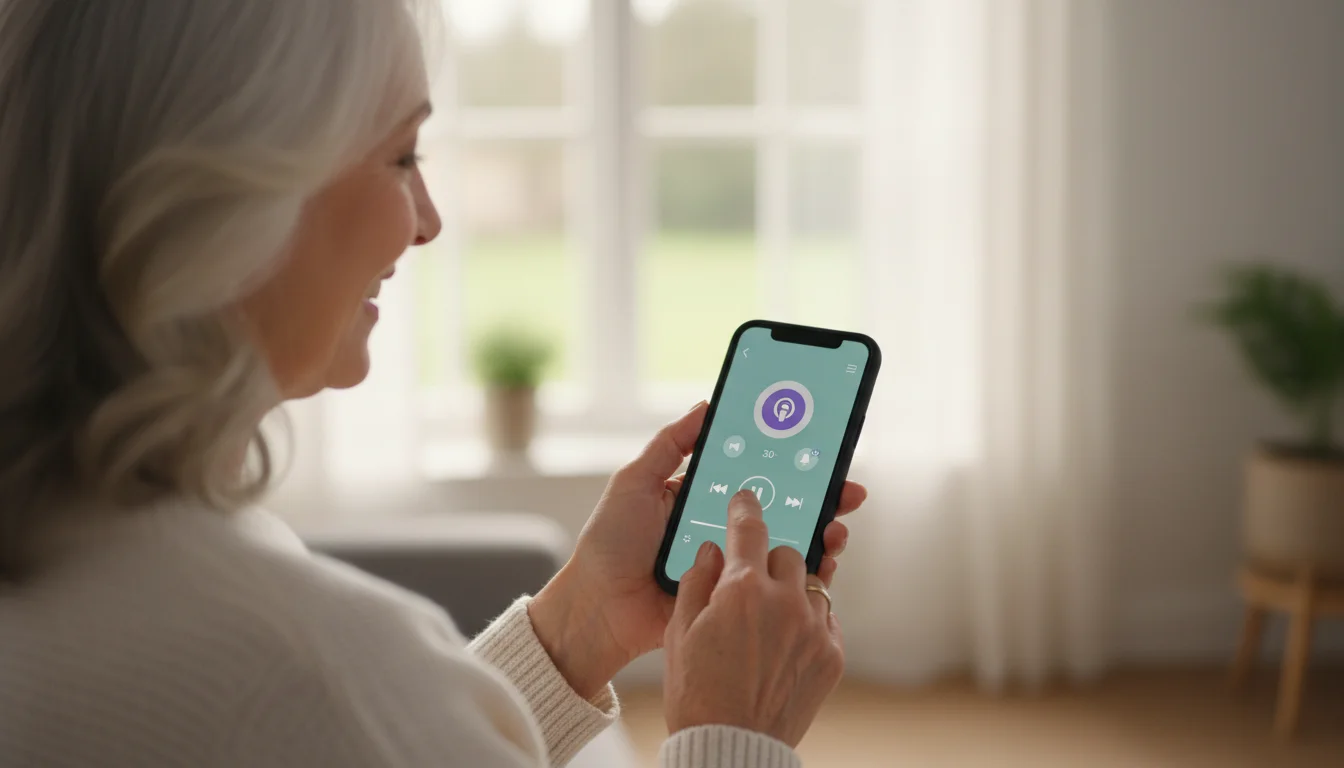
Understanding the Playback Controls
Once you select an episode to play, a “player” screen will appear. This screen controls the audio. While buttons may look slightly different depending on the app, the symbols are universal.
For a more private experience, you can connect Bluetooth headphones to your phone or tablet.
The Main Buttons
- Play / Pause: The triangle pointing to the right is Play. Two vertical parallel lines (like an 11) is Pause. Tap this to start or stop the audio.
- Rewind 15 Seconds: This usually looks like a curved arrow pointing backward with the number 15 inside. Use this if you missed what someone just said. It is incredibly helpful if you get distracted.
- Fast Forward 30 Seconds: A curved arrow pointing forward. This is useful for skipping commercials or boring parts of a conversation.
- Speed Control (1x): You might see a small button that says “1x.” This controls playback speed. If people are talking too fast, you can tap this to change it to “0.75x” (slower). If they talk too slow, you can change it to “1.25x” or “1.5x.”
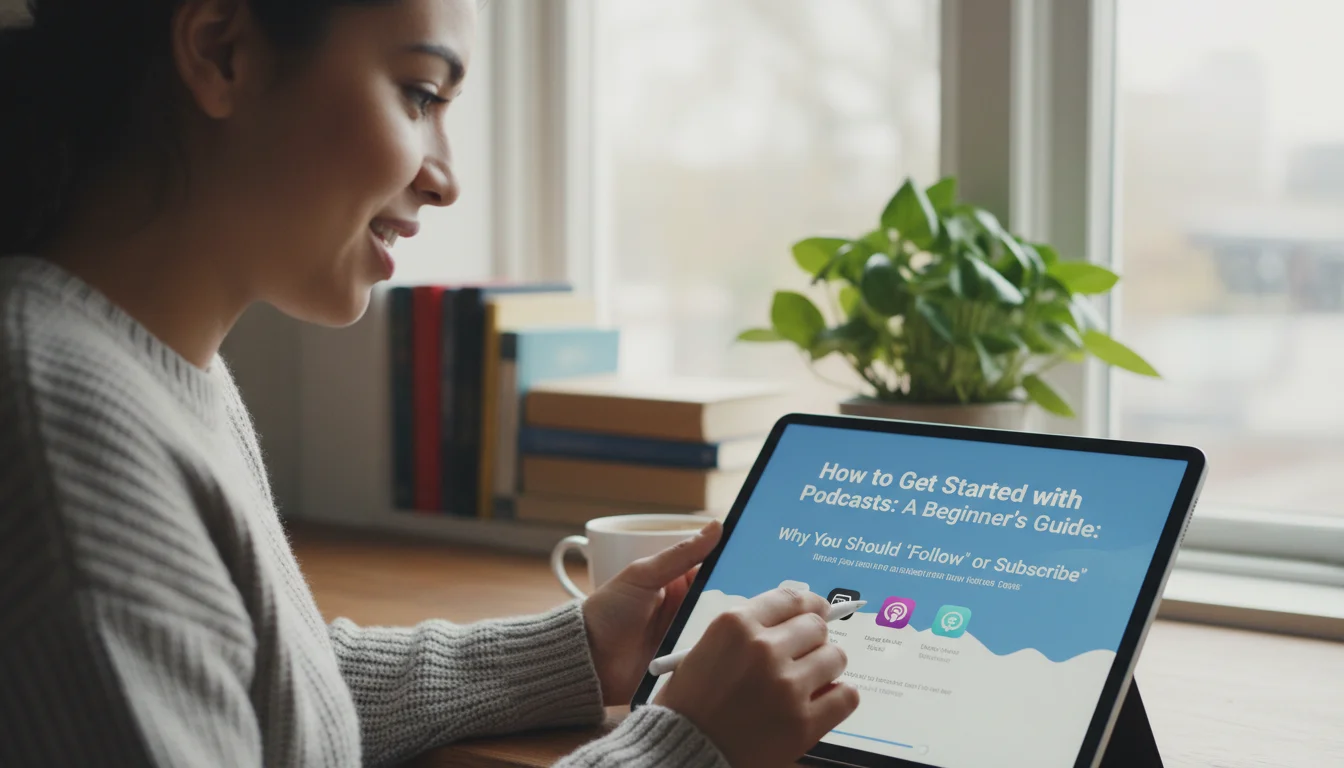
Why You Should “Follow” or “Subscribe”
In the past, the word “subscribe” usually meant you had to pay for a magazine delivery. In the world of podcasts, subscribe or follow is almost always free. It simply means “bookmark this show so I can find it later.”
How to Do It
When you are looking at the main page of a show (where it lists all the episodes):
- Apple Podcasts: Look for a button (usually at the top right) that says Follow or looks like a + sign.
- Spotify: Look for a button that says Follow under the show’s title.
The Benefit
Once you follow a show, you do not have to search for it again. The app will automatically put new episodes in your “Library” or “Home” screen the moment they are released. It saves you time and ensures you never miss an episode.

Important: Streaming vs. Downloading
This is a critical concept for managing your phone’s storage and data plan. You can listen to podcasts in two ways.
1. Streaming
When you just hit “Play” without saving the episode first, you are streaming. The audio travels through the internet directly to your ears.
- Pro: Takes up no storage space on your phone.
- Con: Uses your cellular data if you aren’t on Wi-Fi. If the internet cuts out, the audio stops.
2. Downloading
Most apps have a small arrow pointing downward or a Download button next to each episode. Tapping this saves the audio file onto your phone.
- Pro: You can listen anywhere, even on an airplane or in a car with no signal. It uses zero data while listening.
- Con: It takes up storage space on your phone.
Recommendation: If you are at home with Wi-Fi, feel free to stream. If you are going for a walk or a drive, download the episodes while you are still at home on Wi-Fi, then listen to them on the go.
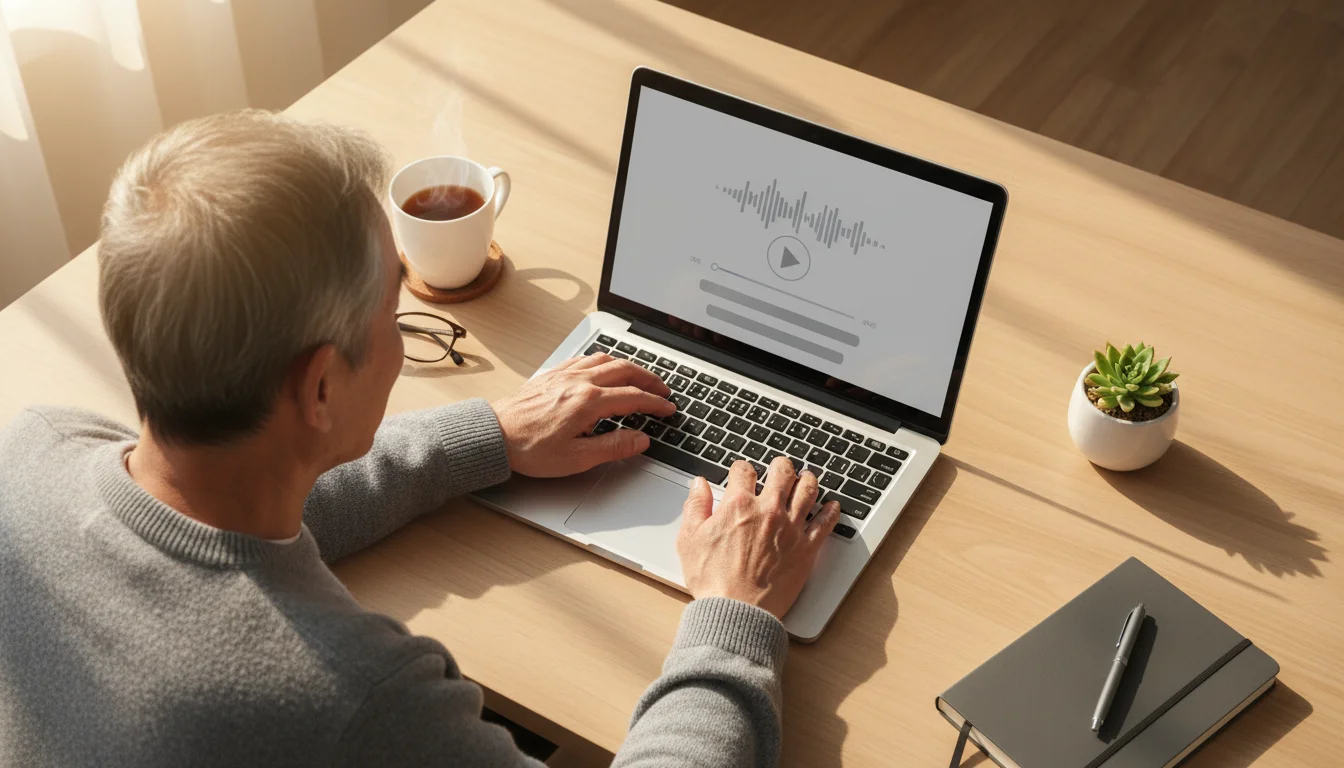
Listening on Your Computer
You do not need a smartphone to enjoy podcasts. If you prefer sitting at your desk or using a laptop, you can listen directly through a web browser like Chrome, Safari, or Edge.
Before deciding on a dedicated device for your audio, you can explore if a smart speaker is right for you based on your privacy preferences.
If you prefer to listen hands-free while at home, many people find that using a smart speaker is the most convenient way to enjoy their favorite shows.
For Google/Android Users:
Go to YouTube Music Podcasts (Google is moving their podcasts here). You can search for shows and play them right through your computer speakers.
For Apple Users:
Open the “Podcasts” app on your Mac computer, or visit the Apple Podcasts website.
Direct Websites:
Many popular shows, like those from NPR or major news networks, have their own websites. You can simply visit their site, find the “Podcasts” section, and click the Play button on the screen.
Frequently Asked Questions
It is normal to have questions about safety and costs. Here are the answers to the most common concerns.
Do I have to pay to listen to podcasts?
Generally, no. The vast majority of podcasts are completely free. They make money by including short commercial breaks, just like radio or television. Some apps offer “Premium” subscriptions that remove ads, but these are optional. You can enjoy thousands of hours of content without ever spending a penny.
Does listening to podcasts use up my data plan?
It can. If you are not connected to Wi-Fi and you listen to a podcast, it uses cellular data. An hour-long podcast uses roughly 60–100 megabytes of data. This is much less than watching video (like Netflix), but it adds up. To avoid this, download episodes while you are connected to your home Wi-Fi.
Is it safe to download podcast apps?
Yes, as long as you stick to the official stores. Apple Podcasts (on iPhone) and Spotify (on Android or iPhone) are heavily vetted and secure. Avoid downloading apps from random websites or clicking strange links in emails.
How do I stop a podcast from playing?
If you close the app but the audio keeps playing, do not panic. Swipe down from the top right of your screen (iPhone) or the top of your screen (Android) to see your notifications. You will see a small player bar there. Tap the Pause button (the two vertical lines).
Disclaimer: This article is for informational purposes only. App interfaces change frequently with updates, so screens may look slightly different from what’s described. Always download apps from official app stores (Apple App Store or Google Play Store) to ensure safety.








Leave a Reply