
Music holds incredible power. It stirs memories, lifts our spirits, and provides comfort. For many, remembering a favorite song from decades past brings a smile and a sense of connection. Today, you do not need a stack of CDs or a bulky record player to enjoy an endless library of music. Streaming music apps like Spotify and Apple Music make it simple to find and play almost any song imaginable, right from your phone, tablet, or computer.
If the idea of finding your favorite tunes or discovering new artists online feels a little daunting, do not worry. This guide helps you navigate the world of music streaming with patience and clarity. You will learn exactly how to find, download, install, and use these powerful apps to bring music back into your daily life. Prepare to rediscover old favorites and explore new sounds with confidence.
Table of Contents
- What is Music Streaming?
- Why Use Spotify or Apple Music?
- Getting Started with Spotify
- How to Use Spotify: Your First Steps
- Getting Started with Apple Music
- How to Use Apple Music: Your First Steps
- Choosing Between Spotify and Apple Music
- Common Questions and Troubleshooting
- Frequently Asked Questions
What is Music Streaming?
You might hear the term “streaming music” and wonder what it means. Imagine a vast library filled with millions of songs. Instead of buying each song individually or needing to store it on your device, streaming lets you listen to music directly over the internet. You do not own the files, but you gain instant access to an enormous collection. This means you can play any song, album, or artist you want, whenever you want, as long as you have an internet connection.
You can even use a streaming device like a Roku to play your favorite songs through your television speakers.
Think of it like watching a TV show on demand. You choose what you want to watch from a huge catalog, and it plays right away, without you needing to buy a DVD or record it. Streaming music works the same way.

Why Use Spotify or Apple Music?
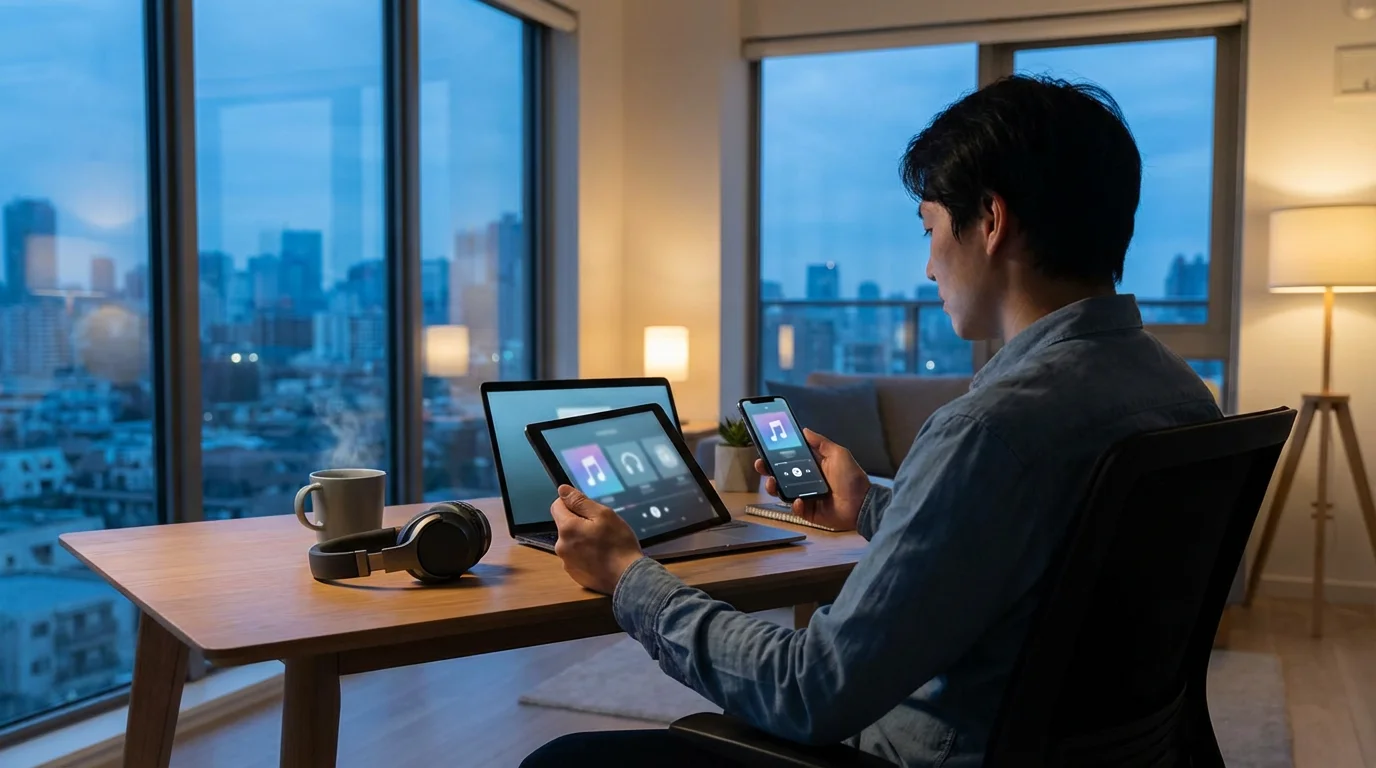
Spotify and Apple Music are two of the most popular services for streaming music. Both offer millions of songs, podcasts, and personalized recommendations. They provide an easy way to enjoy music without cluttering your home with physical media. You can listen on your phone while out for a walk, on your tablet in the living room, or on your computer while working. This flexibility means your favorite music is always with you.
To enjoy your music privately while on a walk, you can learn how to use bluetooth headphones to connect your phone without messy wires.
Both services offer free and paid versions. The free versions usually include advertisements between songs and may limit some features, like choosing specific songs on a mobile device. The paid versions, often called “Premium” or “Individual Plan,” remove ads, provide higher sound quality, and unlock all features. You can try a free trial of the paid version with both services to see if it suits you before committing.
Embrace the freedom of streaming music. It offers a convenient, affordable way to access virtually any song you can imagine, bringing joy and connection directly to your fingertips.
Getting Started with Spotify
Spotify is a widely popular music streaming app, a program you can download and use on your phone, tablet, or computer. It gives you access to millions of songs, podcasts, and even audiobooks. You can create your own playlists, discover new artists, and listen to pre-made stations based on your mood or preferred genres.
Many users also enjoy connecting their accounts to set up and use Google Nest for hands-free listening in any room.

What Spotify Does
- Vast Music Library: Find almost any song or artist you can think of.
- Podcasts and Audiobooks: Listen to spoken-word content on various topics.
- Personalized Playlists: Spotify learns your tastes and suggests music you might like.
- Play Anywhere: Use it on your phone, tablet, computer, smart speaker, or car.
- Offline Listening (Premium): Download songs to listen without an internet connection.
How to Download Spotify
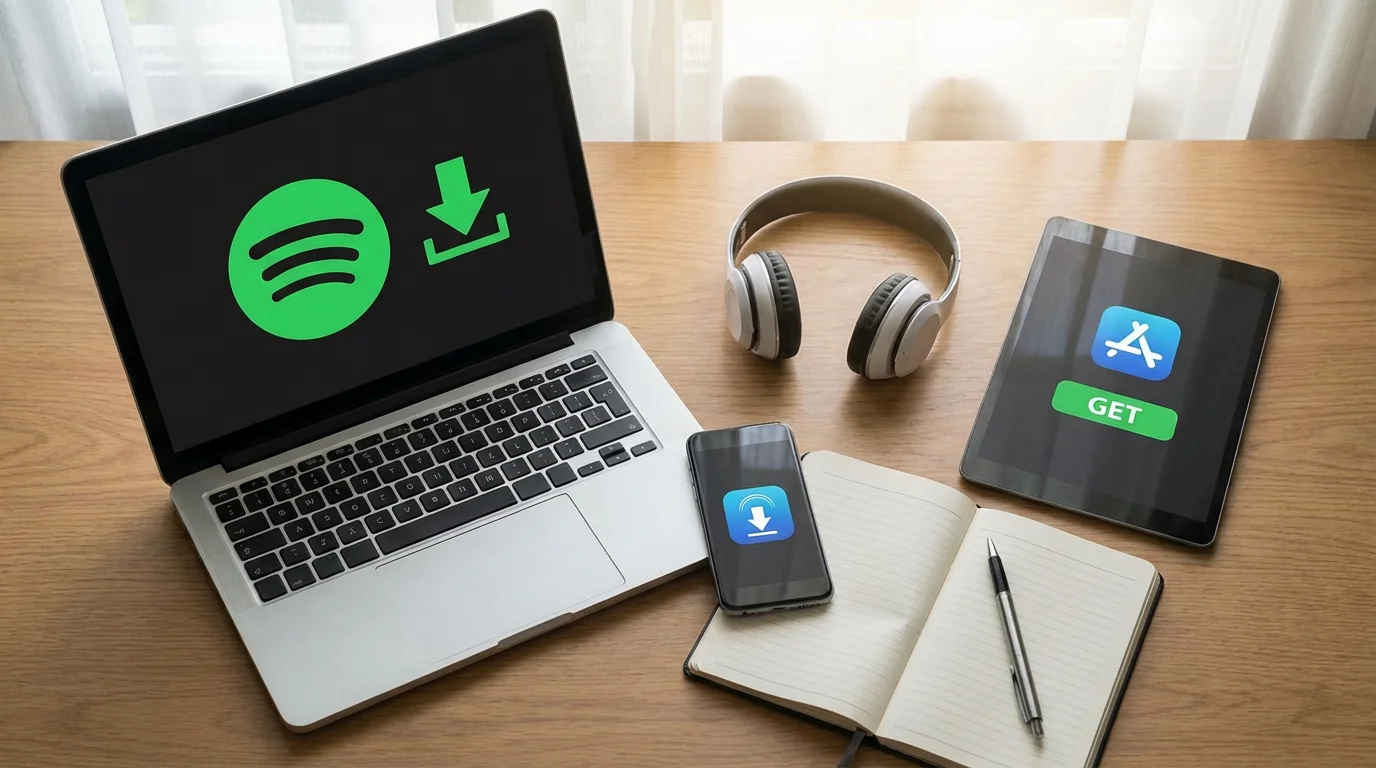
To use Spotify, you first need to download the app onto your device. An “app” is a program you can download and use on your phone, tablet, or computer. “Download” means getting the app from the app store and putting it on your device.
On Your Phone or Tablet (iPhone/iPad or Android)
- Find Your App Store:
- If you have an iPhone or iPad, look for an app called “App Store.” It usually has a blue icon with a white “A.”
- If you have an Android phone or tablet, look for an app called “Play Store” or “Google Play Store.” It usually has a colorful triangle icon.
- Open the App Store: Tap on the App Store or Play Store icon to open it.
- Search for Spotify: Look for a magnifying glass icon or a search bar, usually at the bottom or top of the screen. Tap it and type “Spotify.” Then tap the search button on your keyboard.
- Select Spotify: You will see a list of results. Look for “Spotify: Music and Podcasts” with a green circular icon. Tap on it.
- Download the App:
- On an iPhone/iPad, you will see a button that says “GET” or a cloud icon with an arrow pointing down. Tap it. You may need to verify with Face ID, Touch ID, or your device passcode.
- On an Android, you will see a button that says “Install.” Tap it.
The app will now download and install itself on your device. “Install” means setting up the app so it is ready to use. This can take a few moments depending on your internet speed.
- Find the App: Once installed, you will see the Spotify icon on your home screen or in your app list.
On Your Computer (Windows or Mac)
- Open Your Web Browser: Open a web browser like Chrome, Firefox, Edge, or Safari.
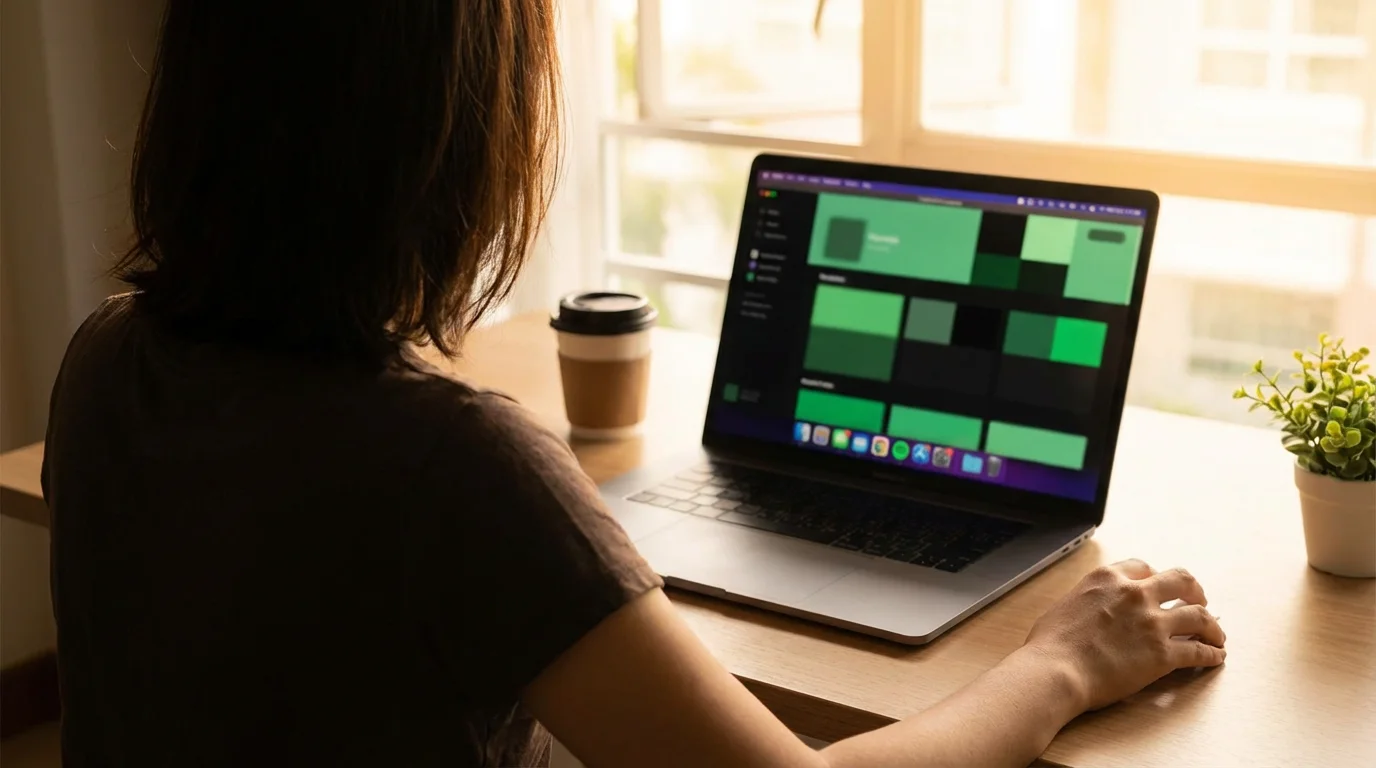
- Go to Spotify’s Website: Type
www.spotify.cominto the address bar and press Enter. - Find the Download Option: Look for a link that says “Download” or “Get Spotify” usually near the top or bottom of the page. Click on it.
- Download the Installer: The website will typically detect your computer type (Windows or Mac) and offer the correct download. Click the “Download” button. This will download a small file called an “installer” to your computer’s “Downloads” folder.
- Run the Installer: Once the download finishes, open your “Downloads” folder and double-click the Spotify installer file. Follow the on-screen instructions to install the program. This usually involves clicking “Next” or “Install” a few times.
- Launch Spotify: After installation, Spotify will usually open automatically. You will also find a Spotify icon on your desktop or in your applications list.
Setting Up Your Spotify Account
An “account” is your personal login with a username and password. You need one to save your preferences and music.
- Open the Spotify App: Tap the green Spotify icon on your phone/tablet or click it on your computer.
- Sign Up:
- You will see options like “Sign up with Google,” “Sign up with Facebook,” or “Sign up with Email or Phone Number.”
- For simplicity and privacy, choosing “Sign up with Email or Phone Number” is often a good choice.
- Enter Your Information:
- Provide your email address, create a password, enter your date of birth, and specify your gender. You use this email and password to log in every time.
- Make sure to choose a strong password that you can remember but is not easily guessed.
- Agree to Terms: Read the terms and conditions if you wish, then check the box to agree and continue.
- Personalize Your Experience: Spotify might ask you to select some artists you like. This helps the app recommend music you will enjoy. Choose a few and click “Done” or “Continue.”
- Choose Your Plan: Spotify will ask if you want to try Premium (the paid version) or continue with the free version. You can always start with the free version and upgrade later if you wish.
How to Use Spotify: Your First Steps
Once you have an account, you can start exploring the world of streaming music.
If the sound from your laptop is too quiet, you can connect external speakers to your computer for a much richer audio experience.
Finding Music
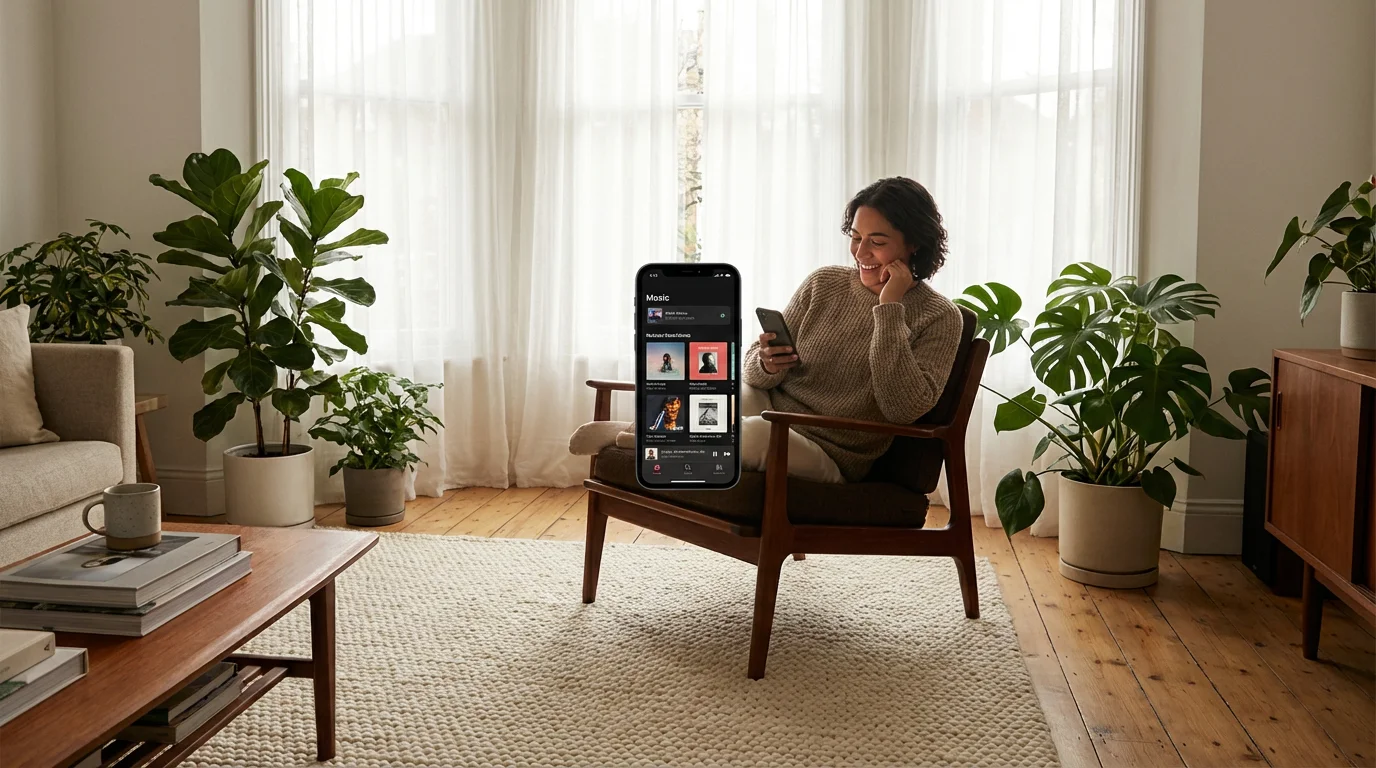
- Explore the Home Screen: When you open Spotify, you will see a “Home” screen. This shows you recently played music, new releases, and personalized recommendations based on your initial selections.
- Use the Search Function:
- Look for the “Search” tab or icon, often shaped like a magnifying glass, usually at the bottom of your phone/tablet screen or on the left side of your computer screen.
- Tap or click it, then type the name of a song, artist, or album into the search bar.
- As you type, Spotify suggests results. Select the one you are looking for.

Playing Music
- Tap or Click to Play: Once you find a song or album, simply tap (on phone/tablet) or click (on computer) on its title to start playing.
- Player Controls: At the bottom of your screen (phone/tablet) or in the bottom bar (computer), you will see the player controls. These include:
- Play/Pause: A triangle for play, two vertical lines for pause.
- Skip Forward/Backward: Arrows with vertical lines.
- Volume Control: A speaker icon with a slider.
- Repeat: A circular arrow icon.
- Shuffle: Crossed arrows icon (plays songs in a random order).

Creating Playlists
Playlists are collections of songs you put together yourself. This is a great way to organize your favorite music for different moods or occasions.
- Find a Song You Like: Search for a song or find one on your Home screen.
- Add to Playlist:
- On phone/tablet, tap the three dots next to the song title. A menu appears. Tap “Add to playlist.”
- On computer, hover your mouse over the song and click the three dots, then “Add to playlist.”
- Create a New Playlist: In the menu, select “New Playlist.” Give your playlist a name, such as “Morning Coffee” or “Workout Jams.”
- Add More Songs: Continue adding songs to this new playlist. You can find your playlists under the “Your Library” tab (phone/tablet) or “Your Library” section on the left (computer).
Tips for Getting the Most Out of Spotify
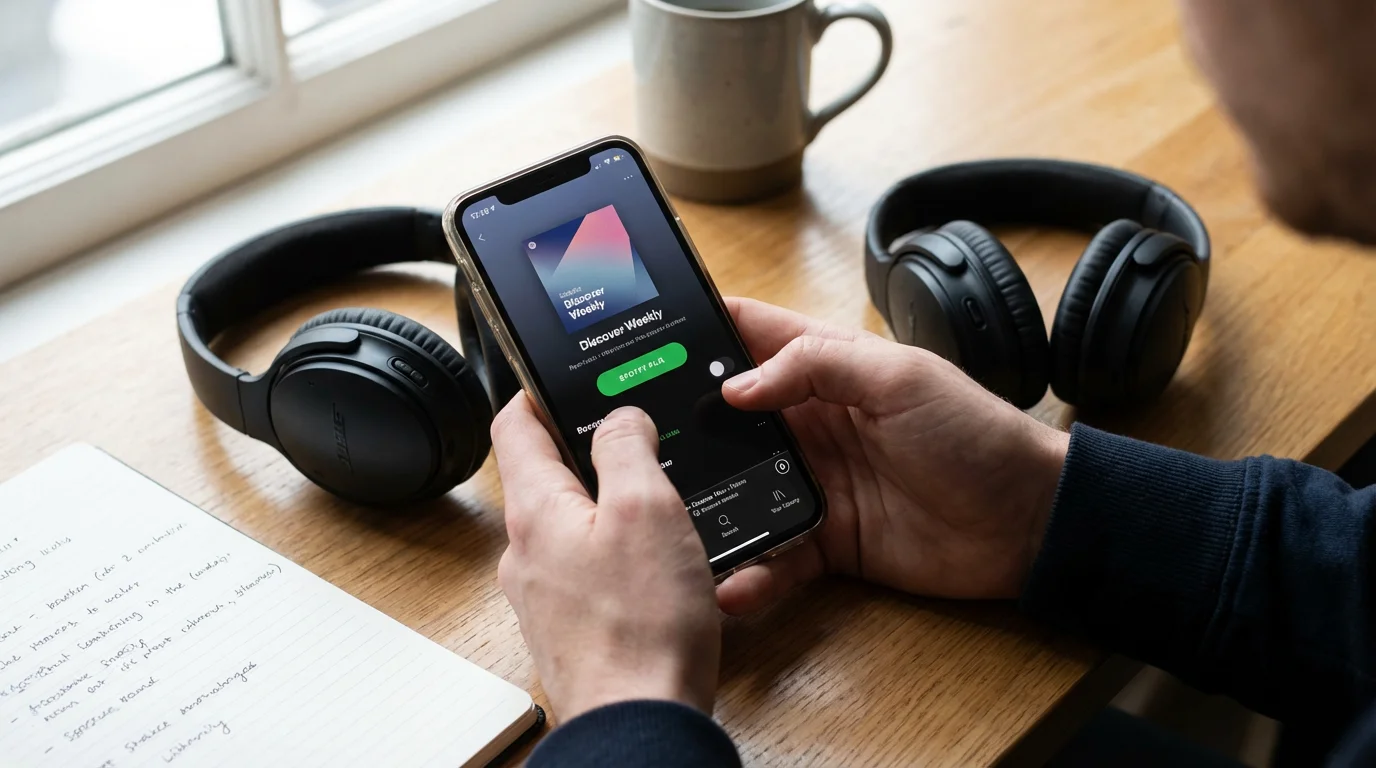
- Explore “Made For You”: Check the “Made For You” section on your Home screen. Spotify creates personalized playlists like “Discover Weekly” or “Daily Mixes” based on your listening habits. Many users find new favorite songs here.
- Follow Artists: When you find an artist you love, go to their page and click “Follow.” Spotify will notify you, a message from an app, when they release new music.
- Connect to Other Devices: If you have smart speakers like Amazon Echo or Google Home, you can link your Spotify account to play music using voice commands. You can also connect it to Bluetooth speakers or your car’s audio system.
- Consider Spotify Premium: If you find yourself listening frequently and want to avoid ads, skip any song, and download music for offline listening, the paid Premium version offers a much smoother experience. You can try a free trial before subscribing.
- Update Regularly: An “update” means getting the newest version of an app, usually free. Regularly update the app to get new features and ensure it runs smoothly. You can typically do this through your device’s app store.
Getting Started with Apple Music
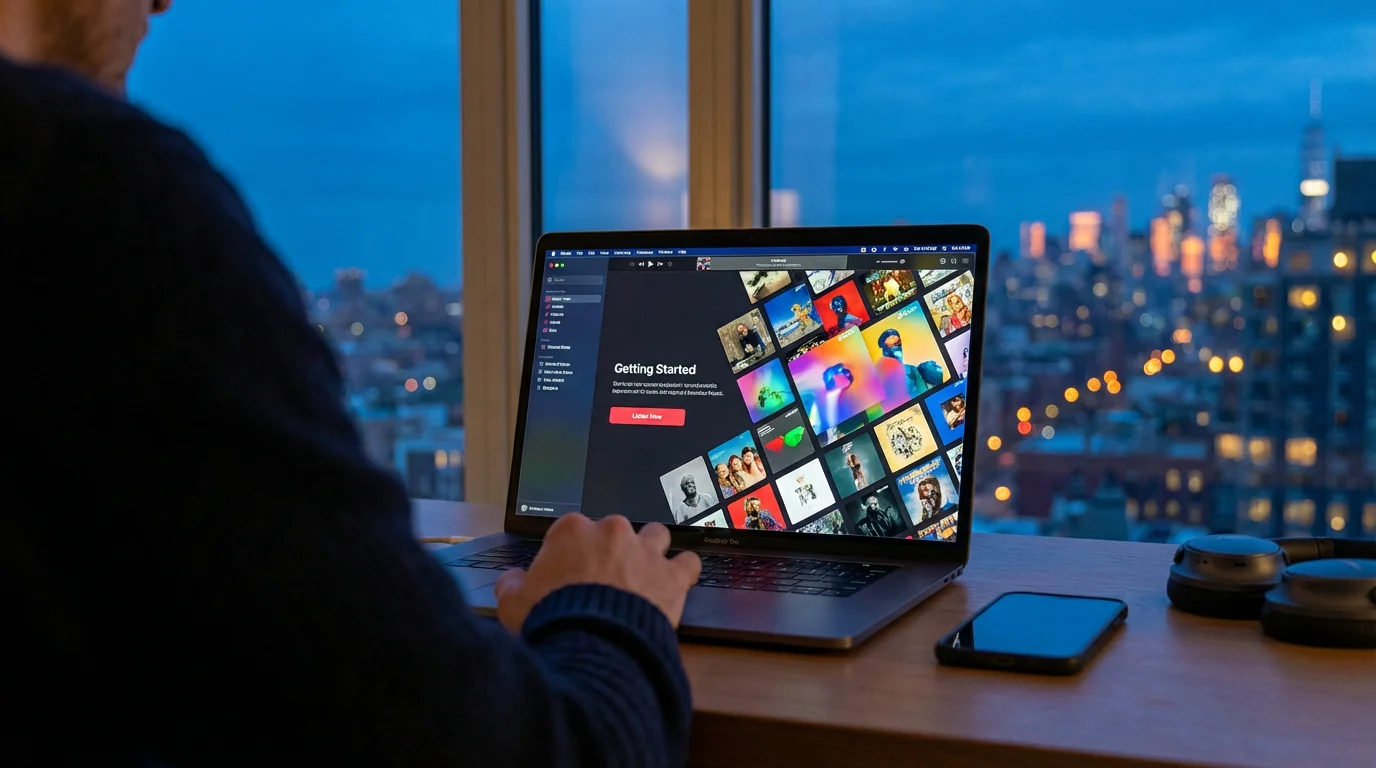
Apple Music is Apple’s streaming music service, offering over 100 million songs, curated playlists, and live radio. If you own an iPhone, iPad, or Mac, Apple Music is deeply integrated into your device, meaning it is often already there. It also works on Android phones and Windows computers.

What Apple Music Does
- Huge Music Catalog: Access millions of songs, albums, and artists.
- Radio Stations: Enjoy live radio and custom stations based on genres.
- Curated Playlists: Expert-made playlists for every mood and activity.
- Integration with Apple Devices: Seamless experience if you use other Apple products.
- Offline Listening: Download songs to listen without an internet connection.
How to Download Apple Music
On Your iPhone or iPad
Apple Music is usually pre-installed on iPhones and iPads. Look for the “Music” app icon, which is a white square with a colorful musical note.
- Find the Music App: Swipe through your home screens or use the search bar to find the “Music” app.
- Open the App: Tap the icon.
- Start Your Trial: If you are not already an Apple Music subscriber, you will likely see an option to “Try it Free” or “Get 1 Month Free.” Tap this to start your trial. You may need to confirm with your Apple ID password or Face ID/Touch ID.
On Your Android Phone or Tablet
- Open Google Play Store: Look for the “Play Store” app icon (colorful triangle).
- Search for Apple Music: Tap the search bar and type “Apple Music.” Tap the search button.
- Select Apple Music: Tap on “Apple Music” from the results. It has a white icon with a colorful musical note.
- Install the App: Tap the “Install” button. The app will download and install.
- Find the App: Once installed, you will see the Apple Music icon on your home screen or in your app list.
On Your Computer (Windows or Mac)
For Mac users, Apple Music is integrated into the “Music” app, which is pre-installed. For Windows users, you need to download the “Apple Music” app from the Microsoft Store.
- For Mac:
- Look for the “Music” app in your Applications folder or Dock. It has a white icon with a colorful musical note.
- Click to open it.
- For Windows:
- Open the “Microsoft Store” app. You can find it by typing “Microsoft Store” into the Windows search bar (usually next to the Start button).
- In the Microsoft Store, search for “Apple Music.”
- Click on the “Apple Music” app from the results and then click the “Get” or “Install” button.
- Once installed, open the Apple Music app.
Setting Up Your Apple Music Account
If you have an iPhone, iPad, or Mac, you likely already have an Apple ID, which serves as your account for Apple Music. You just need to sign in.
- Open the Apple Music App: Tap the Music app icon on your phone/tablet or click it on your computer.
- Sign In or Start Trial:
- If you are new, you will see an option to “Try it Free” or “Get 1 Month Free.” Tap or click this.
- You may be prompted to sign in with your Apple ID. Enter your Apple ID email address and password.
- If you do not have an Apple ID, the app guides you through creating one. This involves providing an email, creating a password, and confirming your details.
- Confirm Subscription: After signing in, you will confirm your free trial and chosen subscription plan (e.g., Individual). You need to have a payment method on file, even for a free trial, but you will not be charged until the trial ends.
- Personalize Your Experience: Apple Music asks you to select music genres and artists you like. This helps the app recommend music you will enjoy.
How to Use Apple Music: Your First Steps
With your account set up, you are ready to explore and listen to music.
Finding Music
- Explore the “Listen Now” Tab: This is your home screen, showing new releases, personalized mixes, and recently played items.
- Use the “Browse” Tab: Discover new music by genre, mood, or curated playlists.
- Use the Search Function:
- Look for the “Search” tab or icon, often a magnifying glass, usually at the bottom of your phone/tablet screen or on the left side of your computer screen.
- Tap or click it, then type the name of a song, artist, or album.
- Select the result you are looking for.
Playing Music
- Tap or Click to Play: Select a song, album, or playlist to start playback.
- Player Controls: A mini-player usually appears at the bottom of your screen. Tap or click it to expand the full player with controls:
- Play/Pause: A triangle for play, two vertical lines for pause.
- Skip Forward/Backward: Arrows with vertical lines.
- Volume Control: A speaker icon with a slider.
- Shuffle: Intersecting arrows icon.
- Repeat: A circular arrow icon.
- Add to Library: A plus sign (+) to save the song to your personal music library.
Creating Playlists
Playlists help you organize your music and gather songs for specific occasions.
- Find a Song You Like: Search for a song or find one you are currently listening to.
- Add to Playlist:
- On phone/tablet, tap the three dots next to the song title or in the full player view. A menu appears. Tap “Add to Playlist.”
- On computer, right-click the song or click the three dots, then select “Add to Playlist.”
- Create a New Playlist: In the menu, select “New Playlist.” Give your playlist a descriptive name like “Relaxing Evening” or “Road Trip Mix.”
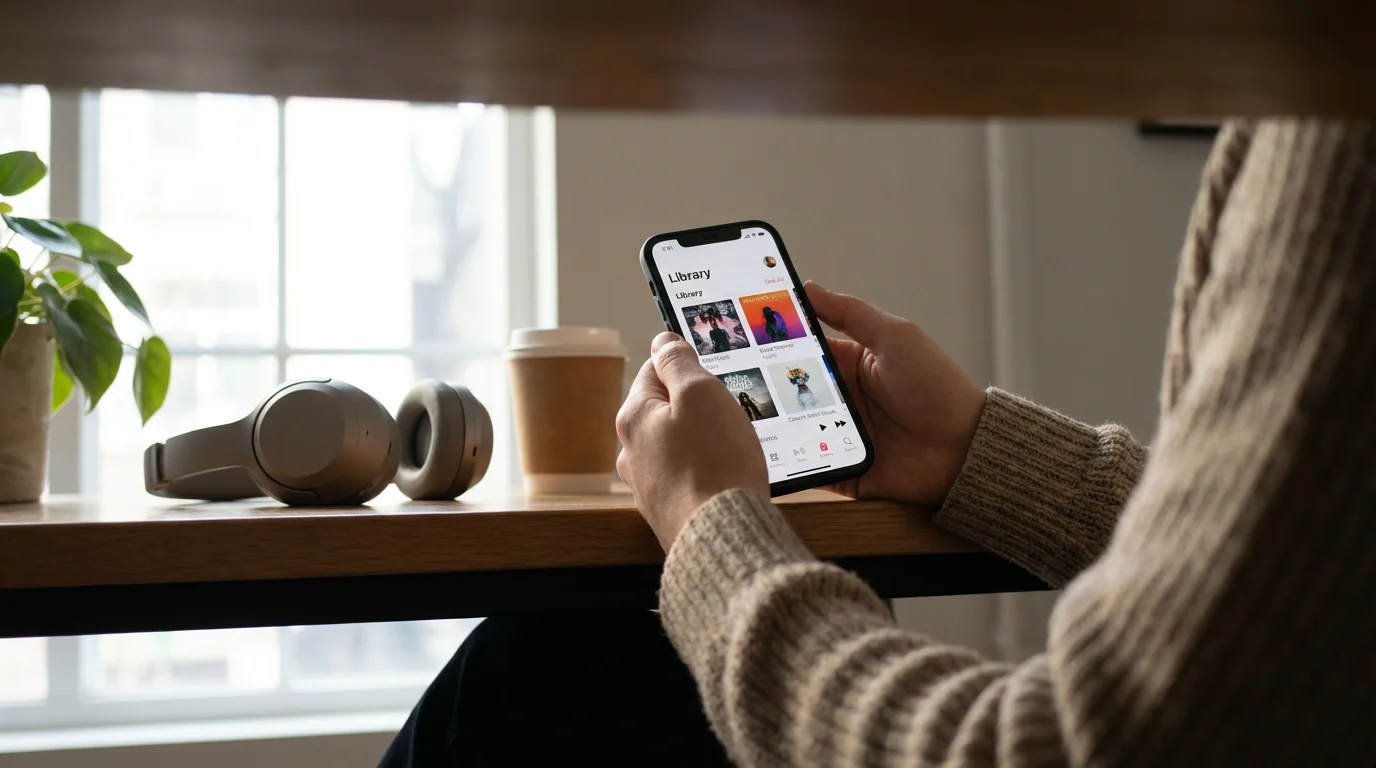
- Add More Songs: Continue adding songs to this new playlist. You can find your playlists in the “Library” tab under “Playlists.”

Tips for Getting the Most Out of Apple Music
- Sync Your Library: If you have an existing iTunes library on your computer, you can “sync” it, meaning information on different devices matches automatically, with Apple Music. This brings your existing music into the streaming service. Go to Settings > Music and enable “Sync Library” on your iPhone/iPad, or within the Music app preferences on your Mac.
- Explore Radio: The “Radio” tab offers live stations, including Apple Music 1, which features popular hosts and interviews. You will also find stations created based on genres or artists.
- Use “For You” (now “Listen Now”): This section constantly updates with personalized recommendations, new releases, and curated playlists tailored to your taste.
- Download for Offline: If you plan to be somewhere without internet access, like on a flight, download albums or playlists beforehand. In the app, find the item, tap the three dots, and select “Download.”
- Regular Updates: Make sure your Apple Music app is always updated. An “update” means getting the newest version of an app, usually free, which often includes bug fixes and new features. On Apple devices, this happens through the App Store updates. On Android, it is through the Google Play Store.

Choosing Between Spotify and Apple Music
Both Spotify and Apple Music are excellent choices for streaming music, and the best one for you often comes down to personal preference and your existing devices. Here are some key differences to consider:
- Device Ecosystem: If you primarily use Apple devices (iPhone, iPad, Mac), Apple Music integrates seamlessly and is often pre-installed. For Android users or those who use a mix of devices, Spotify is equally at home on any platform. Spotify often has a slight edge in cross-device compatibility with smart speakers and other third-party devices.
- Music Discovery: Spotify is renowned for its personalized playlists and discovery algorithms, such as “Discover Weekly” and “Daily Mixes,” which many users find exceptionally accurate in introducing new music. Apple Music also offers strong personalization through “Listen Now” and human-curated playlists.
- Interface: Both apps have clean, easy-to-use interfaces. You might find one’s layout more intuitive than the other. Try both free trials to see which one “feels right” to you.
- Podcasts: Spotify has made a significant push into podcasts, hosting many exclusive shows. Apple Music includes podcasts, but Apple also has a separate “Podcasts” app for dedicated listening. If podcasts are as important as music, Spotify might offer a more unified experience.
- Pricing: Standard individual paid subscriptions are usually similar for both services, often around $10.99-$11.99 per month. Both offer family plans, student discounts, and annual payment options.
Ultimately, the best way to choose is to try both. Most services offer a free trial period for their premium features, typically one to three months. This allows you to experience the full features of each app before making a commitment.
Common Questions and Troubleshooting
- “My music keeps stopping or buffering.” This usually indicates a poor internet connection. Try moving closer to your Wi-Fi router, or if you are using mobile data, ensure you have a strong signal. You can also try downloading songs for offline listening (Premium feature) to avoid streaming issues.
- “I forgot my password.” Both Spotify and Apple Music have “Forgot Password” links on their login screens. Click this, and they will email you instructions to reset your password.
- “The app is not opening or crashing.”
- Try closing the app completely and reopening it.
- Restart your phone, tablet, or computer.
- Ensure the app is updated to its latest version. “Update” means getting the newest version of an app, usually free. Check your device’s app store for updates.
- If problems persist, you can try uninstalling and reinstalling the app. This usually fixes most software glitches.
- “I cannot find a specific song.” Double-check your spelling in the search bar. Some artists might release music under a slightly different name or collaborate with others. Sometimes, specific songs or albums are temporarily removed due to licensing agreements, though this is rare for major releases.
- “What if I do not want to pay?” Both services offer a free version with advertisements and some limitations. You can enjoy a vast amount of music without ever subscribing to the paid premium service.
Frequently Asked Questions
Q: Is Spotify or Apple Music safe to use?
A: Yes, both Spotify and Apple Music are very safe to use. They are reputable companies that use strong security measures to protect your personal information and payment details. Always download the official apps from your device’s app store (Apple App Store or Google Play Store) to avoid unofficial or malicious versions. Be mindful of strong passwords for your account, your personal login with a username and password, just like any online service.
Q: Do I have to pay to use Spotify or Apple Music?
A: No, you do not have to pay to use Spotify. Spotify offers a completely free version that includes ads and has some feature limitations, especially on mobile devices where you cannot choose specific songs. Apple Music offers a free trial, typically one to three months, after which you need a paid subscription. Both services provide a premium, paid option that removes ads, allows offline listening, and unlocks all features, enhancing your experience significantly.
Q: Can I listen to podcasts on these apps?
A: Yes, absolutely! Spotify has a very extensive library of podcasts and has become a primary destination for many popular shows. Apple Music also includes podcasts, though Apple also has a separate “Podcasts” app dedicated solely to podcasts. You can easily search for, subscribe to, and listen to your favorite podcasts right within both apps.
Q: What is the difference between an “app” and a “program”?
A: The terms “app” and “program” are often used interchangeably, but “app” is generally short for “application” and often refers to software designed for mobile devices like phones and tablets. “Program” is a broader term used for any software, including those on computers. For practical purposes, when we talk about Spotify or Apple Music, they are both apps you can download and use on phones, tablets, or computers.
Q: Will using these apps use up my phone’s data?
A: Yes, streaming music uses your phone’s mobile data if you are not connected to Wi-Fi. The amount of data depends on the audio quality you choose. If you are concerned about data usage, connect to Wi-Fi whenever possible. If you have a paid subscription, you can also “download” songs, meaning get the app from the app store and put it on your device, to your device for offline listening. This allows you to listen to music without using any data once it is downloaded.
You now have the tools and knowledge to explore the vast world of music available through Spotify and Apple Music. Do not hesitate to experiment, create playlists, and rediscover the joy of music. With a little practice, these apps become a cherished part of your daily routine, connecting you to melodies and memories with ease. Enjoy your musical journey!
Disclaimer: This article is for informational purposes only. App interfaces change frequently with updates, so screens may look slightly different from what’s described. Always download apps from official app stores (Apple App Store or Google Play Store) to ensure safety.







Leave a Reply