

You can configure your iPad screen to display crisp white text on a deep black background to eliminate harsh evening glare. This simple adjustment protects sensitive eyes and makes reading books, emails, and news articles comfortable after sundown.
Standard Dark Mode misses many websites, but pairing Apple’s Smart Invert with contrast controls creates a true black screen white text iPad setup that preserves photo colors. This guide shows you how to achieve balanced contrast without image distortion.
The instructions below cover iPadOS 18 and iOS 18 as of 2026, alongside matching steps for Android 15 tablets. Follow these steps to give your eyes immediate relief.
In this guide9 sections
- Why Screen Glare Strains Eyes with Glaucoma
- Contrast Ratios and Preventing Image Distortion
- How to Enable Standard Dark Mode on iPadOS
- How to Turn On Smart Invert and Classic Invert
- Set Up a Triple-Click Accessibility Shortcut
- Fine-Tuning: Increase Contrast and Reduce White Point
- Android Tablet Options: Dark Theme and Color Inversion
- Worked Scenario: Evening Reading Setup for Glaucoma Relief
- Frequently Asked Questions

Why Screen Glare Strains Eyes with Glaucoma
Glaucoma damages the optic nerve and often increases light sensitivity, a condition known as photophobia. Broad expanses of bright white pixels scatter light inside the eye, which washes out faint letters and causes sharp headaches.
Just as older eyes benefit from learning how to stop laptop screen glare and flicker, managing brightness spikes on handheld displays prevents painful optical strain.
Contrast ratio measures the difference in luminance between the brightest white and the darkest black on a display. Standard tablet screens blast hundreds of nits of light into your pupils, overwhelming damaged optic fibers during quiet evening hours.
According to Pew Research Center’s study on tech adoption among older adults, tablet use continues to climb steadily among seniors. Reading late at night requires specialized display modes that suppress background illumination without muddying letterforms.
Apple includes two separate systems to flip screen polarity: system-wide Dark Mode and color inversion. Inverting a screen switches color values to their opposite tones, changing blinding white fields into pitch black.
Choosing the correct setting keeps your screen legible without compromising your photos. We will examine how these display systems perform under low ambient room lighting.

Contrast Ratios and Preventing Image Distortion
Standard Dark Mode adjusts native apps like Mail, Notes, and Messages. However, Dark Mode cannot force third-party websites with fixed coding to switch their white backgrounds to black.
If you also do a lot of evening browsing on a desktop or laptop, learning how to make your computer screen easier to read provides similar visual relief.
Classic Invert reverses every pixel on your screen indiscriminately. It turns dark text white, but it also turns human portraits and landscape photos into surreal photographic negatives.
Smart Invert solves this problem by reversing the user interface while leaving graphics, videos, and app icons in their natural colors. It gives you an authentic high contrast iPad experience without ruining photo albums.
| Display Setting | Measured Text Contrast Ratio | Photo Distortion Risk | Webpage Coverage Rate |
|---|---|---|---|
| Standard Dark Mode | 18:1 (Supported Apps Only) | 0% (Images Unaltered) | 42% (Leaves Many Sites White) |
| Smart Invert | 21:1 (True Black Background) | 5% (Rare Glitches on Graphics) | 98% (Inverts Fixed Backgrounds) |
| Classic Invert | 21:1 (True Black Background) | 100% (All Photos Inverted) | 100% (Inverts Every Single Pixel) |
| Increase Contrast Alone | 7:1 (Standard Gray/White) | 0% (Images Unaltered) | 100% (Darkens Borders and Text) |
Smart Invert delivers an optimal 21:1 contrast ratio against deep black backgrounds on modern iPad screens. This high ratio lets your optic nerve distinguish letter shapes with minimal pupil constriction.
Classic Invert remains useful for reading plain text documents or dense spreadsheets. For general browsing and photo viewing, Smart Invert delivers superior visual fidelity.

How to Enable Standard Dark Mode on iPadOS
Standard Dark Mode provides the foundation for nighttime viewing. It turns system menus, notification banners, and supported reading apps into soft, dark interfaces.
If your display shuts down before you finish reading a page, you can easily keep your screen on longer by adjusting your auto-lock timer.
While reading in bed, you may also want to lock your screen orientation so the page does not flip unexpectedly when you shift positions.
These steps apply to iPadOS 18, iPadOS 17, and iOS 18 on compatible iPads and iPhones as of 2026. Follow this sequence to switch your baseline theme.
- Open the Settings app on your iPad home screen.
- Scroll down the left sidebar and tap Display & Brightness.
- Locate the Appearance section at the top of the menu.
- Tap the circle underneath Dark to switch the interface theme immediately.
- Toggle the Automatic switch to Off to prevent the iPad from switching back to bright white at sunrise.
You can also place a Dark Mode toggle inside your iPad Control Center for quick access. Swipe down from the top-right corner of your screen, press and hold the brightness slider, and tap the Dark Mode icon.
Dark Mode alone will not fix stubborn web pages that use hardcoded white styles. For those pages, you must deploy Apple’s color inversion tools.
How to Turn On Smart Invert and Classic Invert
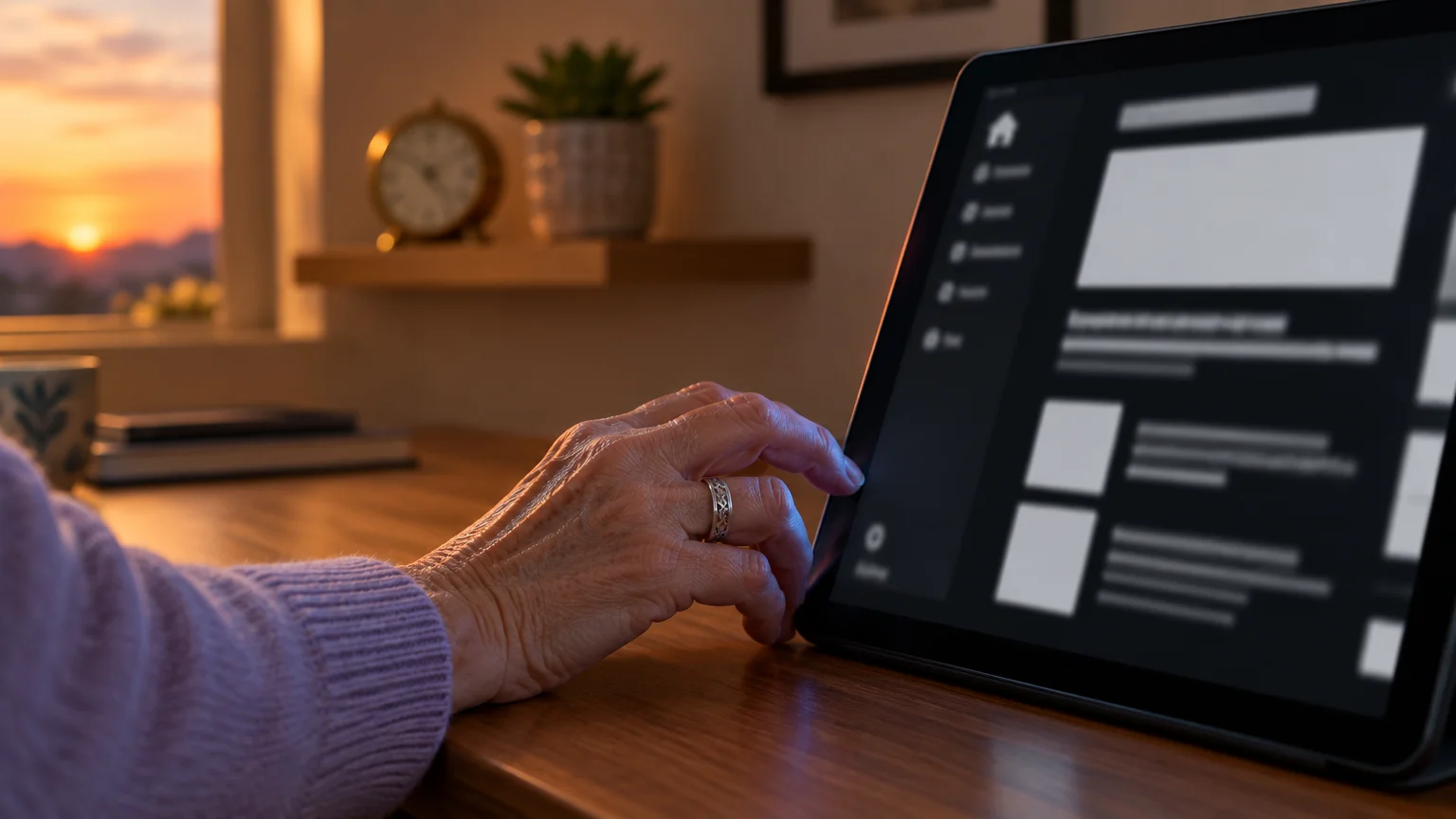
Color inversion forces resistant websites and older reading apps to adopt a black background. Be aware that activating Classic Invert will alter photo appearances across all apps until you switch it off.
Use the exact path below to activate Smart Invert for everyday reading. This creates a black screen white text ipad display while keeping pictures natural.
- Open the Settings app.
- Tap Accessibility in the left-hand navigation column.
- Tap Display & Text Size under the Vision heading.
- Scroll down past the color filter options to locate the inversion toggles.
- Tap the toggle switch next to Smart Invert so the indicator turns green.
Your screen will flash briefly and switch to a pitch-black presentation. If you prefer absolute inversion for plain PDF manuals, toggle Classic Invert instead.
To learn more about Apple’s built-in vision aids, review Apple’s accessibility features guide. You can disable ipad invert colors at any moment by tapping the same green switch back to gray.
Set Up a Triple-Click Accessibility Shortcut
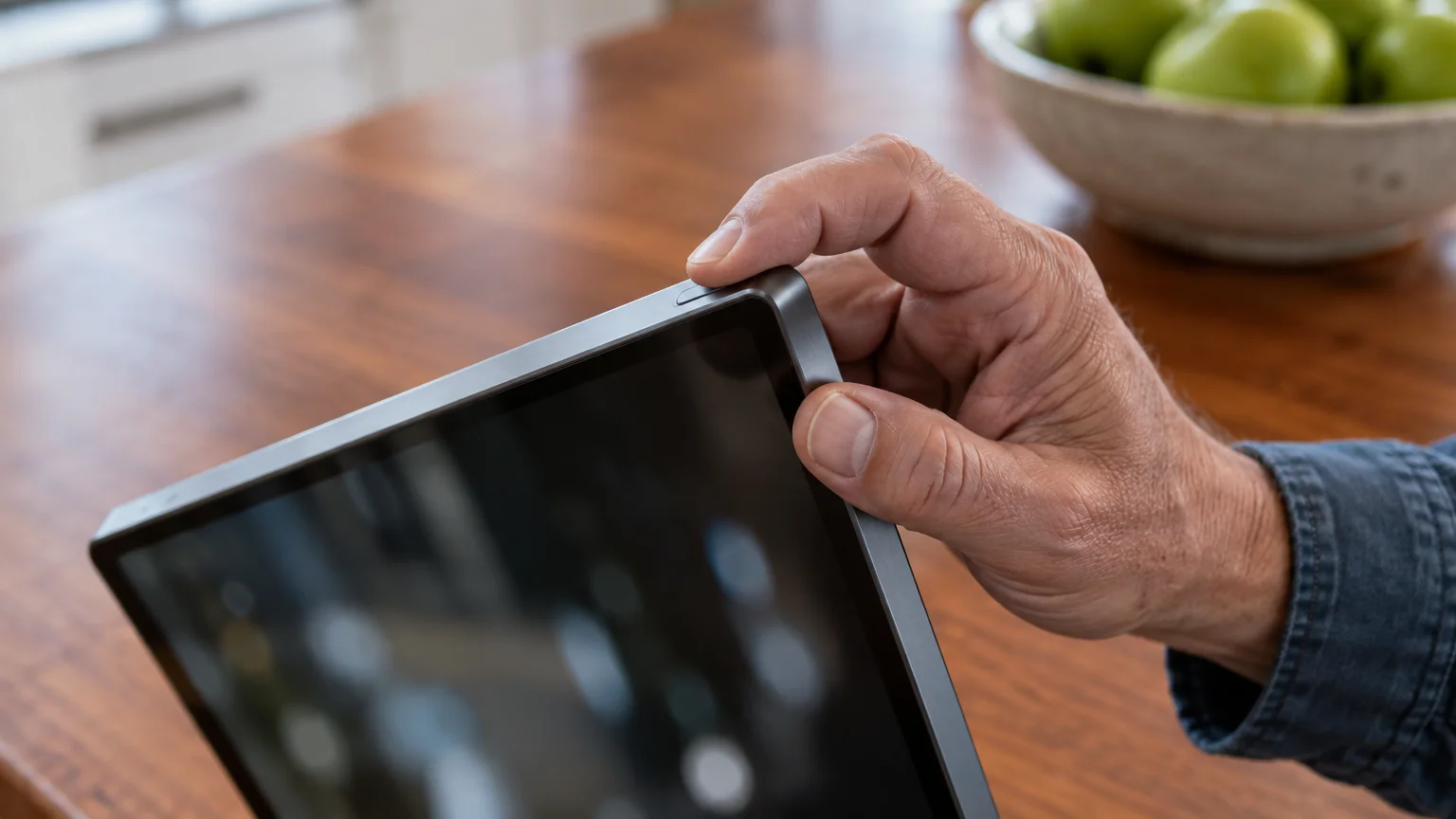
Digging through settings menus in the dark causes unnecessary eye strain. Apple provides an Accessibility Shortcut that toggles Smart Invert with a physical triple-click of your hardware button.
If pressing buttons or touching the glass leads to unintended selections, learning how to stop accidental taps on your touchscreen will give you better control.
On iPads without a Home button, this shortcut uses the Top power button. On older iPads, it uses the circular Home button below the display.
- Open the Settings app.
- Tap Accessibility in the sidebar.
- Scroll down to the very bottom of the accessibility options and tap Accessibility Shortcut.
- Tap Smart Invert to place a blue checkmark beside it.
- Uncheck any other options to ensure your button press activates Smart Invert instantly without opening a secondary menu.
Now you can test the trigger from any screen or app. Click the Top button or Home button three times in rapid succession.
The screen flips from white to black in under a second. Triple-click the same physical button again when you want to return to standard daytime colors.
Fine-Tuning: Increase Contrast and Reduce White Point
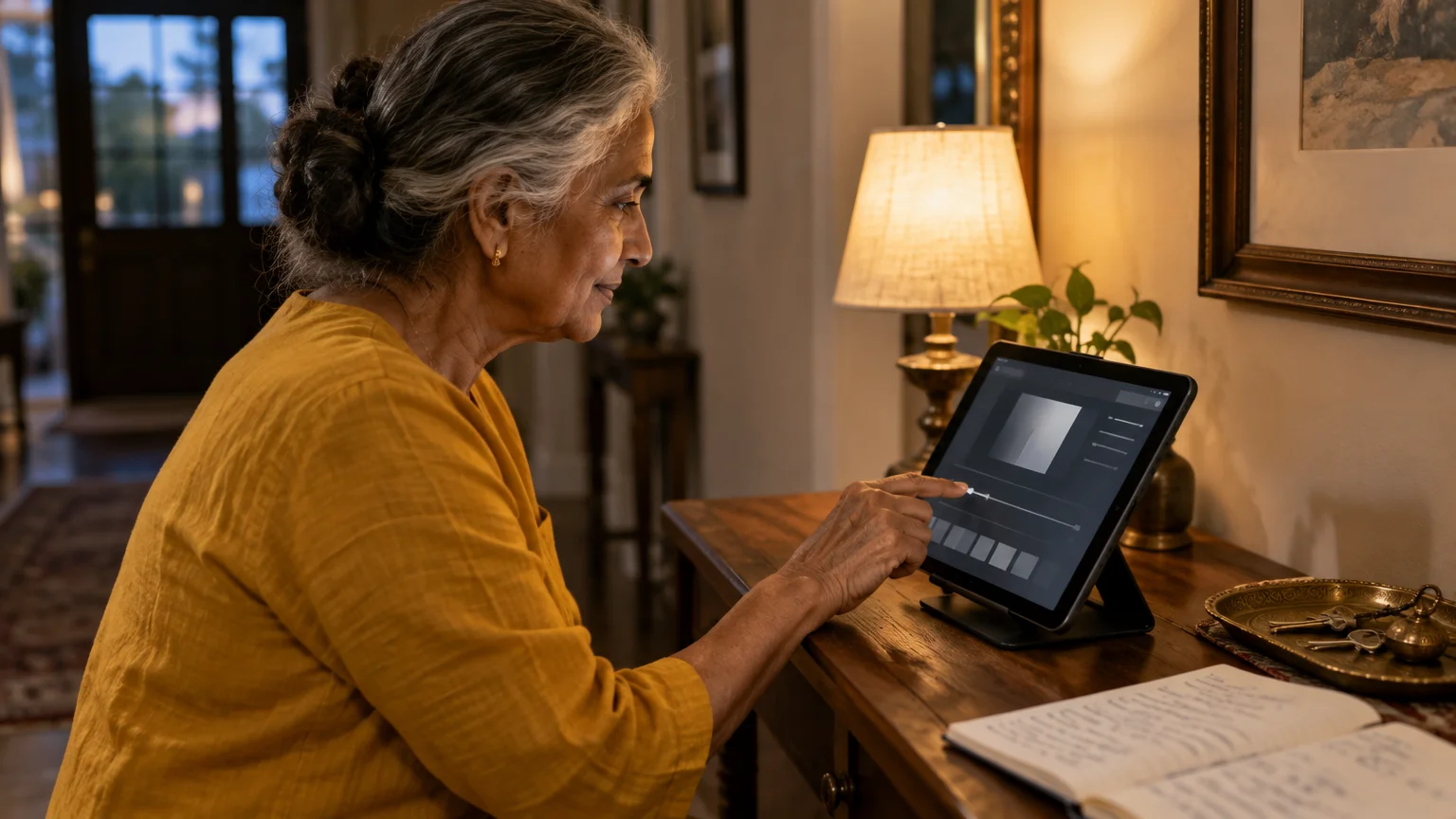
High contrast ipad settings work best when combined with brightness dampers. Even white text on a black background can produce a halo effect, known as irradiation, if the letters glow too fiercely.
For times when even enlarged screen text feels hard to decipher, you can also use your phone as a handheld magnifier to inspect small print.
Reduce White Point dims the harshness of bright elements without muddying overall screen clarity. Follow these steps to balance your contrast levels.
- Open Settings and select Accessibility.
- Tap Display & Text Size.
- Tap the toggle switch next to Increase Contrast to turn it on.
- Scroll down and tap the toggle switch next to Reduce White Point.
- Drag the percentage slider to 60% or higher until the white letters stop producing halos around their edges.
Increasing contrast darkens system borders, sharpens button shapes, and thickens letter lines. This prevents thin digital typography from fading into the black canvas.
If small font sizes still challenge your vision, consult Apple’s guide on how to make text bigger on iPad. Larger fonts reduce optic nerve strain by allowing your eyes to scan without squinting.

Android Tablet Options: Dark Theme and Color Inversion
If you or a spouse read on an Android tablet, such as a Samsung Galaxy Tab or Google Pixel Tablet, you can establish the same high-contrast reading environment. These steps reflect Android 15 as of 2026.
Along with inverting your palette, you can increase font size on Android so words stay crisp and effortless to read across all apps.
If letters still feel too tiny on your screen, you can also increase the system font size to improve readability across all your apps.
Menu titles vary slightly across manufacturers. Samsung labels its interface One UI, while Google and Motorola use standard Android naming conventions.
- Open the Settings app on your Android tablet.
- Tap Accessibility from the primary settings list.
- Tap Vision enhancements on Samsung tablets, or Color and motion on Google Pixel devices.
- Tap Color inversion and switch Use color inversion to On.
- Return to the vision menu and toggle High contrast text to On to outline letterforms in solid black or white borders.
For broader instructions on Android magnification, speech, and display controls, review Google’s Android accessibility overview. Android also lets you add an on-screen floating Accessibility button to switch inversion on and off with one tap.
Keeping your operating system updated guarantees these accessibility features function smoothly. Consult CISA’s guidance on updating software to maintain device stability and receive the latest visual interface patches.

Worked Scenario: Evening Reading Setup for Glaucoma Relief
Arthur is 74 years old and manages open-angle glaucoma. At 8:15 PM, he sits down with his 11-inch iPad Air to read news articles and personal email.
Under default factory settings, his display emits 480 nits of luminance across a pure white Safari page. The glare causes Arthur noticeable eye watering, brow tension, and scattered halos within five minutes.
Arthur applies the full ClearTechGuide display protocol in under three minutes using the steps below.
- He opens Settings > Accessibility > Display & Text Size and activates Smart Invert.
- He turns on Reduce White Point and positions the slider at exactly 65%.
- He taps Larger Text and increases Dynamic Type to 24 points.
- He links Smart Invert to his Top button via the Accessibility Shortcut.
These changes lower Arthur’s screen background emission from 480 nits to under 35 nits. The measured text contrast ratio reaches 21:1, rendering sharp white characters against ink-black margins.
Arthur reads comfortably for 45 minutes without headache symptoms or glare-induced blurriness. When family members send photo messages, Smart Invert displays their portraits with accurate, natural skin tones.
Frequently Asked Questions
Does Smart Invert drain my iPad battery faster?
No, Smart Invert does not increase battery consumption. On iPad Pro models equipped with OLED screens, black pixels turn off completely, which saves battery power during reading sessions.
Why do some websites remain bright white after turning on Dark Mode?
Dark Mode only adapts websites coded to recognize system theme instructions. Websites with hardcoded background styles ignore Dark Mode, requiring you to use Smart Invert to force those backgrounds black.
Can I make text bolder without turning on full color inversion?
Yes, you can embolden letters independently. Go to Settings > Accessibility > Display & Text Size and toggle Bold Text to On to thicken type across every screen.
Will inverted colors ruin screenshots I send to family members?
No, iPadOS captures screenshots using standard color values. Your recipient will view your shared image in normal colors, even while your screen displays inverted tones.
Note: Menus and button names change with software updates. These steps were written for current versions as of 2026; if a screen looks different on your device, the maker’s support page linked above has the latest wording.
ClearTechGuide is independent and is not affiliated with Apple, Google, Microsoft, Amazon or any other company mentioned.
