
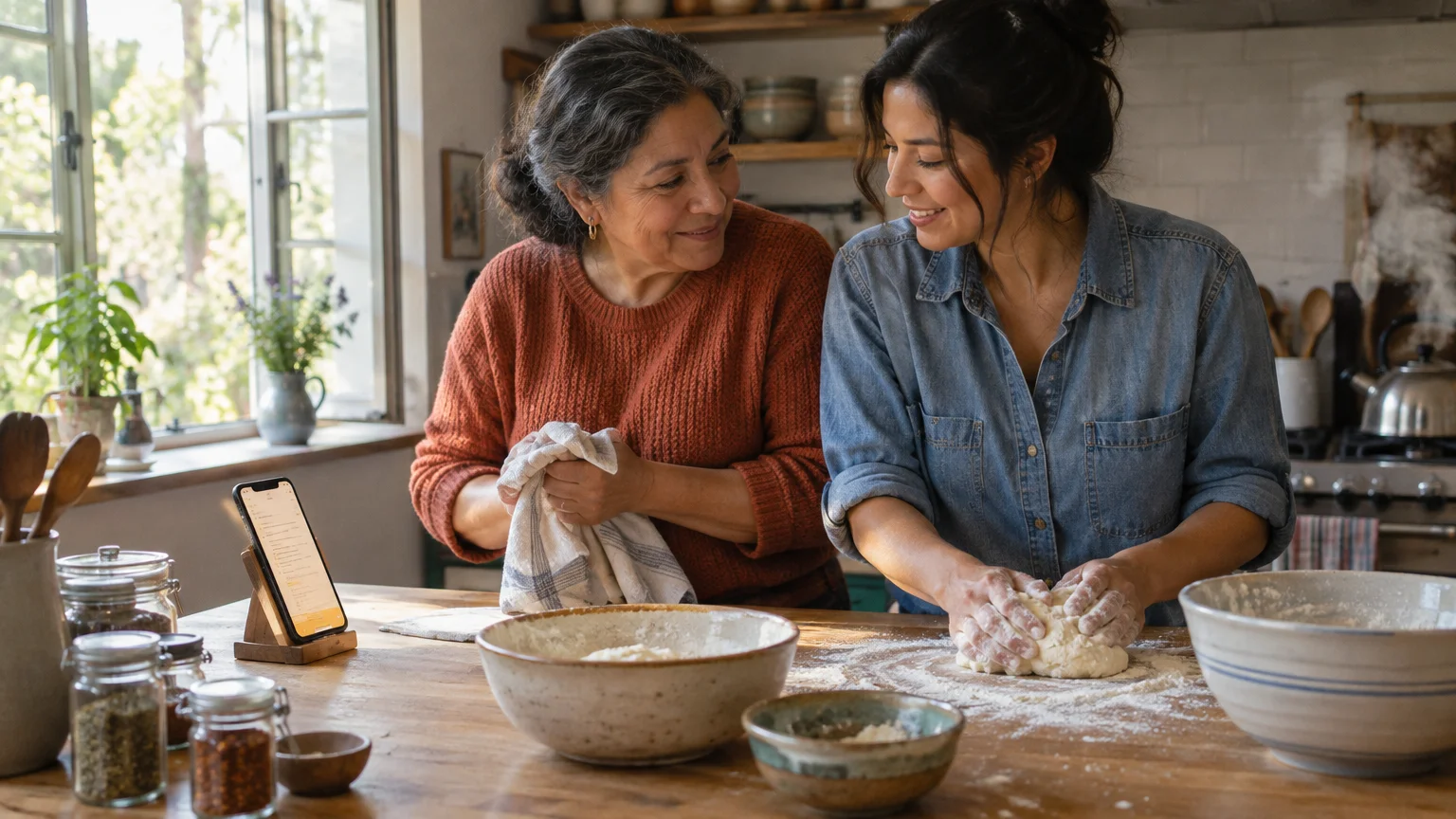
You can stop your phone screen from going black so quickly by adjusting your screen timeout settings. This simple change keeps your digital baking recipe visible without forcing you to tap the glass with messy fingers.
Most standard guides suggest setting auto-lock to ten minutes or never, which quickly exhausts your battery. Instead, combining a two-minute timeout with face-sensing features keeps your display awake only while you look at it.
This guide provides exact steps for Apple and Android devices updated as of 2026. You will learn how to keep your phone active while protecting your battery life.
In this guide10 sections
- Why Screens Go Dark While You Work
- How to Adjust iPhone and iPad Auto-Lock
- How to Change Android Screen Timeout on Samsung and Pixel
- Screen Attention and Attention-Aware Features Explained
- Battery Consumption Trade-offs: Minutes Compared
- Eleanor’s Baking Scenario: Solving Flour-Covered Hands
- Kitchen Counter Placement and Stand Angles for Face Detection
- Accessibility Options for Hands-Free Screen Control
- Unlocking Grayed-Out Timeout Settings in Low Power Mode
- Frequently Asked Questions
Why Screens Go Dark While You Work
A “screen timeout” is the programmed duration of idle time your phone waits before turning off its display and locking.
Repeatedly waking your display with accidental touches can also cause headaches, such as triggering the camera app by mistake from the lock screen.
Device makers set this timer to 30 seconds by default to preserve battery charge and protect personal data.
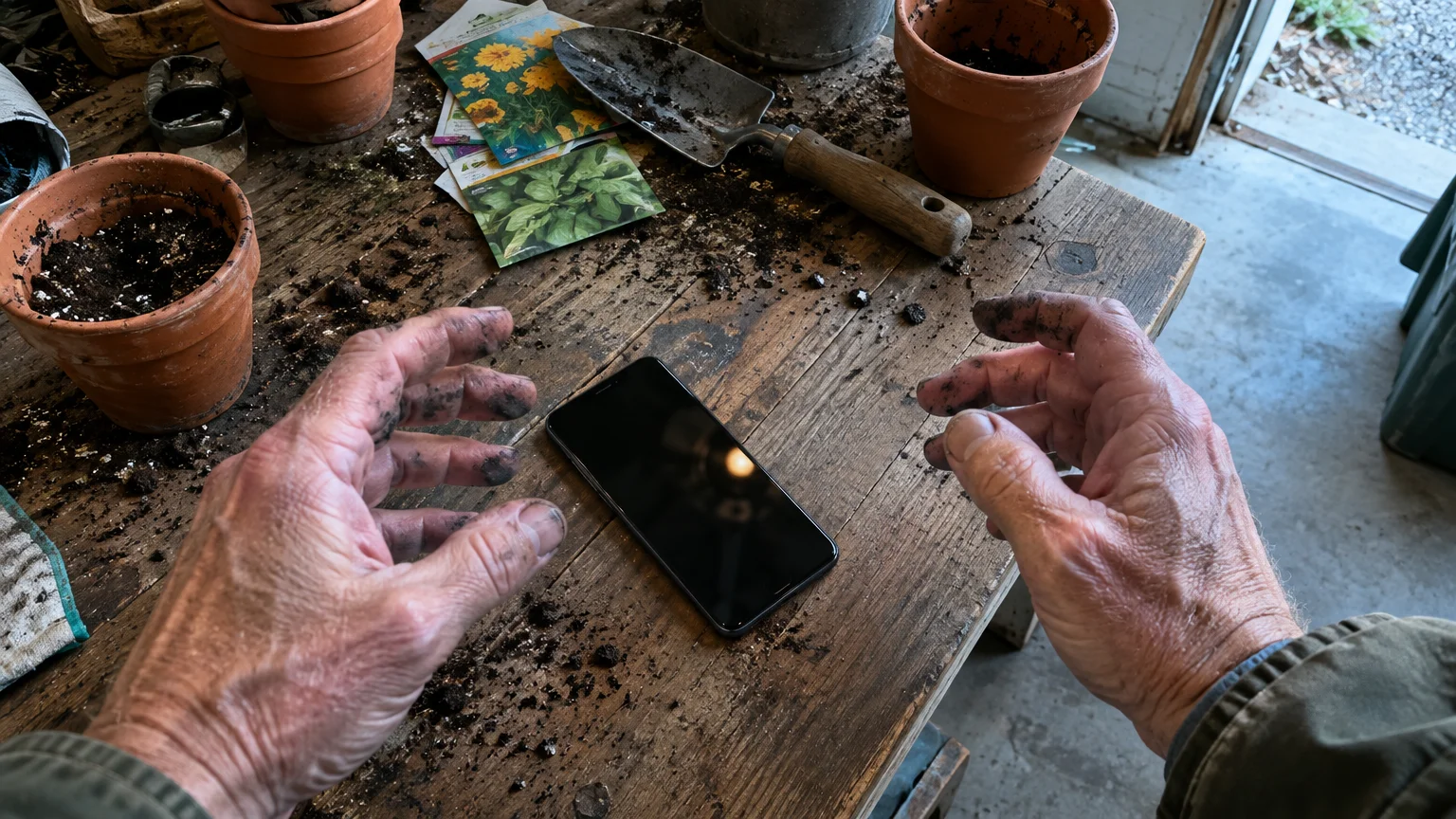
This brief window creates constant friction when you consult instructions while your hands are busy.
According to Pew Research tracking technology adoption among older adults, smartphones now serve as essential tools for daily household activities.
When you bake, paint, or assemble household items, tapping a darkened display every thirty seconds disrupts your workflow and soils the glass.
Fortunately, you can change these timing controls directly within your device settings.
How to Adjust iPhone and iPad Auto-Lock
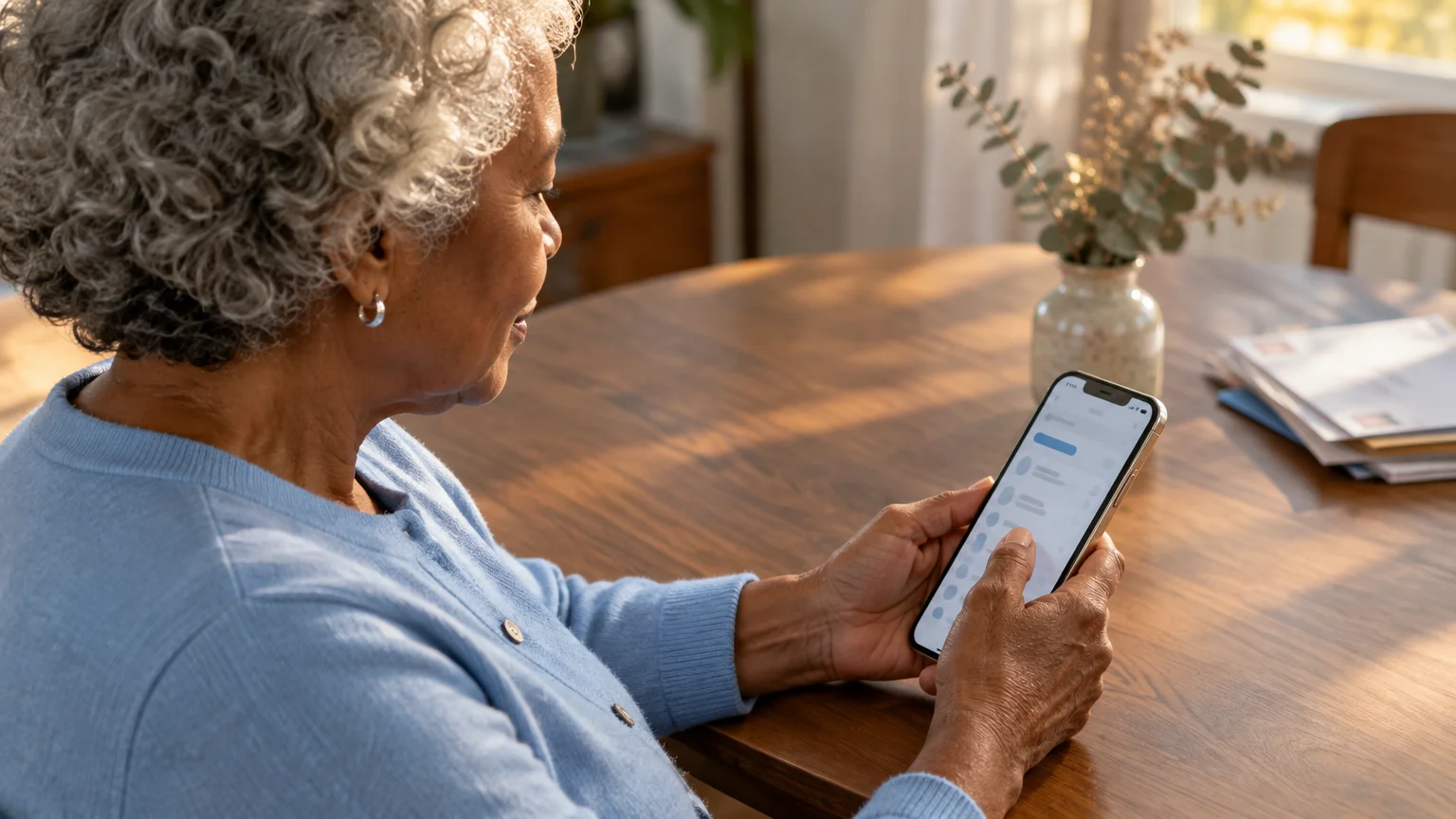
Apple controls display sleep intervals through a menu setting called Auto-Lock.
While visiting your display settings, you can also make text bigger on your iPhone so recipes and instructions are much easier to read from across the counter.
The following instructions apply to iOS 18 and iPadOS 18, which represent standard software versions as of 2026.
Choosing a longer duration keeps your screen awake longer, but it uses more battery power if left unattended.
- Open the Settings app on your home screen.
- Scroll down and tap Display & Brightness.
- Scroll down and tap Auto-Lock.
- Tap your preferred duration, such as 2 Minutes, 3 Minutes, or 5 Minutes.
- Tap Display & Brightness in the upper-left corner to save your choice.
For comprehensive operating steps, consult the official Apple iPhone User Guide.
We advise against selecting the Never option.
Selecting Never allows the display to remain lit indefinitely if you forget to press the side lock button, rapidly draining your battery.
How to Change Android Screen Timeout on Samsung and Pixel
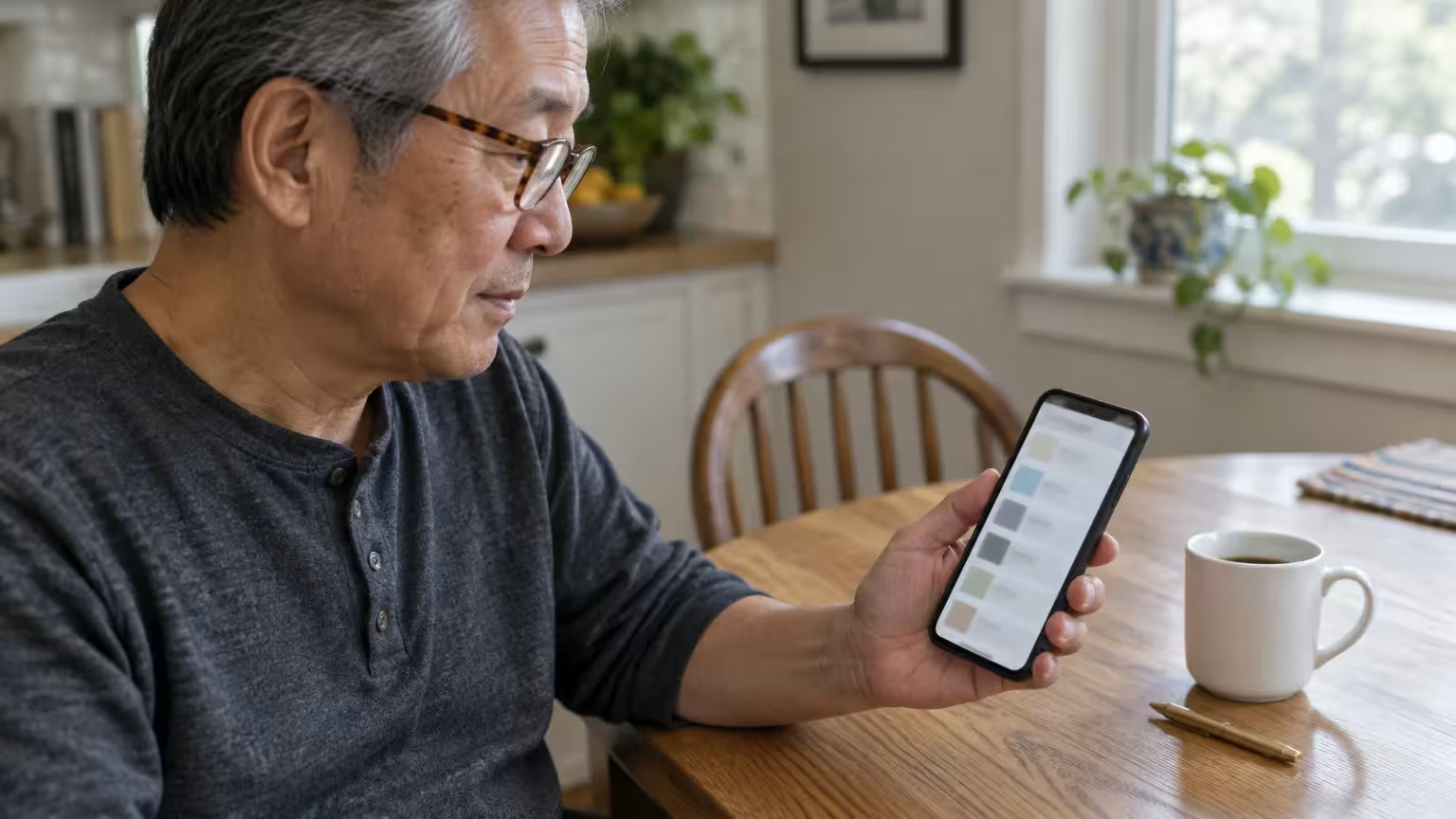
Android menus vary slightly because manufacturers customize their software interfaces.
If you have trouble finding your Settings app, getting familiar with your Android home screen layout can make locating apps much easier.
If your menu items look different than these steps, consider updating your Android device to ensure you have the latest software settings available.
If reading smaller print on your device is difficult, you can also increase the font size on Android in the exact same display settings area.
These steps cover standard Android 15 and Android 16 versions on Google Pixel, Motorola, and Samsung Galaxy devices as of 2026.
If you use a Google Pixel or Motorola phone, adjust your screen timeout using these steps:
- Open the Settings app.
- Tap Display.
- Tap Screen timeout.
- Select 2 minutes or 5 minutes from the list.
If you use a Samsung Galaxy phone running One UI, use this menu sequence:
- Open the Settings app.
- Tap Display.
- Scroll down and tap Screen timeout.
- Select 2 minutes, 5 minutes, or 10 minutes.
You can review additional manufacturer variations in the official Google Android Help center.
Unlike Apple devices, Android phones do not include a “Never” option in standard display menus.
This deliberate limitation protects vibrant OLED screens from permanent image burn-in and limits unexpected battery exhaustion.
Screen Attention and Attention-Aware Features Explained
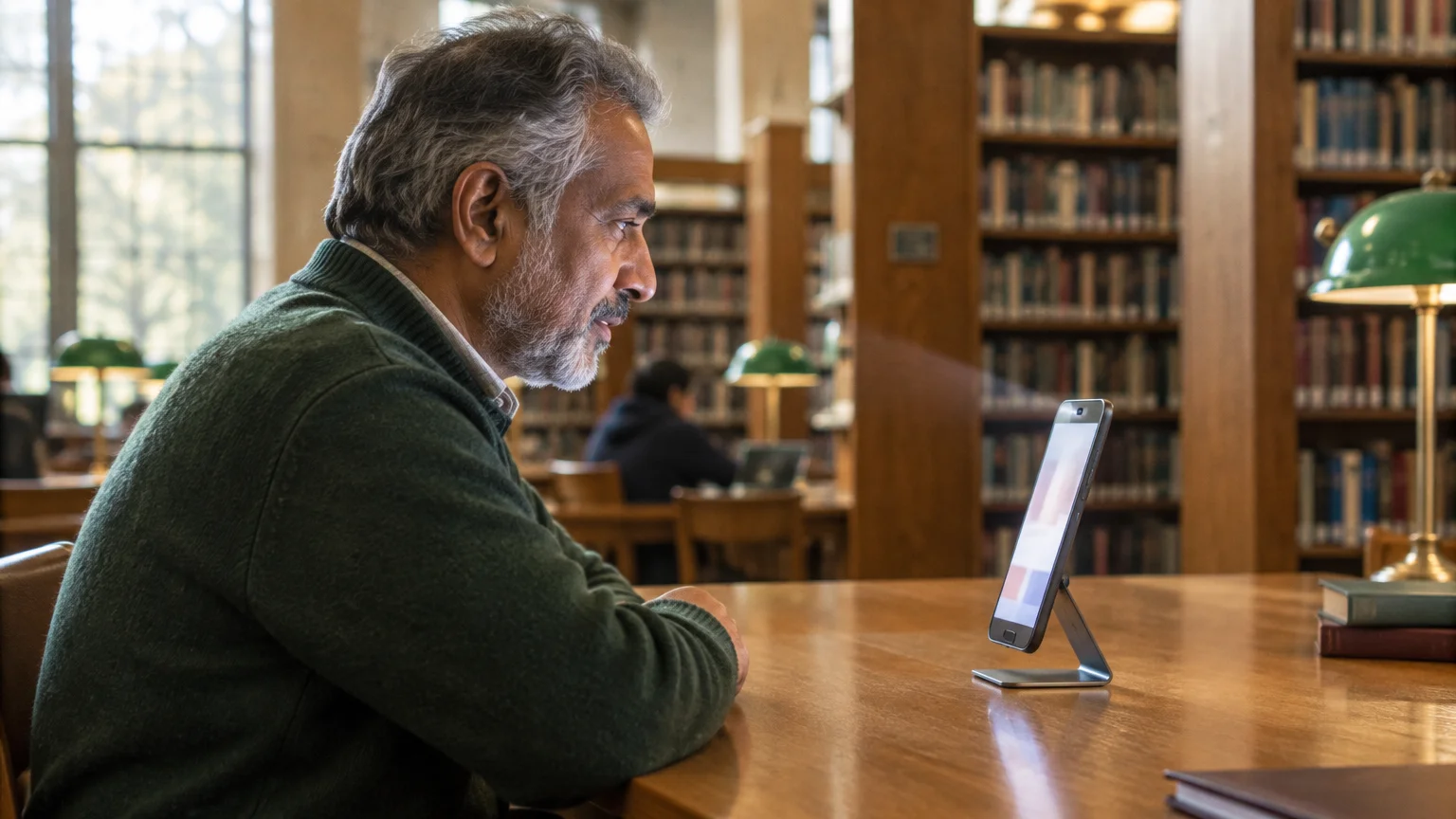
Modern smartphones can detect whether you are looking at the glass before putting the display to sleep.
“Screen Attention” on Android and “Attention Aware Features” on Apple use front-facing sensors to verify your presence.
When active, the phone stays illuminated as long as you look at it, even if your hands never touch the screen.
On an iPhone with Face ID, enable this feature through these steps:
- Open the Settings app.
- Tap Accessibility.
- Tap Face ID & Attention.
- Turn on the switch next to Attention Aware Features.
On a Google Pixel phone, turn on Screen Attention with these steps:
- Open Settings and tap Display.
- Tap Screen timeout.
- Turn on the switch labeled Screen attention.
On a Samsung Galaxy phone, the feature is labeled differently.
Open Settings, tap Advanced features, tap Motions and gestures, and turn on Keep screen on while viewing.
These sensors process your facial orientation locally on the device without recording video or saving personal photos.
Battery Consumption Trade-offs: Minutes Compared
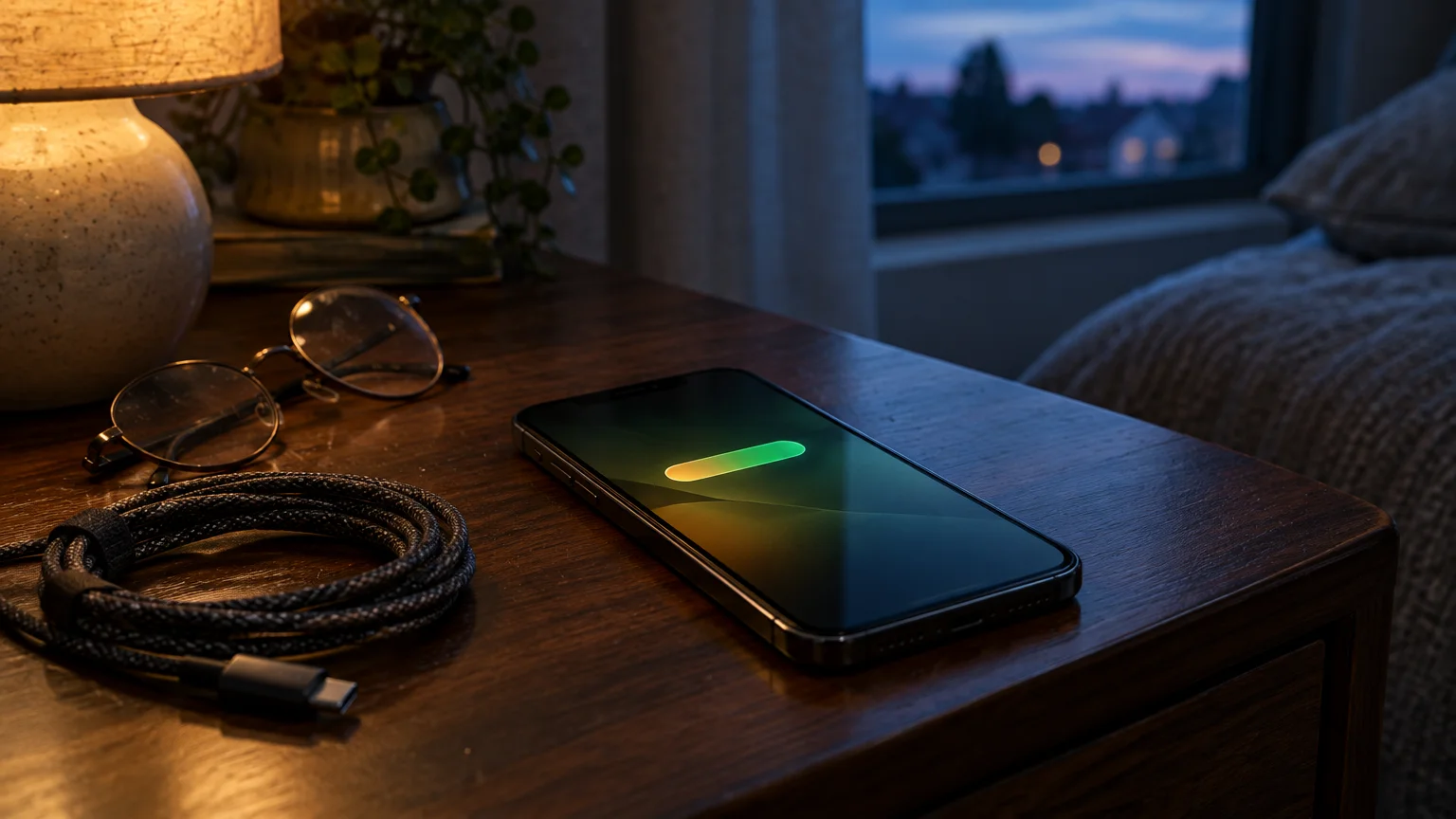
The display panel consumes more battery energy than almost any other component inside your mobile phone.
Because a longer timeout leaves your phone vulnerable if misplaced, setting up Find My Device features ensures you can locate and lock it remotely.
Leaving a screen awake inside a pocket or bag can also trigger emergency calls, so understanding why phones pocket dial 911 is crucial when choosing longer timeout delays.
If keeping your screen illuminated drains your device faster, learning good habits like safe phone charging practices will help protect your battery health over time.
Keeping your display active longer might lead to unintended inputs, but learning how to stop accidental taps on your touchscreen helps keep your current app or recipe open.
Extending your screen timeout increases battery use, but the exact increase depends on your chosen settings.
Selecting an infinite timeout also creates significant personal security risks if you misplace your device in public.
For advice on keeping your device secure from unauthorized access, review the FTC guide to protecting your phone from hackers.
The following comparison details how different timeout configurations affect battery consumption and hands-free reading ease.
| Timeout Configuration | Estimated Battery Impact Per Hour | Security Exposure Level | Hands-Free Usability |
|---|---|---|---|
| 30-Second Default | Under 0.5% idle loss | Minimal (locks immediately) | Poor (screen dims constantly) |
| 2-Minute Setting | 1.0% to 1.5% idle loss | Low (locks after short idle delay) | Good (adequate for brief reading) |
| 5-Minute Setting | 3.0% to 4.5% idle loss | Moderate (stays open if left behind) | Very Good (handles long tasks) |
| 2 Minutes with Attention Sensing | 1.2% to 1.8% idle loss | Low (locks when you look away) | Excellent (stays awake on gaze) |
| Never / 30 Minutes Max | 12.0% to 18.0% idle loss | High (device remains fully exposed) | Excellent (zero interruptions) |
Pairing a two-minute timer with face sensing gives you the best balance between battery longevity and uninterrupted reading.
This combination keeps your recipe visible when you look at the phone without letting the battery drain when you leave.
Eleanor’s Baking Scenario: Solving Flour-Covered Hands
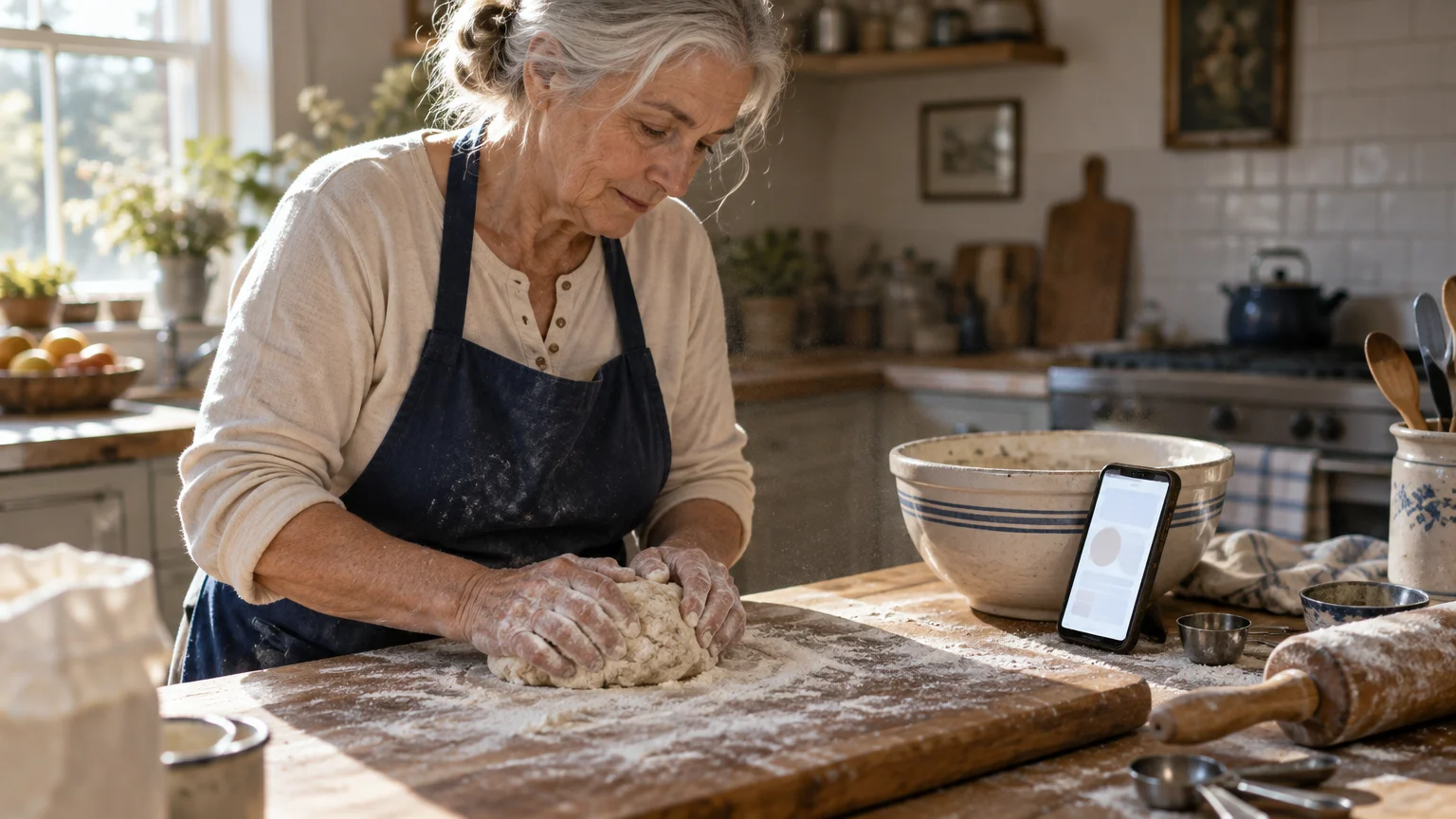
Eleanor is 77 years old and bakes artisan sourdough bread every Saturday morning in her home kitchen.
Her sourdough recipe requires 500 grams of bread flour, 350 grams of lukewarm water, and 10 grams of salt.
Mixing and kneading the dough leaves Eleanor’s hands coated in wet flour for forty-five straight minutes.
Her smartphone originally had the factory default 30-second screen timeout setting enabled.
Every time Eleanor paused to verify the dough fold technique, her screen went dark.
She washed and dried her hands eighteen times during a single baking session just to tap the screen awake.
Eleanor changed her phone Auto-Lock to 3 minutes and activated Attention Aware Features in her settings menu.
She placed her phone in an upright metal stand on her kitchen counter, twenty inches away from her mixing bowl.
During her subsequent 45-minute baking session, Eleanor glanced at the screen whenever she needed measurement instructions.
The front camera recognized her gaze immediately, keeping the recipe visible without a single finger touch.
Her battery began at 92 percent charge and finished at 88 percent charge after the 45-minute preparation.
Once Eleanor placed the dough in the proofing drawer and walked away, the phone screen locked automatically after three minutes.
Kitchen Counter Placement and Stand Angles for Face Detection
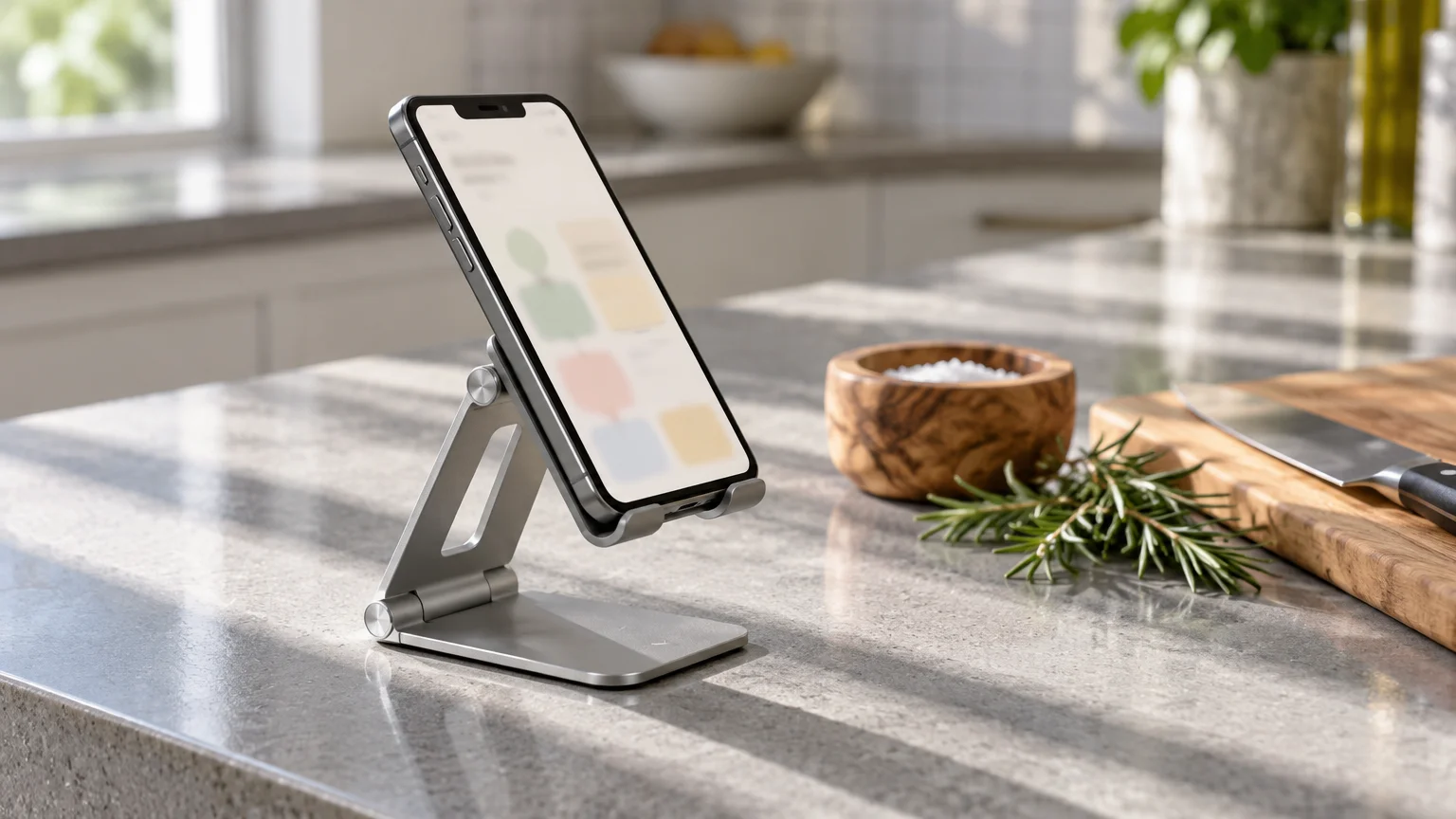
Face-sensing features rely on a direct optical sightline between your eyes and the top edge of your phone.
When using a stand or moving around your kitchen, you may also want to stop your screen from rotating unexpectedly so your view stays stable.
If your phone lies completely flat on a kitchen counter, the front camera points directly at the ceiling.
The sensor cannot see your face from that angle, causing the screen to go black even while you look downward.
Setting your phone in an upright stand tilted between 60 and 70 degrees establishes an optimal sightline.
Keep these practical positioning guidelines in mind when arranging your cooking area:
- Position the stand between 18 and 24 inches away from your mixing bowl to avoid food splatters.
- Wipe flour dust off the top camera bezel with a clean microfiber cloth before starting your recipe.
- Ensure overhead kitchen lighting illuminates your face rather than shining directly into the camera lens.
If you plan a multi-hour kitchen project, connect your phone to its charging cable while resting on the stand.
Charging eliminates any concern about battery depletion, allowing you to use longer timeout intervals with complete confidence.
Accessibility Options for Hands-Free Screen Control
You can pair timeout adjustments with accessibility tools to navigate recipes without physical contact.
If small text strains your eyesight across the kitchen counter, enlarge the system lettering before cooking.
Apple users can review the steps in the official guide on how to make text bigger on iPhone and iPad.
Android users can activate similar visual enhancements and spoken assistance detailed in the Google Android accessibility overview.
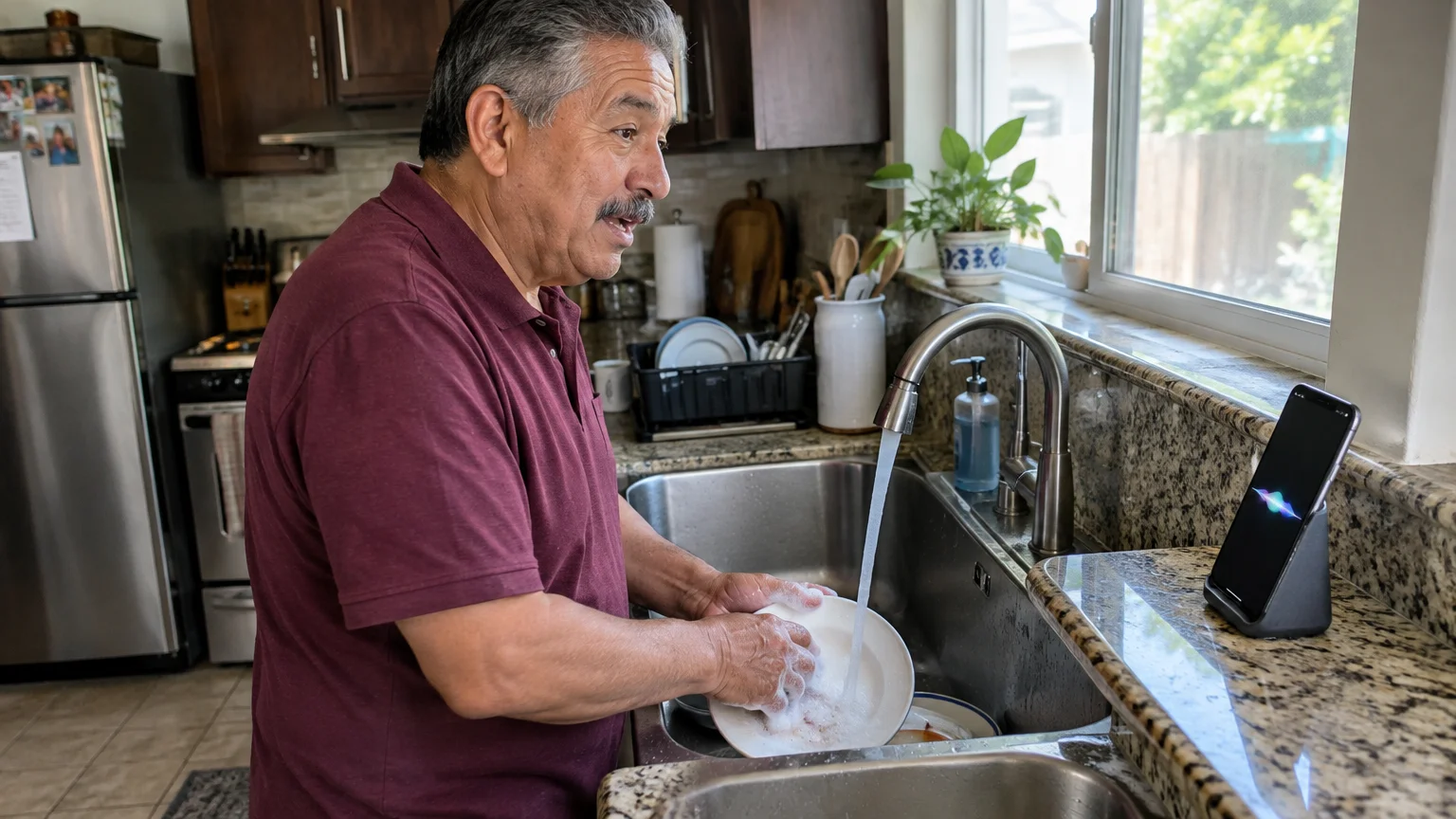
Both platforms also offer voice control features that let you scroll web pages without touching the glass.
On an iPhone, enable voice commands by going to Settings, tapping Accessibility, and turning on Voice Control.
You can then speak “Scroll down” or “Go back” while continuing to knead bread or stir ingredients.
On an Android phone, say “Hey Google, scroll down” to advance recipe pages cleanly.
Unlocking Grayed-Out Timeout Settings in Low Power Mode
You might open your display settings and discover that your screen timeout options are grayed out and unchangeable.
This situation happens when your smartphone enters an automated battery-saving state.
When battery charge falls below 20 percent, both iOS and Android enforce strict limits to conserve remaining power.
On an iPhone, Low Power Mode locks the Auto-Lock timer to 30 seconds and disables other choices.
You must turn off Low Power Mode before you can select a longer screen duration.
To turn off Low Power Mode on an iPhone, use these steps:
- Open the Settings app.
- Scroll down and tap Battery.
- Tap the green switch next to Low Power Mode to turn it off.
- Return to Display & Brightness to set your preferred Auto-Lock time.
On Android devices, Battery Saver imposes identical restrictions on display activity.
To disable Battery Saver on Google Pixel or Samsung devices, use these steps:
- Open the Settings app.
- Tap Battery.
- Tap Battery Saver (or Power saving on Samsung).
- Move the toggle switch to the Off position.
Once battery saving is off, your full list of screen timeout durations will become accessible again.
Frequently Asked Questions
Does keeping my phone screen on longer damage the display?
Modern phone displays handle prolonged lighting well, though static high-brightness images over many continuous hours can cause slight OLED pixel wear.
Selecting a timeout between two and five minutes provides ample viewing time while protecting your screen panel from damage.
Why does my screen still go dark when I am looking at it?
Eye-sensing features require a clear, unobstructed sightline to your eyes and face to keep the screen active.
If you wear dark glasses, tilt the phone away, or let flour dust cover the top camera lens, the sensor cannot detect your gaze.
Can I keep the screen awake for only one specific recipe app?
Many cooking and reading apps include an internal toggle that overrides system sleep timers while that specific app remains open.
Check the settings menu inside your preferred cooking app to see if an option labeled “Keep Screen Awake” exists.
Will turning off Low Power Mode cause my battery to drain much faster?
Turning off Low Power Mode restores regular screen brightness and longer sleep timers, which naturally consumes more battery power.
If your phone is connected to a wall charger while resting on your kitchen counter, you can safely disable battery saver mode without worry.
Note: Menus and button names change with software updates. These steps were written for current versions as of 2026; if a screen looks different on your device, the maker’s support page linked above has the latest wording.
ClearTechGuide is independent and is not affiliated with Apple, Google, Microsoft, Amazon or any other company mentioned.
