
You sit in your armchair with your six-year-old Dell laptop resting on your lap. When you lift the machine by its front right corner to stand up, the screen instantly turns black and cuts power.
That sudden shutdown occurs because lifting from one corner creates chassis flex, which is the physical bending of the laptop base. This bend pulls worn barrel-plug pins away from a loose internal DC jack.
Standard repair guides advise purchasing a new battery, but an inexpensive magnetic breakaway adapter solves the underlying mechanical leverage that breaks electrical contact.
In this guide6 sections
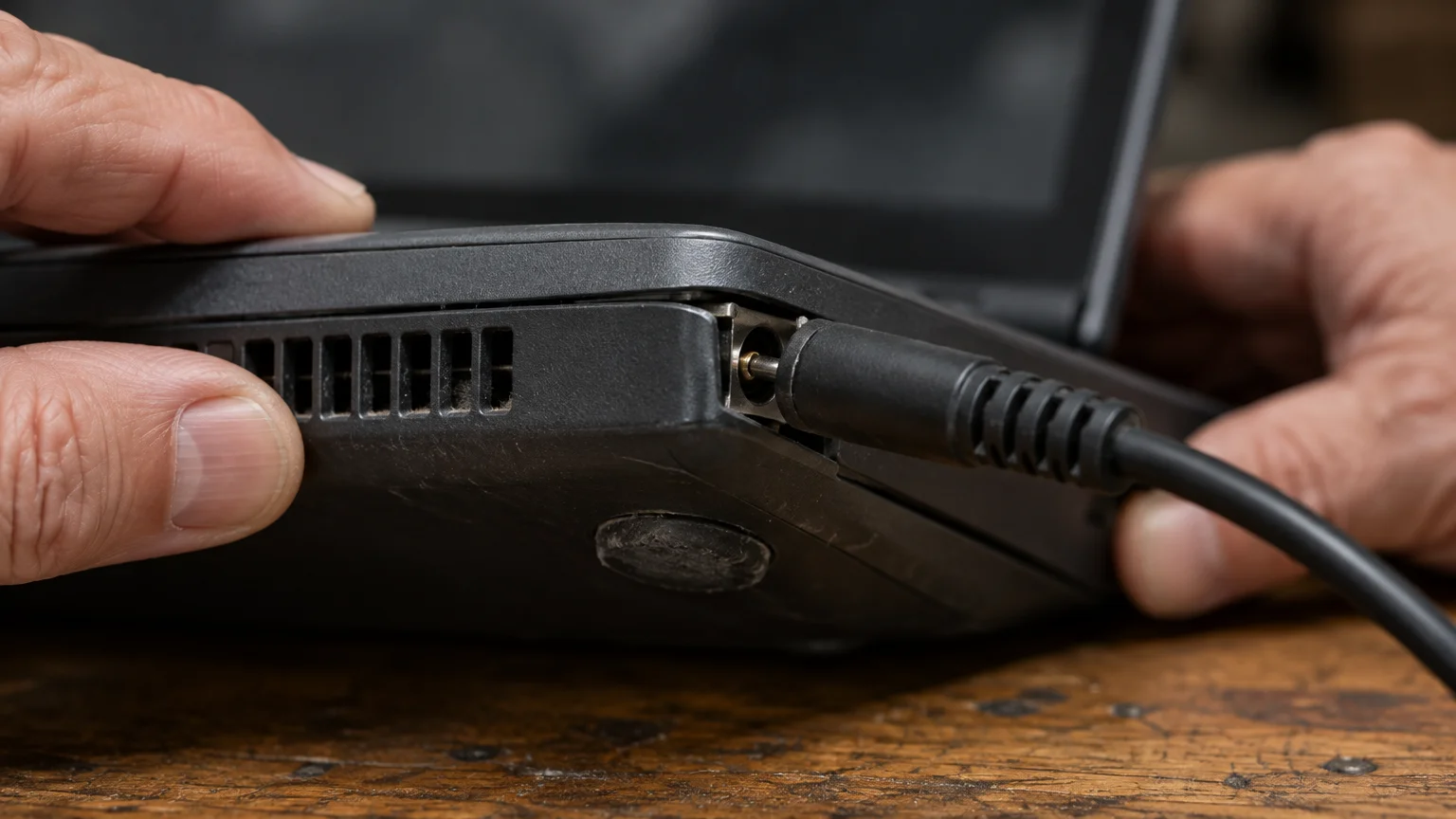
The Mechanics of Chassis Flex and Power Loss
A DC jack is the internal port inside your laptop where your charger cable connects to the motherboard.
If your screen exhibits visual jitter rather than a total blackout, learn how to stop laptop screen glare and flicker for a more comfortable view.
Excessive heat weakens these materials even faster, especially if your laptop fan is loud and blowing hot air while resting on soft furniture. Apple’s official advice on acceptable operating temperatures recommends using laptops on flat surfaces so cooling vents remain unobstructed.
When your laptop dies when picked up by one corner, asymmetrical weight strains the casing. Older plastics lose rigidity after years of warm operation, allowing the frame to twist.
Motherboards sit securely on metal standoffs, but the charging port is often soldered directly to the circuit board edge. When the outer shell flexes, the internal board resists that movement.
This mechanical tug-of-war cracks microscopic solder joints around the power pins. Over months of lifting the machine from an armchair, the socket wobbles inside its plastic mounting bracket.
When a laptop shuts off when moved, users often assume the operating system crashed. In reality, physical chassis flex separates the power pins before the system can save its state.
Six-year-old laptops often contain weak internal batteries that cannot bridge brief electrical interruptions. Consequently, when the loose power jack laptop connector shifts, the entire machine loses electricity immediately.

How to Diagnose a Loose DC Jack
Before spending money on replacement hardware, you should confirm whether physical movement breaks the electrical circuit.
If your machine stays powered on but hesitates during everyday tasks, review what to do when your computer is running slowly to improve system response.
While checking physical connections, you might also want to troubleshoot common peripheral delays, such as why your wireless mouse cursor lags and stutters.
Set your laptop on a flat desk or table. Connect your charging cable and watch the battery icon in the system notification tray.
If small icons are difficult to see, turn on Windows Magnifier. Press the Windows logo key and Plus sign (+) to zoom in on your screen.
Press the Windows logo key and Esc whenever you want to close Magnifier.
You can discover additional interface controls through Microsoft’s Windows help and learning guide.
Watch for these clear physical signs of connector wear while testing your laptop:
- The barrel plug wobbles loosely inside the port opening with noticeable give.
- The battery indicator changes from charging to battery power when you lightly touch the cable.
- The computer only receives charge when you prop the cord up at an angle.
- The plastic housing surrounding the power port feels warm during normal charging.
- The laptop runs smoothly on a flat table but cuts off the second you lift one side.
If the screen goes black only when the cord wiggles, you have verified a mechanical contact failure rather than a software crash.
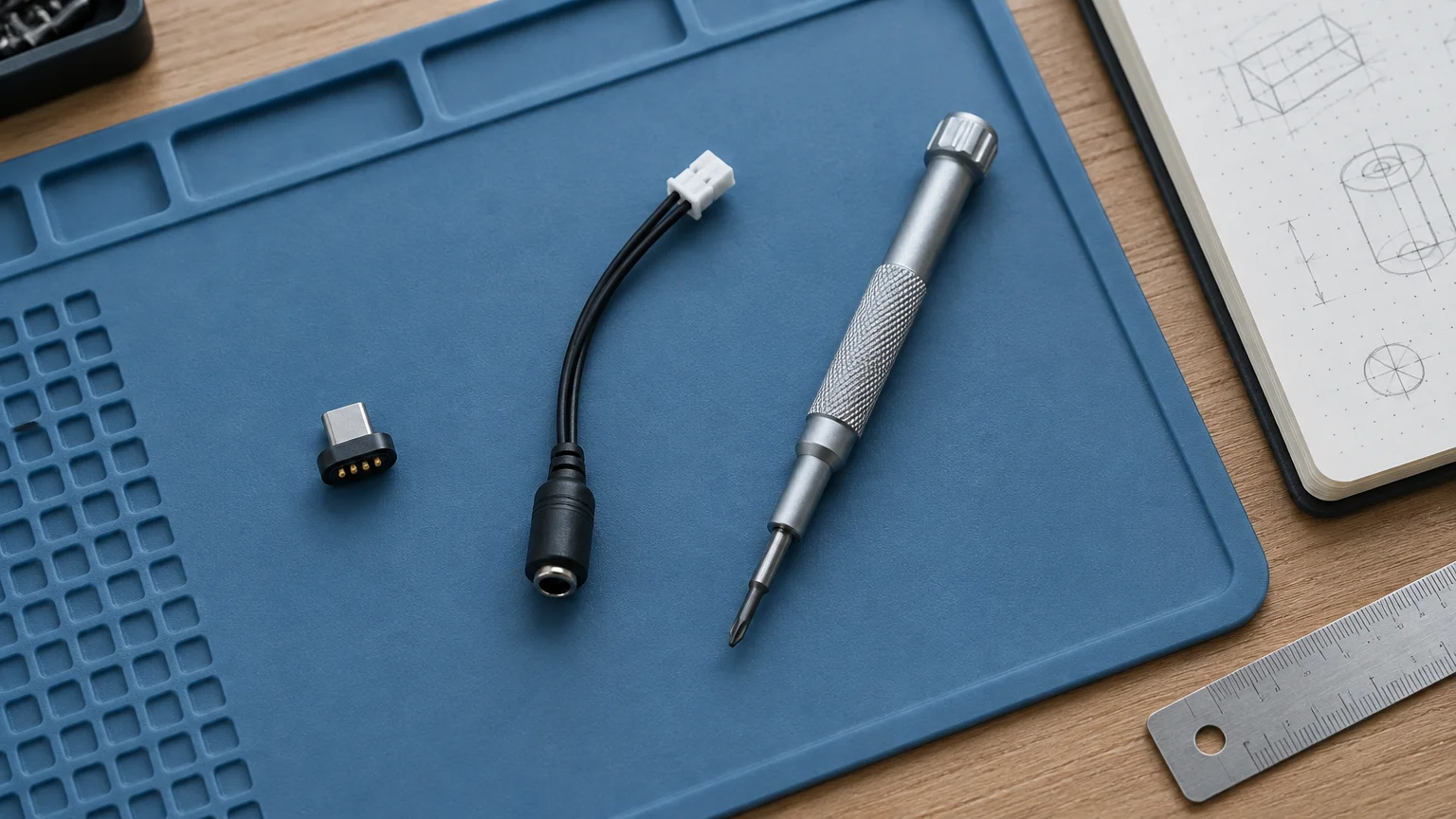
Comparing Repair and Prevention Options
Resolving power cuts depends on your repair budget, mechanical comfort, and device age.
Setting your laptop on a stable desk riser avoids chassis strain while helping you fix an unflattering laptop camera angle for video calls with family.
You have three practical choices to address corner flex and connector wear.
| Solution Option | Hardware Cost (as of 2026) | Technical Difficulty | Protects Against Chassis Flex |
|---|---|---|---|
| Professional DC Jack Solder Repair | $50 to $120 | High (requires board soldering) | No |
| OEM Replacement Battery | $30 to $65 | Medium (requires internal access) | No |
| Magnetic Breakaway Barrel Adapter | $10 to $20 | Low (external plug-in accessory) | Yes |
Professional soldering replaces the cracked jack, but future corner lifting will eventually crack the new solder joints again.
Consider a worked scenario where you own an older Dell laptop valued around $150. Paying $100 for a repair technician represents two-thirds of the computer’s total value.
Installing a $45 replacement battery keeps the machine awake during cord drops, but corner lifting continues to damage the port.
In contrast, a $15 magnetic breakaway adapter removes rotational strain from the socket entirely. It protects aging solder joints while letting you pick up the computer freely.
The magnetic coupling separates whenever force is applied, preventing your charger cable from acting as a mechanical lever.
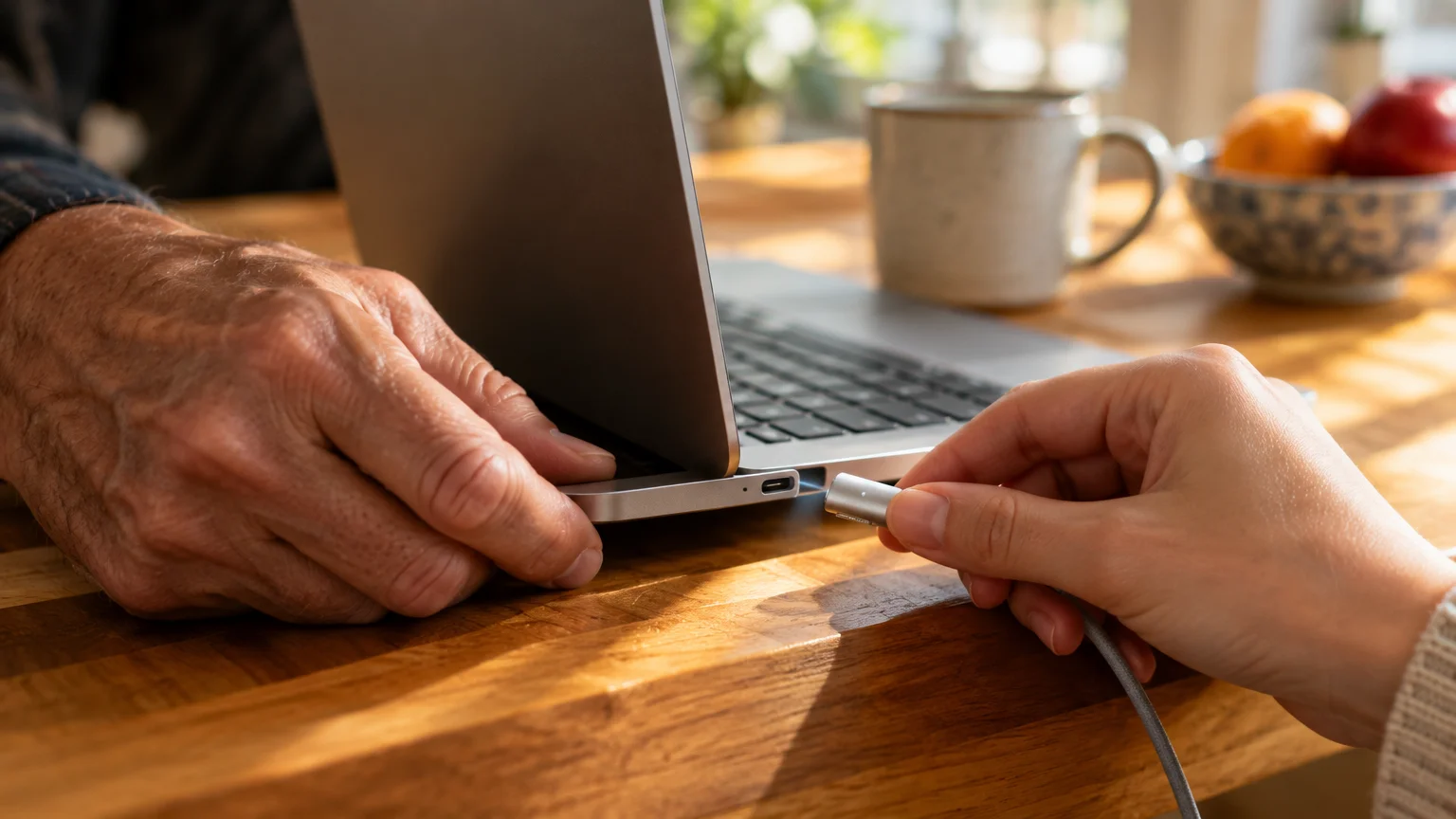
Step-by-Step: How to Install a Magnetic Breakaway Adapter
A magnetic breakaway adapter separates your charger line into two magnetic pieces. If the chassis flexes or the cord snags, the magnets disconnect cleanly without pulling the socket.
Before inserting any adapter pin, check for accumulated lint inside the jack, using gentle techniques similar to how you clean a dusty phone charging port safely.
Warning: Purchasing an adapter with mismatched barrel dimensions or incorrect voltage can permanently damage your computer. Verify your charger tip specifications before ordering hardware.
Research reputable sellers and review the FTC’s guidance on online shopping to avoid counterfeit electronics.
Follow these steps to attach your magnetic breakaway adapter:
- Measure the barrel tip on your existing power cable with a ruler to identify your model size, such as a 7.4mm or 4.5mm outer ring.
- Shut down your PC completely by clicking Start, selecting Power, and clicking Shut down.
- Unplug your laptop power brick from the wall outlet to eliminate live current.
- Insert the magnetic male pin firmly into the loose power jack laptop connector until it rests flat against the exterior casing.
- Slide the magnetic female adapter tip over the metal barrel end of your original charger cable.
- Plug your power brick into the wall and connect the magnetic ends until the magnet clicks together.
Leave the small male plug inserted in the laptop socket permanently. This eliminates mechanical friction from daily plugging and unplugging.
Because the magnetic joint detaches under slight tension, you can stand up from your armchair without yanking the internal socket pins.

Hardware Maintenance and Support Safety
When a computer shuts off suddenly, searching for quick fixes can lead to deceptive advertising.
Never allow unknown third parties to access your computer remotely over the telephone or internet to diagnose power shutoffs. Review Google’s advice to avoid and report scams if an unknown caller pressures you to install remote diagnostic software.
Consult the FTC’s guide on tech support scams to identify deceptive cold callers.
You can also inspect Microsoft’s recommendations on tech support scams to protect your private data.
While physical hardware fixes prevent port strain, maintaining operating system integrity remains essential. Review guidance from CISA on updating software to keep system security current.
Apple laptops address cord strain through magnetic MagSafe ports, as detailed in the Apple Mac User Guide.
Chromebook and newer Windows models with USB-C ports can also use magnetic USB-C adapters to prevent port damage.
Practice these daily physical handling habits to protect your computer chassis from ongoing strain:
- Lift your laptop with both hands supporting opposite sides, never by a single corner.
- Place the machine on a solid lap desk rather than directly on soft cushions.
- Detach the power adapter before lifting or carrying your machine across the room.
- Route the charger cord loosely without bending the cable near the barrel plug.
Handling your computer with two hands distributes weight evenly across the base, preserving internal electrical solder joints.
Frequently Asked Questions
Will a magnetic adapter reduce my laptop charging speed?
A properly rated magnetic adapter delivers full charging current without speed loss. Verify that your adapter matches your laptop power rating, such as 65 watts or 90 watts.
Can a loose DC jack cause a fire hazard?
A loose DC jack can generate heat if electrical pins make poor contact. If you smell heated plastic or the port feels hot to the touch, disconnect the charger immediately.
Why does my laptop turn off if the battery still shows a charge?
A degraded battery often reports a false charge level under light duty. When chassis flex breaks wall power, the weakened battery cannot handle the sudden voltage load and drops immediately.
If moving your laptop between rooms also causes your internet connection to drop, explore our advice on troubleshooting common Wi-Fi problems at home.
Can I secure a loose charging port with glue or tape?
Never apply glue or adhesive tape to a laptop power jack. Adhesives insulate electrical terminals, release toxic fumes when heated, and prevent technicians from replacing worn parts properly.
How do I know what size barrel plug my laptop uses?
Look at your laptop manufacturer label on the underside for the exact model number. You can also measure the metal tip diameter with a millimeter ruler or check your charger brick label.
Note: Menus and button names change with software updates. These steps were written for current versions as of 2026; if a screen looks different on your device, the maker’s support page linked above has the latest wording.
ClearTechGuide is independent and is not affiliated with Apple, Google, Microsoft, Amazon or any other company mentioned.