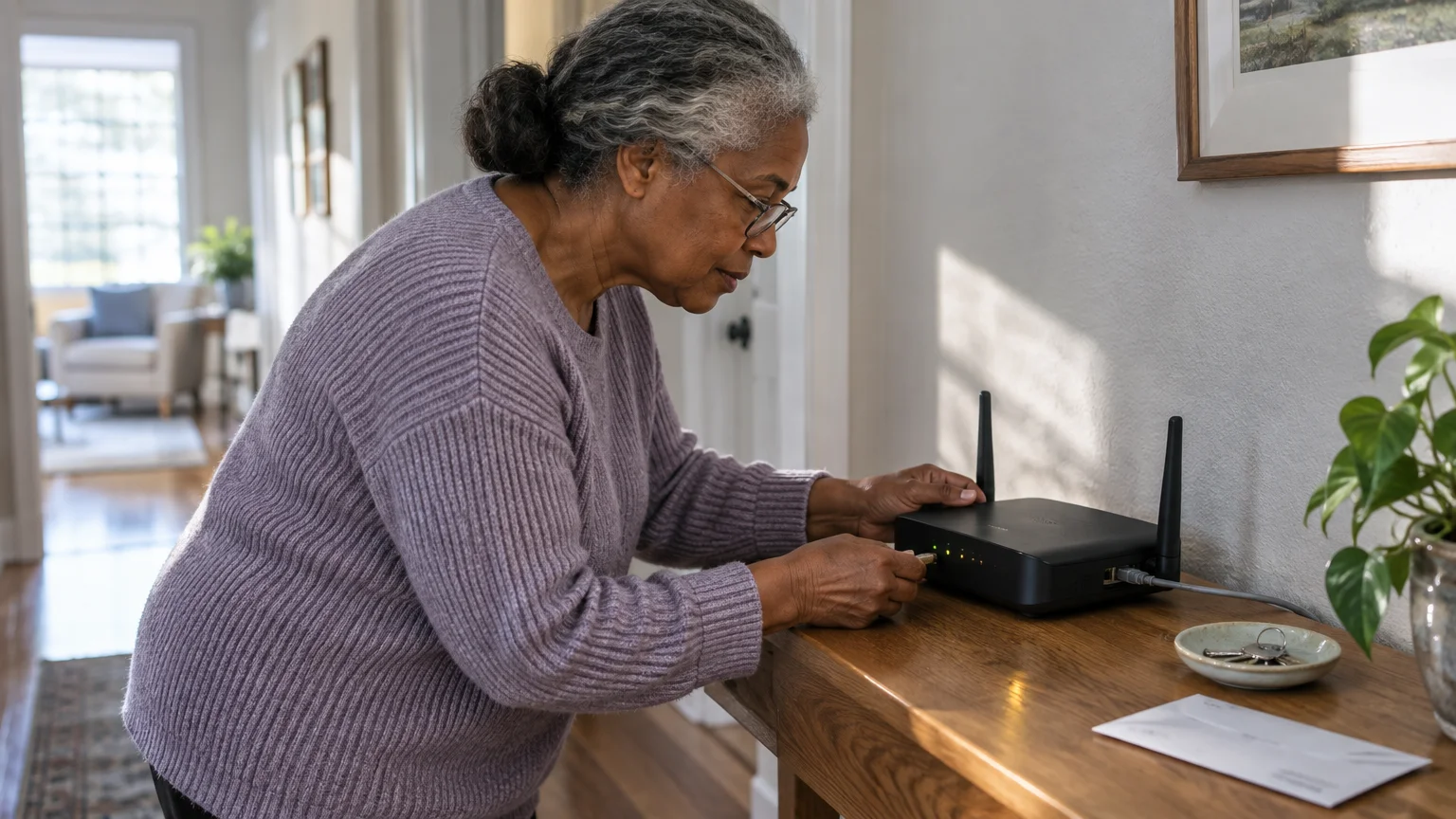
You sit down with a fresh cup of coffee, ready to check your morning email or look at recent photos of your grandchildren.
You press the power button on your computer, but instead of your inbox appearing, you see a small icon with a globe and a “no symbol,” or perhaps a message saying, “You are not connected to the internet.”
This moment often brings a wave of frustration. In our modern world, a reliable internet connection serves as our bridge to family, news, and entertainment.
When that bridge fails, it feels like being cut off from the world.
Please take a deep breath and know that you are not alone. Even the most tech-savvy individuals encounter Wi-Fi problems.
Most internet issues stem from simple causes that you can fix yourself without waiting on hold for a technician or paying for a repair service. This guide will walk you through the process of restoring your connection on Windows PCs, Macs, and Chromebooks.
We will use clear steps and avoid technical jargon so you can get back to what matters most.
In this guide9 sections
- Understanding Your Internet Equipment
- The First Step: Physical Checks and Cables
- The Power of Restarting Your Devices
- Troubleshooting on Windows 10 and Windows 11
- Troubleshooting on a Mac (macOS)
- Troubleshooting on a Chromebook
- Optimizing Your Router Placement
- Frequently Asked Questions
- When to Ask for Professional Help
Understanding Your Internet Equipment
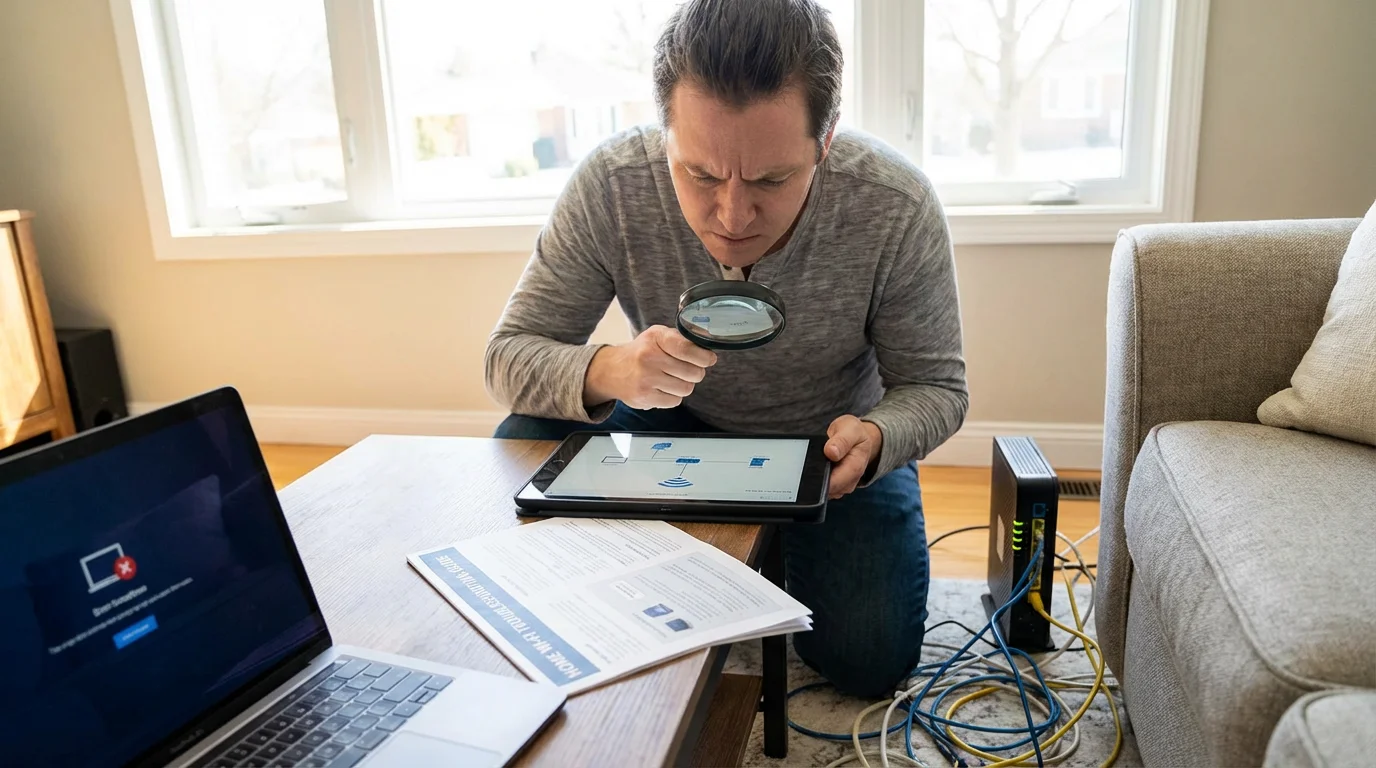
Before we begin fixing the problem, we should identify the tools involved. You likely have one or two small boxes provided by your internet company.
These boxes are your modem and your router. Sometimes, companies combine these into a single box—a “gateway”—but their jobs remain the same.
This wireless signal is the same technology used for connecting a smart TV to your favorite streaming apps.
Once you understand how your home network functions, you can expand your setup by setting up a printer for wireless printing from any room in your house.
Think of the modem as the translator. It takes the signal coming into your house from the outside world through a wire and translates it into a digital language your computer understands.
The router is like a traffic controller. It takes that translated signal and broadcasts it through the air so your laptop, tablet, or smartphone can use it wirelessly.
When we talk about using your computer, we will use a few specific terms to ensure you know exactly what to do with your mouse:
- Click: Press the left mouse button once. This is how you select things or open programs.
- Double-click: Press the left mouse button twice quickly. This usually opens files or folders.
- Right-click: Press the right mouse button once. This shows a menu of options for whatever you clicked on.
- Drag: Hold down the left mouse button while moving the mouse to move an item on the screen.
- Desktop: The main screen you see when you first turn on your computer and log in.
- Folder: Like a manila folder, this is a digital container that holds your files (documents and photos).
It is perfectly normal to feel overwhelmed by all the blinking lights and wires behind your desk. Remember that these devices are designed to be “plug and play,” and most issues are temporary hiccups in the system rather than permanent breaks.
The First Step: Physical Checks and Cables
Data from consumer tech surveys suggests that roughly 20% of internet outages are caused by simple physical issues like a loose cord. Before you change any settings on your computer, check the physical connections of your equipment.
If physical checks don’t solve the issue, you may want to look into how to get tech support for your computer to find professional assistance.
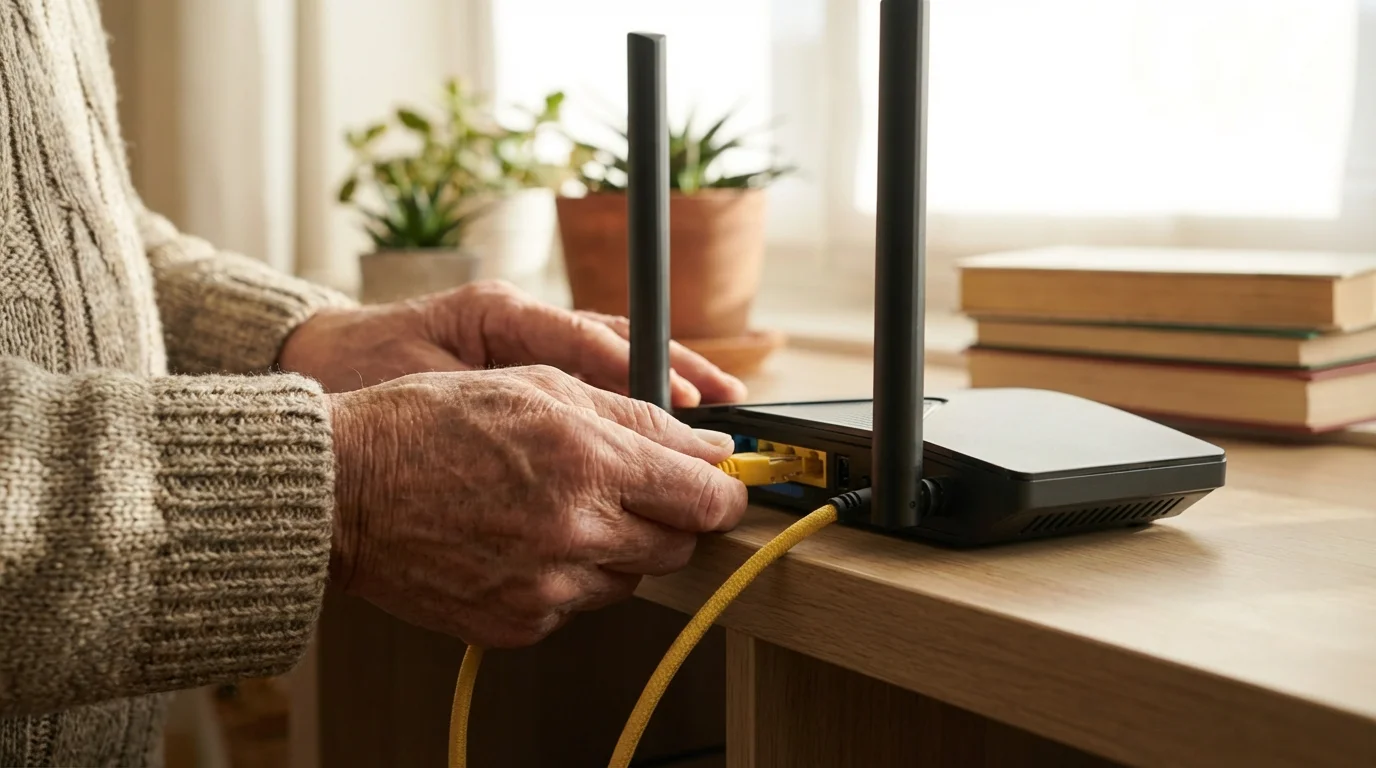
Follow the wires coming out of your modem and router. Ensure they are pushed firmly into their ports.
You should hear a soft “click” when a network cable (which looks like a large phone cord) is properly seated. Check the power cable as well—ensure it is plugged tightly into the wall outlet and the back of the device.
If your equipment is plugged into a power strip, make sure the switch on the strip is in the “On” position.
Look at the lights on the front of your modem and router. Most devices have an icon that looks like a globe or is labeled “Internet” or “Online.”
If this light is solid green or blue, the signal is reaching your house. If it is blinking red, orange, or is completely dark, the problem is likely with your internet provider (like Comcast/Xfinity, AT&T, or Spectrum).
In this case, no amount of computer troubleshooting will fix the issue; you may need to call the company to see if there is a neighborhood outage.

The Power of Restarting Your Devices
You may have heard the joke about tech support asking, “Have you tried turning it off and on again?” This advice remains the most effective tool in your troubleshooting kit.
Electronics can get “confused” over time as they run through millions of calculations. Restarting them clears out the digital cobwebs and allows the software to start fresh.
If a restart doesn’t immediately fix your home internet, remember that you can use your smartphone as a mobile hotspot to stay connected temporarily.
To perform a proper “power cycle,” follow these steps exactly:
- Locate the power cord on the back of your modem and router. Unplug them from the electrical outlet.
- Wait at least 30 seconds. This allows any electricity remaining in the device’s components to dissipate completely.
- Plug the modem back in first. Wait about two minutes while the lights blink and stabilize.
- Plug the router back in next (if you have a separate router). Wait another two minutes.
- Restart your computer.
Once everything is back on, wait a moment for your computer to find the signal. Often, this simple act resolves the issue entirely.

Troubleshooting on Windows 10 and Windows 11
If your physical hardware looks good but you still cannot get online, we need to check the settings on your computer. Microsoft has built-in tools to help diagnose these problems automatically.
The steps differ slightly depending on which version of Windows you use.
Before diving into deep settings, consider if your computer is running slowly overall, as this can sometimes mimic a poor internet connection.
Checking the Taskbar Icon
In Windows, the taskbar is the bar at the bottom of the screen. Look at the bottom right corner, near the clock.
You will see a small icon for your internet. On Windows 10, it looks like a series of curved waves.
On Windows 11, it is a small icon that combines the Wi-Fi waves with the volume and battery symbols.
Click on this icon. A small menu will appear.
Look for the Wi-Fi button. If it is blue, Wi-Fi is turned on.
If it is gray, click it once to turn it on. You should see a list of available networks.
Look for your home network name and click on it. Ensure the box labeled “Connect automatically” is checked, then click the “Connect” button.
Using the Network Troubleshooter
Windows includes a helper program called a Troubleshooter. To find it:
- On Windows 10: Click the Start button (the Windows logo in the bottom left corner), then click on the gear icon labeled Settings. Click on Update & Security, then click Troubleshoot on the left side. Select Internet Connections and click Run the troubleshooter.
- On Windows 11: Click the Start button (the Windows logo in the middle or left of the bottom bar), then click Settings. Click on System in the left menu, then scroll down and click Troubleshoot. Click Other troubleshooters and then click the Run button next to Internet Connections.
The computer will now “think” for a moment and look for common errors. It may ask you to reset your wireless adapter; if it does, click “Apply this fix.”
This is like giving your computer’s internal antenna a quick reset.

Troubleshooting on a Mac (macOS)
Apple computers generally have a very reliable connection, but they can still encounter hiccups. On a Mac, the primary area for managing your connection is the menu bar at the top of the screen.
Checking for software issues is also part of setting up automatic updates to keep your Chromebook secure and connected.
If you are connected to Wi-Fi but websites still won’t open, you may need to clear the cache on your computer to fix browser-related errors.
Checking the Wi-Fi Status
Look at the top right corner of your screen. You will see an icon that looks like a quarter-circle with several curved lines.
This is your Wi-Fi status icon. If the lines are solid black or white, you are connected.
If the icon is just an outline, you are disconnected. If there is an “X” through it, your Wi-Fi is turned off.
Click the Wi-Fi icon once. Ensure the switch is turned on (it should be blue).
From the list of networks, find yours and click on it. If prompted, type in your password carefully.
Remember that passwords are “case-sensitive,” meaning capital letters and lowercase letters must be exact.
Renewing Your Connection
If you are connected but the internet still isn’t working, you can try “Renewing the DHCP Lease.” This tells your Mac to ask your router for a fresh digital address.
Here is how you do it:
- Click the Apple menu (the apple icon in the very top left corner).
- Click on System Settings (on newer Macs) or System Preferences (on older Macs).
- Click Network in the sidebar or main window.
- Click on Wi-Fi.
- Click the Details button (or Advanced on older systems).
- Click on TCP/IP in the list that appears.
- Click the button that says Renew DHCP Lease.
- Click OK.
Wait a few seconds. You might see the Wi-Fi icon flicker, and then your connection may resume.
Troubleshooting on a Chromebook
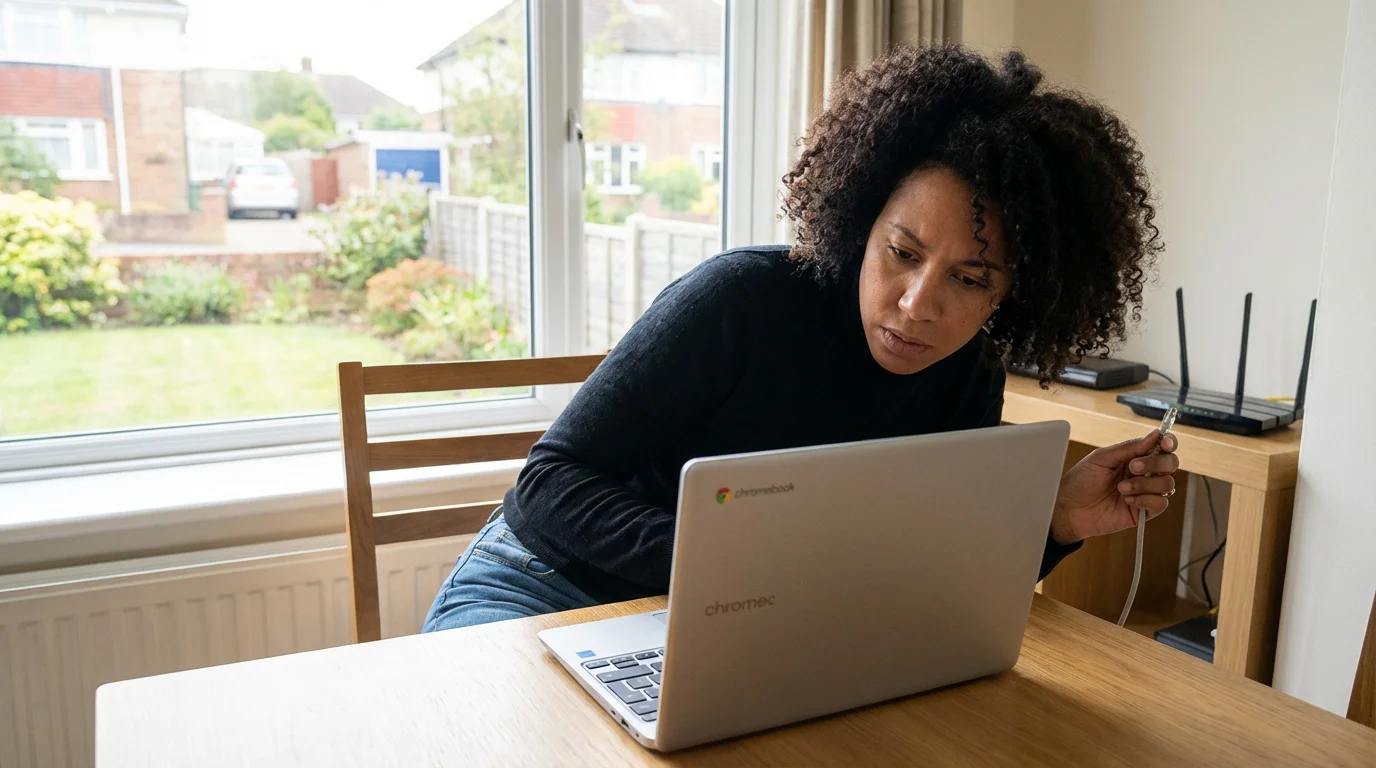
Chromebooks rely almost entirely on the internet to function. If you are offline, you will see a screen that says “No internet” with a picture of a small dinosaur.
Troubleshooting a Chromebook is very straightforward because Google has simplified the settings.
Checking the Status Area
Look at the bottom right corner of your screen where the time and battery life are displayed. This is called the Status Area.
Click on the time once. A small panel will pop up.
You will see a Wi-Fi icon. If the icon is blue, it is on.
If it is gray with a line through it, click it to turn it on.
If your network name appears but you have no internet, click the small arrow next to the Wi-Fi icon. Click on your network, then click the “Forget” button (represented by a trash can or the word “Forget”).
This removes the stored information about your connection. Now, click on your network name again and re-type your password.
This “clean start” often fixes issues caused by old or incorrect security settings.

Optimizing Your Router Placement
Sometimes the problem isn’t your computer or the wires; it is the physical layout of your home. Wi-Fi signals are actually radio waves, much like the ones that carry music to your car radio.
These waves can be weakened or blocked by objects in your house.
If your Wi-Fi signal is strong but your browsing still feels sluggish, you might want to investigate simple steps to speed up your computer beyond just network issues.
To get the best signal, consider these tips:
- Centralize the Router: Try to place your router in a central location in your home. If it is tucked away in a corner of the basement, the signal has to travel through many walls and floors to reach your computer.
- Avoid Obstacles: Thick walls made of brick, concrete, or plaster can block the signal. Large metal objects like refrigerators or filing cabinets are particularly bad for Wi-Fi.
- Mind the Electronics: Microwave ovens and cordless house phones often operate on the same frequency as older Wi-Fi routers. If your internet drops every time you heat up leftovers, the microwave is likely causing interference.
- Height Matters: Routers broadcast their signal downward. Placing your router on a high shelf or a tabletop is better than leaving it on the floor.
If you live in a large house and find that the signal is always weak in the bedroom or attic, you might consider a “Wi-Fi Extender” or a “Mesh System.”
These devices act like relays, picking up the signal from your main router and boosting it to reach further corners of your home. For more information on hardware upgrades, you can visit Consumer Reports for unbiased reviews.
Frequently Asked Questions
Q: Why does my Wi-Fi work on my phone but not on my computer?
A: This usually means the internet coming into your house is fine, but the specific software on your computer is having a “disagreement” with the router. Try the restarting steps mentioned above or “forgetting” the network on your computer and reconnecting from scratch.
Q: My computer says “Connected, No Internet.” What does that mean?
A: This means your computer is successfully talking to your router, but your router is not talking to the outside world. This is almost always an issue with the modem or your internet provider.
Restart your modem and router as a first step.
Q: Do I need to buy a new router every few years?
A: Technology improves quickly. If your router is more than five or six years old, it may not be able to handle the speeds of modern internet or the number of devices (tablets, phones, smart TVs) in your home.
Upgrading can significantly improve your experience.
Q: What is a “Wi-Fi password” versus an “account password”?
A: Your Wi-Fi password (or security key) is the code you enter into your computer to connect to your home signal. Your account password is what you use to log in to your provider’s website to pay your bill.
They are usually different unless you set them to be the same.
When to Ask for Professional Help
Sometimes, despite your best efforts, the technology simply refuses to cooperate. There is no shame in asking for assistance.
If you have tried restarting your equipment and checked your settings but still cannot get online, here is your plan of action:
- Call your Internet Service Provider (ISP): If the lights on your modem are red or blinking, the problem is on their end. They can often “reset” your connection from their office.
- Ask a trusted family member: Often, a grandchild or neighbor who grew up with this technology can spot a small setting that was overlooked.
- Visit a local repair shop: If your computer cannot see any Wi-Fi networks (but your phone can), the internal antenna in your computer may have failed. A local technician can test this quickly.
- Use Official Support: If you have a specific error message, you can visit Microsoft Support or Apple Support using a smartphone or a different computer that is still working.
Remember, technology is a tool meant to serve you. If it becomes a source of extreme stress, step away for a few minutes.
Most problems are not your fault, and they are almost always fixable with a little patience and the right steps.
Disclaimer: This article is for informational purposes only. Your computer’s screens may look slightly different depending on your operating system version and settings.
When in doubt, consult official support resources or ask someone you trust for help.
Keywords: Wi-Fi problems, internet connection, troubleshooting, fix home internet, senior computer help
Meta Description: Learn how to fix common Wi-Fi problems at home with this patient, step-by-step guide for Windows, Mac, and Chromebook users over 55.