
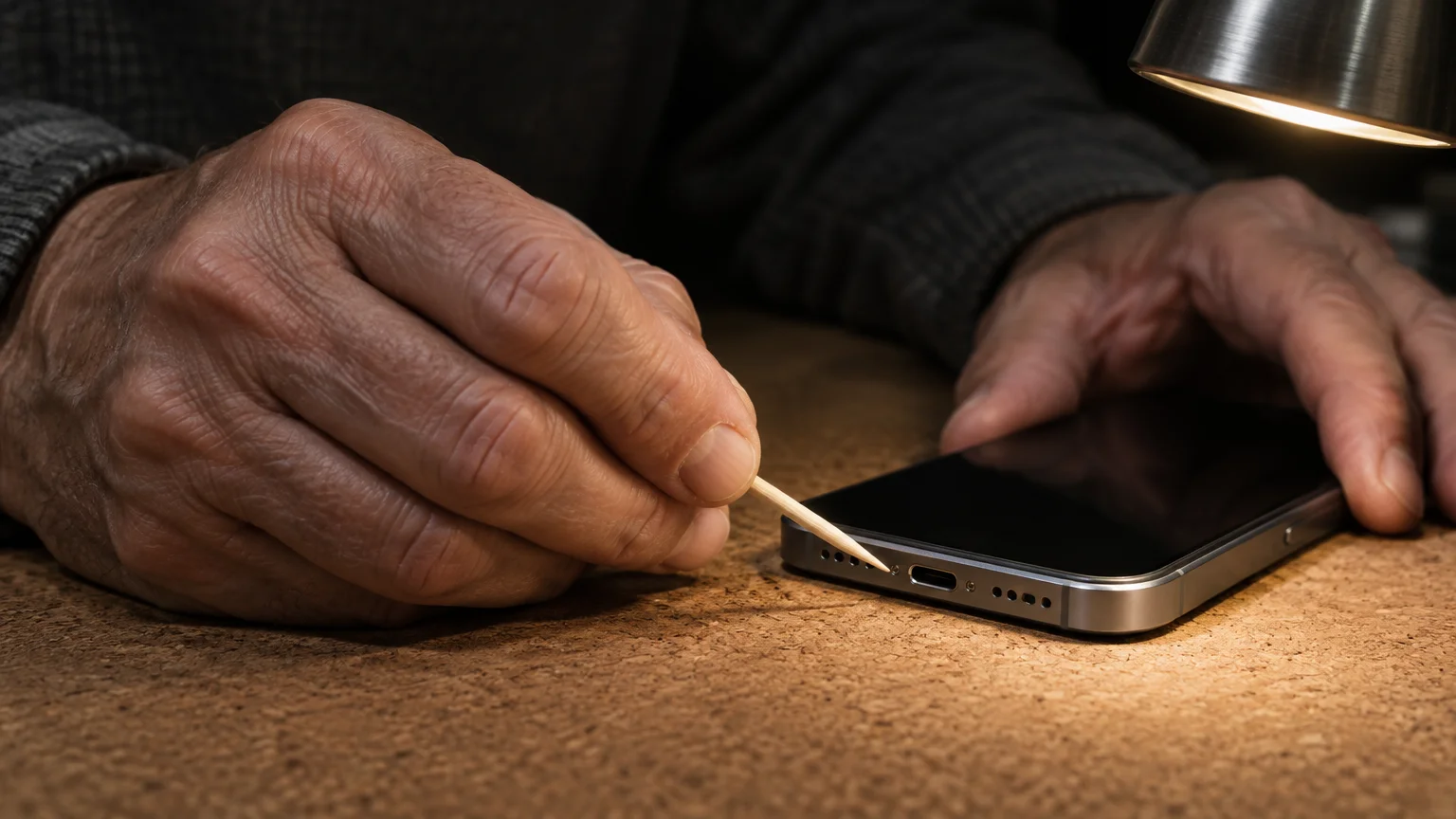
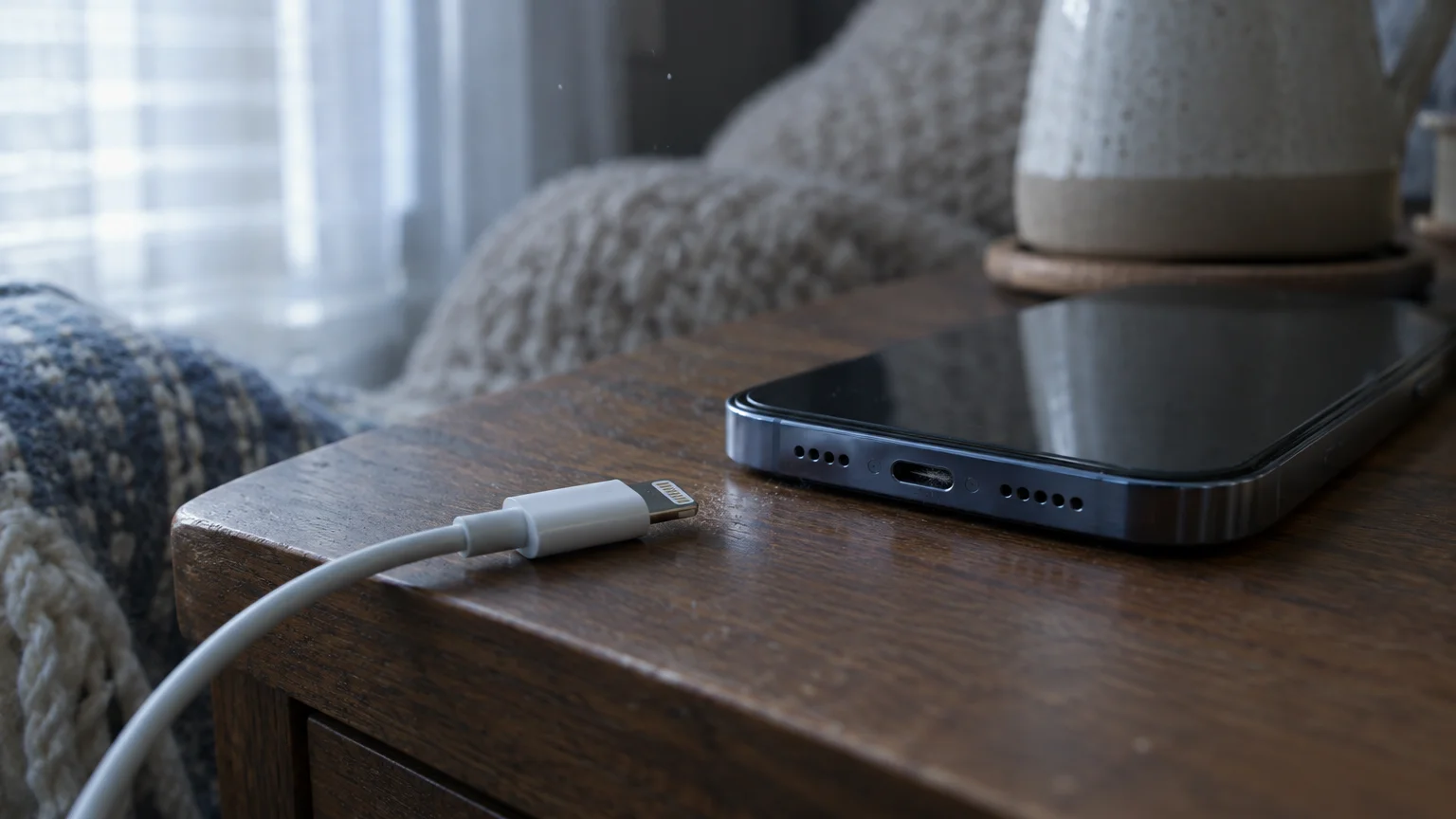
When your charging cable slips loose from your iPad or smartphone on your side table, packed pocket lint is almost always the culprit. You do not need to purchase a replacement device or pay for an expensive port repair.
Keeping your device clean and mechanically sound is just as important for daily reliability as knowing how to connect your smartphone to Wi-Fi at home.
Standard guides suggest blindly poking into the opening, which risks snapping delicate electrical pins and ruining the motherboard. We provide exact millimeter depth guidelines so you can safely scrape away compressed debris with a simple wooden toothpick.
Following these physical boundaries lets you restore a firm connection without risking short circuits or costly hardware damage.
In this guide8 sections
- Why Cables Fall Out and Stop Charging
- Essential Tools and Items to Avoid
- Safety Preparations and Lighting Setup
- Port Anatomy and Millimeter Depth Limits
- Step-by-Step Toothpick Cleaning Procedure
- Scenario: Clearing an iPad Port by the Recliner
- Testing the Connection and Preventative Care
- Frequently Asked Questions
Why Cables Fall Out and Stop Charging
Modern mobile devices rely on precise mechanical latching to keep charging cables firmly seated. Inside your charging port, tiny spring-loaded metal clips grip small indentations on your cable plug.
A loose charging cord is a common physical issue that can make a device feel broken, much like when your phone is not responding to your finger taps because of surface buildup or frozen software.
A poor connection can also cause resistance and heat, so if you notice other issues, check why your tablet charger gets warm in the wall during normal use.
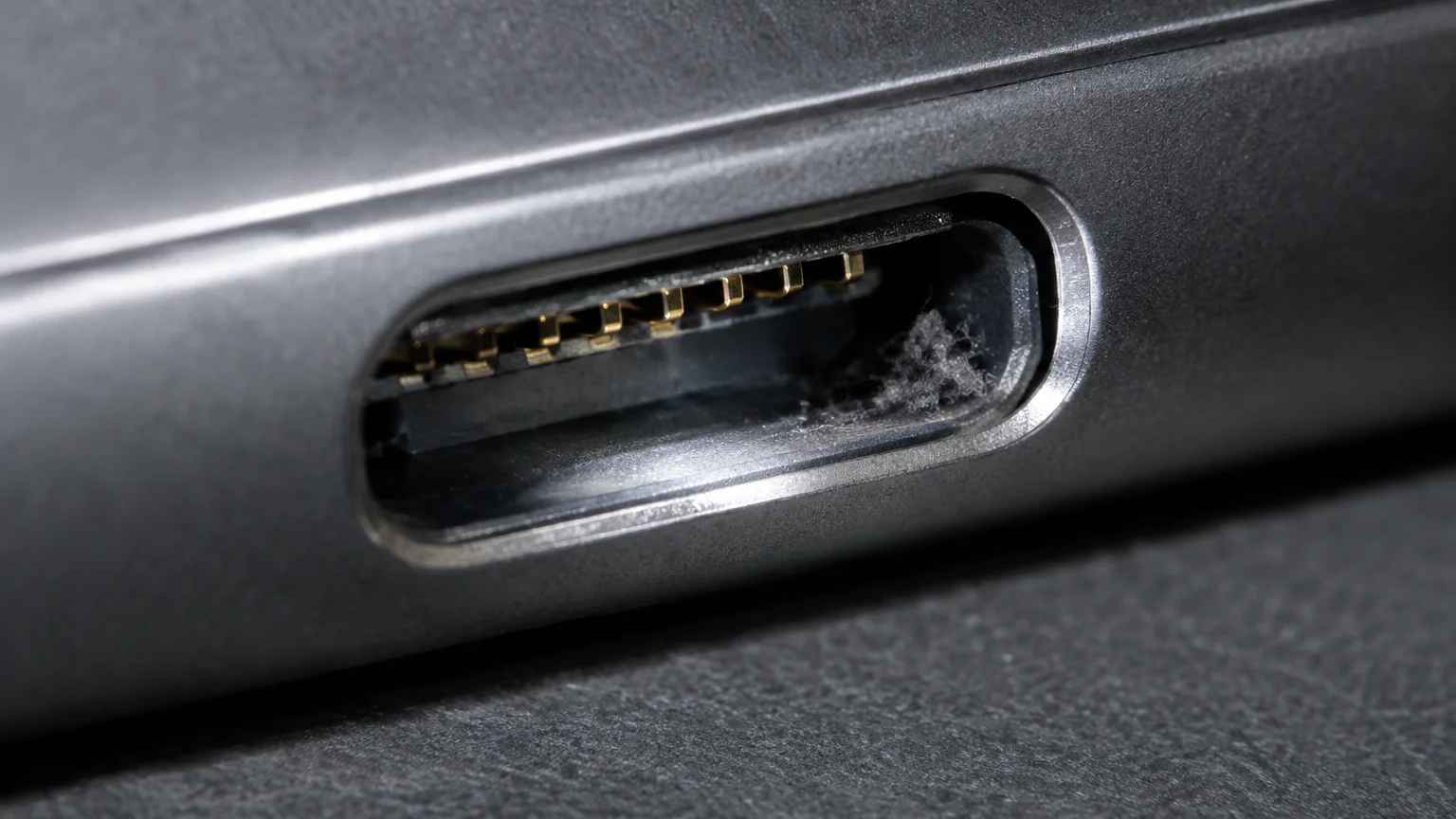
When you rest your phone in a pocket or on upholstered furniture, stray fibers drift into the port opening. Fleece blankets, flannel shirts, and living room chairs shed microscopic textile strands constantly.
Each time you plug in your charging cord, the connector acts like a piston. It shoves loose lint toward the bottom of the port cavity and compresses it against the rear wall.
Over several months, this repeated action packs loose fibers into a dense, felt-like pad. That felt pad takes up physical space at the bottom of the chamber.
Eventually, the blockage prevents your charging plug from reaching its full insertion depth. When the plug cannot travel that final millimeter, the internal retention springs cannot snap into place.
Consequently, your charger falls out of phone ports at the slightest nudge. The cord disconnects if you adjust your recliner, shift your blanket, or bump your side table.
You might notice a spongy feeling when pushing the cable into the port instead of a distinct click. That spongy sensation confirms a layer of compressed lint is blocking the plug.
Many people assume their battery has degraded or their charging cable has broken. In reality, clean metal contacts simply cannot touch each other through the packed fiber barrier.
Restoring a solid electrical connection requires extracting that compressed lint without scratching the sensitive gold pins. Doing so saves money and extends the usable life of your tablet or phone.
Essential Tools and Items to Avoid
Choosing the correct tool determines whether you fix your device or permanently ruin its motherboard. You must use a non-conductive instrument that yields under excessive force before bending metal pins.
Straightforward checks solve many confusing device glitches, just like inspecting your volume switches when you notice your phone isn’t ringing for family phone calls.
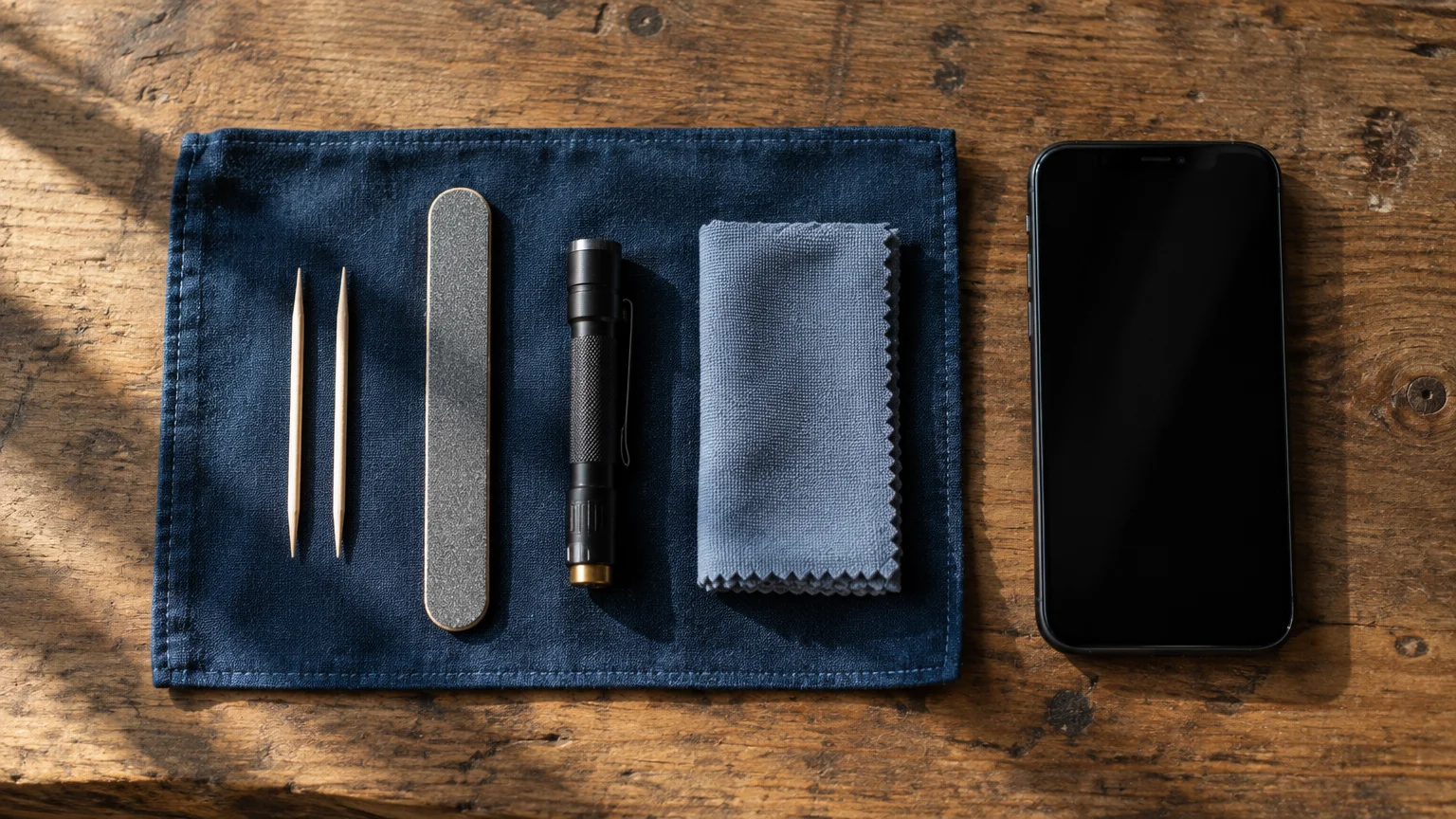
We recommend a standard round wooden toothpick made of birch. You can shape its point into a miniature flat wedge using an emery board or standard nail file.
Gather the following recommended items before beginning your cleaning session:
- A standard round wooden toothpick with a clean, splinter-free tip.
- An emery board or fine sandpaper to bevel the wooden point.
- A focused desk lamp or gooseneck reading light providing at least 400 lumens.
- An optical magnifying glass or a second mobile device running a magnification utility.
- A soft microfiber cloth to lay underneath your phone or tablet on the table.
Never insert conductive household items or harsh chemicals into your device port. Metal objects conduct stray electrical current and can easily bridge live battery terminals.
Avoid the following dangerous items when cleaning your charging port:
- Sewing needles, safety pins, and opened metal paperclips.
- Canned compressed air with high-pressure aerosol propellants.
- Cotton swabs or Q-tips that shed loose strands inside the chamber.
- Rubbing alcohol, water, or chemical contact cleaner sprays.
- Metallic tweezers or dental scrapers.
The table below compares common household cleaning options across key safety measurements.
| Cleaning Instrument | Material Composition | Tip Thickness | Conductivity Risk | Port Damage Potential |
|---|---|---|---|---|
| Shaved wooden toothpick | Birch wood | 0.4 to 0.6 mm | None (Non-conductive) | Minimal |
| Sewing needle | Tempered steel | 0.5 to 0.8 mm | Severe (Conductive) | Catastrophic |
| Metal paperclip | Galvanized steel | 0.8 to 1.1 mm | Severe (Conductive) | Catastrophic |
| Plastic dental flosser pick | Polypropylene | 0.5 to 0.7 mm | None (Non-conductive) | Low |
| Canned compressed air | Fluorocarbon propellant | 2.0 mm nozzle | Moisture risk | High |
A shaved wooden toothpick remains the safest choice because wood fibers yield before bending internal copper pins. If you apply excessive force, the wood tip crushes harmlessly rather than damaging the socket.
Conversely, canned compressed air freezes delicate port seals and propels lint deeper beneath the pin assembly. Liquid cleaners cause corrosion and trigger internal liquid submersion sensors, which can void your warranty.

Safety Preparations and Lighting Setup
Before performing physical maintenance on your device, protect your stored data against unforeseen hardware issues. Always back up your system so your photos, contacts, and personal messages remain intact.
If your backup cannot finish because your device warns that memory is full, take a quick detour to free up storage space on your smartphone first.
While creating a backup, it is also a good habit to keep your operating system current by learning how to update your iPhone to the latest software.
On Apple devices, review Apple’s instructions for backing up your iPhone or iPad to iCloud. This ensures your data remains secure in cloud storage before you clean the physical port.
If you use an Android device, verify your device backup by visiting Google’s Android Help Center. This routine stores your application settings and contacts safely inside your Google Account.
Next, shut down your device completely to eliminate electrical current running through the port contacts. Never clean an active, powered device with any tool.
On an iPhone or iPad without a physical home button, press and hold the Side button and either Volume button. When the power slider appears on the screen, drag slide to power off.
On an iPad with a physical home button, press and hold the Top button until the shutdown slider appears, then drag it across the screen.
On Android devices running Android 15 or Android 16 as of 2026, swipe down twice from the top of your display to open Quick Settings. Tap the Power icon in the lower corner, then tap Power off.
Alternatively, press and hold the Power button and Volume up button together on Samsung, Google Pixel, and Motorola devices to trigger the shutdown menu. Confirm the screen goes entirely black before proceeding.
Set up your work area on a sturdy table rather than in your lap. Rest your elbows on the table surface to stabilize your hands if you experience hand tremors or reduced grip strength.
Position your desk lamp so light beams directly into the narrow opening of the port. Working under dim ambient lighting makes it nearly impossible to distinguish compacted lint from internal circuit pins.
If you need enlarged visual clarity, check Apple’s guide to making text and items bigger to locate the Magnifier app on an auxiliary iPad or iPhone. The Magnifier app turns your camera into a lighted digital reading glass.
On Android hardware, you can turn on magnification shortcuts detailed in Google’s Android accessibility overview. A stand-mounted optical magnifying glass also provides hands-free optical enlargement.
Port Anatomy and Millimeter Depth Limits
Understanding port depth boundaries prevents you from ramming tools into delicate internal components. Ports differ substantially depending on whether your device uses Apple Lightning or modern USB-C architecture.
If you are cleaning out the port of an older gadget before gifting it to a relative, remember to also clean personal data off an old tablet to protect your privacy.
An Apple Lightning port measures approximately 6.7 millimeters deep, 1.5 millimeters tall, and 6.6 millimeters wide. It features a hollow cavity with eight small gold contact pins lined along one interior wall.
When you clean lightning port toothpick boundaries, you must keep all scraping pressure directed against the rear wall. You must never scrape or pry against the bottom wall where those gold contacts reside.
A USB-C port measures approximately 6.5 millimeters deep, 2.4 millimeters tall, and 8.3 millimeters wide. Unlike Lightning, USB-C features a thin circuit tongue suspended directly in the center of the opening.
That central tongue holds twenty-four microscopic contact pins spread across both sides. If you bend or snap that central wafer, the entire device motherboard must be replaced.
When working inside a USB-C port, you must work strictly in the narrow moats above and below the tongue. Never apply lateral pressure against that central wafer.
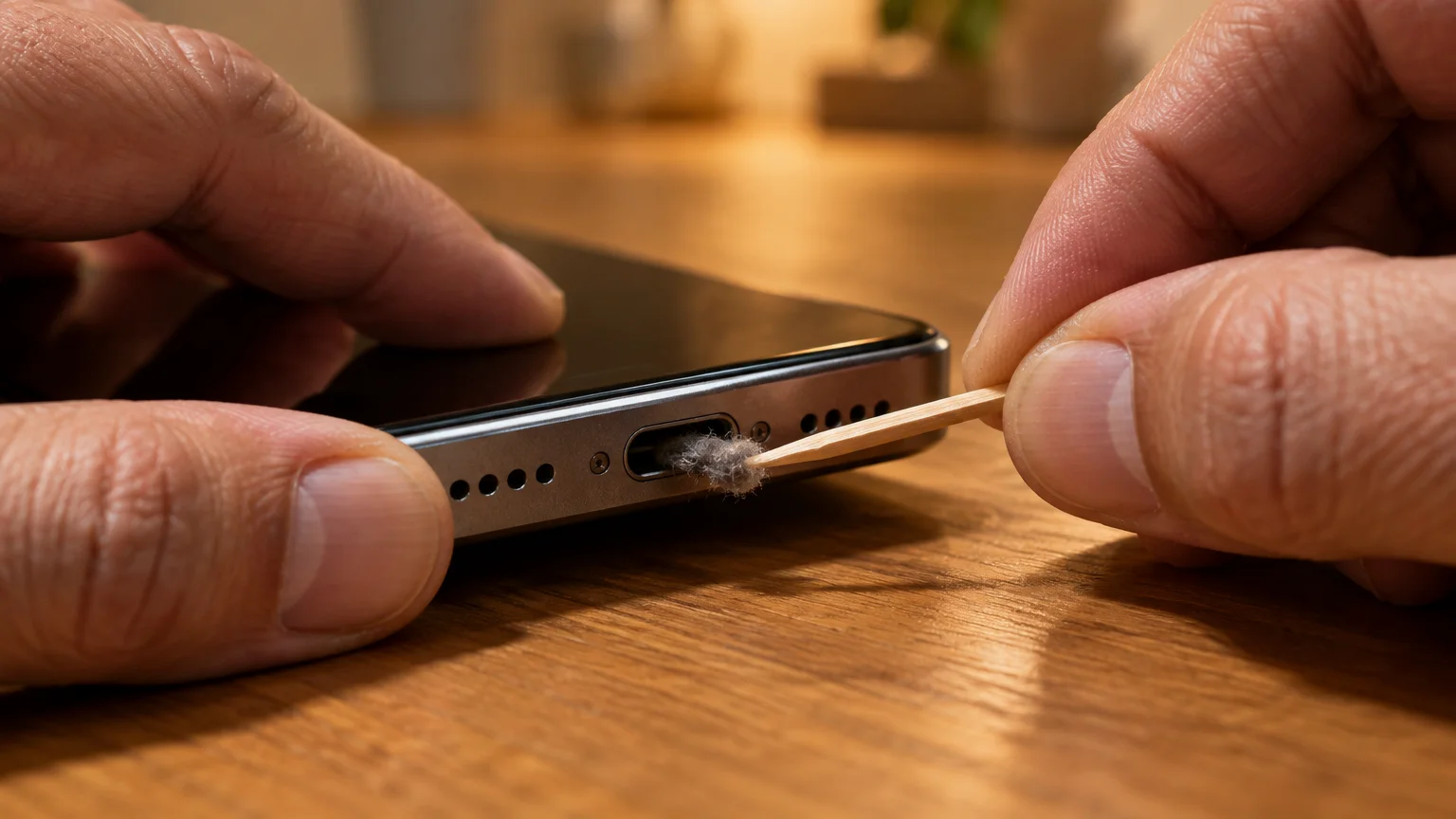
Using a millimeter ruler, measure exactly 6.0 millimeters from the tip of your wooden toothpick. Mark this boundary clearly with a graphite pencil or dark pen line.
This 6.0-millimeter depth marker functions as your physical safety stop. It prevents you from inserting the toothpick too deep and cracking the rear silicone moisture seals.
If the toothpick stops at 4.0 or 5.0 millimeters, you are resting against compacted lint rather than the back wall. You can safely apply gentle scraping friction against that obstruction.
However, once your pencil mark reaches the port rim at 6.0 millimeters, you have reached the physical end of the chamber. Stop pushing immediately to avoid damaging the internal enclosure.
Step-by-Step Toothpick Cleaning Procedure
Perform these steps under bright lighting with your device resting flat on a stable surface. Work patiently, taking short breaks if your fingers feel fatigued.
Once your port is clear and your phone is back on, you can also adjust your display sensitivity to stop accidental taps on your touchscreen during everyday use.
- Shape the tip of your round birch toothpick by rubbing both sides across an emery board for 20 seconds. Flatten the tip into a thin, chiseled spatula measuring approximately 0.5 millimeters thick.
- Lay your flattened toothpick against a millimeter ruler. Use a sharp pencil to draw a clear line exactly 6.0 millimeters back from the tip.
- Grasp the toothpick near the tip between your thumb and index finger to maximize tool control. Rest the heel of your hand firmly against the table edge to steady your fingers.
- Look directly into the port cavity under your task lamp to identify where the contact pins are located. On an iPad or iPhone Lightning port, locate the row of gold pins on the bottom interior face.
- Insert the toothpick gently into the port cavity, stopping when the pencil mark aligns with the outer chassis rim. Do not force the pick if you meet premature resistance.
- For a Lightning port, press the flat side of your toothpick gently against the smooth top wall, opposite the gold pins. Glide the tip downward toward the back floor of the cavity.
- For a USB-C port, slide the pick into the gap between the outer casing and the top face of the central tongue. Never wedge the pick underneath the center tongue with upward force.
- Sweep the pick horizontally along the back floor of the port from one corner to the opposite corner. Maintain light contact with the rear wall to catch the edge of the compressed lint pad.
- Lever the tip forward slightly to peel the lint mat away from the back surface. You will feel the obstruction give way as the fibers release their grip on the metal casing.
- Drag the toothpick outward along the smooth edge of the port opening to extract the loosened debris. Wipe the collected lint pellet onto a paper towel.
- Re-examine the interior socket with your magnifying glass and lamp. Repeat the sweeping motion along the bottom corners until the pick comes out clean.
Do not twist the toothpick like a drill bit while it sits inside the socket. Twisting creates shear stress that can snap the wooden point off inside the opening.
If a toothpick tip breaks inside the port, do not reach for a metal pin to dislodge it. Use another blunt wooden pick or a pair of plastic-tipped tweezers to slide the wood fragment out gently.
Apply only the amount of pressure you would use when signing your name with a ballpoint pen. Let the thin edge of the carved wood pry the fibers loose naturally.
Once you extract the primary wad of lint, you will likely see individual fine dust particles remaining. You can brush these away by lightly sweeping the dry wooden tip across the floor one final time.

Scenario: Clearing an iPad Port by the Recliner
Arthur is 79 years old and enjoys reading the daily news on his iPad 9th generation. He sits in an upholstered living room recliner with his tablet resting on an adjacent oak side table.
Recently, Arthur noticed that his charging cable pulled loose whenever he reached for his reading glasses. The cord detached completely, leaving his iPad battery depleted by morning.
Arthur examined the connection closely under an overhead lamp. He noticed a 1.5-millimeter gap of exposed metal between the white plastic cable collar and the iPad aluminum frame.
That gap proved the cable could not seat deep enough to click into the internal retention tabs. Compacted lint from Arthur’s favorite fleece throw blanket had settled inside the Lightning socket.
Arthur gathered a standard 65-millimeter birch toothpick, an emery board, and an adjustable desk lamp. He set everything on his kitchen table where he could sit upright with elbows rested.
He rubbed the toothpick across the emery board for 30 seconds, flattening the point into a miniature chisel. He used a ruler to make a faint pencil mark exactly 6.5 millimeters back from the edge.
Arthur pressed the Top button on his iPad until the power slider appeared on screen. He dragged slide to power off and waited 15 seconds for the screen to shut down completely.
Resting the iPad on a soft kitchen towel, Arthur directed 450 lumens of desk light into the Lightning port. Holding the pick steady, he inserted it until his pencil mark lined up with the outer aluminum casing.
He steered the tip away from the bottom pins, keeping friction against the back wall. On his second sweep across the floor, the pick snagged a dense felt clump.
Arthur carefully scooped the pick outward, dragging a gray lint pellet measuring 3.5 millimeters wide onto the table. A second gentle sweep removed two smaller fiber fragments from the corner.
He looked into the port with a handheld magnifier and observed clean aluminum at the rear wall. The entire extraction process took twelve minutes from setup to completion.
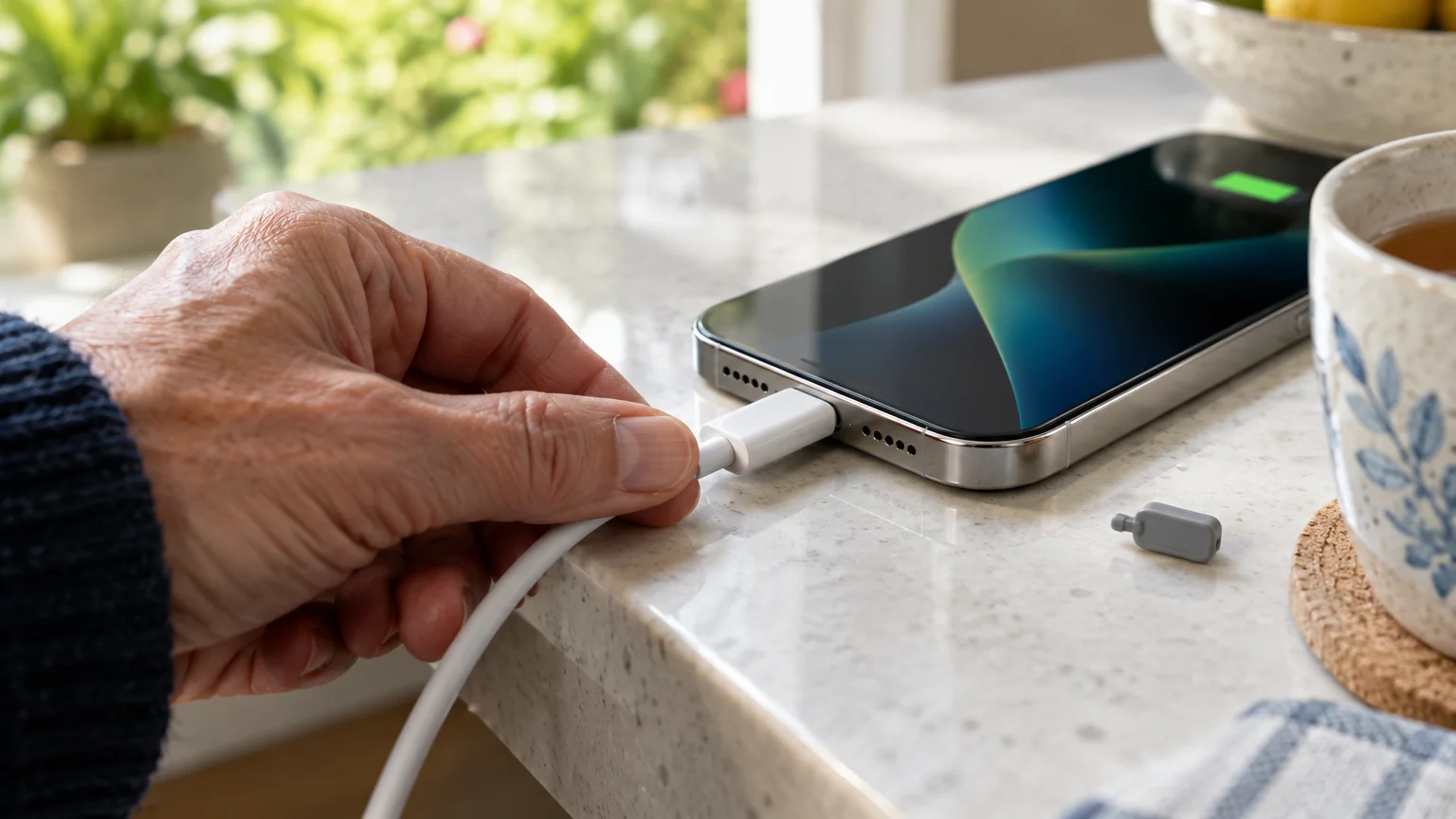
Arthur inserted his Lightning cable back into the socket. The plug snapped in with an audible mechanical click, and the white collar rested perfectly flush against the iPad body.
Testing the Connection and Preventative Care
Before turning your device back on, test the physical fit of your charging cable while the device remains unpowered. Insert your standard charging cord straight into the cleaned opening.
The plug should slide smoothly into the port and lock with a crisp mechanical snap. The plastic collar should rest flush against the device chassis without wobbling.
Gently tug on the cable collar using minimal finger force. The cable should remain firmly locked inside the socket without slipping out.
If the cable feels loose or fails to click, inspect the port under your lamp once more. A tiny fiber fragment may still be compressed in one of the far corners.
Once the cable seats correctly, press and hold the Power button until the manufacturer logo appears on screen. Allow your smartphone or tablet to boot up completely to your home screen.
Connect the other end of your charging cable to a verified wall charger plugged into an active outlet. Look at the battery gauge in the upper right corner of your display.
The battery icon should display a charging bolt symbol within three seconds of insertion. The screen should stay in charging mode even if you gently wiggle the cable collar.
You can check the Apple iPhone User Guide for additional device maintenance guidelines. Maintaining your charging equipment ensures uninterrupted access to telephone calls and emergency services.
To prevent future lint blockages, adopt a few simple habits around your home:
- Avoid resting your phone or tablet directly on high-pile carpets, shag rugs, or wool blankets.
- Store your phone in a dedicated purse compartment or shirt pocket rather than deep denim pockets.
- Install an inexpensive silicone dust plug into your charging port when using your device around dusty workshops or sewing areas.
- Inspect the charging port under a focused lamp every six months to catch loose dust before it compacts.
Never spray canned air into the port as a preventative measure. Blowing air simply packs loose ambient dust into the corners where it becomes difficult to remove.
Inspect your charging cable tips periodically for signs of black carbon marks or tarnished pins. If a pin appears burnt or bent, replace the cable immediately to prevent electrical damage to your clean port.
Frequently Asked Questions
Can rubbing alcohol clean a mobile charging port?
Do not use rubbing alcohol or any liquid cleaner inside your charging port. Liquid can penetrate internal gaskets, trigger moisture sensors, and corrode sensitive electrical circuits.
Why is compressed air dangerous for phone ports?
Compressed air cans blow moisture and freezing propellants that can crack solder connections. The intense air blast also forces lint deeper into the port rather than removing it.
What should I do if my charger still falls out after cleaning?
If the cable continues to fall out, test a different charging cable to rule out worn connector clips. If multiple cables fall out, the internal retention springs require professional hardware repair.
Will cleaning a charging port with a toothpick void my warranty?
Gentle cleaning with a non-conductive wooden toothpick will not void your manufacturer warranty. However, using metal tools or damaging internal pins will void warranty coverage.
Note: Menus and button names change with software updates. These steps were written for current versions as of 2026; if a screen looks different on your device, the maker’s support page linked above has the latest wording.
ClearTechGuide is independent and is not affiliated with Apple, Google, Microsoft, Amazon or any other company mentioned.
