
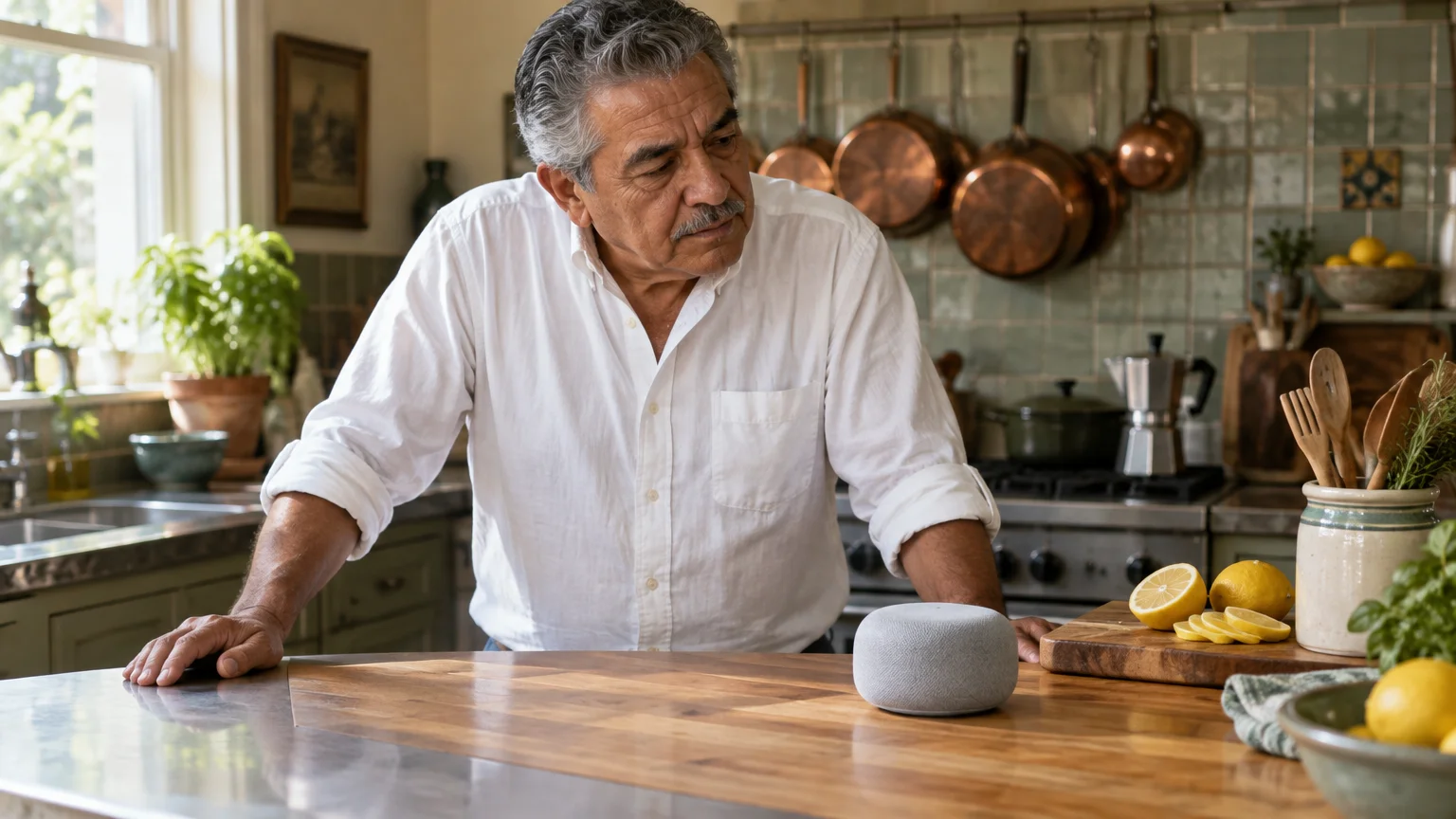
If your Amazon Echo responds in a hushed, barely audible whisper, you do not have a broken speaker. We will show you how to turn off Whisper Mode immediately so your device speaks at full clarity every time.
Many adults over 65 who experience hearing loss inadvertently trigger this hushed tone. Microphones on the device frequently mistake breathy speech, lower vocal pitch, or hesitations for intentional whispering.
Alexa then copies that quiet tone by design, locking hard-of-hearing listeners into a frustrating, muffled acoustic loop. Disabling this single voice setting restores normal conversational volume across your entire home.
In this guide8 sections
- Why Alexa Whispers Back Instead of Speaking Normally
- Method 1: Turn Off Whisper Mode Using Voice Commands
- Method 2: Permanently Disable Whisper Mode in the Alexa App
- Scenario: Restoring Clear Audio on an Echo Dot
- Smart Speaker Audio Settings for Hearing Health
- Preventing Accidental Voice Mode Triggers and Avoiding Setup Scams
- Additional Voice Adjustments for Speech Clarity
- Frequently Asked Questions
Why Alexa Whispers Back Instead of Speaking Normally
Amazon added a software feature called Whisper Mode to Echo devices to prevent late-night disturbances. The feature uses artificial intelligence to analyze how you speak to the microphone.
If you experience similar listening difficulties when using a desktop or laptop, learning how to adjust your computer’s volume and sound settings can also boost speech clarity.
An acoustic model is software that analyzes the frequency and sound patterns of human speech. When this acoustic model detects quiet speech, it commands the speaker to whisper its reply.
This design creates serious difficulties for older adults with presbycusis. Presbycusis is age-related hearing loss that reduces your ability to detect high-frequency sounds like consonants.
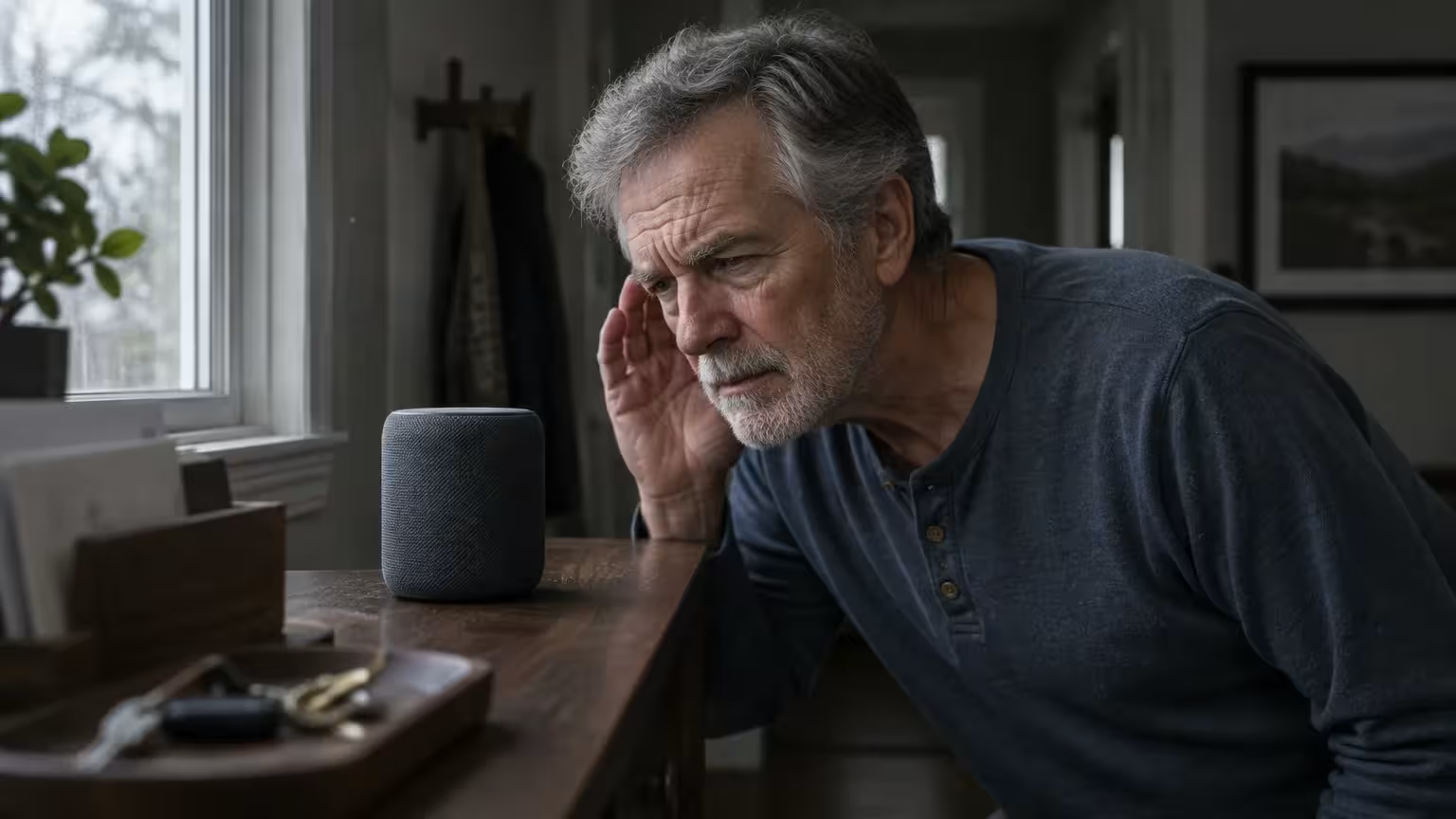
People with mild or moderate hearing loss often lower their volume without realizing it. You might drop your voice to prevent hearing aid feedback or lean close to the speaker.
Echo microphones interpret this soft, breathy vocal pattern as a deliberate whisper. The speaker responds in a muffled tone that strips away clear vowel and consonant definition.
Whisper Mode removes vocal power above 2,000 Hertz. That specific frequency range provides the crisp clarity you need to understand everyday English words.
Because the speaker whispers, you might lean in and speak even softer. This mistake traps you in a whispered loop where you cannot understand the virtual assistant.
Method 1: Turn Off Whisper Mode Using Voice Commands
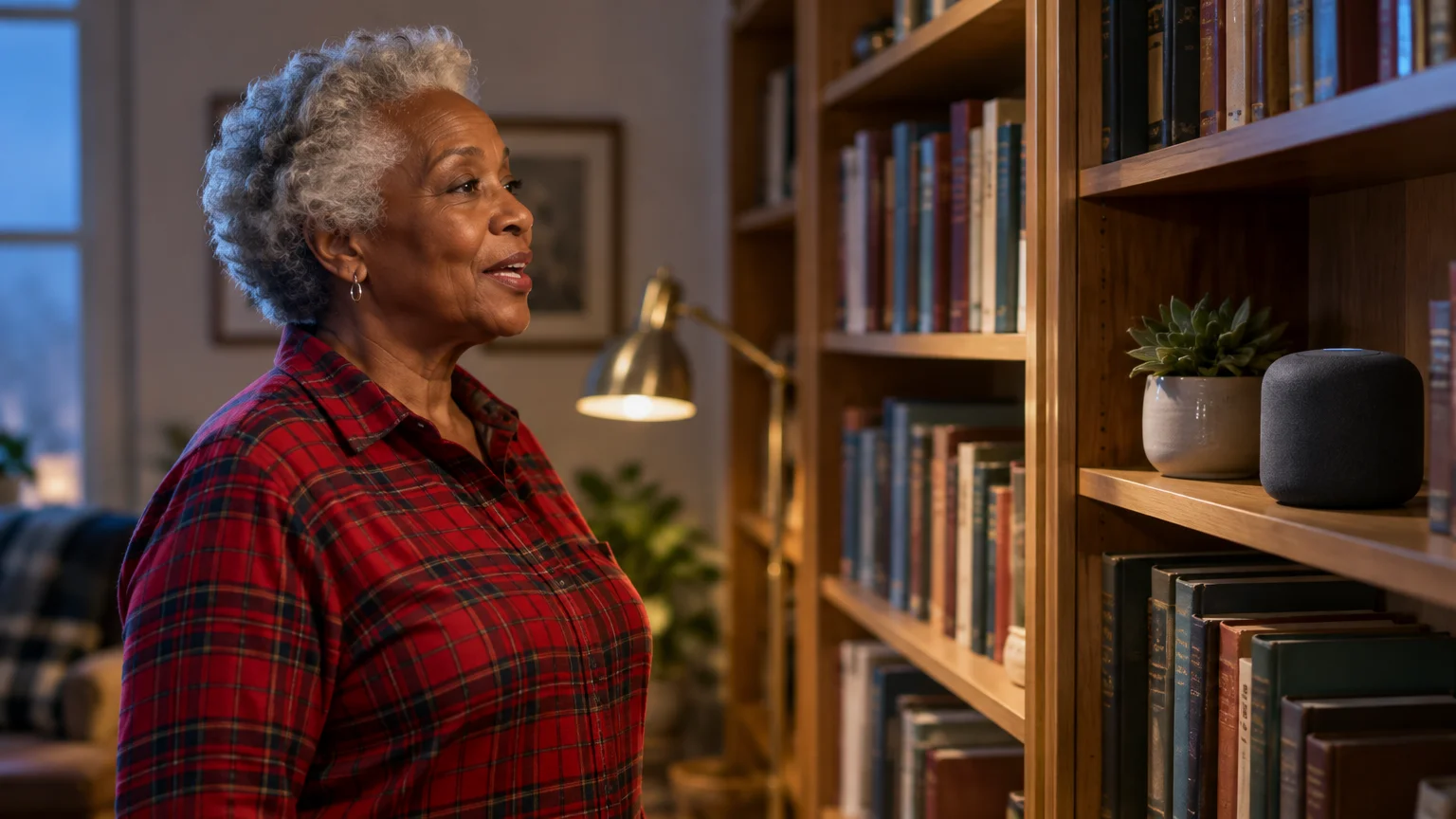
You can turn off this feature in seconds without opening a phone or touching a computer screen. A direct spoken command overrides the software setting across your Amazon account profile.
If you use an Apple device around your home as well, you can use Siri for everyday tasks using simple spoken commands.
Once your device speaks clearly again, you can also set up Alexa to call for help in case of an emergency at home.
Position yourself two to three feet away from your Amazon Echo speaker before speaking. Speak in a firm, direct voice at normal conversational volume.
- Stand facing the microphone ring or top grille of your Echo speaker.
- Say firmly: “Alexa, turn off Whisper Mode.”
- Wait for the device to reply: “Whisper Mode is now off.”
- Say: “Alexa, set volume to 5.”
- Test the speaker by asking: “Alexa, what is the weather today?”
If your speaker remains hushed during step 3, check the volume buttons on top. Someone may have lowered the physical master volume rather than triggering Whisper Mode.
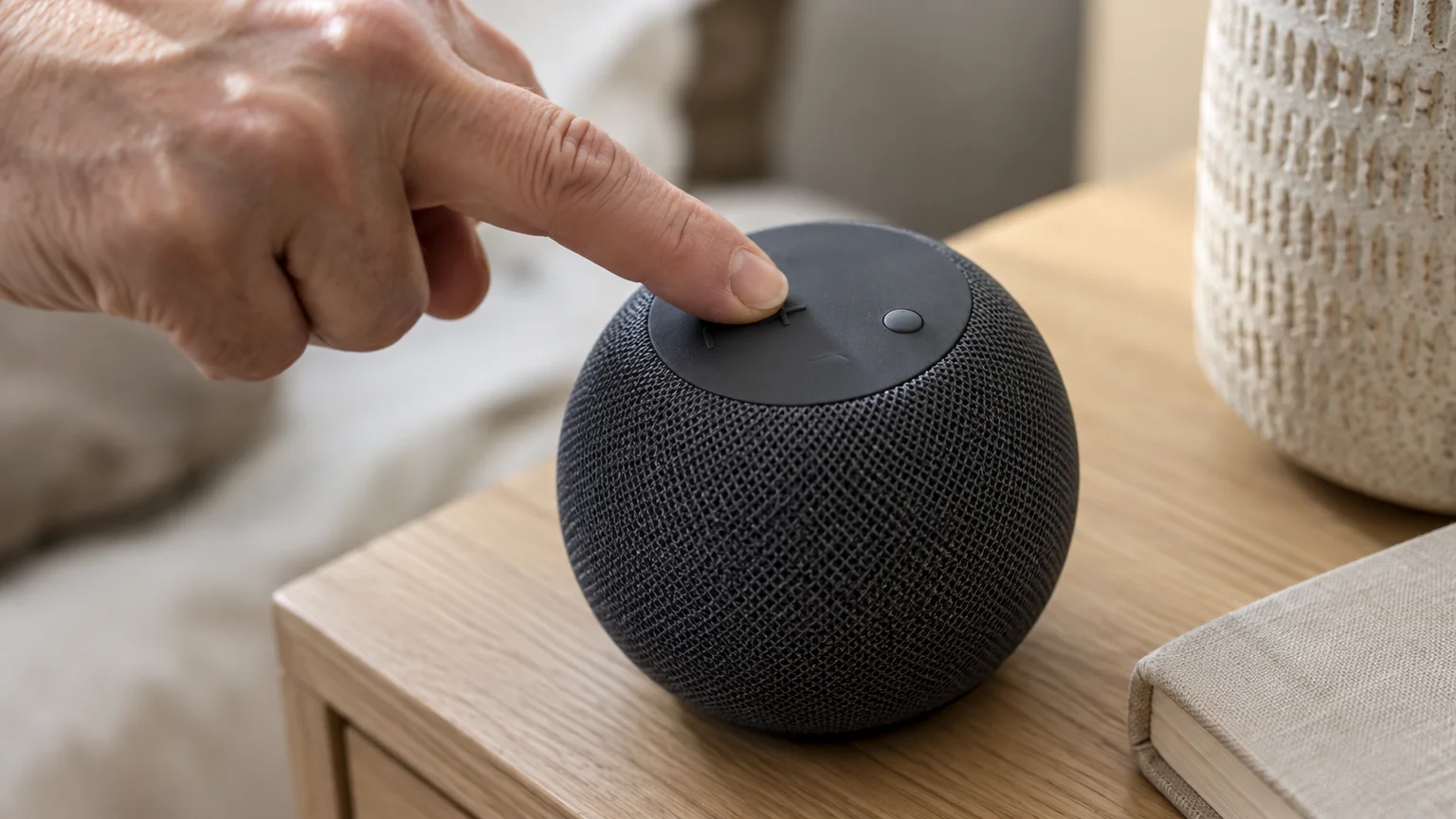
Echo speakers feature physical Volume Up (plus sign) and Volume Down (minus sign) buttons. Press the Volume Up button three times to verify mechanical sound output.
Method 2: Permanently Disable Whisper Mode in the Alexa App
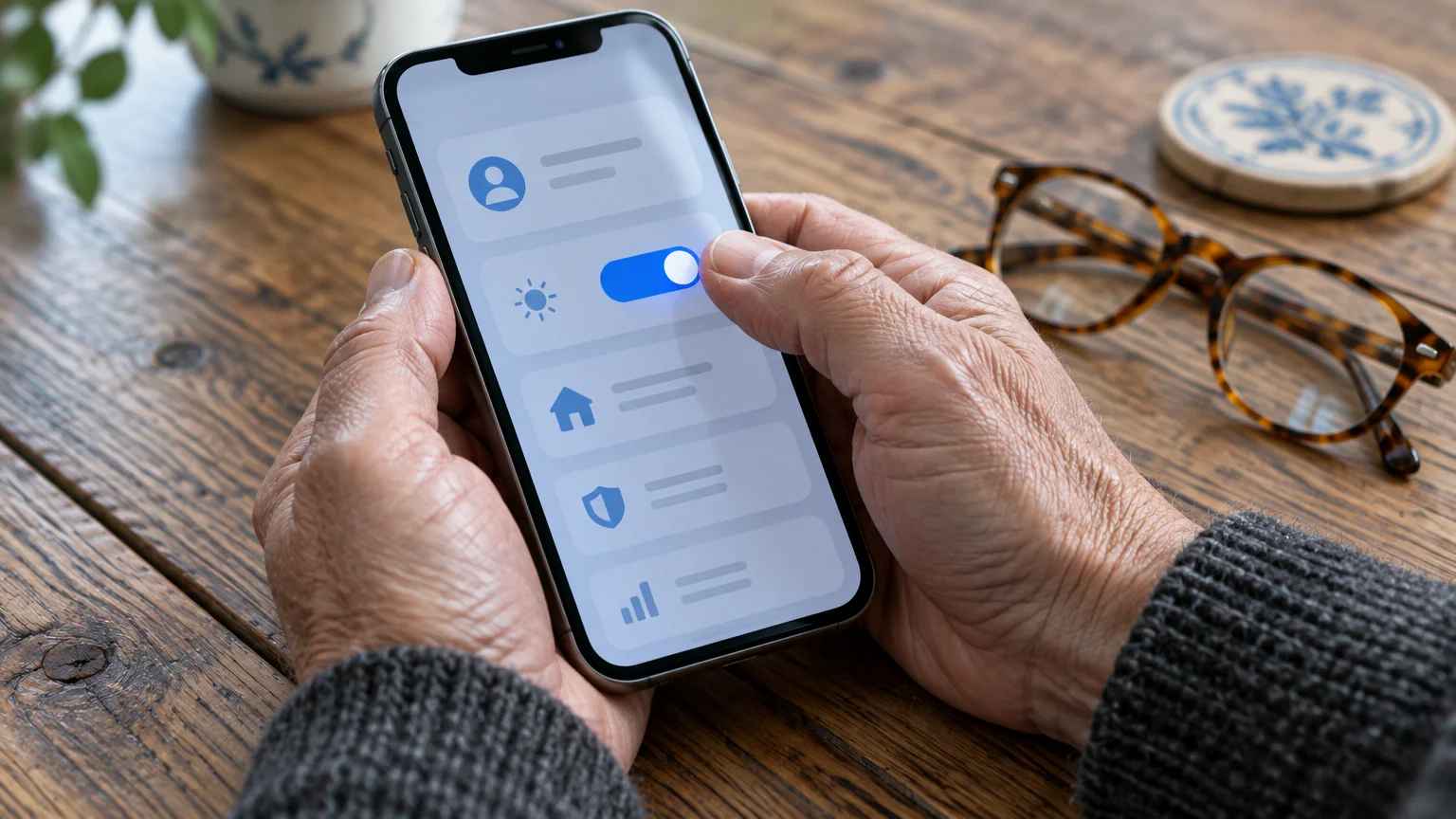
The smartphone app gives you visual confirmation that Whisper Mode is dead. Turning the toggle off inside your mobile settings ensures that accidental whispers never re-enable the feature.
If reading small menu options on your screen feels straining, using text-to-speech on your phone allows your device to read settings out loud.
Before opening the app, you can enlarge screen text on your mobile device for easier reading. Review Apple’s instructions to make text bigger on iPhone and iPad if you use iOS.
Android users can inspect Google’s Android accessibility overview to adjust font scaling and display contrast. Larger text makes finding the correct menu switches much simpler.
- Open the Amazon Alexa app on your smartphone or tablet.
- Tap More in the bottom navigation bar on the far right.
- Tap Settings near the top of the menu list.
- Scroll down to the section titled Alexa Preferences and tap Voice Responses.
- Locate the line labeled Whisper Mode.
- Tap the toggle switch next to Whisper Mode so the switch shifts to the gray off position.
When the toggle shows gray instead of blue, the software feature is completely disabled. You can review official setup details on Amazon’s official Alexa help page if menus shift after future updates.
This setting applies to all Echo hardware registered to your personal Amazon profile. You do not need to repeat these steps for secondary speakers in other rooms.
Scenario: Restoring Clear Audio on an Echo Dot
Arthur is a 68-year-old retired accountant living in Ohio. He manages high-frequency hearing loss using behind-the-ear hearing aids paired to his smartphone.
If you frequently struggle to hear notifications on your mobile device too, you can make text message alerts louder and repeat so you never overlook incoming messages.
Arthur keeps a 5th Generation Amazon Echo Dot on an oak end table in his den. The speaker sits eight feet away from his favorite reading chair.
Every evening at 9:15 PM, Arthur asks for the local weather forecast. Because his home is quiet, he speaks softly at an average sound pressure level of 48 decibels.
The Echo Dot interpreted Arthur’s quiet tone as a command to enter Whisper Mode. The speaker replied at 38 decibels, stripping out the crisp consonants Arthur needed to hear.
Arthur could not understand the forecast, so he asked again in a strained, hushed tone. The Echo Dot stayed locked in Whisper Mode, repeating the inaudible forecast.
Arthur opened the Amazon Alexa app on his phone at 9:20 PM. He went to More, selected Settings, selected Voice Responses, and switched off Whisper Mode.
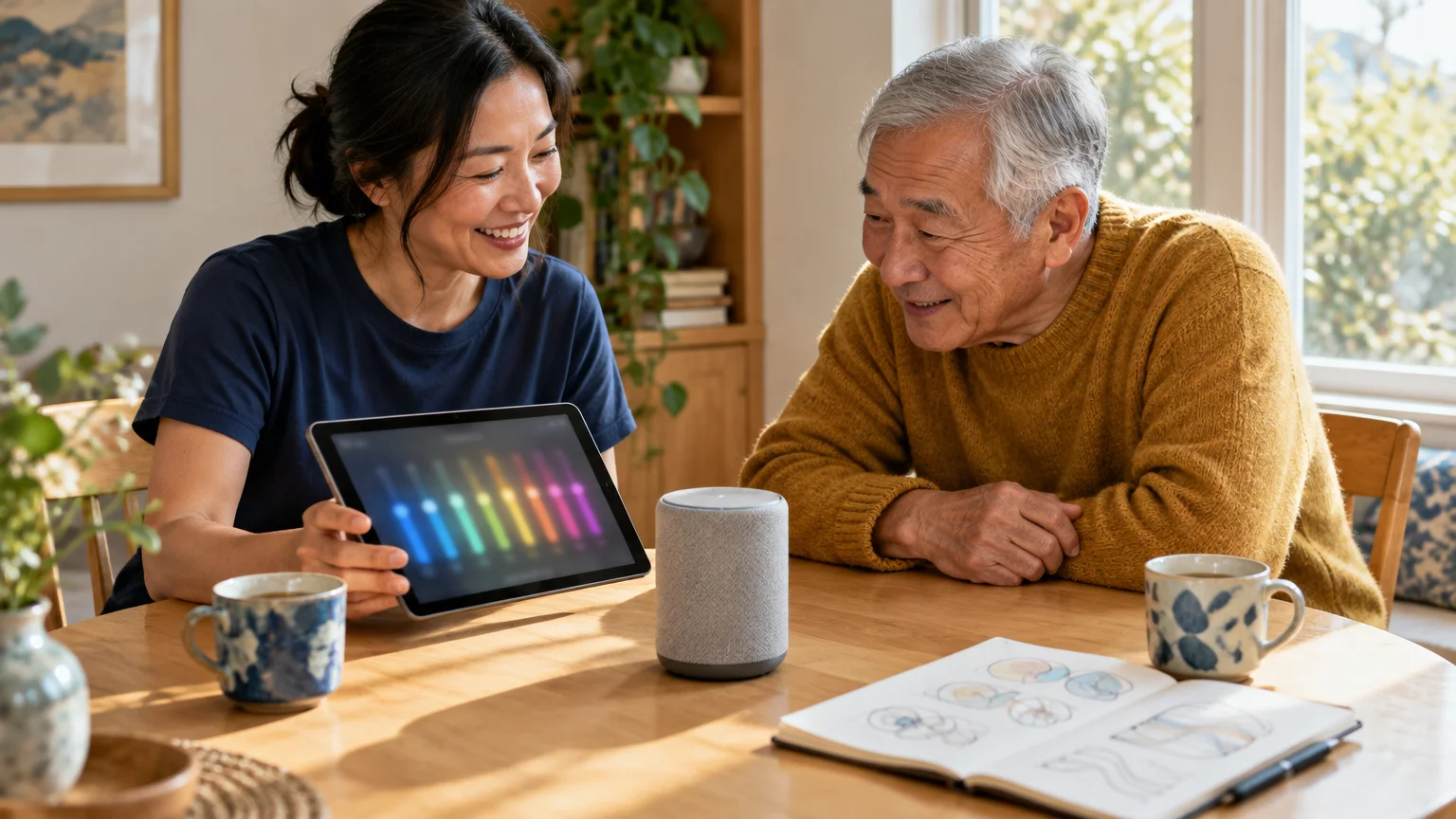
Next, Arthur adjusted his speaker’s equalization levels in the app under Devices. He increased the Treble slider to plus 3 and raised the Midrange slider to plus 2.
Arthur spoke to the Echo Dot again at 9:24 PM using his standard 48-decibel voice. Alexa answered at a full 68 decibels, providing crisp speech Arthur heard clearly across the room.
Smart Speaker Audio Settings for Hearing Health
Speaker hardware differences have a massive effect on speech clarity for older listeners. Smaller speakers compress sound frequencies, while larger drivers project separate vocal bands clearly.
For clearer audio when watching television without turning the room volume up, consider connecting wireless TV headphones to bring dialogue directly to your ears.
If you are deciding which model to bring into your living space, learning how smart speakers balance convenience and privacy can help you pick the right device.
Wireless speakers can also interact with wireless medical hardware. Check the FCC guide to hearing aid compatibility to understand how consumer electronics transmit clean radio signals.
Here is how current Amazon Echo models compare for users who need maximum vocal intelligibility as of 2026:
| Echo Model | Base Price (as of 2026) | Speaker Driver Size | Peak Clean Output | Best Hearing Feature |
|---|---|---|---|---|
| Echo Pop | $39.99 | 1.95-inch front-directional | 78 decibels | Front-facing sound cone suited for small nightstands |
| Echo Dot (5th Gen) | $49.99 | 1.73-inch front-firing | 82 decibels | Balanced midrange vocal frequencies in a compact body |
| Echo Show 8 (3rd Gen) | $149.99 | Dual 2.0-inch drivers with radiator | 88 decibels | Live on-screen closed captioning for all spoken responses |
| Echo Studio | $199.99 | 5.25-inch woofer and 3 mid-ranges | 96 decibels | Independent high-frequency tweeters separate consonants |
If you experience moderate hearing loss, smart displays like the Echo Show 8 offer visual advantages. The screen displays real-time subtitles while speaking, confirming what you hear.
For audio-only rooms, standard Echo Dots produce sufficient volume once Whisper Mode is disabled. Place the device at ear level rather than hiding it behind furniture.
Preventing Accidental Voice Mode Triggers and Avoiding Setup Scams
Physical placement affects how your smart speaker processes acoustic commands from your mouth. Sound waves bounce off hard surfaces, creating echoes that confuse microphone processors.
For another hands-free accessibility option beyond smart speakers, you can set up voice control on your iPhone to navigate screens entirely by speaking.
For households using different platforms, we also offer a guide on how to set up and use Google Nest speakers for easy voice controls.
Follow these physical placement rules to help Alexa recognize your voice accurately:
- Keep your Echo speaker at least eight inches away from walls or room corners.
- Place the speaker on a soft coaster or cloth placemat to stop table vibrations.
- Avoid placing the speaker right next to running fans, air conditioners, or televisions.
- Angle the microphone array toward the primary chair where you sit to talk.
- Wipe the microphone holes on top of the device with a dry brush monthly.
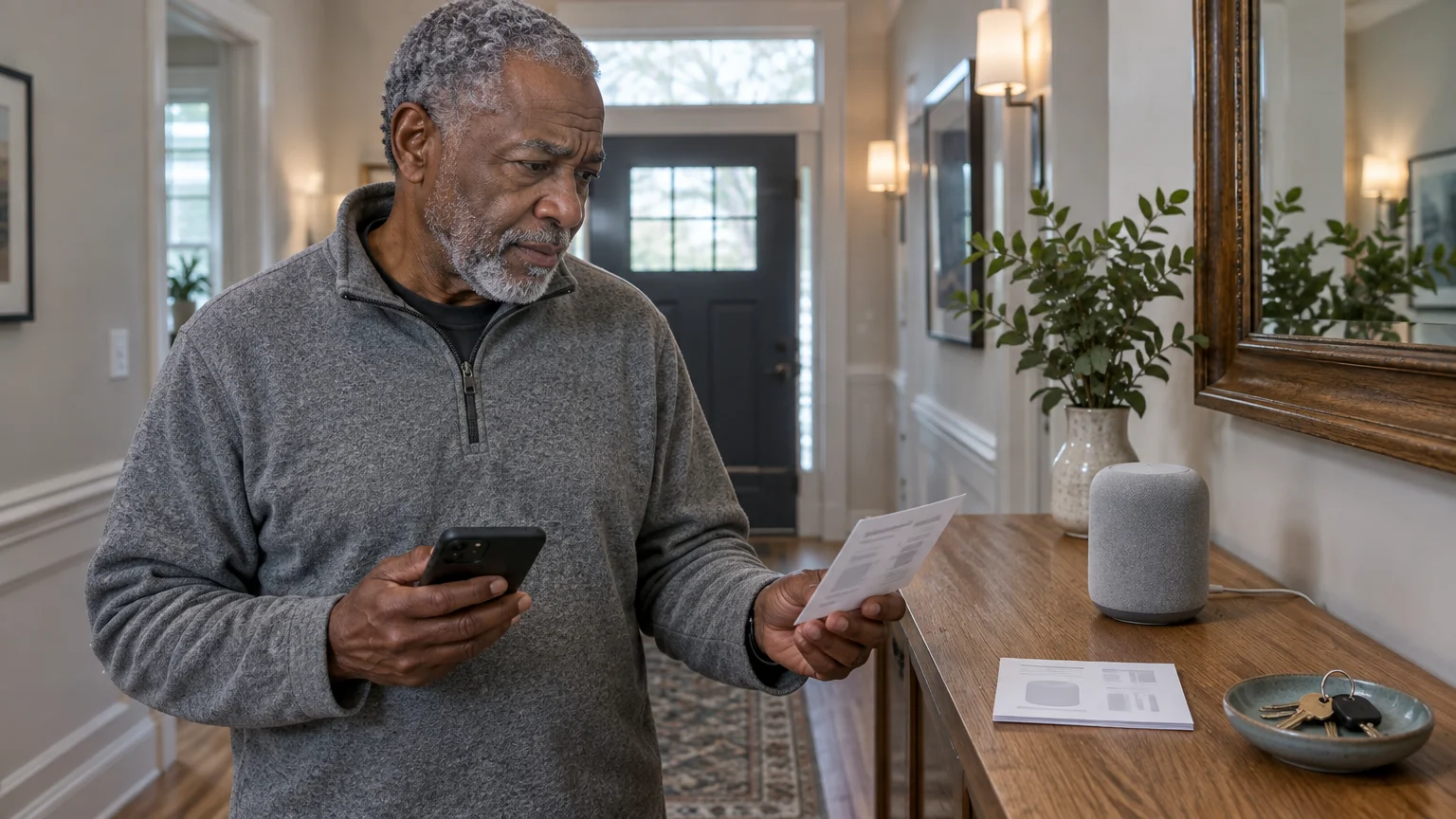
If you encounter technical trouble, be cautious about how you seek technical assistance. Criminals frequently target adults over 65 who search online for smart speaker support phone numbers.
Never search Google for “Amazon customer service phone number” when troubleshooting your device. Scammers buy fake search advertisements that lead to fraudulent call centers demanding gift cards.
Read the FTC guide on how to spot and avoid tech support scams before calling any unfamiliar support number. Amazon never demands remote computer access or retail gift cards to fix smart speakers.
Amazon provides technical support directly through the verified mobile app on your smartphone. Legitimate help is always free and never requires purchasing prepaid cards or money transfers.

Additional Voice Adjustments for Speech Clarity
Turning off Whisper Mode fixes quiet replies, but you can improve speech comprehension further. Alexa provides several built-in voice tools designed to make conversational audio easier to process.
Many older adults find that virtual assistants speak far too fast during weather reports. You can command Alexa to slow down its speaking cadence permanently.
Try these spoken phrases to fine-tune your device’s audio performance:
- “Alexa, speak slower.” (Slows spoken cadences down to help you process words comfortably.)
- “Alexa, speak at your default rate.” (Returns the voice speed to standard factory velocity.)
- “Alexa, turn on Adaptive Listening.” (Waits longer for you to finish speaking before replying.)
- “Alexa, set treble to maximum.” (Accentuates high-frequency sounds to sharpen consonants.)
- “Alexa, set bass to minimum.” (Cuts low-frequency thumping that muddles speech clarity.)
Adaptive Listening is especially valuable if you pause to gather your thoughts while speaking. It prevents Alexa from cutting you off mid-sentence with an unhelpful error message.
Adjusting the treble and bass balance delivers immediate benefits for listeners with hearing aids. Cutting low frequencies stops room boominess, letting clear vocal sounds reach your ears.
Frequently Asked Questions
Why does my Alexa whisper even when I do not whisper?
Alexa’s microphone processor misinterprets breathy voices, soft volume, or low vocal tones as whispering. If you speak quietly to avoid waking family, the device assumes you want a whisper.
Can someone turn Whisper Mode back on accidentally?
Yes. If anyone in your home whispers a command while the feature is active in the cloud, Alexa can re-enable it.
Disabling the toggle switch in the Alexa app locks it off.
Does Whisper Mode cost money or require a subscription?
No. Whisper Mode is a free built-in software feature on all Amazon Echo devices. Disabling or enabling the feature will never incur charges on your Amazon account.
Will turning off Whisper Mode affect my alarms or timers?
No. Alarms and timers play at your designated alert volume regardless of Whisper Mode settings. Disabling Whisper Mode only affects conversational replies to your spoken questions.
Note: Menus and button names change with software updates. These steps were written for current versions as of 2026; if a screen looks different on your device, the maker’s support page linked above has the latest wording.
ClearTechGuide is independent and is not affiliated with Apple, Google, Microsoft, Amazon or any other company mentioned.
