
Technology often feels like it requires a special set of skills, but one of the most powerful tools on your smartphone requires nothing more than your voice.
Siri, the voice assistant built into every iPhone and iPad, acts like a digital personal assistant that lives right in your pocket.
Instead of squinting at small icons or struggling to type on a glass screen with stiff fingers, you can simply ask your phone to do the work for you.
Whether you want to call your grandchildren, set a timer for a cake in the oven, or find out if you need an umbrella today, Siri makes these tasks fast and hands-free.
For those who prefer to dictate longer thoughts, using voice memos on your phone is another great way to keep track of information hands-free.
If you find small text difficult to see, you can also learn how to use the magnifier on your phone to zoom in on physical labels or instructions.
Many people feel a bit shy or even silly talking to their electronics at first. You might worry that you will say the wrong thing or that the phone won’t understand your accent.
Siri is designed to learn your voice over time. It is a patient listener that does not mind if you repeat yourself.
By the end of this guide, you will feel confident using voice commands for daily tasks, making your smartphone feel less like a complicated gadget and more like a helpful companion.
In this guide10 sections
- What You Will Need to Get Started
- Setting Up Siri on Your iPhone
- How to Get Siri’s Attention
- Making Calls and Sending Texts with Your Voice
- Setting Alarms, Timers, and Reminders
- Asking for Information, Weather, and News
- The Android Equivalent: Google Assistant
- What to Do If Something Goes Wrong
- Frequently Asked Questions
- Quick Reference Checklist
What You Will Need to Get Started
Before you begin talking to your device, you should ensure it is ready to listen. Siri requires an active internet connection to process most requests.
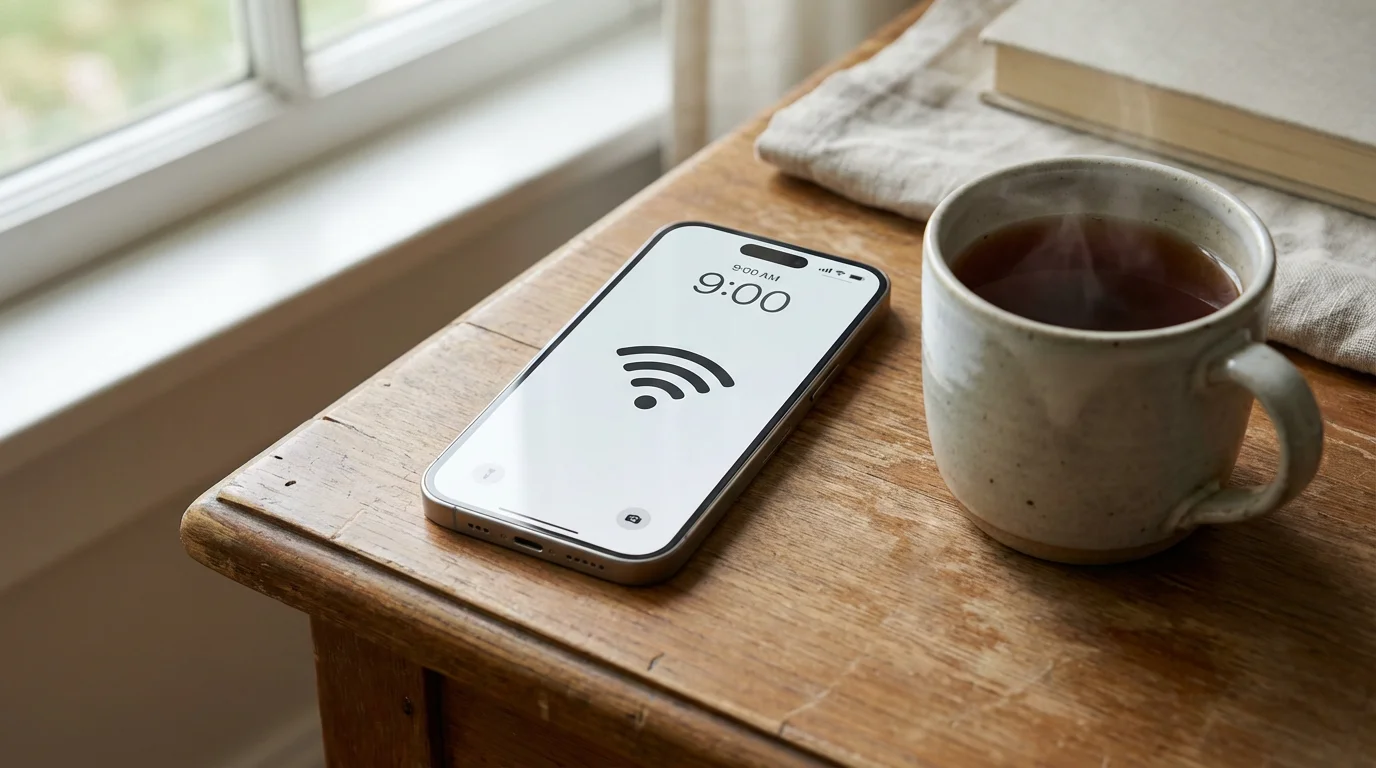
This means you should be connected to your home Wi-Fi or have a cellular data plan active through your phone provider. If you are at home, look at the very top of your screen.
You should see a small icon that looks like three curved lines stacked on top of each other; this indicates your Wi-Fi is working.
If you find a smartphone screen too small for comfortable use, you might consider the best tablets for seniors which offer larger displays for Siri and other apps.
You also need to make sure your device is sufficiently charged. Using the microphone and processing voice requests can drain the battery slightly faster than just looking at a photo.
Aim for at least 20% battery life before you start practicing. Finally, you will need your Apple ID password if you haven’t finished the initial setup of your phone.
If you are using an Android device, you will follow similar steps using a Google account, which we will cover later in this guide.
Setting Up Siri on Your iPhone
If your phone is brand new, Siri might already be waiting for you. However, many people accidentally skip the setup screen when they first get their device.
To check if Siri is ready, follow these steps:
Once you are comfortable with basic settings, you can explore how to download apps from the App Store to add even more functionality to your device.
Once setup is complete, you can also learn how to set up Emergency SOS to ensure you can reach help quickly in any situation.
- Find the Settings app on your home screen. It looks like a grey square with gears or a small wheel inside it. Tap it once with your finger.
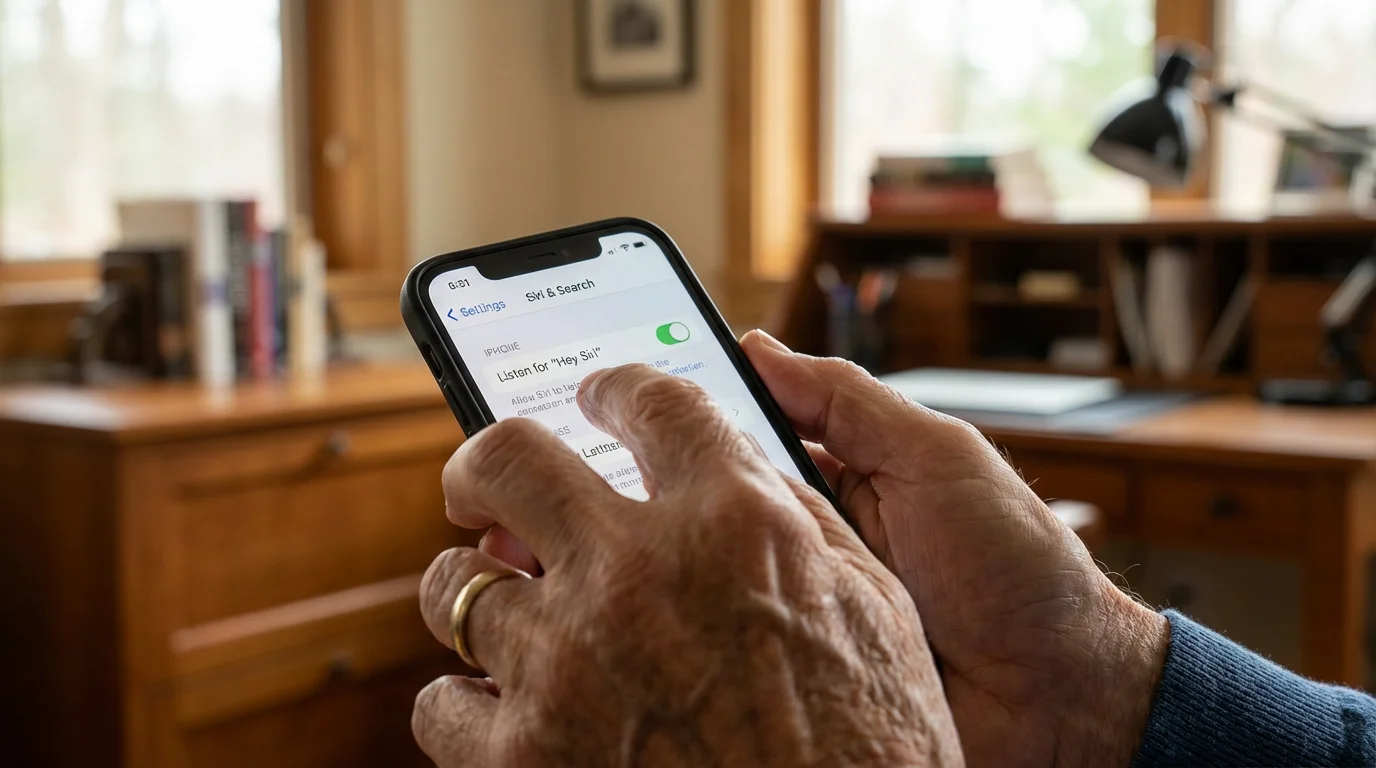
- Scroll down the list until you find Siri & Search. You may need to swipe your finger upward on the screen to see more options. Tap this section.
- Look for the switch labeled Listen for “Hey Siri”. If the switch is grey, tap it to turn it green.
- Your phone will now ask you to say a few phrases out loud. This helps the phone recognize your specific voice so it doesn’t respond to the television or other people in the room.
- Find the option that says Press Side Button for Siri (on newer iPhones without a round home button) or Press Home Button for Siri (on older iPhones with a round button at the bottom). Tap the switch so it turns green.
“Don’t worry about sounding ‘tech-savvy’ when you speak to your phone. Siri understands natural language, so you can talk just like you are speaking to a friend at the kitchen table.”

How to Get Siri’s Attention
There are two primary ways to “wake up” your assistant. The first is hands-free, which is perfect if your phone is across the room or if your hands are messy while cooking.
Simply say, “Hey Siri,” followed by your request. For example, “Hey Siri, what time is it?”
The second method uses a physical button, which can feel more reliable if you are in a noisy environment.
On an iPhone 10 or newer (these models do not have a circular button at the bottom), locate the long button on the right-hand side of the device. Press and hold this button for about two seconds.
You will feel a small vibration, and a colorful, glowing circle will appear at the bottom of your screen. This is your signal that Siri is listening.
On older models like the iPhone 8 or the iPhone SE, press and hold the circular Home Button located at the bottom center of the phone’s face. Once that colorful glowing ball appears, you can stop pressing the button and start speaking.
You do not need to hold the button down while you talk; one long press to start is enough.

Making Calls and Sending Texts with Your Voice
Connecting with family is the most popular way to use a voice assistant. This is particularly helpful if you find the on-screen keyboard too small or if you find it difficult to navigate your long list of contacts.
Siri can search your address book and perform the action instantly.
To make a phone call:
Activate Siri and say, “Call [Name].” For example, “Call Susan.”
If you have multiple people named Susan, Siri will show you a list on the screen and ask which one you meant. You can also use relationships if you have them set up.
Try saying, “Call my daughter.” If Siri doesn’t know who your daughter is, she will ask, “What is your daughter’s name?”
Once you tell her, she will remember it for next time.
To send a text message:
1. Activate Siri and say, “Send a text to [Name].”
2. Siri will ask, “What do you want to say?”
3. Speak your message clearly. You can even say punctuation out loud, like “I am on my way period.”
4. Siri will read the message back to you and ask, “Ready to send it?”
5. Say “Yes” or “Send.”
This feature is a lifesaver if you are driving or if you find typing long sentences frustrating. You can see more about communication tips on the Apple Support website, which offers detailed visuals for every iPhone model.

Setting Alarms, Timers, and Reminders
We all have moments where we forget where we put things or when we need to take a particular medication. Siri is excellent at keeping you on schedule.
Instead of navigating through the Clock app or the Reminders app, you can simply bark out an order.
If you enjoy having a voice assistant, setting up an Amazon Echo can bring these same helpful features to your kitchen or living room.
Using Timers for Cooking:
If you are putting a roast in the oven, you don’t need to touch your phone with floury hands. Say, “Hey Siri, set a timer for two hours.”
A small notification will appear at the top of your screen showing the countdown. If you need to check how much time is left, just ask, “Hey Siri, how much time is left on my timer?”
Setting Medication Reminders:
Consistency is key for health. You can say, “Hey Siri, remind me to take my vitamin at 9:00 AM every day.”
Your phone will then create a recurring alert that will pop up on your screen and make a sound every morning at that exact time. This takes the mental load off your shoulders and ensures you never miss a dose.
Creating a Shopping List:
When you notice you are low on milk, don’t wait to find a pen and paper. Tell Siri, “Add milk to my grocery list.” iPhone has a built-in app called Reminders where it will store this list for you.
When you get to the store, you can open that app and see everything you dictated earlier.

Asking for Information, Weather, and News
Siri has access to the vast knowledge of the internet. If you are curious about a fact or need a quick update on the world, you just have to ask.
This is much faster than opening a web browser and typing into a search bar.
Check the Weather:
Before you head out for a walk, ask, “Hey Siri, what is the weather like today?” She will tell you the current temperature and whether it is expected to rain.
You can also ask about specific times, such as, “Will it rain this afternoon?”
General Knowledge:
You can ask Siri questions like:
- “How many ounces are in a cup?”
- “What time does the nearest Walgreens close?”
- “Who won the Phillies game last night?”
- “How do you spell ‘unnecessary’?”
Daily Briefing:
Many seniors enjoy a morning routine. You can say, “Hey Siri, play the news,” and your phone will play a short audio summary from sources like NPR, CNN, or Fox News.
It is like having a tiny radio that only plays what you want to hear.

The Android Equivalent: Google Assistant
While Siri is exclusive to Apple products, those with Samsung, Motorola, or Google Pixel phones have an equally powerful tool called Google Assistant. The concepts are almost identical, though the names and buttons differ slightly.
On Android:
- The Wake Word: Instead of “Hey Siri,” you say “Hey Google” or “OK Google.”
- The Button: On many Android phones, you can press and hold the Power Button on the side or the Home Icon (the circle or line at the bottom center of the screen).
- The Visual: Instead of a glowing ball, you will usually see four colorful bouncing dots or a “listening” bar appear at the bottom of the screen.
- Setup: Open the Google App (it looks like a colorful ‘G’), tap your profile picture in the top right, go to Settings, then Google Assistant, and finally Hey Google & Voice Match to turn it on.
Both systems allow you to make calls, send texts, and set reminders using the exact same phrasing. If you find yourself struggling with an Android device, Google Support provides excellent step-by-step guides specifically for Assistant.

What to Do If Something Goes Wrong
It can be frustrating when technology doesn’t behave as expected. If Siri isn’t responding, don’t panic.
There are usually very simple reasons for this behavior. Here is a table of common issues and how to fix them:
| Problem | Likely Cause | The Fix |
|---|---|---|
| Siri doesn’t hear “Hey Siri” | The phone is face down or in a pocket. | Place the phone face up on a table or use the side button instead. |
| Siri says “I’m having trouble connecting” | Poor internet or Wi-Fi. | Check your Wi-Fi icon at the top of the screen. Move closer to your router. |
| Siri is too quiet | Volume is turned down. | While Siri is visible on the screen, press the volume up button on the left side of the phone. |
| Siri gives the wrong information | Background noise interfered. | Wait for a quiet moment and try again, speaking slowly and clearly. |
If you find that Siri constantly misunderstands a specific name, you can go into your Contacts app, find that person, and add a “Phonetic Name.” This tells Siri exactly how the name sounds, rather than how it is spelled.
If you are still having trouble, programs like Senior Planet from AARP offer free classes and hotlines specifically designed to help older adults master their devices.
Frequently Asked Questions
Is Siri always listening to me?
Siri “listens” for its name (the “Hey Siri” command), but it does not record your private conversations or send them to Apple unless it hears that specific trigger word.
If you are concerned about privacy, you can turn off “Hey Siri” in Settings and only use the side button to activate the assistant manually.
Do I have to pay extra to use Siri?
No, Siri is a free feature included with your iPhone or iPad.
It does use a small amount of internet data, so if you are not on Wi-Fi, it will count toward your monthly data plan from your phone carrier, but the service itself has no subscription fee.
Can Siri help me if I fall?
Yes, if your phone is within earshot, you can say, “Hey Siri, call 911” or “Hey Siri, call my emergency contact.” This makes the phone a vital safety tool if you cannot reach it physically.
Note that this requires “Hey Siri” to be turned on in your settings beforehand.
What if I have a strong accent or a soft voice?
Apple has designed Siri to recognize a vast array of accents and dialects. When you go through the setup process where you repeat phrases, Siri is calibrating itself to your specific voice.
If you speak softly, try to hold the phone a bit closer to your face when talking.
Quick Reference Checklist
To make sure you are getting the most out of your voice assistant, keep this checklist in mind. You can even print this section out and keep it near your favorite chair.
- Enable Siri: Go to Settings > Siri & Search and turn on “Listen for ‘Hey Siri’.”
- Practice the “Wake Up”: Try saying “Hey Siri” or holding the side button until the glowing light appears.
- Test a Call: Say “Call [Friend’s Name]” to see how quickly it connects.
- Set a Reminder: Say “Remind me to check the mail in one hour.”
- Ask for Help: If you are lost in your phone, say “Hey Siri, go to Home Screen” or “Hey Siri, open my Photos.”
“Remember, you cannot ‘break’ Siri by talking to her. The more you use the feature, the more comfortable you will become, and the more useful your phone will feel.”
If you ever feel completely stuck, don’t hesitate to visit an Apple Store or your cellular carrier’s retail location. The staff there are very used to helping people set up these features.
You can also ask a tech-savvy family member to sit with you for ten minutes while you practice these commands. Once you get the hang of it, you might find that you rarely need to type on your phone again.
Disclaimer: This article is for informational purposes only. Screens and menus may look slightly different depending on your device model and software version.
When in doubt, visit your device’s official support website or ask a trusted family member for help.