
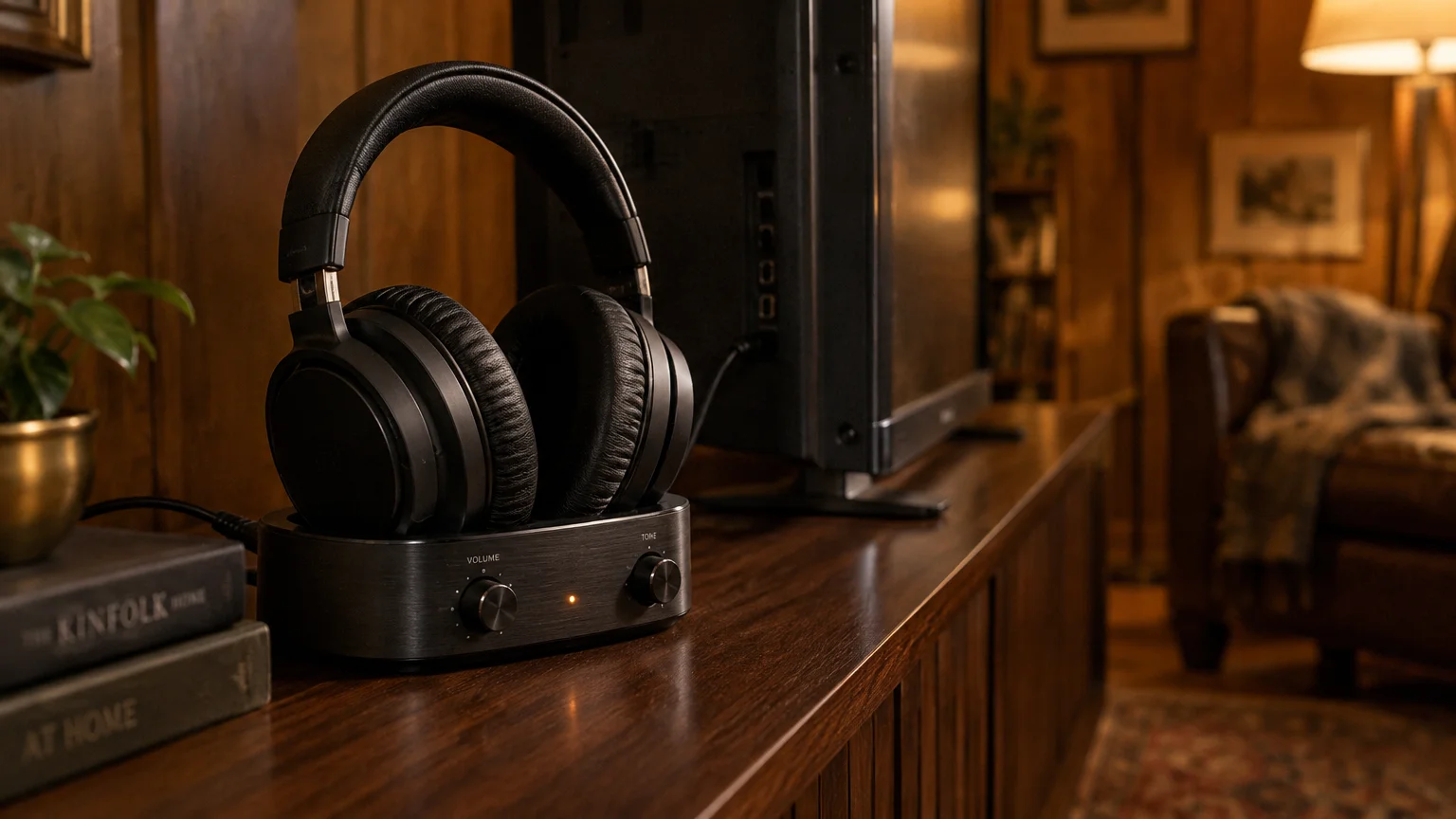
You can listen to your television at high volume through wireless headphones while your spouse hears the built-in speakers at normal volume. You do not need to purchase a new television to make this work.
If you want to share entertainment with family living in other households, you can also discover how to host an online watch party to enjoy movies together.
If you struggle with quiet dialogue, you can also enable closed captions on your TV alongside your audio adjustments.
Standard headphone jacks turn off television speakers automatically through an internal mechanical switch. Connecting through an optical audio port or line-level RCA jacks bypasses that switch completely, sending audio to the room and your headset at the same time.
This setup allows independent volume control for both listeners without buying expensive audio equipment. You only need an external transmitter and the correct connection cable.
In this guide9 sections
- Identifying the Audio Ports on Your Older Television
- Why the 3.5mm Jack Mutes the Television Speakers
- Hardware Checklist: Transmitters, Cables, and Splitters
- Audio Connection Methods Compared
- Step-by-Step: Connecting via Optical Audio
- Step-by-Step: Connecting via Red and White RCA Outputs
- Adjusting Internal TV Settings for Optical Audio
- Worked Scenario: Arthur’s Living Room Setup
- Frequently Asked Questions
Identifying the Audio Ports on Your Older Television
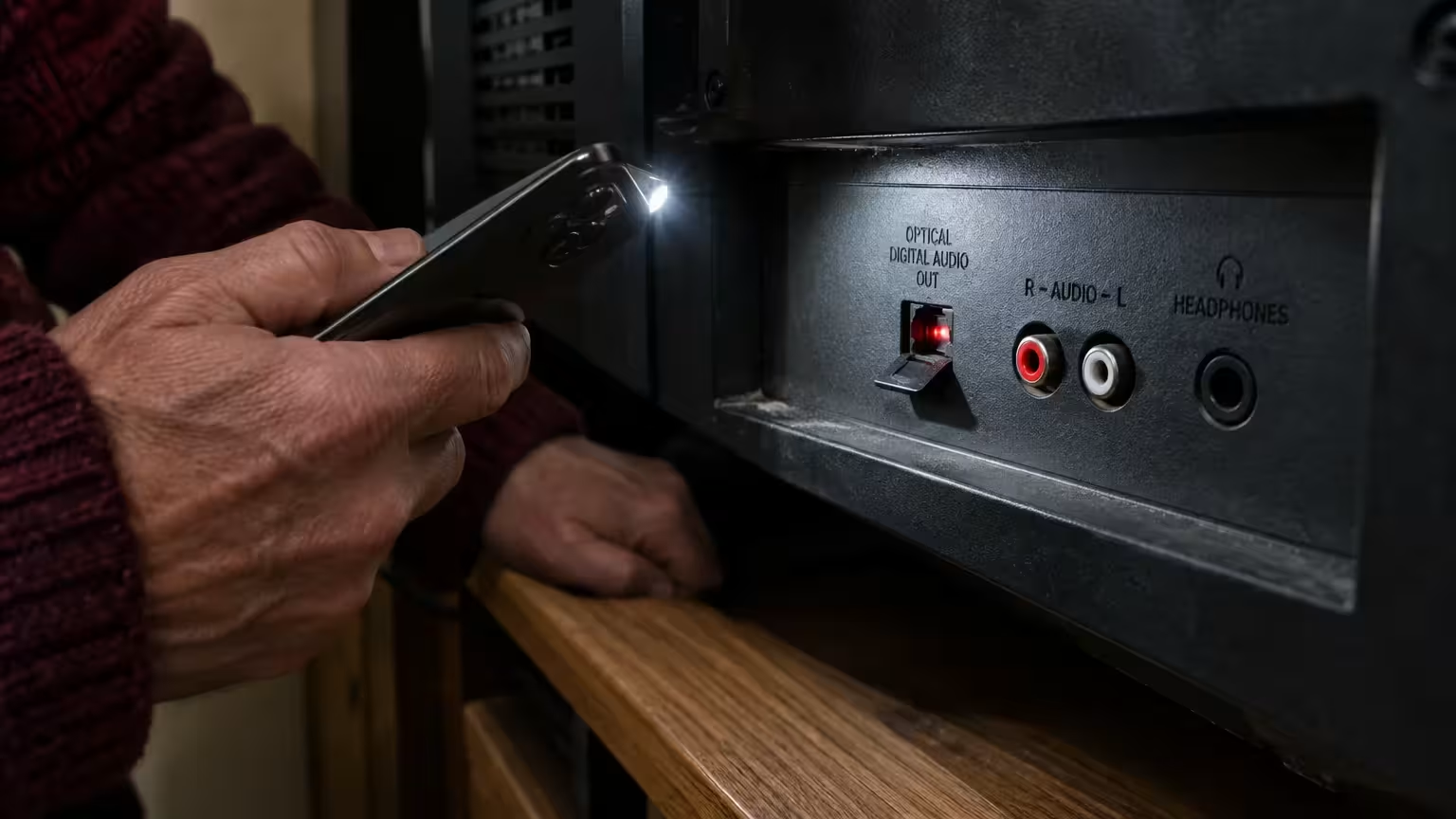
Most flat-panel televisions manufactured between 2008 and 2018 have connection ports on the rear or side panel. Inspecting these ports tells you immediately which connection cables will work.
Television manufacturers label these ports with very small, stamped letters that blend into the dark plastic case. Reading these labels in dim light behind a television stand can strain your eyes.
You can use your smartphone as an illuminated magnifying glass to inspect the ports clearly. Apple explains how to turn your camera into a lighted viewer in their guide to getting started with accessibility features on iPhone.
If you use a Samsung or Google phone, review the Google Android accessibility overview to activate the Magnifier shortcut. This tool uses your camera flash to highlight dark port labels.
Look for one of three audio connection ports on your television:
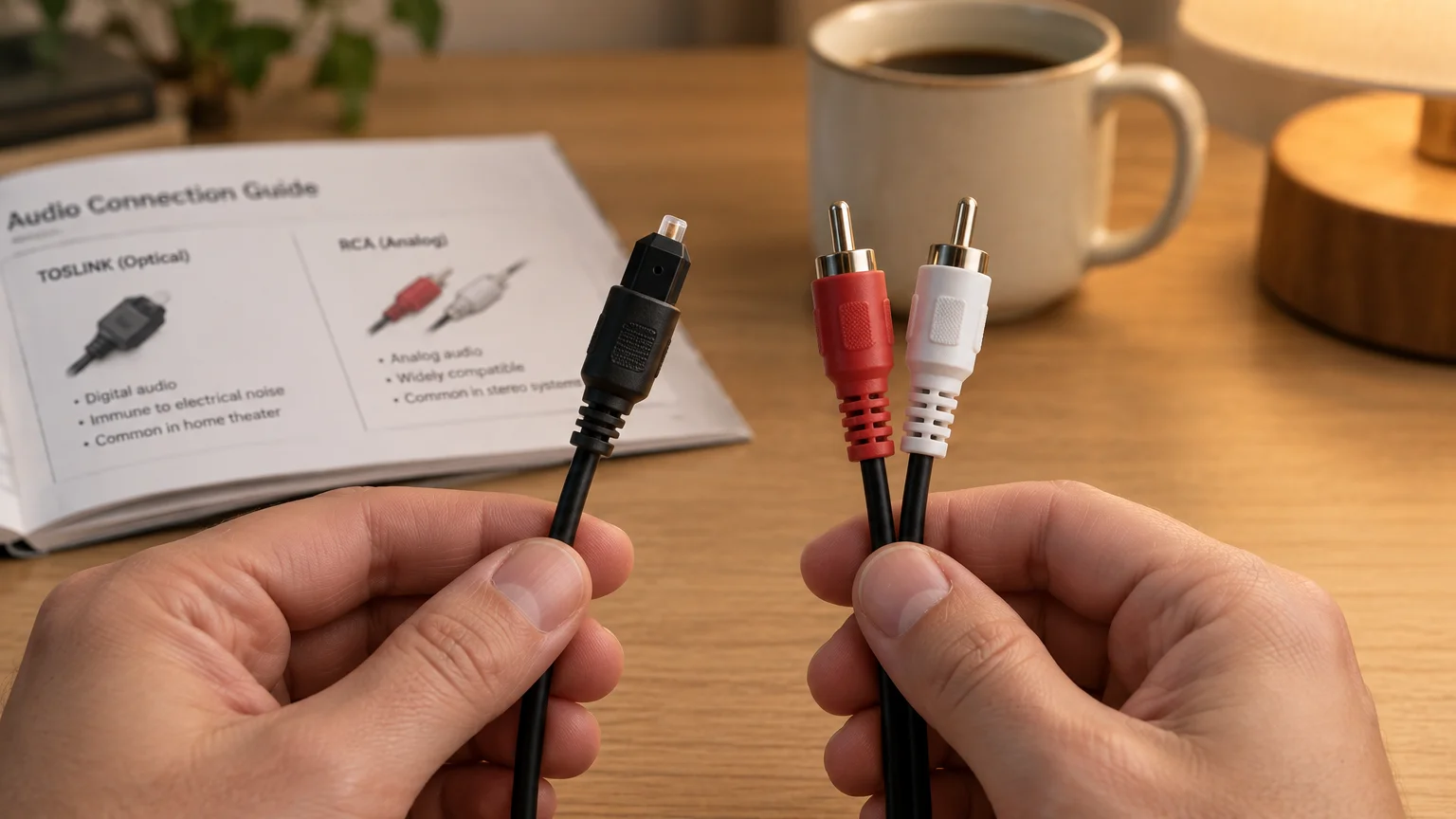
- Optical Digital Audio Out (TOSLINK): A small, square port with a hinged plastic door or dust cover that glows with red light when the television is powered on.
- RCA Audio Out: Two circular jacks colored red and white, labeled Audio Out rather than Audio In.
- 3.5mm Headphone Jack: A small, round hole matching standard mini-jack portable headphones, marked with a headphone symbol or Audio Out.
An optical port transmits sound using pulses of light through a thin glass or plastic fiber. Using optical audio headphones on a television provides crystal-clear dialogue while preserving standard speaker sound.
Why the 3.5mm Jack Mutes the Television Speakers
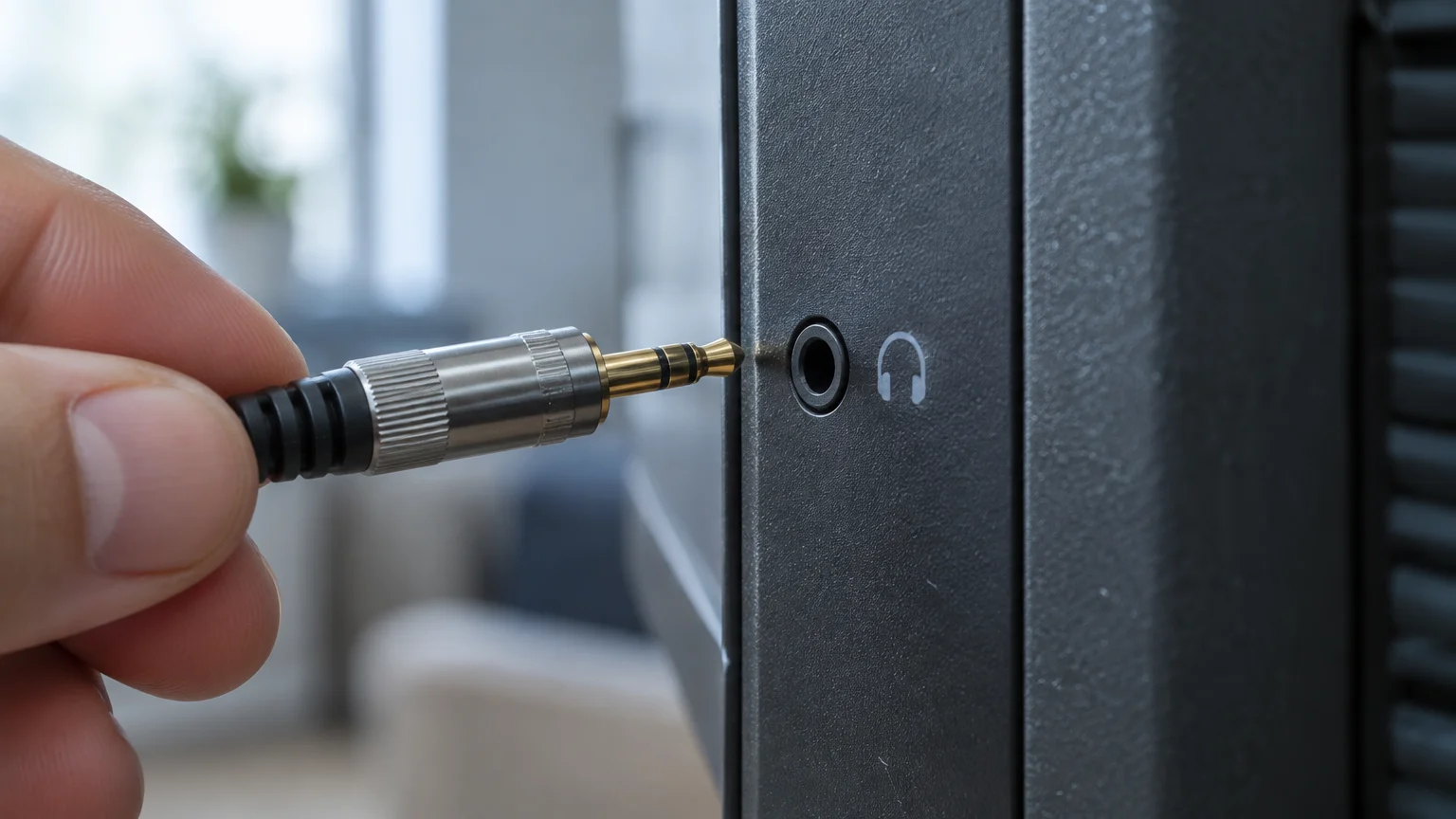
When you plug any connector into a standard 3.5mm headphone jack, your television speakers go silent. Many people assume this silence is caused by a software setting you can easily change.
Learning how to use a smart TV remote control can help you explore your television’s audio and output menus more comfortably.
If you eventually decide to upgrade your display, reviewing smart TV basics for beginners will help you navigate newer audio and connection standards.
In reality, the jack contains a physical mechanical switch called a shunt circuit. Inserting a physical plug pushes two metal leaves apart, breaking the electrical path to the television speakers.
Because this disconnection happens physically inside the socket, no menu setting on your remote can re-enable the internal speakers. You cannot override this hardware switch through software.
Older televisions remain in reliable service for ten or twelve years in many American living rooms. According to Pew Research data on tech adoption among adults 65+, older adults consistently maintain and adapt reliable household devices.
Connecting wireless headphones to an older TV requires an output that bypasses the mechanical speaker switch. Both optical audio outputs and red-and-white RCA outputs bypass this physical switch.
Hardware Checklist: Transmitters, Cables, and Splitters
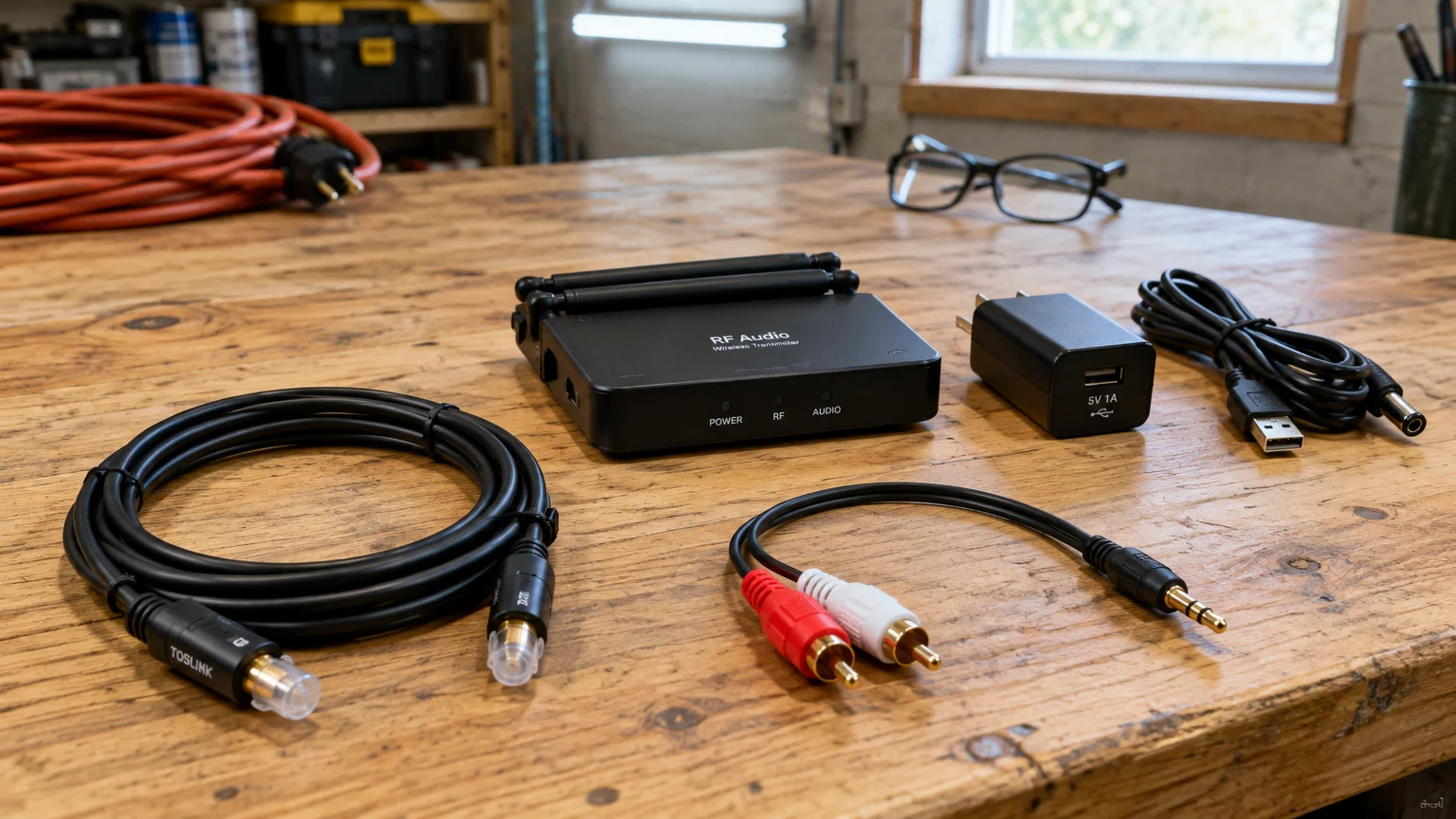
Connecting wireless headphones to an older set without muting the room requires a few simple hardware items. You do not need technical expertise to assemble them.
A good pair of comfortable over-ear headphones is also wonderful if you want to learn how to listen to audiobooks around your home.
Similarly, mobile users can route phone calls directly to their hearing aids for clearer mobile conversations.
Avoid buying basic Bluetooth dongles designed for mobile phones. Standard phone Bluetooth creates an audio lag where the actors’ lips move before you hear their words.
Instead, choose dedicated wireless TV headphones that include their own base transmitter. These systems use radio frequency (RF) or low-latency Bluetooth to keep dialogue synchronized with picture movements.
For readers who wear hearing aids, RF wireless TV headphones rest comfortably over your ears without causing squealing or feedback. These devices follow audio principles similar to the FCC hearing aid compatibility for wireless phones guidance.
Popular systems like TV Ears connect without muting sound when wired through an optical converter or external RCA line output. When purchasing audio transmitters online, order only from reputable suppliers.
Follow the FTC guidelines on online shopping to verify seller return policies and avoid defective grey-market electronics. Gather these items before you begin your installation:
- Wireless TV Headphone System: A headset packaged with an AC-powered charging transmitter base, such as the Avantree Ensemble ($59.99 as of 2026) or TV Ears Digital ($129.99 as of 2026).
- Digital Optical Cable (TOSLINK): A thin cable with square plastic tips on both ends, often included in your headphone package.
- Two-Way Optical Splitter: A small splitter box ($12.00 to $18.00 as of 2026) needed only if your television optical port already connects to an external soundbar.
- Digital-to-Analog Audio Converter (DAC): A small powered converter ($15.00 to $22.00 as of 2026) needed only if your headphones accept only red-and-white analog plugs.
A Digital-to-Analog Converter (DAC) is a small electrical adapter that changes digital light signals into standard analog electrical signals. Most modern headphone transmitters contain this converter internally.
Audio Connection Methods Compared
Selecting the best connection method depends on the ports built into your television. The table below outlines how each output behaves when sharing audio with family members.
Once you have comfortable wireless audio set up, you might also enjoy exploring spoken-word entertainment with our beginner’s guide to podcasts.
| Connection Method | TV Speakers Stay Active | Signal Format | Typical Audio Delay | Average Hardware Cost (as of 2026) |
|---|---|---|---|---|
| Optical TOSLINK Out | Yes (Always independent) | Digital light (PCM stereo) | Under 40 ms (imperceptible) | $50.00 – $130.00 (with headset) |
| RCA Analog Out (Red/White) | Yes (On most older TVs) | Analog line-level | Under 40 ms (imperceptible) | $45.00 – $95.00 (with headset) |
| 3.5mm Headphone Port | No (Mechanical switch cuts room sound) | Analog amplified | Under 40 ms (imperceptible) | $30.00 – $60.00 (headset only) |
| HDMI ARC Port | Rarely (Handshake protocol usually mutes speakers) | Digital multi-channel | 30 ms – 70 ms | $60.00 – $150.00 (with adapter) |
Optical TOSLINK connections offer the most consistent performance for dual-volume listening. It leaves your internal speakers completely unaffected by your headphone volume adjustments.
Step-by-Step: Connecting via Optical Audio
Connecting via the optical port is the most reliable way to maintain room audio for your family. Follow these steps in order.
If you also want to hear your desktop or laptop through a headset, check our guide on adjusting computer sound settings for similar audio options.
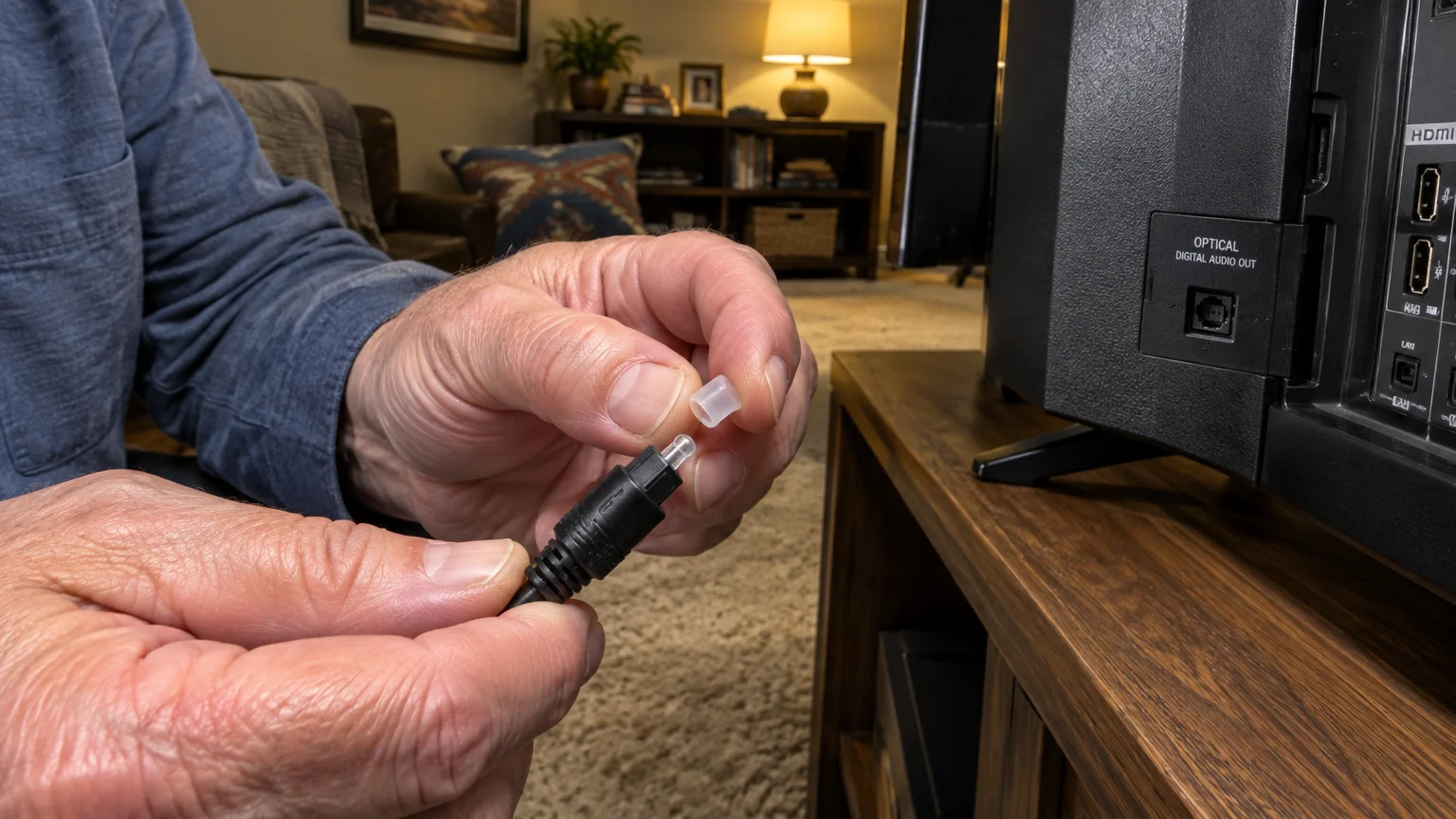
Warning: Clear plastic protective caps cover the tips of brand-new optical cables. Forcing a cable with its protective cap into a port can crack the delicate port socket.
- Remove the clear or rubber protective caps from both ends of your optical TOSLINK cable.
- Plug the included AC power adapter into your headphone transmitter base and insert the power plug into an electrical wall outlet.
- Locate the port labeled Optical Digital Audio Out or Digital Audio Out (Optical) on the back of your television.
- Align the flat side of the square optical connector with the flat side of the television port, then push gently until you feel a firm click.
- Insert the other end of the optical cable into the jack labeled Optical In on your wireless headphone base transmitter.
- Power on the television, turn on the headphone base, and switch on your wireless headset.
- Put on the headphones and rotate the headset volume dial to test for sound.
If you already have a soundbar plugged into your optical port, insert a two-way optical splitter. The splitter sends one optical cable to your soundbar and a second optical cable to your headphone transmitter.
Step-by-Step: Connecting via Red and White RCA Outputs
If your older television does not have an optical port, you can use the round red-and-white RCA jacks. These ports send line-level stereo sound to your transmitter base.
For times when you watch shows on a portable computer instead of your TV, you can also learn how to boost laptop speaker volume when dialogue is too soft.
If adjusting audio levels on tiny buttons is difficult, switching to a big-button TV remote makes changing volume and channels much simpler.
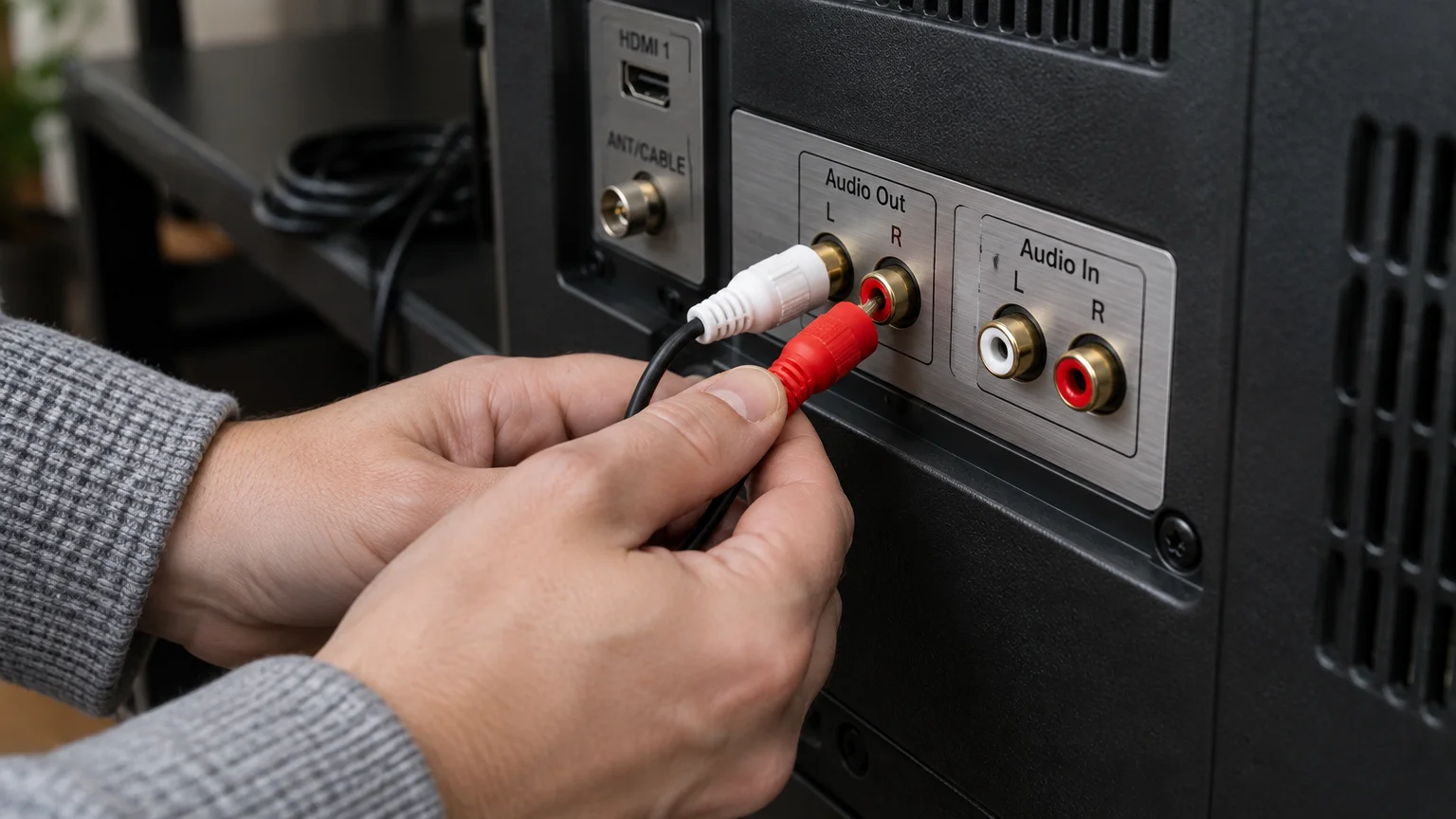
Warning: Many older televisions feature red and white jacks labeled Component In or AV In. Plugging your transmitter into an audio input produces total silence in your headphones.
- Examine the back of the television to locate the circular jacks labeled Audio Out, with one white jack for the left channel and one red jack for the right channel.
- Plug the red RCA cable plug into the red Audio Out jack on the television.
- Plug the white RCA cable plug into the white Audio Out jack on the television.
- Connect the opposite end of the cable into the Audio In ports or 3.5mm auxiliary port on your wireless headphone base.
- Plug the headphone transmitter power cord into the wall outlet and switch the transmitter power switch to ON.
- Power on your television and adjust the TV volume using the handheld remote control to confirm the room speakers remain audible.
- Turn on the wireless headphones and adjust the dial on the right ear cup to set your personal listening level.
Line-level audio output provides a steady signal that does not change when someone uses the television remote. This separation allows your spouse to raise or lower the room volume without altering your headphone volume.
Adjusting Internal TV Settings for Optical Audio
When you connect headphones via an optical cable, you may hear silence, loud static, or an irritating buzzing noise. This happens because the television is transmitting Dolby Digital surround sound rather than stereo.
Pulse-Code Modulation (PCM) is an uncompressed stereo audio format that external headphone transmitters can decode without distortion. You must switch your television digital audio output from Dolby or Auto to PCM.
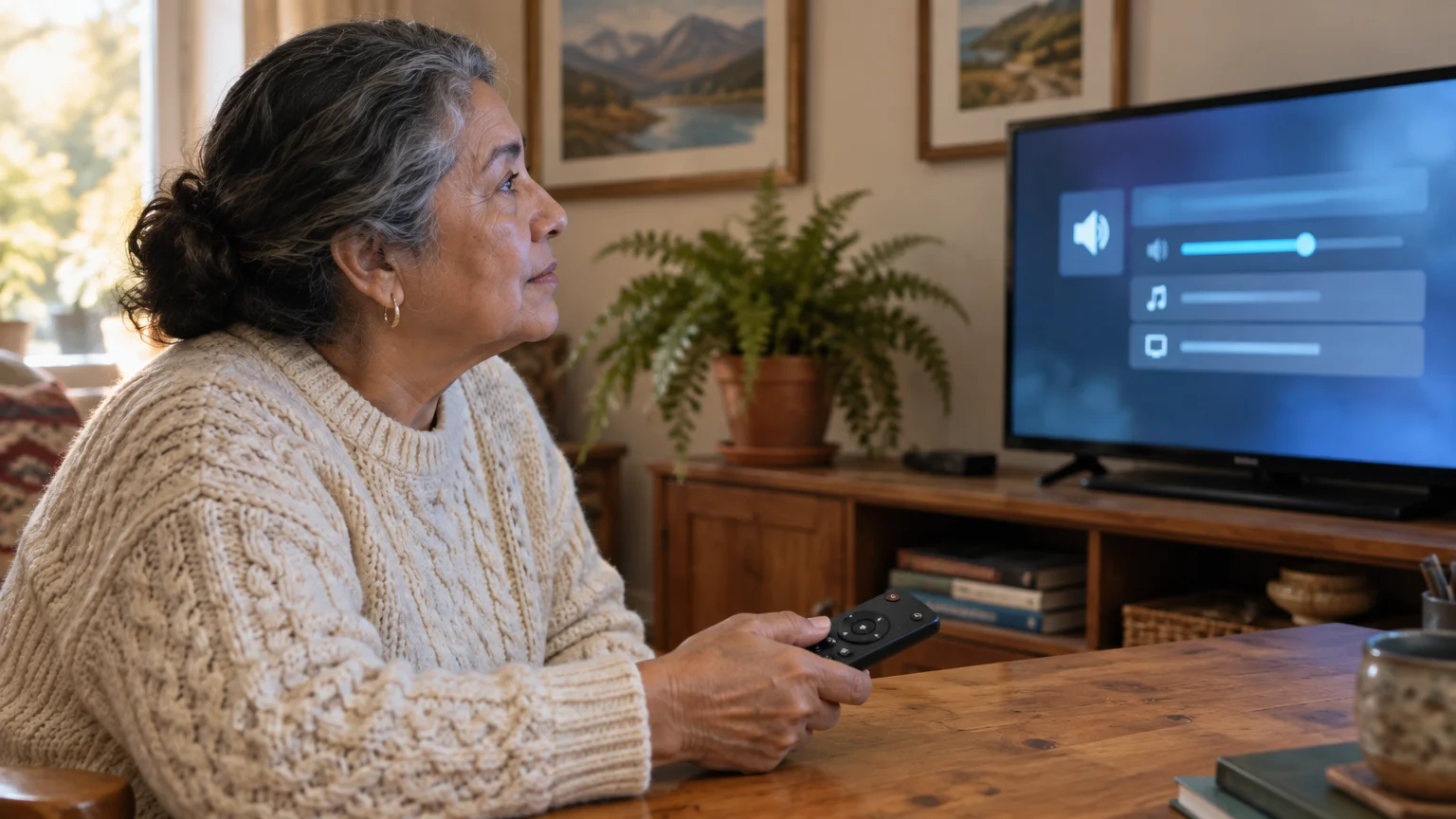
- Press the Menu or Settings button on your television remote control.
- Highlight and select the Sound or Audio menu option.
- Scroll down to find Digital Audio Out, Audio Output Format, or SPDIF Output.
- Press Select or Enter to open the format options.
- Change the selection from Auto, Bitstream, or Dolby Digital to PCM.
- Locate the setting labeled TV Speaker and ensure it is set to ON rather than Audio System or Off.
- Press Exit or Return on your remote control to save your audio settings.
Setting the output to PCM guarantees that every program sends plain stereo sound to your headset base. At the same time, keeping TV Speaker enabled ensures the living room speakers remain active for everyone else.

Worked Scenario: Arthur’s Living Room Setup
Arthur is 73 years old and lives with his wife Martha in Columbus, Ohio. Arthur has high-frequency hearing loss that makes whispered dialogue on mystery programs difficult to distinguish.
When Arthur watched television using standard room speakers, he required a volume level of 42. Martha found volume level 42 uncomfortably loud, preferring level 16 for normal evening listening.
Their living room features a 2013 Samsung 46-inch LCD television (model UN46EH5000) mounted above an entertainment cabinet. The television has one optical audio output port and one 3.5mm headphone jack.
Arthur initially plugged an auxiliary cable directly into the 3.5mm headphone socket. The television immediately muted the room speakers, which prevented Martha from hearing the evening news broadcast.
To resolve the conflict, Arthur purchased an Avantree Ensemble wireless headphone set for $59.99 as of 2026. The set included an over-ear headset, a base transmitter, and a six-foot optical TOSLINK cable.
Installation took Arthur 14 minutes from opening the box to testing the audio. He used the Magnifier app on his iPhone to locate the optical port on the recessed Samsung back panel.
Arthur removed the rubber tips from the optical cable, plugged one end into the Samsung television, and plugged the other end into the Avantree base. He connected the transmitter base to wall power.
On the Samsung remote, Arthur pressed Menu, opened Sound, selected Additional Settings, and changed Digital Audio Out from Dolby Digital to PCM.
He verified that Speaker Select remained set to TV Speaker. Martha set the room volume to 16 using the Samsung remote, while Arthur adjusted his headset dial to 75 decibels.
Both Arthur and Martha now watch programs together in the same room without volume disagreements. Arthur hears crisp, sharp dialogue, while Martha enjoys a quiet, relaxing living room atmosphere.
Frequently Asked Questions
Will wireless TV headphones work if my television is mounted on a wall?
Yes, but reaching the ports on a tight wall mount may require a right-angle optical adapter. You can also carefully pivot the wall bracket or use your smartphone camera to see the sockets behind the frame.
Why do I hear an echo between my wireless headphones and the TV speakers?
An echo occurs when the television processes room sound at a slightly different speed than the digital optical output. You can eliminate this slight delay by opening your television sound menu and adjusting the Audio Delay or Lip Sync slider.
Can I connect two pairs of wireless headphones to the same older television?
Yes, you can purchase a dual-headset wireless system or connect an optical splitter to feed two independent base stations. Both listeners can adjust their own headset volume dials to their personal hearing preferences.
Why is there loud buzzing or clicking in my headphones when streaming Netflix?
Buzzing occurs when a streaming app sends multichannel Dolby Digital audio that your stereo transmitter cannot decode. Change the television digital audio output setting from Dolby Digital or Auto to PCM to fix the sound.
Do wireless TV headphones require an internet connection or home Wi-Fi?
No, wireless TV headphones connect directly to their base transmitter using dedicated radio frequency signals or Bluetooth. They operate independently of your home Wi-Fi network and require no internet access or software accounts.
Note: Menus and button names change with software updates. These steps were written for current versions as of 2026; if a screen looks different on your device, the maker’s support page linked above has the latest wording.
ClearTechGuide is independent and is not affiliated with Apple, Google, Microsoft, Amazon or any other company mentioned.
