
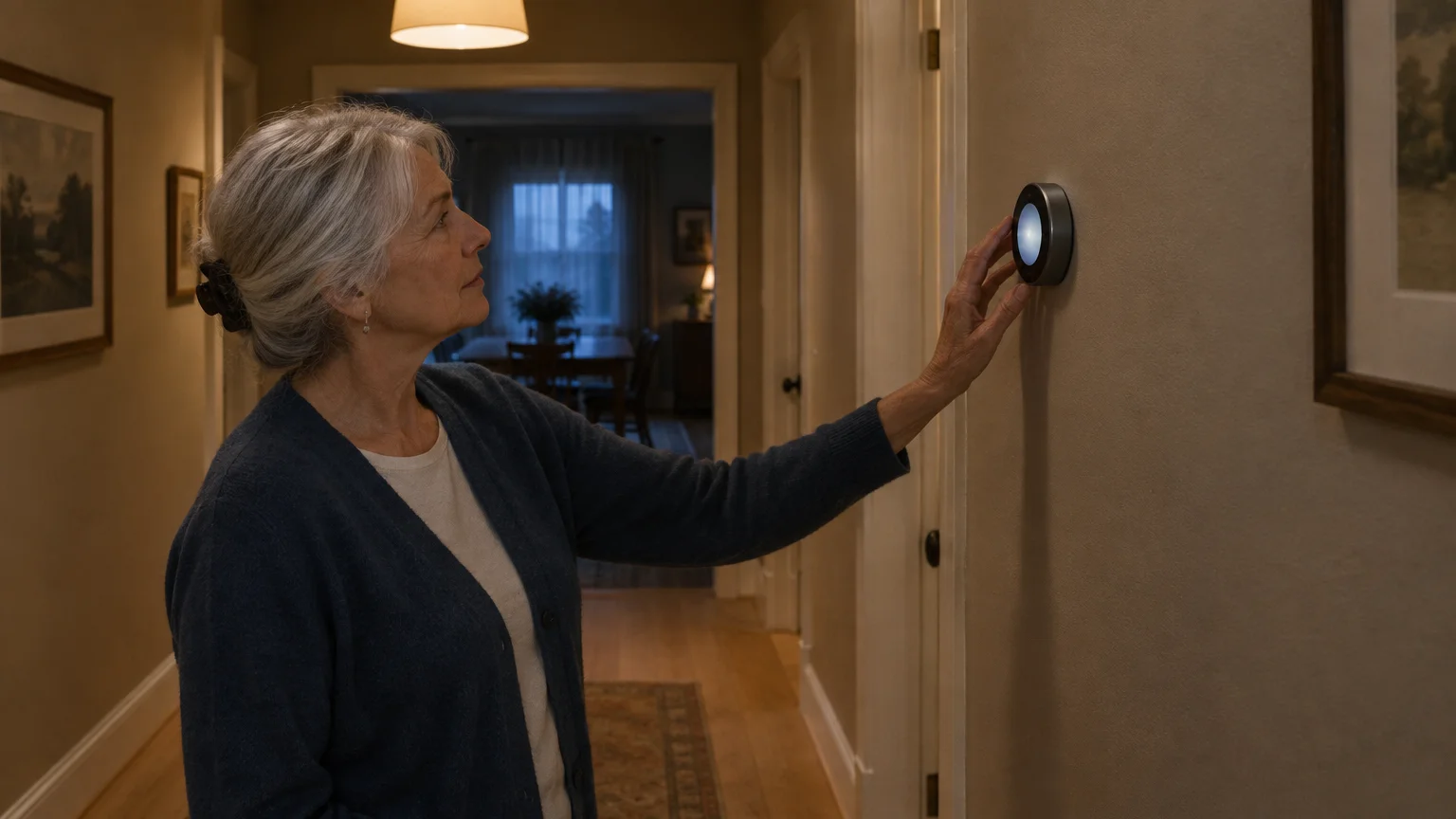
You sit in your favorite armchair feeling a brisk chill, yet your wall display insists the room is a cozy 72 degrees. That irritating discrepancy happens because wall units measure the temperature inside their mounting cavity rather than your seating space.
If you plan to use voice commands to check your home’s temperature, read our guide on whether a smart speaker is right for you to weigh convenience against privacy.
If you are installing a new system or upgrading an older unit, reviewing how to set up a smart thermostat will help you avoid early wiring mistakes.
Most homeowners assume their heating system is failing and raise the temperature setpoint, which increases energy bills. The true solution involves insulating the drywall hole behind the baseplate and using wireless remote sensors to balance the room.
Our guide shows you why base units record inaccurate numbers and how you can balance your living space without expensive service calls.
In this guide8 sections
- Why Your Wall Display Misreads Room Temperature
- How to Inspect and Seal Behind the Thermostat Baseplate
- Sunlight, Height, and Internal Hardware Warmth
- Remote Sensor Comparison for Common Thermostats
- Worked Example: Pairing a Sensor to Fix a Cold Living Room
- Calibrating Temperature Offsets and Sensor Schedules
- Spotting Tech Support Scams and Seeking Real Help
- Frequently Asked Questions

Why Your Wall Display Misreads Room Temperature
Wall thermostats measure the air temperature immediately touching their casing. They cannot detect how cold the air feels ten feet away in your living room.
Low furniture and heavy drapes affect more than just room airflow; learn why your Roomba gets stuck under the sofa to prevent automated floor cleaners from getting trapped.
If you supplement drafty areas with portable space heaters, learn how to safely schedule a smart plug for heaters to manage extra warmth safely.
This physical separation creates a microclimate. A microclimate is a small, localized area where temperature and airflow differ noticeably from surrounding rooms.
Builders routinely mount thermostats in central interior hallways. Hallways lack large glass windows, exterior doors, and exterior wall insulation gaps.
Because hallways stay shielded from outdoor drafts, their air stays warm longer. Meanwhile, your living room loses warmth quickly through exterior siding and cold window panes.
When you notice a thermostat reading higher than room air, the hallway has trapped residual warmth. Your heating system turns off early because the hallway reaches the target temperature first.
Thermal stratification creates an additional layer of discomfort. Warm air expands, becomes lighter, and rises toward your ceiling, while heavier, colder air settles across the floor.
Most wall thermostats sit roughly 60 inches above the floor. When you sit on a sofa or recliner, your body rests only 30 to 36 inches off the ground.
In older homes, this vertical gap can produce a temperature difference of three to four degrees. Your head feels warm while standing, but your legs feel chilled once seated.
Furniture placement also impacts local comfort. High-backed chairs and heavy drapery block gentle convection currents, creating chilly stagnant zones around your favorite reading chair.
How to Inspect and Seal Behind the Thermostat Baseplate
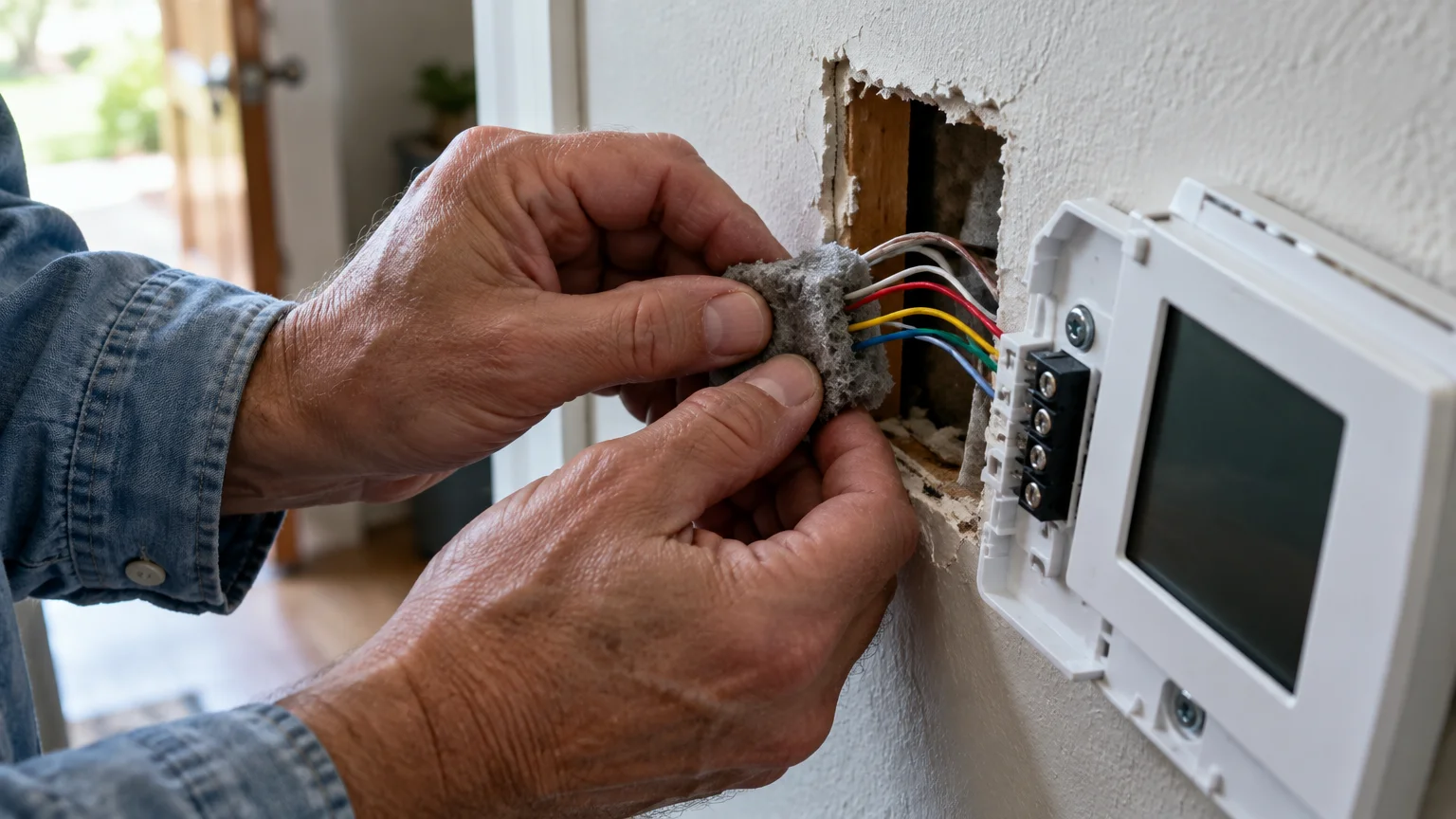
A hidden hole in the wall behind your thermostat often causes misleading numbers. Technicians drill a hole through drywall to thread control wires from your furnace to the baseplate.
If small wall screws and delicate thermostat brackets are difficult to handle, consider accessible home upgrades like keypad smart locks for stiff hands and arthritis that require no pinching or twisting.
Hollow interior wall cavities connect directly to unfinished basements, crawlspaces, and attics. These cavities behave like narrow chimneys, drawing drafts between different levels of your house.
Cold air pulling up from a basement blows directly across the back of your thermostat. That cold air cools the sensitive electronic thermistor inside the unit.
A thermistor is an electrical resistor that changes its resistance as temperature shifts, enabling the device to calculate room temperature.
When cold air washes across the thermistor, it triggers a smart thermostat wrong temperature reading. The furnace runs constantly because the sensor thinks the entire room is freezing.
Conversely, hot air leaking down from an attic in spring or autumn tricks the sensor into reading high. The heat shuts down prematurely, leaving you shivering in your living space.
Sealing this opening takes twenty minutes and requires no professional electrical expertise.
Warning: Turn off electrical power to your heating system at your main circuit breaker box before removing the thermostat. Touching control wires together can blow a low-voltage fuse on your furnace control board.
- Grasp the thermostat faceplate firmly with both hands and pull it straight away from the wall bracket.
- Shine a small flashlight directly into the center opening where the colored furnace wires emerge through the drywall.
- Hold the back of your hand against the wire opening for ten seconds to detect moving air drafts.
- Roll a piece of non-hardening plumber’s putty or duct seal compound between your fingers until it softens.
- Press the putty firmly around the wire bundle to pack the drywall opening completely shut.
- Align the faceplate pins with the wall bracket terminals and press the unit forward until it clicks securely.
- Switch your heating circuit breaker back to the ON position at your breaker panel.
Never squirt expanding polyurethane foam into the wall cavity. Expanding foam exerts pressure on control wires and creates a sticky mess that damages wall brackets.
Non-hardening plumber’s putty or electrical duct seal compound stays pliable for decades. You can easily remove or adjust the compound if you ever replace your equipment.
Sunlight, Height, and Internal Hardware Warmth
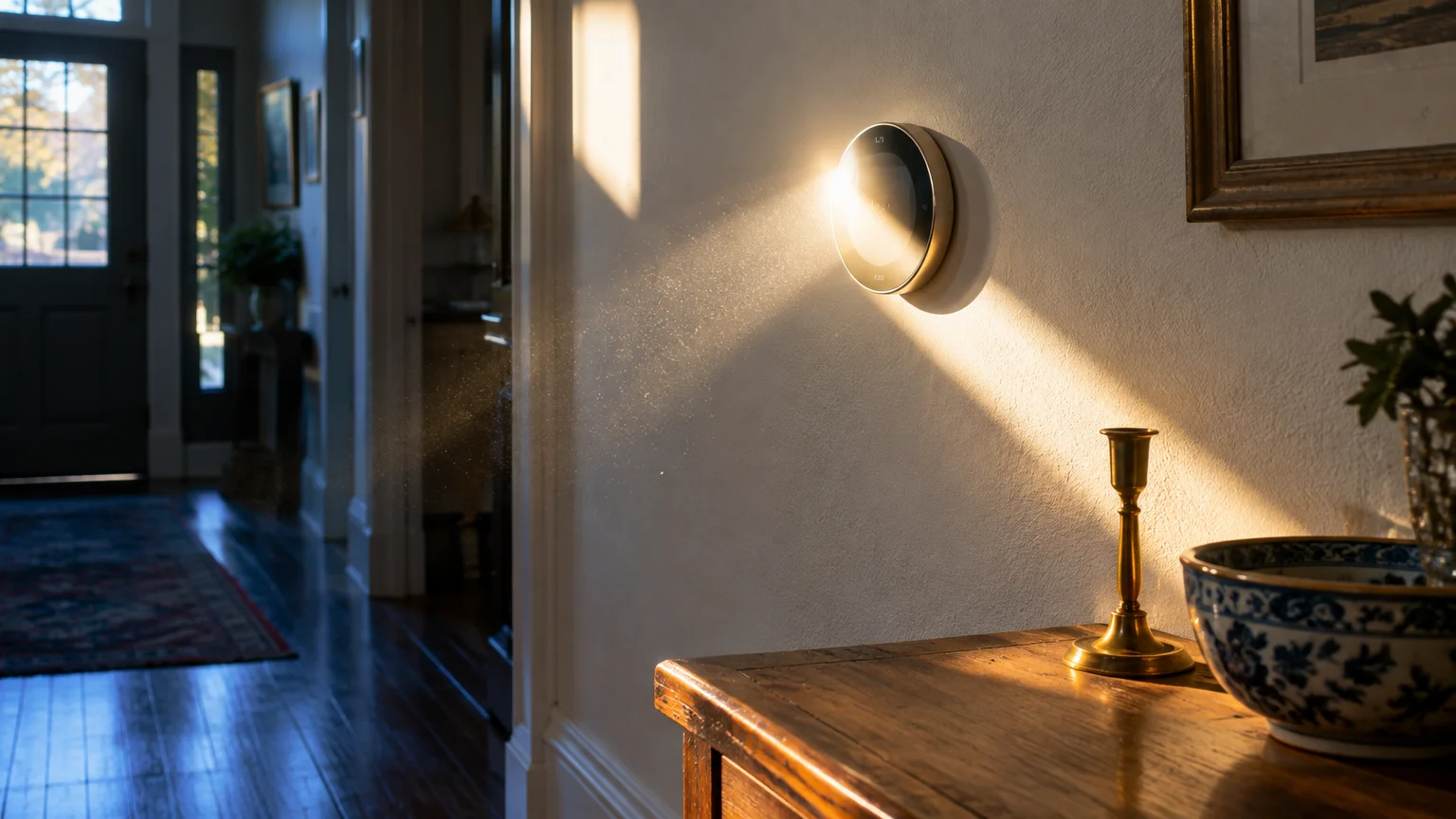
Direct sunlight hitting your thermostat casing dramatically skews its internal thermometer. Sunlight carries radiant heat that warms the plastic cover far beyond ambient room temperature.
While optimizing warmth and shading, you can also explore how to use smart light bulbs in your home to adjust room lighting automatically without getting up from your chair.
Similar to how a tablet charger gets warm in the wall during high electrical draw, continuous power cycles naturally emit residual heat.
A twenty-minute patch of morning sun can raise the sensor reading by four to eight degrees. The heating system shuts off, leaving rooms without direct sunlight feeling icy.
Track sunlight patterns across your hallway during bright mornings. If direct light strikes the thermostat faceplate, sheer curtains or blinds can diffuse the beam.
Internal computer hardware also generates warmth inside modern smart thermostats. Touchscreens, processors, and wireless Wi-Fi radios all emit heat during regular operation.
Manufacturers program software algorithms to subtract this hardware heat from the final display reading. However, irregular electrical wiring can disrupt those compensation formulas.
Units without a dedicated common wire, or C-wire, rely on power stealing to charge their internal lithium batteries. Power stealing pulls tiny electrical pulses through your heating wires.
This charging technique can warm internal battery cells and circuit boards. That localized warmth causes the base unit to report inflated temperatures during long charging cycles.
Remote Sensor Comparison for Common Thermostats
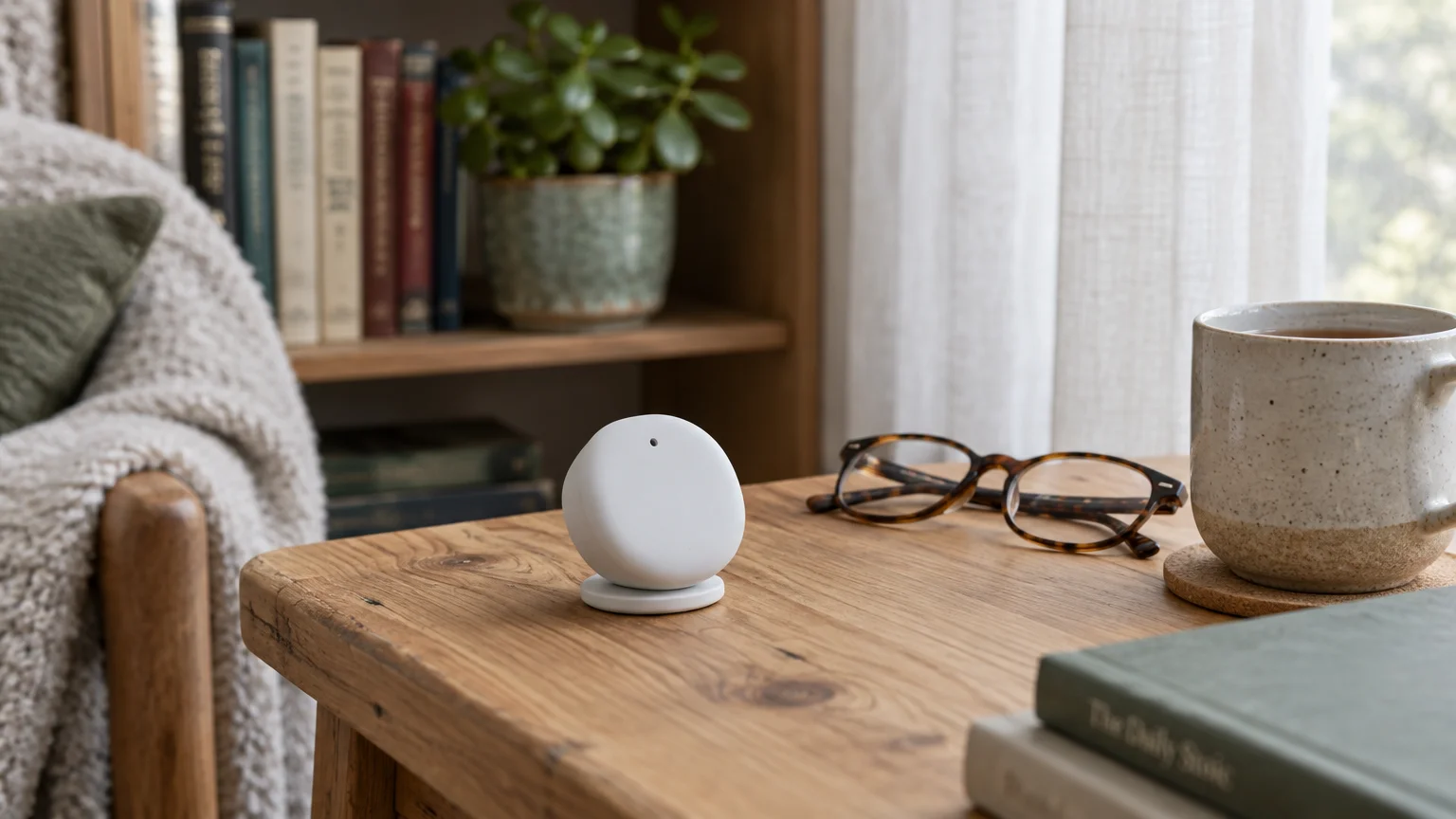
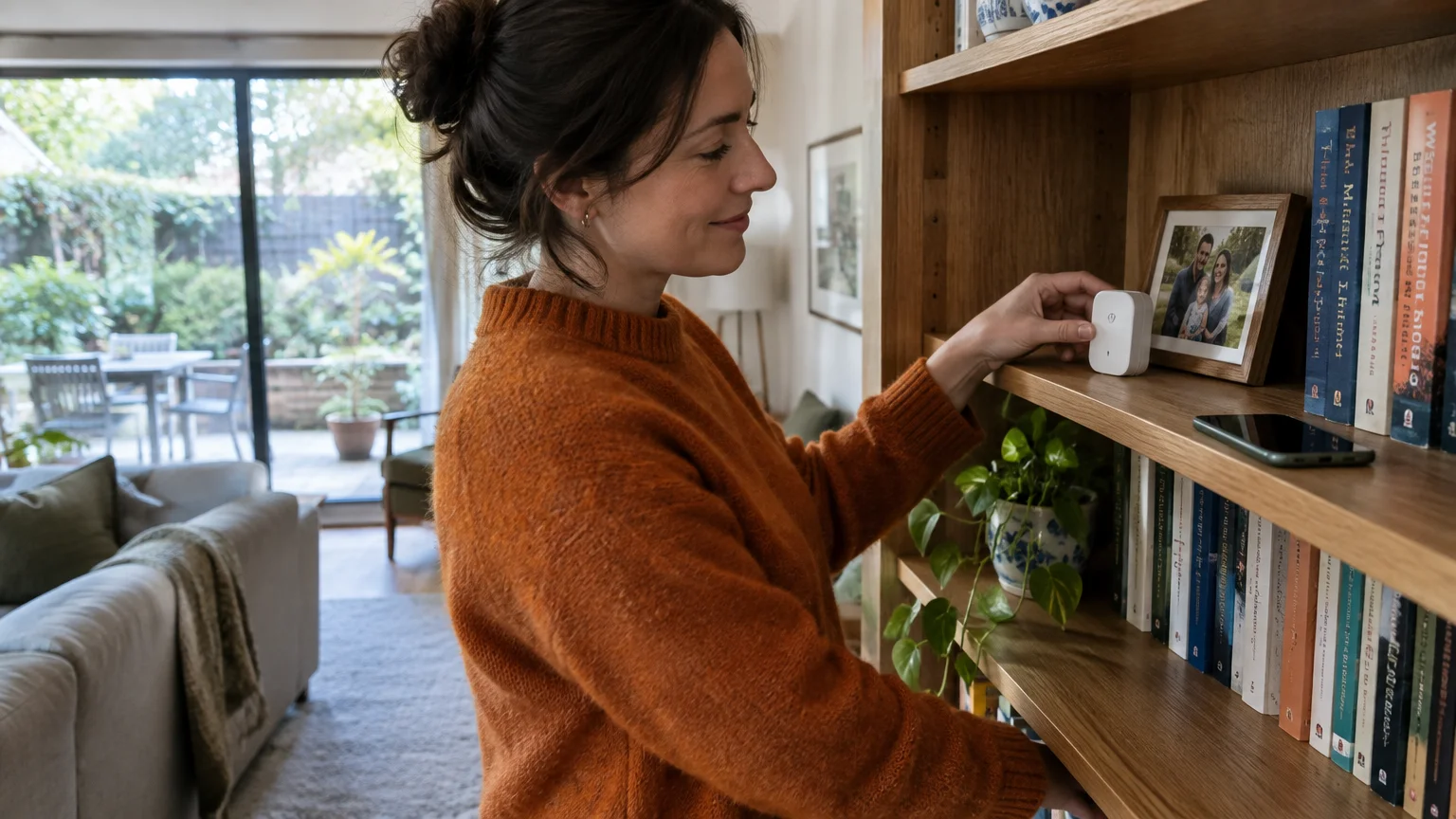
Wireless remote sensors solve baseplate reading errors by separating the thermometer from the wall unit. You place the sensor where you sit, allowing the thermostat to prioritize that spot.
Just as indoor sensors require thoughtful placement to avoid misleading readings, discover how to stop video doorbell false motion alerts when tuning external security sensors.
Much like smart sensors rely on detection to automate temperature, setting up motion-activated night lights can brighten dark hallways automatically when you walk by.
If sensors frequently drop connection or struggle to update your hub, troubleshooting common Wi-Fi problems at home can help restore a strong local signal.
These compact devices measure roughly two inches wide and communicate using low-power wireless frequencies. They send temperature updates to your main thermostat every few minutes.
When you assign active priority to a remote sensor, the system ignores the hallway wall reading. The furnace runs until the seating area reaches your desired target.
Remote sensors cannot be swapped between competing brands. You must choose the model built specifically for your thermostat’s hardware ecosystem.
| Model & Brand | Wireless Protocol & Range | Battery Type & Expected Life | Motion Detection | Retail Price (as of 2026) |
|---|---|---|---|---|
| Google Nest Temperature Sensor (2nd Gen) | Bluetooth Low Energy, up to 50 feet | CR2 3V Lithium, 2 to 3 years | No (Scheduled only) | $39 for single pack |
| ecobee SmartSensor | 915 MHz Sub-GHz, up to 60 feet | CR2477 Coin Cell, 5 years | Yes (Passive infrared) | $99 for 2-pack ($50 each) |
| Honeywell Home Smart Room Sensor | RedLINK Proprietary, up to 200 feet | 2x AAA Alkaline, 1 year | Yes (Selected models) | $45 for single pack |
The ecobee SmartSensor includes a passive infrared motion detector. It prioritizes rooms only when it senses movement, ignoring rooms that sit empty.
Google Nest sensors measure temperature without motion detection. They follow automated time-of-day schedules that you configure inside the mobile application.
Honeywell Home sensors offer extended wireless range for larger floor plans. They transmit signals through multiple interior walls without signal drops.
Worked Example: Pairing a Sensor to Fix a Cold Living Room
Arthur is a 72-year-old homeowner living in a one-story ranch home built in 1978 in Columbus, Ohio. He spends winter evenings relaxing in his living room armchair.
If you use Google devices to manage your thermostat settings, our walkthrough on how to set up and use Google Nest guides you through the mobile app step-by-step.
If tapping through the device menu feels finicky during pairing, check our tips for when your phone is not responding to your finger taps.
Arthur sets his hallway thermostat to 72 degrees. Yet while reading in his chair, his hands feel cold and he needs a heavy fleece throw.
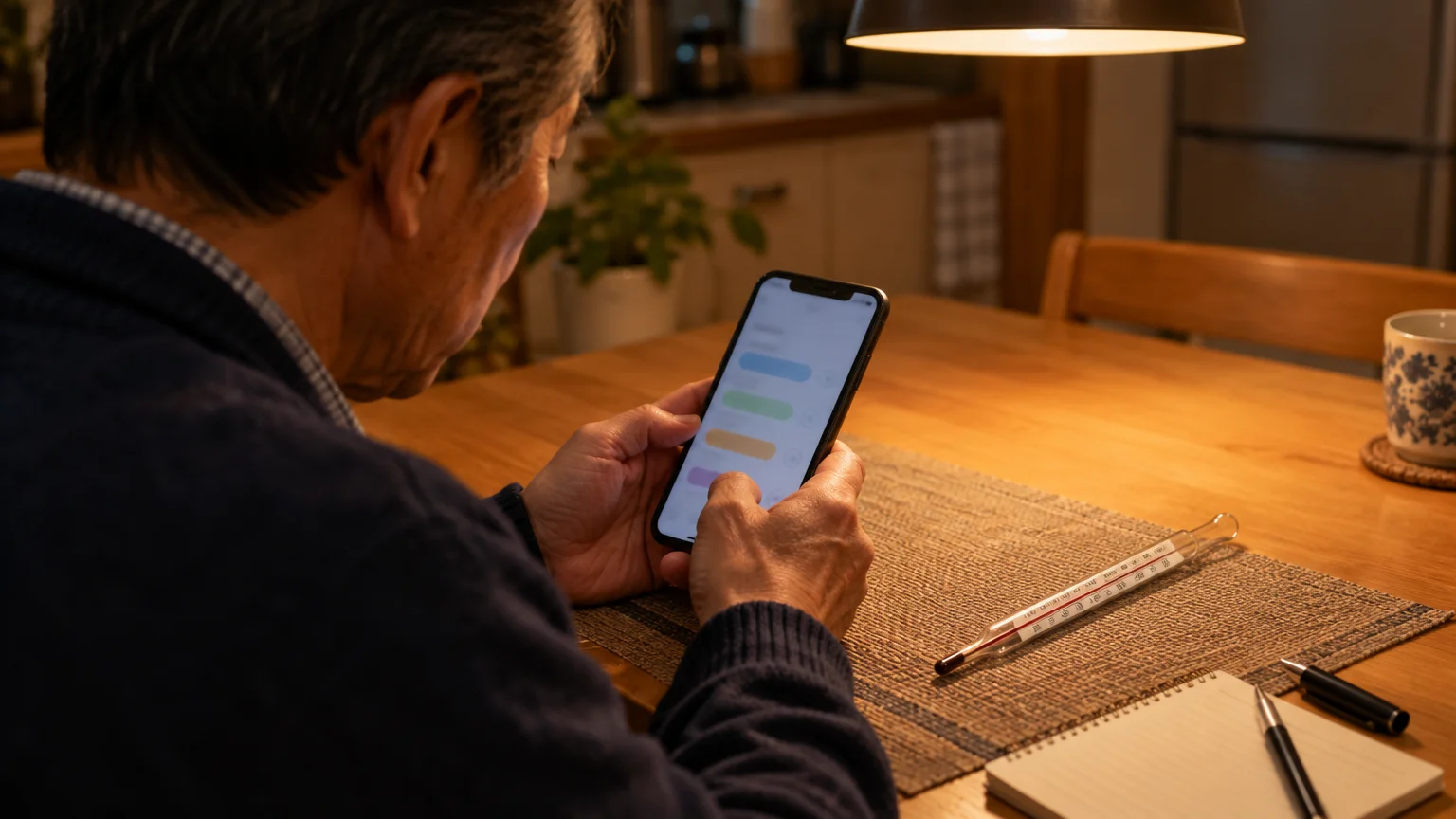
Arthur places a handheld digital thermometer on his side table, three feet above the floor. The thermometer reads 66 degrees, exposing a six-degree difference from the wall display.
Arthur pays approximately $190 monthly for natural gas heating. Cranking the hallway unit to 76 degrees to warm his chair would inflate his heating bills substantially.
Arthur buys a Google Nest Temperature Sensor for $39 as of 2026. He plans to establish a nest room sensor balance between his hallway and seating area.
Reading compact text on mobile screens can feel challenging during device setup. Arthur enlarges his phone font before starting the pairing process.
If you use an Apple device, follow Apple’s instructions to make text bigger to read screens with ease.
If you carry an Android phone, review Google’s Android accessibility overview to adjust display magnification.
- Open the Google Home app on your mobile device.
- Tap the Devices tab near the bottom of your screen.
- Tap the + (Add) symbol in the upper right corner and select Google Nest device.
- Pull the clear plastic battery tab out from the back of the sensor.
- Point your smartphone camera at the QR code printed on the sensor backplate.
- Select Living Room from the available room assignment list.
- Place the sensor on the side table next to your armchair, about 36 inches off the floor.
- Tap Living Room under sensor settings and choose Evening (4 PM to 9 PM) to set priority.
With the living room sensor active during evening hours, the furnace runs until Arthur’s seating area reaches 71 degrees. Arthur no longer needs a blanket while reading.
The hallway rises to 74 degrees during those hours, but Arthur stays comfortable where he actually sits. The pairing process took twelve minutes and required zero wiring.
Calibrating Temperature Offsets and Sensor Schedules
If you prefer not to purchase extra hardware, you can adjust your thermostat’s software calibration. Most modern thermostats provide a feature called temperature offset.
A temperature offset is a software adjustment that raises or lowers the displayed temperature by a specific number of degrees to correct known sensor discrepancies.
If your room thermometer reads 68 degrees while your wall display reads 71 degrees, enter a minus three-degree offset. The system then calls for heat until the room reaches true comfort.
- Tap the Main Menu icon on your ecobee thermostat screen.
- Select Settings from the menu options.
- Tap Installation Settings.
- Select Thresholds.
- Tap Temperature Correction.
- Adjust the numerical slider by your measured difference, then tap Save.
Sensor schedules let you shift heating focus automatically throughout the day. You can prioritize living areas in the afternoon and switch focus to bedrooms overnight.
This rotation prevents wasted heating energy in unoccupied rooms. It directs warmth where you spend your time.
You can also verify room sensor readings using voice commands. If you own an Amazon smart speaker, ask Alexa to report individual room temperatures hands-free.
Consult Amazon’s Alexa help guide for instructions on grouping smart home devices and managing voice controls.
Keep your thermostat software updated by maintaining its connection to your home Wi-Fi network. Manufacturers release regular firmware patches that fix sensor measurement bugs.
Review CISA’s guidance on updating software to understand how automated device updates protect connected smart home equipment.
Spotting Tech Support Scams and Seeking Real Help
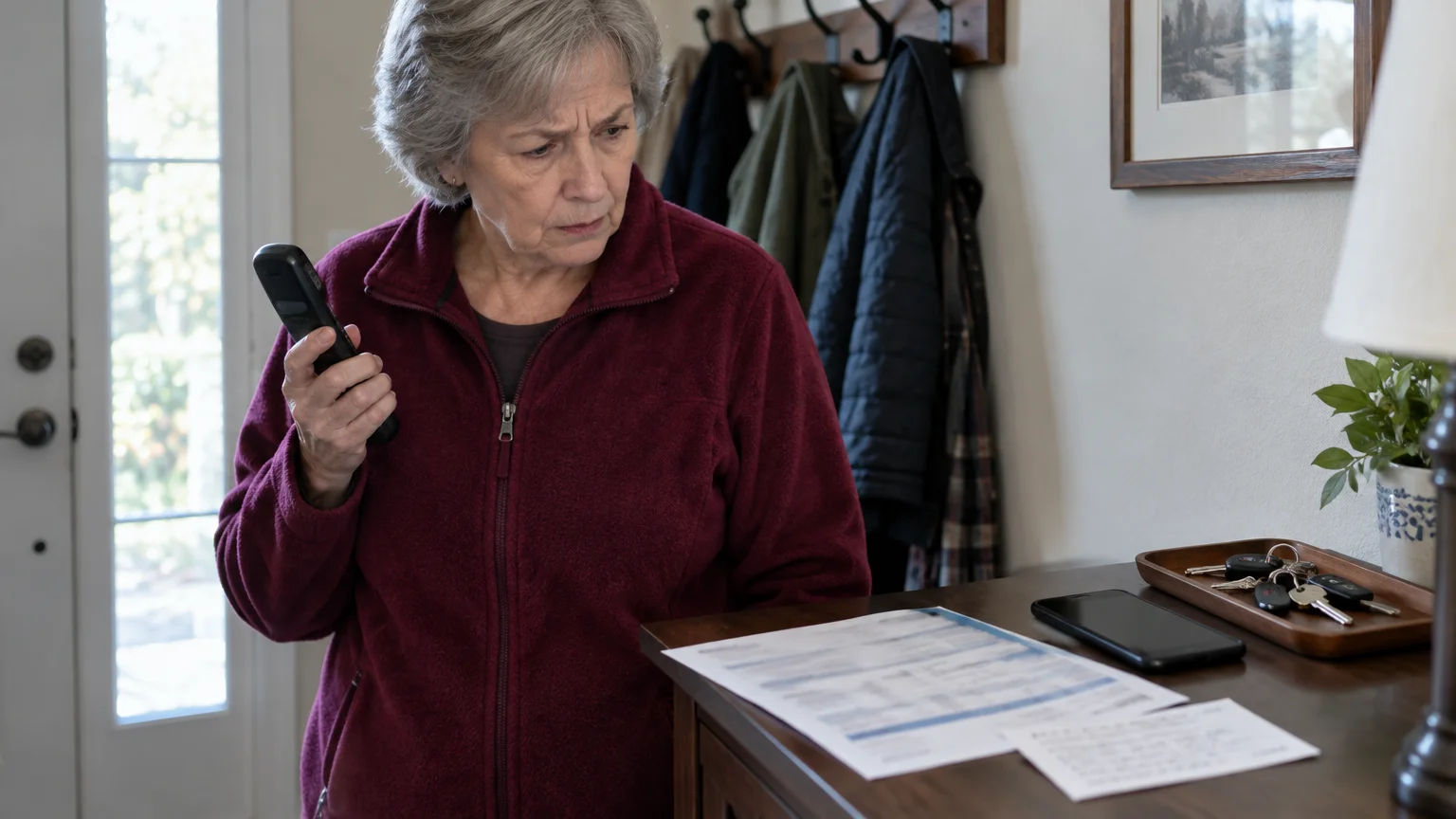
When dealing with temperature errors, never trust random search engine phone numbers for technical support. Criminals pay for sponsored search ads that display fake customer service hotlines.
When you dial these sponsored numbers, fraudulent operators pose as official thermostat technicians. They claim your thermostat software license expired or that your heating unit suffered a cyber infection.
These scammers demand hundreds of dollars via prepaid gift cards or wire transfers to restore functionality. Authentic hardware manufacturers never charge activation fees or request gift cards.
Read the FTC’s guide to spotting tech support scams to learn common warning signs before hiring unfamiliar service companies.
Only contact customer support using phone numbers found inside your original product box or official mobile application. If furnace hardware fails, call a licensed local HVAC technician with verifiable references.
Frequently Asked Questions
Why does my smart thermostat show a higher temperature than my room thermometer?
Wall units often read higher if warm drafts enter from hollow drywall cavities behind the mounting bracket. Direct sunlight and internal electronics can also warm the casing, skewing readings above ambient room temperature.
Where is the best place to put a remote temperature sensor?
Place remote sensors on an interior shelf or table 36 to 48 inches above the floor where you spend time. Keep them away from exterior window drafts, heating vents, and direct sunlight.
How long do remote thermostat sensor batteries last?
Most remote sensors operate for two to five years on a standard lithium coin cell or AAA battery. Your mobile application displays current battery status and warns you months before power runs out.
Can I use different sensor brands with my smart thermostat?
No, remote sensors use proprietary wireless radio frequencies built specifically for their own brand. A Google Nest thermostat requires Nest sensors, while an ecobee thermostat requires ecobee SmartSensors.
Note: Menus and button names change with software updates. These steps were written for current versions as of 2026; if a screen looks different on your device, the maker’s support page linked above has the latest wording.
ClearTechGuide is independent and is not affiliated with Apple, Google, Microsoft, Amazon or any other company mentioned.
