

The phone rings. But instead of just hearing a familiar voice, a screen lights up with a request for a video chat. For a moment, you might feel a flutter of hesitation. Which button do I press? Will they see me immediately? Is my hair okay?
Learning these steps is a vital part of knowing how to stay connected when family lives far away and maintaining close relationships.
If you would like to be the one to start the conversation, you can learn how to video call your grandchildren in our comprehensive guide.
You are not alone in feeling this way. For decades, answering a phone was a simple physical act—lifting a receiver. Today, “picking up” requires interpreting icons, swipes, and taps on a glass screen. It is a new language, but it is one you can learn quickly.
The reward for mastering this small skill is immense. A video call—a phone call where you can see the other person’s face—bridges the gap between you and your loved ones in a way a voice call never could. You see your grandson’s missing tooth, your daughter’s new kitchen, or an old friend’s smile. This guide walks you through exactly how to answer calls on the most popular platforms, ensuring you never miss a moment of connection.
Table of Contents
- Why Video Calls Are Worth the Learning Curve
- Identifying Who Is Calling (and How)
- How to Answer a FaceTime Call (Apple Devices)
- How to Join or Answer a Zoom Call
- Answering on WhatsApp and Facebook Messenger
- How to Answer on Android Phones
- Setting the Stage: Looking and Sounding Your Best
- Troubleshooting: What to Do When It Glitches
- Frequently Asked Questions

Why Video Calls Are Worth the Learning Curve
It is easy to think, “Why can’t we just talk on the regular phone?” While voice calls remain a wonderful way to catch up, video calls add a layer of intimacy that helps combat isolation. Technology is merely a tool, and its best use is bringing people together.
When you answer a video call, you participate in your family’s life more fully. According to research from the Pew Research Center, older adults who use digital tools to connect with family report feeling less isolated. Seeing facial expressions clarifies communication; you can tell when someone is joking, tired, or excited much easier when you can see their eyes.
Heartwarming Reminder: Your family doesn’t care if the camera angle isn’t perfect or if you aren’t wearing your Sunday best. They just want to see you.
Identifying Who Is Calling (and How)
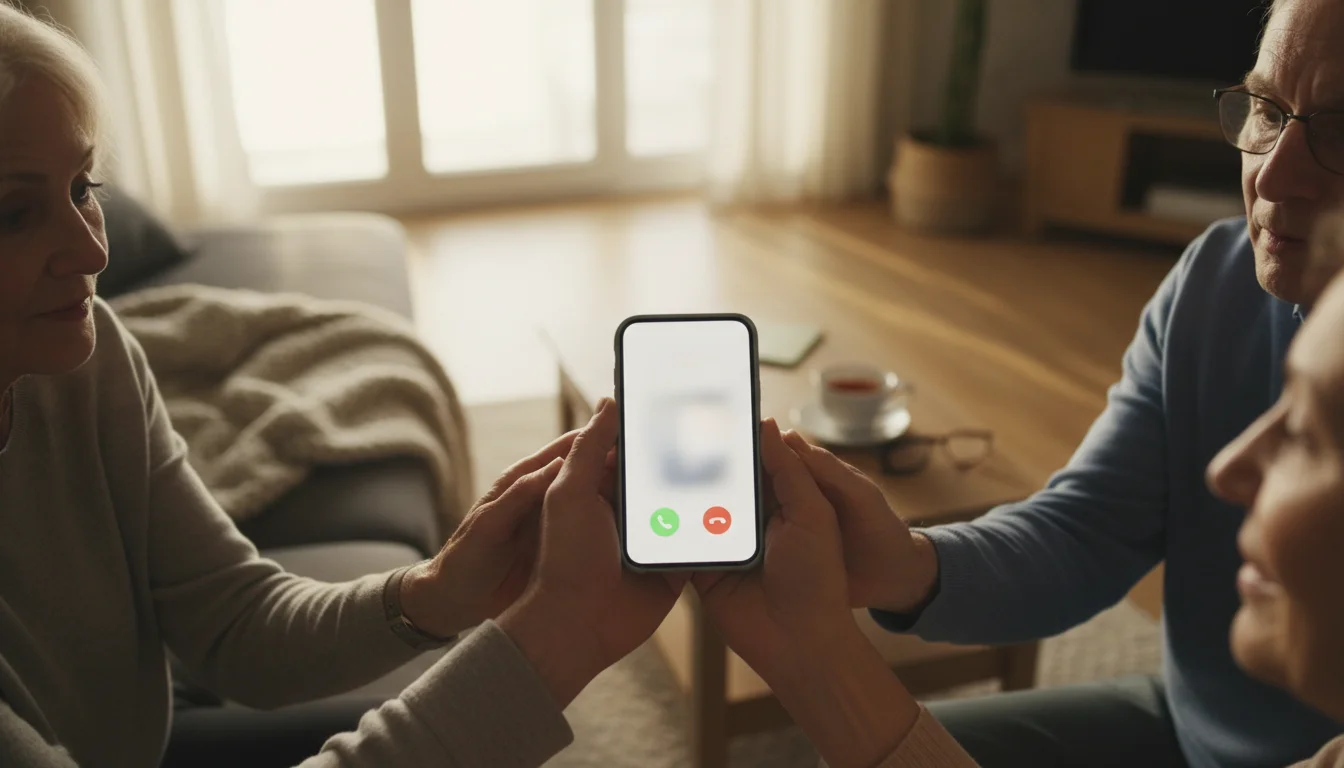
Before you tap anything, you need to know which “door” your visitor is knocking on. Unlike a landline where every call comes through the same device in the same way, smartphones have different applications (apps) that can ring.
Always remember to be cautious; if you receive a call from an unknown number, it is helpful to know how to recognize and avoid phone scams before you pick up.
To make identifying callers even easier, you can add contacts to your phone so their names and photos appear on the screen automatically.
When your phone or tablet lights up, look at the screen text. It will usually say something like:
Recognizing the specific app helps you anticipate which buttons to look for. While designs vary, developers almost always use universal colors: Green means “Answer” or “Go,” and Red means “Decline” or “Stop.” If you ever panic, looking for the green button is your safest bet.

How to Answer a FaceTime Call (Apple Devices)
If you have an iPhone or iPad, FaceTime is likely the primary way your family will reach you. It is built directly into your device. However, Apple changes how you answer depending on whether your device is currently locked (screen is dark) or unlocked (you are using it).
Scenario A: Your Screen is Locked (Dark)
You hear the ringtone and the screen wakes up. You will likely see a slider rather than a button.
- Locate the Slider: Look for a sliding bar, usually at the bottom of the screen. It often features a green phone icon or a video camera icon.
- The Slide Motion: Place your finger on the icon on the left side of the track. firmly slide your finger all the way to the right side of the screen.
- Wait a Second: The video will connect. You might see a frantic blur for a second before the picture stabilizes.
Scenario B: You Are Already Using Your Phone
If you are reading the news or texting when the call comes in, the notification looks different. It usually appears as a banner at the top of the screen.
- Look for the Buttons: You will see a green button (Accept) and a red button (Decline).
- Tap Once: Simply tap the green button. You do not need to slide.
For more specific visual guides on Apple products, Apple Support offers excellent diagrams, but remember the rule of thumb: Slide on a dark screen, tap on a lit screen.

How to Join or Answer a Zoom Call
Zoom works differently than a standard phone call. While it is possible to “call” someone directly on Zoom, it is much more common for family gatherings or scheduled chats to happen via a “Link.” Think of Zoom less like picking up a phone and more like entering a meeting room.
Method 1: The Scheduled Link
Your family member will likely send you a text message or email containing blue underlined text (a link).
- Tap the Link: Touch the blue underlined text. This should automatically open the Zoom app on your device.
- Enter Your Name: If asked, type your name so everyone knows who you are.
- The Video Preview: You might see a preview of yourself. Look for a blue button that says “Join with Video.” Tap it. If you tap “Join without Video,” they will hear you but won’t see you.
- The Audio Gatekeeper: This is the step that trips up most people. A box will pop up asking about audio. Tap the option that says “WiFi or Cellular Data” or “Join with Computer Audio.” If you do not tap this, you will be in the meeting, but silent.
Method 2: An Incoming Zoom Call
If you have the Zoom app open and someone calls you directly:
- A screen will pop up with the caller’s name.
- Tap the Blue Video Camera icon that says “Accept.”
Answering on WhatsApp and Facebook Messenger
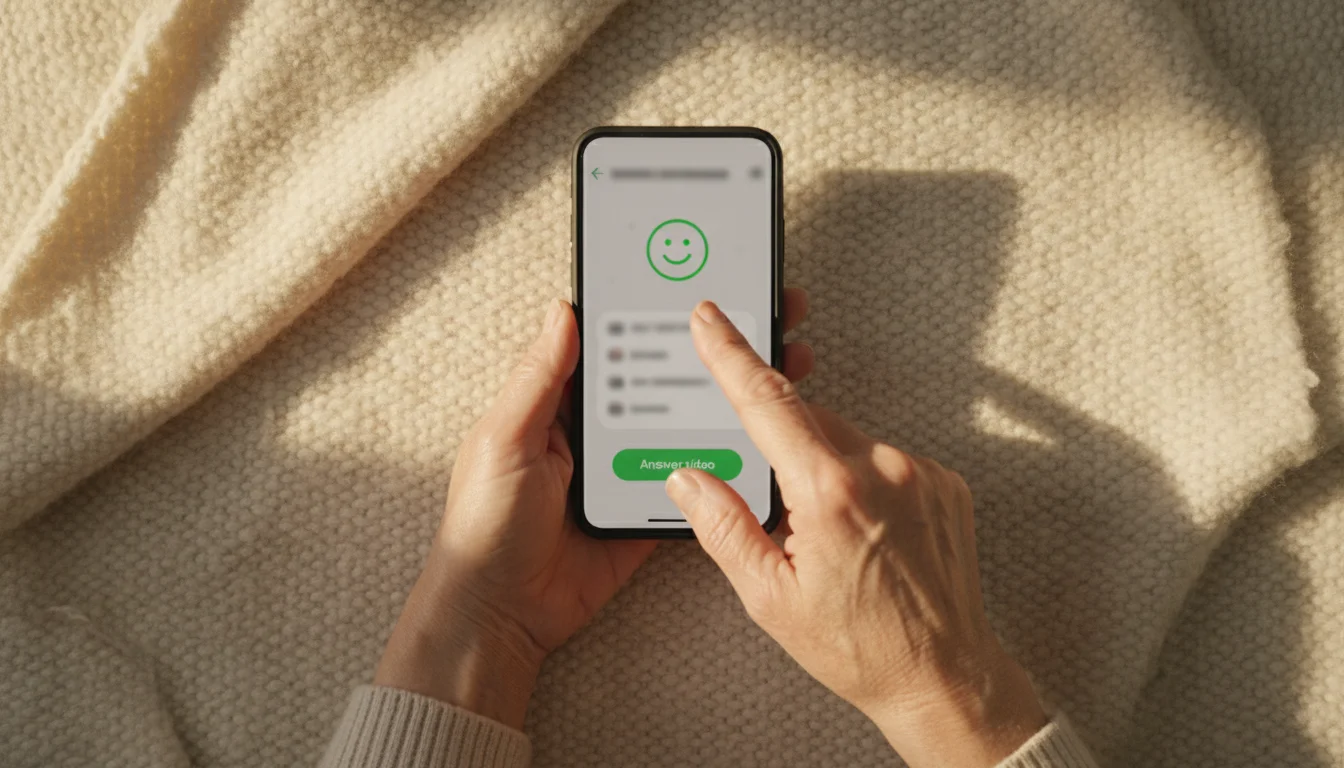
Many families prefer these apps because they work on both iPhones and Android phones. If your grandchildren use different types of phones, this is the common ground.
Answering on WhatsApp
WhatsApp can be tricky because the “answer” gesture is an upward swipe, not a tap or a side-slide.
- Identify the Call: The screen will show “WhatsApp Video Call.”
- The Upward Swipe: You will see a blue or green camera icon jumping or bouncing slightly at the bottom of the screen. Place your finger on that icon and slide it upward toward the top of the screen.
- Declining: If you slide it downward, you hang up. Be careful to sweep up!
Answering on Facebook Messenger
Messenger is very user-friendly.
- The Ring: You will hear a distinct bubbling ringtone.
- The Icons: You will see a green camera icon and a red phone icon.
- The Action: Depending on your specific phone model, you either tap the green camera button or drag the green camera icon into the center of the circle.
How to Answer on Android Phones
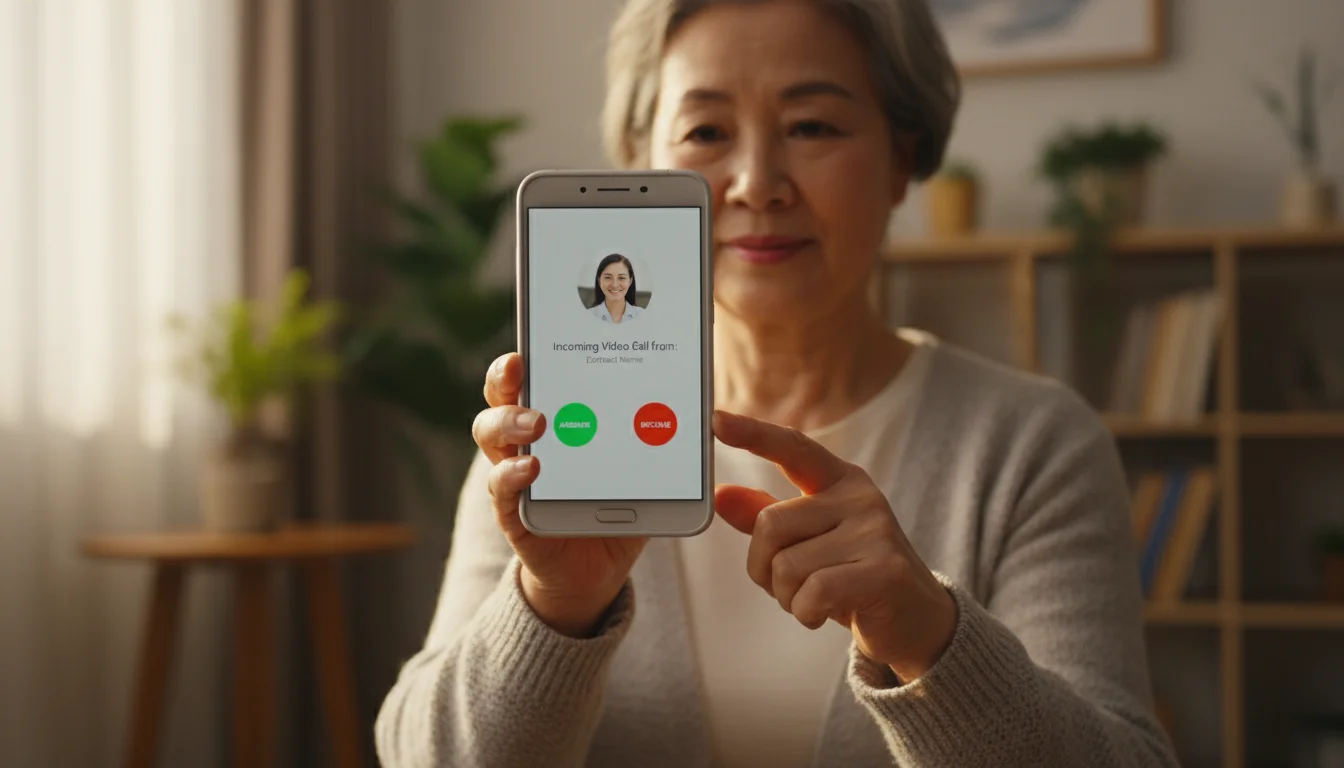
If you use a Samsung, Google Pixel, or Motorola phone, you are likely using the Android operating system. While there are many brands, the basics remain consistent.
When a standard video call comes in (often via Google Meet or the phone’s native video app):
- Look at the Circle: You will usually see a white phone icon inside a circle.
- Read the Arrows: Look closely at the screen. You might see small arrows animating in a specific direction.
- Swipe Accordingly:
- Google Pixel/Stock Android: Usually, you swipe UP to answer.
- Samsung: You usually swipe RIGHT (dragging the green icon across the screen).
If you are unsure, try swiping the green icon toward the center of the screen. This is a common gesture for “answering.”

Setting the Stage: Looking and Sounding Your Best
Once you have successfully answered the call, you want to ensure the experience is enjoyable. You don’t need a professional studio, but three small adjustments make a world of difference.
With your device properly positioned, you’ll be ready for more involved activities like reading bedtime stories to grandchildren over video call.
1. Let There Be Light (In Front of You)
The biggest mistake people make is sitting with their back to a window. This makes you look like a dark shadow or a silhouette because the camera adjusts to the bright light behind you.
The Fix: Turn around so the window or lamp is facing you. Natural light hitting your face makes the video crisp and clear, allowing your family to see your expressions.
2. The Camera Angle
We often hold our phones in our laps or look down at a tablet on a table. This results in the “up the nose” camera angle, which is flattering for no one.
The Fix: Prop your device up against a stack of books or use a simple stand so the camera is at eye level. If you are holding the phone, lift it slightly higher than your chin. Your arm might get tired, so propping it up is usually best for long chats.
3. Check Your Audio Environment
Microphones on tablets and phones are sensitive. They pick up everything.
The Fix: Turn off the television or radio in the background. Background noise can make it very hard for the person on the other end to hear your voice clearly.

Troubleshooting: What to Do When It Glitches
Technology is not perfect. Sometimes you answer the call, but something isn’t right. Do not panic; usually, the fix is a simple button press. Here are the three most common issues.
If you missed the call or are having connection issues, you can always learn how to record a video message for family to send your love at your own pace.
“I can’t hear you!”
If you cannot hear them, check the physical volume buttons on the side of your device. Turn them up all the way.
If they cannot hear you, you might be “muted.” Look for an icon on the screen that looks like a microphone.
If the microphone has a slash through it: You are muted. Tap it once to unmute.
If the microphone is clear/filled in: You are live.
“I can’t see you!”
If they say your screen is black, your camera is likely turned off.
Look for an icon that looks like a video camera.
If it has a slash through it: Tap it to turn the camera on.
Pro Tip: Sometimes calls start with video off to save data. You just need to tap that camera button to enable it.
” The picture is frozen!”
This usually means the internet connection hiccuped.
The Fix: Wait ten seconds. It often resolves itself. If it stays frozen for more than a minute, the best thing to do is hang up (press the red button) and call them back. It acts as a “reset” for the connection.
For more in-depth technology training, resources like Senior Planet from AARP offer wonderful free classes designed specifically for older adults.
Frequently Asked Questions
It is normal to have questions even after you learn the basics. Here are answers to common concerns about video calling.
What if I accidentally hang up on them?
Don’t worry! It happens to everyone. Just wait on the main screen of your phone. They will likely call you right back. If you know how to call them, you can try calling them back, but usually, the person who initiated the call will try again.
Do I need Wi-Fi to answer a video call?
Ideally, yes. Video calls use a significant amount of data. If you are connected to your home Wi-Fi (the wireless internet in your house), the call is essentially free and won’t use up your cellular data plan. If you are not on Wi-Fi, the quality might be lower, and it counts against your monthly data limits.
How do I end the call when we are done?
You are in control of leaving the conversation. Tap the center of your screen once to make the buttons appear. Look for the bright Red Button (often with a phone icon or the word “End” or “Leave”). Tap it firmly. Ensure the screen goes back to your normal home screen to verify the connection is closed.
Can I answer a video call on my computer?
Yes, especially with Zoom, FaceTime (on Macs), or Facebook Messenger. The process is usually clicking a button with your mouse rather than tapping a screen. The “Green to Answer, Red to Decline” rule still applies.
Disclaimer: This article is for informational purposes only. App interfaces change with updates, so screens may look slightly different. The most important thing is making the connection—the technology is just the tool to help you do that.









Leave a Reply