
You tap the wrong corner of your tablet screen, and thirty minutes of typing vanishes instantly. Your unsent email draft is not gone forever; modern email programs continuously save your work into a hidden safety folder called Drafts every few seconds.
Most online guides tell you to start over, but your email provider stores your writing in an active holding queue that survives screen taps, sudden app closures, and dead batteries.
This guide shows you exactly where your writing went across Gmail, Apple Mail, and Yahoo Mail, and how to recover every sentence without panic.
In this guide9 sections
- Where Do Email Drafts Go?
- Scenario: Eleanor’s Lost Family Update
- How to Find an Unsent Email Draft in Apple Mail
- How to Recover a Lost Draft Email in Gmail
- How to Find an Unsent Email Draft in Yahoo Mail
- Auto-Save Intervals and Storage Rules Compared
- How to Guide a Family Member Remotely
- Accessibility Settings to Prevent Accidental Taps
- Frequently Asked Questions
Where Do Email Drafts Go?
A draft is an incomplete email message saved before sending. Whenever you compose a message, your email software automatically protects your progress in the background.
If you frequently draft long messages, you might also prefer using the Notes app on your phone to write down information before pasting it into an email.
Cloud sync is an automatic process that mirrors your email data between your device and your provider’s remote computers. Because of cloud sync, your draft exists on internet servers, not just your screen glass.
Where do email drafts go when the composition screen disappears from view? They relocate to a system folder titled Drafts located inside your main mailbox folder list.
This automated storage prevents data loss when you accidentally tap outside the writing box or switch between applications. Even if your tablet turns off unexpectedly, your text remains safe.
Email providers distinguish between open composition windows and stored drafts. When you accidentally touch a side folder, the app minimizes or closes the composition view, but the server retains every recorded sentence.
Understanding this distinction helps you avoid starting from scratch. Your words are rarely deleted; they simply wait in the storage folder for you to reopen them.
Scenario: Eleanor’s Lost Family Update
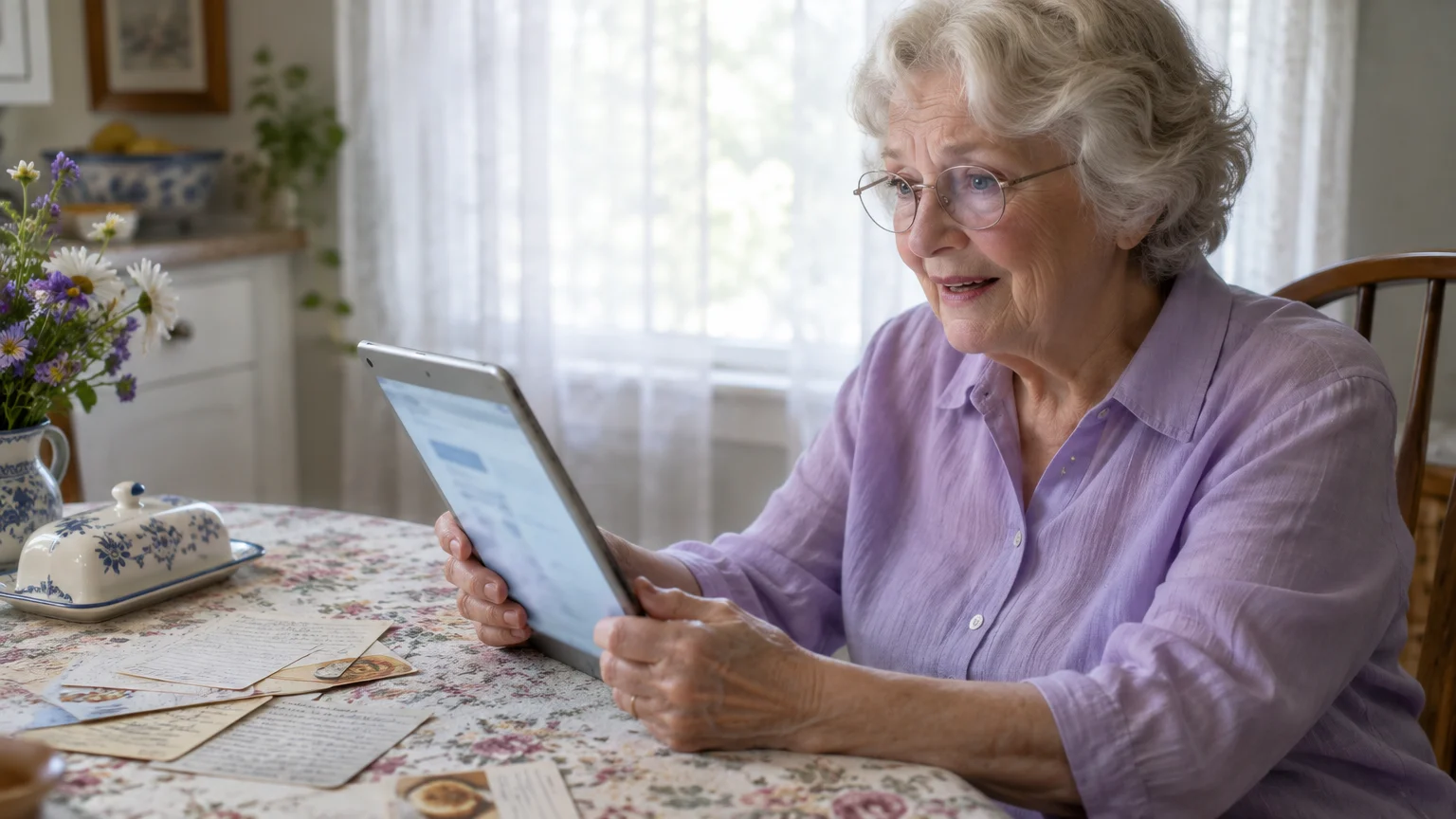
Consider Eleanor, an 80-year-old grandmother living in Columbus, Ohio. Eleanor sat down at 10:15 AM to compose a 420-word family update on her iPad.
If you ever accidentally highlight and erase paragraphs while writing on a touchscreen, you can also learn how to undo deleted text on your smartphone with a quick gesture.
She spent thirty-two minutes carefully recounting family news, upcoming birthdays, and summer reunion plans. At 10:47 AM, her left thumb brushed the left margin while she adjusted her eyeglasses.
Her compose window vanished instantly, replaced by her Sent messages folder. Eleanor assumed she had deleted half an hour of careful typing with one errant touch.
In reality, Apple Mail had quietly created twelve progressive draft saves during her writing session. Her words were never destroyed.
Eleanor touched the left edge of her screen to reveal her mailbox list. She tapped Drafts, selected her update, and resumed typing without missing a word.
Her experience represents the most common reason for missing messages. A stray finger tap changes the active screen view, hiding the message without deleting it.
How to Find an Unsent Email Draft in Apple Mail
Apple Mail organizes drafts differently depending on whether you use an iPhone, an iPad, or a Mac computer. You can consult Apple’s official iPhone User Guide for device navigation basics as of 2026.
Just as with mailboxes, learning how to save and find files on your computer keeps your important documents easy to retrieve.
When writing on an iPhone or iPad, swiping downward on the header minimizes the compose window. The message collapses into a narrow tab parked at the bottom edge of your display.
Look closely at the bottom edge of your screen. If you see a small bar showing your recipient or subject line, tap that bar once to reopen your message.
If the bottom bar is gone, you can find unsent email draft files through Apple’s hidden compose shortcut.
- Locate the Compose icon, shaped like a pencil on a square, in the bottom-right corner.
- Press and hold the Compose icon for two seconds without releasing your finger.
- Lift your finger when the menu titled Drafts appears above the icon.
- Tap your unfinished message from the list to return to your text.
If you prefer using the standard menu layout, you can locate your message through the primary mailbox list.
- Tap Mailboxes in the upper-left corner of the screen until you see the full folder list.
- Look beneath your primary inbox and tap the folder named Drafts.
- Tap the message you want to finish from the list displayed on the screen.
- Resume typing and tap the blue arrow labeled Send when finished.
If you use an Apple Mac computer, look at the left sidebar under the Mailboxes heading. Click the folder named Drafts to open your pending messages.
How to Recover a Lost Draft Email in Gmail
Gmail uses an aggressive background save timer that records your writing every two to three seconds. If your screen closes unexpectedly, you can recover lost draft email Gmail files quickly.
While navigating your inbox, be sure to review how to spot a scam email and its red flags to keep your account secure.
If you are new to the platform, our guide on how to send emails using Gmail walks you through composing and sending your first message step-by-step.
Follow these steps when accessing Gmail on a desktop computer using an internet browser.
- Look at the navigation sidebar along the left side of your Gmail inbox.
- Click on the folder labeled Drafts located directly beneath your Sent folder.
- Click on the topmost email in the list to reload your composition window.
- Add your final thoughts and click the blue Send button.
If the left sidebar is hidden, click the Main menu icon shaped like three horizontal stacked lines in the upper-left corner.
On an Android smartphone or tablet, refer to Google’s Android Help documentation if your device interface looks slightly altered.
Use these steps to restore an unsent draft in the Gmail mobile application.
- Tap the Menu icon, represented by three horizontal lines, in the top-left corner of your search bar.
- Scroll down the menu list and tap the folder named Drafts.
- Tap the top email conversation displayed on the screen.
- Verify your sentences and tap the blue paper airplane icon labeled Send.
If your Drafts folder contains dozens of old items, type is:draft into the search bar at the top of Gmail. This search filter shows only unfinished drafts.
Gmail also displays the word Draft in bright red text next to conversations in your inbox if you replied to an existing thread without sending.
How to Find an Unsent Email Draft in Yahoo Mail
Yahoo Mail automatically saves your letters to the cloud, but its sidebar layout often causes accidental folder switches. Follow these steps to locate your draft on a computer browser.
Organizing your messages works similarly to the way you create and manage folders on your computer for standard files.
- Look at the left navigation pane on your computer screen.
- Click the folder named Drafts located between the Sent and Archive folders.
- Click the message row at the top of your reading list.
- Review your text and click the blue Send button at the bottom of the composer.
If you use the Yahoo Mail mobile application, tap the Inbox heading at the top of your screen. Select Drafts from the drop-down menu that appears.
Warning: Do not click the trash icon inside an active Yahoo Mail composer. Discarding a Yahoo draft permanently erases your message, bypassing the Trash folder entirely.
If you accidentally back out of the Yahoo Mail app while typing, do not click Compose again. Opening a new blank compose window creates a second draft rather than reopening your saved letter.
Always inspect the Drafts folder first to confirm whether your previous sentences saved before starting a new email.

Auto-Save Intervals and Storage Rules Compared
Email providers handle auto-save timing, minimized states, and discarded files differently. Review this comparison table to understand how your specific service manages unsent messages as of 2026.
If your unsent message stalled because of bulky photo attachments, explore easy ways to share large files with family instead.
If your draft contains several photos and refuses to leave your outbox, check our advice on how to fix an email that is too big to send.
| Email Service | Auto-Save Frequency | Minimized Window Location | Recovery Window for Discarded Drafts |
|---|---|---|---|
| Gmail (Web and Mobile) | Every 2 to 3 seconds | Bottom-right dock or Drafts folder | 30 days in Trash folder |
| Apple Mail (iOS and iPadOS) | Every 5 to 10 seconds | Tab at bottom screen edge | None (Permanently deleted) |
| Yahoo Mail (Web and Mobile) | Every 15 to 30 seconds | Closes directly to Drafts folder | None (Permanently deleted) |
| Microsoft Outlook (Web and App) | Every 10 to 20 seconds | Closes directly to Drafts folder | 30 days in Deleted Items folder |
Gmail provides the most frequent auto-save cadence, capturing your progress after almost every sentence. Yahoo Mail has a longer auto-save interval, which means sudden power loss could erase your most recent sentence.
Always wait three seconds after typing a critical sentence before switching away from your email application. This brief pause allows the background auto-save cycle to complete.
Notice also the critical difference in recovery policies. While Gmail and Outlook preserve discarded drafts in trash folders, Apple Mail and Yahoo Mail purge them immediately upon user confirmation.
How to Guide a Family Member Remotely
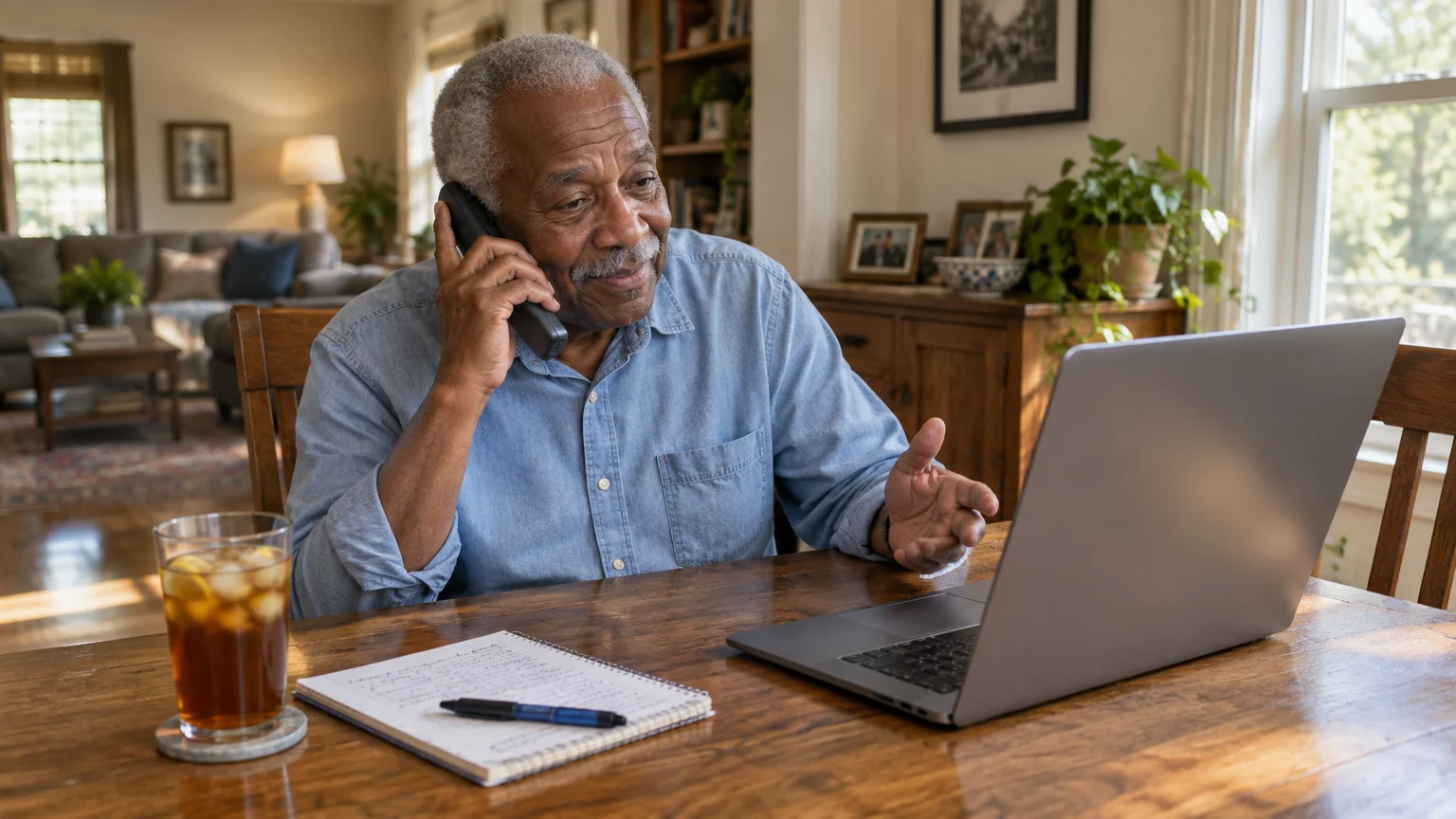
Guiding an older relative over the phone requires structured questions and patience. Never tell someone to click rapidly, and avoid using complex technical terms like cache or sync.
When long-distance troubleshooting becomes overwhelming, reviewing how to get tech support for your computer can help you find patient, reputable assistance.
First, ask your relative to read aloud the exact words shown in the upper-left corner of their screen. This answers whether they are in their inbox, another folder, or viewing a minimized bar.
Use this step-by-step verbal guide when assisting someone by phone or video call.
- Ask the caller to search for an icon with three horizontal lines or an arrow pointing left.
- Tell them to tap that icon once to reveal the mailbox folder list.
- Have them read down the list until they see the word Drafts.
- Instruct them to tap Drafts once with a firm press.
- Ask them to confirm whether their family update appears at the top of the list.
If the caller uses an iPad and the screen appears split in half, explain that two columns are normal. The left column shows the folders, while the right column shows the email content.
Advise your family member to keep their device software up to date so mail features operate reliably. Check CISA’s guidance on updating software for general safety practices.
Staying calm during the call reassures your relative that their hard work is intact. Remind them that email applications are designed specifically to prevent writing from vanishing.

Accessibility Settings to Prevent Accidental Taps
Accidental taps happen frequently when screen text is small or touch sensitivity is too high. Adjusting your device settings prevents slips from closing your messages.
To reduce screen fatigue and avoid stray finger taps altogether, you can also learn how to dictate documents by voice on a computer.
On an iPhone or iPad, make your folder names easier to read. Review Apple’s instructions to make text bigger using Dynamic Type sliders.
Touch Accommodations is an accessibility setting that alters how a glass screen responds to finger taps. You can configure it to ignore brief accidental brushes on Apple devices.
- Open the Settings app on your iPad or iPhone.
- Tap Accessibility in the third settings grouping.
- Tap Touch, then tap Touch Accommodations.
- Turn on the switch for Hold Duration.
- Set the duration timer to 0.30 seconds using the plus button.
This 0.30-second delay requires deliberate finger contact before a tap registers. A light swipe or accidental brush against the screen margin will no longer trigger folder menus.
On Android tablets, adjusting touch response prevents unintended menu clicks. Follow Google’s Android accessibility guide to set Touch and hold delay to Medium or Long.
You can also use Display Zoom on modern tablets to enlarge buttons across your mail app. Larger buttons create wider margins, reducing the chances of stray finger touches.
Frequently Asked Questions
Why did my email draft disappear while I was typing?
Drafts vanish from view when your finger brushes a side menu or swipe gesture, collapsing the composer. Your email program automatically moved your writing into the Drafts folder.
How long do unsent drafts stay in my email account?
Email providers retain unsent drafts indefinitely until you send or delete them manually. Unlike items in the Trash folder, drafts do not expire after thirty days.
Can I recover an email draft if I accidentally clicked delete or discard?
Gmail and Outlook send discarded drafts to the Trash or Deleted Items folder, where you can restore them for thirty days. Apple Mail and Yahoo Mail permanently erase discarded drafts immediately.
Does email save drafts if my device loses internet access?
Yes, modern email apps store a temporary copy on your device memory while offline. When your connection returns, the application syncs your unsent message to your provider’s remote servers.
Note: Menus and button names change with software updates. These steps were written for current versions as of 2026; if a screen looks different on your device, the maker’s support page linked above has the latest wording.
ClearTechGuide is independent and is not affiliated with Apple, Google, Microsoft, Amazon or any other company mentioned.
