
If you have ever felt confused when someone mentioned “the cloud,” you are certainly not alone.
For many of us who grew up using physical filing cabinets or even those of us who remember the first home computers, the idea of a “cloud” sounds like something out of a science fiction movie.
You might wonder where your files actually go when you save them there, or if they are floating around in the sky somewhere.
In reality, cloud storage is a practical, safe, and incredibly helpful tool that can make using your computer much easier once you understand the basics.
Think of cloud storage as a digital safety deposit box.
Instead of keeping your most important photos and documents only on your computer’s hard drive—which is the physical storage inside your machine—you keep a copy of them on a secure, professional computer owned by a company like Microsoft, Apple, or Google.
You can then look at those files from any device with an internet connection. This guide will help you understand how this works, why it is useful for you, and how to use it on your specific computer.
In this guide10 sections
- What Exactly is “The Cloud”?
- Why You Might Want to Use Cloud Storage
- Comparing the Big Three: OneDrive, iCloud, and Google Drive
- Using Cloud Storage on a Windows PC
- Using Cloud Storage on a Mac
- Using Cloud Storage on a Chromebook
- Managing Your Photos in the Cloud
- Safety, Privacy, and Keeping Your Files Secure
- Common Problems and Simple Solutions
- Frequently Asked Questions

What Exactly is “The Cloud”?
The term “the cloud” is simply a fancy way of saying “the internet.”
When you store something in the cloud, you are not saving it to a fluffy white object in the sky; you are sending that data to a massive, high-security building filled with powerful computers called “servers.”
These buildings are managed by experts who ensure your data remains safe, backed up, and available to you 24 hours a day.
Since cloud services rely on the latest technology, you should also ensure your own machine stays current by knowing how to set up automatic updates on your computer.
To help visualize this, imagine you have a physical photo album at home. If you want to show a friend a picture, they have to come to your house or you have to bring the album to them.
If your house unfortunately suffers a fire or a flood, that album could be lost forever. Now, imagine you took that photo album to a high-security bank vault across town.
The bank keeps the album safe for you. If you go to a different branch of that bank in another state, you can ask them to show you a digital copy of your album.
That is exactly how cloud storage works for your digital files.
Cloud storage acts like a “magic mirror.” When you put a file into a cloud folder on your computer, it appears in that same folder on your tablet or smartphone automatically.
When you use cloud storage, your computer stays “in sync” with the server. “Syncing” is short for synchronizing, which means keeping things the same in both places.
If you delete a photo from the cloud folder on your computer, the service will also remove it from the server and your other devices. This keeps your digital life organized and ensures you always see the most recent version of your work.

Why You Might Want to Use Cloud Storage
You might ask, “My computer has worked fine for years without this, so why change now?” While it is perfectly fine to keep files only on your computer, cloud storage offers several “safety nets” that keep your files safe.
According to data from various technology recovery services, roughly 25% of PC users experience some form of data loss each year due to hardware failure, accidental deletion, or liquid spills. Cloud storage protects you from these common mishaps.
If you plan to view these files while away from home, it is wise to understand data usage on your smartphone so you don’t use up your monthly cellular plan.
In addition to digital storage, it is a good idea to learn how to back up your computer files to an external drive for local physical security.
1. Automatic Backups: If your laptop stops turning on tomorrow, your files are not trapped inside it. You can simply log in to your account from a new computer and all your documents and photos will reappear.
This is perhaps the greatest benefit for anyone who values their family memories.
2. Access From Anywhere: If you are visiting your grandchildren and want to show them a photo you took last summer, you do not need to bring your laptop.
You can log into your account on a tablet or even use your smartphone to pull up that specific photo in seconds.
3. Easy Sharing: Sending large batches of photos through email can be frustrating because email providers often limit how much you can send at once. With cloud storage, you can “share” a folder.
This creates a special link that you can email to a friend. When they click that link, they can view the photos without clogging up their inbox.
4. Saving Space: If your computer’s hard drive is getting full, you can tell the cloud service to keep the “master copies” on the internet and only show you a small “placeholder” on your computer.
This frees up space for your computer to run faster while still letting you see your files whenever you need them.
Comparing the Big Three: OneDrive, iCloud, and Google Drive
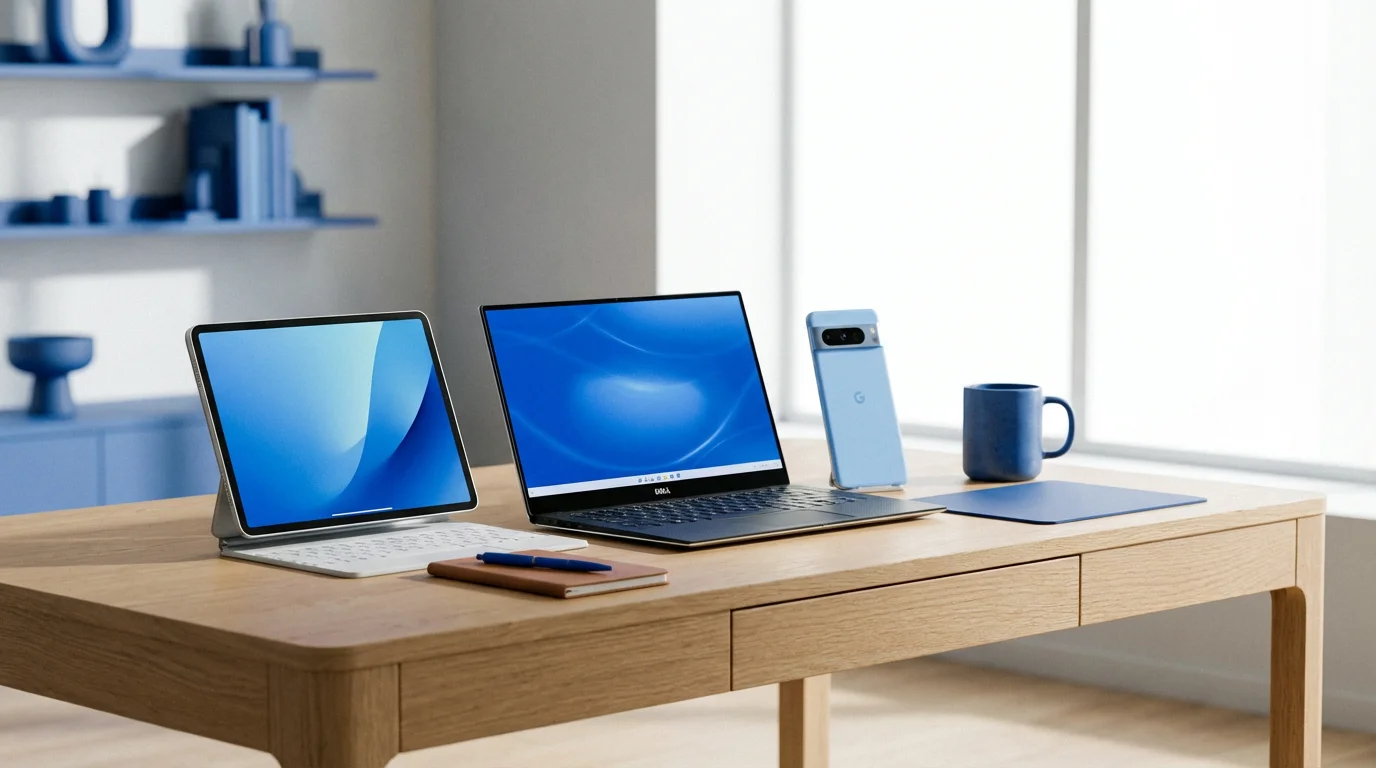
Depending on which type of computer you bought, you likely already have a cloud storage service waiting for you.
Most companies offer a small amount of storage for free and then charge a small monthly fee—usually the price of a cup of coffee—if you need significantly more space.
| Service Name | Main Company | Best Used With | Free Storage Amount |
|---|---|---|---|
| OneDrive | Microsoft | Windows 10 & Windows 11 PCs | 5 Gigabytes (GB) |
| iCloud | Apple | Macs, iPhones, and iPads | 5 Gigabytes (GB) |
| Google Drive | Chromebooks and Android phones | 15 Gigabytes (GB) |
While you can use Google Drive on a Mac or OneDrive on an iPhone, it is generally easiest to use the service that was built for your device. If you use a Windows PC, OneDrive is already integrated into your system.
If you use an Apple Mac, iCloud is the natural choice. For those using a Chromebook, Google Drive is the backbone of the entire machine.

Using Cloud Storage on a Windows PC
If you have a computer running Windows 10 or Windows 11, you have a service called OneDrive. Microsoft includes this automatically.
You can tell it is working if you see a tiny icon that looks like a blue or white cloud in the taskbar—the bar at the bottom of your screen—usually near the clock on the bottom right.
To use OneDrive on Windows:
- Click on the folder icon in the taskbar (this is called File Explorer).
- Look at the list of locations on the left side of the window. You will see OneDrive listed there.
- Click on the word OneDrive once. You will now see the files that are being saved to the cloud.
- To save a new file to the cloud, simply drag it (hold down the left mouse button while moving the mouse) from your Desktop or another folder into the OneDrive folder.
What You’ll See On Screen: Next to your file names in the OneDrive folder, you might see a tiny icon. A blue cloud icon means the file is only in the cloud and not taking up space on your computer.
A green checkmark means the file is saved both on your computer and in the cloud. This is helpful if you want to look at a document when you don’t have an internet connection.

Using Cloud Storage on a Mac
Apple uses a service called iCloud. It is designed to work seamlessly with your Mac, iPhone, and iPad.
If you take a photo on your iPhone, it can appear almost instantly in the Photos app on your Mac because of iCloud.
To use iCloud on a Mac:
- Click on the Finder icon in the dock (the bar of icons at the bottom of your screen). It looks like a blue and white smiling face.
- In the window that opens, look at the sidebar on the left. Under the section labeled iCloud, you will see iCloud Drive.
- Click on iCloud Drive once to see your files.
- You can also click on Desktop or Documents in that same sidebar. Many Macs are set up to automatically save everything from your desktop into the cloud for safety.
If you want to change your iCloud settings, click on the Apple menu (the small apple icon in the very top left corner of your screen), then click System Settings (or System Preferences on older Macs), and then click on your name at the top of the list.

Using Cloud Storage on a Chromebook
Chromebooks are unique because they are built entirely around the cloud. They have very little physical storage space inside them because Google intends for you to save almost everything to Google Drive.
To use Google Drive on a Chromebook:
- Click on the Launcher icon in the bottom left corner (it looks like a small circle or a dot).
- Find the icon labeled Files (it looks like a blue folder) and click it once.
- On the left side of the window, click on Google Drive.
- You will see a folder called My Drive. This is where your personal files live.
On a Chromebook, anything you create using Google Docs (similar to Microsoft Word) is saved automatically. You never have to click a “Save” button.
The computer does the work for you every few seconds as you type.

Managing Your Photos in the Cloud
For most of us, our photos are our most precious digital possessions. Cloud storage is excellent for photos, but it can be overwhelming when you have thousands of them.
Here is how to manage them effectively.
Using these tools is also a great way to free up storage space on your smartphone once your pictures are safely backed up.
For those with Android phones or large collections, knowing how to use Google Photos to store and organize pictures can be particularly helpful.
On a Windows PC, you can use the Photos app. When you open the Photos app, it can automatically show you photos from your OneDrive.
To keep things organized, try to create folders by year or event, such as “2023 Thanksgiving” or “Gardening Photos.”
You can create a new folder by right-clicking (pressing the right mouse button once) in an empty space inside your OneDrive folder, moving your mouse to New, and then clicking Folder.
On a Mac, the Photos app is the central hub. If you have “iCloud Photos” turned on, every change you make—like brightening a dark photo or cropping out a distracting background—will happen on all your devices.
If you delete a bad photo on your Mac, it will also be deleted from your iPhone to save space. If you accidentally delete a photo you wanted to keep, look for the Recently Deleted folder in the Photos app.
You usually have 30 days to “rescue” it.
For Google Drive users, Google Photos is a separate but related service. It is one of the best ways to search for photos.
You can type “dog” into the search bar at the top, and Google’s smart system will find every photo you have ever taken of a dog, even if you didn’t label them!

Safety, Privacy, and Keeping Your Files Secure
It is perfectly natural to worry about safety when your files are stored on the internet. However, major companies like Microsoft, Apple, and Google spend billions of dollars every year on security.
For the average person, storing files in the cloud is actually much safer than keeping them only on a physical computer or a “thumb drive” (those small plastic sticks you plug into a USB port), which are easily lost or broken.
To keep your digital safety deposit box locked tight, consider using a password manager to generate and store a strong, unique password for your account.
To keep your cloud files private, it is highly recommended to use a password manager to stay safe online.
To keep your cloud storage secure, follow these three rules:
- Use a Strong Password: Avoid using your birthday, your pet’s name, or “password123.” A good password is a short sentence that is easy for you to remember but hard for a computer to guess, like “BlueBirdsSingInMay2024!”
- Turn on Two-Factor Authentication: This sounds complicated, but it just means that when you log in from a new computer, the service will send a text message with a code to your phone. This ensures that even if someone guesses your password, they cannot get into your files without your physical phone.
- Be Careful on Public Computers: If you use a computer at a library or a hotel, always remember to Sign Out of your account before you leave the desk.
You can learn more about staying safe online through the Senior Planet from AARP website, which offers many free classes on digital security specifically for adults over 50.

Common Problems and Simple Solutions
Even though the cloud is helpful, you might run into a few “hiccups.” Here are the most common ones and how to fix them.
Beyond cloud-specific issues, learning to troubleshoot common computer problems can help you handle most tech hiccups with confidence.
“I’m out of storage space!”
This is the most common issue. You will see a notification saying your “Cloud storage is full.”
When this happens, your files will stop syncing. You have two choices: go through your folders and delete old videos or blurry photos, or pay a small monthly fee (usually around $1.99 to $2.99) to increase your storage.
If you choose to delete files, remember to empty your “Trash” or “Recycle Bin” to actually free up the space.
“My files aren’t showing up on my tablet.”
First, check if your computer and your tablet are both connected to the internet. The cloud needs a “bridge” (the internet) to send the files back and forth.
If your internet is working, check that you are signed into the exact same email address on both devices. It is easy to accidentally have one account for your computer and a different one for your iPad.
“I deleted something by accident!”
Don’t panic. Cloud services almost always have a “Safety Net.”
- In OneDrive, look for the Recycle Bin on the website or your desktop.
- In iCloud, look for the Recently Deleted folder in the Photos app or the Files app.
- In Google Drive, look for the Trash folder on the left-hand side.
Items usually stay in these bins for 30 days before they are gone forever.
If you feel overwhelmed by a technical problem, it is always a good idea to reach out for help. You might call a tech-savvy family member or visit a local computer repair shop.
You can also find excellent, step-by-step video tutorials at GCFGlobal, which specializes in teaching technology basics in a very calm and clear way.
Frequently Asked Questions
1. Do I need an internet connection to see my files?
By default, yes. However, most services allow you to “Always keep on this device.”
If you right-click a file in your OneDrive or iCloud folder, you can select an option to make it “available offline.” This downloads a copy to your computer’s hard drive so you can read it even if the internet goes out.
If you still have questions about setting up these services, you can find professional tech support for your computer through several reliable local and online resources.
2. Can other people see my photos in the cloud?
No. Your cloud storage is private and protected by your password. Other people can only see your files if you specifically click a “Share” button and send them a link.
It is just as private as your physical filing cabinet at home.
3. What happens to my cloud files if I cancel my subscription?
If you stop paying for extra space, your files will not be deleted immediately.
Usually, you will still be able to see and download your files, but you won’t be able to add anything new until you either delete enough files to get under the free limit or start your subscription again.
The companies will send you many email warnings before taking any drastic action.
4. Is the cloud better than a USB thumb drive?
The cloud is generally better because it cannot be lost, washed in a pocket, or stepped on. However, many people like to use both.
They keep their daily files in the cloud and keep a second backup on a physical USB drive stored in a safe place at home. This is called “redundancy,” and it is a great habit for your most important memories.
Using cloud storage might feel like a big leap, but it is one of the most helpful tools available today. It gives you the freedom to explore your computer without the constant fear of losing your work or your memories.
Take it slow—start by moving just one folder of photos into the cloud. Once you see how easy it is to view those photos on your phone or share them with a friend, your confidence will grow.
You are in control of your digital life, and the cloud is simply a tool to help you stay organized and secure.
For more detailed support on using your specific device, you can visit the Microsoft Support page for Windows or the Apple Support page for Macs. These sites offer clear guides and even live chat options if you get stuck.
Disclaimer: This article is for informational purposes only. Your computer’s screens may look slightly different depending on your operating system version and settings.
When in doubt, consult official support resources or ask someone you trust for help.
Keywords: cloud storage, online storage, photos, how does the cloud work for seniors, digital file organization for beginners
Meta Description: Learn what cloud storage is with this simple, senior-friendly guide. Understand how to save photos and files securely on Windows, Mac, and Chromebooks.