

You can send one text to twenty neighbors without starting a noisy group chat where everyone replies to everyone. Our guide shows you how to send group text without reply all so each recipient gets a private message.
Most advice suggests expensive commercial software or forces your neighbors to download new chat applications. Instead, standard phone settings and built-in tools let you deliver a mass text without group chat directly through your cellular carrier.
By configuring your device properly, you keep complete control of meeting reminders and prevent your phone from buzzing constantly with unwanted notifications.
In this guide8 sections
- Why Standard Group Texts Create Reply-All Chains
- How to Send Broadcast Texts on Android
- How to Send Individual Messages on iPhone
- Worked Example: A 20-Person Neighborhood Reminder
- Comparing Mass Messaging Methods for Groups
- Accessibility Adjustments for Easier Texting
- Avoiding Carrier Limits and Spam Filters
- Frequently Asked Questions
Why Standard Group Texts Create Reply-All Chains
Standard texting apps treat multi-person messages as a communal room. When you put multiple phone numbers into a single message window, your phone bundles the recipients together into a shared conversation.
If your phone buzzes frequently during chats, learning how to make text message alerts louder and repeat or adjust reminders can help you catch crucial updates without unwanted noise.
According to Pew Research tracking tech adoption among adults 65+, 61% of older Americans now use smartphones for daily communication.
Most mobile users understand simple one-on-one texting, but group messaging relies on different background standards. Understanding three basic technical terms helps explain why your phone rings twenty times after a single meeting notice:
- SMS (Short Message Service): Standard text messaging that transmits plain text of up to 160 characters across cellular networks.
- MMS (Multimedia Messaging Service): A cellular transmission format that handles pictures, audio files, and multi-recipient group threads.
- RCS (Rich Communication Services): A modern messaging protocol that adds read receipts, typing bubbles, and internet data delivery to standard text apps.
When you start a standard group text, your phone automatically upgrades the thread to MMS or RCS. Under these formats, any response from any member routes back to every single participant on the list.
When you need to distribute an agenda or weather reminder, you do not need open discussion. You need a broadcast distribution list that delivers your update directly to twenty private inboxes.
How to Send Broadcast Texts on Android
Android smartphones running Google Messages include an internal switch designed specifically to stop reply-all chatter. This feature sends your message as twenty individual outgoing texts instead of one shared MMS thread.
To keep your device quiet while drafting announcements, learn how to turn off keyboard clicking sounds in your sound settings.
If typing a long announcement on a touchscreen feels tedious, you can also send voice messages instead of typing to individual contacts.
When recipients respond, their answers return directly to your private, one-on-one conversation history. None of the other committee members can see those replies or phone numbers.
Before following these steps, confirm your wireless plan includes unlimited text messaging. Sending twenty individual messages counts as twenty separate SMS units against your monthly cellular balance.
- Open the Messages app on your Android home screen.
- Tap your profile icon or the three vertical dots located in the upper-right corner of the screen.
- Select Messages settings from the menu options.
- Scroll down and tap Advanced.
- Tap Group messaging.
- Tap the radio button labeled Send an SMS reply to all recipients and get individual replies (mass text).
Once you select this setting, Google Messages saves your preference for future multi-recipient messages. You can now compose your announcement without building a permanent group thread.
- Return to your main inbox screen and tap Start chat.
- Tap Create group at the top of your contact selection list.
- Tap the checkmark next to each committee member you want to reach, then tap Next.
- Type your meeting details into the text composition box.
- Tap the Send button (the arrow icon on the right side of the box).
Your phone delivers the text to each member individually. If you ever need more detailed information on system menus, consult official Google Android Help documentation.
How to Send Individual Messages on iPhone
Apple handles group messaging differently than Android. On an iPhone, when all recipients use Apple devices, the system automatically uses iMessage to form an active group conversation.
Drafting your announcement beforehand in the Notes app on your phone helps ensure your message stays concise and accurate.
If you mix iPhone and Android users, the iPhone defaults to MMS group messaging. To produce a true mass text without group chat on an iPhone, you can use Apple’s built-in Shortcuts utility.
The Shortcuts app comes pre-installed on modern Apple devices as of 2026. It allows you to automate repetitive actions without spending money on third-party software subscriptions.
Before creating your shortcut, open the Contacts app and create a list named “Committee” containing your neighbors. This organization ensures your shortcut picks the exact twenty people you want to notify.
- Open the Shortcuts app on your iPhone.
- Tap the + (Plus) icon in the top-right corner to start a new shortcut.
- Tap Add Action in the center of the screen.
- Type Contacts into the search bar and select the action labeled Find Contacts.
- Tap Add Filter, set the condition to Group is Committee, and tap Done.
- Search the action bar for Repeat with Each and tap to add it beneath your contacts list.
- Search for Send Message and drag that action directly inside the repeat loop block.
- Tap the blue arrow next to Send Message and switch Show When Run to the Off position.
- Tap Done in the top-right corner to save your custom broadcast automation.
When you run this shortcut, your iPhone asks for your reminder text once. It then transmits an individual message to each neighbor on your list, completely bypassing group MMS.
Every response returns as an isolated conversation between you and that specific neighbor. For broader instructions on device features, review the Apple iPhone User Guide.
Worked Example: A 20-Person Neighborhood Reminder
Consider Arthur, a 72-year-old neighborhood committee leader who organizes monthly meetings for the Oakridge Civic Association. Arthur manages a roster of 20 neighbors who live along his street.
If you accidentally erase your draft while typing, you can quickly undo deleted text on your smartphone to restore your work.
When communal chats become overwhelming on other platforms, you can also learn how to leave a WhatsApp group without drawing notice quietly.
Among his 20 neighbors, 12 carry Apple iPhones and 8 carry Android phones. In past months, Arthur created a standard group text to announce the monthly meeting time.
The result was immediate disruption. Fourteen neighbors replied with simple phrases like “Got it,” “Thanks,” or “See you there,” triggering 280 total notification pings across all twenty phones.
Two neighbors asked to be removed from the list because their phones buzzed repeatedly during dinner. Arthur needed a system that delivered the message while protecting everyone’s quiet hours.
On Tuesday, October 14, Arthur prepared his notice for the upcoming community library meeting. He followed our individual broadcast setup using these exact project specifications:
- Target Group Size: Exactly 20 verified resident phone numbers.
- Notice Text: “Oakridge Meeting: Tuesday, Oct 21 at 7:00 PM in Library Room B. Reply directly to Arthur with any agenda items.”
- Character Count: 123 characters (well below the 160-character standard SMS threshold).
- Preparation Time: 3 minutes to verify the contact roster and paste the draft.
- Transmission Time: 45 seconds for the cellular carrier to dispatch all 20 messages.
The broadcast method generated zero group notifications for the committee members. Arthur received three private responses: two neighbors confirmed attendance, and one asked to place sidewalk maintenance on the formal agenda.
The remaining seventeen neighbors read the notice without their devices making a sound. Arthur accomplished his committee duty without annoying anyone on his block.
Comparing Mass Messaging Methods for Groups
Different tools solve the notification problem with varying degrees of complexity, privacy, and cost. Depending on your committee size, you can choose between native tools, specialized apps, or web platforms.
The table below outlines five common messaging methods available as of 2026. It compares their monthly costs, contact limits, reply privacy, and recipient requirements.
| Messaging Method | Cost per Month (as of 2026) | Default Contact Limit | Reply Privacy | Software Needed by Recipients |
|---|---|---|---|---|
| Standard Group MMS | $0 (Included in plan) | 10 to 20 recipients | Public (Replies hit everyone) | None (Standard text app) |
| Android Mass Text Setting | $0 (Included in plan) | 20 to 30 recipients | Private (Replies come only to you) | None (Standard text app) |
| Apple Shortcuts Automation | $0 (Included on device) | 25 to 30 recipients | Private (Replies come only to you) | None (Standard text app) |
| Third-Party App (e.g., Reach) | $0 to $12 per month | 10 to 500 recipients | Private (Individual routing) | None (Sender only installs app) |
| Commercial Web SMS Service | $25 to $50 per month | Unlimited contacts | Private (Web dashboard inbox) | None (Sender uses web portal) |
For groups under twenty-five people, native phone settings provide the best balance of simplicity and cost. You avoid monthly software subscriptions while keeping data private.
If your roster expands beyond thirty people, wireless carriers begin restricting regular phone lines. At that point, a dedicated web service becomes necessary to maintain delivery reliability.
Accessibility Adjustments for Easier Texting
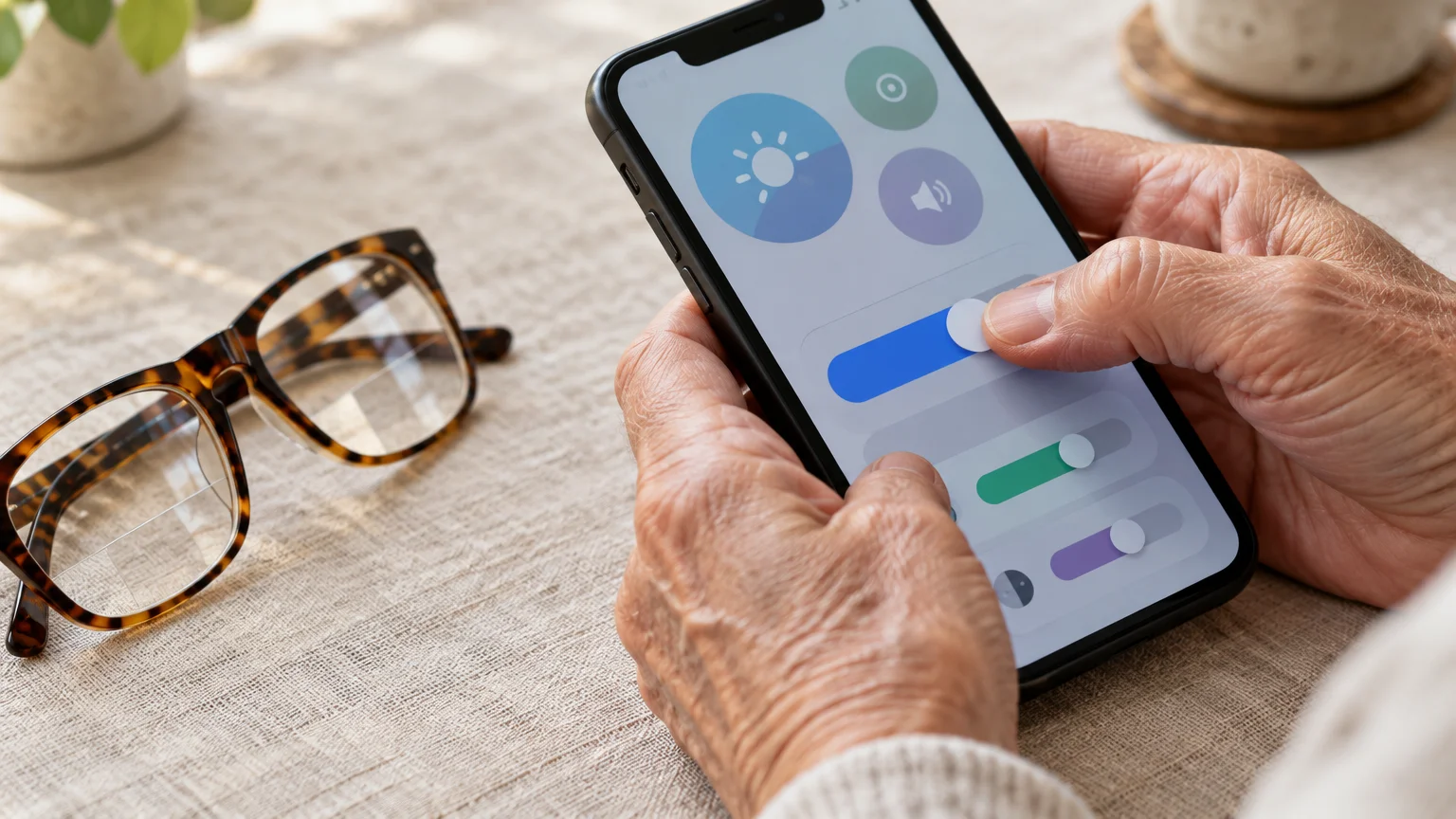
Setting up broadcast lists requires looking closely at contact names, phone numbers, and small checkmarks. If you experience visual fatigue or reduced finger dexterity, built-in accessibility settings make this process much easier.
You can also explore using text-to-speech features to have incoming replies read aloud automatically.
If small print makes reviewing contact lists difficult, you can make text bigger on your iPhone for easier reading.
For readers who struggle to view small fonts while composing reminders, our guide on how to make text bigger on your iPhone explains how to increase display size across all apps.
Both Apple and Google provide robust accessibility controls directly inside your main system menus. You do not need special equipment to enlarge buttons or dictate text messages with your voice.
On an Apple device, you can enlarge system typography so names appear clearly during list selection. Follow Apple’s official guide to make text bigger on iPhone and iPad to adjust reading sizes.
Android provides similar adjustments for display scaling and text boldness. Review the Google Android accessibility overview to customize screen contrast and target sizes.
Use these three built-in tools whenever you draft and send neighborhood notices:
- Voice Dictation: Tap the microphone icon on your onscreen keyboard to speak your announcement instead of typing with stiff fingers.
- Touch and Hold Delay: Increase the touch duration setting in your accessibility menu to avoid accidental taps when selecting contact names.
- Display Zoom: Magnify entire app screens so that small checkmarks and send buttons become larger targets for your fingers.
Taking two minutes to adjust these controls reduces physical strain. You can focus on the words of your reminder rather than struggling to tap small screen icons.
Avoiding Carrier Limits and Spam Filters
Wireless carriers monitor consumer networks to protect customers from automated marketing texts. When you send twenty messages in a few seconds, carrier filters may mistake your committee reminder for illegal commercial spam.
Keep in mind that while you can use emoji in your text messages to make notices friendlier, special icons reduce your available character limit.
The Federal Communications Commission provides consumer alerts regarding message safety. Review the FCC guidelines on stopping unwanted texts to see how carriers identify suspicious activity.
Before sending mass announcements, take precautions to prevent your carrier from suspending your messaging features. Follow these five rules to ensure your messages pass carrier filters without interruption:
- Keep Lists Under 25 Contacts: Major carriers like Verizon, AT&T, and T-Mobile restrict consumer group sizes to prevent bulk transmission abuse.
- Divide Larger Roster Groups: If you must contact forty neighbors, split your roster into two distinct groups of twenty and space sends ten minutes apart.
- Exclude Link Shorteners: Avoid shortened links like bit.ly, which automated carrier filters flag immediately as potential fraud.
- Identify Yourself in the Opening: Begin your text with your name and organization so neighbors do not report your personal number as spam.
- Keep Sentences Plain: Avoid using all capital letters or excessive exclamation marks, both of which trigger aggressive algorithmic spam scoring.
If a neighbor accidentally taps “Report Spam” on your message, your carrier may flag your phone number. Keeping your message professional and identifying your organization avoids this misunderstanding.
Personalize your text by including your neighborhood association name in the very first sentence. Clear identification gives your neighbors confidence that the message comes from someone living down their street.
Frequently Asked Questions
Can recipients see each other’s phone numbers when I send an individual mass text?
No. When you use individual mass text settings, each message transmits as an isolated conversation. Recipients cannot see other phone numbers, names, or incoming replies from the rest of your committee.
Why did my mass text send as a regular group MMS instead of individual messages?
On Android, this occurs if the Group Messaging toggle switches back to MMS after an update. On iPhone, it happens if you type multiple names into a standard iMessage window without using an automation shortcut.
How many people can I text at once before my carrier blocks my number?
Most major consumer cellular providers in the United States enforce a limit between 20 and 30 recipients per message. Sending to more than 30 contacts at once can cause your carrier to temporarily suspend outgoing texting.
Is there an extra monthly charge to use mass text features on my phone?
No. Built-in Android settings and Apple Shortcuts utilize the regular SMS allowance included with your cellular service. As long as your plan has unlimited texting, you will not incur additional fees as of 2026.
Note: Menus and button names change with software updates. These steps were written for current versions as of 2026; if a screen looks different on your device, the maker’s support page linked above has the latest wording.
ClearTechGuide is independent and is not affiliated with Apple, Google, Microsoft, Amazon or any other company mentioned.
