

When family members complain that they hear their own voices echoing during a video call, your device is usually the hidden source. The person hearing the echo is almost never the one generating it.
This acoustic feedback happens when your tablet speakers broadcast incoming audio, which then bounces off hard dining room surfaces straight back into your microphone. Software echo cancellation cannot always catch sound bouncing off ceramic tiles.
Plugging in simple wired earbuds isolates the sound immediately and breaks the physical feedback loop. Here is why this reflection occurs and how you can resolve it permanently.
In this guide10 sections
- How Audio Feedback Creates Echoes on Video Calls
- The Tiled Room Trap: Why Hard Surfaces Confuse Microphones
- Identifying Who Is Causing the Feedback Loop
- Instant Hardware Fixes: Earbuds, Headphones, and Positioning
- Step-by-Step Settings to Stop Echo on Video Calls
- Managing Multiple Devices in the Same Room
- Connecting Hearing Aids and Call Audio
- Room Adjustments for Clearer Audio
- Comparing Audio Solutions for Clear Video Calls
- Frequently Asked Questions
How Audio Feedback Creates Echoes on Video Calls
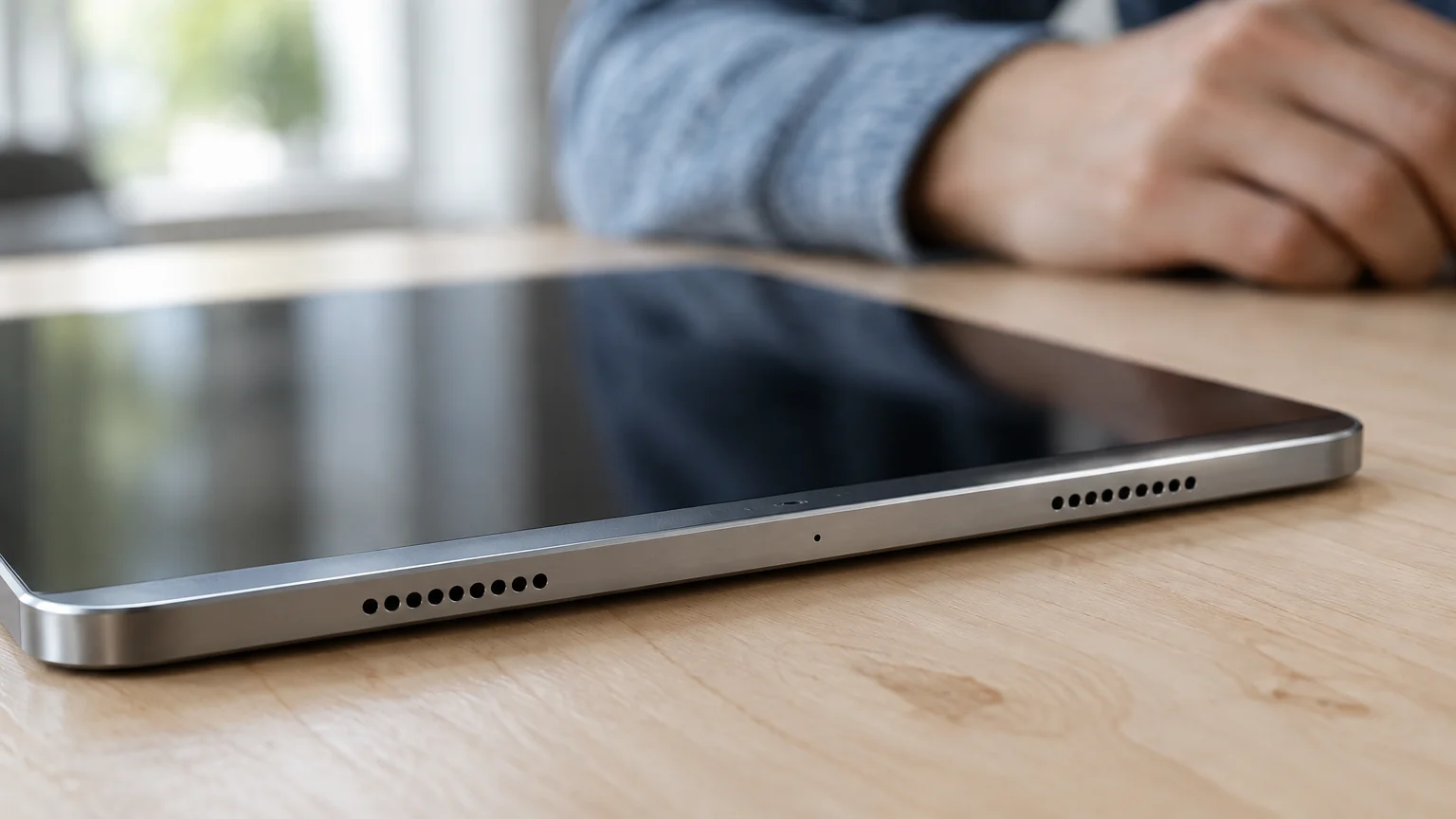
Acoustic feedback occurs when a microphone captures the sound coming out of a nearby speaker and sends it right back across the connection.
Fixing these audio problems quickly is especially important when planning fun activities to do with grandchildren over video calls, where clear communication keeps everyone engaged.
In a standard phone call, audio travels almost instantaneously. In contrast, video calls travel through internet routers and cloud servers, creating a transmission delay of 150 to 250 milliseconds.
Because of this lag, your microphone transmits your family member’s voice back to them a quarter of a second after they speak. When relatives describe a video call hearing my own voice back, your room is feeding their words back into the call.
You will not hear this repetition on your own device. The person speaking into their phone in another state hears the delayed replay of their own sentence.
Modern communication apps rely on digital filters called acoustic echo cancellation to detect and subtract speaker sounds. However, these software filters struggle when room reflections scatter the sound waves across hard walls and floors.
The Tiled Room Trap: Why Hard Surfaces Confuse Microphones
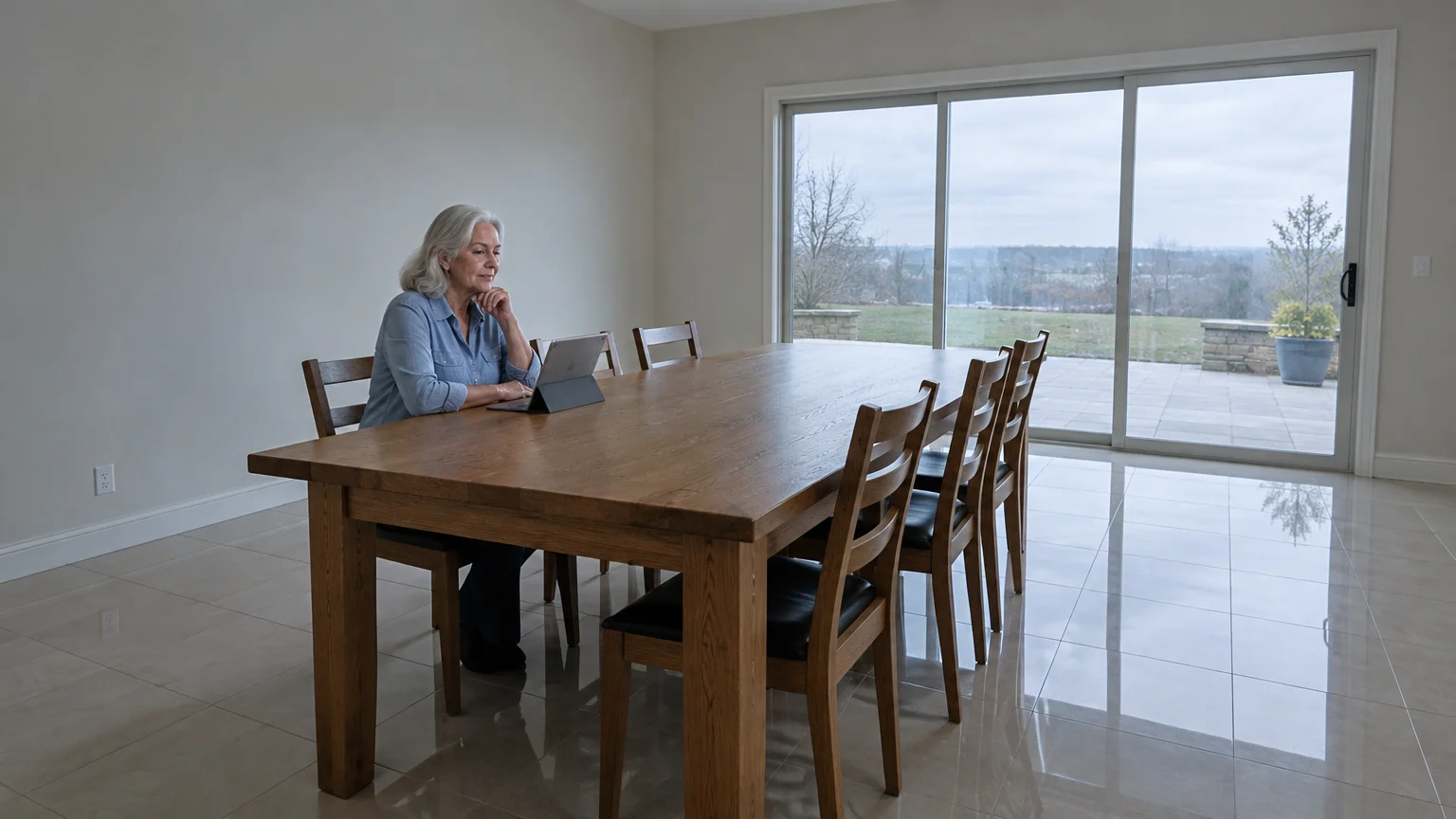
Hard building materials act like acoustic mirrors for sound waves. Bare ceramic tiles, glass windows, and polished dining tables bounce sound back and forth without absorbing its energy.
Consider a worked scenario involving Eleanor, a 68-year-old caller joining a Sunday family call. Eleanor sits in a 12-by-14-foot dining room featuring ceramic floor tiles, a bare wooden table, and an eight-foot sliding glass patio door.
Eleanor props her 10.2-inch Apple iPad on the wooden tabletop. To hear her relatives clearly over room ambient noise, she raises her tablet speaker volume to 80 percent, producing an output of roughly 74 decibels.
Her tablet speakers project sound outward into the open room. Those sound waves strike the bare ceramic floor and the sliding glass door, reflecting directly back into the tablet microphone 15 milliseconds later.
The tablet microphone now receives two signals: the immediate audio escaping the speaker grille and multiple reflected waves from the hard surfaces. This scatter creates an audio feedback zoom call participants find difficult to ignore.
The tablet processor tries to eliminate the direct noise, but the delayed room reflections bypass the filter. The reflected waves travel across the internet, forcing Eleanor’s children and grandchildren to hear their own sentences repeated back.
Identifying Who Is Causing the Feedback Loop
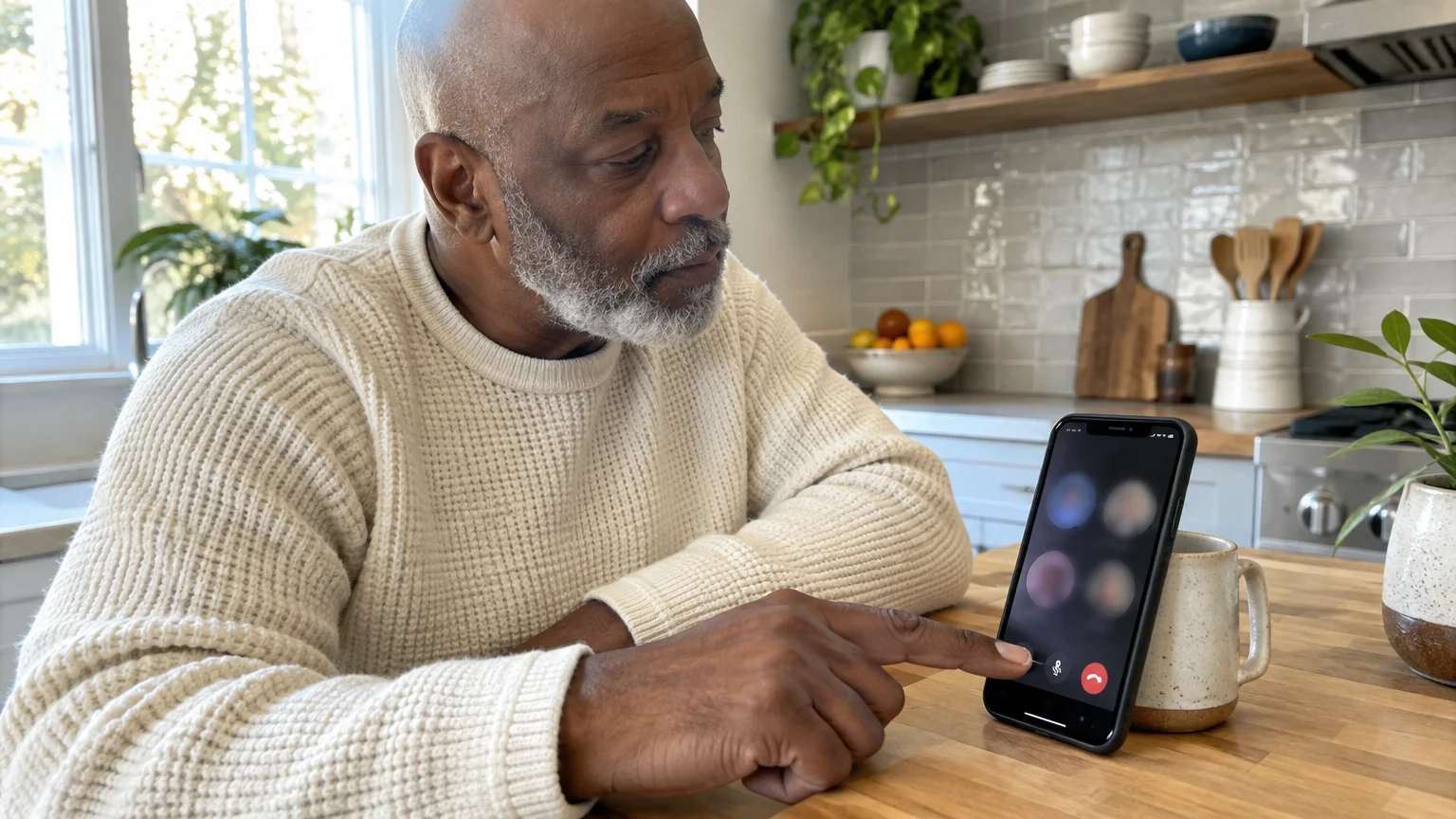
Pinpointing the root of an echo requires a methodical process of elimination. The person who hears the echo is almost never the one whose hardware is causing it.
Knowing how to answer an incoming video call with your microphone already positioned properly makes troubleshooting much easier.
Follow this three-step test during your next group conversation to locate the offending microphone:
- Ask all participants to stop speaking for ten seconds so the line remains quiet.
- Have one person speak a complete sentence; if that speaker hears an echo, their microphone is clear.
- Have the meeting host mute each caller one at a time while the first person speaks.
When the host mutes Eleanor’s tablet, the echo disappears instantly for everyone else on the line. That confirms Eleanor’s dining room speakers and microphone are feeding into one another.
Once you verify which device creates the loop, you can resolve the issue without ending the call. You do not need technical expertise to break the physical circuit of sound.
Instant Hardware Fixes: Earbuds, Headphones, and Positioning
Physical isolation prevents sound waves from circulating through the room. While software filters try their best, physical barriers stop echoes at the source.
When shopping for new devices, choosing one of the tablets designed with front-facing speakers can significantly reduce unwanted audio bounce.
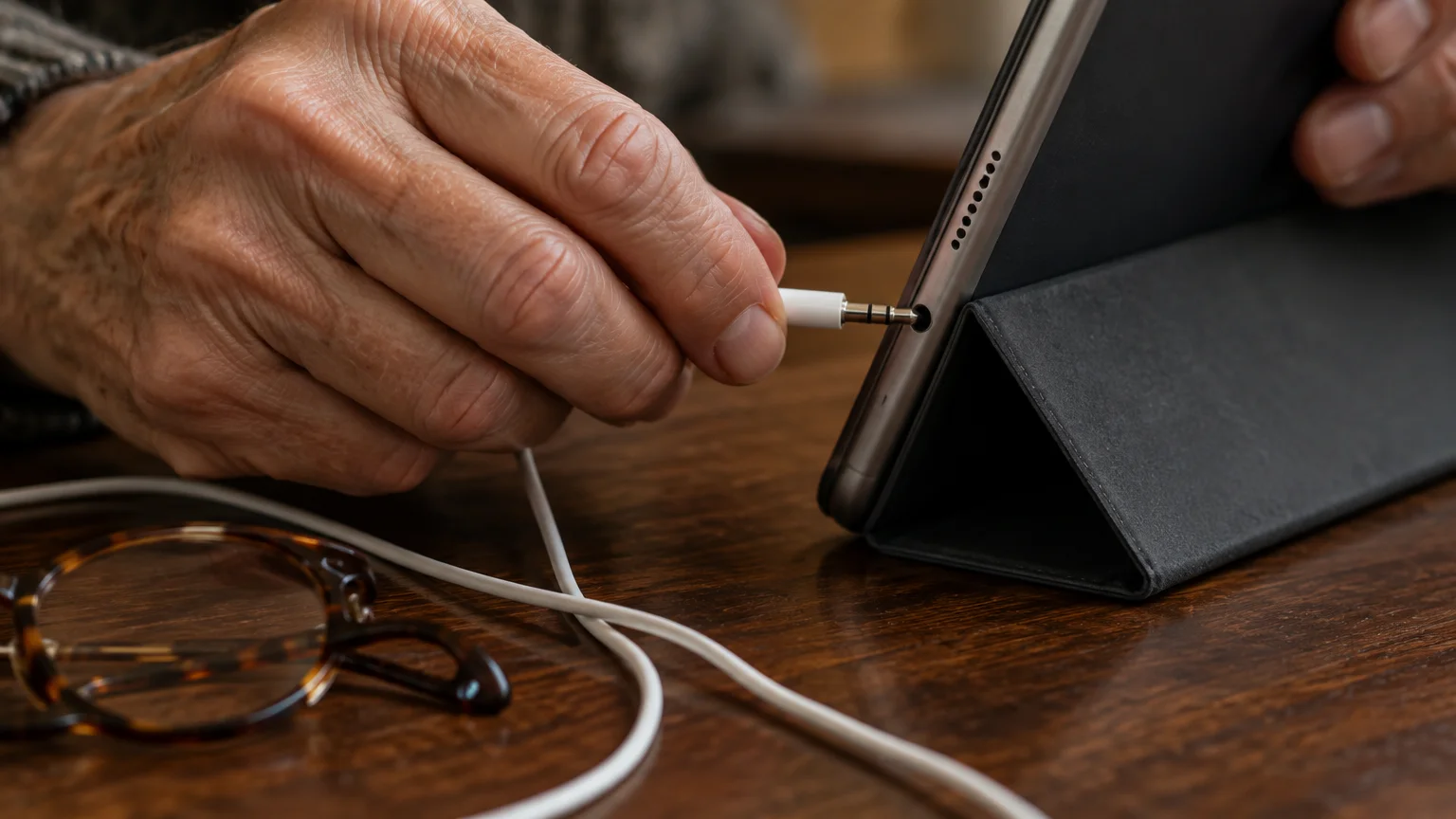
Plugging in a pair of wired earbuds creates a closed audio circuit. Sound travels directly into your ears, meaning zero audio spills into the room to reach the microphone.
Eleanor plugs a pair of Apple EarPods with a 3.5mm headphone plug ($19 as of 2026) directly into her tablet jack. Her tablet immediately reroutes incoming audio into the earpieces, silencing the external speakers.
If your tablet lacks a traditional round headphone jack, keep an official USB-C or Lightning adapter connected to your earbud cable. Inexpensive third-party adapters often introduce electronic hiss, so stick to manufacturer-certified adapters.
You can also apply temporary physical adjustments if you do not have earbuds nearby:
- Lower your tablet speaker volume down to 40 or 50 percent to reduce room bounce.
- Place a thick fabric placemat or bath towel directly beneath your tablet stand to absorb table reflections.
- Move the tablet closer to your face so your natural voice overpowers room reverberation.
- Position your back toward the glass patio doors to keep speaker sound from bouncing directly off the glass.
Step-by-Step Settings to Stop Echo on Video Calls
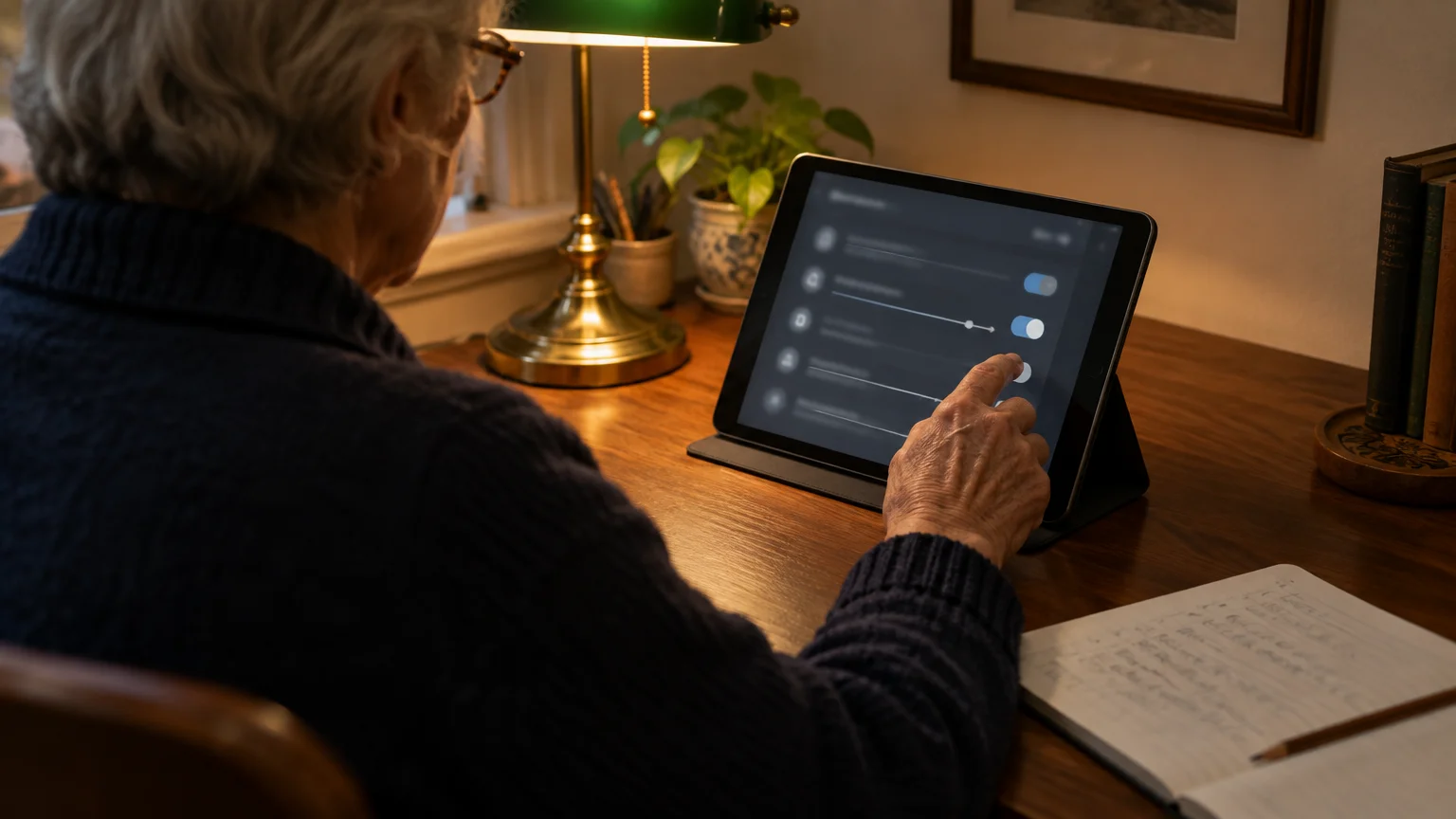
Adjusting specific audio preferences in your video apps provides secondary defense against audio feedback. Most platforms enable basic filters by default, but you can increase their aggressiveness.
If audio issues persist across different platforms, exploring the best video calling apps for families can help you find a service with simpler sound controls.
If your family uses Apple devices instead, learning how to use FaceTime to video call gives you built-in voice isolation tools that also minimize background reflections.
Follow these steps inside the Zoom app on an iPad or Android tablet to stop echo on video call connections:
- Tap the active screen once to display the meeting controls, then tap More in the upper toolbar.
- Tap Meeting Settings to open your audio and video preferences.
- Scroll down to the audio header and locate the Use Original Audio toggle.
- Verify that Use Original Audio is switched Off so automated echo suppression remains active.
- Tap Done in the top corner to return to your video meeting.
If you use Google Meet instead, review the device setup instructions in the official Google Meet Help guide. Google Meet provides a built-in noise cancellation feature that filters non-speech sounds before transmission.
Before modifying advanced application settings, write down your original choices so you can restore them easily. Changing settings mid-call will not delete data, but turning off audio filters by mistake will amplify room echoes.
Keeping your operating system up to date also guarantees you have the latest audio driver fixes. Learn how to maintain your device through the CISA guide to updating software.
Managing Multiple Devices in the Same Room
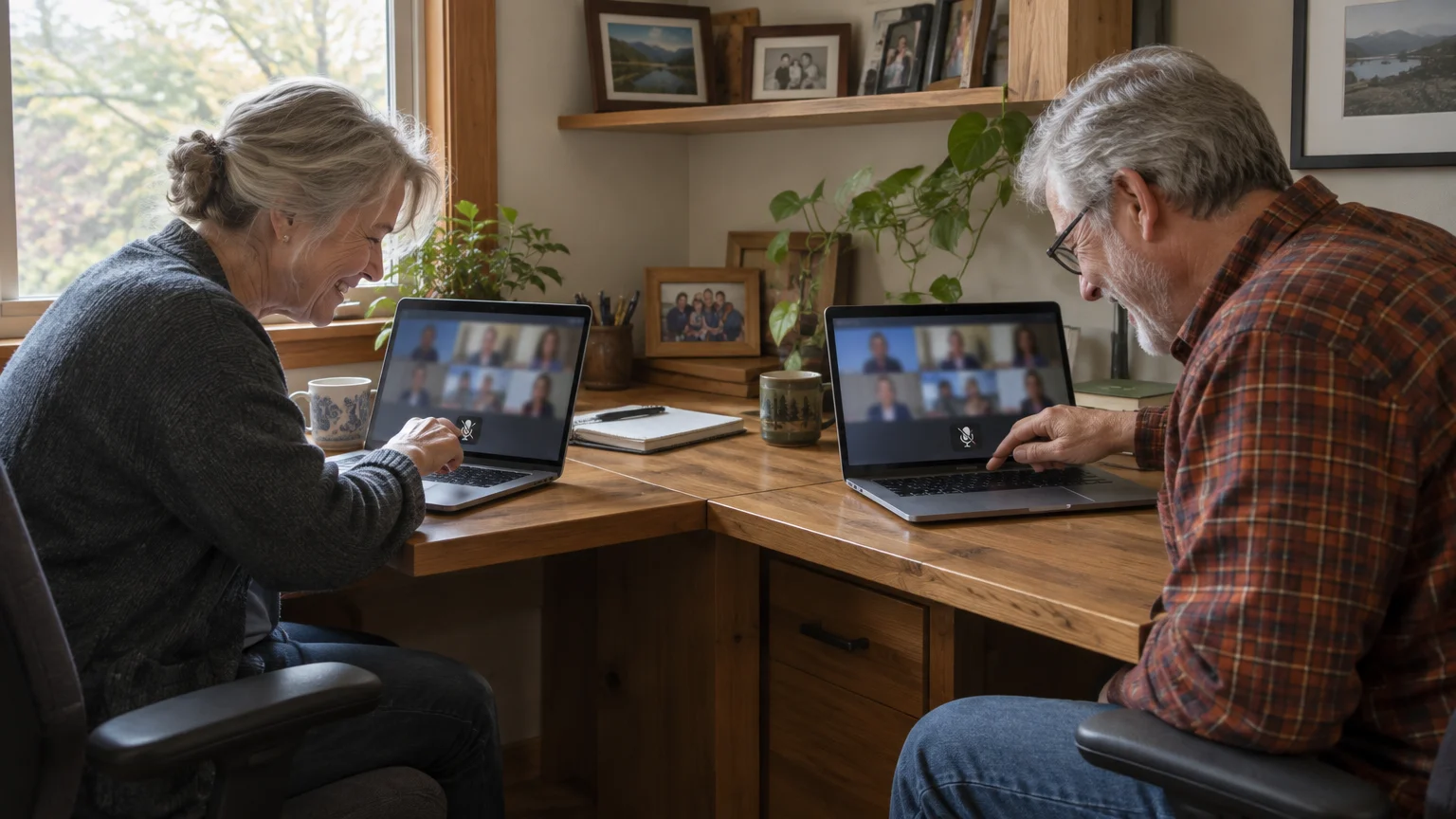
A piercing, high-pitched screech occurs when two people join the same video call from separate devices in the same room. Spouses frequently trigger this when joining family gatherings from adjacent dining room chairs.
For participants calling from a desktop or laptop, checking how to adjust computer volume and sound settings ensures the correct microphone input is selected.
This screech happens because Device A outputs audio that Device B captures. Device B transmits that sound, which then plays through Device A’s speakers and enters Device A’s microphone again.
This closed loop amplifies itself in milliseconds, generating a shrill squeal that overwhelms the call. Lowering the volume slightly will not eliminate this loop.
To safely share a room on the same video call, configure one device as video-only by following these steps:
- Choose one primary tablet or computer to serve as the shared microphone and speaker for both of you.
- On the second device, tap the meeting toolbar and locate the audio controls.
- Tap More, then tap Disconnect Audio.
- Confirm that the microphone icon on the second screen shows a red slash or changes to a Join Audio prompt.
The second caller can now keep their personal camera active without sending duplicate sound into the dining room. Both people remain visible, and the audio loop disappears completely.
Connecting Hearing Aids and Call Audio
Many older adults raise tablet speaker volume to 90 or 100 percent due to natural hearing changes. High volume levels practically guarantee an echo because the built-in microphone sits mere inches from the blaring speaker.
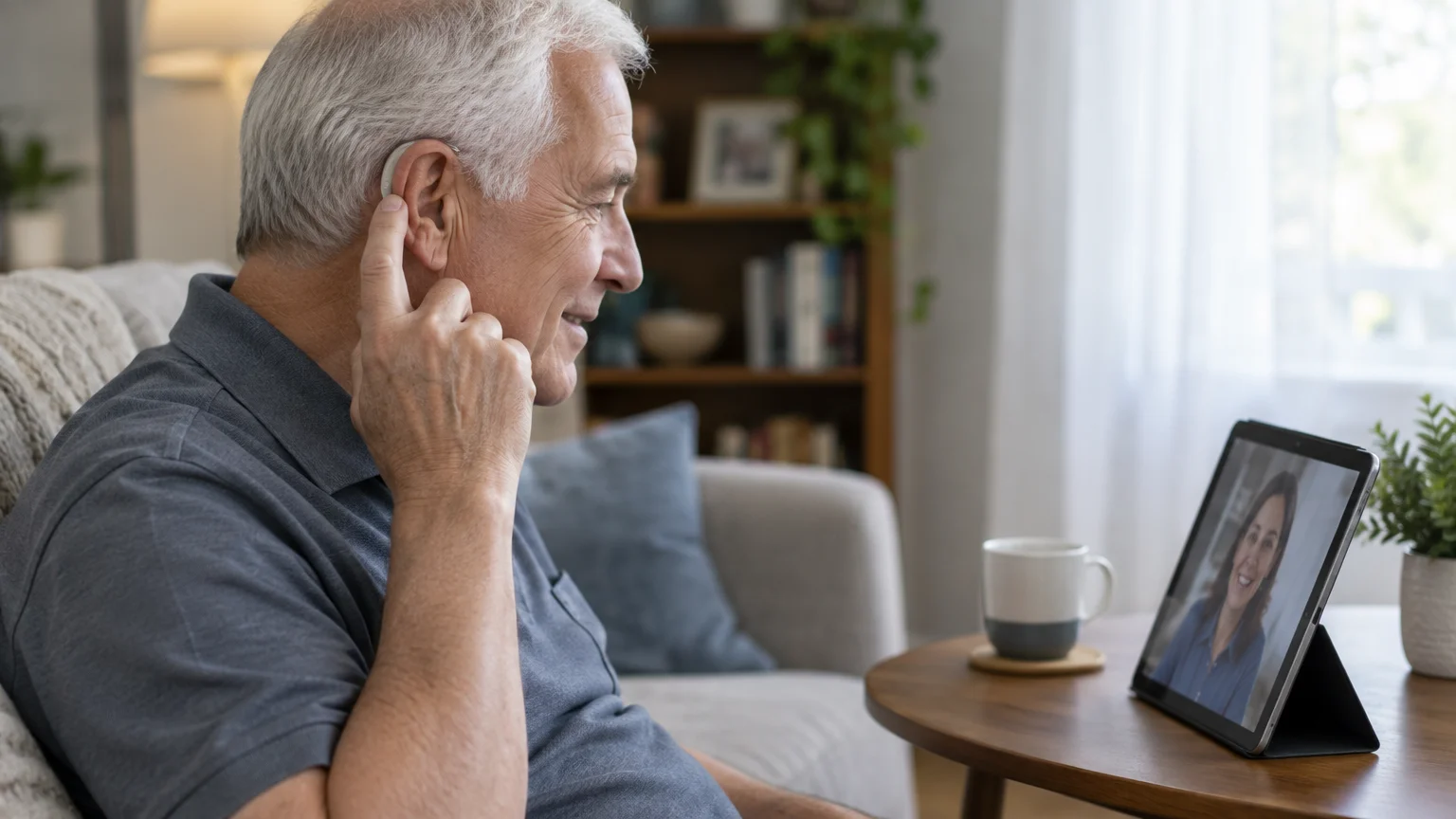
Direct audio streaming to Bluetooth-enabled prescription hearing aids solves this problem. The sound streams directly into your ears, allowing you to hear clearly without projecting amplified noise into a tiled room.
The Federal Communications Commission outlines modern wireless hearing standards in its FCC guide on hearing aid compatibility. Most prescription hearing aids built since 2020 support direct wireless connections to tablets and smartphones.
Here is how Eleanor pairs compatible hearing aids to an Apple iPad:
- Open the Settings app on your home screen.
- Scroll down the left navigation column and tap Accessibility.
- Tap Hearing Devices under the hearing section.
- Open and close your hearing aid battery doors, or place them in their charger and take them out, to enter pairing mode.
- Tap the name of your hearing aids when they appear under MFi Hearing Devices.
- Tap Pair on the confirmation prompt that appears on your screen.
You can read more about visual and acoustic personalization tools in the official Apple guide to accessibility features.
If you prefer not to use headphones, turn on live speech captions during your video calls. Both Zoom and Google Meet offer real-time automated subtitles that appear on the screen, letting you lower device volume without missing conversations.
Assistive tools have become standard for older Americans staying in touch with distant relatives. According to a Pew Research study on older adult technology adoption, video calling adoption among adults 65 and older expanded substantially over the past decade.

Room Adjustments for Clearer Audio
If you cannot use earbuds or hearing aids, modifying your physical dining room environment dramatically improves call clarity. Soft materials trap sound waves and stop them from bouncing into the microphone.
Take these physical steps before dialing into your next Sunday video call:
- Lay an inexpensive woven fabric runner down the center of your wooden dining table.
- Draw fabric curtains or blinds across large sliding glass patio doors to prevent harsh sound reflections.
- Place a decorative throw pillow or thick cushion behind your tablet stand.
- Position an area rug or runner over bare ceramic tiles directly underneath your chair and table.
These soft fabrics absorb high frequencies before they bounce toward the tablet microphone. Your tablet’s built-in echo cancellation software can easily handle whatever quiet sound remains.
Comparing Audio Solutions for Clear Video Calls
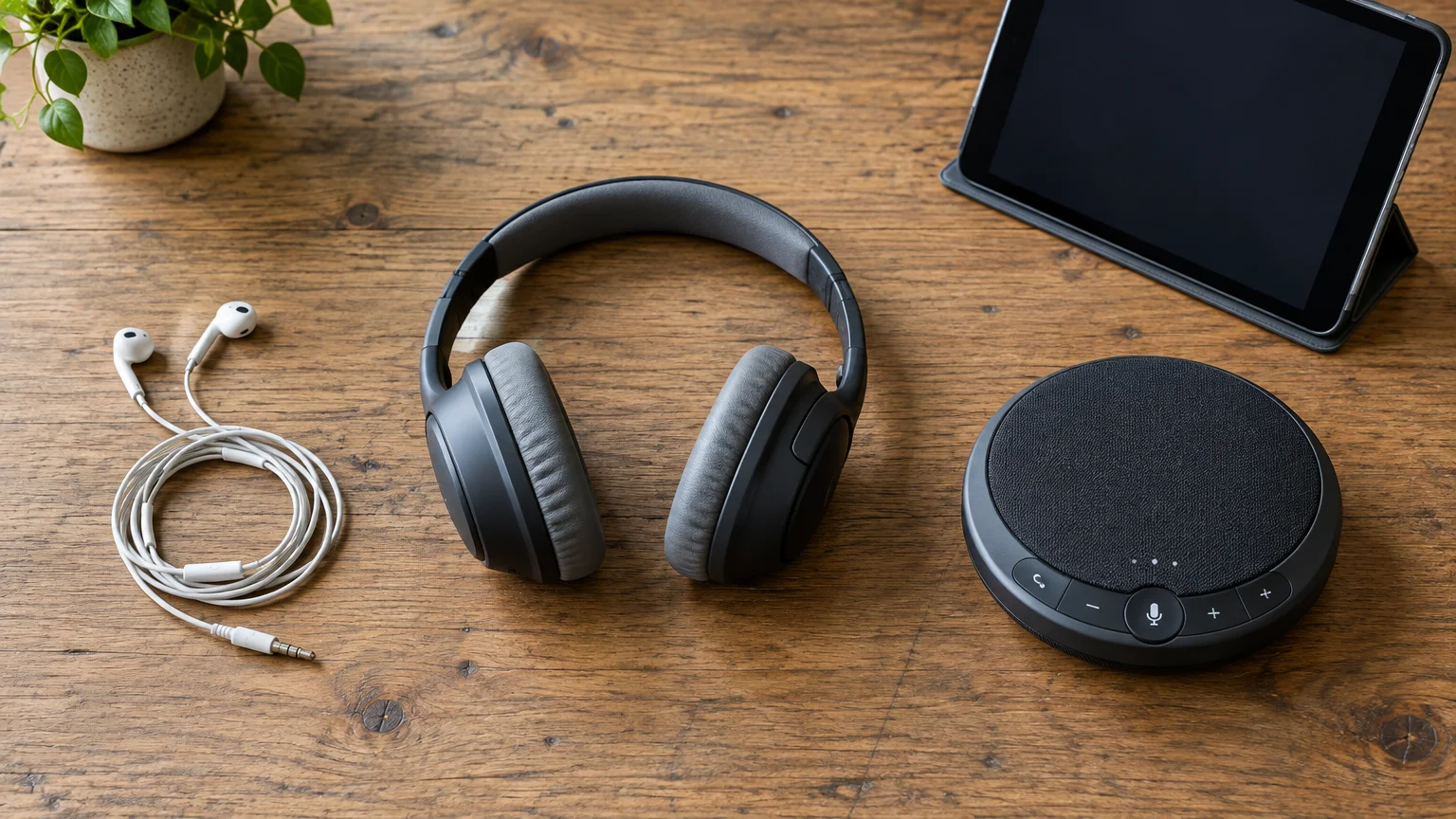
Different hardware setups deliver varying levels of echo protection. The table below outlines four practical equipment options for older adults calling from rooms with hard surfaces.
| Audio Solution | Connection Method | Approximate Cost (as of 2026) | Echo Elimination Reliability |
|---|---|---|---|
| Wired Earbuds (e.g., Apple EarPods) | 3.5mm plug or USB-C port | $19 | 100% (Physically isolates incoming sound) |
| Over-Ear Headphones (e.g., Sony MDR-ZX110) | 3.5mm plug | $15 to $25 | 100% (Complete ear cup isolation) |
| Bluetooth Hearing Aids | Wireless direct streaming | Included with hearing aids | 100% (Streams directly into ear canal) |
| Soft Surface Damping (Rug + Placemat) | Physical room placement | $0 (Using existing linens) | 60% to 75% (Reduces bounce, depends on volume) |
Wired earbuds remain the most dependable, low-cost fix for unwanted room feedback. They require no batteries, never suffer from pairing dropouts, and cut off acoustic echoes instantly.
Frequently Asked Questions
Why do other callers hear an echo when I do not hear anything wrong?
You do not hear the echo because your tablet speakers project the sound outward away from your ears. The distant caller hears the delayed echo because your microphone captures that room sound and transmits it back across the internet.
Can using an external computer microphone stop echo on a video call?
An external microphone alone will not stop an echo if your speakers remain turned up loud. To eliminate the problem, you must separate speaker output from the microphone by using headphones or direct hearing aid streaming.
Why does placing a tablet in a tiled dining room make echoes worse?
Ceramic tiles, bare walls, and glass doors bounce sound waves repeatedly without absorbing their energy. This room flutter scatters audio into the microphone from multiple angles, preventing software filters from identifying and cancelling the sound.
Does muting my microphone fix the echo problem during a group call?
Muting your microphone provides an immediate temporary fix while someone else speaks. However, as soon as you unmute to talk, your open microphone will pick up speaker audio again unless you wear earbuds.
Note: Menus and button names change with software updates. These steps were written for current versions as of 2026; if a screen looks different on your device, the maker’s support page linked above has the latest wording.
ClearTechGuide is independent and is not affiliated with Apple, Google, Microsoft, Amazon or any other company mentioned.
