
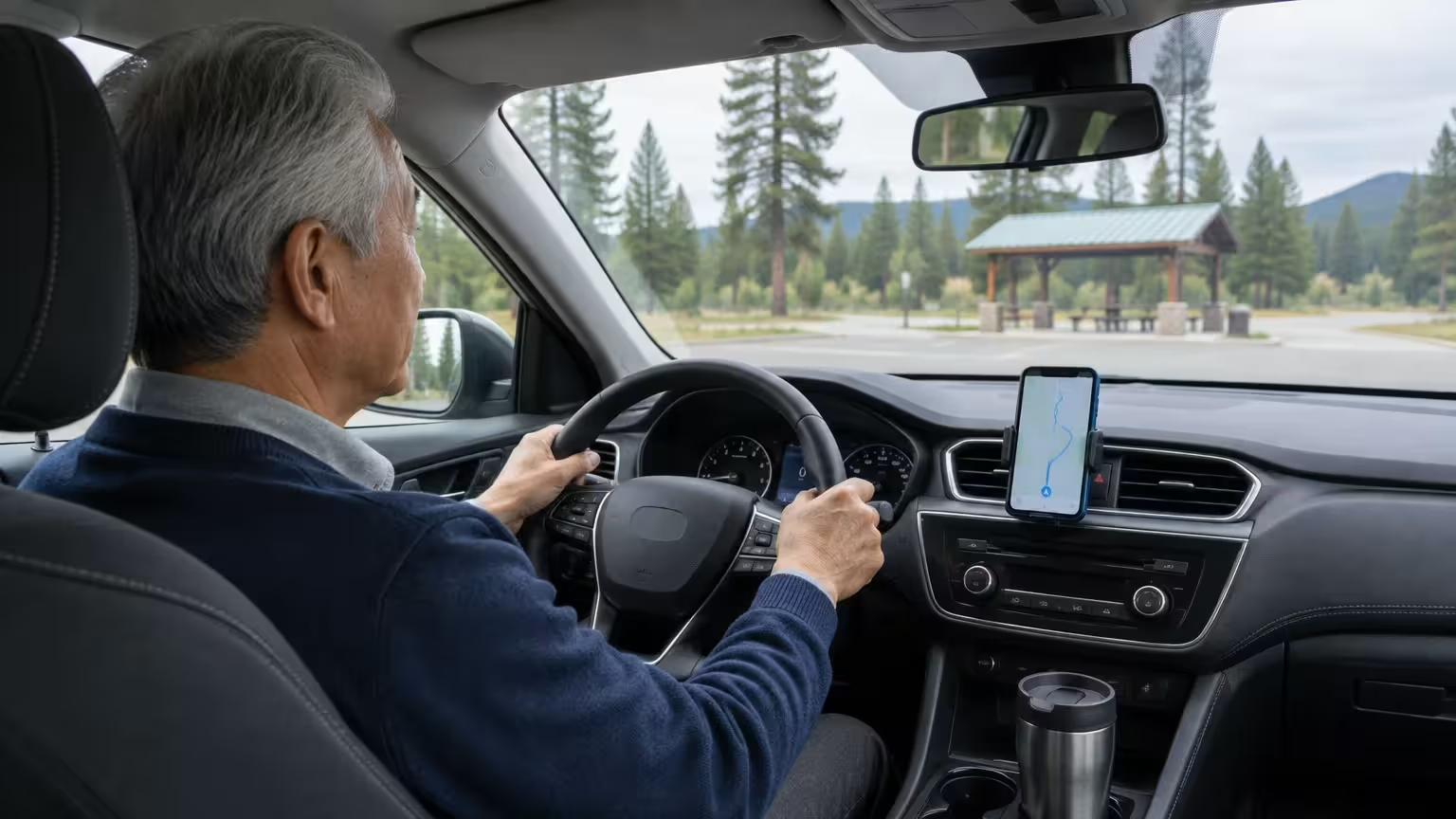
You can find clean, wheelchair-accessible highway rest stops directly along your driving route without canceling your trip directions. Google Maps lets you insert these stops as temporary waypoints while keeping your final destination intact.
For multi-day road trips, scheduling planned travel legs and overnight stays in Google Calendar helps keep your itinerary organized and manageable.
Most travel guides suggest pulling off the interstate or restarting your route from scratch. In contrast, this guide shows you how to locate state-run facilities with accessible stalls directly on your active route display.
Whether you plan a multi-state drive across Interstate 80 or take an afternoon trip, these steps keep you moving safely without unexpected detours.
In this guide9 sections
- Why Searching Along Active Routes Matters
- How to Search for Rest Stops During Active Navigation
- Using Voice Commands for Hands-Free Searches
- Identifying Official State Rest Areas Versus Commercial Plazas
- Worked Scenario: Eleanor’s 420-Mile Interstate Trip
- Adjusting Display and Accessibility Settings Before You Drive
- Downloading Offline Maps for Rural Interstates
- Troubleshooting Common Route Search Issues
- Frequently Asked Questions

Why Searching Along Active Routes Matters
A waypoint is an intermediate stopping point added between your starting location and your final destination. Google Maps preserves your complete route guidance when you insert one.
If you listen to stories to stay alert while driving, you can also learn how to change audiobook speed so narration matches your listening preference.
Long-distance highway travel requires predictable breaks every two to three hours. Sitting for extended periods can stiffen joints, reduce circulation, and increase driving fatigue.
Canceling your route guidance to locate a bathroom creates unnecessary tension. You risk missing your highway exit or losing your overall trip progress entirely.
According to a Pew Research study on mobile adoption among older adults, smartphone ownership among drivers aged 65 and older has expanded significantly.
Modern travel tools offer dedicated route-filtering features. Learning to search along route google maps ensures you reach facilities equipped with ramps, level walkways, and grab bars.
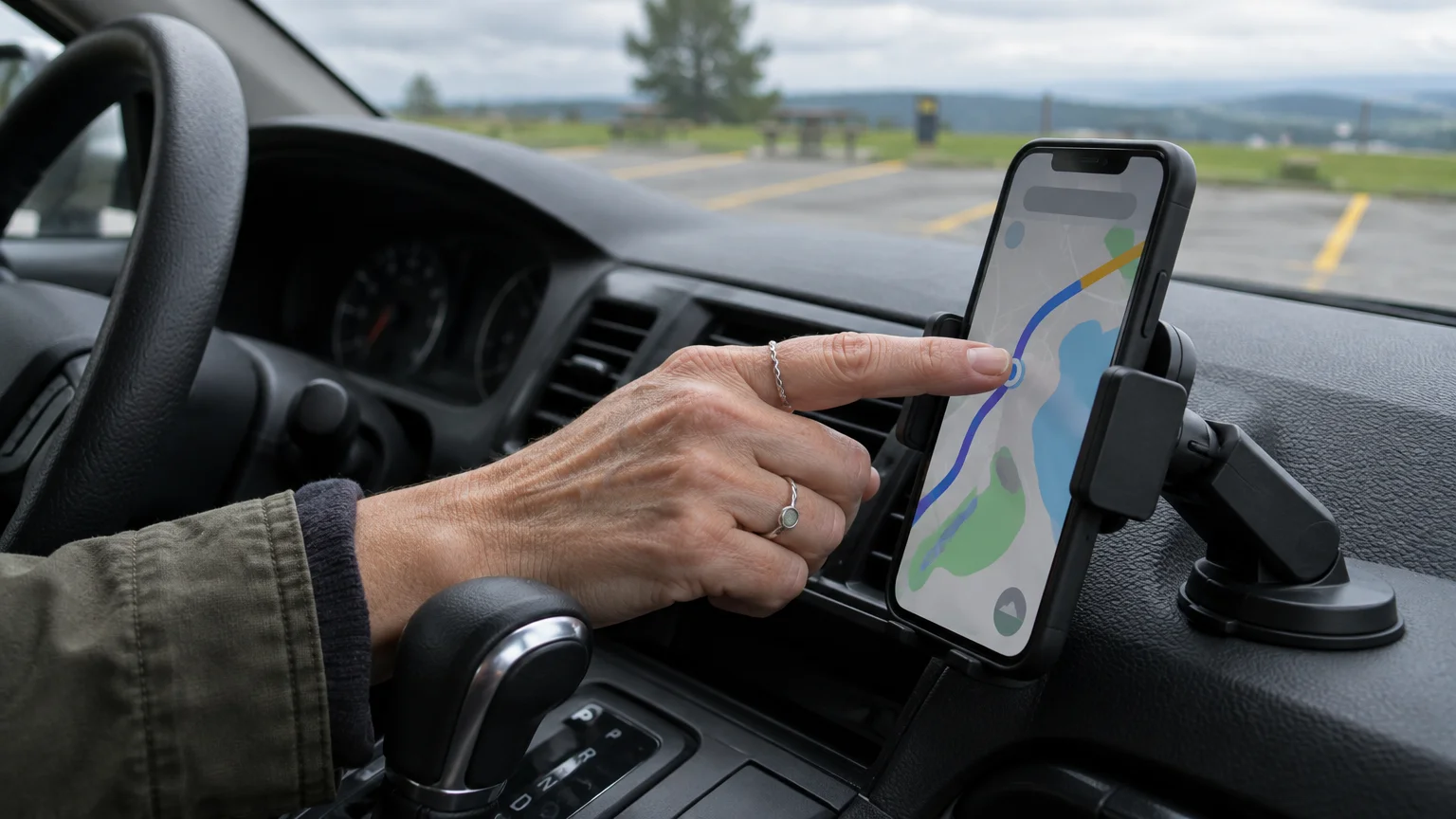
How to Search for Rest Stops During Active Navigation
Before you touch your screen, pull your vehicle into a safe parking stall. Operating your phone while driving violates traffic laws in most states and creates severe collision risks.
If unexpected car trouble leaves you stranded at a highway plaza, knowing how to request an Uber or Lyft ride provides a dependable backup way to reach your lodging.
If you travel with a companion, hand them the device to complete these steps. The entire procedure requires under twenty seconds to update your route.
- Tap anywhere on the active map screen to reveal the floating trip controls.
- Tap the magnifying glass icon labeled Search.
- Type “Rest stops” into the search bar, or tap the quick-filter bubble labeled Rest stops.
- Review the returned list showing each facility, mileage, and added travel time in minutes.
- Tap the name of your preferred stop to preview its photos, hours, and accessible amenities.
- Tap the blue button labeled Add stop to insert the location into your active route.
Google Maps automatically recalculates your driving line to guide you to the rest facility. Once you stop and depart, guidance resumes toward your original destination.
This method lets you find rest areas google maps without ever clearing your overall trip progress.

Using Voice Commands for Hands-Free Searches
Voice control lets you keep both hands firmly on the wheel and your eyes on highway traffic. You can perform route searches by speaking natural phrases.
Reviewing text-to-speech settings on your phone also ensures voice directions are read aloud clearly and at a comfortable volume.
If you drive with an Apple device, you can similarly configure iPhone Voice Control to operate your handset entirely with spoken requests.
Android users can also practice speaking hands-free prompts by learning how to set up Google Assistant on Android before hitting the road.
Google Maps features a white microphone icon on the upper right of the map screen. Tapping this icon activates the listening system immediately.
If your vehicle supports Apple CarPlay or Android Auto, press the voice button on your steering wheel. This routes your speech through your vehicle speakers.
Drivers who wear Bluetooth-enabled hearing devices can stream spoken instructions straight into their ears. Review the FCC guide to hearing aid compatibility for connection details.
- Tap the white Microphone icon located in the upper-right corner of the map display.
- Say clearly: “Find rest stops along my route.”
- Listen as the system lists the closest two or three highway facilities ahead.
- Say “Select number one” or tap the desired facility on the display screen.
If the system misunderstands your request, speak the exact highway number. Saying “Find rest areas on Interstate 80 East” produces precise highway rest stops gps results.
Identifying Official State Rest Areas Versus Commercial Plazas
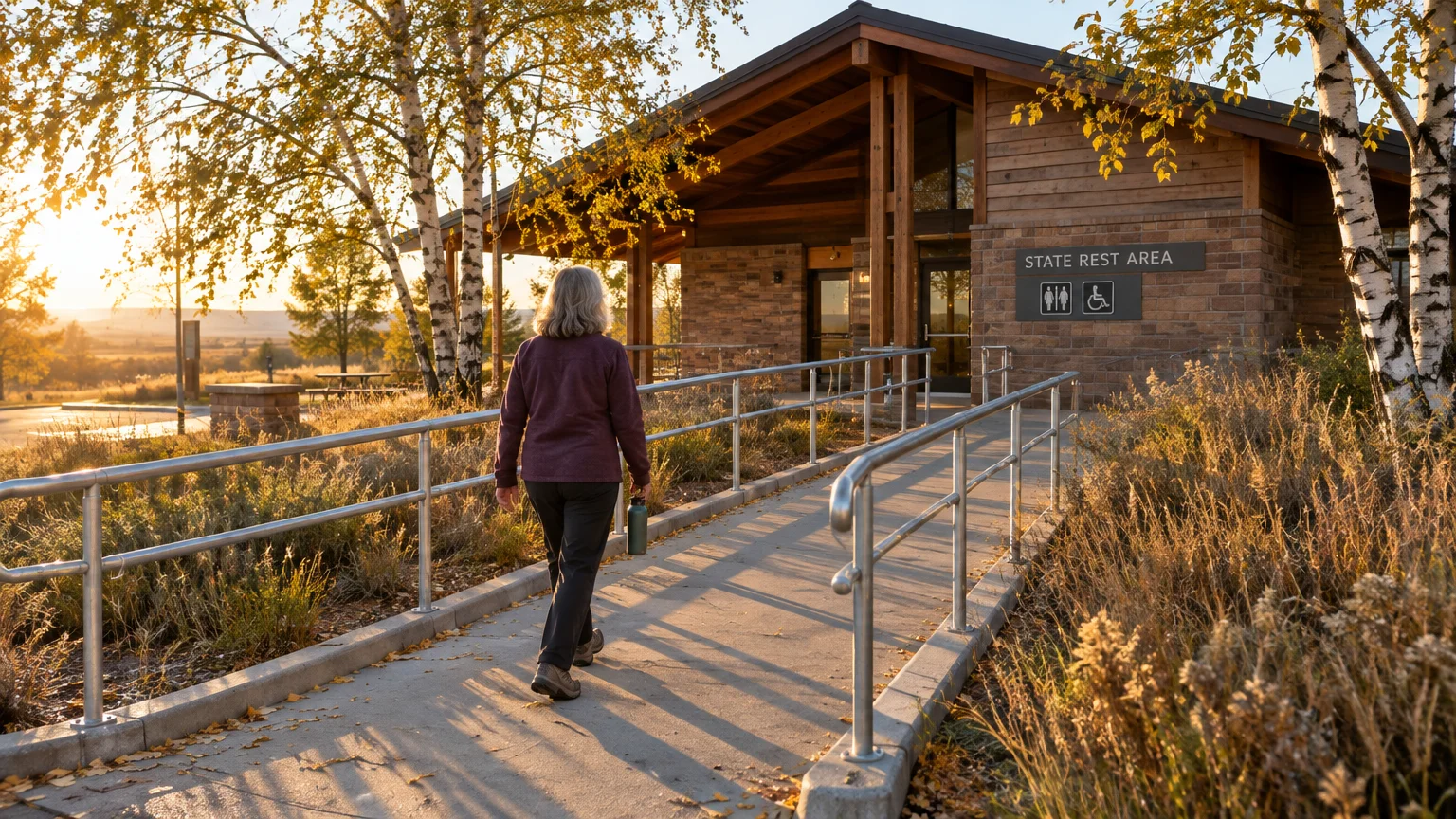
Not every highway stop offers equal accommodations for drivers with physical mobility challenges. State-operated rest areas differ substantially from private truck stops and corner gas stations.
Many large travel plazas offer complimentary internet, making it useful to know how to connect your smartphone to Wi-Fi while taking a driving break.
If your primary goal is refueling at affordable prices rather than stretching your legs, you can also use GasBuddy to find cheap gas nearby before pulling off the interstate.
State Department of Transportation (DOT) facilities are engineered under federal accessibility standards. They offer curb-free sidewalk ramps, automated push-button entrance doors, and wide stall enclosures.
Commercial travel centers provide food courts and fuel, but they often require walking through busy parking lots crowded with commercial tractor-trailers.
Local exit gas stations often have narrow single-occupancy restrooms with tight entry doors. Some older rural stations still feature exterior steps without ramp alternatives.
Examine this comparison table to choose the safest option for your physical comfort and vehicle size.
| Stop Category | Restroom Accessibility Features | Average Detour Time | Parking Layout | Typical Operating Hours |
|---|---|---|---|---|
| State DOT Rest Area | Flush entrance ramps, 36-inch wide stall doors, sturdy grab bars | Under 2 minutes off highway mainline | Dedicated car lots separate from commercial freight trucks | 24 hours daily, 365 days a year |
| Interstate Travel Plaza | Standard ADA stalls available, often located past long food corridors | 3 to 6 minutes via interchange ramps | Shared large lots with heavy pedestrian and semi-truck movement | 24 hours daily with fuel and food |
| Highway Exit Gas Station | Variable accessibility, older doors may measure under 32 inches wide | 4 to 8 minutes through surface street intersections | Tight multi-pump layouts, limited van-accessible stalls | 6:00 AM to 10:00 PM; select 24-hour sites |
Check the facility notes in Google Maps before confirming your selection. Users frequently post photos showing exact door thresholds and restroom interiors.

Worked Scenario: Eleanor’s 420-Mile Interstate Trip
We present a concrete travel scenario to illustrate how these route tools operate in real driving conditions.
In case you misplace your device on a picnic table or rest stop counter, setting up Find My Device on your phone lets you locate it before leaving the area.
When your journey takes you off the highway into downtown areas, knowing how to pay for parking using a smartphone app makes town stops just as effortless.
Eleanor is a 65-year-old retired teacher driving 420 miles along Interstate 80 East from Des Moines, Iowa to South Bend, Indiana. She manages mild knee arthritis and uses a cane.
After driving 140 miles at 65 miles per hour, Eleanor feels joint stiffness near Iowa City. She desires a clean, step-free restroom within the next 35 miles.
Eleanor pulls off at an exit ramp park-and-ride lot, shifts into park, and picks up her smartphone.
- Eleanor opens her active trip screen in Google Maps showing her South Bend destination.
- She taps the Search magnifying glass icon in the upper right.
- She enters “Rest area” into the text bar and views the mapped suggestions.
- She selects the Wilton Rest Area Eastbound, located at mile marker 270.
- The screen indicates an added detour of +0 minutes and a travel distance of 0.1 miles off the mainline.
- Eleanor taps Add stop to insert Wilton Rest Area as her primary intermediate waypoint.
The map recalculates immediately. It guides Eleanor directly to the Wilton rest facility, allows her to walk safely without stairs, and preserves her South Bend destination.
Eleanor completes her 20-minute walking break, returns to her vehicle, and backs out of the stall. The app automatically announces the next highway merge toward Indiana.
Adjusting Display and Accessibility Settings Before You Drive
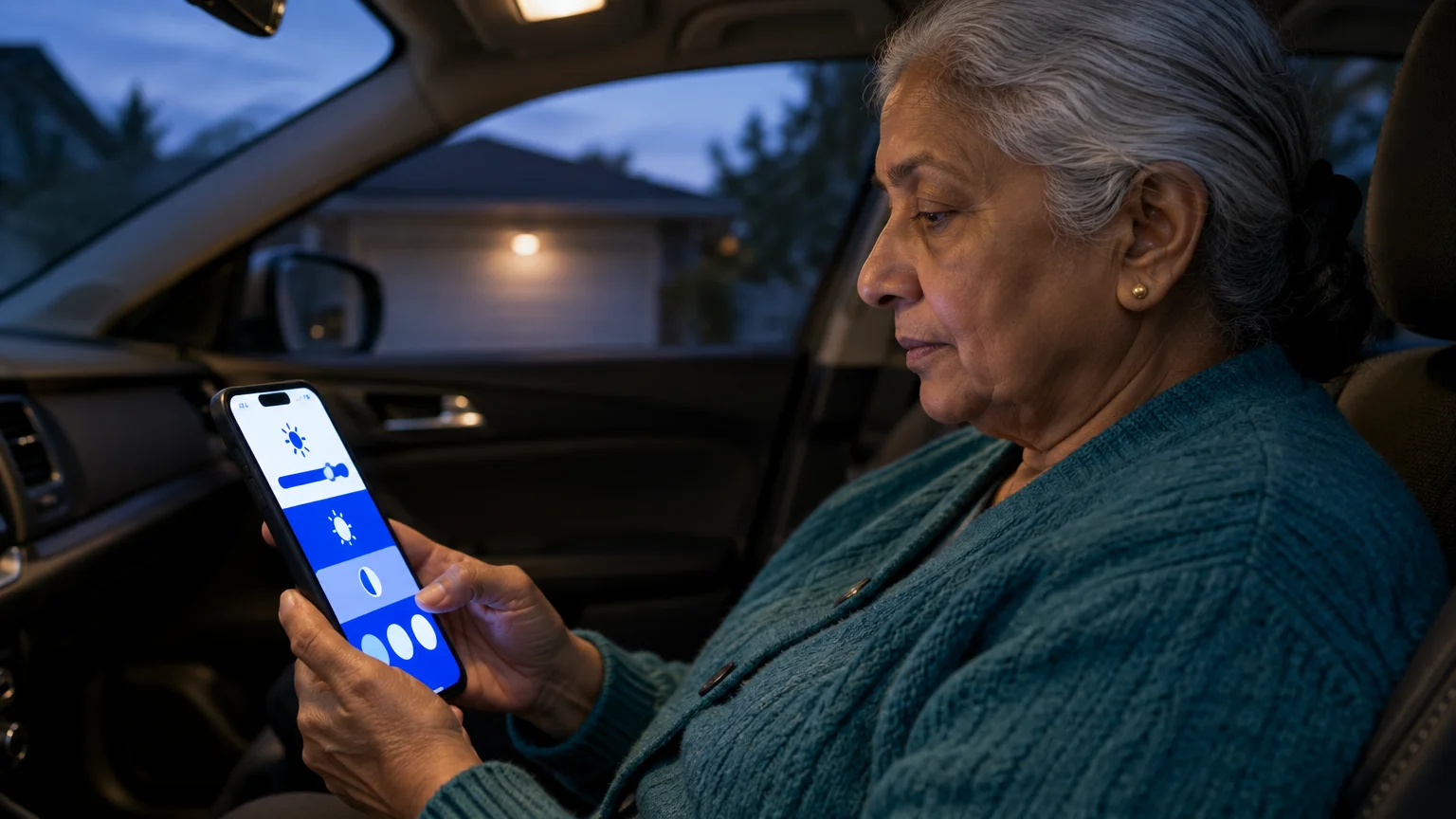
Adjusting your phone display settings before departing makes reading navigation maps significantly easier. Small on-screen labels cause eye strain and distract you from the road.
If small amenity icons or parking signs remain difficult to decipher, you can also use your phone’s built-in magnifier for fast, enlarged viewing.
Apple iPhone users can increase system font sizes to enlarge road numbers and exit labels. Follow Apple’s guide on making text bigger on iPhone to adjust Dynamic Type sliders.
Android owners can increase display scaling and touch responsiveness inside device settings. Refer to Google’s Android accessibility overview for detailed magnification controls.
We recommend configuring these essential smartphone settings before shifting your vehicle into gear:
- Set map color scheme to Automatic so the screen darkens at dusk to prevent blinding glare.
- Increase guidance volume to Louder under Google Maps navigation sound settings.
- Enable Play voice over Bluetooth so spoken directions project through your vehicle speakers.
- Increase touch response delay if hand tremors cause unintended double taps on screen icons.
Setting these options while parked prevents clumsy screen tapping while traveling at highway speeds.
Downloading Offline Maps for Rural Interstates
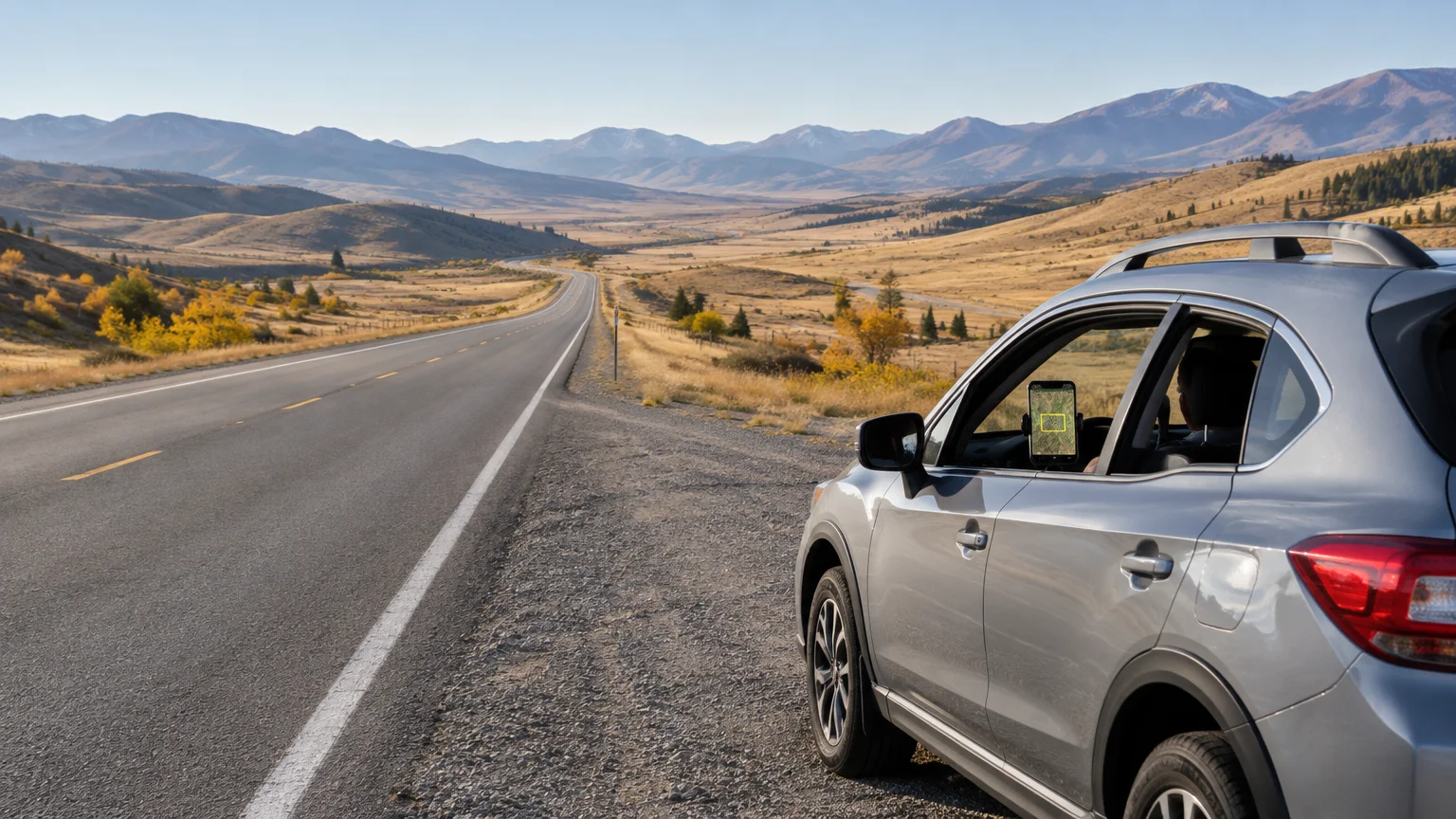
Interstate highways across rural states frequently pass through cellular dead zones. When cellular reception drops, standard online map searches will fail.
Because map files are quite large, be sure to connect your smartphone to Wi-Fi at home before initiating your map download.
Offline map downloads can consume up to 1.5 gigabytes of phone storage and wireless cellular data. Connect to your home Wi-Fi network before initiating the download to prevent cellular overage charges.
Downloading an offline map stores roadway maps, exit numbers, and rest area locations directly on your device. Review Google’s Android Help portal for system storage requirements.
Follow these numbered steps to download your interstate travel corridor before leaving home:
- Open Google Maps on your home Wi-Fi network and tap your Profile circle in the top right.
- Tap Offline maps from the slide-out menu.
- Tap Select your own map to open the rectangular selection frame.
- Pinch and pan the box across the multi-state interstate corridor you plan to travel.
- Tap Download and wait until the percentage progress bar reaches one hundred percent.
With offline maps saved, searching along your route works reliably even when your cellular signal reads zero bars.
Troubleshooting Common Route Search Issues
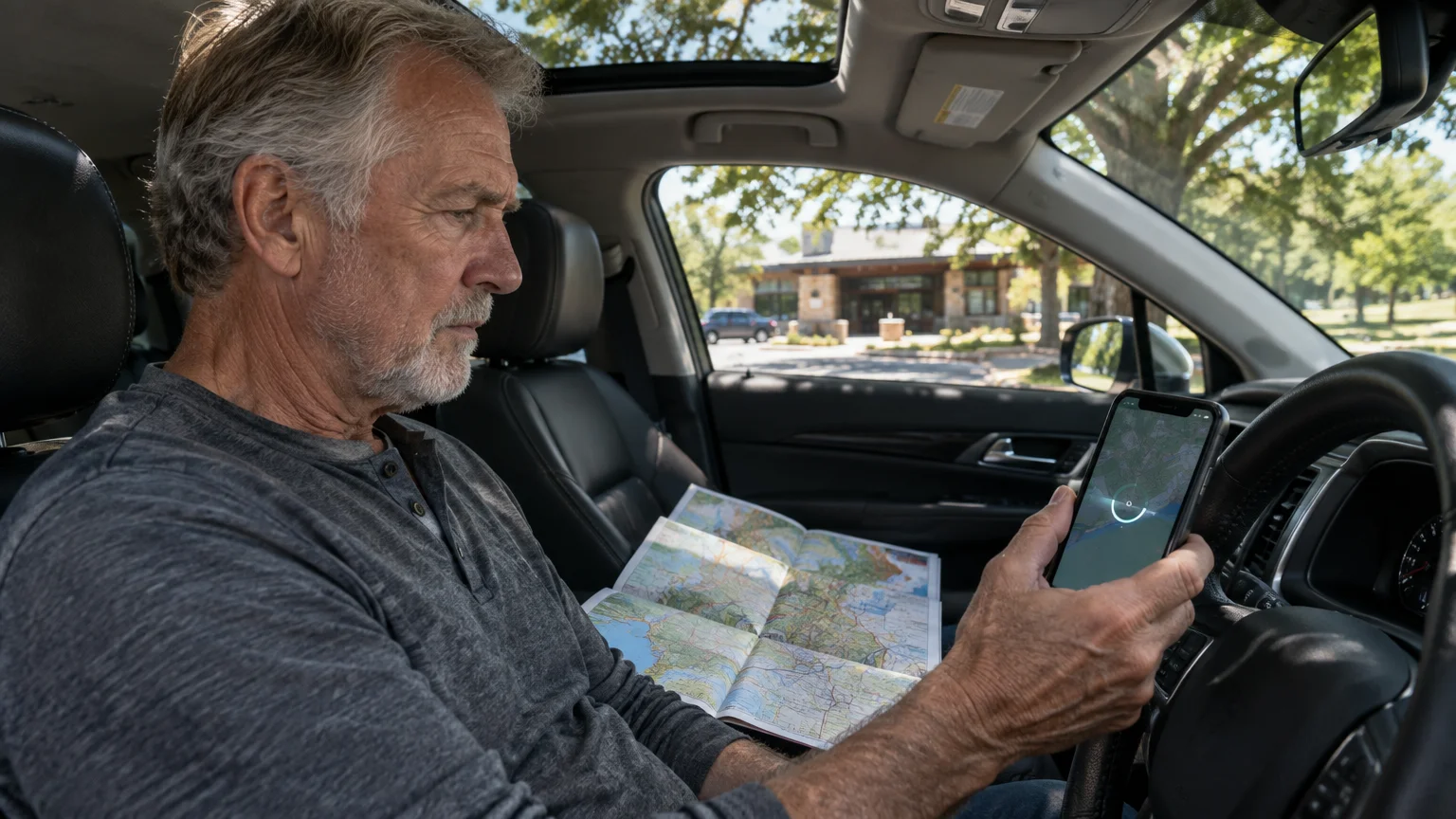
Even straightforward digital tools sometimes produce unexpected results on the road. Knowing how to handle these quirks keeps your journey relaxed and orderly.
If you tap Directions instead of Add stop, Google Maps clears your route and starts fresh. If this happens, tap the back arrow to restore your original destination.
Another frequent challenge involves direction-specific interstate rest facilities. Some rest areas serve only westbound lanes, while others serve only eastbound lanes.
We suggest checking these practical verification items before finalizing any added waypoint:
- Verify that the rest stop name matches your travel direction, such as Eastbound Rest Area.
- Check that the added detour time says under 2 minutes, confirming the site sits directly beside the highway.
- Avoid locations that show multi-mile detours on rural two-lane roads unless you intend to leave the freeway.
- Confirm the waypoint appears as a small stop pin rather than replacing your checkered finish flag.
Taking five seconds to verify the waypoint marker prevents unwanted highway U-turns and lengthy detours.
Frequently Asked Questions
Does adding a rest stop delete my original route destination?
No, tapping Add stop inserts the facility as an intermediate waypoint. Your original destination remains intact, and guidance resumes toward it once you leave the rest area.
How do I remove a rest stop waypoint if I decide not to stop?
Tap the rest area banner at the top of your screen and select Remove stop. Google Maps will instantly recalculate your directions straight toward your final destination.
Can Google Maps show whether rest stop bathrooms have wheelchair access?
Yes, tapping the rest stop listing reveals the About tab. This tab lists accessibility features, including wheelchair-accessible entrances, restrooms, and dedicated parking spaces.
Will rest stop search work if my phone loses cellular data coverage?
Yes, rest stop search works offline if you downloaded your regional map prior to your trip. Stored maps retain rest stop locations and road layouts without cellular service.
Note: Menus and button names change with software updates. These steps were written for current versions as of 2026; if a screen looks different on your device, the maker’s support page linked above has the latest wording.
ClearTechGuide is independent and is not affiliated with Apple, Google, Microsoft, Amazon or any other company mentioned.
