
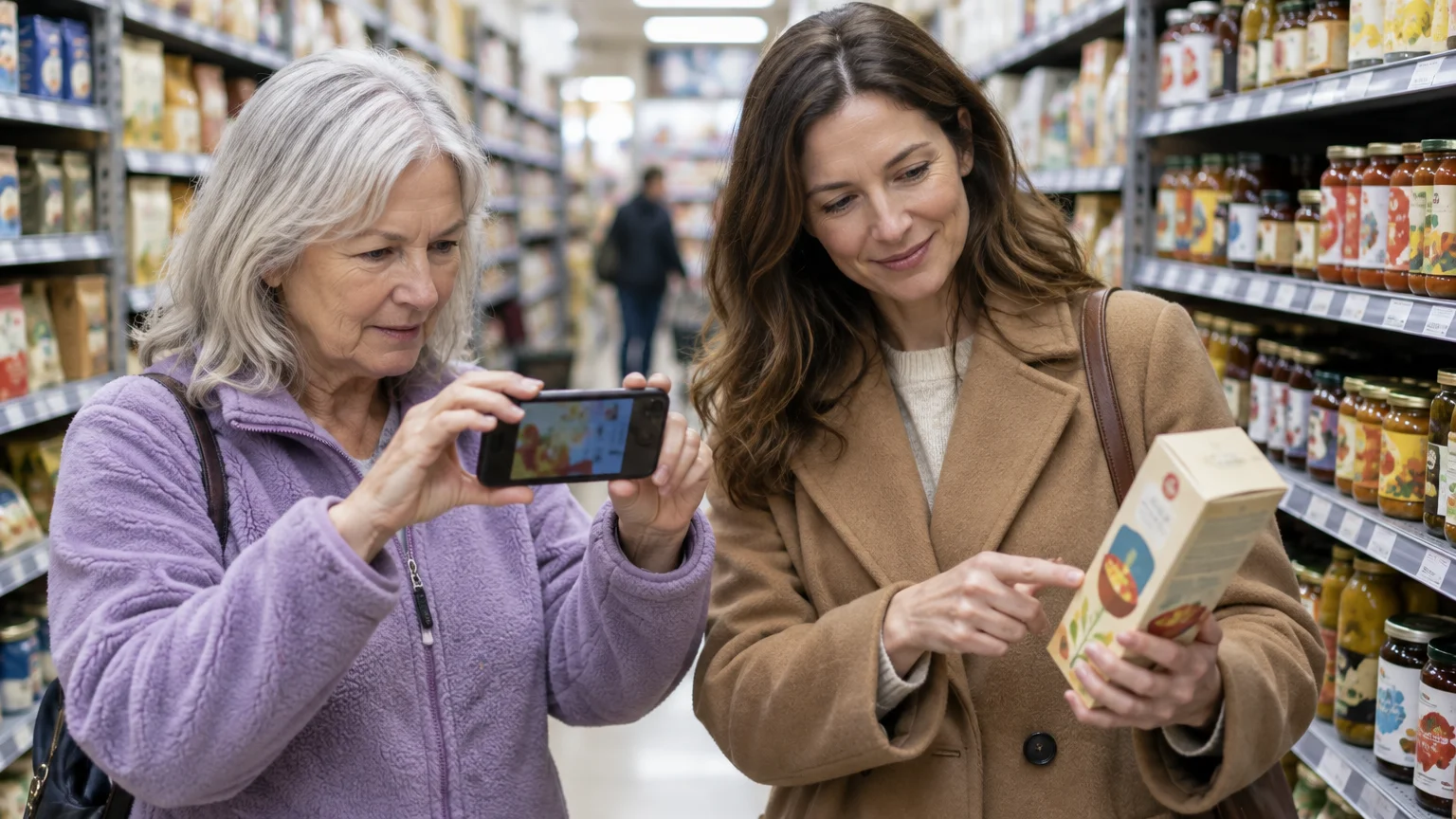
You can read foreign ingredient labels instantly at international grocery markets without taking photos that clutter your phone. Pointing your smartphone camera translates foreign languages into English directly on your screen.
Many shoppers struggle to hold their hands steady while reading tiny ingredient disclosures on reflective packaging. Using the freeze-frame camera tool lets you lock translated text in place so you can inspect gluten warnings comfortably.
This guide shows you how to use the free Google Translate app to spot allergens without saving unwanted pictures to your device gallery.
In this guide9 sections
- Reading Foreign Labels Safely with Celiac Disease
- Installing the Free Google Translate App
- Downloading Offline Languages Before You Shop
- Step-by-Step: Translating Labels Live Without Saving Photos
- How to Freeze the Frame for Comfortable Reading
- Worked Scenario: Checking an Imported Noodle Box
- Accessibility Adjustments for Clearer Label Reading
- Packaging Pitfalls, Glare, and Safety Limitations
- Frequently Asked Questions
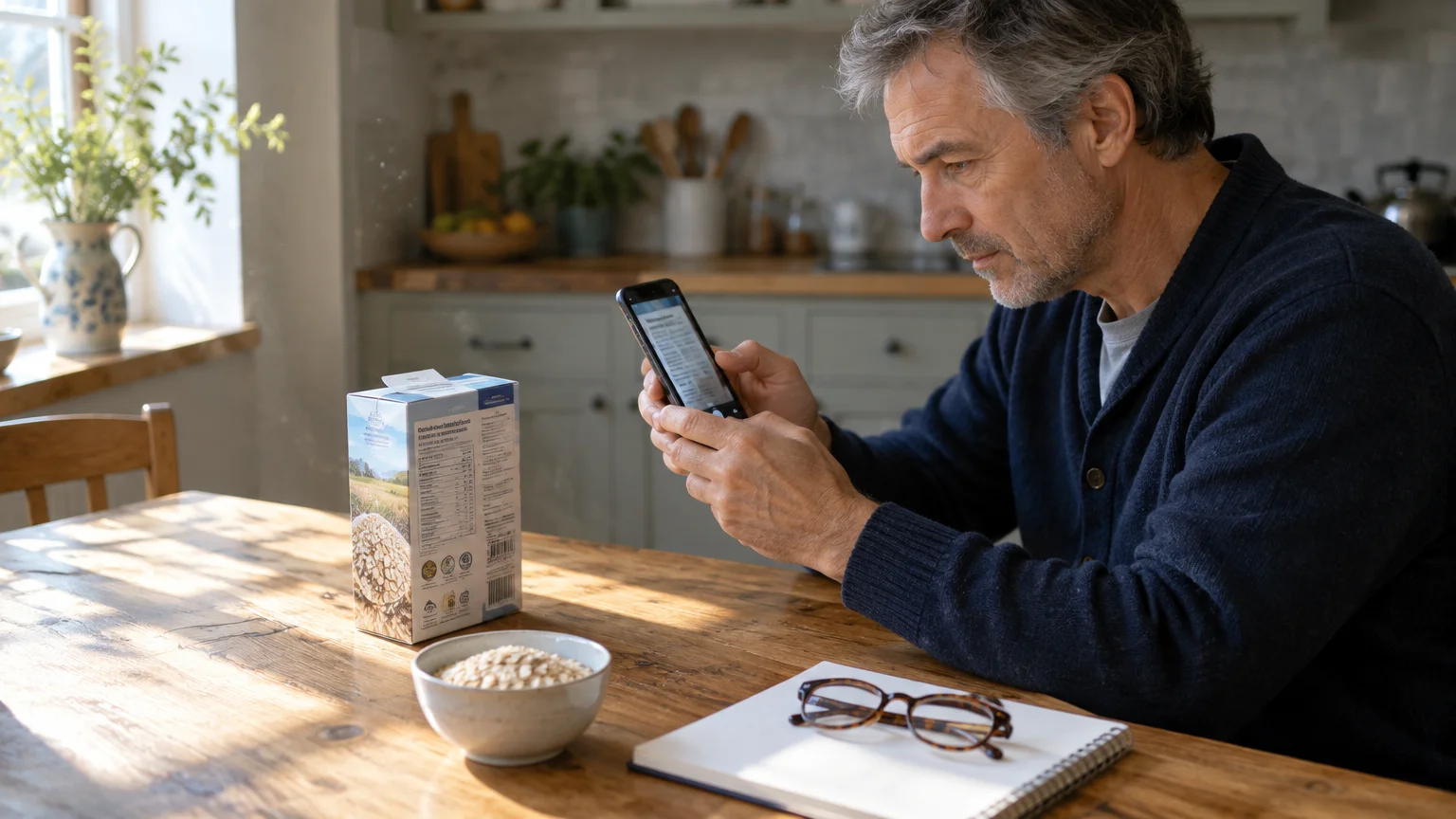
Reading Foreign Labels Safely with Celiac Disease
Managing celiac disease requires strict avoidance of wheat, barley, rye, and contaminated oats. A single stray crumb containing gluten can trigger an autoimmune reaction that damages the small intestine.
When managing dietary restrictions, knowing how to find reliable health information online helps you research unfamiliar ingredients with confidence.
Optical character recognition (OCR) is technology that identifies printed letters on physical items and converts them into digital text. Google Translate uses OCR to read foreign words through your camera lens.
In the United States, federal labeling laws require food manufacturers to identify major food allergens in plain language. Effective January 1, 2023, sesame joined the major allergen list alongside wheat, milk, eggs, peanuts, tree nuts, fish, crustacean shellfish, and soybeans.
Imported items sold in specialty stores follow the labeling mandates of their country of origin. For example, the European Union regulates 14 distinct allergens, including gluten, mustard, celery, and lupin.
Asian packaging often uses different disclosure formats, occasionally grouping multiple grain flours under general culinary terms. Hidden gluten frequently hides inside thickeners, hydrolyzed plant proteins, soy sauces, and malt flavorings.
Using your phone camera allows you to read original ingredient lists before placing an item in your shopping basket. This practical tool gives you immediate clarity when printed English import stickers are torn, obscured, or missing entirely.
Installing the Free Google Translate App
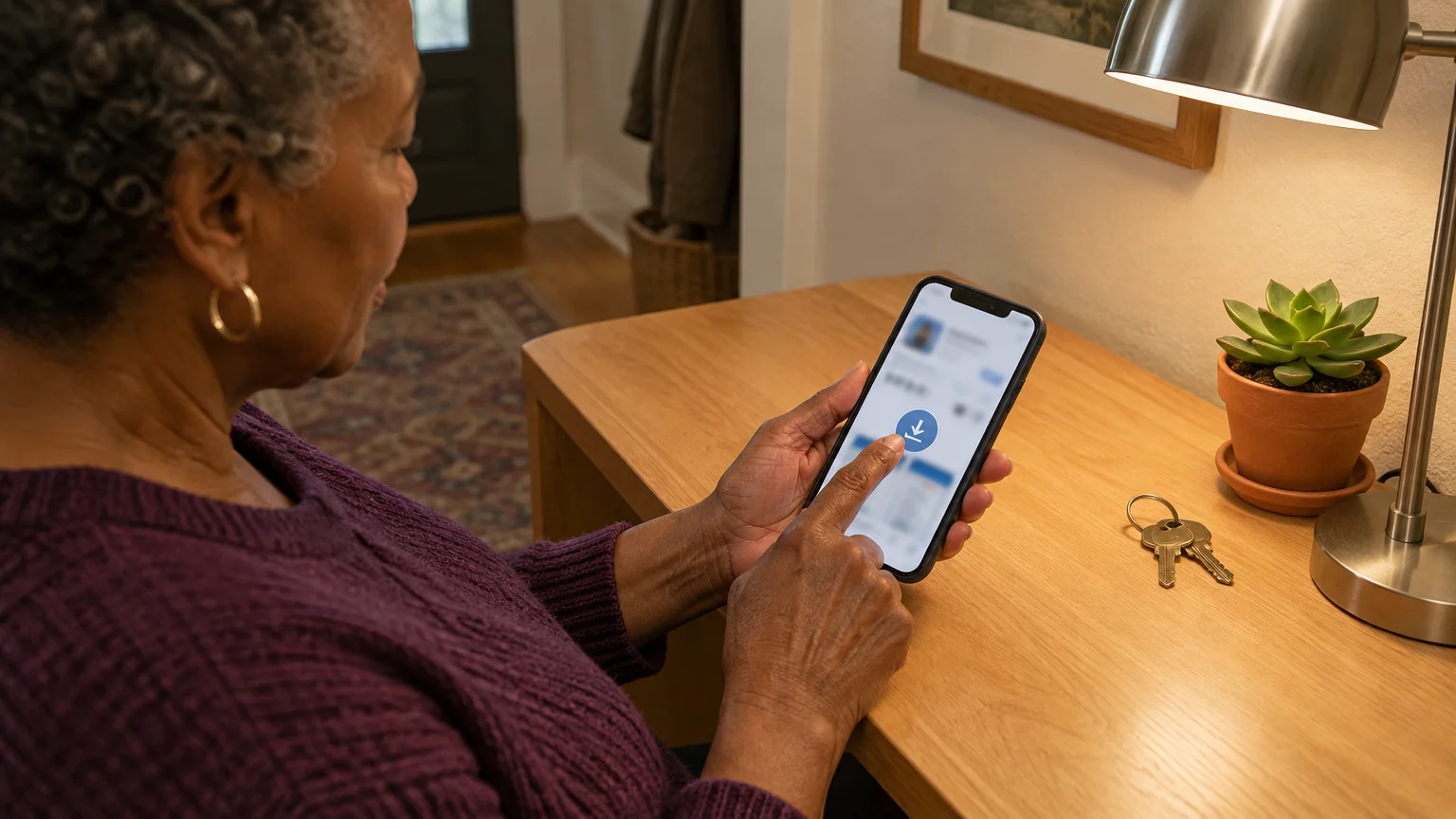
The official Google Translate application is free to download and use on both Apple and Android smartphones. You do not need a paid subscription, trial period, or credit card to access camera translation features as of 2026.
If your phone’s lock screen shortcuts get in the way while shopping, learn how to stop opening the camera by mistake.
Before installing any new application, confirm that you have enough available storage space on your device. Most smartphones require less than 150 megabytes to install the core translation program.
- Open the App Store on an Apple iPhone, or open the Google Play Store on an Android smartphone.
- Tap the Search tab and type the phrase “Google Translate” into the search bar.
- Locate the application published by Google LLC and tap Get on iPhone or Install on Android.
- Press the Open button once the installation completes.
- Tap Continue to proceed through the initial setup screen.
- Tap Allow or While using app when your phone asks for permission to access your camera.
Camera permission is mandatory because the software cannot scan foreign food boxes without direct optical access. The app only accesses your camera sensor when you open the camera tool inside the program.
You can decline microphone and speech permissions if you only plan to read food packaging. Selecting minimal permissions keeps your setup simple and protects your private device data.
Downloading Offline Languages Before You Shop
Many brick-and-mortar grocery stores operate inside buildings constructed with steel beams and thick concrete walls. These dense building materials frequently block cellular mobile data signals in interior aisles.
Before heading out to specialty international markets, you can use Google Maps on your phone to verify store hours and directions.
If navigating specialty store aisles feels overwhelming, you can also learn how to order groceries online to review translated ingredient lists from home.
Free store networks often come with privacy risks. Review the FTC’s guidance on public Wi-Fi security to understand why unencrypted networks can expose your smartphone traffic.
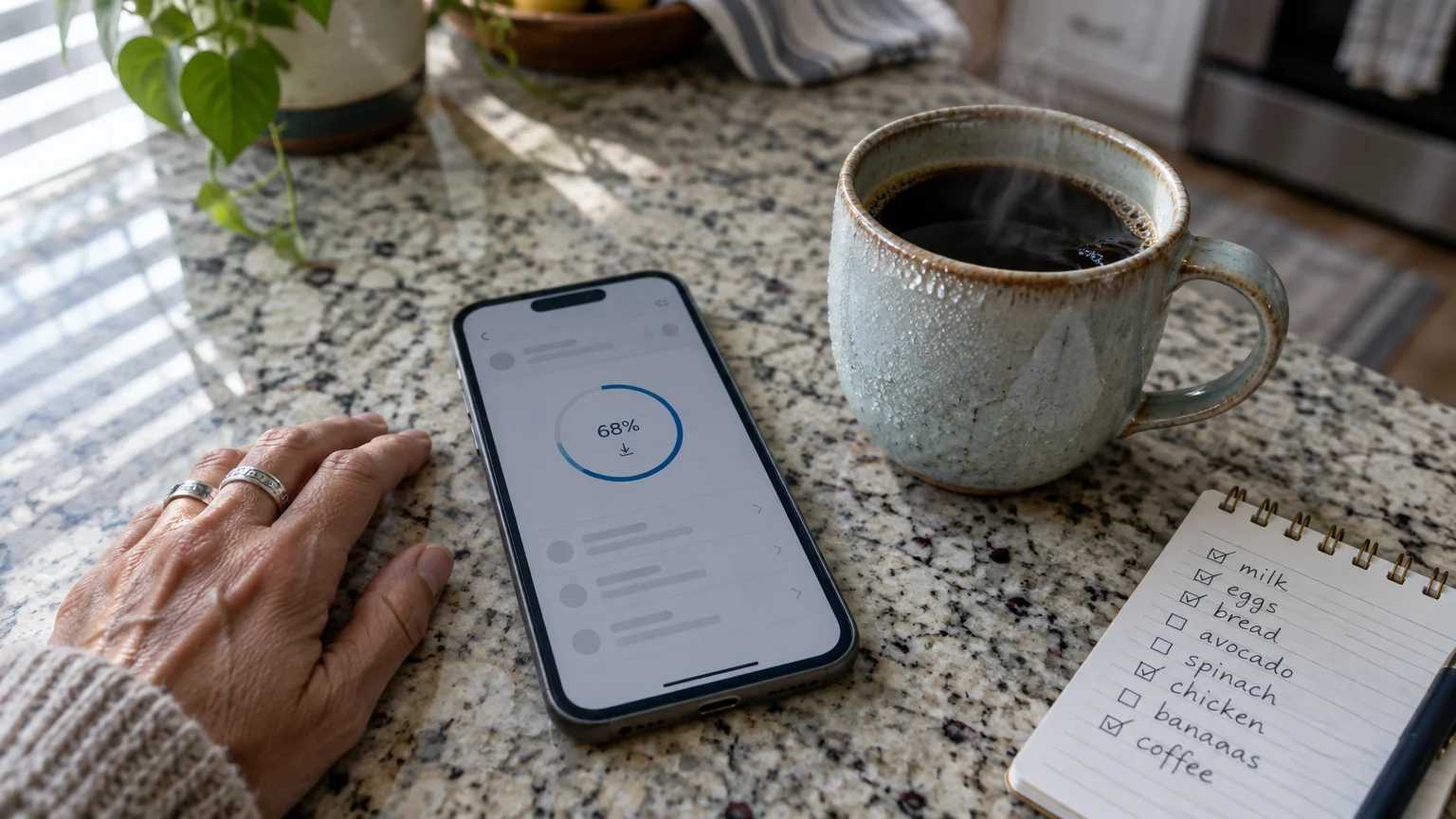
Downloading language packs to your device before leaving home prevents dead-zone connection failures entirely. Google expanded its library in June 2024 to support 243 languages, with the most common languages available for offline download.
Each offline language package requires between 40 MB and 50 MB of local phone storage. Downloading two or three essential languages uses very little memory on modern phones.
- Open the Google Translate application while connected to your home Wi-Fi network.
- Tap the source language name located on the left side of your screen below the main text area.
- Scroll through the alphabetical list to find the language of the food package, such as Japanese or Italian.
- Tap the downward-pointing Download icon next to the language name.
- Tap Download in the confirmation box to save the 40 MB to 50 MB language file to your phone.
- Repeat these steps for any additional regional languages you expect to encounter in the specialty market.
A small checkmark icon appears next to the language name once the download completes. This checkmark confirms that your phone will translate packaging even if you lose all cellular reception in the store.
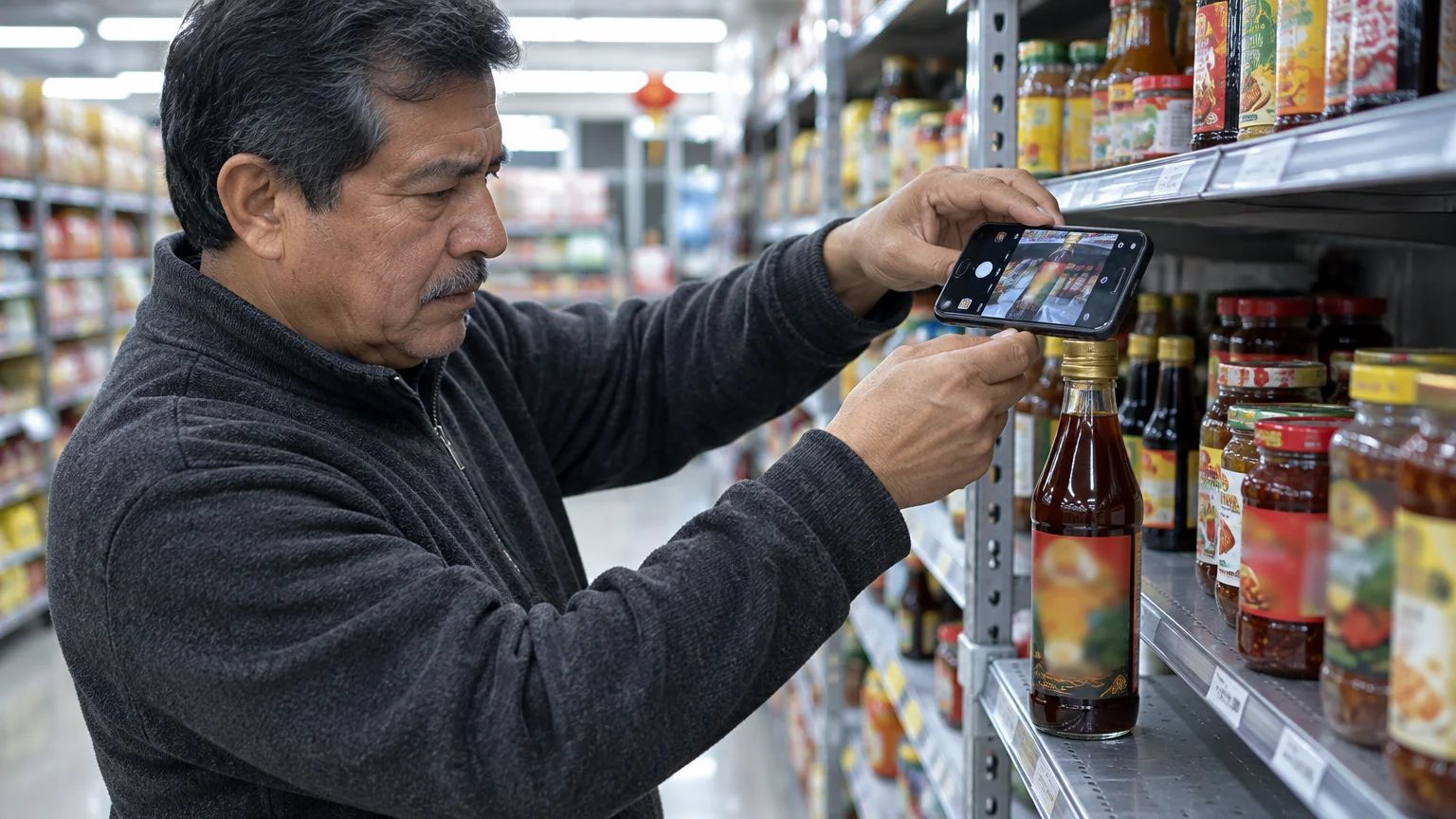
Step-by-Step: Translating Labels Live Without Saving Photos
The instant camera feature integrates Google Lens vision tools directly into the translation display. It translates words in real time by placing clean English text over the foreign characters on your screen.
Live mode lets you scan several packages rapidly without taking photographs that clog your photo storage. You merely point the lens, review the text, and place the box back down.
- Open the Google Translate app on your smartphone.
- Check the language boxes at the bottom of the screen to verify that your chosen source language translates into English.
- Tap the Camera icon located in the lower-right quadrant of the screen.
- Hold your phone steady approximately six to eight inches away from the back of the package.
- Look at your phone screen to read the translated English text replacing the foreign characters in real time.
Keep your fingers clear of the printed label so the camera can see the full margins of the text. Blocking even a few letters can prevent the app from recognizing complete ingredient words.
Hold the package at an angle that avoids direct overhead glare from grocery store fluorescent tubes. Harsh lighting reflections wash out printed ink and cause optical scanning errors.
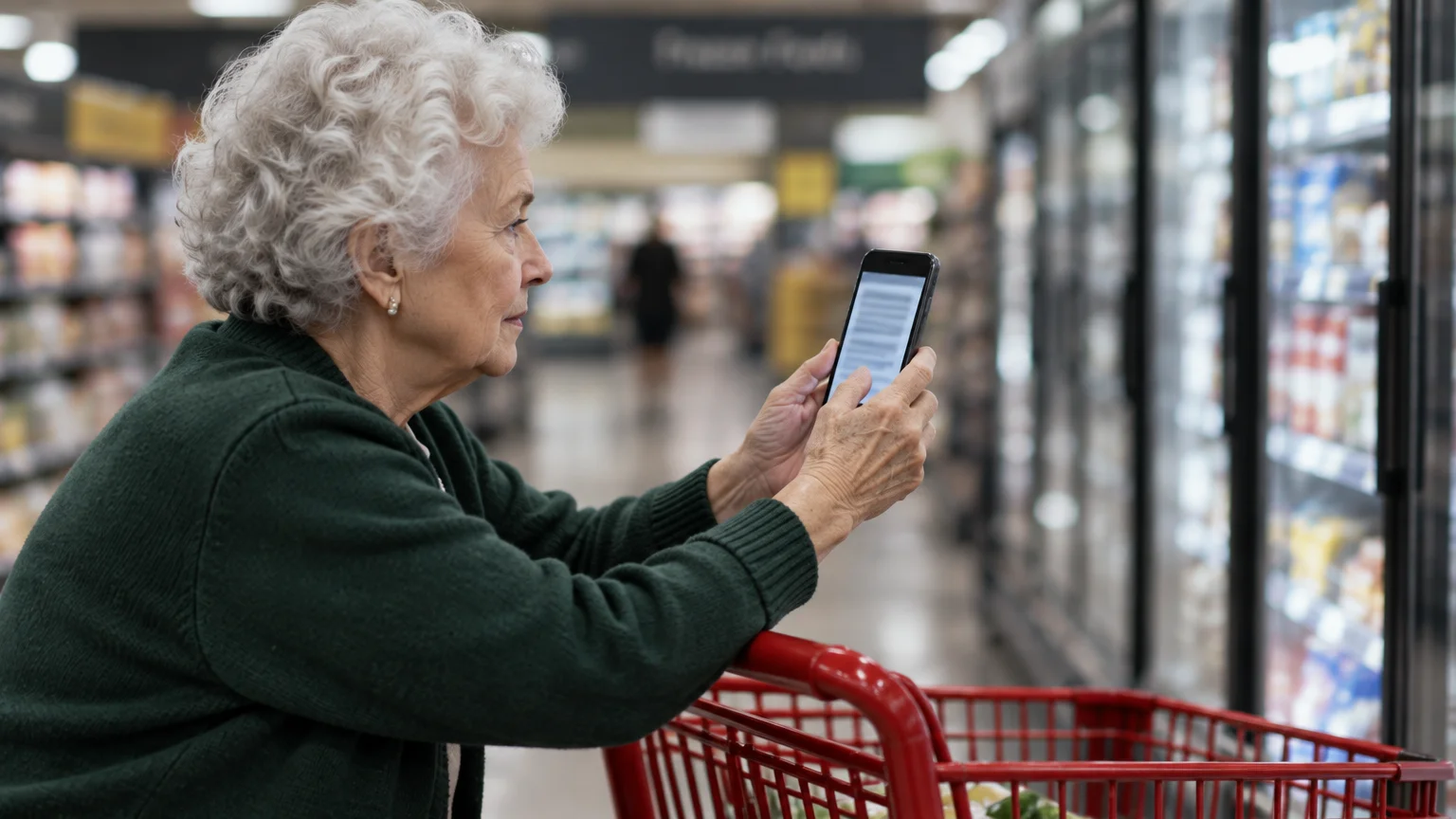
How to Freeze the Frame for Comfortable Reading
Live camera translation requires steady hands, which can feel tiring after examining several items. If your hand moves slightly, the translated words may flicker between English and the original foreign text.
If small print remains difficult to read even after freezing, you can also use your phone’s built-in magnifier tool to enlarge tiny label text.
Steadying your screen to align printed text uses similar camera skills to depositing a check with your phone.
You can pause the live image without taking a permanent photo that saves to your camera roll. Freezing the screen locks the translated view in place so you can read at your own pace.
- Hold your phone camera over the ingredient label until the translated English words appear.
- Tap the large circular Shutter button at the bottom center of the camera screen once.
- Lower your phone to a comfortable reading height without worrying about pointing at the box.
- Pinch two fingers outward on the glass screen to enlarge small text for easier inspection.
- Read down the frozen list carefully to check for wheat, rye, barley, or unlisted starch sources.
- Tap the X button or the back arrow in the upper corner of the screen to unfreeze the camera view.
Tapping the back arrow releases the frozen frame instantly without creating an image file. Your phone photo gallery stays neat, and your device memory remains clear of unwanted grocery pictures.
This freeze-frame method provides physical relief for shoppers with arthritis or hand fatigue. You hold the camera steady for just two seconds to capture the words, then read while resting your arms.
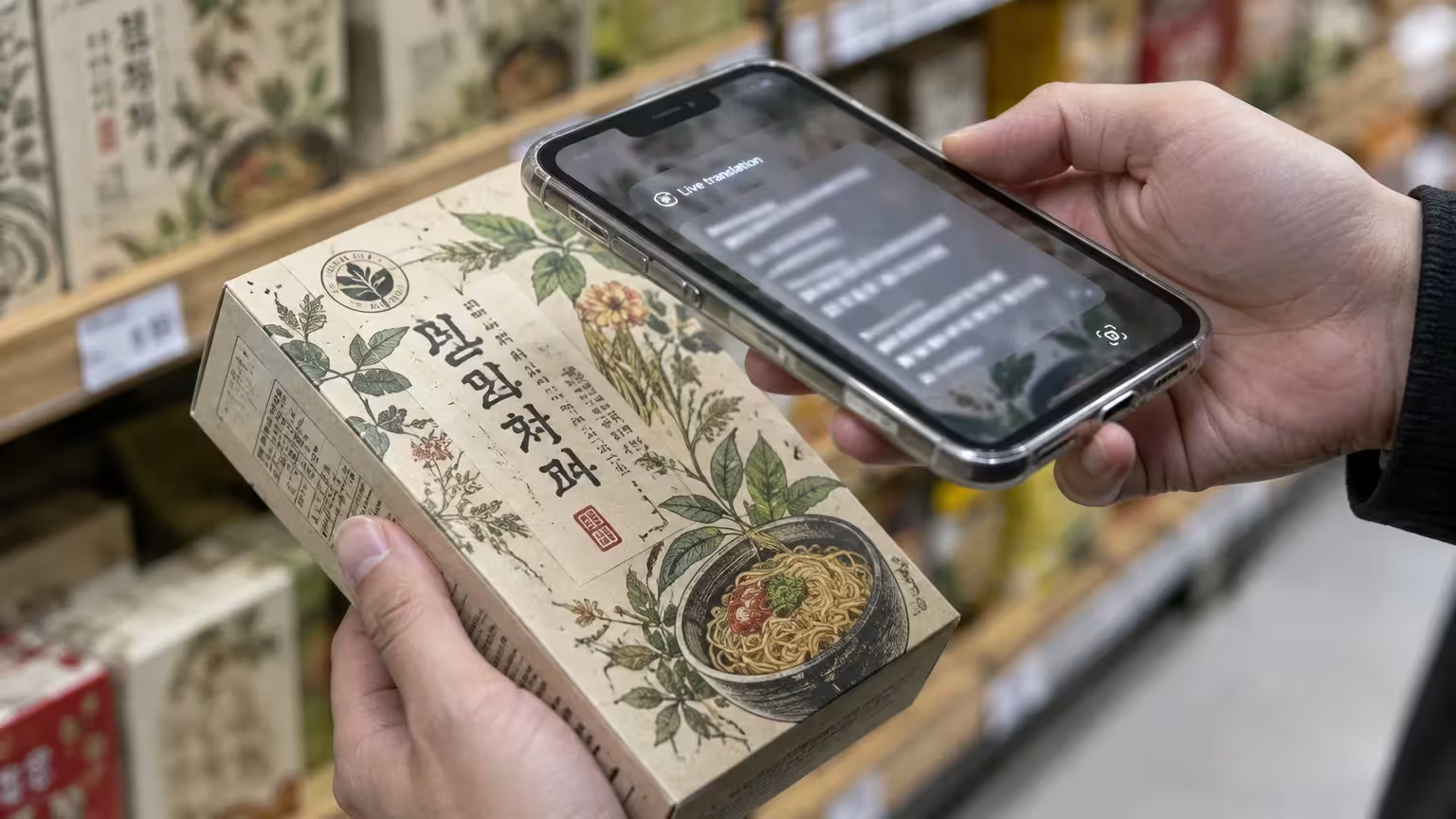
Worked Scenario: Checking an Imported Noodle Box
Eleanor, age 75, manages celiac disease and shops at an Asian specialty grocery market in Seattle. She wants to buy traditional Japanese soba noodles to cook for dinner.
Shoppers can also record a quick voice memo to remind themselves which imported brands were verified as gluten-free.
You can keep a running list of safe international brands by using your phone’s Notes app while browsing the aisles.
Pure buckwheat is naturally gluten-free, but commercial soba noodles frequently include wheat flour to improve noodle elasticity. Eleanor picks up a 250-gram box of soba noodles priced at $4.89 with no English label.
Eleanor rests her shopping basket on a shelf ledge to create a steady surface for the package. She opens Google Translate, verifies Japanese is selected, and taps the Camera button.
She points the camera at the vertical column of Japanese text on the rear packaging panel. Once the English text overlays the characters, Eleanor taps the round Shutter button to freeze the image.
Eleanor brings the phone closer to her reading glasses and pinches the screen to magnify the frozen text. The translated list shows buckwheat flour first, followed by wheat flour (komugiko) at 30 percent proportion.
Because the app identified wheat flour clearly, Eleanor recognizes that this package will trigger severe intestinal inflammation. She taps the X button to unfreeze her phone, places the box back on the shelf, and searches for 100 percent pure buckwheat noodles.
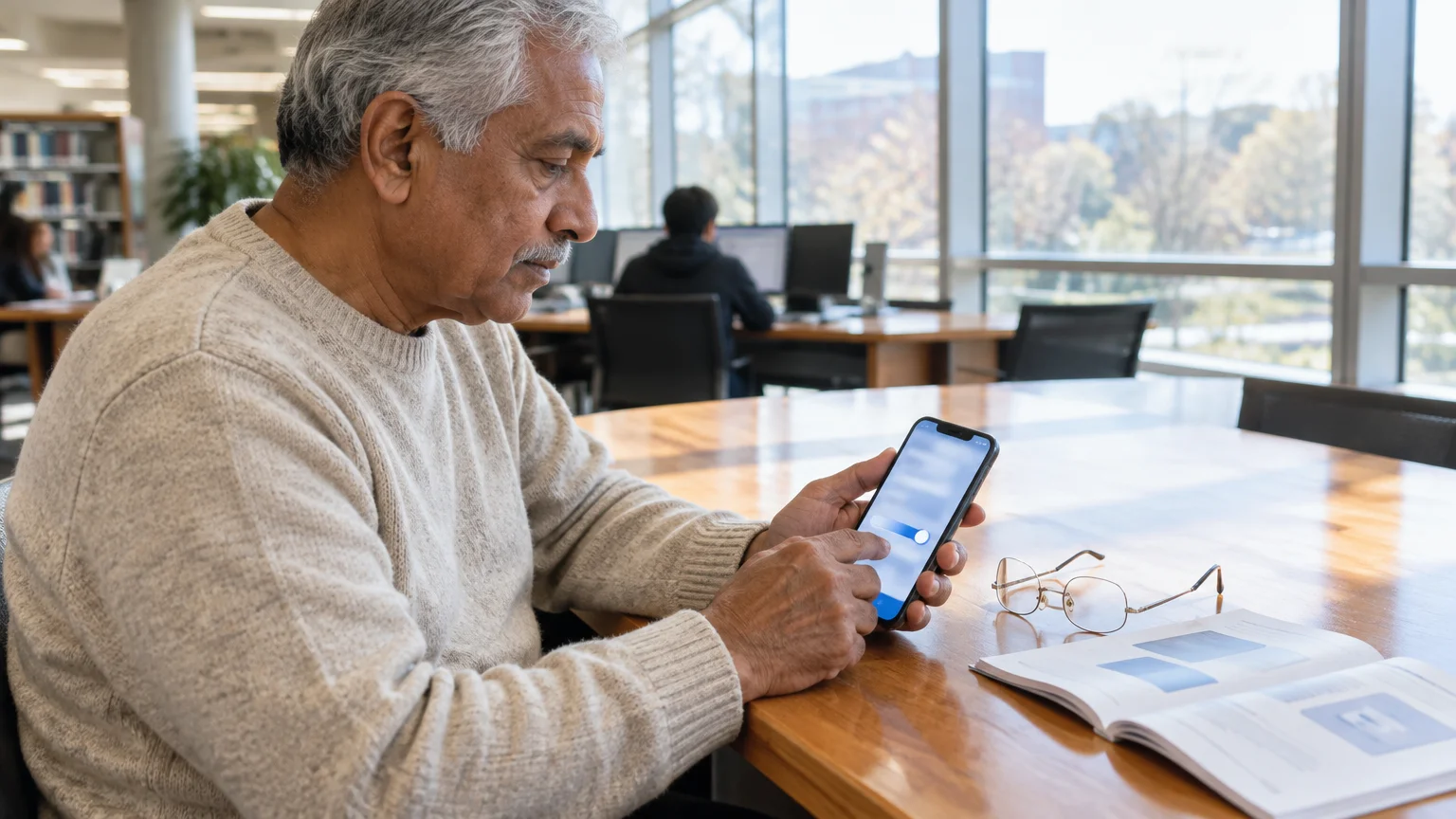
Accessibility Adjustments for Clearer Label Reading
Translating tiny food label typography on a handheld screen can strain your eyes. Adjusting built-in device settings makes camera text significantly larger and easier to examine.
You can also pair camera reading with text-to-speech accessibility tools on your phone to hear ingredient lists read aloud.
For English labels with print that is simply too small, learning how to use the magnifier on your phone turns your device into a powerful digital magnifying glass.
Apple devices provide customizable dynamic text options across all menus. Review Apple’s instructions on making text bigger on iPhone and iPad to set larger system font sizes.
Android smartphones offer similar visual enhancements in their system menus. Consult Google’s Android accessibility overview to activate screen magnification gestures and high-contrast text modes.
Adjusting touch sensitivity also helps prevent accidental taps when holding your device in grocery store aisles. You can adjust touch settings by modifying these system controls:
- Set your iPhone Touch Accommodations to ignore brief, repeated screen taps.
- Adjust your Android Touch and hold delay setting from short to medium (0.30 seconds) to prevent accidental menu triggers.
- Enable three-finger tap gestures on your phone to zoom in on any app screen instantly.
- Increase the base screen brightness slider to cut through dim aisle lighting.
Pairing these operating system tools with Google Translate’s freeze-frame feature reduces visual strain. You can inspect complex multi-ingredient formulations without leaning over low grocery shelves.
Packaging Pitfalls, Glare, and Safety Limitations
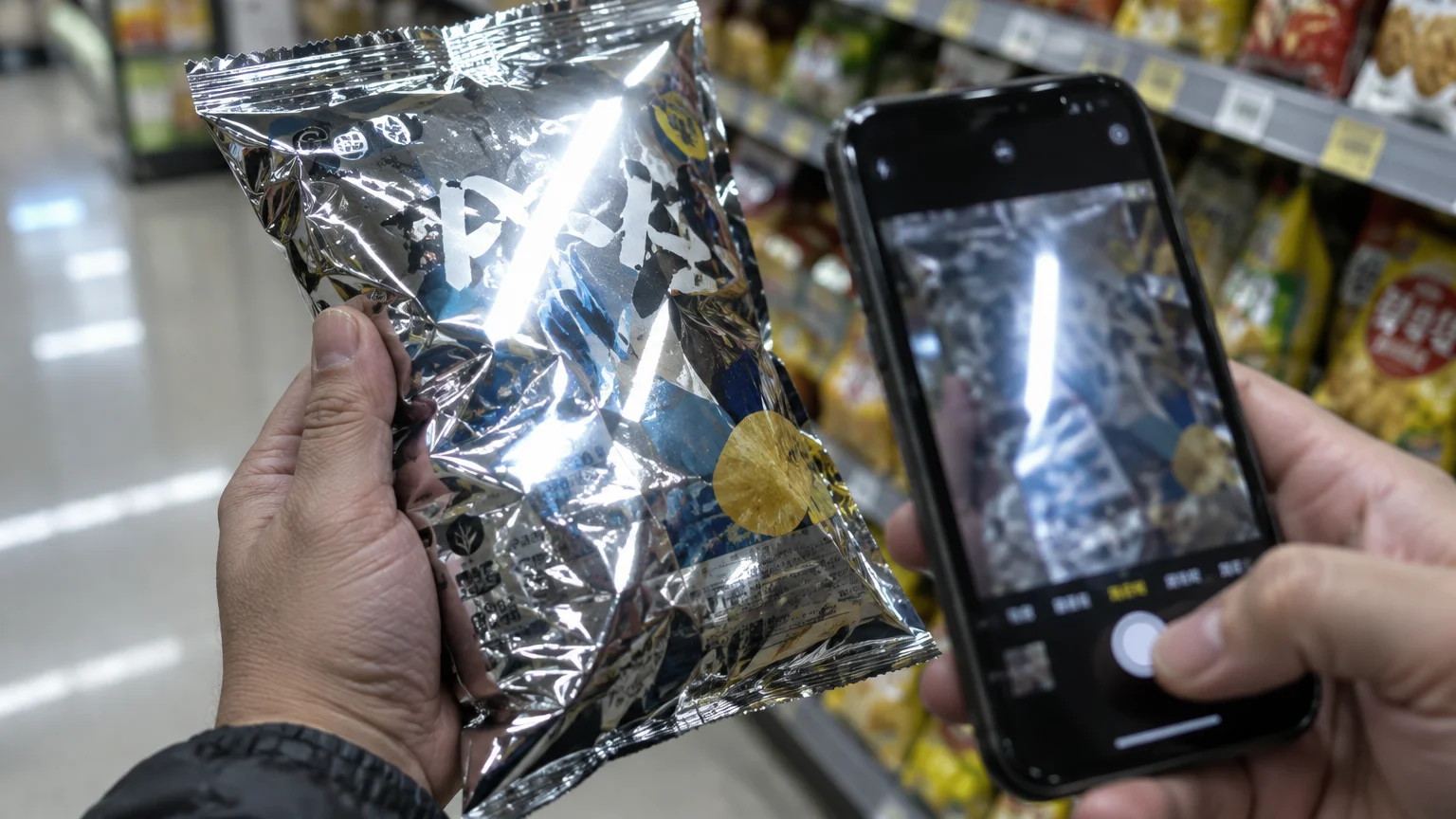
Camera translation provides valuable assistance, but it is not infallible. Crinkled plastic wrappers, shiny metallic foils, and curved glass jars can distort character shapes and produce incorrect words.
Android users who prefer hands-free searching can set up Google Assistant to quickly look up unfamiliar culinary additives.
Optical character recognition can misinterpret foreign characters when packaging curves around tin cans. Always smooth out pliable plastic bags with your hand before tapping the freeze-frame button.
According to Pew Research data on technology adoption among adults 65 and older, smartphone ownership among older Americans continues to rise steadily. Using these digital tools safely requires recognizing their technical boundaries.
Keep your apps updated so the software benefits from the latest character recognition models. Follow CISA’s guidance on updating software to ensure your mobile apps receive important stability updates.
| Translation Method | Saves File to Storage | Hand Stability Needed | Best Use Case |
|---|---|---|---|
| Live Instant Overlay | No | High continuous hold | Quickly checking large titles on flat cardboard boxes |
| Freeze-Frame Pause | No | Brief 2-second hold | Reading long ingredient lists for celiac and allergen safety |
| Photo Import Capture | Yes | Low single capture | Complex curved labels requiring offline review at home |
Never rely solely on an automated camera translation if an ingredient line appears blurry or translated into nonsense words. If you have severe celiac disease or an anaphylactic allergy, leave ambiguous products on the grocery shelf.
Frequently Asked Questions
Does Google Translate charge any subscription fees for camera mode?
No, the official Google Translate application is completely free with no subscriptions, in-app purchases, or hidden fees on both iPhone and Android as of 2026.
Why do translated words flicker or disappear on my screen?
Words flicker when slight hand movements shift the camera angle or when bright store lights reflect off shiny packaging. Tapping the round shutter button freezes the view and stops the flickering instantly.
Can I use the camera translation tool without an active internet connection?
Yes, you can translate labels offline by downloading the appropriate 40 MB to 50 MB language pack while connected to your home Wi-Fi before shopping.
Does freezing the camera view save pictures to my phone gallery?
No, pressing the shutter button in live camera mode simply pauses the screen display. Tapping the back button releases the image without saving any files to your phone.
Note: Menus and button names change with software updates. These steps were written for current versions as of 2026; if a screen looks different on your device, the maker’s support page linked above has the latest wording.
ClearTechGuide is independent and is not affiliated with Apple, Google, Microsoft, Amazon or any other company mentioned.
