
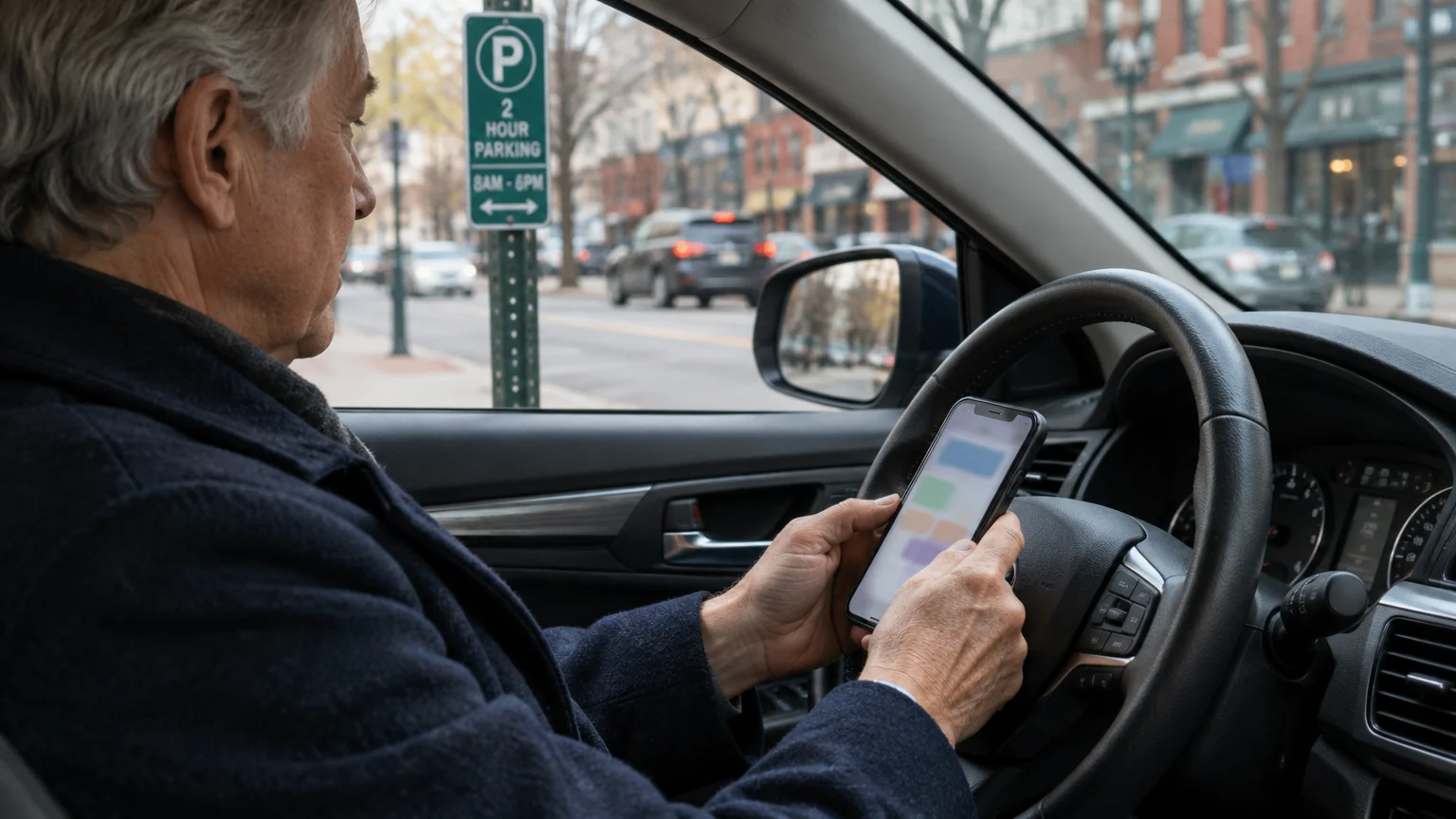
You can pay for street parking directly from your smartphone without searching for quarters or standing in the cold at a kiosk. This guide shows you how to use ParkMobile to start a parking session quickly and safely.
Many cities now remove coin meters and install numbered street signs instead. Unlike standard guides, we show you how to decline paid reminder fees and bypass fraudulent meter stickers that steal credit card data.
With your license plate and street zone number ready, you can complete the entire transaction from your car seat in under two minutes.
In this guide9 sections
- Downtown Parking Changes: From Coin Meters to Zone Signs
- Avoiding Parking Meter QR Code Scams
- Setting Up ParkMobile Before You Drive
- Step-by-Step: Paying for Your Parking Session
- Skipping Optional Notification Fees and Add-ons
- Worked Scenario: A Medical Center Appointment
- Comparing Major Mobile Parking Apps
- Extending Sessions and Municipal Time Limits
- Frequently Asked Questions
Downtown Parking Changes: From Coin Meters to Zone Signs
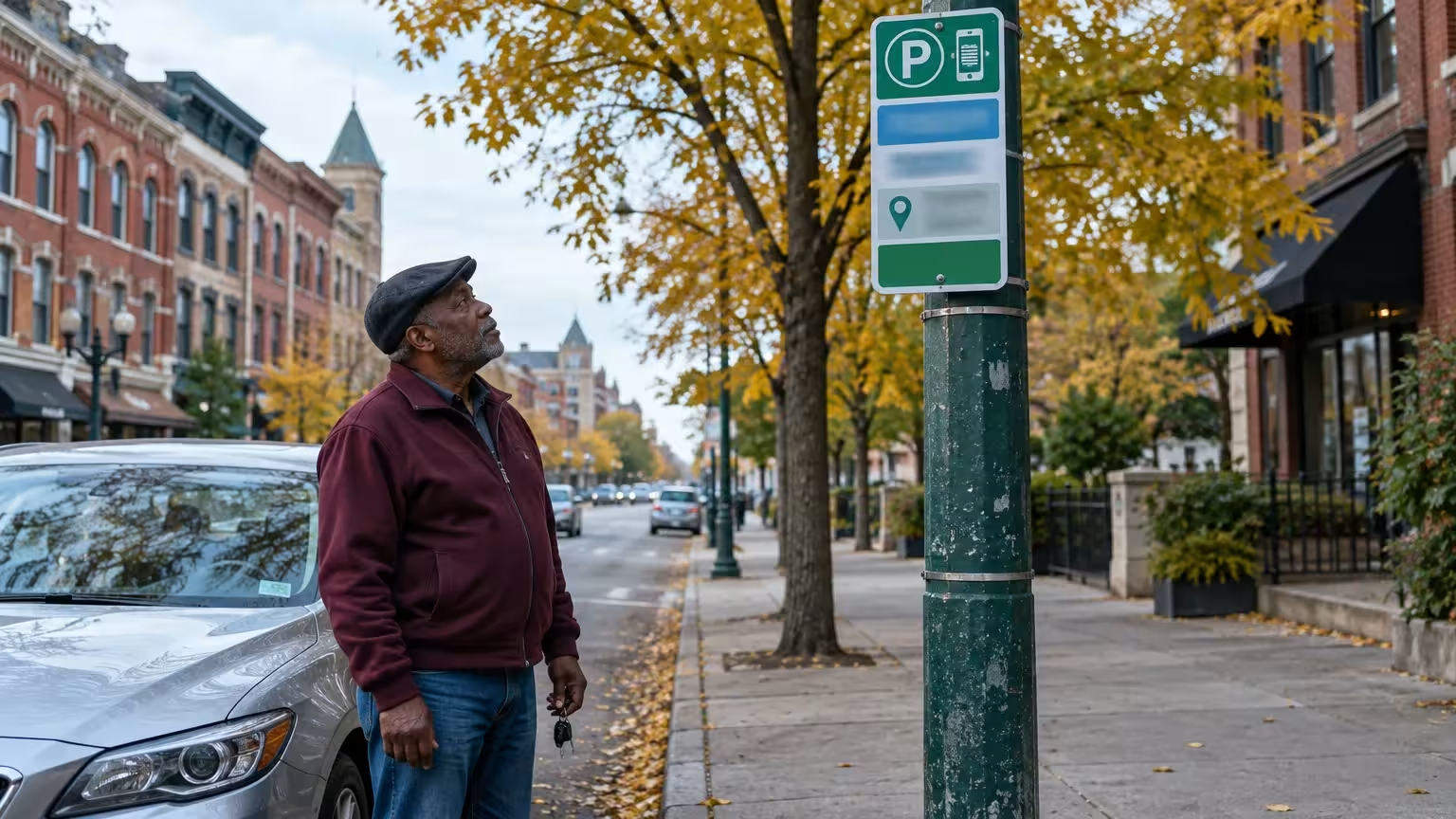
Downtown districts across the United States have eliminated traditional mechanical coin meters. Municipalities replace these physical meters with tall green signs that display zone numbers.
If you struggle to remember your vehicle details on the spot, keep your license plate written in your phone’s Notes app for quick reference.
If you are planning your route into town, learning how to use Google Maps on your phone can help you locate public parking zones ahead of time.
This method uses pay-by-plate enforcement. Pay-by-plate is a municipal parking system where enforcement officers check your car by reading its license plate rather than inspecting a paper receipt on your dashboard.
Enforcement officers drive past parked vehicles using a vehicle-mounted camera called a license plate reader. A license plate reader is an automated camera system that checks parked cars against paid digital records.
Because the enforcement system is entirely electronic, you do not need to walk back to your vehicle to place a paper stub on your dashboard. Your payment links directly to your license plate in the city database.
To start a parking session at any street space, you must have three pieces of information ready:
- The municipal zone number posted on the green street sign near your vehicle.
- Your vehicle license plate number and the state of registration.
- A valid credit card, debit card, or mobile wallet account.
Once you enter these details into your parking application, your vehicle is registered as legally parked for your chosen duration.
Avoiding Parking Meter QR Code Scams
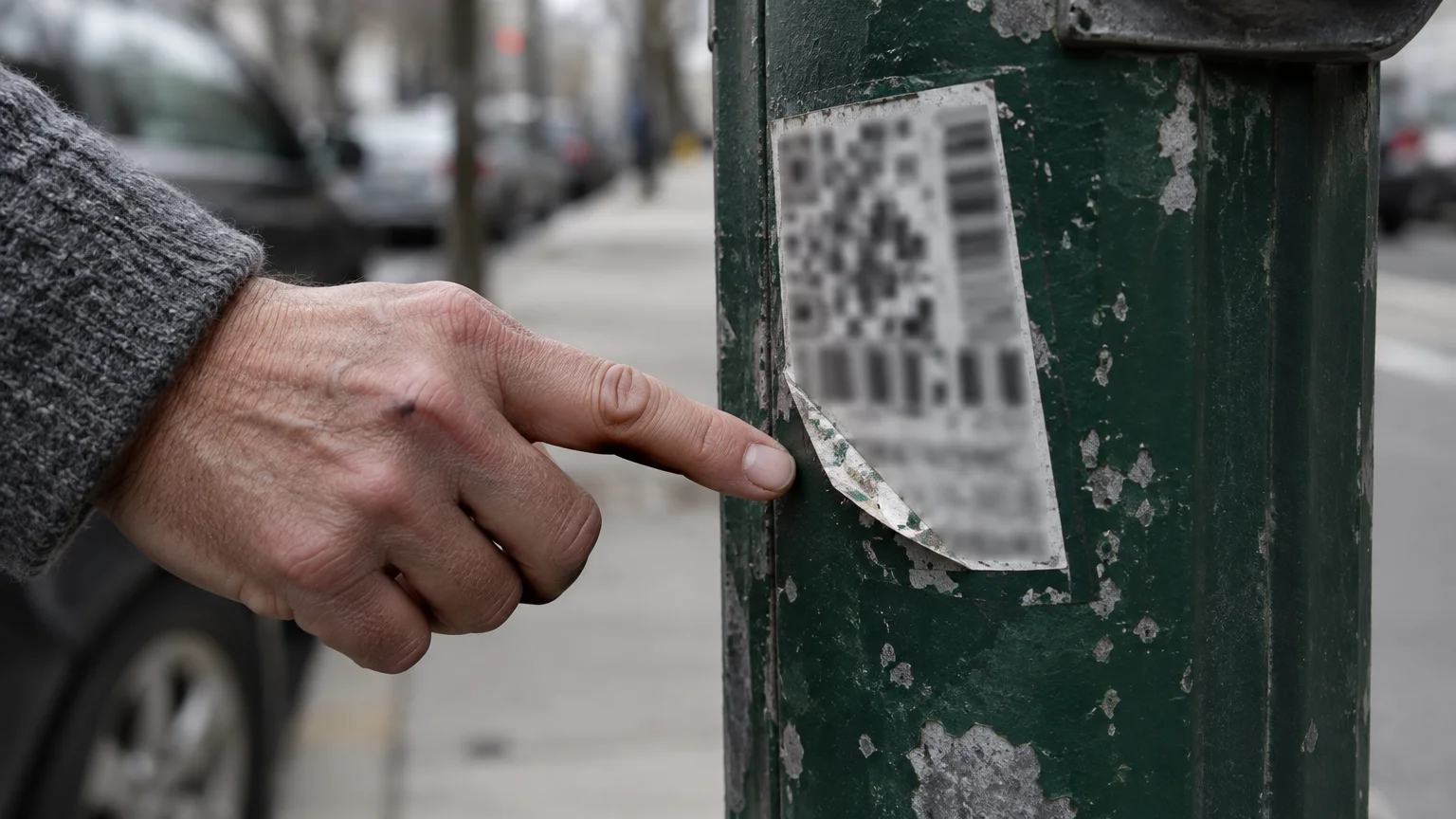
Before you touch your phone screen on the street, inspect the sign post for fraudulent stickers. Criminals target drivers by placing deceptive adhesive stickers onto parking kiosks and zone poles.
Practicing good digital security habits, much like monitoring your accounts through mobile banking, ensures unauthorized charges are detected right away.
These fake stickers display quick-response barcodes. A QR code is a two-dimensional barcode readable by smartphones that opens an internet web address.
The stickers often say “Scan Here to Pay for Parking” or “Quick Meter Payment.” Scanning these codes opens a counterfeit website designed to capture your credit card numbers and banking credentials.
Federal agencies have issued warnings regarding this tactic. Review the FTC’s guidance on recognizing and avoiding phishing scams to understand how modern payment traps operate.
You can protect your financial information by following three strict safety practices whenever you park on a city street:
- Never scan a square QR code sticker attached to a parking meter, pay box, or sign post.
- Download your parking application only from the official Apple App Store or Google Play Store.
- Type the zone number from the sign directly into your installed application manually.
Official parking programs do not require you to scan random stickers on metal posts. Entering the numbers manually inside your trusted app guarantees your payment reaches the city government safely.
Setting Up ParkMobile Before You Drive
Set up your parking account at your kitchen table before driving into busy traffic. Setting up your profile at home gives you time to enter your vehicle registration and payment details calmly.
To keep unexpected downloads from slowing your connection while parked away from home, you can prevent apps from updating on cellular data.
Setting everything up while connected to your home Wi-Fi network ensures you don’t use up cellular minutes or deal with weak roadside signals.
ParkMobile is the primary mobile parking platform in North America as of 2026, serving over 50 million users across 500 cities. Because so many medical centers and municipal districts partner with ParkMobile, it serves as the standard app for street parking.
If small text on your screen causes eyestrain, configure your phone display settings before opening the parking app. You can increase screen clarity using built-in system tools.
If you use an iPhone, review Apple’s guide to making text bigger on iPhone to enlarge system fonts across your device. Larger text makes reading zone numbers much easier.
If you use an Android phone, consult Google’s Android accessibility overview to adjust font scaling and display contrast. High-contrast settings help you see buttons clearly in bright outdoor sunlight.
Follow these setup steps at home to prepare your application for street parking:
- Open the App Store on your iPhone or the Google Play Store on your Android phone.
- Type ParkMobile into the search field and tap the search button on your keyboard.
- Locate the ParkMobile app with its green icon and tap Get or Install.
- Open the ParkMobile app from your home screen once installation finishes.
- Tap Sign Up and enter your email address and a secure account password.
- Tap Vehicles in the navigation menu, then tap Add Vehicle.
- Type your vehicle license plate number, select your state from the dropdown menu, and enter a friendly nickname such as “My Sedan.”
- Tap Save Vehicle to store your car information.
- Tap Payment Methods, then tap Add Payment Method.
- Enter your credit card number, expiration date, and security code, or select Apple Pay or Google Pay.
Before storing credit card details, review the FTC’s advice on safe online shopping to keep your mobile payment methods secure.
Note that mobile parking apps charge a third-party convenience fee of $0.15 to $0.50 per session as of 2026. This fee is standard across the mobile parking industry and covers digital processing.
Step-by-Step: Paying for Your Parking Session
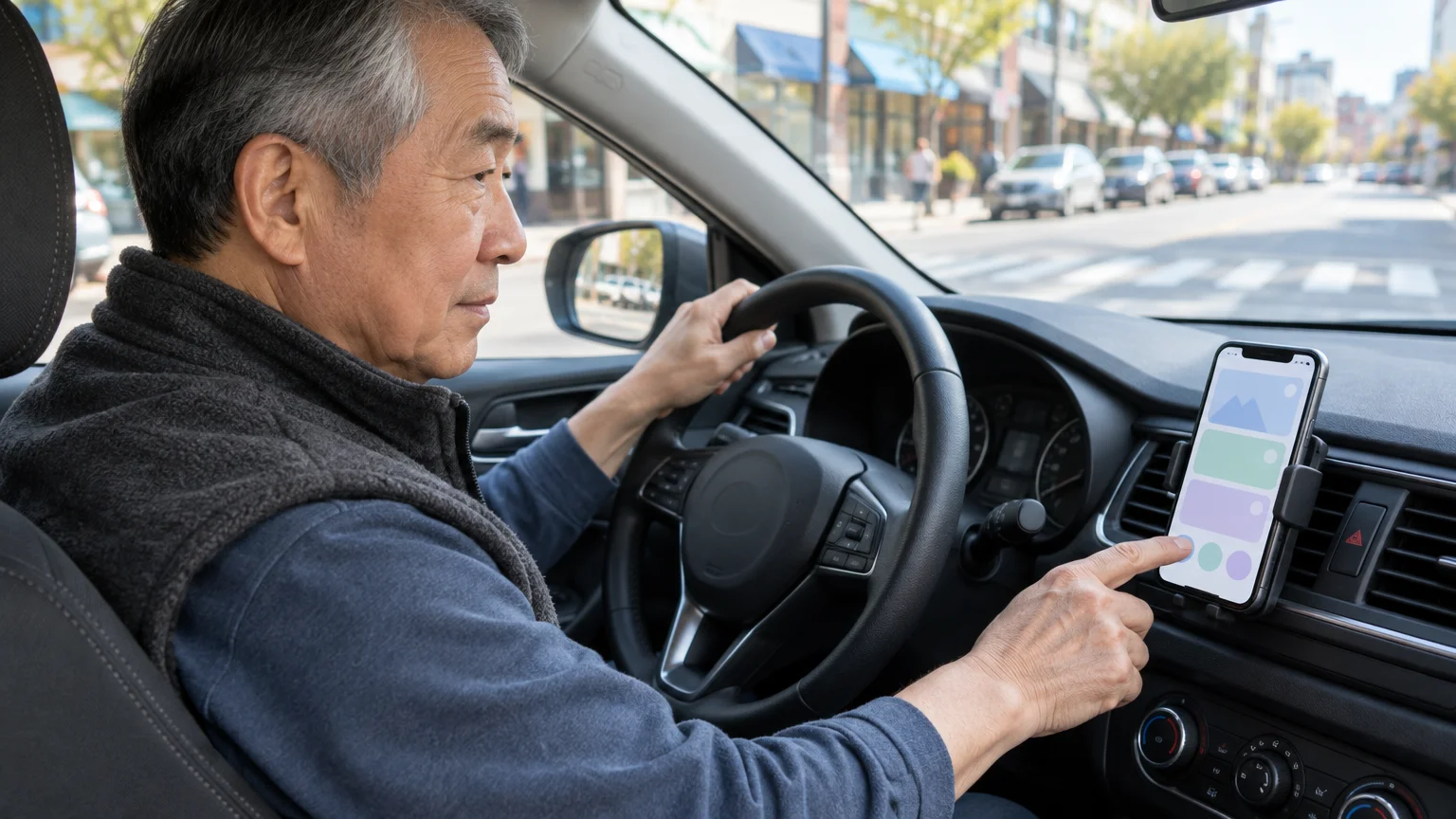
When you arrive at the downtown medical center, pull your vehicle safely into an open parking space along the curb. Put your transmission in park and turn off your engine before reaching for your phone.
Just as parking tools save you stress in busy lots, learning how to use GasBuddy can help you save money on fuel during your trips.
The app may ask for access to your location services when opening the map, which you can adjust later by learning how to manage app permissions on your phone.
Look out your window to spot the green parking sign on the sidewalk. The sign displays the official zone number for that block.
A zone number is a four-to-seven-digit municipal code assigned to a specific block or parking lot. The parking authority uses this number to verify the hourly rates and local time restrictions for your space.
Follow these exact steps inside ParkMobile to start your parking session:
- Open the ParkMobile app on your smartphone while seated in your car.
- Tap the white search field at the top of the map screen labeled Enter Zone#.
- Type the four-to-seven-digit zone number printed on the green street sign using the on-screen number pad.
- Tap the green bar that appears below the search box showing your zone number and street name.
- Review the vehicle displayed on the Select Vehicle screen to ensure your correct license plate is highlighted.
- Tap Select Duration to open the time selection screen.
- Slide your finger along the time wheel to set the number of hours and minutes you need for your appointment.
- Tap the green Continue button at the bottom of the screen.
- Check the payment summary screen to see the total parking charge and processing fee.
- Uncheck the optional notification fee box to avoid paying extra charges for text reminders.
- Tap the green button labeled Start Parking to submit your payment.
- Confirm that your screen changes to show a circular green countdown clock with your remaining parking time.
The appearance of the active countdown clock confirms that your payment was recorded by the municipal parking server. You can now leave your car and walk to your appointment.
Skipping Optional Notification Fees and Add-ons
Parking applications generate additional revenue by adding optional notification services to your checkout screen. ParkMobile frequently displays an optional check box offering SMS text message reminders for an additional $0.25 to $0.50 per transaction.
Paying for these text message reminders is entirely unnecessary. The ParkMobile app already sends free push notifications directly to your phone screen when your parking session has fifteen minutes remaining.
A push notification is a free automatic message sent by an installed application to your phone lock screen. Because these alerts cost nothing, paying extra for SMS alerts wastes money on every parking visit.
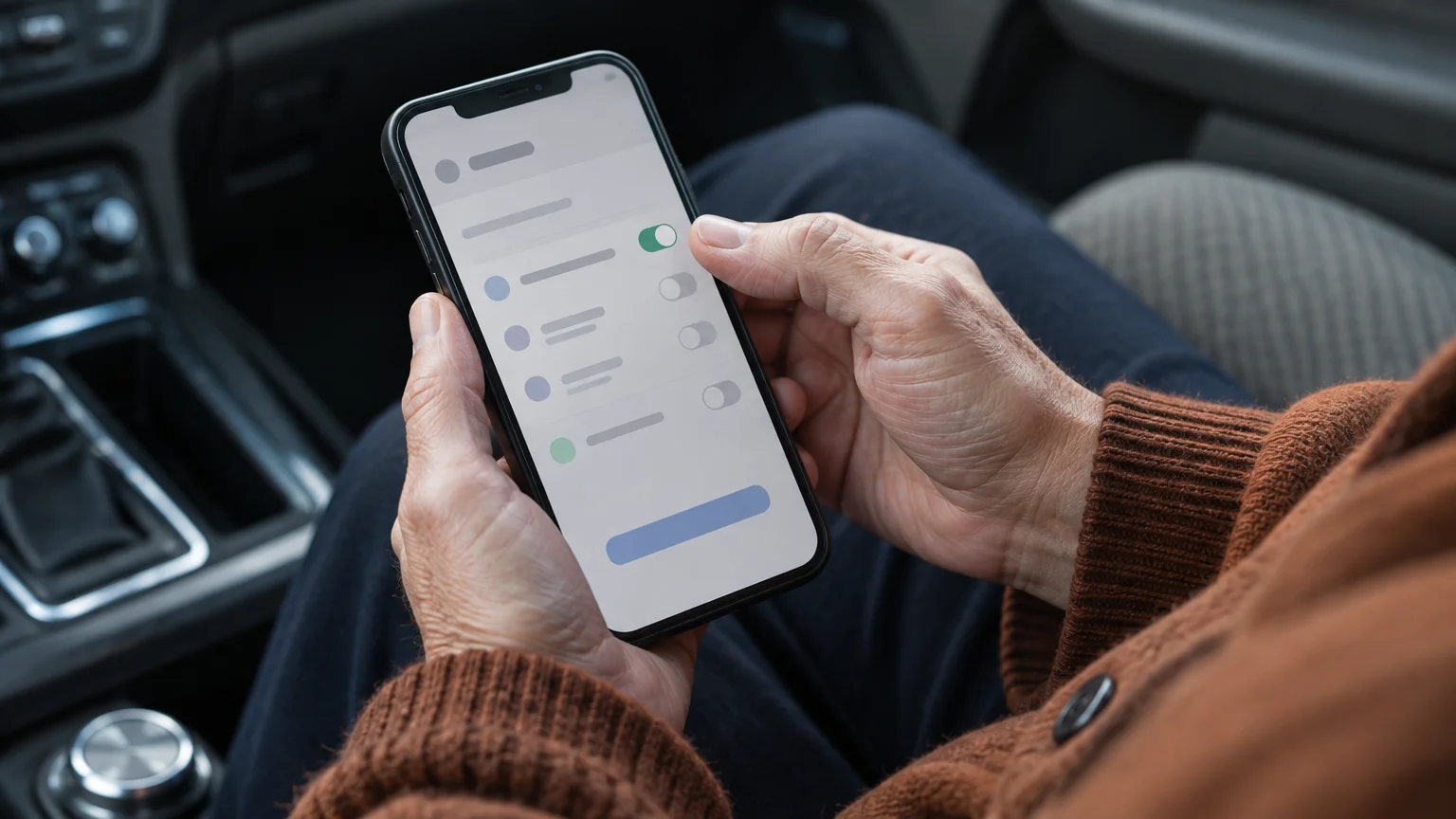
You can turn off paid SMS reminders permanently inside your application settings so you never see the extra fee during checkout:
- Open the ParkMobile app on your phone.
- Tap the More tab or the profile icon in the bottom-right corner of the screen.
- Tap Settings from the list of account options.
- Tap Notifications to open your alert preferences.
- Locate the toggle switch labeled SMS Reminders and tap it to the Off position.
- Confirm that the toggle switch labeled Push Notifications remains in the On position.
Turning off SMS reminders keeps your billing clean and saves you money every time you park. Check CISA’s Secure Our World program for simple habits that keep your mobile accounts free of unwanted recurring charges.

Worked Scenario: A Medical Center Appointment
To see how this process works in practice, examine this scenario involving Arthur, a 72-year-old driver visiting a downtown medical center for an appointment with a cardiologist.
Arthur drives into the medical center district and pulls his 2018 sedan into an open parallel parking space on Tenth Street. The physical coin meters have been removed, and a green metal sign on the sidewalk reads “Zone 45210 — Pay via ParkMobile — 2 Hour Maximum.”
Arthur stays seated inside his parked car and opens ParkMobile on his phone. He types 45210 into the search field at the top of his screen.
The screen confirms that Tenth Street charges an hourly parking rate of $2.50. Because Arthur expects his medical exam and lab work to take roughly ninety minutes, he sets his parking duration to two hours (120 minutes).
The checkout screen presents Arthur with an itemized breakdown of his transaction:
- City Parking Fee (2 hours at $2.50 per hour): $5.00
- ParkMobile Transaction Convenience Fee (as of 2026): $0.35
- Optional SMS Text Alert Fee: $0.45
Arthur unchecks the box for the optional SMS text alert, reducing his notification fee to $0.00. His final charge shows $5.35 instead of $5.80.
Arthur taps Start Parking, and his screen immediately displays a green countdown timer showing 1 hour and 59 minutes remaining. He exits his vehicle, locks his doors, and walks into the medical center without placing anything on his dashboard.
Ninety minutes later, the cardiologist is running twenty minutes behind schedule. Arthur sits in the waiting room, unlocks his phone, and checks the ParkMobile app, which shows fifteen minutes remaining on his meter.
Arthur taps Extend Time on his screen and selects an additional 30 minutes. The app charges $1.25 for the extra half hour plus an extension convenience fee of $0.35.
Arthur pays $1.60 directly from his waiting room chair. His total stay equals two hours and thirty minutes, which falls within the local three-hour maximum allowance for afternoon clinic hours, and he avoids a $45.00 city parking citation.

Comparing Major Mobile Parking Apps
While ParkMobile is the most common platform in the United States, different cities contract with different private parking app providers. If you drive to a medical center in an adjacent city, you might see signs for PayByPhone or Passport Parking.
If downtown street parking is fully occupied or hard to navigate, you can skip driving altogether by requesting an Uber or Lyft ride directly to your appointment.
Along with mobile parking apps, learning how to use GasBuddy to locate fuel stations can help make city driving and running errands much cheaper.
The core process remains identical across all platforms: you enter a posted zone number, confirm your license plate, and choose your duration. The table below outlines how these three major applications compare as of 2026.
| Application Name | Typical Convenience Fee (as of 2026) | Active North American Locations | Supported Payment Methods | Free Mobile Extension Alerts |
|---|---|---|---|---|
| ParkMobile | $0.15 to $0.50 per session | Over 500 cities and universities | Visa, Mastercard, Amex, Discover, Apple Pay, Google Pay, PayPal | Yes (Push notifications) |
| PayByPhone | $0.20 to $0.45 per session | Over 300 municipal districts | Visa, Mastercard, Apple Pay, Google Pay | Yes (Push notifications) |
| Passport Parking | $0.25 to $0.50 per session | Over 800 municipal operations | Credit/Debit cards, Apple Pay, Google Pay, Digital Wallet balance | Yes (Push notifications) |
You cannot choose which application processes payment on a given street block. The physical sign on the sidewalk determines which system the local parking enforcement agency uses.
If you see a Passport Parking or PayByPhone sign instead of ParkMobile, download that specific app from your phone app store. Enter your zone number and vehicle plate using the same steps outlined in this guide.

Extending Sessions and Municipal Time Limits
Mobile parking apps allow you to add time to your meter from anywhere, but they cannot override municipal street regulations. If a street sign states “2 Hour Maximum Parking,” the city parking ordinance legally caps your stay at two hours.
Before walking away, consider recording a quick voice memo on your phone noting the cross street where your car is parked.
To remember where you parked along an unfamiliar street, consider using your phone’s Notes app to jot down the nearest cross streets and your meter expiration time.
If you attempt to purchase a third hour in a two-hour zone, the app displays an error message stating “Maximum duration reached for this zone.” The software stops you from buying more time because enforcement officers will ticket vehicles that exceed posted street limits.
If your appointment runs significantly longer than the posted street limit, you must physically move your car to a different block or relocate it to a multi-level parking garage.
Occasional technical issues can also occur while you are on the street. Follow these practical troubleshooting steps if you run into common mobile parking problems:
- The app will not locate your zone: Look closely at the street sign and re-enter the zone number manually instead of letting the app guess your location using GPS.
- Your mobile internet connection drops: Step out of concrete parking garages onto an open sidewalk so your phone can reach your mobile cellular network.
- You drive a rental car or loaner vehicle: Add the temporary license plate to your app under Add Vehicle before starting your session, and make sure that specific plate is selected.
- Your payment card is declined: Keep a backup card or a mobile wallet such as Apple Pay or Google Pay active in your account so you can finish paying before leaving your vehicle.
Taking a quick photograph of the street sign with your phone camera provides a helpful reference if you ever need to verify your zone number or contest an incorrect parking citation.
Frequently Asked Questions
Do I need to put a paper ticket on my dashboard after paying with the app?
No, you do not need to display a receipt or paper ticket on your dashboard. Enforcement officers scan your license plate with an automated camera that checks your payment against the municipal digital database.
What happens if I enter the wrong license plate number into the app?
If you mistype your license plate number, the enforcement camera will not find a matching active session for your car, and you will receive a citation. Double-check every letter and number on your vehicle profile screen before confirming payment.
Can I add more parking time from my phone if my appointment runs late?
Yes, you can extend your time directly inside the app without walking back to your car, provided you have not hit the posted municipal time limit. Open the active session screen, tap Extend Time, choose your additional minutes, and confirm payment.
Why does the parking app charge more than the hourly rate posted on the street?
Mobile parking applications charge a third-party convenience fee between $0.15 and $0.50 per session as of 2026. This fee pays for the digital payment infrastructure and is added to the base municipal parking fee set by the city.
Note: Menus and button names change with software updates. These steps were written for current versions as of 2026; if a screen looks different on your device, the maker’s support page linked above has the latest wording.
ClearTechGuide is independent and is not affiliated with Apple, Google, Microsoft, Amazon or any other company mentioned.
