

You can confirm whether you swallowed your noon pill directly from your iPhone lock screen without guessing. Apple Health records exact timestamps for every dose and keeps your medical history private.
Most commercial medication apps sell your prescription patterns to third-party data brokers or require paid subscriptions. The built-in Apple Health tool runs on your device for zero dollars, ensuring complete data privacy.
This guide explains how to track daily prescriptions phone logs so you never double-dose or miss medication. We walk through schedules, dose logging, and safety alerts step by step.
In this guide8 sections
- Why Built-In Tracking Protects Your Medical Privacy
- Checking Device Compatibility and Adjusting Text Size
- How to Enter Prescriptions into Apple Health
- How to Log Pills on iPhone and Verify Midday Doses
- Setting Up Follow-Up Reminders and Critical Alerts
- Scenario: Tracking a Midday Dose in Eleanor’s Daily Routine
- Exporting Your Adherence Log for Doctor Visits
- Frequently Asked Questions
Why Built-In Tracking Protects Your Medical Privacy
According to the Centers for Disease Control and Prevention (CDC National Health Statistics Report, 2024), 88.6% of U.S. adults aged 65 and older take prescription medication. Furthermore, Kaiser Family Foundation survey data shows that 54% take four or more daily prescriptions.
If you prefer a simpler visual schedule instead of a dedicated health tool, you can also explore using a calendar app to manage medication reminders.
Many people download standalone reminder apps from the App Store to manage these complex regimens. Unfortunately, commercial health applications frequently monitor your diagnostic tags, dosage intervals, and device location to build profiles for targeted pharmaceutical advertising.
The native Apple Health tool handles medication logs entirely on your hardware. Apple cannot view your medication list, and the tool does not display third-party advertisements or require paid monthly memberships.
You can learn more about securing your personal mobile data by reading the FTC’s guide to protecting your phone from hackers. Using built-in operating system tools reduces the amount of personal data exposed to commercial data brokers.
| Feature or Attribute | Apple Health (Native) | Medisafe Pill Tracker | CareZone |
|---|---|---|---|
| Cost as of 2026 | $0 (Free, built-in) | $4.99/mo or $39.99/yr for Premium | Free with commercial services |
| Third-Party Ad Trackers | Zero embedded trackers | Present in free tier | Marketing tracking active |
| Lock Screen Log Speed | 1 tap from notification banner | Requires app launch for full log | Requires app launch |
| Follow-Up Reminders | Built-in (30-minute re-alert) | Requires notification permissions | Standard notification only |
| Data Storage Security | Hardware-encrypted on device | Stored on company cloud servers | Stored on commercial cloud servers |
Using the built-in system gives you faster logging from the lock screen. It also prevents third-party companies from monetizing your health records.
Checking Device Compatibility and Adjusting Text Size
The native medication feature requires an iPhone 8, iPhone SE (2nd generation), or later running at least iOS 16. If your phone runs iOS 17 or iOS 18, you also gain access to automatic follow-up reminders.
If increasing the font still leaves small text difficult to see, understanding text-to-speech on your phone can help read on-screen instructions aloud.
Keeping your iPhone updated ensures you have the latest safety alerts and logging stability. Review CISA’s software update guidelines to understand why maintaining current operating software protects your personal devices.
Before adding medications, we recommend increasing your screen text size if reading small pharmacy labels causes eye fatigue. You can configure larger type across your phone in just a few taps.
- Open the Settings app on your iPhone home screen.
- Scroll down and tap Accessibility.
- Tap Display & Text Size.
- Tap Larger Text.
- Tap the toggle switch next to Larger Accessibility Sizes to turn it on (green).
- Drag the slider at the bottom of the screen to the right until the sample text feels comfortable to read.
For more detailed display options, read Apple’s instructions to make text bigger on iPhone. Adjusting this setting ensures you can verify drug dosages and schedule times without squinting.
How to Enter Prescriptions into Apple Health
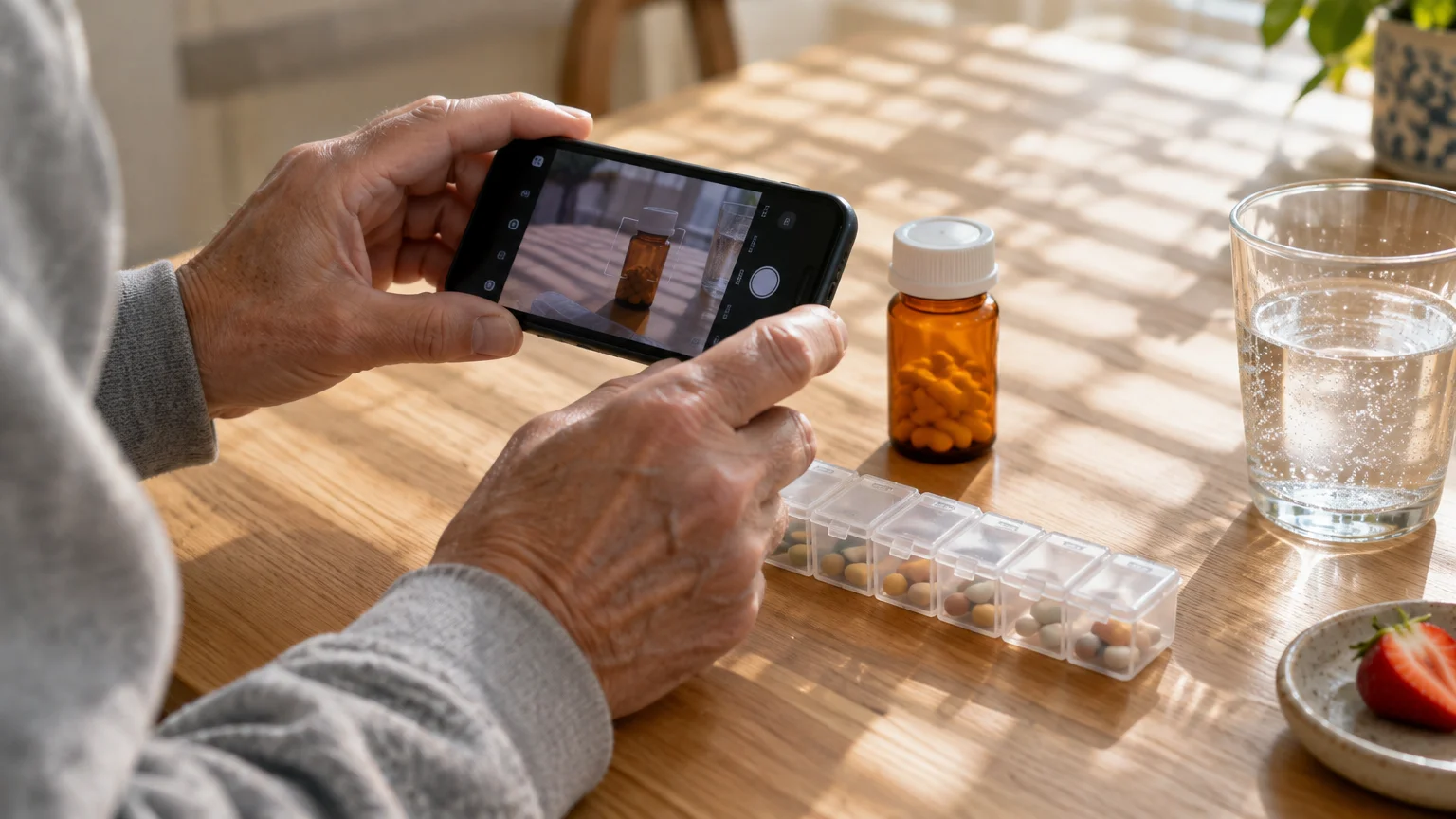
Apple Health lets you add medications by scanning the prescription bottle label or by typing the name manually. In the United States, scanning uses your camera to identify the drug name, strength, and packaging type.
To keep personal questions ready for your pharmacist, you can use the Notes app on your phone to draft a quick reference list.
If tiny print on the bottle is still difficult to make out, you can also use your phone’s built-in magnifier tool to enlarge the label.
The app also checks for potential drug interactions automatically. It flags interactions between multiple prescription drugs, as well as interactions between your medications and alcohol.
- Open the Health app (the white icon with a pink heart).
- Tap the Browse tab in the bottom right corner of the screen.
- Tap Medications from the list of health categories.
- Tap the blue Add Medication button.
- Position your iPhone camera over the prescription label, or tap Type in manually if the label is creased.
- Type or confirm the exact medication name, then tap Next.
- Select the medication form, such as Tablet, Capsule, or Liquid, then tap Next.
- Enter the strength (such as 500 mg), then tap Next.
- Choose your frequency by tapping At regular intervals or On specific days of the week.
- Tap Add a time to set your first dose time, adjust the hour and minute wheels, and tap Next.
- Choose a pill shape and color combination that matches your physical pill, then tap Done.
The visual shape and color settings are practical safeguards. Selecting a round, white icon for a midday tablet helps you confirm you have the right pill in hand before swallowing.
Review the on-screen drug interaction warnings immediately after finishing entry. If the system flags a severe interaction, call your prescribing physician or pharmacist to discuss your schedule.
How to Log Pills on iPhone and Verify Midday Doses
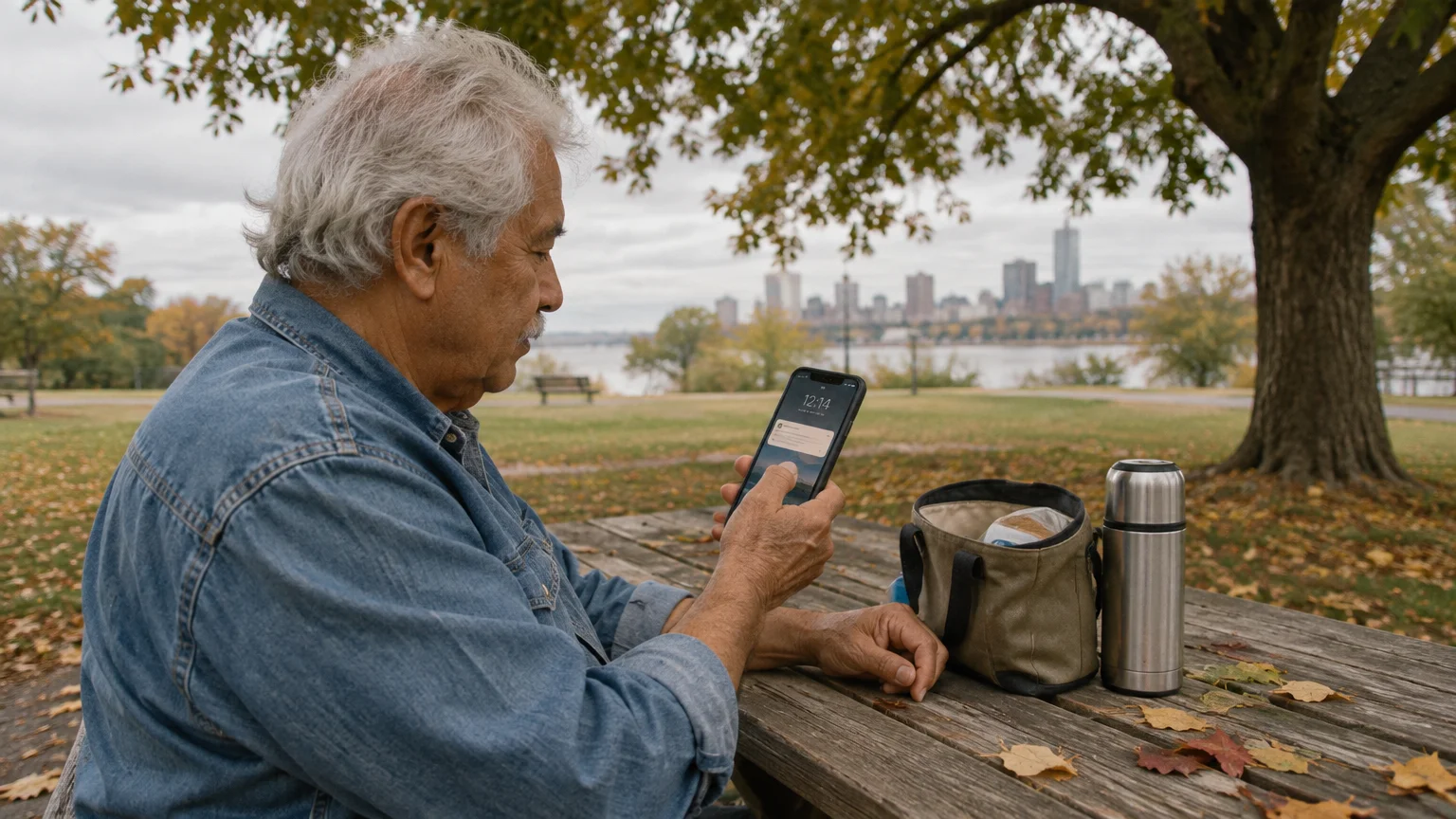
When scheduled dose times arrive, your iPhone displays a notification banner on your screen. You do not need to open the full Health app just to log pills on iPhone screens.
If your hands are busy when an alert sounds, learning how to use Siri for everyday tasks lets you check and manage reminders by voice.
If you wear a smartwatch, you can also log daily doses directly from your Apple Watch when alerts arrive.
You can record the dose directly from your lock screen using touch gestures. This saves time and records the exact minute you took your medicine.
- Press the side button on your iPhone to wake the display.
- Find the medication reminder banner on your lock screen.
- Touch and hold the notification banner for one second until the action menu expands.
- Tap Log as Taken to confirm you swallowed the dose.
- Tap Log as Skipped if your doctor instructed you to pause that dose.
If you forget whether you took your midday pill an hour later, you can check the adherence timeline. The Health app removes all uncertainty by displaying the exact minute of logging.
- Open the Health app.
- Tap Browse, then tap Medications.
- Look at the date strip at the top of the screen.
- Check the icon under the midday dose time: a filled circle with a check mark indicates the pill was logged, while an empty outline shows an unlogged dose.
- Tap the dose card to view the exact timestamp, such as “Taken at 12:34 PM.”
This verification log prevents dangerous double-dosing. If the circle remains empty at 1:30 PM, you know with certainty that you did not record the dose.
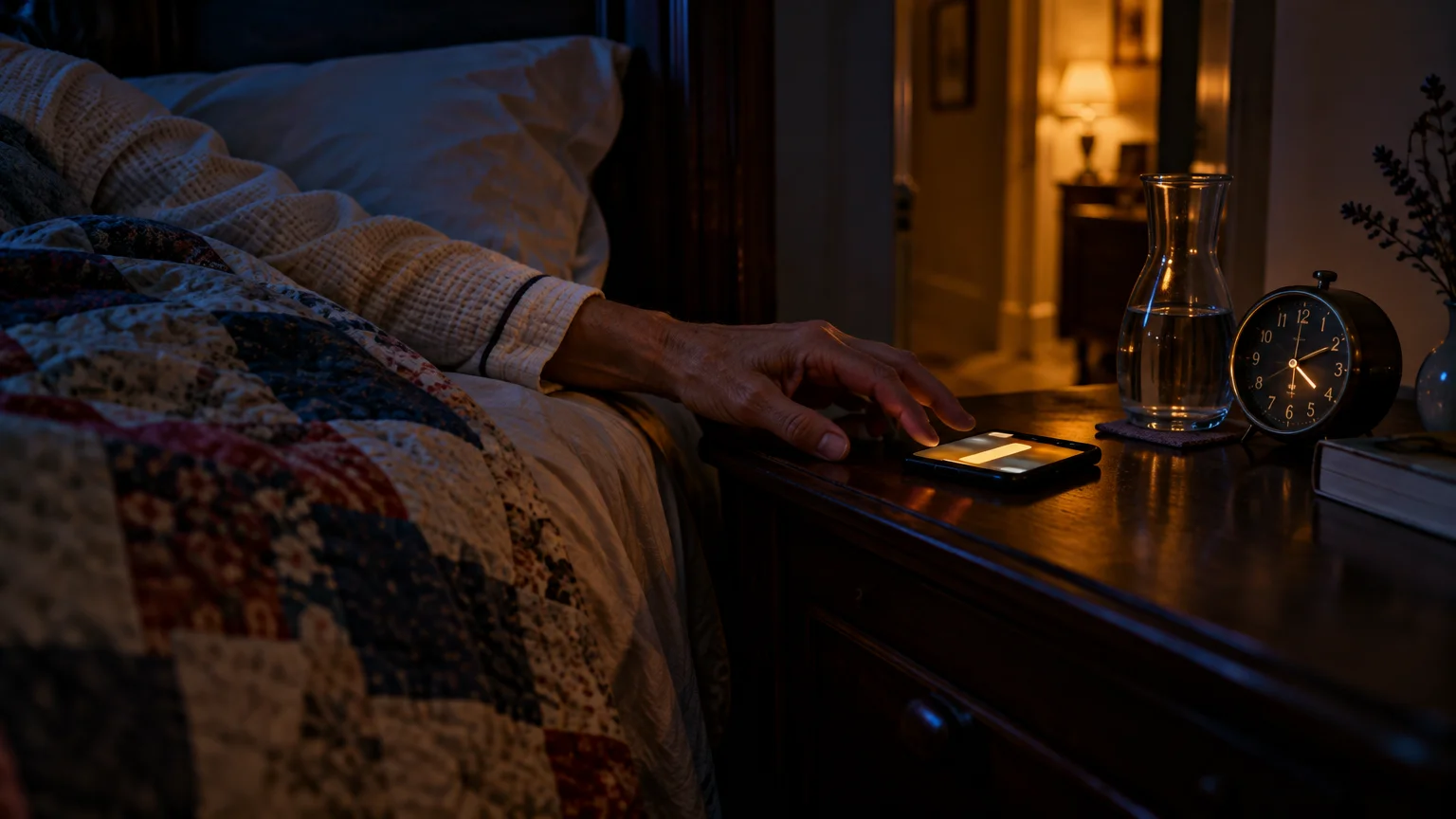
Setting Up Follow-Up Reminders and Critical Alerts
A midday dose is the easiest schedule to miss because you are often away from home or engaged in lunch activities. Apple added follow-up reminders in iOS 17 to address this problem.
Alongside health alerts, consider learning how to set up Emergency SOS on your smartphone so critical medical details are accessible during emergencies.
Adjusting sound volumes ensures you hear every notification, similar to how you can make alerts louder and repeat across your device.
A follow-up reminder sends a second alert 30 minutes after your scheduled time if you have not logged the medication. This catches missed doses before your daily schedule gets off track.
You can also enable Critical Alerts for vital prescriptions. A Critical Alert is a specialized phone notification that plays an audible chime even when the device is silenced or set to Do Not Disturb.
- Open the Health app on your iPhone.
- Tap Browse in the lower right corner, then tap Medications.
- Scroll down to the bottom of the Medications screen and tap Options.
- Tap the toggle switch next to Dose Reminders to turn it on (green).
- Tap the toggle switch next to Follow-Up Reminders to turn it on (green).
- Open your iPhone Settings app and tap Notifications.
- Scroll down, tap Health, and verify that Critical Alerts is turned on if available for your scheduled items.
You can read more about notification styles in Apple’s official iPhone User Guide. Setting these options ensures a busy lunch hour will not cause a missed prescription.

Scenario: Tracking a Midday Dose in Eleanor’s Daily Routine
To see how these tools work in daily life, consider Eleanor, a 71-year-old retired bookkeeper who manages three daily prescriptions. She takes Levothyroxine in the morning, Metformin at lunch, and Lisinopril in the evening.
For individuals who prefer a traditional schedule layout instead of the Health app, using a calendar app for medication reminders provides another simple, organized alternative.
- Morning (7:00 AM): Levothyroxine (50 mcg tablet, round white shape, taken fasting).
- Midday (12:30 PM): Metformin (500 mg tablet, oval white shape, taken with lunch).
- Evening (6:30 PM): Lisinopril (10 mg tablet, round yellow shape, taken after dinner).
Eleanor’s most common problem occurs around 1:45 PM. While cleaning up lunch dishes or returning from errands, she frequently stops and wonders: “Did I take my Metformin at 12:30 PM, or did I leave it in the organizer?”
On Tuesday at 12:30 PM, Eleanor’s iPhone sounds the initial apple health medication reminder. Eleanor sets down her plate of soup, but her sister calls on the landline before she touches her pill box.
Eleanor talks on the phone for 35 minutes. Because she did not log the pill, the follow-up alert chimes at 1:00 PM: “Follow-Up: Metformin is scheduled for 12:30 PM.”
At 1:15 PM, Eleanor finishes her phone call and looks at her iPhone screen. She sees the follow-up reminder waiting on the display.
She opens the Health app, taps Medications, and sees the open circle next to Metformin. She opens her plastic pill organizer, confirms the Tuesday lunch compartment is full, swallows the pill with water, and taps Log as Taken at 1:16 PM.
Over a 30-day month, Eleanor achieves a 100% adherence record on all three prescriptions. The log eliminates second-guessing and prevents accidental double-dosing.

Exporting Your Adherence Log for Doctor Visits
Doctors frequently ask older patients whether they take their medications consistently as prescribed. Instead of trying to recall your habits from memory, you can export a printable PDF document directly from the Health app.
This report lists your active prescriptions, dosage strengths, schedules, and adherence percentages across the past 30 or 90 days. You can print the document at home or email it to your doctor’s office.
- Open the Health app on your iPhone.
- Tap Browse, then tap Medications.
- Scroll down past your medication cards to the section labeled Your Medications.
- Tap Export PDF.
- Review the generated summary on the screen to confirm all dosages and names are accurate.
- Tap the Share button (the square icon with an upward-pointing arrow) in the top right corner.
- Tap Print to send it to an AirPrint wireless home printer, or tap Mail to send it to your clinic.
All exported records come from encrypted device storage. End-to-end encryption means your health data is scrambled with your passcode so unauthorized outsiders cannot access it.
For your health logs to sync securely between your devices, your account requires active two-factor protection. You can review setup requirements at Apple’s guide to two-factor authentication.
You can also use the Health Sharing feature to share adherence logs securely with an adult child or trusted caregiver. That person receives an alert only if you miss scheduled doses, keeping your independent routine intact.
Frequently Asked Questions
Does Apple Health require an internet connection to log pills?
No, the Health app operates entirely on your physical device. You can log scheduled doses, review pill shapes, and receive reminders while offline or in airplane mode.
What should I do if I accidentally tap Taken when I did not take my pill?
Open the Health app, tap Browse, and select Medications. Tap the recorded medication card, tap Edit next to the log entry, and change the status to Skipped or Unrecorded.
Can my family member receive an alert if I forget my midday dosage?
Yes, you can use the built-in Health Sharing tool to share medication data with family. Open Health, tap the Sharing tab at the bottom, tap Share with Someone, and enable medication adherence alerts.
Is there any monthly fee to use Apple Health’s medication tracking?
No, the medication tracker is a native component of iOS and is completely free as of 2026. You never have to pay subscription charges, buy upgrades, or view advertisements.
Note: Menus and button names change with software updates. These steps were written for current versions as of 2026; if a screen looks different on your device, the maker’s support page linked above has the latest wording.
ClearTechGuide is independent and is not affiliated with Apple, Google, Microsoft, Amazon or any other company mentioned.
