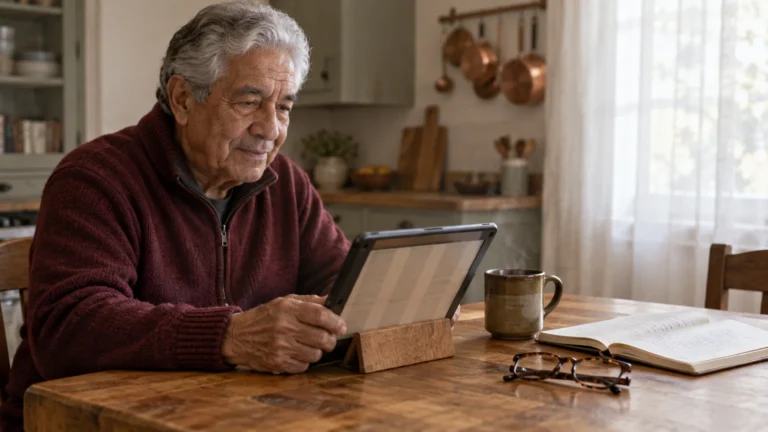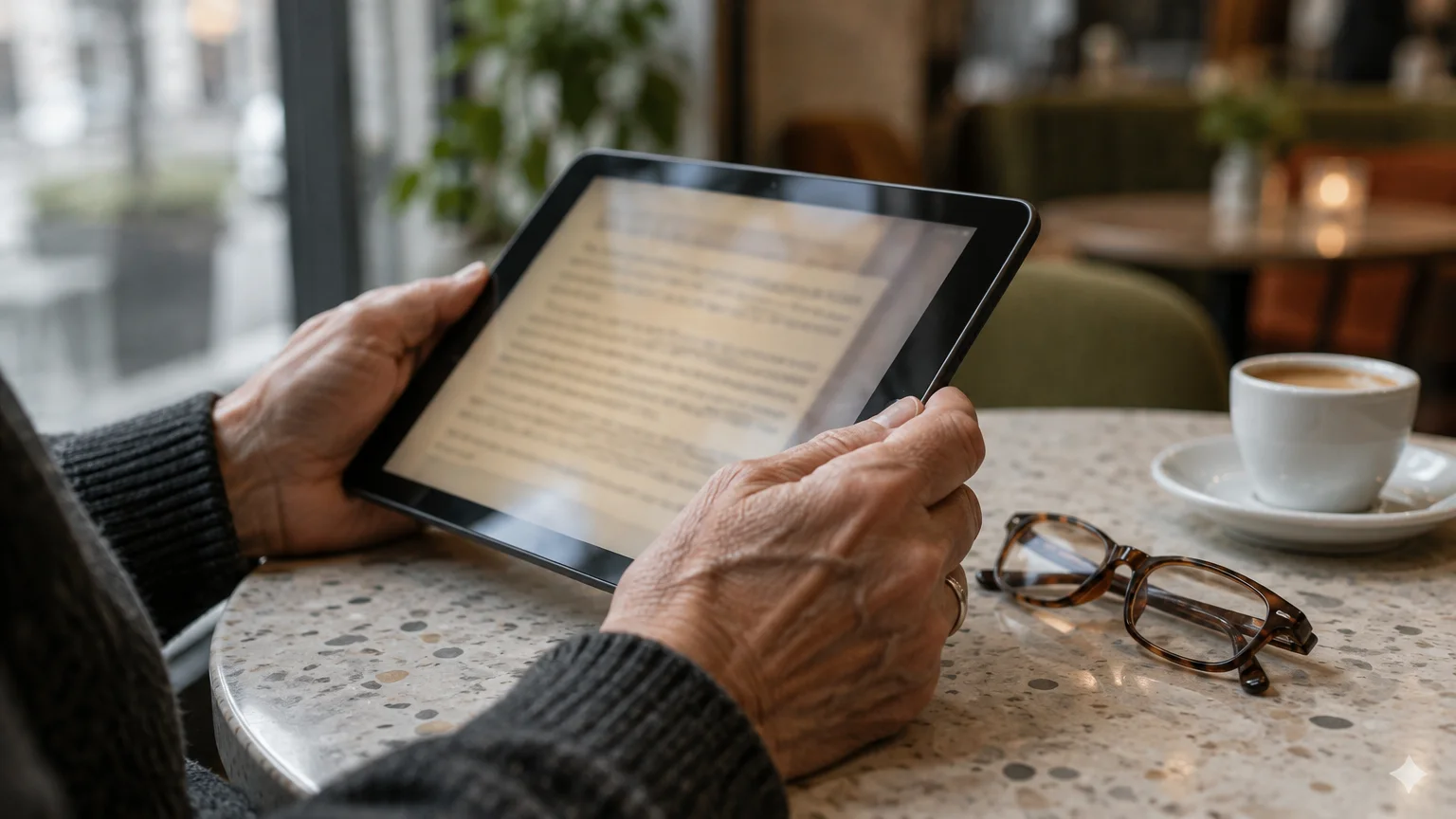
If you are 78 and rely on large print to read comfortably, opening a fresh library loan on your tablet can feel exasperating. Your carefully chosen 24-point font suddenly shrinks back to tiny, eye-straining type.
The Kindle app does not have a single toggle labeled “lock font size,” but you can stop this reset completely. By building a custom reading theme, you can restore your exact text size and layout in just a few taps whenever a book changes them.
This guide explains how to build that permanent preset; it also covers simple screen-touch habits that prevent accidental shrinking while you turn pages.
In this guide7 sections
- Why Kindle Library Books Keep Shrinking
- How to Build a Locked Font Theme in the Kindle App
- How to Apply Your Preset to Every Borrowed Book
- How Hand Placement Triggers Accidental Zooming
- Comparing Kindle Settings and Tablet Display Controls
- System Accessibility Shortcuts for Steady Reading
- Frequently Asked Questions

Why Kindle Library Books Keep Shrinking
Many readers discover that their kindle app font size keeps changing right after downloading a loan from public libraries. This issue happens because electronic books contain individual style files coded by their publishers.
If tablet touchscreens continue to cause frustration, our guide to choosing an e-reader covers dedicated reading devices with physical buttons that prevent accidental resizing.
When you download a new title through services like Libby, the Kindle app reads those publisher style codes first. Those files routinely set font scaling back to standard base sizes between 10 and 12 points.
Consider a scenario where you rely on a specific large-print setting to read comfortably on your tablet. When borrowing two titles per week, repeatedly readjusting your font slider, line spacing, and margins across 104 checkouts each year quickly becomes tedious.
Several common triggers cause unexpected font shrinking during normal tablet reading:
- Opening a newly borrowed public library book that enforces custom publisher stylesheets.
- Accidentally brushing the screen glass with two fingers while turning pages.
- Synchronizing your reading library across multiple family devices.
- Receiving automated app updates that restore factory display defaults.
How to Build a Locked Font Theme in the Kindle App
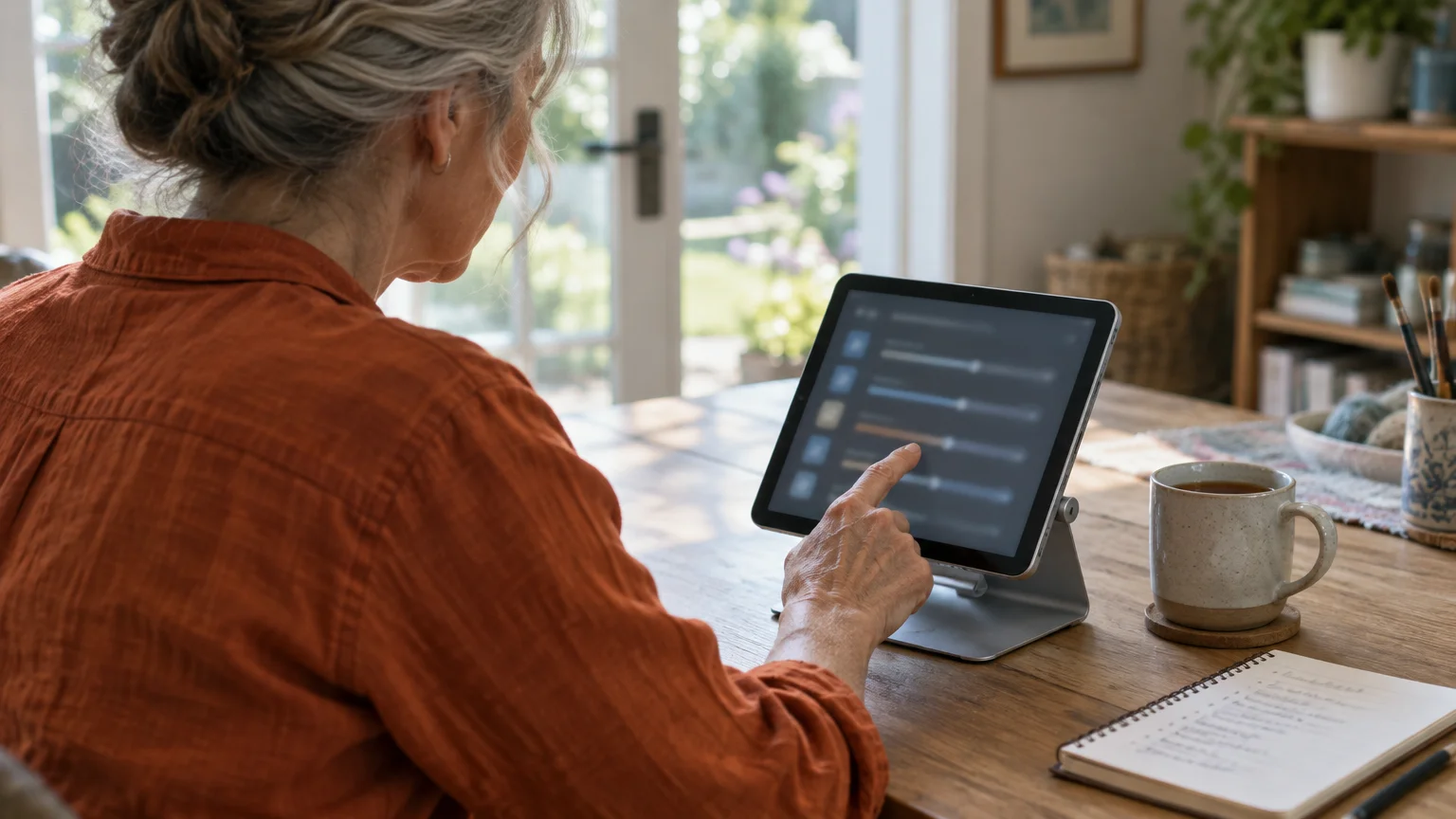
You can lock font size kindle settings across your reading sessions by storing your preferred adjustments into a named theme. This feature saves your exact font size, typeface, line spacing, and margin widths into a permanent profile.
If bright white backgrounds cause glare, you can also learn how to make your iPad screen black with white text for comfortable low-light reading.
If your pages still feel difficult to read after making the letters larger, you may also need to fix why Kindle book font looks gray instead of black by adjusting contrast and boldness.
A reading theme acts as an internal override switch. Once configured, it lets you restore your custom reading environment in two taps whenever a new book disrupts your settings.
Follow these steps inside any open book in the Kindle app on an iPad, iPhone, or Android tablet:
- Tap the center of your screen once to show the reading menu bars along the top and bottom edges.
- Tap the Aa icon located near the top right corner to open the Page Display control panel.
- Tap the Font tab, and drag the font size slider rightward toward the larger A until the text reaches a comfortable size.
- Select a clear typeface, such as Bookerly or OpenDyslexic, which improves letter separation for reduced vision.
- Tap the Layout tab to choose wide line spacing and left alignment, preventing irregular word gaps across enlarged lines.
- Tap the Themes tab at the top left of the menu panel.
- Tap Save current settings at the bottom of the theme list.
- Type a name into the text box, such as My Large Print, and tap Save.
Saving this theme anchors your custom font profile in app memory, ensuring you can quickly override intrusive publisher defaults.

How to Apply Your Preset to Every Borrowed Book
Once you save your theme, you can make library book text stay big with just two screen touches whenever you start a new loan. You no longer need to drag the size slider manually or hunt for comfortable spacing.
If changing your layout accidentally jumps you to a different chapter, learn how to find your lost page in the Kindle app using reading history tools.
Perform this simple sequence every time a freshly downloaded library book opens in miniature text:
- Open the borrowed title from the Library tab inside your Kindle app.
- Tap the center of any page to display the reading controls.
- Tap the Aa icon at the top of the screen.
- Tap the Themes tab on the left side of the menu.
- Tap your custom preset, such as My Large Print, to restore your 24-point equivalent text immediately.
Applying the theme overrides the publisher stylesheet instantly, keeping your margins and enlarged letters consistent until you finish the book.
Keeping your Kindle app updated prevents software bugs from corrupting saved themes. Review CISA’s guidance on updating software to learn how regular updates protect application preferences.
How Hand Placement Triggers Accidental Zooming
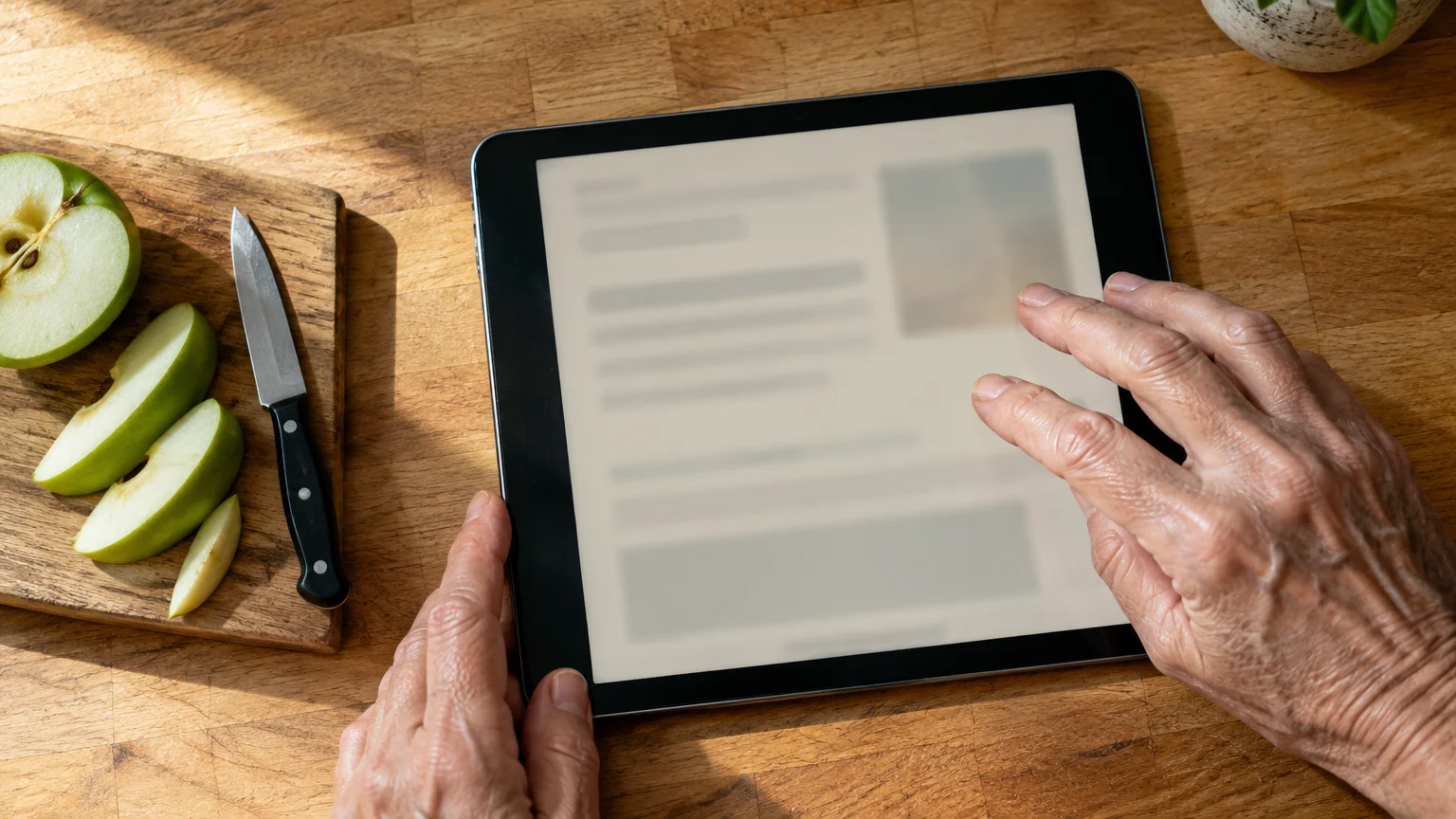
Many readers believe a software bug is shrinking their text when hand positioning is the true culprit. Touchscreens use capacitive sensors, which detect minute electrical changes generated by human skin contact.
In addition to accidental pinch zooms, knowing how to stop your tablet screen from turning keeps pages upright if you shift your grip.
If you rest your stabilizing thumb on the black bezel glass while your other hand swipes to turn the page, the tablet registers a pinch gesture. The app interprets that two-finger contact as an instruction to shrink the font.
You can prevent accidental pinch zooming by adjusting your physical hold on the device:
- Keep your support thumb entirely on the outer plastic casing, away from the reflective screen glass.
- Turn pages by tapping the outer right margin lightly with one fingertip rather than swiping across the display.
- Place your tablet on a foam reading wedge or tabletop stand to keep your hands off the glass perimeter.
- Use a lightweight rubber-tipped stylus in your dominant hand to turn pages with precision.
You can also enable continuous vertical scrolling to eliminate side-swipe page turns entirely. Tap Aa, select Layout, and turn on Continuous Scrolling to glide down pages smoothly.

Comparing Kindle Settings and Tablet Display Controls
You have multiple ways to magnify reading text, ranging from in-app themes to system-level display magnification. Each option behaves differently when you open newly borrowed books.
Similarly, our walkthrough on how to make text bigger on your Android phone explains how to increase display sizes across every app screen.
If you read on an Apple handset as well, check our guide on how to make text bigger on your iPhone for system-wide enlargement.
The table below compares four practical methods for enlarging reading print on mobile tablets.
| Control Method | Magnification Range | Library Book Persistence | Accidental Touch Risk |
|---|---|---|---|
| Kindle Custom Theme | 14 distinct size steps | Requires two taps on new loans | Low (restores in two taps) |
| Apple Dynamic Type | Up to 310% enlargement | Global across supported menus | None (locked in system settings) |
| Android Display Size | Up to 200% font scaling and larger UI elements | Stays active across all applications | None (locked in device settings) |
| Kindle Pinch-to-Zoom | Dynamic manual scaling | Resets when app closes | High (triggers from stray fingers) |
To inspect your device display settings on an iPad, consult Apple’s official guide to making text bigger on iPad. Adjusting system text enlarges menus, email, and library catalogs outside the Kindle reading screen.
Android users can check Google’s Android accessibility overview to configure device-wide font sliders. System-wide font scaling ensures that book titles inside your library checkout catalog remain readable before you open the book.

System Accessibility Shortcuts for Steady Reading
If arthritis or hand tremors cause accidental two-finger pinching, tablet operating systems provide built-in tools to lock gesture controls.
Apple devices include a feature called Guided Access, which locks your device to a single app and lets you disable touch on specific areas of the screen.
When you enable Guided Access inside the Kindle app, you can circle the margins where you hold the tablet so the screen ignores your resting thumb.
Your single-finger page taps continue to work outside the circled zones, preventing your resting thumb from triggering an accidental two-finger pinch.
Follow these steps to activate touch protection on an iPad or iPhone:
- Open tablet Settings and select Accessibility.
- Tap Guided Access, toggle it green, and tap Passcode Settings to create a PIN.
- Open your Kindle book and triple-click your device Top or Home button.
- Circle the screen edges where your thumb rests to disable touch in those areas, then tap Start in the upper right corner.
Review Apple’s guide to iOS accessibility features for additional vision support tools, including full-screen magnification.
Before enabling screen locking tools, verify that you know your tablet passcode. Forgetting your passcode while Guided Access runs can temporarily prevent you from returning to your home screen.
Android tablets feature a tool called App Pinning in security settings, though it only keeps you inside the Kindle app and does not block screen touches. It locks your tablet into the Kindle application until you enter your unlock pattern or PIN code.
Frequently Asked Questions
Can you completely turn off pinch-to-zoom inside the Kindle app?
No, Amazon does not provide an internal setting to turn off pinch-to-zoom gestures in the Kindle app as of 2026. Creating a saved custom theme or enabling iPad Guided Access offers the most reliable way to prevent accidental resizing.
Why does my library book revert to small text while purchased books stay large?
Public library ebooks often carry strict publisher formatting templates that trigger standard defaults upon first download. Applying your saved custom theme replaces those publisher parameters with your preferred large-print configuration in two taps.
Does increasing text size in Kindle make library books expire faster?
No, enlarging your font size has zero effect on your lending period. You retain access to your library book for your full checkout window, which typically lasts 14 or 21 days.
Will changing the font size on my tablet alter my Kindle Paperwhite?
No, font size choices remain local to each individual reading device. Adjusting your iPad or Android phone display will not alter the font scaling on your standalone Kindle e-reader.
Note: Menus and button names change with software updates. These steps were written for current versions as of 2026; if a screen looks different on your device, the maker’s support page linked above has the latest wording.
ClearTechGuide is independent and is not affiliated with Apple, Google, Microsoft, Amazon or any other company mentioned.