This guide is for a reader in their late 70s or 80s, with arthritic thumbs or a hand tremor, who reads Kindle books on an iPad or Android tablet.
You rest the tablet on your lap, your thumb trembles against the glass, and the mystery you were enjoying is suddenly fifty pages ahead.
Most Kindle guides tell you to widen the margins. Our view is that the fix that matters is your tablet’s own touch filter, which can ignore shaky repeat taps before the Kindle app ever sees them.
First get your page back, then set up that filter.
In this guide9 sections
- Why a Shaky Tap Sends the Book Ahead
- Get Your Page Back With the Back Arrow
- Why Wider Margins Will Not Stop the Jumps
- On an iPad: Turn On Touch Accommodations
- On an Android Tablet: Find the Touch Settings
- Worked Example: A Shaky Tap on an iPad
- The Settings Compared
- When the Jump Is a Sync Prompt
- Frequently Asked Questions

Why a Shaky Tap Sends the Book Ahead
In the Kindle app, a tap near the right edge turns forward one page, a tap near the left edge goes back, and a tap in the middle opens the toolbars.
One tap moves one page. The big leaps come from a two-part accident that a tremor makes easy.
A shaky touch in the middle opens the toolbars. A second, unintended touch then lands on the progress slider along the bottom, called the scrubber bar, and the book jumps to wherever it landed.
Touchscreens sense the electrical charge in your skin, so the soft base of a thumb counts as a touch just as a fingertip does.
A bigger screen is easier to read, but it gives a resting hand more glass to brush.
Get Your Page Back With the Back Arrow
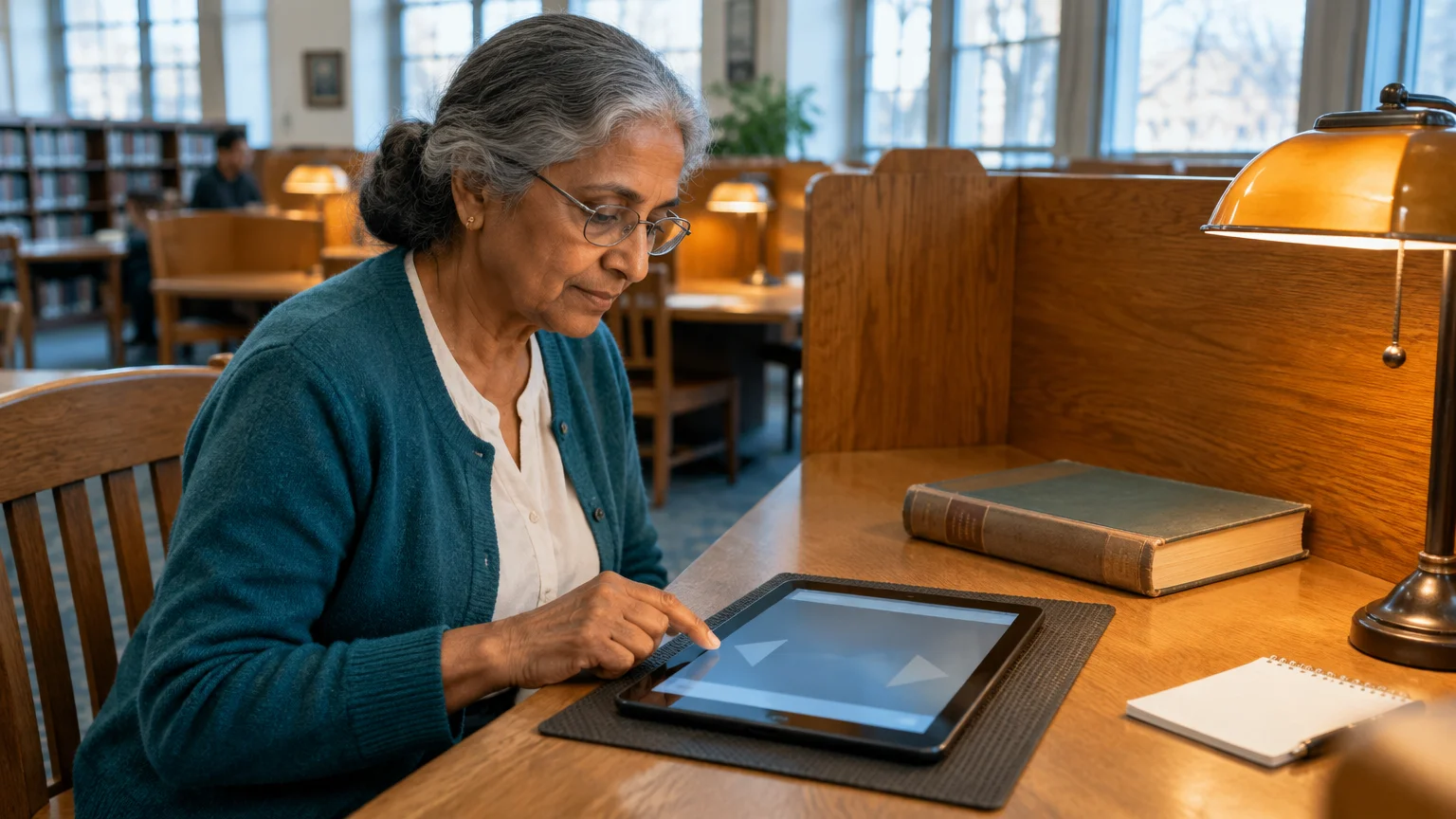
Before changing any settings, recover your page. The Kindle app remembers where you just were, as long as you do not start turning more pages.
Once your place is secure, you can expand your reading collection at no charge by learning how to find and download free e-books through public library apps.
- Tap once in the middle of the screen to show the toolbars.
- Look along the bottom, near the scrubber bar, for a small left-pointing arrow beside a page or location number.
- Tap that arrow to return to the page you left.
If you turned several pages before noticing, drag the scrubber bar slowly left instead. Its preview window shows chapter titles and a snippet of text, so you can spot your place without spoilers.
From now on, tap the top right corner of a page to drop a bookmark. Bookmarks are listed in the Notebook, so the next jump costs you nothing.

Why Wider Margins Will Not Stop the Jumps
The usual advice is to tap Aa and pick the widest setting under Layout. That moves the words inward, away from the edge of the glass.
If your text also looks faded while exploring display styles, learn why Kindle book font looks gray instead of black to restore strong reading contrast.
If an unsteady finger also causes your text to abruptly zoom in or out, learn how to lock your font size on the Kindle app to keep the lettering stable.
But the page-turn zones belong to the screen, not the text. Wide margins move the words away from your thumb and leave the tap zone exactly where your thumb rests.
Keep wide margins if shorter lines are easier on your eyes; just do not count on them to stop a tremor.
One Kindle setting does help: under Aa > Layout, make sure Continuous Scrolling is off, so a shaky drag flips a page instead of scrolling freely through the book.
On an iPad: Turn On Touch Accommodations
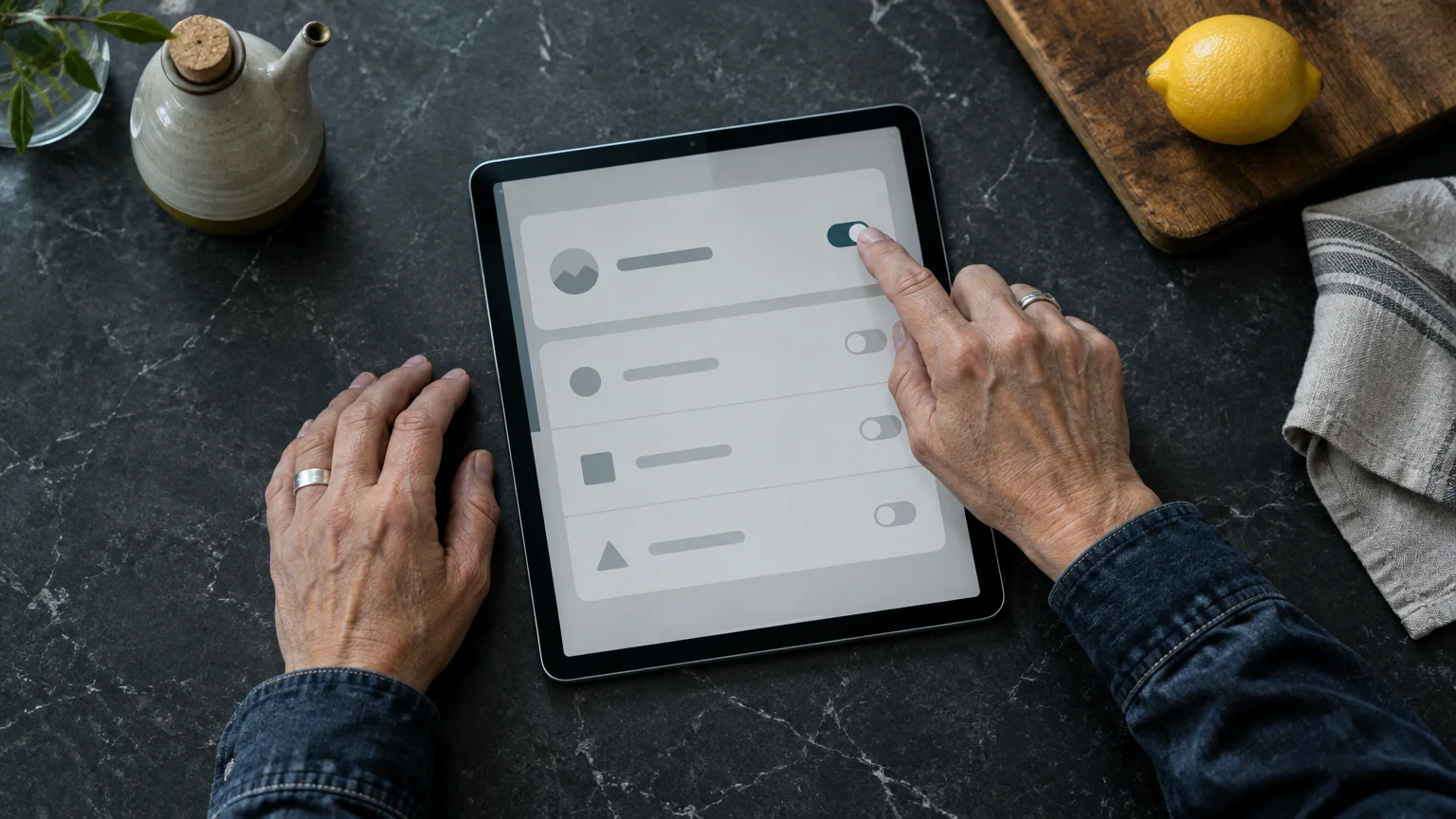
iPadOS has a filter for unsteady hands called Touch Accommodations. It works across every app, including Kindle.
Open Settings > Accessibility > Touch > Touch Accommodations. Apple’s official iOS user guide describes the same menu for iPhone, and the iPad uses the same labels.
The options that matter here:
- Ignore Repeat: several touches within the time you choose count as one, so a trembling tap cannot open the toolbars and then hit the scrubber bar.
- Hold Duration: a touch must stay on the glass for the time you choose, so a passing brush is ignored.
- Tap Assistance set to Use Initial Touch Location: if your finger slides while it shakes, the tap counts where it first landed.
Our recommendation: turn on Ignore Repeat first and leave Hold Duration off. Repeat touches cause the big leaps, while Hold Duration slows every deliberate page turn, which tires arthritic hands.
Set up an escape first. In Settings > Accessibility > Accessibility Shortcut, tick Touch Accommodations, so triple-clicking the top or Home button switches it on or off.
If small buttons are also hard to see, Apple’s guide to making text larger on iPad makes the iPad’s own menus easier to aim at.

On an Android Tablet: Find the Touch Settings
On Android 16 tablets the wording varies by model. Start in Settings > Accessibility and look for a touch, interaction or dexterity section.
On Samsung Galaxy tablets, look under Interaction and dexterity > Touch settings for Tap duration and Ignore repeated touches. They work like the iPad’s Hold Duration and Ignore Repeat.
Other tablets may offer only Touch & hold delay. That changes how long a long-press takes, so it will not filter a brief brush.
Google’s Android accessibility overview lists the built-in tools, and Google’s Android support documentation covers model-specific menus.
If your tablet has no repeat filter, bookmark often and lean on the back arrow.

Worked Example: A Shaky Tap on an iPad
Picture a 79-year-old with arthritis in both thumbs and a mild tremor, reading a 400-page mystery on an iPad propped on a lap pillow. The bottom of the screen shows page 184.
If an accidental long-press outside the app starts an edit mode, see how to stop app icons shaking on your screen to keep your display calm.
If adjusting your grip while reading in a chair causes the page to tilt unexpectedly, you can easily stop your tablet screen from turning using the orientation lock.
A thumb trembles near the right edge. The first touch opens the toolbars, the second lands on the scrubber bar, and the page number now reads 234.
- Recover: touching nothing else, find the left-pointing arrow labelled with page 184 and press it once with the pad of your finger.
- Mark it: tap the top right corner to bookmark page 184.
- Add the escape: tick Touch Accommodations under Accessibility Shortcut.
- Filter: turn on Touch Accommodations, then Ignore Repeat, starting with a short time.
- Test: tap the right edge the way your hand naturally does. If one tap turns one page, it works; if pages still skip, lengthen the time a little.
- Only if needed: if a resting palm still turns pages, add a short Hold Duration, accepting that each page turn now needs a deliberate press.
Total cost: nothing. Every step uses free settings already on the iPad and in the Kindle app, and none of them needs Wi-Fi.
The Settings Compared
Each row is something you can check on your own tablet. Read the fourth column first.
| Setting | Where it lives | What it changes | Stops the shaky-tap leap? | Needs Wi-Fi? |
|---|---|---|---|---|
| Wide margins | Kindle: Aa > Layout | Moves text inward; tap zones stay put | No | No |
| Continuous Scrolling off | Kindle: Aa > Layout | Pages flip instead of scrolling | Partly, for drags | No |
| Ignore Repeat | iPad: Settings > Accessibility > Touch > Touch Accommodations | Quick repeat touches count as one | Yes, the main fix | No |
| Hold Duration | Same iPad menu | Ignores touches shorter than your chosen time | Yes for brushes, but slows every tap | No |
| Ignore repeated touches / Tap duration | Samsung: Accessibility > Interaction and dexterity (varies by model) | Same idea as the iPad pair | Yes, where offered | No |
| Back arrow | Kindle: bottom of screen after tapping the middle | Returns you to your last page | Recovers, does not prevent | No |
| Whispersync off | Amazon website: Manage Your Content and Devices | Stops cross-device jump prompts | No, different cause | Yes, to change it |

When the Jump Is a Sync Prompt
Not every leap comes from your hand. Whispersync, Amazon’s service that saves your place across devices, may offer to move you to the furthest page read on a phone or second tablet.
If you alternate between reading on a screen and listening to narration, learning how to listen to audiobooks across your devices can help keep your place coordinated.
If you also listen along with narrated editions, knowing how to change audiobook speed and find your spot will keep unexpected sync skips from ruining your listening progress.
Read both page numbers before touching the box. If the later page is not where you really stopped, choose the option that keeps you where you are; the wording varies.
A shaky tap on the wrong button causes the same leap, so Ignore Repeat helps here too.
If prompts keep appearing, turn sync off on Amazon’s website: Manage Your Content and Devices > Preferences > Device Synchronization (Whispersync Settings).
Frequently Asked Questions
Will Touch Accommodations change how the rest of my iPad works?
Yes, it applies to every app, including typing. Once it is in the Accessibility Shortcut, triple-click the top or Home button to switch it off.
Why did the Kindle back arrow disappear?
The arrow only covers your most recent jump. Turning more pages replaces it, so use the scrubber bar preview instead.
What is the simplest way to never lose my place again?
Tap the top right corner of the page to add a bookmark. You can find it again in the Notebook.
Does a bigger Kindle font move me to a different spot?
No. The text reflows around the passage you were reading, so you stay in the same spot.
Note: Menus and button names change with software updates. These steps were written for current versions as of 2026; if a screen looks different on your device, the maker’s support page linked above has the latest wording.
ClearTechGuide is independent and is not affiliated with Apple, Google, Microsoft, Amazon or any other company mentioned.