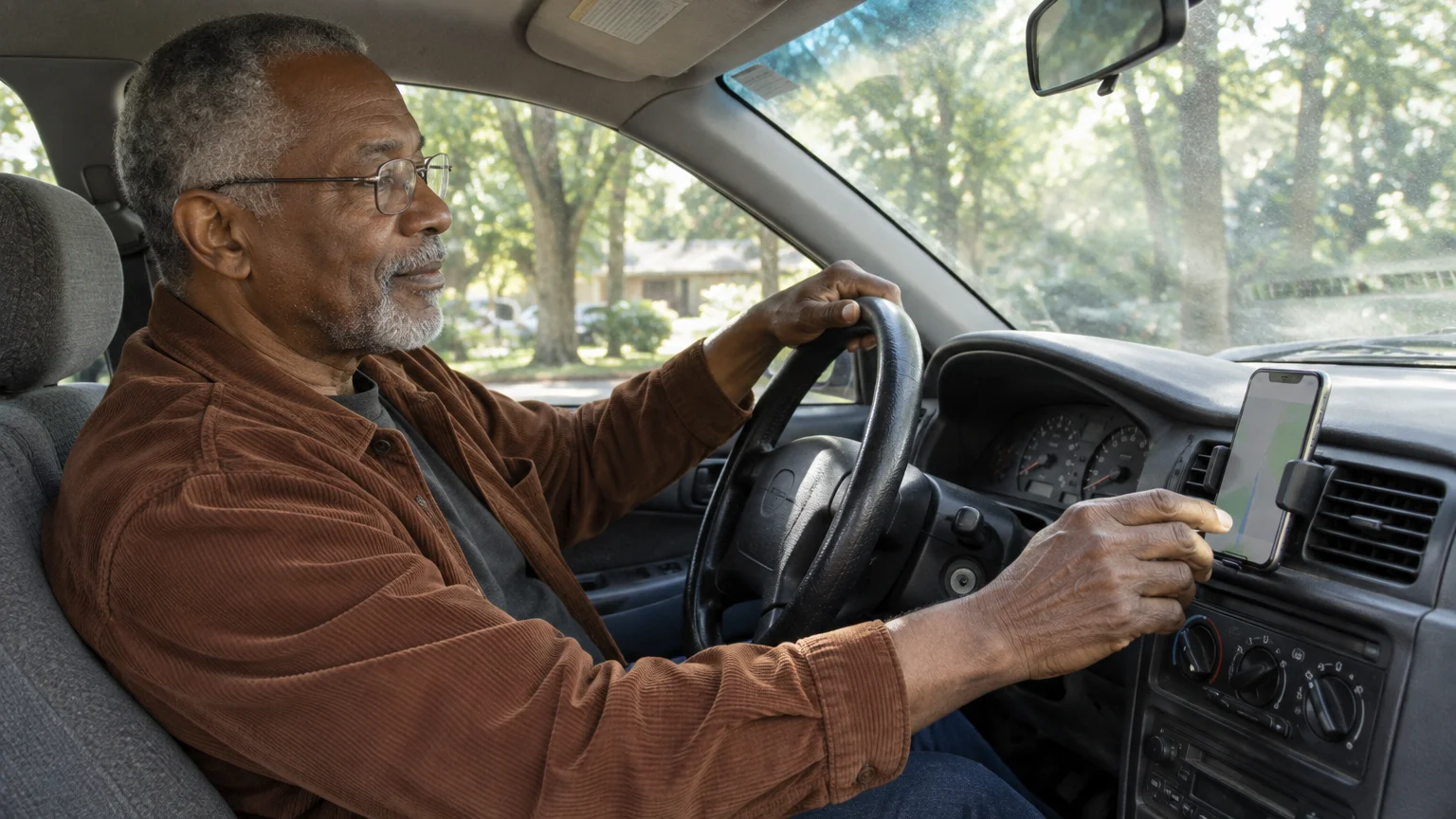
If you are 72 and driving an older vehicle, road rumble and background radio frequently overpower spoken directions from your phone. Missing a highway exit or street turn causes frustration and creates unnecessary driving risks.
If you are new to mobile navigation, our complete guide on how to use Google Maps on your phone covers everything from entering destinations to reading turn-by-turn displays.
You can force your car stereo to treat spoken directions as prioritized telephone calls by turning on one specific software switch. This method cuts off music or AM/FM radio broadcasts whenever a driving instruction begins.
Most audio guides ignore this specific bridge between vintage automotive hardware and mobile navigation software. We explain how this simple configuration will increase Google Maps voice clarity across every trip.
In this guide7 sections
Set Google Maps Voice Guidance to Louder
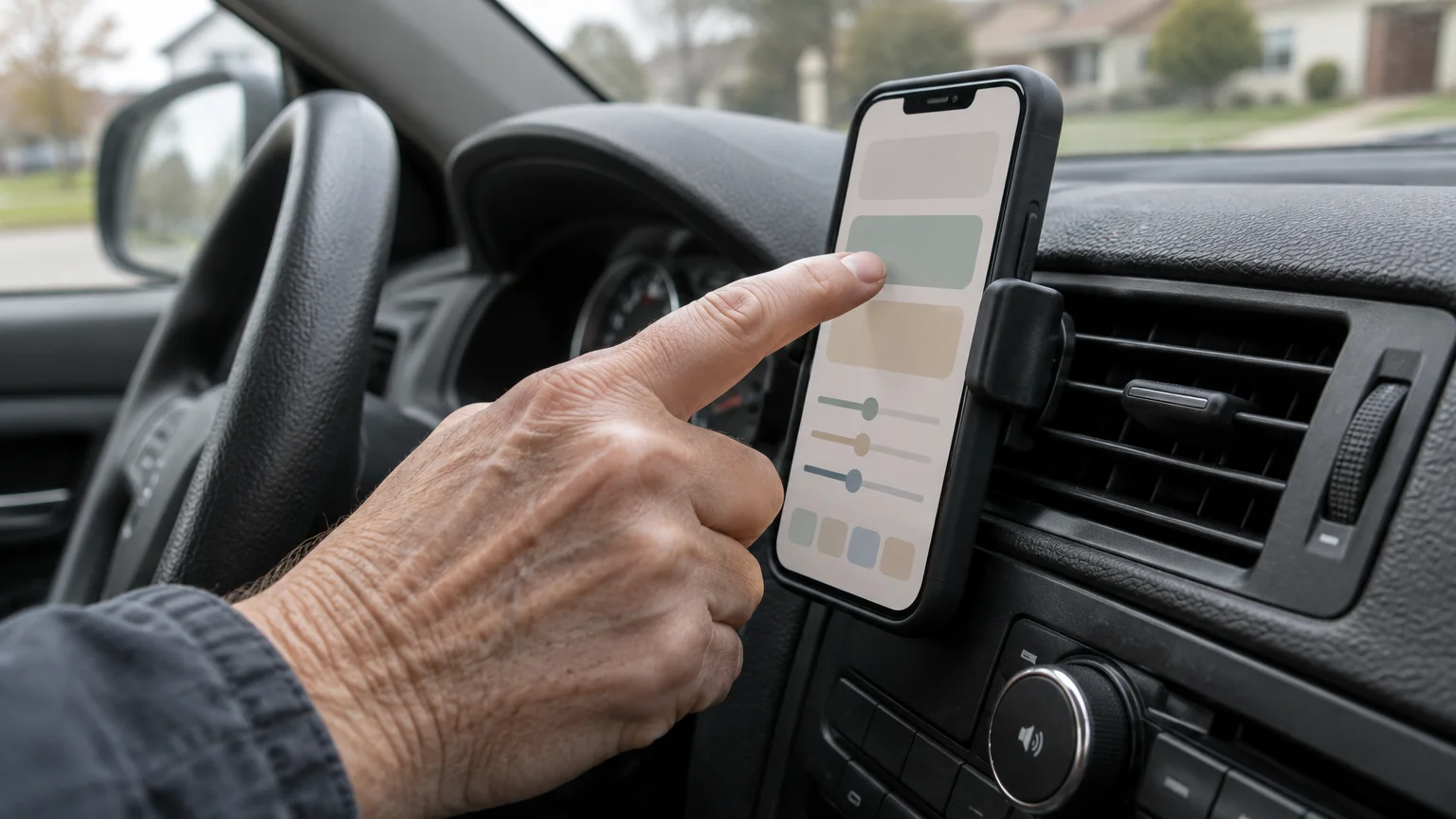
Google Maps includes an internal audio level selector that defaults to a standard output. If you leave this setting at normal, cabin noise easily drowns out spoken street names.
Android drivers can also explore how to set up Google Assistant to request directions and adjust settings completely hands-free.
Before changing any settings, park your vehicle in a secure location. Never adjust audio controls or tap mobile menus while your car is in motion.
Follow these steps to boost the core voice output on an iPhone:
- Open the Google Maps app on your device.
- Tap your Profile picture or account initial in the top right corner of the search bar.
- Tap Settings from the pop-up menu.
- Tap Navigation near the top of the list.
- Tap Guidance volume and select Louder.
The process works similarly on Android devices to make Google Maps directions louder car speakers can produce:
- Open Google Maps on your Android phone.
- Tap your Profile picture or initial in the upper right corner.
- Tap Settings, then scroll down and tap Navigation (or Navigation settings on older versions).
- Look under the Sound & voice section and select Louder beneath Guidance volume.
Selecting this option amplifies the recorded voice files above the standard media baseline. Detailed system steps appear in the official Google Android Help guide.
Play Navigation as a Bluetooth Phone Call
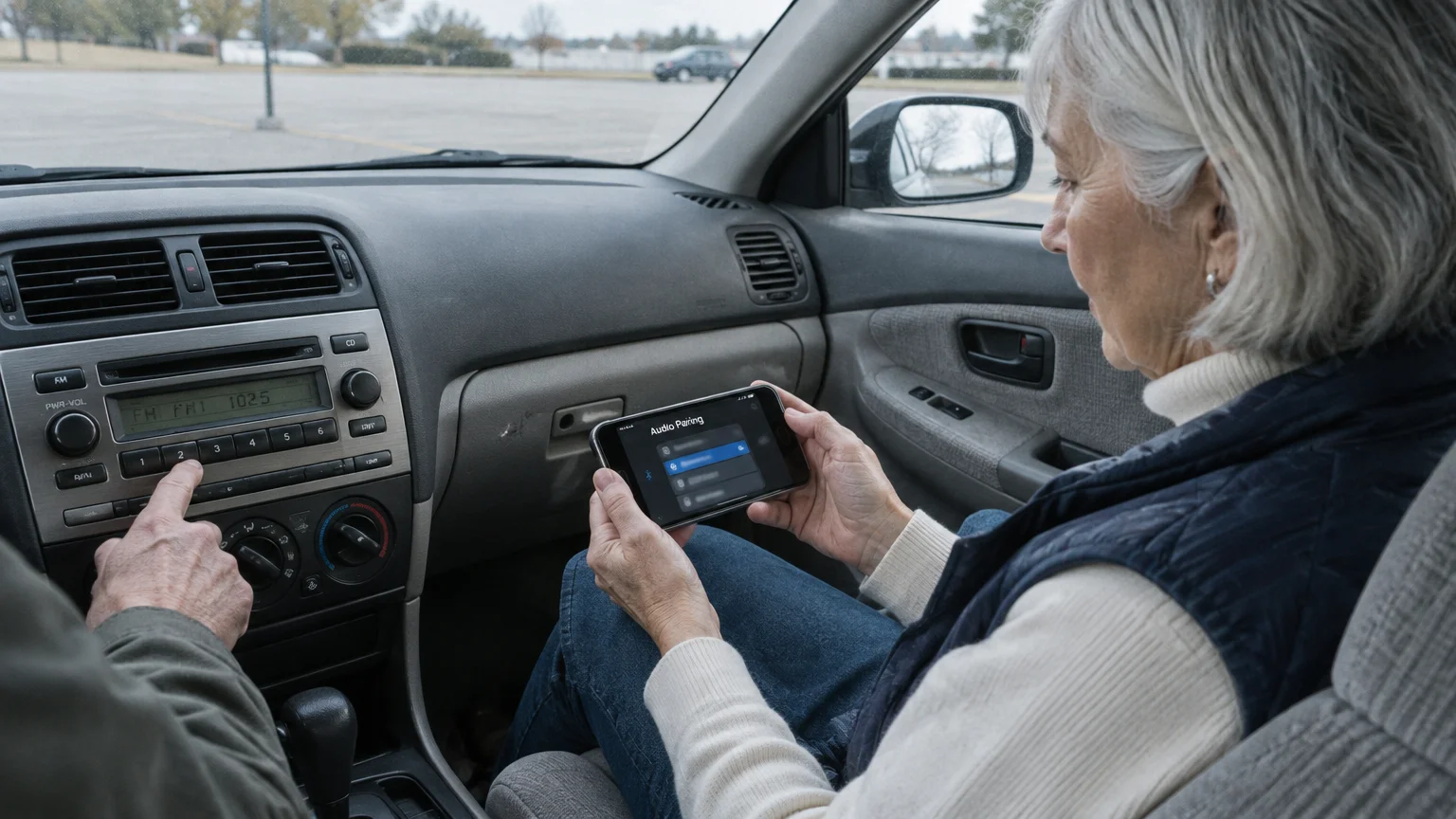
Older vehicles often feature Bluetooth systems designed primarily for hands-free phone calls rather than continuous media streaming. A Bluetooth profile is a standardized wireless language that devices use to transmit specific types of data.
When you listen to the radio or an in-dash CD player, your stereo ignores ordinary media audio sent from your phone. Consequently, your navigation instructions remain completely silent over the car speakers.
Enabling the feature to play navigation as Bluetooth phone call commands your phone to broadcast voice prompts using the Hands-Free Profile. Your car stereo thinks an actual telephone call is arriving, so it immediately pauses the radio.
To activate this audio routing switch on an iPhone:
- Open Google Maps and tap your Profile picture.
- Tap Settings, followed by Navigation.
- Locate the toggle switch labeled Play as Bluetooth phone call.
- Tap the switch so the slider turns green and indicates On.
- Ensure the toggle labeled Play voice over Bluetooth is also turned On.
On Android smartphones, activate the equivalent protocol toggle:
- Open Google Maps and tap your Profile picture.
- Tap Settings, then tap Navigation (or Navigation settings ).
- Scroll to the section marked Sound & voice.
- Tap the toggle switch beside Play as Bluetooth phone call to activate it.
- Tap Play test sound to verify the sample spoken message comes through your car speakers.
Whenever Google Maps prepares to speak, your vehicle display will show your own phone number or an incoming call screen. Once the direction ends, the stereo hangs up and returns to your radio broadcast automatically.
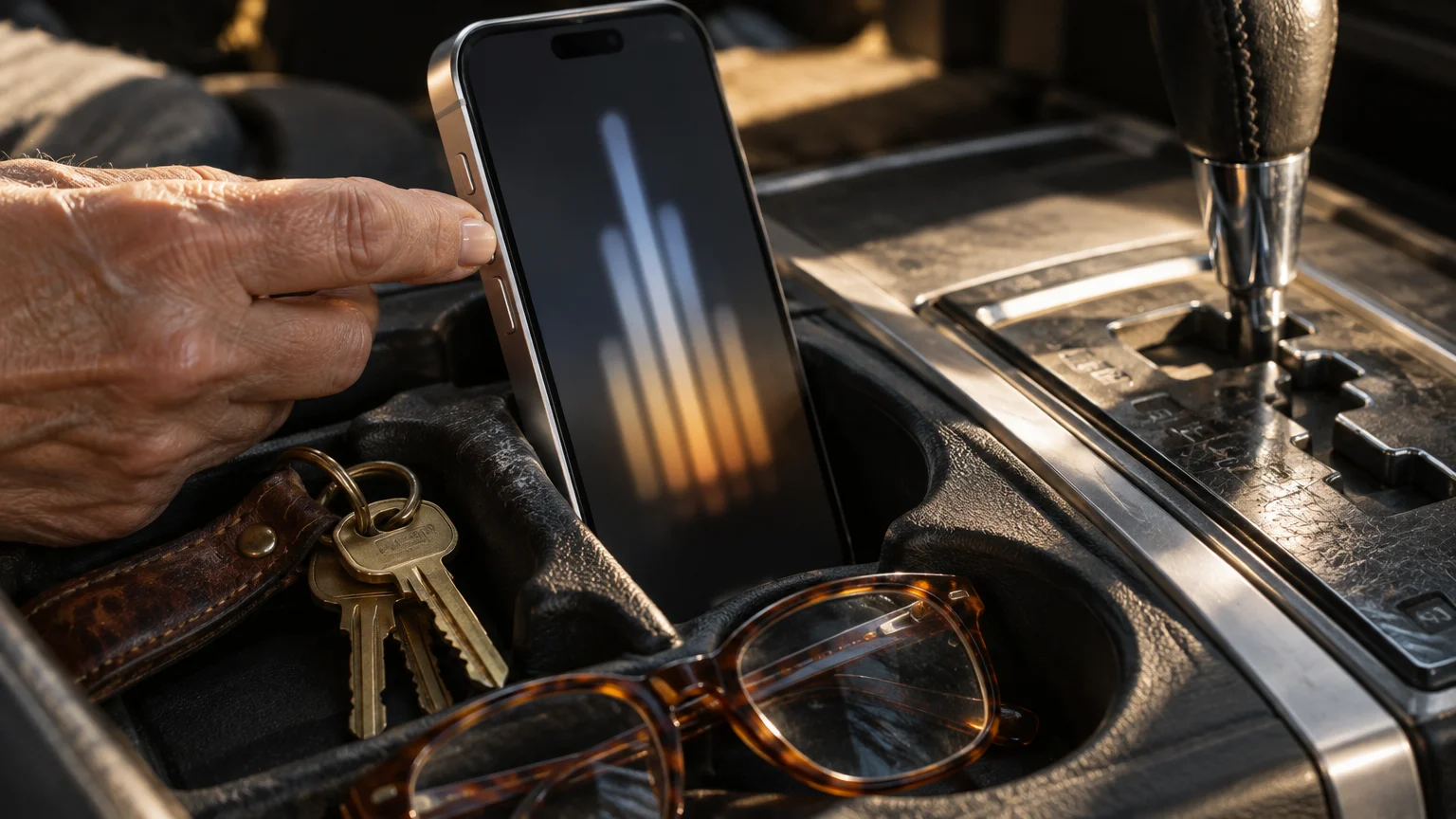
Adjust Hardware Volume Channels on Your Phone
Modern smartphones maintain separate digital volume channels for media playback, telephone calls, alarms, and system notifications. Adjusting your phone volume while on the home screen typically alters only your ringer on an iPhone or general media volume on Android, not the Bluetooth call channel.
To prevent your navigation or ringer channels from muting automatically during your drive, check how to schedule quiet hours on your phone properly.
If you frequently struggle to hear other phone notifications, you can also learn how to make text message alerts louder so you never miss an important message.
If adjusting your sound controls accidentally silences your ringtone, review our easy fixes for when your phone isn’t ringing.
To increase Google Maps voice levels effectively, you must press your physical volume buttons during an active navigation instruction. When the voice is speaking, the hardware rocker targets the guidance audio stream directly.
You can also adjust the sound output via your vehicle dash controls. When the car engages phone-call mode, the volume knob manages the vehicle call receiver rather than the background radio.
Review the Apple iPhone User Guide for complete instructions on managing separate audio sliders in software settings.
Keeping your phone operating system current prevents known audio connection glitches between older automotive dashes and newer phones. Consult guidance from CISA on updating software regularly to maintain system stability and device security.
Compare Vehicle Audio Connection Options
Different connection methods handle cabin audio interruption differently, especially in vehicles built between 2008 and 2016. Selecting the appropriate protocol ensures you never miss a critical highway transition.
When setting up your route before a road trip, you can also learn how to find rest stops on Google Maps to schedule safe breaks along the way.
The following table outlines measurable technical attributes across the three primary audio connection methods available in older automobiles:
| Connection Method | Stereo Radio Interruption | Audio Latency Delay | Requires Vehicle Bluetooth |
|---|---|---|---|
| Bluetooth Hands-Free Profile (Call Mode) | Automatic Pause and Resume | 1.2 to 2.0 seconds | Yes |
| Bluetooth Media Stream (A2DP) | None (Requires Stereo in Bluetooth Mode) | 0.2 to 0.4 seconds | Yes |
| Auxiliary 3.5 mm Audio Cable | None (Requires Stereo in AUX Mode) | 0.0 seconds (Instantaneous) | No |
The call mode introduces a minor delay while the vehicle connects the telephone circuit. To compensate, Google Maps triggers directions slightly earlier when this setting is active.
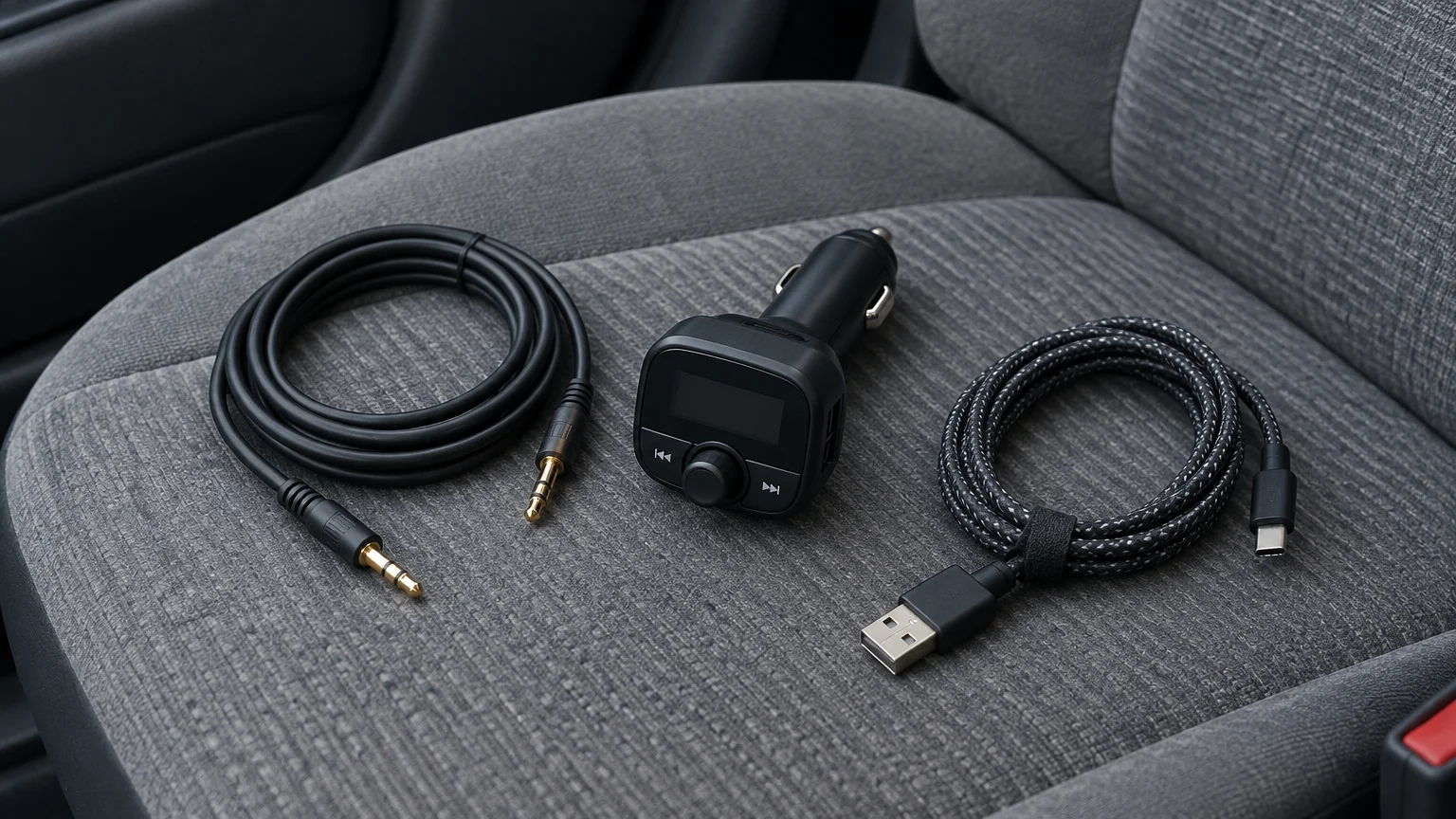
If your vehicle lacks Bluetooth entirely, an auxiliary cable plugged into the headphone jack delivers zero latency. However, an auxiliary cable cannot interrupt an AM or FM broadcast.
Step-by-Step Scenario in an Older Vehicle
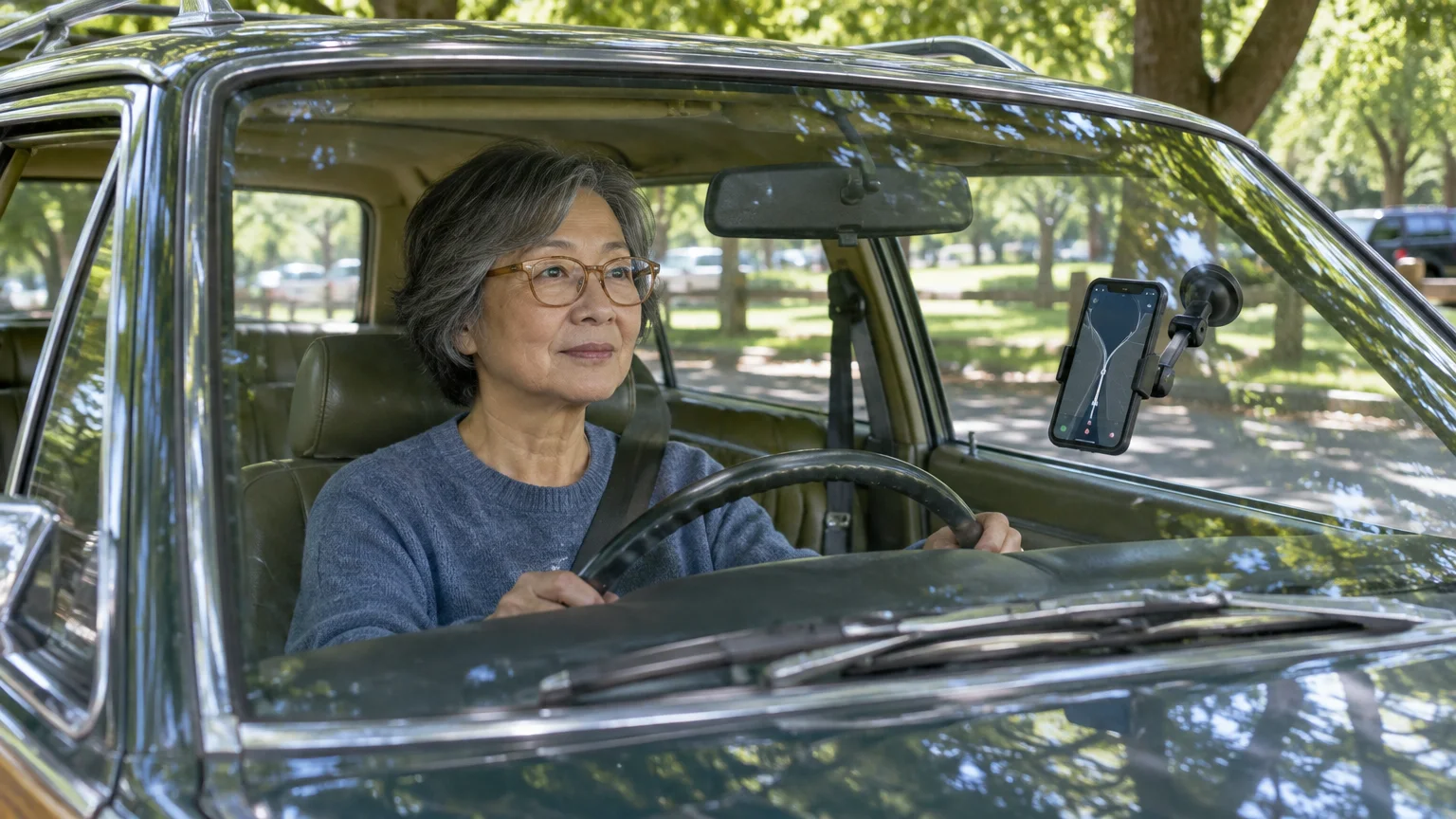
Consider a worked scenario involving a driver who commutes in a 2013 sedan equipped with a basic factory Bluetooth receiver. The driver listens to classical music on FM radio set to audio volume level 14.
Before heading out on your journey, consider taking a moment to share your driving location temporarily with family so they know you arrived safely.
The phone rests in a dashboard cradle with Google Maps guiding a 22-mile route across suburban highway interchanges. Standard navigation audio remains completely inaudible because the stereo stays locked to the FM tuner.
Before departing, the driver parks safely and toggles the switch to play navigation as Bluetooth phone call inside the app. The driver also switches guidance volume from Normal to Louder.
Two miles into the trip, the car approaches an exit ramp. The radio mutes instantly, and the car dashboard screen displays a simulated call lasting 6 seconds.
While the simulated call is active, the driver turns the car volume knob up to level 18. The voice direction sounds loud and crisp through the front door speakers.
As soon as the prompt concludes, the simulated call terminates cleanly. The stereo returns to the classical broadcast at volume level 14 without any manual intervention.
Accessibility Settings and Hearing Support
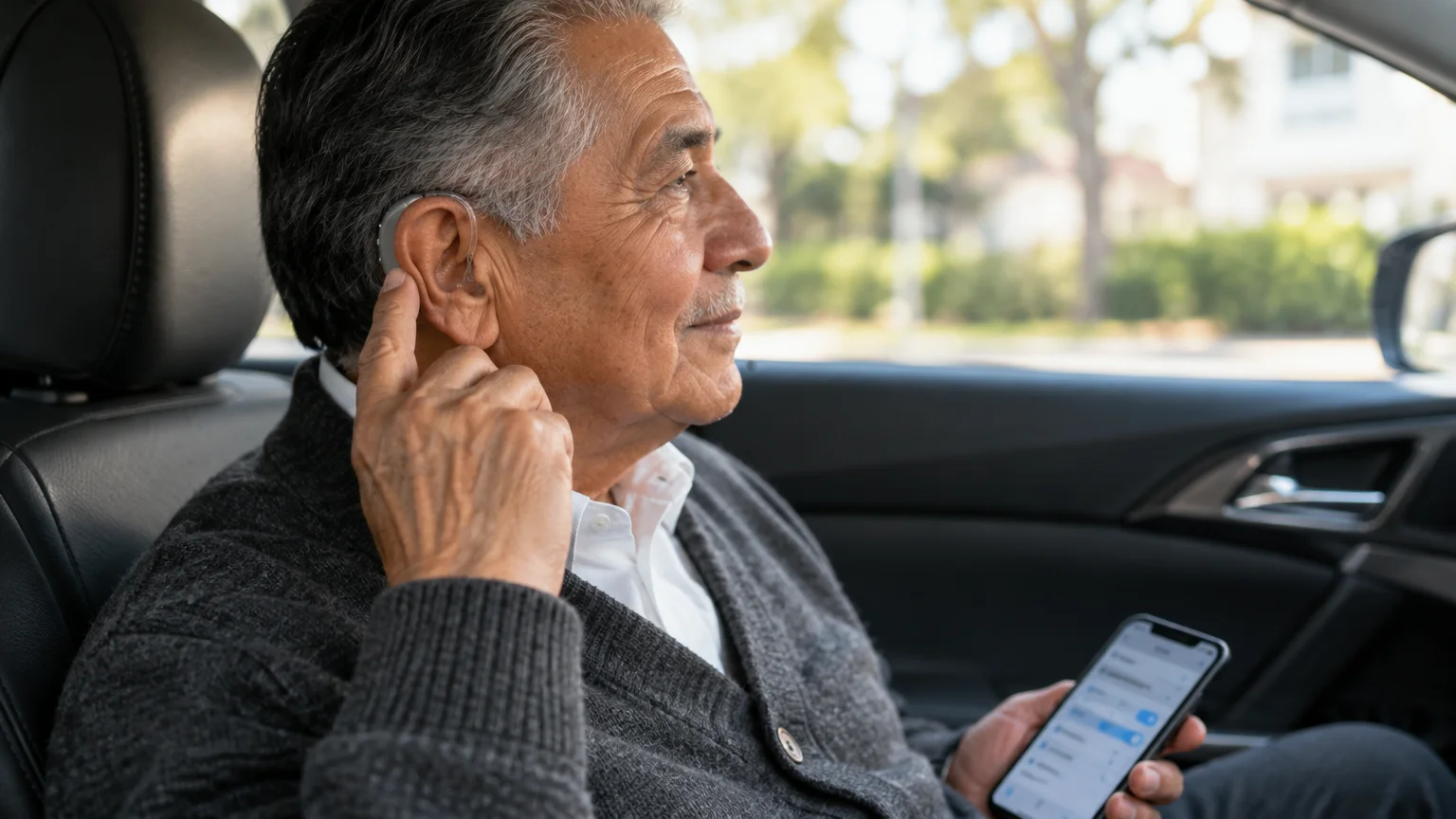
If you wear hearing instruments while driving, you can route speech prompts directly into your hearing aids rather than car speakers. This eliminates cabin noise interference completely.
Both Apple and Android operating systems support wireless audio streaming directly to compatible prescription hearing devices. The Federal Communications Commission provides standards detailed in their guide to hearing aid compatibility for wireless phones.
To review built-in hearing accommodation tools on an iPhone, consult the official Apple guide to accessibility features on iPhone. These menus allow you to adjust left-right balance and boost speech frequencies.
For Android owners, activating Live Transcribe or Sound Amplifier can further clarify speech cues when parked. These accessibility tools help drivers with mild or moderate hearing loss understand spoken instructions without distortion.
Frequently Asked Questions
Why does the beginning of each direction get cut off over Bluetooth?
Older vehicle stereos take roughly one to two seconds to open the simulated telephone audio channel. Google Maps attempts to compensate, but slight initial clipping can occasionally occur on older vehicle firmware.
Does routing navigation as a phone call use cellular plan minutes?
No, this feature uses an internal Bluetooth hardware protocol between your phone and your dashboard. It does not place an actual telephone call over your carrier network and consumes zero cellular call minutes.
How can I make Google Maps louder without making my ringtone loud?
Adjust the volume button on the side of your phone only while Google Maps is actively speaking. This changes only the active navigation audio stream while leaving your incoming ringtone volume untouched.
Can I use this Bluetooth phone call setting with Apple CarPlay?
No, Apple CarPlay uses direct high-bandwidth media integration that automatically handles audio mixing. This specific phone-call simulation setting exists primarily for traditional Bluetooth dashboard systems found in older vehicles.
Note: Menus and button names change with software updates. These steps were written for current versions as of 2026; if a screen looks different on your device, the maker’s support page linked above has the latest wording.
ClearTechGuide is independent and is not affiliated with Apple, Google, Microsoft, Amazon or any other company mentioned.