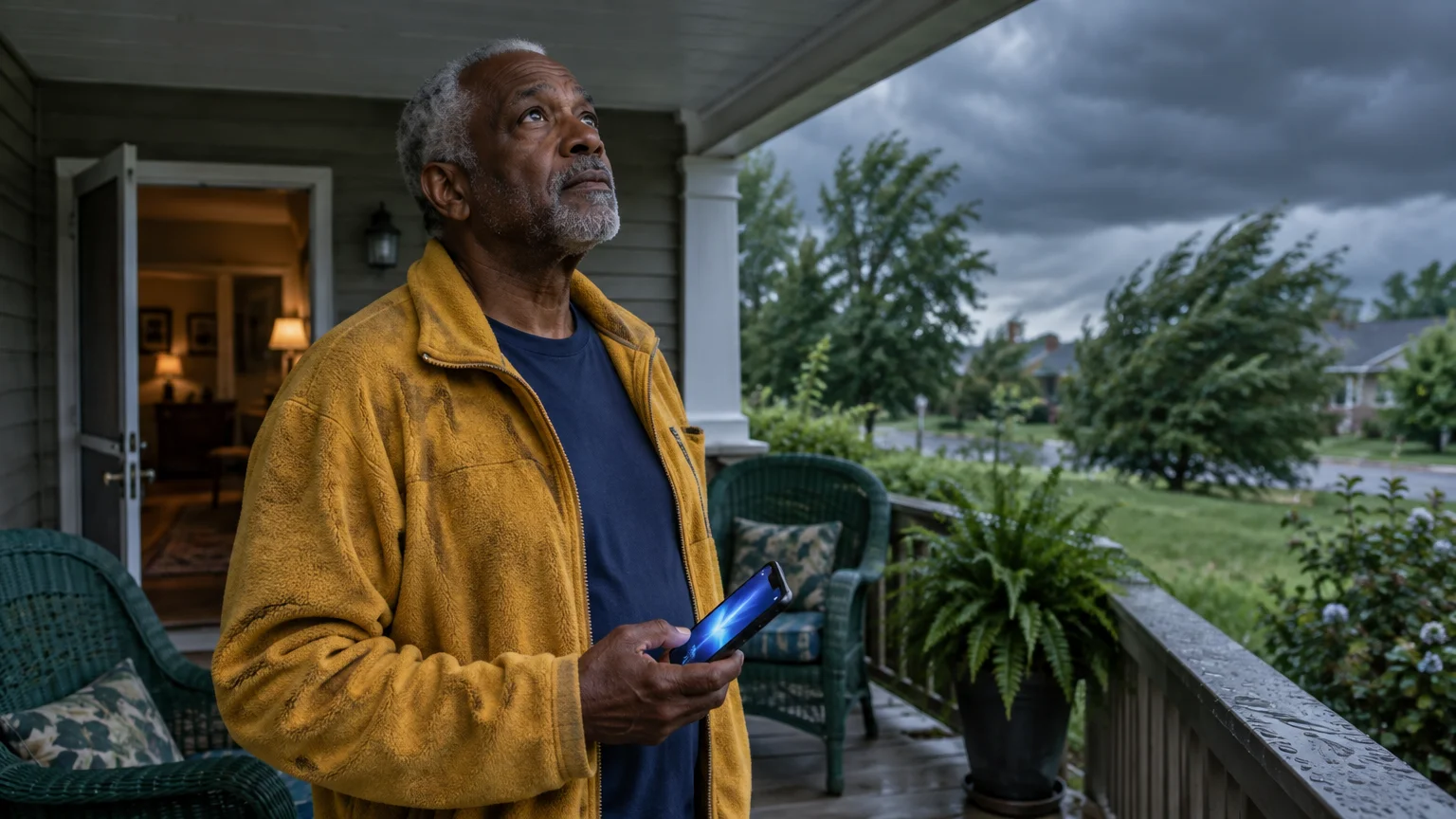
This guide is for a reader in their mid-seventies with an iPhone kept updated to iOS 26. A family member set it up years ago, and you check Weather before bringing in the porch chairs.
If you ever have trouble finding your app icons before getting started, our guide to your iPhone’s home screen can help you get your bearings.
Last summer you looked up the forecast for a rental cabin town and saved it. Now the phone buzzes with flood warnings for that town, while storms heading for your own street arrive in silence.
Our judgement: deleting the cabin town, the step most guides stress, is the smaller fix. Done on its own, it trades wrong alerts for no alerts.
The fix that matters is letting Weather check your location Always.
If your phone is Android, the FAQ points you to Google’s help.
In this guide6 sections
Why the Weather App Warns the Wrong Town
Apple Weather keeps two separate kinds of alerts: one set for each city you saved, and one for Current Location, meaning wherever the phone is right now.
If you are traveling through changing conditions, you can also review how to share your driving location temporarily so loved ones can track your journey safely.
If you want a quick refresher on reading 10-day forecasts and precipitation charts, see how to use the weather app on your phone.
Each saved city has its own alert switches. They fire whether you are there or not, because a saved city is simply a fixed place on the map.
Current Location alerts work differently. To warn you about your own street, Weather has to check where the phone is even when the app is closed.
The Apple iPhone User Guide explains that current-location notifications need Weather’s location access set to Always. Set to While Using the App, Weather only knows where you are while you are looking at it.
So the phone is doing exactly what it was told during that trip. The cabin town’s switch is on and firing, while Current Location is off or cannot follow you.

The One Setting That Matters Most
If you change only one thing today, make it Weather’s location permission. Without Always, no amount of tidying the city list will make the phone warn you about your own porch.
Here is the part most guides skip. Delete the cabin town and you remove the only place Weather was watching.
If Current Location cannot work, Weather now watches nowhere, and a quiet phone looks like a calm sky.
The table below shows the four states your phone can be in. Each row follows from how the settings work, and Weather’s Notifications screen tells you which row you are in.
| Cabin town alerts | Weather location access | Storm over the cabin town | Storm heading for your street |
|---|---|---|---|
| On | While Using the App | Alert | Silence (your phone today) |
| Off or deleted | While Using the App | Silence | Silence (the usual advice, done alone) |
| On | Always, Current Location on | Alert | Alert |
| Off or deleted | Always, Current Location on | Silence | Alert (the goal) |
Only the location column changes the last column. That is why Always comes first and the cabin town second.
Government Alerts are a separate system and may still reach you in the silent rows. Treat them as a backstop for official emergencies, not a replacement for Weather’s warnings.
Precise Location matters next. With it off, iPhone gives apps an approximate area instead of your exact spot, which can blur whether you sit inside a warning zone.
Always access does let Weather see your location in the background. For an app whose job is warning you where you are, that is a reasonable trade.
While you are reviewing permissions, the FTC guide to protecting your phone from hackers covers the wider habits worth keeping.
Worked Example: Cabin Town Off, Home Porch On
Here is your case from start to finish. If the buttons are hard to read, follow Apple’s guide to making text bigger on iPhone first; these steps work at any text size.
Step 1: Give Weather Always location access
- Open Settings.
- Tap Privacy & Security.
- Tap Location Services and check that the switch at the top is green.
- Scroll down and tap Weather.
- Choose Always.
- Turn on Precise Location.
Leave Wi-Fi switched on even if you rarely browse. Indoors, iPhone uses nearby Wi-Fi networks to help work out where it is.
Step 2: Turn on alerts for where you are
- Open the Weather app.
- Tap the List button at the bottom right; it looks like a short bulleted list.
- Tap the More button (three dots) at the top right, then tap Notifications.
- Under Current Location, turn on Severe Weather. Other alert types may appear; the list varies by iOS version and region.
If Weather says it needs Always location access, go back to Step 1. That message means you are still in one of the top two rows of the table.
Step 3: Silence the cabin town, or delete it
Still on Weather’s Notifications screen, look under Your Locations. Tap the cabin town and turn its switches off.
That keeps its forecast handy in case you return. If you never will, go back to the city list, swipe left on the cabin town, and tap the red delete button.
Step 4: Make sure the alert can be heard
- Open Settings and tap Notifications.
- Scroll down and tap Weather.
- Turn on Allow Notifications.
- Tick Lock Screen, Notification Center and Banners.
- Turn on Sounds.
Step 5: Check the result
Open Weather’s city list. My Location should sit at the top, with the cabin town below it or gone.
If you worry about missing faint sounds around the house, learn how to make your phone alerts louder so important tones are impossible to overlook.
On Weather’s Notifications screen, Current Location should show Severe Weather on and the cabin town should show its switches off. You are now in the bottom row of the table.
What Low Power Mode Changes, and What It Doesn’t
Many readers turn on Low Power Mode in Settings > Battery to stretch a day’s charge. The battery icon turns yellow while it is on.
If you prefer silence while sleeping, explore how to schedule quiet hours on your phone while still allowing critical emergency warnings to break through.
To ensure your device gets the latest system fixes and reliable alert features, review how to update your iPhone to the latest software.
Apple says Low Power Mode reduces background activity, including mail fetching and Background App Refresh. It does not undo the Always choice you made for Weather.
Apple does not publish whether Low Power Mode delays Weather’s own alerts, so we give no figure here. The practical answer avoids the question.
On a night when storms are forecast, switch Low Power Mode off and leave the phone on its charger by the bed.
Major iOS updates are the other moment to recheck Steps 1 and 2. CISA’s advice to update software regularly still stands; just reopen those two screens afterwards.

Comparing the Switches You Can Check
Every row below is something you can open on your own iPhone. All of these settings are free and built in.
If you want to keep background weather updates without running up your mobile plan, see how to stop apps from updating on cellular data.
| Setting | Where it lives | What it changes | Needs Wi-Fi? |
|---|---|---|---|
| Location access: Always | Settings > Privacy & Security > Location Services > Weather | Lets Weather follow you while the app is closed | No; Wi-Fi helps indoors |
| Precise Location | Same screen as above | Exact spot instead of an approximate area | No |
| Current Location alerts | Weather > List > More > Notifications | Warnings for wherever the phone is | Wi-Fi or cellular data |
| Saved-city alerts | Same screen, under Your Locations | Warnings for that fixed town, wherever you are | Wi-Fi or cellular data |
| Delete a city | Weather > List, swipe left | Removes its forecast and its alerts | No |
| Weather notifications | Settings > Notifications > Weather | Lock screen display and sound | No |
| Low Power Mode | Settings > Battery | Cuts background activity; leaves Always in place | No |
| Government alerts | Settings > Notifications > Government Alerts | Official warnings, separate from Weather | No; arrive over the cellular network |
Only the first and third rows decide whether your own street gets warned. The rest decide which extra towns you hear about, and how loudly.
Frequently Asked Questions
Why did my phone warn me about a town I visited last summer?
Because that town is still saved in Weather with its alert switches on. Saved cities send their own warnings wherever you are, so turn their switches off or delete the city.
Does leaving Weather’s location on Always run the battery down?
It uses some power, and how much varies by phone. To see for yourself, open Settings > Battery and look at where Weather appears in the list of apps by battery use.
Can I keep a relative’s town for forecasts without hearing their storm alarms?
Yes. Leave the town saved and turn off its switches under Your Locations in Weather’s Notifications screen.
The forecast stays; the alarms stop.
Will these changes block official government emergency alerts?
No. Government alerts are sent by a separate system to phones in the affected area. Their switches sit at the bottom of Settings > Notifications, under Government Alerts.
Apple’s guide to government alerts explains how to turn individual options like AMBER Alerts and Emergency Alerts on or off.
What if my phone runs Android instead?
The same logic applies. On a Pixel with Android 16, open Settings > Location > App location permissions, pick your weather app and choose Allow all the time; the wording varies by model.
Google Android Help covers other makers’ menus, and Google’s Android accessibility overview explains magnification if the text is small.
Note: Menus and button names change with software updates. These steps were written for current versions as of 2026; if a screen looks different on your device, the maker’s support page linked above has the latest wording.
ClearTechGuide is independent and is not affiliated with Apple, Google, Microsoft, Amazon or any other company mentioned.