

Do you remember eagerly awaiting your favorite TV show to air each week, or heading to the video store to pick out a movie for the weekend? The world of entertainment has changed dramatically, and a service called Netflix is at the forefront of this shift. Netflix brings a vast library of movies, TV shows, and documentaries directly to your fingertips, whenever you want to watch them.
If you enjoy browsing digital libraries, you might also want to find and download free e-books to read on your tablet or computer.
Sharing your movie recommendations with friends and family is easy once you set up WhatsApp for messaging and calls.
If you’re curious about watching movies and TV shows online but feel overwhelmed by the technology, you’ve come to the right place. This guide will walk you through every step of getting started with Netflix. You’ll learn how to find and download the Netflix app, set up your account, and easily find something wonderful to watch, whether you prefer using a smartphone, tablet, or your computer. Get ready to discover a world of entertainment from the comfort of your home.
Table of Contents
- What is Netflix and Why Use It?
- Getting Started with Netflix: What You Need
- How to Download and Install the Netflix App (Phone/Tablet)
- How to Access Netflix on Your Computer (Web Browser)
- Creating Your Netflix Account and Choosing a Plan
- Setting Up User Profiles for Everyone
- Navigating Netflix: Finding and Watching Shows
- Making the Most of Netflix: Tips and Features
- Common Questions and Troubleshooting
- Frequently Asked Questions
What is Netflix and Why Use It?
Netflix is a popular online service that lets you watch thousands of movies, TV shows, and documentaries anytime you want, on many different devices. This is called “streaming” which simply means watching video over the internet without downloading the entire file first. Think of it like a giant, on-demand video store that lives inside your phone, tablet, or computer.
You can also use Facebook to join groups where members recommend their favorite Netflix series and films.
If you are interested in exploring more video content, you can also learn to use YouTube to find helpful tutorials and hobby videos.
Many people find Netflix incredibly useful and enjoyable for several reasons:
- Endless Entertainment: You gain access to a huge variety of content, from classic films to new releases, thrilling dramas, heartwarming comedies, educational documentaries, and children’s programs. You will likely always find something that interests you.
- Watch Anywhere, Anytime: With an internet connection, you can watch Netflix in your living room, bedroom, kitchen, or even when you are traveling. You are not tied to a specific broadcast schedule. If you use a phone or tablet, you can even download certain shows to watch later without internet access.
- Personalized Suggestions: Netflix learns what you like to watch and suggests new shows and movies you might enjoy. This takes the guesswork out of finding something good.
- Multiple Profiles: You can create separate profiles for different family members. This keeps everyone’s watch history and recommendations separate. Your preferences do not mix with your grandchild’s cartoons.
- No Commercials: Most Netflix content plays without commercial breaks, offering an uninterrupted viewing experience.
Netflix empowers you to choose what you want to watch, when you want to watch it. It puts you in control of your entertainment schedule, giving you flexibility and access to a world of stories.
Getting Started with Netflix: What You Need
Before you dive into the world of Netflix streaming, ensure you have a few things ready. Having these items prepared will make the setup process smooth and easy for you.
- An Internet Connection: Netflix relies on the internet to stream videos. You will need a reliable Wi-Fi connection at home or a strong cellular data connection on your phone or tablet. A faster internet connection provides a clearer picture and fewer interruptions.
- A Device to Watch On: You can watch Netflix on many devices:
- Smartphone or Tablet: This includes iPhones, iPads, Android phones, and Android tablets. You will download the Netflix “app” which is a program you can download and use on your phone or tablet.
- Computer: You can use a desktop computer or a laptop. You do not need to download a separate app on a computer; you watch Netflix directly through an internet browser like Chrome, Firefox, Safari, or Edge.
- Smart TV or Streaming Device: Many newer televisions come with Netflix built in. Devices like Roku, Amazon Fire TV Stick, Apple TV, or Google Chromecast also allow you to watch Netflix on any TV. This guide focuses on phones, tablets, and computers, but the basic use of Netflix remains similar across all devices.
- An Email Address: You will use your email address to create your Netflix “account,” which is your personal login with username and password. This email will also be used for important communications from Netflix, like billing or password resets.
- A Payment Method: Netflix is a paid subscription service. You will need a credit card, debit card, or a Netflix gift card to subscribe. They offer different pricing plans, which we will discuss later.
Having these elements ready will ensure a seamless start to your Netflix experience.
How to Download and Install the Netflix App (Phone/Tablet)
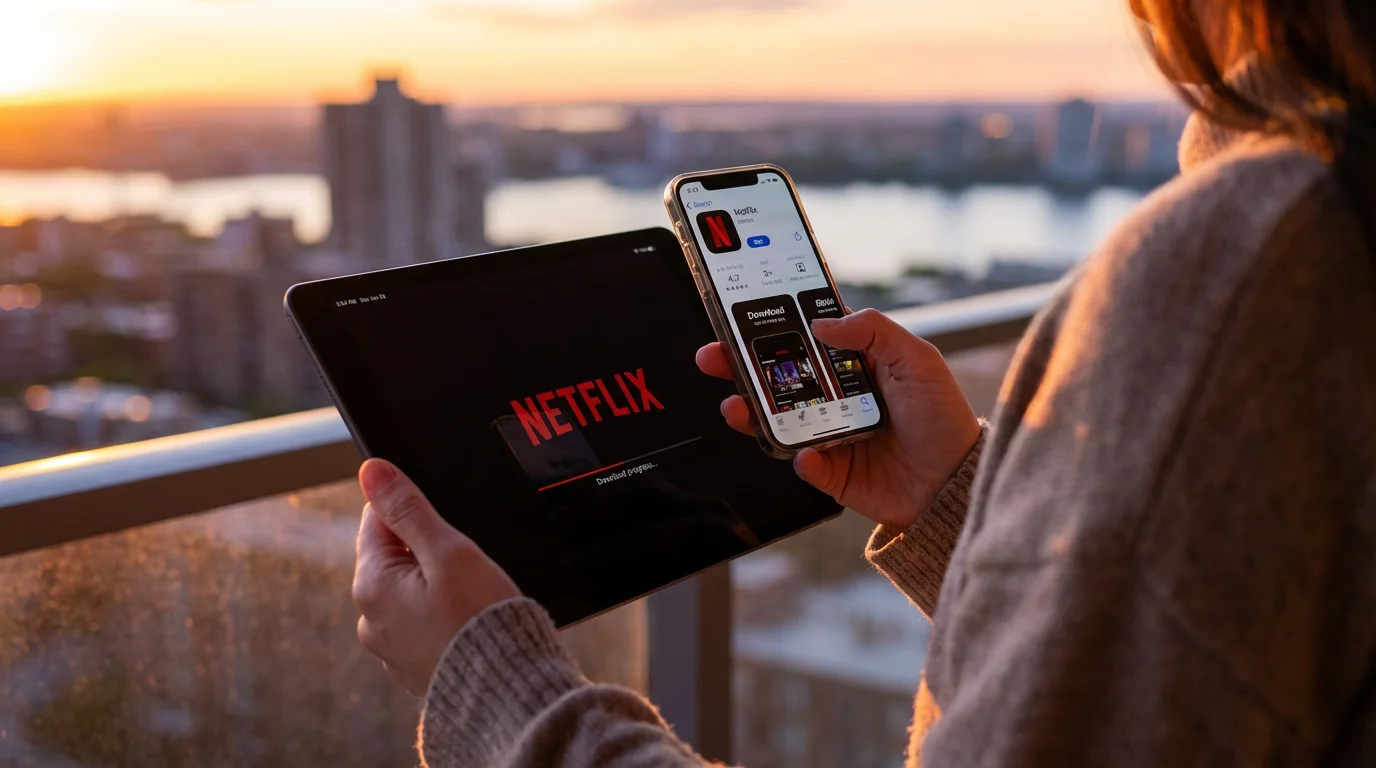
If you plan to watch Netflix on your smartphone or tablet, you will need to “download” and “install” the Netflix app. “Download” means getting the app from the app store and putting it on your device. “Install” means setting up the app so it’s ready to use. Here are the steps for both Apple (iPhone/iPad) and Android devices:
For times when you would rather listen to songs or podcasts, you can use Spotify or Apple Music for a great audio experience.
For Apple iPhones and iPads (App Store):
- Unlock Your Device: Wake up your iPhone or iPad and make sure it is unlocked.
- Find the App Store: Look for an icon on your home screen that looks like a blue square with a white ‘A’ in the middle, often on a light blue background. This is the App Store. Tap on it.
- Tap the Search Tab: At the bottom right of the App Store screen, you will see a magnifying glass icon labeled “Search.” Tap this icon.
- Type “Netflix”: At the top of the screen, a search bar will appear. Tap on it and use your device’s keyboard to type “Netflix.” Then tap the “Search” button on the keyboard.
- Find the Netflix App: You will see a list of results. Look for the official Netflix app, which typically has a red icon with a white ‘N’ on it. It should be listed as “Netflix” and the developer should be “Netflix, Inc.”
- Tap “GET” or the Cloud Icon: If you have never downloaded Netflix before, you will see a button labeled “GET.” Tap it. If you have downloaded it in the past, you might see a cloud icon with an arrow pointing down instead. Tap that.
- Confirm Your Download: Your device may ask you to confirm the download using your Face ID, Touch ID, or by entering your Apple ID password. Follow the on-screen prompts. This step ensures only you can download apps.
- Wait for Installation: The app will begin to “download” and “install.” You will see a circular progress bar on the app icon on your home screen. Once it is finished, the icon will appear fully, ready to use.
- Open the App: Once installed, tap the red Netflix icon on your home screen to open the app.
For Android Phones and Tablets (Google Play Store):
- Unlock Your Device: Wake up your Android phone or tablet and make sure it is unlocked.
- Find the Google Play Store: Look for an icon on your home screen or in your app drawer that looks like a colorful triangle (red, green, blue, yellow) or a shopping bag. This is the Google Play Store. Tap on it.
- Tap the Search Bar: At the top of the Google Play Store screen, you will see a search bar that says “Search for apps & games.” Tap on it.
- Type “Netflix”: Use your device’s keyboard to type “Netflix” and then tap the search icon (magnifying glass) on the keyboard.
- Find the Netflix App: From the search results, look for the official Netflix app, which has a red icon with a white ‘N’. Make sure it is listed as “Netflix” and the developer is “Netflix, Inc.”
- Tap “Install”: Tap the green “Install” button next to the Netflix app.
- Wait for Installation: The app will begin to “download” and “install.” You will see a progress bar. Once complete, the button might change to “Open” or the Netflix icon will appear on your home screen.
- Open the App: Tap “Open” from the Google Play Store, or find and tap the red Netflix icon on your home screen or in your app drawer.
How to Access Netflix on Your Computer (Web Browser)
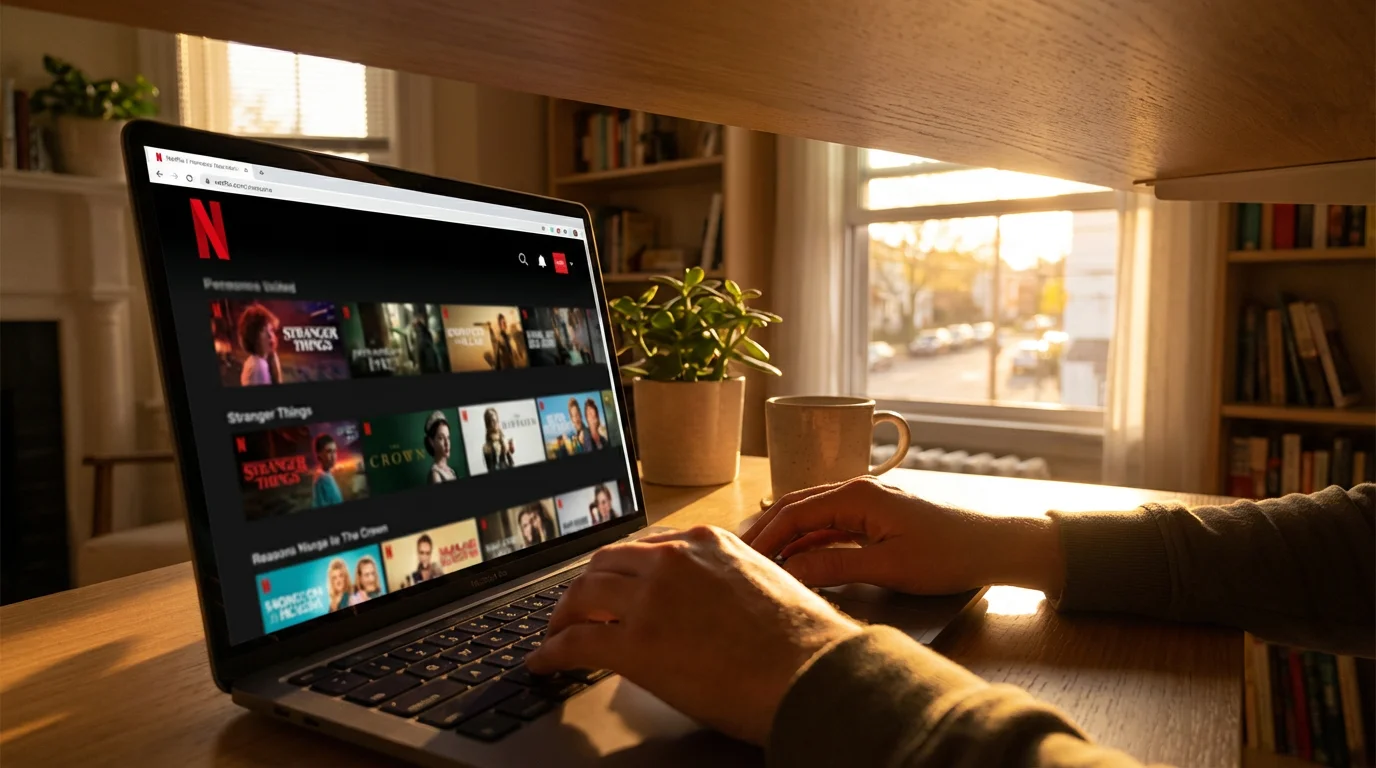
Using Netflix on a desktop or laptop computer is straightforward. You do not need to download a special “app” because you can access it directly through your internet browser.
If you are accessing streaming services from your computer, it is helpful to know how to use Gmail to manage your account and billing notifications.
- Open Your Web Browser: Click on the icon for your preferred internet browser. Common browsers include:
- Google Chrome (a colorful circle)
- Mozilla Firefox (a fox wrapping around a globe)
- Microsoft Edge (a blue-green wave icon)
- Safari (a blue compass icon, usually on Apple computers)
- Go to the Netflix Website: Once your browser is open, look for the address bar at the very top of the window. It is a long, narrow box where website addresses are typed. Click in this bar and carefully type the following address:
www.netflix.com. Then, press the “Enter” or “Return” key on your keyboard. - You are on the Netflix Homepage: The Netflix website will load. If you already have an account, you will see an option to “Sign In.” If you are new, you will see options to “Join Now” or “Get Started.”
You can also create a shortcut to Netflix on your computer’s desktop or in your browser’s bookmarks for quicker access next time. To bookmark, look for a star icon in your browser’s address bar and click it.
Creating Your Netflix Account and Choosing a Plan
To start watching, you need to create a Netflix “account” which acts as your personal gateway to their content. This process also involves choosing a subscription plan. Netflix is a paid service, so there are no free versions beyond potential short-term trials offered by Netflix directly or sometimes through promotions.
Steps to Create Your Account:
- Start the Sign-Up Process:
- On a Phone/Tablet: Open the Netflix app. You will see a screen with an option like “Get Started” or “Sign Up.” Tap it.
- On a Computer: Go to
www.netflix.comin your browser. Look for a button that says “Join Now” or “Get Started” and click it.
- Enter Your Email Address: Netflix will ask you to enter your email address. Type it carefully and then click “Next” or “Continue.” This email will be your username for signing in.
- Create a Password: You will then be prompted to create a password. Choose a strong password that you will remember, using a mix of uppercase and lowercase letters, numbers, and symbols. Write it down in a safe place if you are concerned about forgetting it. Click “Next” or “Continue.”
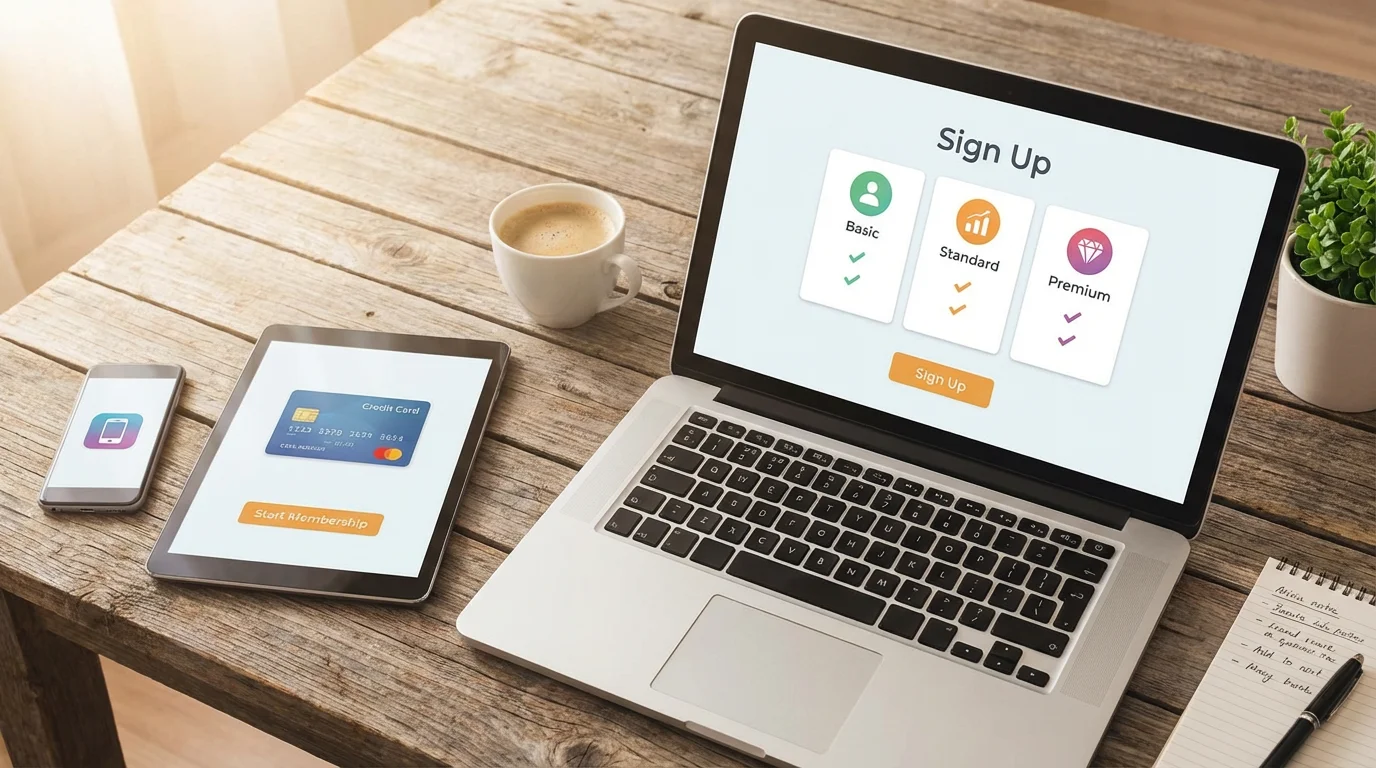
- Choose Your Plan: Netflix offers different subscription plans, usually differing in price based on how many screens can watch at the same time and the quality of the video (Standard Definition, High Definition, Ultra High Definition).
- Carefully review the options. Consider how many people in your household will watch Netflix simultaneously. If it’s just you, a basic plan might suffice. If multiple family members will watch on different devices at the same time, a higher-tier plan might be better.
- Select the plan that best fits your needs and budget. You can always change your plan later.
- Enter Payment Information: Netflix will ask for your payment details, such as a credit card number, expiration date, and security code, or details for a Netflix gift card. Enter this information carefully.
- Start Your Membership: After entering your payment details, click the “Start Membership” or “Subscribe” button. Congratulations, your Netflix account is now active!
Netflix will usually send a confirmation email to the address you provided. Keep this email in case you need to refer to your account details.
Setting Up User Profiles for Everyone
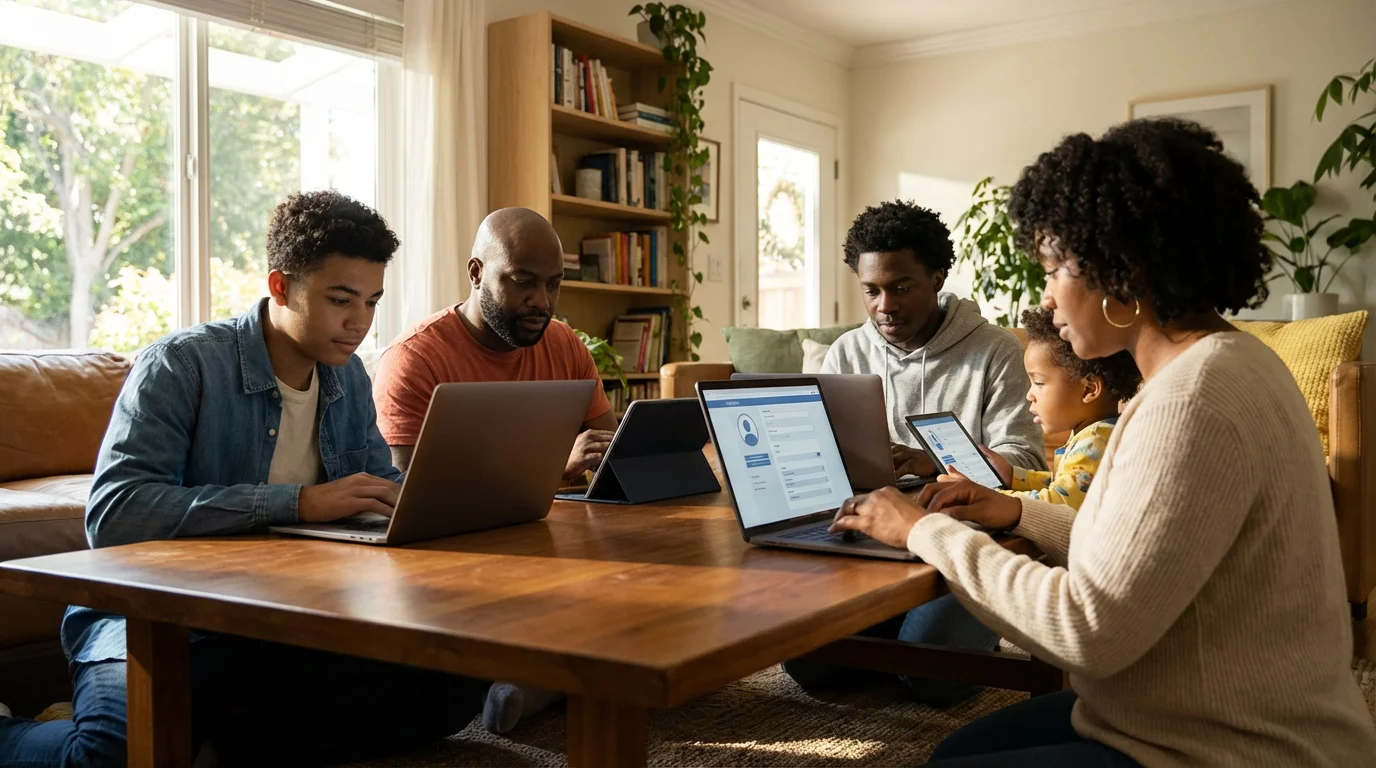
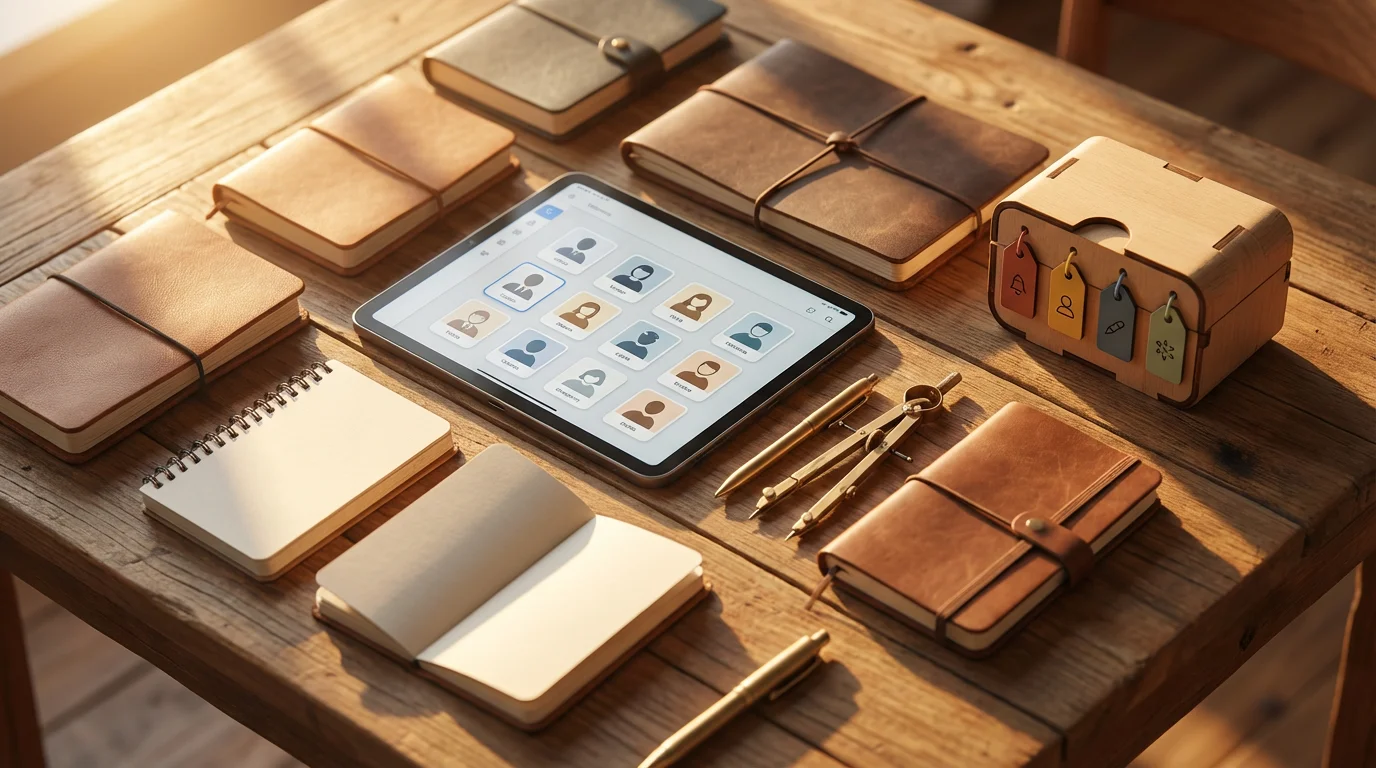
One of Netflix’s best features is the ability to create separate “profiles” for different people using the same account. This means each person gets their own personalized recommendations, watch history, and watch list. It keeps your viewing habits separate from others in your household.
Why Use Profiles?
- Personalized Recommendations: Netflix suggests shows and movies based on what you have watched previously. With profiles, your suggestions are tailored just for you.
- Separate Watch History: You can easily see what you have watched and where you left off in a series without it getting mixed up with someone else’s viewing.
- Parental Controls: You can set specific content ratings for children’s profiles, ensuring they only see age-appropriate material.

Steps to Create a New Profile:
- Go to the Profile Selection Screen:
- First time logging in: After setting up your account, Netflix often prompts you to create profiles immediately.
- Later: If you are already signed in, look for your profile icon (often a circle with a picture or initial) usually in the top-right corner on a computer, or the bottom-right corner (My Netflix) on a phone/tablet, and select “Manage Profiles.”
- Click “Add Profile”: You will see an option, usually a plus sign (+) with “Add Profile” or “Add New Profile” underneath it. Click or tap this.
- Enter a Profile Name: Type in the name for the new profile, for example, “Grandma Betty” or “John.”
- Select an Icon (Optional): Netflix often allows you to choose a fun icon or picture for the profile. This helps you easily identify each profile.
- Indicate if it’s a Kid’s Profile: If the profile is for a child, ensure you check the box or toggle the switch that says “Kid?” or “For Kids.” This automatically applies filters for age-appropriate content. You can usually customize these further later.
- Click “Continue” or “Done”: Once you have entered the name and made selections, finalize the profile creation.
You can create several profiles on one Netflix account. When you open Netflix, it will first show you the profile selection screen, allowing you to choose whose profile you want to use. This way, everyone enjoys their own unique Netflix experience.
Navigating Netflix: Finding and Watching Shows
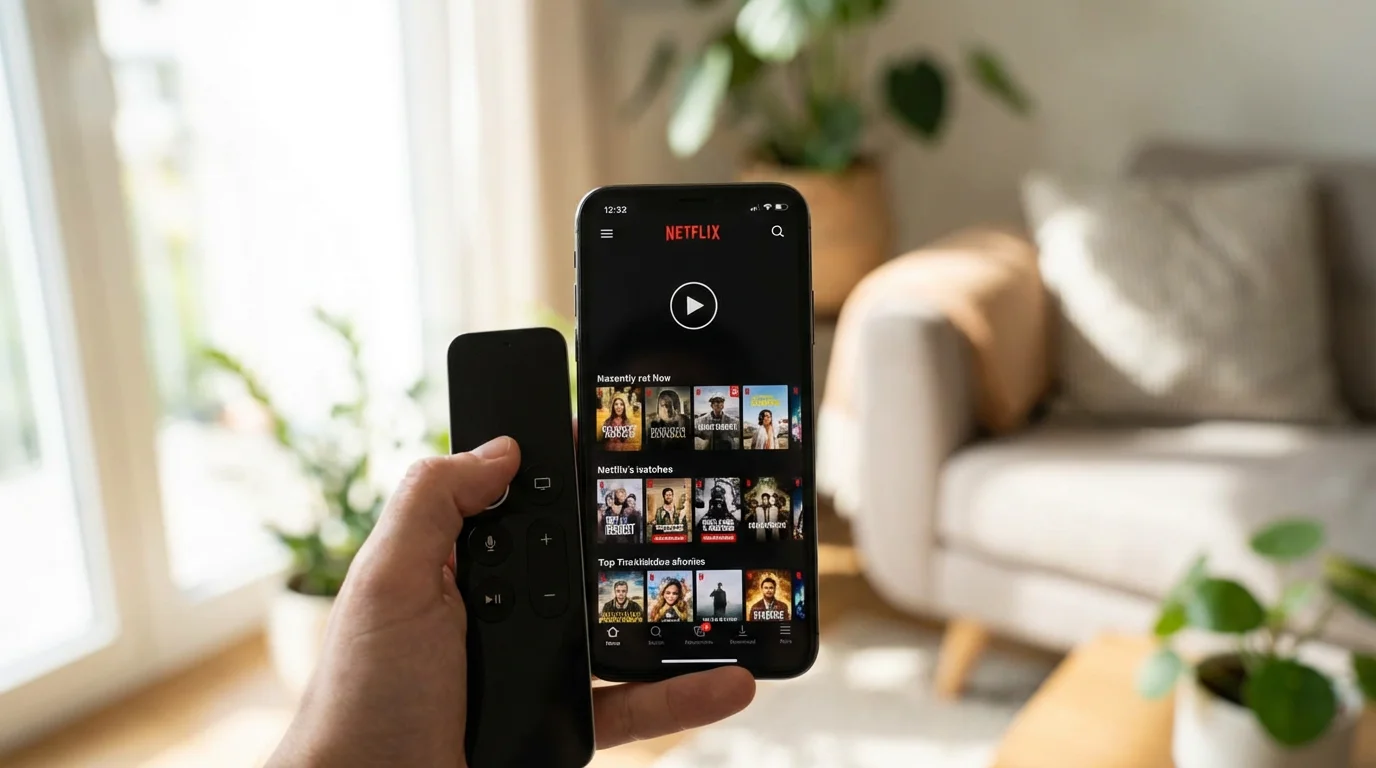
Now that you have the app or website ready and your account set up, it is time for the fun part: finding something to watch! Netflix has a user-friendly interface, but knowing where to look helps.
Understanding the Netflix Interface:
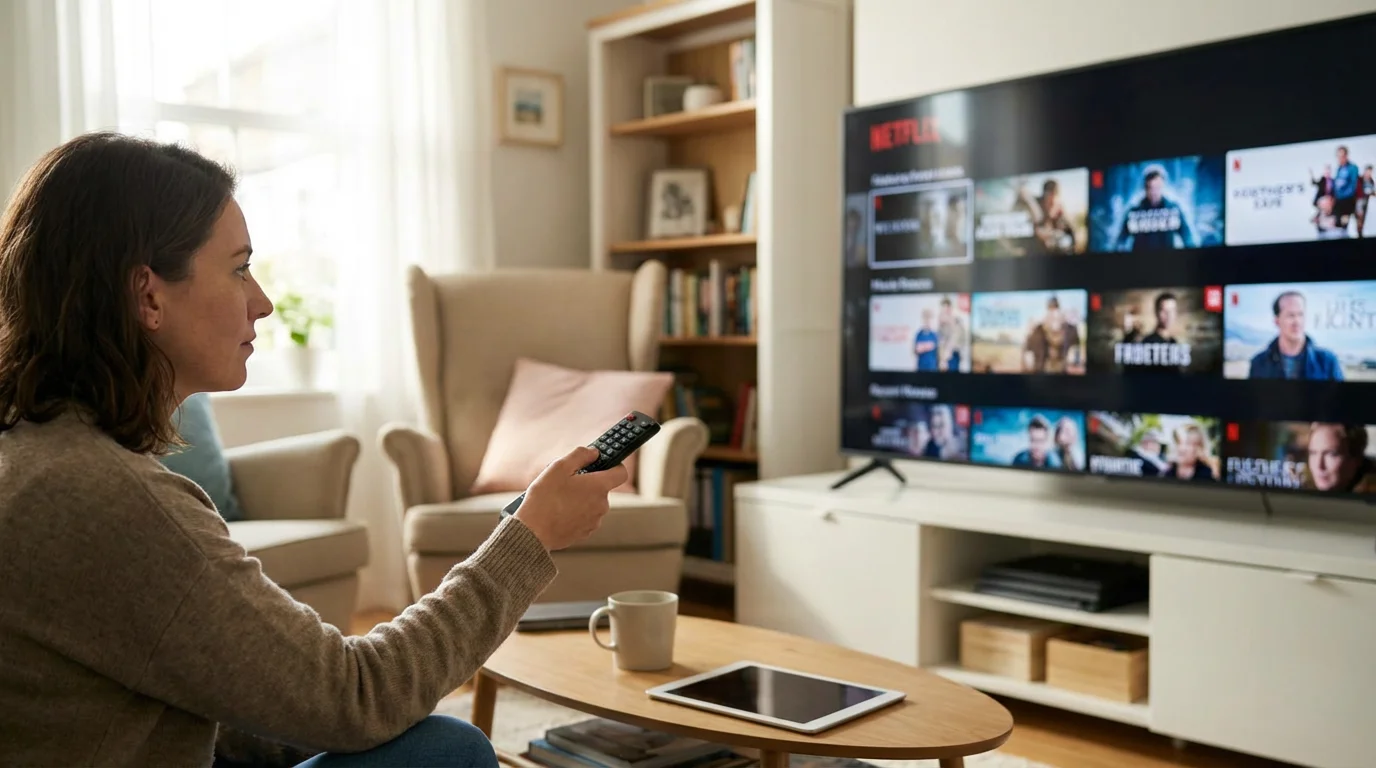
Whether you are on a phone, tablet, or computer, the basic layout is similar:
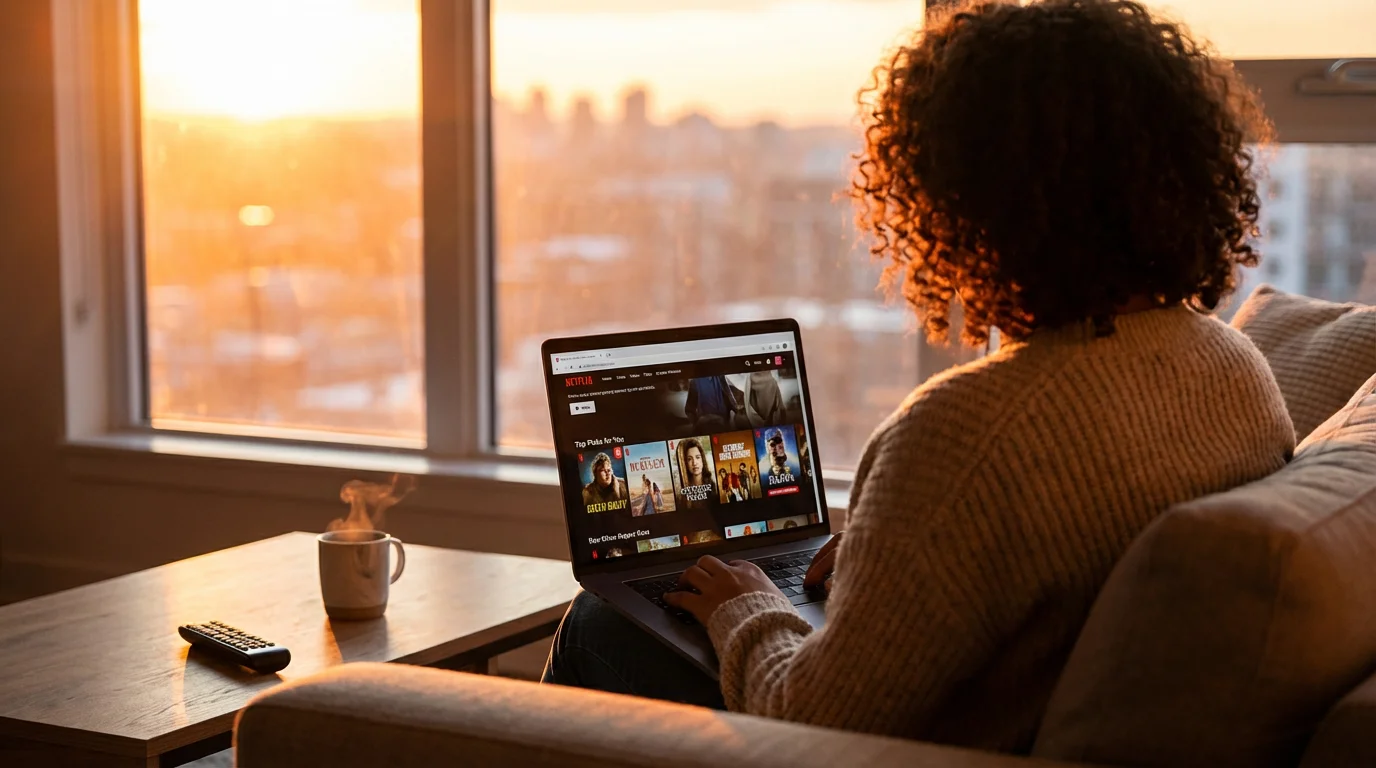
- Home Screen: This is what you see when you first open Netflix. It features rows of suggested shows and movies, categories, and titles that Netflix thinks you will like based on your viewing history. It is a great place to browse.
- Search Icon (Magnifying Glass): This is your best friend for finding something specific. Tap or click this to bring up a search bar.
- Categories/Genres: On the home screen, you will often see categories like “Action & Adventure,” “Comedies,” “Dramas,” “Documentaries,” etc. Clicking on these helps you narrow down your choices.
- My Netflix / My List (sometimes a person icon): This section allows you to manage your personal watch list, view your download history, and revisit shows you have started but not finished.

Steps to Find and Watch a Show:
- Open Netflix and Select Your Profile: Launch the app or go to
netflix.com, then tap or click on your user profile. - Browse or Search:
- To Browse: Scroll up and down the home screen. Look at the different rows. You might see “Continue Watching” for shows you have not finished, “Trending Now” for popular titles, or “New Releases.” If a movie or show catches your eye, tap or click on its picture.
- To Search: If you know what you want to watch, tap or click the “Search” icon (magnifying glass). Type in the name of the movie, TV show, actor, or genre. As you type, Netflix will often suggest titles. Select the correct title from the results.
- Learn More About a Title: After tapping or clicking a title, you will see a detailed page for it. This page usually includes:
- A short description of the show or movie.
- A “Play” button (a triangle icon) to start watching.
- Options to add it to “My List” or “My Netflix” for later.
- Information about the cast, genre, and content rating.
- Related titles you might also enjoy.
- Start Watching: Tap or click the “Play” button. The video will begin to stream.
- Using Playback Controls: While watching, you will see controls appear if you tap the screen (phone/tablet) or move your mouse (computer). These typically include:
- Play/Pause: A triangle to play, two vertical bars to pause.
- Rewind/Fast Forward: Buttons to jump back or forward usually 10 seconds.
- Volume: A slider to adjust the sound level.
- Subtitles/Audio: An icon (often a speech bubble or box) to change language or turn on subtitles (text captions). This is very helpful if you have trouble hearing or prefer reading along.
- Full Screen: An icon (often four arrows pointing outward) to make the video fill your entire screen.
- Exiting a Show: To stop watching, you can tap the “Back” arrow (usually in the top left corner) or simply close the app or browser tab. Netflix will remember where you left off.
Making the Most of Netflix: Tips and Features
Netflix offers several features that can enhance your viewing experience. Understanding these will help you truly master the platform.
1. Use “My List” or “My Netflix”
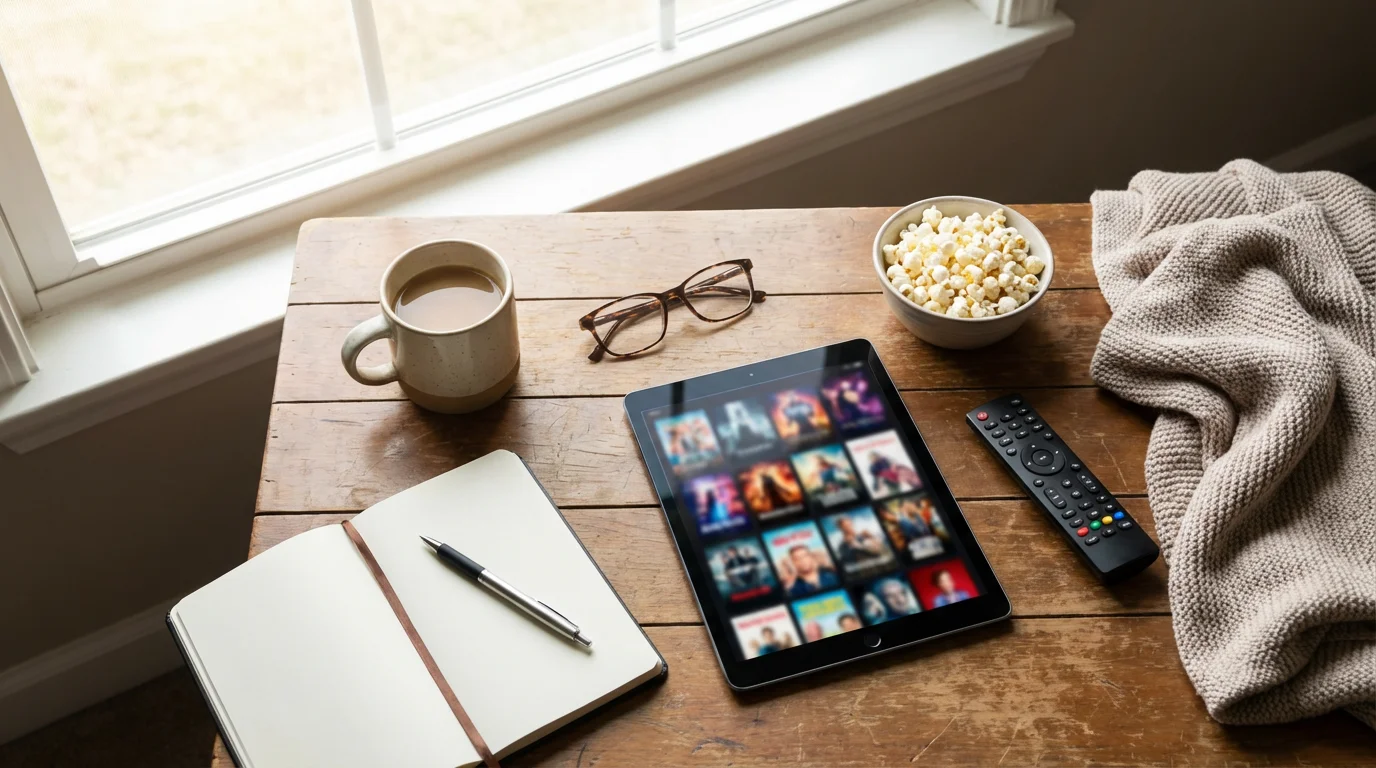
When you browse and find something interesting but are not ready to watch it immediately, add it to “My List” or “My Netflix.” This feature acts like a personalized bookmark collection. It saves titles you are interested in so you do not have to search for them again. To add a title, just look for an icon that looks like a plus sign (+) or a bookmark on the title’s detail page.
2. Download Shows for Offline Viewing (Phone/Tablet Only)
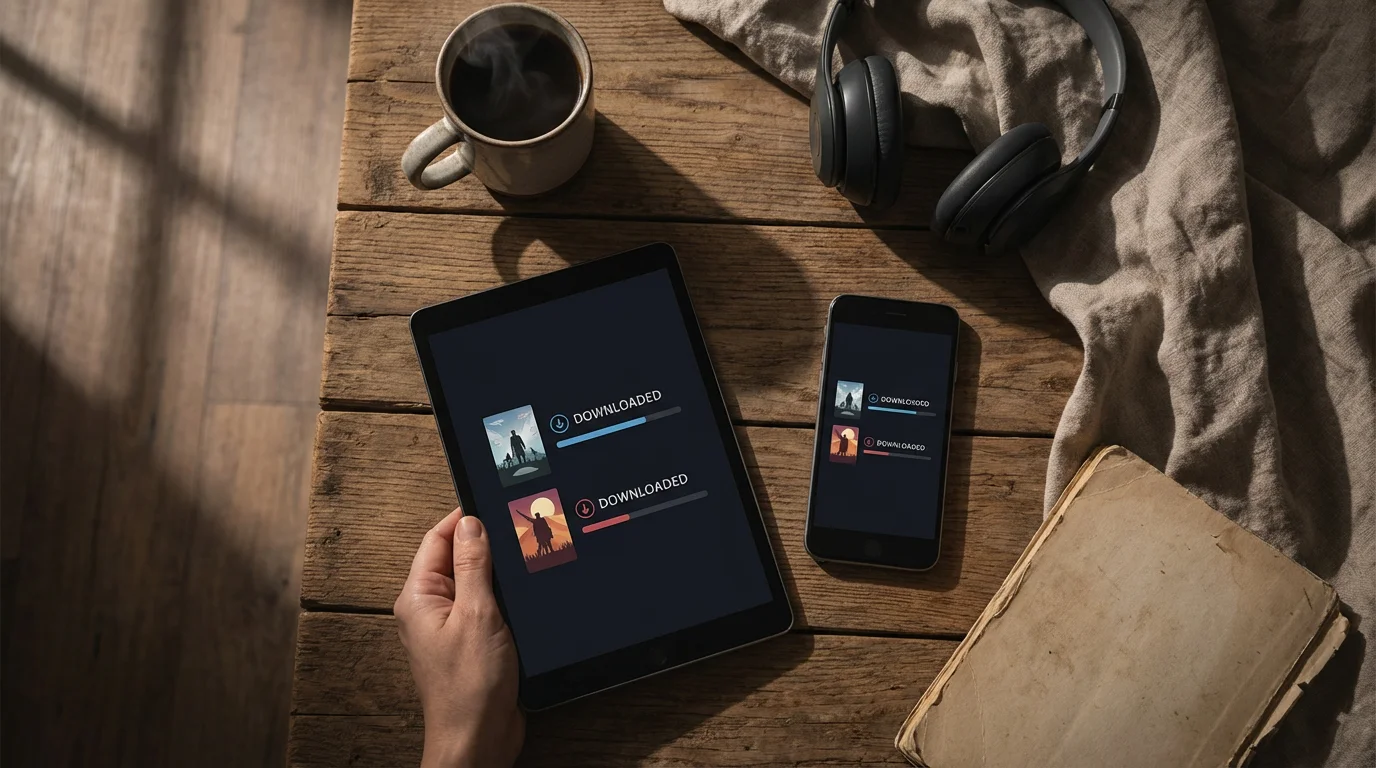
If you have a phone or tablet, you can “download” certain movies and TV show episodes to watch later without an internet connection. This is perfect for long car rides, flights, or places where Wi-Fi is unavailable.
- Find a Downloadable Title: Look for a download icon (a downward arrow) on the show’s detail page. Not all titles are available for download due to licensing.
- Tap the Download Icon: The download will begin. You will see a progress indicator.
- Access Downloads: Go to the “Downloads” section within the Netflix app (usually found in “My Netflix” or a dedicated “Downloads” tab at the bottom of the screen). You can watch your downloaded content from there.
Remember, downloaded content often has an expiration date, so watch it before it disappears, and you may need to reconnect to the internet to renew it.

3. Explore Subtitles and Audio Options
Netflix offers a wide range of subtitle and audio options, which are incredibly useful. While watching, tap the screen or move your mouse to reveal the playback controls. Look for a speech bubble or audio icon. Here you can:
- Turn on Subtitles (CC): This displays text at the bottom of the screen, showing dialogue and sometimes sound effects. It helps if you are hard of hearing or just prefer to read along.
- Change Audio Language: Many shows are available in multiple languages. You can switch to a different dubbed version if you prefer.
4. Set Up Parental Controls for Kids’ Profiles
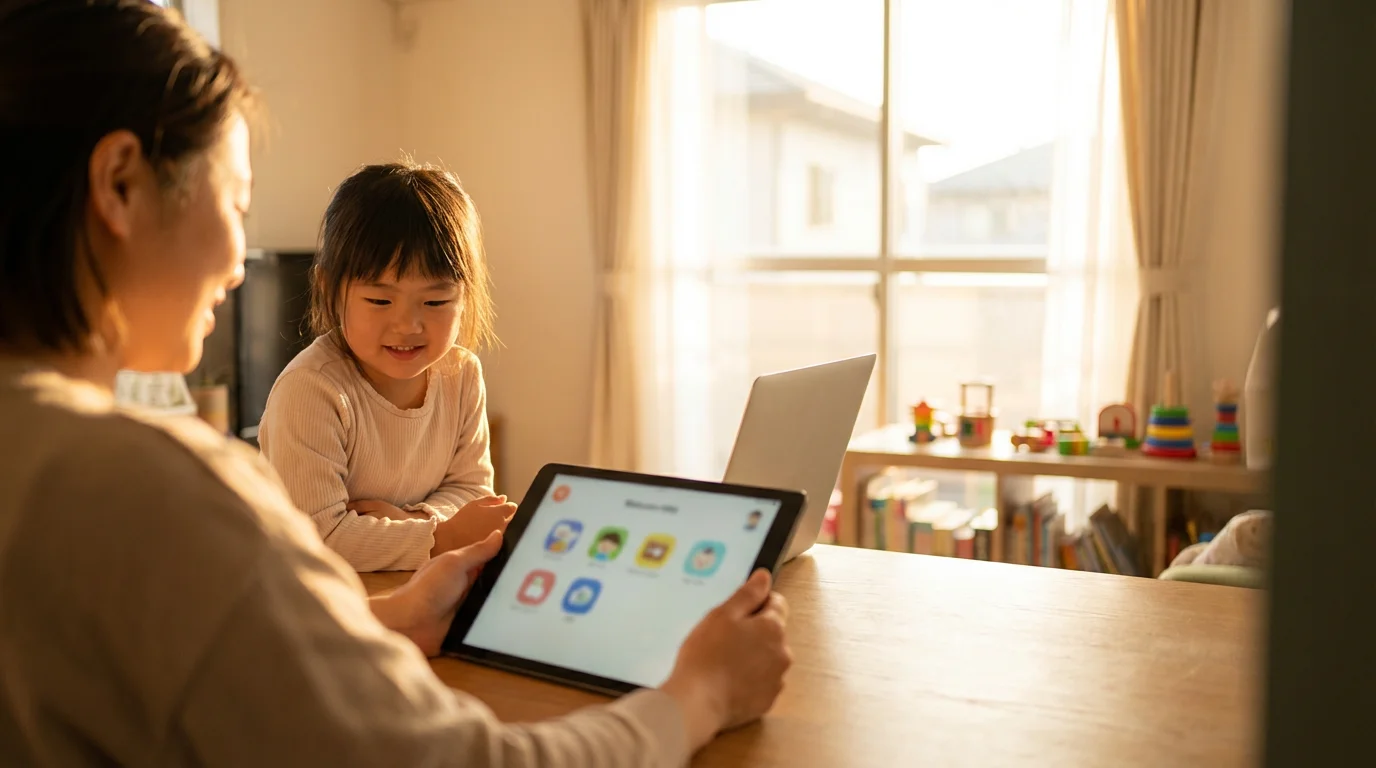
If you have created a profile for a child, you can further customize what they can watch. Go to the “Manage Profiles” section (usually accessed from your main profile icon). Select the kid’s profile, and you will find options to set specific age ratings, block certain titles, or restrict access based on maturity levels. This gives you peace of mind that children are watching appropriate content.

5. Give Thumbs Up or Thumbs Down
After watching a show or movie, Netflix will often ask for your feedback with a “Thumbs Up” or “Thumbs Down” icon. Providing feedback helps Netflix understand your preferences better, leading to more accurate recommendations for you in the future. The more you use it, the smarter Netflix becomes at suggesting things you will love.

Common Questions and Troubleshooting
Even with clear instructions, new technology can sometimes present challenges. Here are answers to some common questions and solutions to typical problems you might encounter while using Netflix.
“My Netflix is buffering, or the picture quality is poor.”
This usually indicates a problem with your internet connection. “Buffering” means the video is stopping to load more content.
- Check Your Internet Connection: Make sure your Wi-Fi is connected and working. Try restarting your Wi-Fi router by unplugging it for 30 seconds and then plugging it back in.
- Move Closer to Your Wi-Fi Router: If you are far from your router, the signal might be weak.
- Close Other Apps/Programs: If other devices or programs are using a lot of internet bandwidth (like large downloads or other streaming services), it can slow down Netflix.
- Consider Your Plan: If this happens frequently, you might need a faster internet plan from your internet service provider.
“I forgot my password.”
This is a common occurrence. Netflix makes it easy to reset:
- Go to the Netflix Sign-In Page: On the app or website, look for a “Sign In” option.
- Click “Need Help?” or “Forgot Password?”: This option is usually located below the password entry field.
- Follow the Prompts: Netflix will ask you to enter the email address associated with your account. They will then send you a link to reset your password via email.
- Check Your Email: Open the email from Netflix and click the reset link. Create a new, strong password.
“I cannot find a specific show or movie.”
- Double-Check Spelling: Ensure you spelled the title correctly in the search bar.
- Try Related Keywords: If you cannot remember the exact title, try searching for an actor’s name or a general genre.
- Content Availability Changes: Netflix’s library changes over time. Movies and shows can be added or removed due to licensing agreements. A title you watched last year might not be available today.
- Geographic Restrictions: Some content is only available in certain countries. If you are traveling, you might see a different library.
“My Netflix app is not working or keeps crashing.”
- Restart the App: Close the Netflix app completely and then open it again.
- Restart Your Device: Turn your phone, tablet, or computer off and then back on. This often resolves minor software glitches.
- Check for Updates: Make sure your Netflix app is the most current “update.” “Update” means getting the newest version of an app. Go to your device’s App Store (Apple) or Google Play Store (Android), search for Netflix, and if an “Update” button is available, tap it. Keeping apps updated ensures you have the latest features and bug fixes.
- Reinstall the App: As a last resort, delete the Netflix app from your device and then reinstall it from the app store. You will need to sign in again.
Frequently Asked Questions
Here are answers to some common questions about Netflix, to help you feel more confident about using this popular streaming service.
Is Netflix safe to use?
Yes, Netflix is a very safe and reputable service. They use strong encryption to protect your personal information and payment details. As long as you download the official app from the Apple App Store or Google Play Store, or access it via the official website (www.netflix.com), you are using a secure platform. Netflix also offers parental controls to ensure children access appropriate content.
Do I have to pay for Netflix?
Yes, Netflix is a subscription service, which means you pay a monthly fee to access its content. There is no free version of Netflix, though they may occasionally offer free trials or special promotions for new members. You will need a credit card, debit card, or Netflix gift card to subscribe, and you can cancel your subscription at any time.
Can I watch Netflix on my television?
Absolutely! You can watch Netflix on your television in several ways. Many modern “smart TVs” have the Netflix app built-in. If your TV is not smart, you can use a streaming device like a Roku, Amazon Fire TV Stick, Apple TV, or Google Chromecast. These devices connect to your TV and allow you to access Netflix and many other streaming services. You can also connect your computer to your TV using an HDMI cable.
What if I forget my Netflix password?
If you forget your password, do not worry. You can easily reset it. Go to the Netflix sign-in page on their website or app, and look for a link that says “Need Help?” or “Forgot Password?”. Click on it, and Netflix will guide you through a simple process to send a password reset link to the email address you used to create your account. Follow the instructions in the email to set a new password.
How do I find something to watch on Netflix?
Finding something to watch on Netflix is easy. You can browse the homepage, which shows rows of recommended content, popular titles, and different categories like “Comedies” or “Dramas.” If you have a specific show or movie in mind, use the “Search” icon (a magnifying glass) and type in the title, an actor’s name, or a genre. Netflix also has a “My List” or “My Netflix” section where you can save titles you want to watch later.
Disclaimer: This article is for informational purposes only. App interfaces change frequently with updates, so screens may look slightly different from what’s described. Always download apps from official app stores (Apple App Store or Google Play Store) to ensure safety.








Leave a Reply