

Connecting with family and friends, especially grandchildren, means the world. Technology offers wonderful ways to stay in touch, no matter the distance. One of the most popular and easiest tools for seeing your loved ones face-to-face, even when you are miles apart, is an app called Zoom.
In addition to video calls, you can also learn how to use Instagram to see family photos shared by your loved ones.
If you are just getting started, you might find our comprehensive guide on how to video call your grandchildren a helpful place to begin.
Many people now use Zoom for video calls. This guide gives you clear, step-by-step instructions to help you get started. You will learn how to find, download, install, and confidently use Zoom on your phone, tablet, or computer. Imagine the joy of seeing your grandchildren’s smiles and sharing stories, all from the comfort of your home. You can do this!
Table of Contents
- What is Zoom and Why is it So Popular?
- Finding and Downloading the Zoom App
- Setting Up Your Zoom Account
- Joining a Zoom Meeting Hosted by Someone Else
- Starting Your Own Zoom Meeting
- Understanding Your Zoom Screen During a Call
- Tips for Smooth Zoom Video Calls
- Troubleshooting Common Zoom Issues
- Frequently Asked Questions

What is Zoom and Why is it So Popular?
Zoom is a video conferencing app. Think of it as a virtual room where you can see and talk to multiple people at the same time, just as if you were all in the same room. A video call combines video (seeing people) and audio (hearing people) through your device’s camera and microphone.
To make these catch-ups a regular part of your life, consider setting up a weekly video call routine with your loved ones.
While Zoom is perfect for large groups, you might also enjoy using Facebook Messenger for video calls for simpler, one-on-one chats with family.
In addition to video chatting, you can also learn how to use Spotify to enjoy your favorite music on your device.
People worldwide use Zoom because it offers a simple way to connect. For you, it means staying close to family, participating in virtual gatherings, or even attending online classes and events. Many people use Zoom for video calls to see their grandchildren, attend virtual family reunions, or chat with friends who live far away.
The basic version of Zoom is free to use, making it accessible for everyone. It works on almost any device you already own, whether that is a smartphone, a tablet, or a computer.

Finding and Downloading the Zoom App
Before you can use Zoom, you must first download it. This means getting the app from an official store and putting it on your device. Once downloaded, you install it, which sets up the app so it is ready to use.

For Phones and Tablets (Apple iOS and Android)
The process is very similar for both iPhones, iPads, and Android phones or tablets.
- Find Your App Store:
- For Apple devices (iPhone, iPad): Look for an icon that looks like a blue square with a white “A” in the middle. This is the “App Store.”
- For Android devices (Samsung, Google Pixel, etc.): Look for an icon that looks like a colorful triangle. This is the “Google Play Store.”
Tap on the appropriate icon to open your device’s app store.
- Search for Zoom: Once the app store is open, you will usually see a “Search” button or a search bar at the bottom or top of the screen. Tap on it. Type “Zoom” into the search bar.
- Select the Official Zoom App: You will see a list of results. Look for the official app titled “Zoom – One Platform to Connect.” It typically has a blue icon with a white video camera.
- Download and Install:
- For Apple devices: Tap the “GET” button next to the Zoom app. You might need to use Face ID, Touch ID, or enter your Apple ID password to confirm.
- For Android devices: Tap the “Install” button.
The app will then download and install automatically. You will see a progress bar. Once complete, the “GET” or “Install” button will change to “Open.”
- Find the Zoom Icon: After installation, you will find a new Zoom icon (the blue camera) on one of your home screens.
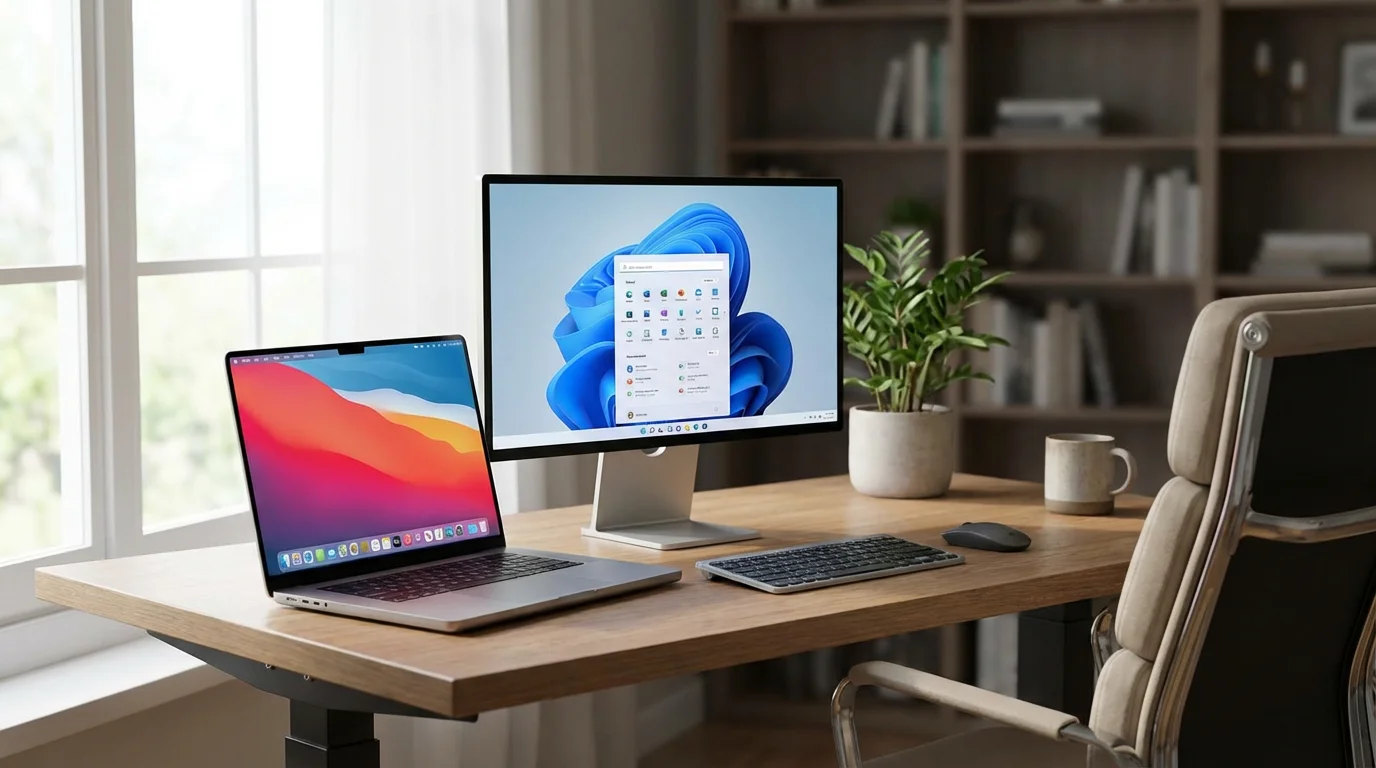
For Computers (Windows and Mac)
Downloading Zoom on a computer is also straightforward.
- Open Your Web Browser: Open a web browser like Google Chrome, Mozilla Firefox, Microsoft Edge, or Apple Safari.
- Go to the Zoom Website: In the address bar at the top of the browser window, type
zoom.usand press Enter. This takes you to Zoom’s official website. - Find the Download Link: Look for a link that says “Download” or “Download Client.” It is often found in the footer (at the very bottom of the page) or sometimes under a “Resources” menu. You are looking for the “Zoom Desktop Client.”
- Download the Installer File: Click the download link. Your computer will download a file. This file will usually appear at the bottom of your browser window or in your “Downloads” folder.
- Run the Installer:
- On Windows: Double-click the downloaded file (it might be named something like “ZoomInstaller.exe”). Follow the on-screen prompts to install. You may need to click “Run” or “Yes” if your computer asks for permission.
- On Mac: Double-click the downloaded file (it might be named something like “Zoom.pkg”). Follow the on-screen instructions. You might need to enter your computer’s password.
The installation process usually takes only a minute or two.
- Find Zoom: After installation, Zoom will typically open automatically. You will also find a Zoom icon on your desktop, in your Start menu (Windows), or in your Applications folder (Mac).

Setting Up Your Zoom Account
While you can join some Zoom meetings without an account, creating one gives you more features, such as hosting your own meetings. An account is your personal login, usually with a username (your email address) and a password.
Creating a strong password for Zoom is a vital security step, much like the precautions you take to use your bank’s mobile app safely.
- Open the Zoom App: Tap or click the Zoom icon on your phone, tablet, or computer.
- Sign Up:
- On the Zoom welcome screen, you will see options like “Join a Meeting,” “Sign Up,” and “Sign In.”
- Tap or click “Sign Up.”
- Enter Your Birthday: Zoom will ask for your birth date to confirm you meet the age requirements.
- Enter Your Email Address: Provide your email address. Zoom will use this to verify your account and as your username.
- Check Your Email: Zoom sends an email to the address you provided. Go to your email app or website, open the email from Zoom, and click the “Activate Account” button or link.
- Create Your Profile: The link will take you back to your web browser. You will enter your first name, last name, and create a strong password. This password should be something you can remember but is difficult for others to guess (e.g., a mix of capital and lowercase letters, numbers, and symbols).
- Complete Account Setup: Follow any remaining prompts. You can skip inviting colleagues for now. Once done, you are ready to use your new Zoom account.

Joining a Zoom Meeting Hosted by Someone Else
Most often, someone will invite you to a Zoom meeting. This is usually the easiest way to start using Zoom, especially for seeing grandchildren.
Once you are comfortable with the basics, you can try special activities like reading bedtime stories to grandchildren during your call.
If you feel a bit nervous about the technical side, reviewing how to answer a video call can help build your confidence before the meeting starts.
Before you click on any links in your inbox, it is important to know how to spot a scam email to keep your computer safe.
You can join a Zoom meeting in two primary ways: through an invitation link or by manually entering a Meeting ID and Passcode.
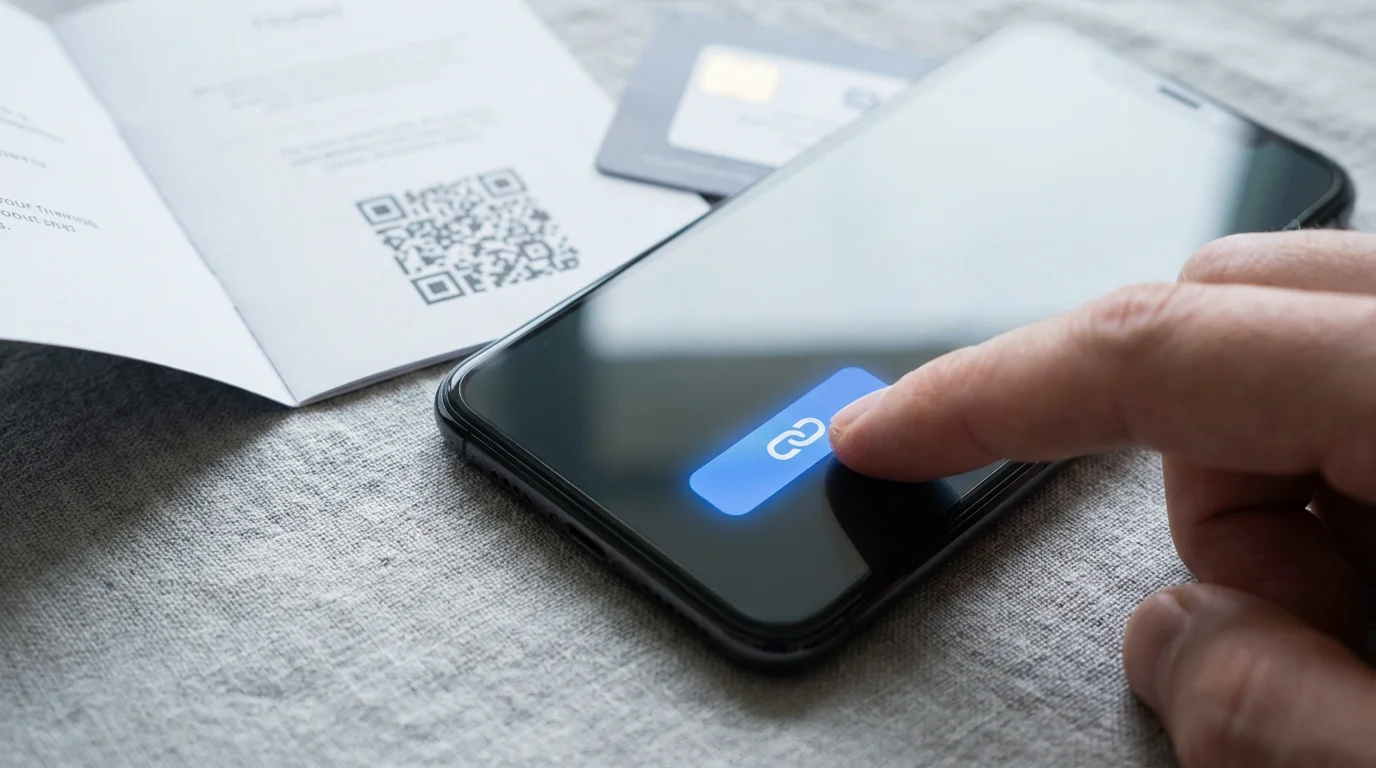
Joining with an Invitation Link (Easiest Method)
Someone sends you a link, usually in an email or a text message.
- Find the Invitation: Look for a message from your family member or friend. It will contain text like “Join Zoom Meeting” followed by a web address (it starts with
https://zoom.us/...). - Tap/Click the Link:
- On Phone/Tablet: Simply tap the link in the message.
- On Computer: Click the link in the email or message.
- Open with Zoom: Your device will usually ask if you want to open the link with the Zoom app. Tap or click “Open Zoom” or “Allow.”
- Enter Your Name: Before you enter the meeting, Zoom asks for your name. Type your name (e.g., “Grandma Carol”) so others know who you are.
- Audio and Video Permissions: Zoom will ask for permission to use your camera and microphone. Tap or click “Allow” or “Join with Video” and “Join with Internet Audio” (or “Join with Computer Audio”). You must grant these permissions to see and hear others.
- Waiting Room (Optional): Sometimes, the host (the person who started the meeting) has a “Waiting Room.” This means you might see a message like “Please wait, the meeting host will let you in soon.” Just be patient; the host will admit you.

Joining with a Meeting ID and Passcode
If you do not have a clickable link, the host might give you a Meeting ID (a series of numbers) and a Passcode (a word or number sequence).
- Open the Zoom App: Launch the Zoom app on your device.
- Tap/Click “Join a Meeting”: On the main Zoom screen, you will see a prominent “Join a Meeting” button.
- Enter Meeting ID: A screen will appear asking for the Meeting ID. Type the numbers accurately into the box.
- Enter Your Name: Below the Meeting ID, make sure your name appears correctly. This is what others will see.
- Join: Tap or click “Join.”
- Enter Passcode: Zoom will then ask for the Passcode. Type it carefully.
- Connect Audio and Video: Follow the prompts to join with video and connect your audio (e.g., “Join with Computer Audio” or “Call via Device Audio”).
Connecting to a Zoom meeting for the first time might feel a bit like learning a new dance, but it gets much easier with practice. Do not hesitate to ask the person inviting you for help. They want to see you!

Starting Your Own Zoom Meeting
Once you feel comfortable joining meetings, you might want to host your own. This is how you invite family to join you for a video chat. Remember, you need a Zoom account and to be signed in to host a meeting.
To stay organized with your family events, you can learn how to use Google Calendar to track every scheduled meeting.
- Open and Sign In to Zoom: Launch the Zoom app on your device and sign in with your account username (email) and password.
- Start a New Meeting:
- On your phone or tablet, tap the “New Meeting” button, often represented by an orange camera icon.
- On your computer, click the “New Meeting” button, which is usually a large orange button.
- Connect Audio and Video: Make sure your camera and microphone are on. You will likely see options to “Join with Video” and “Join with Computer Audio.” Select these.
- Invite Participants: Once your meeting starts, you need to invite others to join.
- On Phone/Tablet: Tap “Participants” at the bottom of the screen, then tap “Invite.”
- On Computer: Click “Participants” at the bottom, then click “Invite” at the bottom of the Participants panel that appears on the right.
- Choose How to Invite: You will see options to invite people:
- Copy Link/URL: This copies the meeting link to your clipboard. You can then paste it into an email or text message to send to your family.
- Send Email: This opens your device’s email program and creates a draft email with the meeting details already filled in.
- Send the Invitation: Send the link or email to the people you want to join. They can then click the link to enter your meeting.
You can also schedule a meeting in advance. This allows you to set a specific date and time, and Zoom will send out invitations with all the details. Look for a “Schedule” button in the Zoom app for this option.

Understanding Your Zoom Screen During a Call
When you are in a Zoom video call, your screen will show the faces of the people you are talking to. Several important buttons at the bottom of the screen give you control over your experience.
- Mute / Unmute (Microphone Icon): This is one of the most important buttons.
- When the microphone icon has a red line through it, you are “muted,” meaning no one can hear you.
- Tap or click it to unmute yourself so others can hear you speak.
- It is good practice to mute yourself when not speaking to avoid background noise.
- Start Video / Stop Video (Camera Icon):
- When the camera icon has a red line through it, your video is off, and others cannot see you. They will only see your name or profile picture.
- Tap or click it to turn your camera on so others can see you.
- Participants (People Icon): Tap or click this to see a list of everyone in the meeting. You can also invite more people from this list.
- Chat (Speech Bubble Icon): This opens a text chat window. You can type messages to everyone in the meeting, or privately to one person. This is useful for sharing links or quick notes without interrupting the conversation.
- Share Screen (Up Arrow in Box Icon): This allows you to show what is on your device screen to others. You might share photos, documents, or a website. The host usually needs to give you permission to do this.
- End (Red Phone Icon): When you are ready to leave the meeting, tap or click this button. You will usually have an option to “Leave Meeting.” If you are the host, you can “End Meeting for All.”

Tips for Smooth Zoom Video Calls
A few simple practices can make your Zoom experience much more enjoyable.
- Choose a Good Location:
- Lighting: Sit in a well-lit room. Natural light from a window in front of you (not behind you) works best.
- Background: Choose a clear, uncluttered background. A plain wall is ideal.
- Quiet: Find a quiet spot where you will not be interrupted by loud noises.
- Test Your Audio and Video: Before joining an important call, you can open the Zoom app and click “New Meeting” to start a private call with yourself. This lets you check if your camera and microphone work correctly.
- Charge Your Device: Video calls use more battery than regular phone calls. Make sure your phone, tablet, or laptop is fully charged or plugged in before a long Zoom meeting.
- Stable Internet Connection: A reliable internet connection ensures a clear picture and sound. If you have Wi-Fi, try to be close to your Wi-Fi router.
- Update Your App: Periodically, Zoom will release an update, which means they release the newest version of the app. Updates often fix problems and add new features. Your device might notify you when an update is available, or you can check your app store. Always install updates to keep your app running smoothly and securely.
- Practice Makes Perfect: Schedule a practice Zoom video call with a patient family member or friend. It is a great way to get comfortable with the controls without pressure.

Troubleshooting Common Zoom Issues
It is normal to run into a small problem now and then when using new technology. Most Zoom issues have simple solutions.
- “I can’t hear anyone, or no one can hear me.”
- Check your mute button: Ensure your microphone icon does not have a red line through it.
- Check your speaker volume: Make sure your device’s volume is turned up.
- Select correct audio: When you join, ensure you select “Join with Computer Audio” or “Call via Device Audio.” If you missed this, look for a “Join Audio” or “Headphones” icon on the screen.
- Check device settings: Sometimes, your device’s settings prevent Zoom from using the microphone. You may need to go to your phone’s or computer’s settings and grant Zoom permission for the microphone.
- “I can’t see anyone, or no one can see me.”
- Check your video button: Ensure your camera icon does not have a red line through it.
- Camera permissions: Just like with audio, your device’s settings might block Zoom from accessing your camera. Check your device’s privacy settings to ensure Zoom has camera permission.
- Is your camera covered? Some laptops have a physical slider to cover the camera. Make sure it is open.
- “The meeting link isn’t working.”
- Check your internet connection: Ensure you are connected to Wi-Fi or have cellular data.
- Is the link expired? Sometimes meeting links expire or are only valid for a specific time. Contact the person who invited you.
- Try restarting: Close the Zoom app completely and reopen it. If you are on a computer, try restarting your web browser.
Do not get discouraged if a technical hiccup occurs. It happens to everyone, even experienced users. Take a deep breath, try the simple solutions, or ask a tech-savvy friend or family member for help. Patience is your best tool when learning something new.
Frequently Asked Questions
Q: Is Zoom safe to use?
A: Yes, Zoom is generally safe when you use it responsibly. Always download the app from official sources (Apple App Store, Google Play Store, or zoom.us). Be cautious about clicking suspicious links in emails or messages that claim to be Zoom invitations if you do not recognize the sender. Keep your app updated, as updates often include important security improvements.
Q: Do I need to pay for Zoom?
A: The basic version of Zoom is free. This free account allows you to host meetings with up to 100 participants, but calls with three or more people have a 40-minute time limit. For most family video calls, this is usually sufficient. If you need longer meetings or advanced features, paid plans are available, but you do not need them for everyday use.
Q: Can I use Zoom without creating an account?
A: Yes, you can typically join a Zoom meeting hosted by someone else without creating your own Zoom account. You will still need the Zoom app installed on your device, and you will enter your name when joining. However, to host your own Zoom meeting, you must have an account and be signed in.
Q: What if I have slow internet?
A: A slow internet connection can cause video calls to be choppy, or sound to cut out. To improve performance, try closing other apps or programs using the internet. If you are on Wi-Fi, move closer to your router. If problems persist, try turning off your video during the call; this often helps improve audio quality.
Q: How do I update the Zoom app?
A: To update the Zoom app, go to your device’s app store (Apple App Store for iPhones/iPads, Google Play Store for Android phones/tablets). Search for “Zoom” and if an update is available, you will see an “Update” button instead of “Open.” Tap it to install the newest version. On a computer, open the Zoom app, click your profile picture (usually top right), and select “Check for Updates.”
Using Zoom allows you to bridge distances and stay connected with the people who matter most. We believe this guide empowers you to make your first Zoom video calls with confidence. Happy connecting!
Disclaimer: This article is for informational purposes only. App interfaces change frequently with updates, so screens may look slightly different from what’s described. Always download apps from official app stores (Apple App Store or Google Play Store) to ensure safety.









Leave a Reply