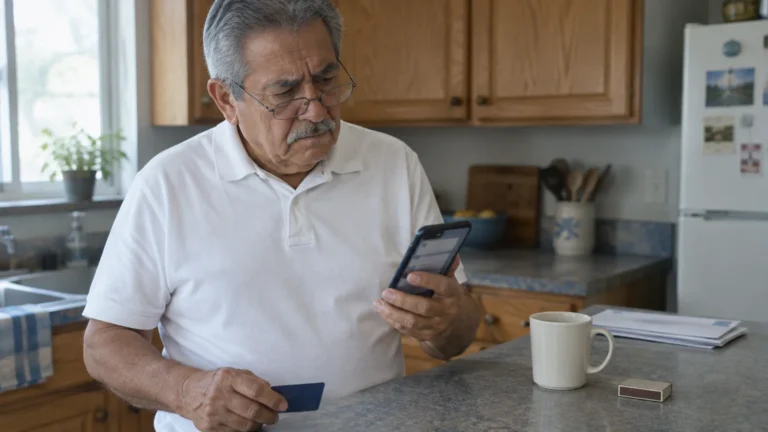
This guide covers one situation: you are around 80, reading recipes in Google Chrome on a Windows 11 laptop, and a page suddenly fills the screen with a siren and an order to call “Microsoft Support.”
While these alarms look convincing, modern operating systems include built-in protection, leading many people to wonder whether you really need to buy antivirus software today.
Your laptop is not infected. The page is an ordinary website playing a sound file, and the number reaches a scammer, not Microsoft.
Below are the keys that get you out, and the one Chrome setting that keeps the next scam page silent.
In this guide8 sections

Why Your Screen Locks and Blares Audio
These pages use two ordinary web features. Full-screen mode stretches the page over your display, hiding Chrome’s address bar and X button, so the laptop looks frozen.
The second is sound. Chrome only lets a page go full screen or play audio after you click on it, which is why these pages bait you with a fake button.
Some pages also grab keys like Esc. Chrome keeps one way out that a page cannot take: holding Esc down, which it announces with a “Press and hold Esc to exit full screen” banner.
The FTC’s guide to spotting tech support scams says security pop-ups from real tech companies never ask you to call a phone number.
Microsoft’s guide to protecting yourself from tech support scams agrees: its error and warning messages never include a phone number. Apple’s support guidance on avoiding fake support alerts says the same for Macs.

The Setting That Matters Most: Sound
Most advice stops at shortcuts and ad blockers. For this reader, the stronger protection is Chrome’s Sound permission set to Don’t allow sites to play sound, plus a short list of trusted exceptions.
If unexpected noises startle you when playing games on a tablet or phone as well, learn how to stop solitaire apps showing loud video ads for a quieter routine.
The full-screen page is only a picture until the siren starts. The noise is what stops you thinking and pushes you toward the phone.
Ad blocking tries to stop the bad page arriving, and filters mostly catch sites someone has already flagged. A brand-new scam page slips through.
The sound block works on every site, known or new, because Chrome mutes the page before it plays anything. A silent fake warning is far easier to read calmly and close.
The trade-off: videos on sites you have not approved play silently. Adding the few sites you watch, such as YouTube, to the allowed list fixes that.
Keep Chrome’s pop-up and ad blocking on too. They cut how often you land on a scam page, while the sound block decides how frightening it is when you do.

Getting Out With the Keyboard
Do not click anything on the page, including buttons marked OK, Cancel or Close. They belong to the scam and can open another pop-up or start a download.
If your device continues to hesitate even after closing troublesome tabs, review simple steps to speed up a slow computer to get things running smoothly again.
If your browser behaves strangely even after closing the tab, review our guide on how to tell if your computer has been hacked to confirm your system is secure.
Use these keys in order, stopping as soon as the page is gone:
- Press your laptop’s Mute key, usually a speaker symbol on the top row; its location varies by model.
- Press and hold Esc, top-left, for a few seconds. Chrome’s address bar and X button reappear.
- Press Ctrl + W to close that one tab. Your other tabs stay open.
- If Chrome still ignores you, hold Alt and tap F4 to close the whole Chrome window.
If nothing responds, press Ctrl + Alt + Delete. Windows reserves this combination for itself, so no webpage can intercept it.
- Click Task Manager on the screen that appears.
- Click Google Chrome once in the list, then click End task at the top.
End task closes every Chrome tab and loses anything half-typed into a form. It does not harm the laptop or your files.
Holding the power button is the last resort. It will not damage the laptop, but unsaved work in other programs is lost.
If Task Manager’s text is too small, press the Windows logo key and the plus sign (+) to turn on Magnifier. On a Mac, the matching keys are Command + W, Command + Q and Option + Command + Esc.

Worked Example: Start to Finish
An 80-year-old on a Windows 11 laptop is reading a pie recipe in Chrome and clicks what looks like a “Next page” button.
The screen turns red, a siren loops, and a box says the computer is locked and to call a toll-free number. The mouse arrow has vanished.
- Mute key: the room goes quiet, and the page becomes just text and a phone number.
- Hold Esc: Chrome’s banner appears, the page shrinks, and the address bar returns.
- Ctrl + W: the scam tab closes, and the recipe tab is still underneath.
- Had Esc failed, End task in Task Manager would close Chrome, and on reopening Chrome might ask “Restore pages?” Click the X, never Restore.
- Ctrl + Shift + Delete: choose Last 24 hours, tick Browsing history and Cached images and files, then click Delete data (older versions say Clear data).
- Turn on the sound block from the next section, adding youtube.com to the allowed list.
A week later, a similar page appears on another recipe site, but silently. Hold Esc, press Ctrl + W, and it is gone; nothing clicked, nothing called.

Setting Up Chrome to Stay Quiet
Open Chrome’s three-dot menu at the top right and click Settings. Then turn on the sound block:
To make sure your browser and operating system regularly receive important security patches in the background, learn how to set up automatic updates on your computer.
- Click Privacy and security, then Site settings.
- Scroll down, click Additional content settings, then Sound.
- Choose Don’t allow sites to play sound.
- Under Allowed to play sound, click Add and type a trusted site, such as youtube.com. Repeat for each video site you use.
Next, click On startup in Settings and choose Open the New Tab page. With Continue where you left off, Chrome reloads whatever was open last time, scam tab and siren included.
Finally, check the two blockers Chrome ships switched on. In Site settings, Pop-ups and redirects should say Don’t allow sites to send pop-ups or use redirects.
Under Additional content settings, Intrusive ads should say Block ads on sites that show intrusive or misleading ads.

Comparing the Prevention Settings
Every row is something you can open and check in Chrome yourself; none costs anything or needs extra software.
Scammers also push bogus toll-free telephone numbers through fraudulent billing notices, so knowing what to do if you get a fake PayPal invoice helps keep you safe from matching schemes.
| Setting | Where it lives in Chrome | What it changes | On a siren page | Downside |
|---|---|---|---|---|
| Sound | Settings > Privacy and security > Site settings > Additional content settings | Mutes every site not on your allowed list | Page appears silent | Videos on unlisted sites play without sound |
| On startup | Settings > On startup | Opens a New Tab page instead of old tabs | Scam tab cannot reload after a forced close | You reopen favorite sites yourself |
| Pop-ups and redirects | Settings > Privacy and security > Site settings | Blocks new windows and many sudden jumps | Fewer routes onto a scam page | Some sites ask you to allow pop-ups |
| Intrusive ads | Site settings > Additional content settings | Blocks ads on sites known for misleading ads | Fewer bad ads on flagged sites | Only covers sites already flagged |
| Enhanced protection | Settings > Privacy and security > Security | Checks pages against Google’s list of dangerous sites | Warns before some known scam pages | Shares more browsing data with Google |
Only the first row works on a scam page nobody has reported yet, which is why it sits at the top.
What to Do If You Already Called the Number
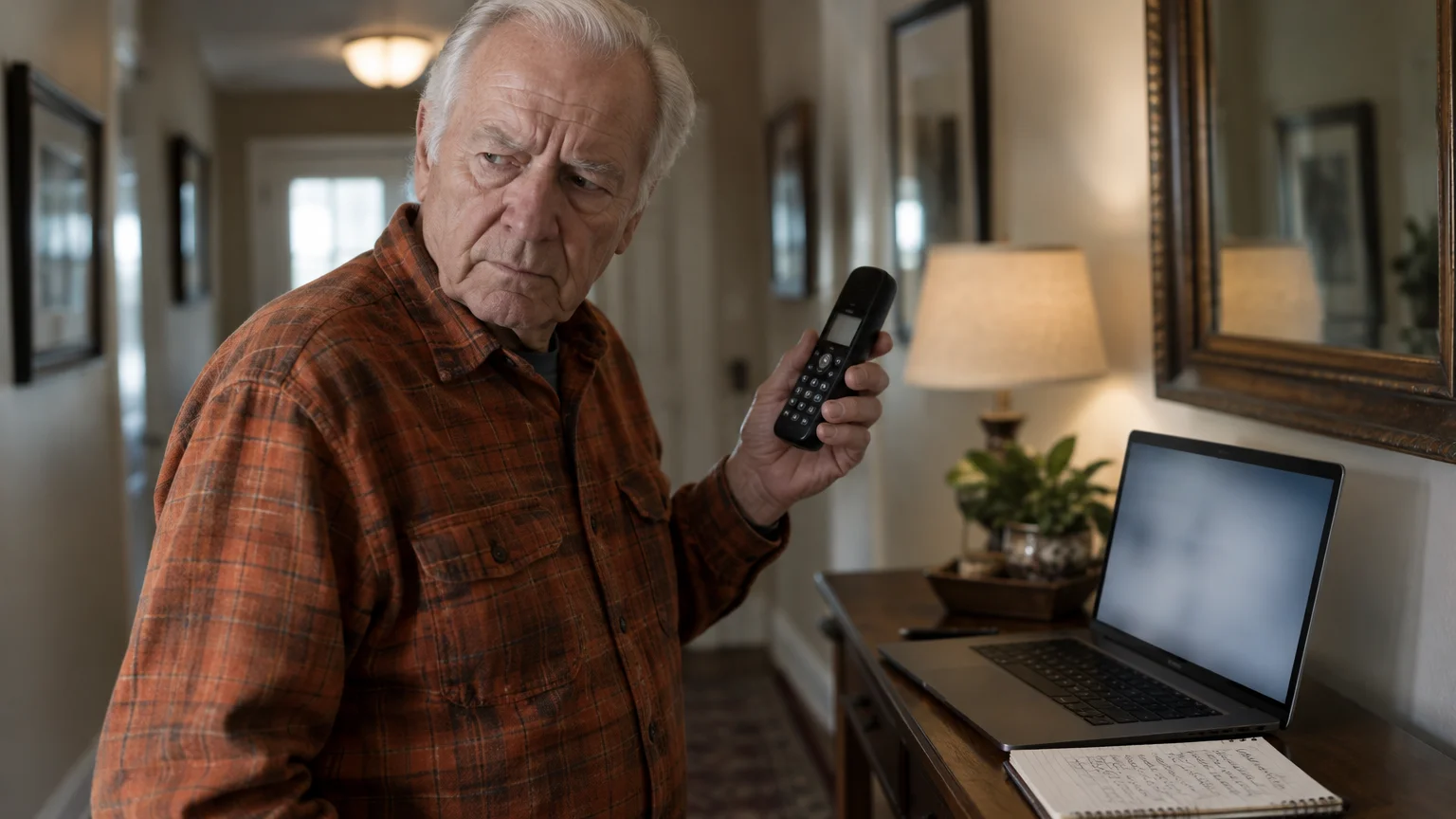
If the siren won and you called, the caller was likely after remote control of your laptop or your bank details. Act now; embarrassment only helps them.
If you dialed the number from a mobile phone and the scammers begin calling you repeatedly, follow our guide on how to block unwanted calls on your smartphone to silence follow-up pressure.
- Turn off Wi-Fi: click the network icon at the bottom right of the taskbar, then click the Wi-Fi button so it is no longer highlighted.
- If you let them install anything or view your screen, shut the laptop down and have a trusted local repair shop remove the remote-access software.
- If you shared payment or account details, call your bank and card companies using the numbers on your cards and ask for a fraud hold.
- Report it at ReportFraud.ftc.gov and ic3.gov.
The FBI’s elder fraud resource center lists tech support scams among frauds aimed at people over 60 and explains what to include in a report.
To talk it through with a person, call the Department of Justice National Elder Fraud Hotline at 1-833-372-8311.
Once the laptop is clean, CISA’s Secure Our World program has plain steps for strong passwords and multifactor authentication.
Frequently Asked Questions
Does a blaring siren mean my laptop has a virus?
No. The siren is a sound file played by an ordinary webpage, and your laptop is fine as long as you do not call the number or install anything.
Why did my mouse arrow disappear?
Scam pages can hide the arrow in full-screen mode so you cannot reach Chrome’s X button. Holding Esc ends full screen and brings it back.
If I block sound in Chrome, will my grandchildren’s videos still play?
Yes, once you add that site under Allowed to play sound. Sites not on the list still show video, just silently.
What if the siren returns every time I open Chrome?
Chrome is reloading old tabs. Click the X on any Restore pages? box, then set On startup to Open the New Tab page.
Note: Menus and button names change with software updates. These steps were written for current versions as of 2026; if a screen looks different on your device, the maker’s support page linked above has the latest wording.
ClearTechGuide is independent and is not affiliated with Apple, Google, Microsoft, Amazon or any other company mentioned.