
You can stop your phone from launching the camera every time your fingers brush the screen. This guide explains how to disable lock screen camera shortcuts and gestures on both iPhone and Android devices.
Most tutorials tell you to disable the camera entirely or simply live with sensitive touch settings. You can actually block accidental lock screen launches while keeping complete access to photography once your phone unlocks.
For adults managing essential tremor or reduced hand dexterity, these simple adjustments prevent pocket photos and eliminate unnecessary battery drain.
In this guide10 sections
- Why Phones Launch the Camera by Mistake
- Removing Camera Shortcuts in iOS 18 and Later
- Using Screen Time Restrictions to Stop Swipes
- Touch Accommodations for Essential Tremor on iPhone
- Adjusting Physical Buttons and Gestures
- Disabling Lock Screen Camera Shortcuts on Android
- Preventing Accidental Screen Wakeups
- Worked Example: Eleanor Adjusts Her iPhone Settings
- Comparison of Camera Prevention Methods
- Frequently Asked Questions
Why Phones Launch the Camera by Mistake
Smartphone manufacturers build lock screens for instant action rather than stability. They want users to launch photography tools in under two seconds.
If silent pocket activations have already filled your gallery with dark, blurry photos, learn how to free up storage space on your smartphone to clean out unwanted clutter.
A lock screen is the display screen that appears before you unlock your phone with a passcode or facial scan. Placing live triggers on this screen creates frequent mistakes.
On modern iPhones, two primary triggers activate the camera sensor. A thumb swipe from right to left across the screen opens the lens, as does pressing the bottom-right corner icon.
Haptic touch is a system where the phone produces a small vibration when you press and hold an item on the screen. A prolonged finger rest often registers as a deliberate press.
For individuals with hand tremors or diminished grip strength, natural micro-movements easily mimic intentional swipes or long presses. Holding the device steady while walking often triggers the sensor accidentally.
When the camera activates unseen, the phone runs continuously inside a pocket, purse, or walker pouch. The processor works at maximum capacity while rendering darkness.
This background activity heats the battery and can drain over twenty percent of your daily power in thirty minutes. Removing these sensitive entry points eliminates the problem entirely.
Removing Camera Shortcuts in iOS 18 and Later
Until recently, Apple prevented owners from modifying the shortcut icons located on the bottom of the lock screen. Starting in iOS 18, you can remove these buttons directly.
If your display dims and shuts off before you can finish customizing, check how to stop your phone screen from going black so fast to extend your auto-lock timer.
This modification eliminates the lower-right corner button entirely. Your thumb will no longer activate the camera when resting against the lower glass edge.
Use these steps on any iPhone running iOS 18 or newer as of 2026.
- Wake your phone and look at it to unlock with Face ID, but do not swipe up.
- Press and hold your thumb on an empty area of the wallpaper until the collection editor opens.
- Tap the Customize button at the bottom of the display.
- Select Lock Screen on the left side of the screen preview.
- Tap the small minus icon (–) resting on the Camera shortcut at the bottom-right corner.
- Tap Done in the upper-right corner to save your changes.
The camera icon will vanish from the bottom edge of your display immediately. Pressing that corner will no longer open your lens.
For additional setup instructions, consult the Apple iPhone User Guide.

Using Screen Time Restrictions to Stop Swipes
Removing the corner icon stops accidental thumb presses, but swiping left from the right edge still launches the camera. Many adults accidentally trigger this swipe motion while handling the device.
Screen Time is an Apple utility that manages application access, content restrictions, and daily device usage limits. You can use it to deactivate the lock screen camera swipe completely.
Please note an important limitation before proceeding with this method. Restricting the camera here temporarily hides the standard Camera app icon from your Home Screen.
You do not lose your stored photographs or albums. You can re-enable the Camera app at any time by revisiting this setting.
Follow these steps on iOS 17 or iOS 18 as of 2026 to disable lock screen camera swipes.
- Open the Settings app on your iPhone or iPad.
- Tap Screen Time in the menu list.
- Tap Content & Privacy Restrictions.
- Turn on the toggle switch next to Content & Privacy Restrictions at the top.
- Tap Allowed Apps & Features (labeled Allowed Apps on some systems).
- Locate Camera in the list of applications.
- Tap the toggle switch next to Camera to the off position.
Now lock your device and attempt to swipe left across the screen. The screen will stay completely still, refusing to open the camera viewfinder.
If you need to take pictures later, simply return to this menu and switch the Camera toggle back to green.
Touch Accommodations for Essential Tremor on iPhone
If you want to keep the Camera app available without accidental activations, adjust touch sensitivity instead. Apple provides dedicated tools for users experiencing unsteady hand control.
If unsteady fingers also make incoming calls difficult to pick up, accessibility tools can similarly help you answer phone calls with a single tap instead of a swipe.
Touch Accommodations is an accessibility setting that changes how the glass display responds to physical taps and finger movement. It filters out involuntary shakes and rapid touches.
Review comprehensive motor support options in Apple’s guide to iPhone accessibility features.
Follow these steps to configure touch filters on your iPhone as of 2026.
- Open the Settings app.
- Tap Accessibility.
- Tap Touch under the Physical and Motor section.
- Tap Touch Accommodations near the bottom.
- Switch the toggle for Touch Accommodations to on.
- Turn on Hold Duration and use the plus button to select 0.30 seconds.
- Turn on Ignore Repeat and set the duration value to 0.35 seconds.
- Select Use Initial Touch Location under Tap Assistance.
Hold Duration instructs your phone to ignore any contact shorter than the set time. An accidental brush of the screen will no longer register.
Ignore Repeat instructs the screen to treat multiple tremors as a single steady touch. This stops inadvertent double-taps on shortcut icons.
If menu labels appear too small during setup, consult Apple’s instructions for making text larger.
Adjusting Physical Buttons and Gestures
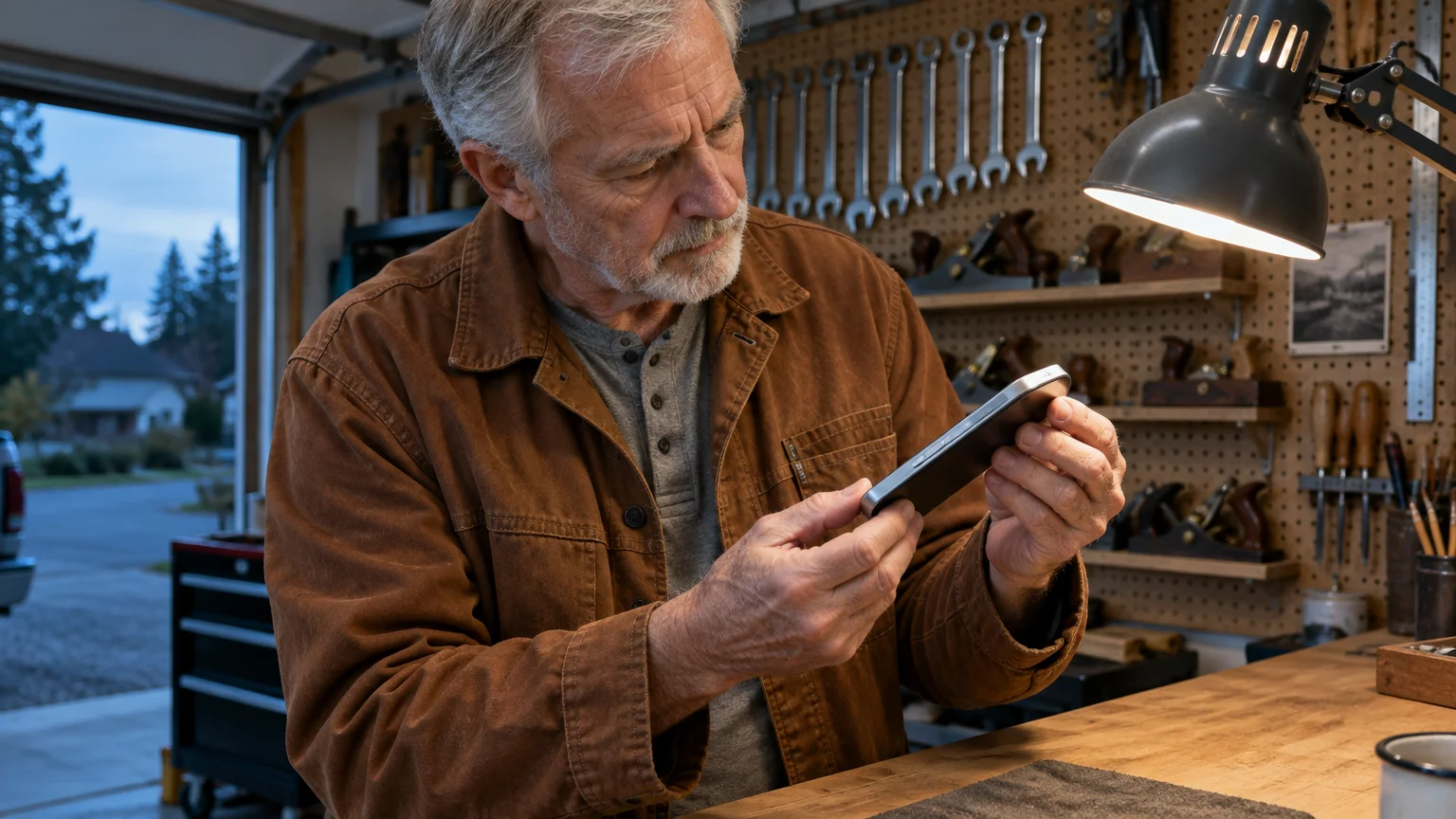
Physical hardware buttons can also launch your camera without your consent. Understanding these shortcuts prevents inadvertent clicks when picking up your phone.
For individuals who find squeezing side buttons painful, you can also set up and use Voice Control on your iPhone to operate system functions completely hands-free.
On Android devices, pressing the power button twice in rapid succession opens the camera by default. Tremors or stiff fingers often cause double clicks when attempting to lock the display.
To disable this trigger on Google Pixel and standard Android devices, follow these steps.
- Open Settings.
- Tap System.
- Tap Gestures.
- Tap Quickly open camera.
- Switch the toggle to the off position.
On Samsung Galaxy phones, this control sits inside a different menu.
- Open Settings.
- Tap Advanced features.
- Tap Side button.
- Turn off Double press or change the option to open a different app.
On iPhone 16 models and newer releases as of 2026, Apple introduced a physical Camera Control button on the side frame. A firm press launches the camera immediately.
To prevent accidental launches on these devices, open Settings, tap Accessibility, select Camera Control, and set the pressure requirement to Firmer.

Disabling Lock Screen Camera Shortcuts on Android
Android manufacturers allow you to customize or remove lock screen corner shortcuts entirely. The menu terminology differs slightly between Samsung, Google Pixel, and Motorola devices.
Instead of leaving the corner shortcut blank, you can assign other everyday tools, like discovering how to use the magnifier on your phone for easier reading when examining small print.
Once you clear unwanted shortcuts from your lock screen, take time to organize your Android phone’s home screen so your most-used apps remain easy to open intentionally.
These instructions apply to Android 14 and Android 15 releases as of 2026.
For broader software assistance, visit the Google Android Help center.
To remove the lock screen camera icon on a Samsung Galaxy phone, follow these steps.
- Open the Settings app.
- Tap Lock screen and AOD (or Lock screen).
- Tap the preview image of your lock screen.
- Tap the Camera shortcut icon in the lower-right corner.
- Select No app from the list.
- Tap Done in the upper-right corner.
To clear the lock screen camera shortcut on a Google Pixel device, use these steps.
- Open Settings.
- Tap Display.
- Tap Lock screen.
- Tap Shortcuts.
- Tap Right shortcut.
- Select None.
Motorola phones feature an additional gesture called Quick Capture. Twisting your wrist twice rapidly opens the camera viewfinder even while the screen remains locked.
Hand tremors frequently trigger Quick Capture. Open the Moto app, select Gestures, tap Quick Capture, and toggle the switch off.
For additional motor adjustments on Android, consult Google’s Android accessibility overview.
Preventing Accidental Screen Wakeups
A dark phone screen cannot activate the camera. Many unintended activations occur because the phone wakes up unexpectedly before your fingers make deliberate contact.
Two built-in convenience settings cause screens to turn on without warning: Raise to Wake and Tap to Wake.
Raise to Wake illuminates your display whenever internal motion sensors detect elevation. Trembling hands or walking vibrations constantly trigger this motion detector.
To disable Raise to Wake on an iPhone, use these steps.
- Open Settings.
- Tap Display & Brightness.
- Scroll down and turn off the switch for Raise to Wake.
Tap to Wake turns on the screen whenever anything touches the dark glass. Clothing fabric in your pocket or fingers adjusting your grip will wake the screen.
To turn off Tap to Wake on an iPhone, follow these steps.
- Open Settings.
- Tap Accessibility.
- Tap Touch.
- Switch the toggle for Tap to Wake to off.
On Android phones, navigate to Settings > Display > Lock screen. Turn off both Lift to check phone and Tap to check phone.
Worked Example: Eleanor Adjusts Her iPhone Settings
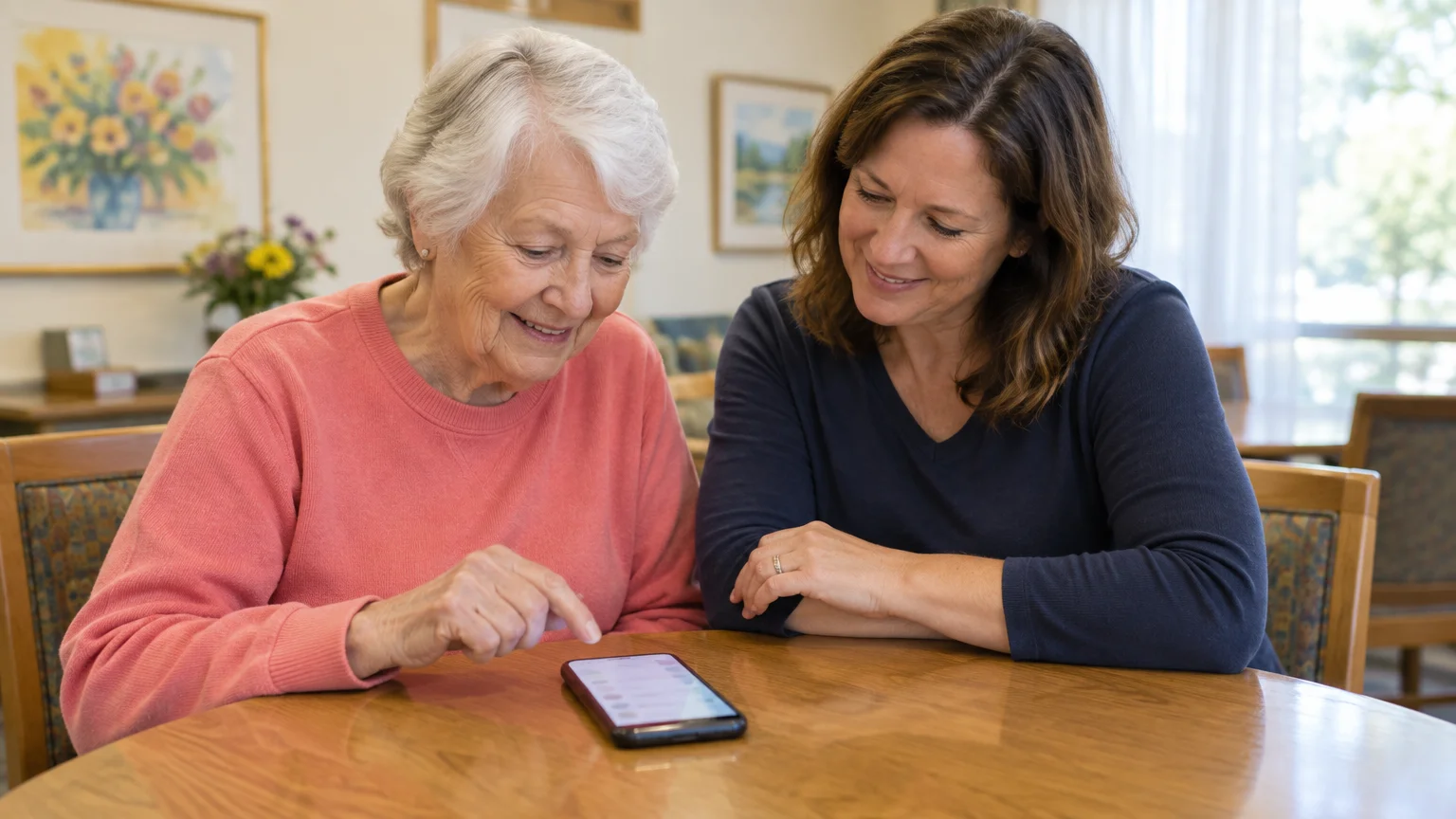
Eleanor is 68 years old and lives in Dayton, Ohio. She manages essential tremor, which causes mild involuntary shaking in her hands when gripping objects.
Eleanor uses an iPhone 14 running iOS 18. Her tremors accidentally launched the camera 6 to 9 times every day when retrieving the phone from her purse.
These activations caused the camera to record black fabric for twenty minutes at a time. Her battery regularly dropped from 100 percent to 28 percent by 3:00 PM.
Eleanor implemented a targeted setup plan across three system menus to stop the problem completely.
First, she entered the lock screen gallery and removed the lower-right Camera icon, replacing it with an empty space in 2 minutes.
Second, she configured Touch Accommodations under Accessibility. She set Hold Duration to 0.35 seconds and Ignore Repeat to 0.40 seconds.
Third, she turned off both Raise to Wake and Tap to Wake in 1 minute. Now her screen only illuminates when she presses the side power button.
Following this 6-minute adjustment, Eleanor recorded zero accidental camera launches across four weeks. Her battery maintained a 62 percent charge at 6:00 PM every evening.
Comparison of Camera Prevention Methods
Different prevention techniques provide varying levels of security and convenience. Review this comparison to choose the approach that fits your personal dexterity needs.
| Prevention Method | Lock Screen Icon | Lock Screen Swipe | Camera App Availability | Tremor Protection Level | Setup Time |
|---|---|---|---|---|---|
| iOS 18 Icon Removal | Removed completely | Remains active | Fully available on Home Screen | Moderate | 2 minutes |
| Screen Time Restrictions | Removed completely | Disabled completely | Hidden until restriction is lifted | Maximum | 3 minutes |
| Touch Accommodations | Retained on screen | Requires sustained drag | Fully available on Home Screen | High | 4 minutes |
| Android Shortcut Clearing | Removed completely | Disabled on shortcut zone | Fully available in App Drawer | High | 2 minutes |
| Disabling Wake Triggers | Retained on screen | Inactive while screen is dark | Fully available when unlocked | High | 3 minutes |
Most users achieve the best results by pairing shortcut removal with wake trigger adjustments. This stops both accidental taps and motion activations.
Frequently Asked Questions
Will disabling the lock screen camera delete my existing photos?
No. Removing shortcuts or applying Screen Time restrictions never deletes stored pictures or albums from your phone storage.
How do I take pictures if I restrict the Camera app through Screen Time?
You can lift the restriction in Settings in under thirty seconds when you want to take family photos. Communication apps can also take photos directly.
Why does my phone get hot when the camera opens accidentally?
The camera hardware and screen brightness require substantial battery energy. Running continuously in an enclosed pocket generates noticeable heat.
Can I stop lock screen camera triggers without changing my passcode?
Yes. All touch accommodations, gesture controls, and shortcut removals function completely independently of your lock screen security passcode.
Will adjusting touch accommodations make my phone feel slow?
A hold duration of 0.30 seconds creates a brief pause before taps register. Most users adapt within two days and appreciate the stability.
Note: Menus and button names change with software updates. These steps were written for current versions as of 2026; if a screen looks different on your device, the maker’s support page linked above has the latest wording.
ClearTechGuide is independent and is not affiliated with Apple, Google, Microsoft, Amazon or any other company mentioned.
