If you are 79 and experience mild hand shakiness, tapping a text message can easily trigger a video call. You suddenly see your camera turn on before you even finish typing a sentence.
Standard guides tell you to hold your hand steadier, but software layout is the real culprit. Adjusting screen targets and increasing touch delays creates a physical buffer that eliminates accidental taps without disabling messaging features.
You can reconfigure your phone in under five minutes to keep buttons separated, predictable, and protected from unintended finger contact.
In this guide7 sections

Why Video Call Buttons Cause Mistakes
Smartphones rely on capacitive glass that senses electrical charges from your skin. Even a glancing touch from an unsteady finger registers as an intentional press.
Similar touchscreen sensitivity issues also explain why your phone keeps pocket dialing 911 when carried loosely in a pocket or purse.
If accidental swipes also launch other unwanted features, you can easily stop opening the camera by mistake from your phone’s lock screen.
Messaging apps place camera buttons in dangerous locations. Most designs plant the video icon at the top-right corner of the conversation screen, mere millimeters from the name header.
When you accidentally hit video call button icons, your thumb simply drifted during typing. A slight tremble causes the hand to brush the top screen zone unexpectedly.
According to Pew Research Center’s Mobile Fact Sheet, 78 percent of adults aged 65 and older own smartphones. Yet mobile operating systems still group critical buttons too close together.
You do not need to abandon texting to solve this issue. Simple system adjustments change how the glass interprets finger pressure and contact duration.
- Apple Messages places the FaceTime camera icon at the top right header.
- Google Messages places the video call button directly beside contact details.
- Third-party chat apps place call shortcuts right above the typing box.
Adjust Touch Sensitivity and Hold Times
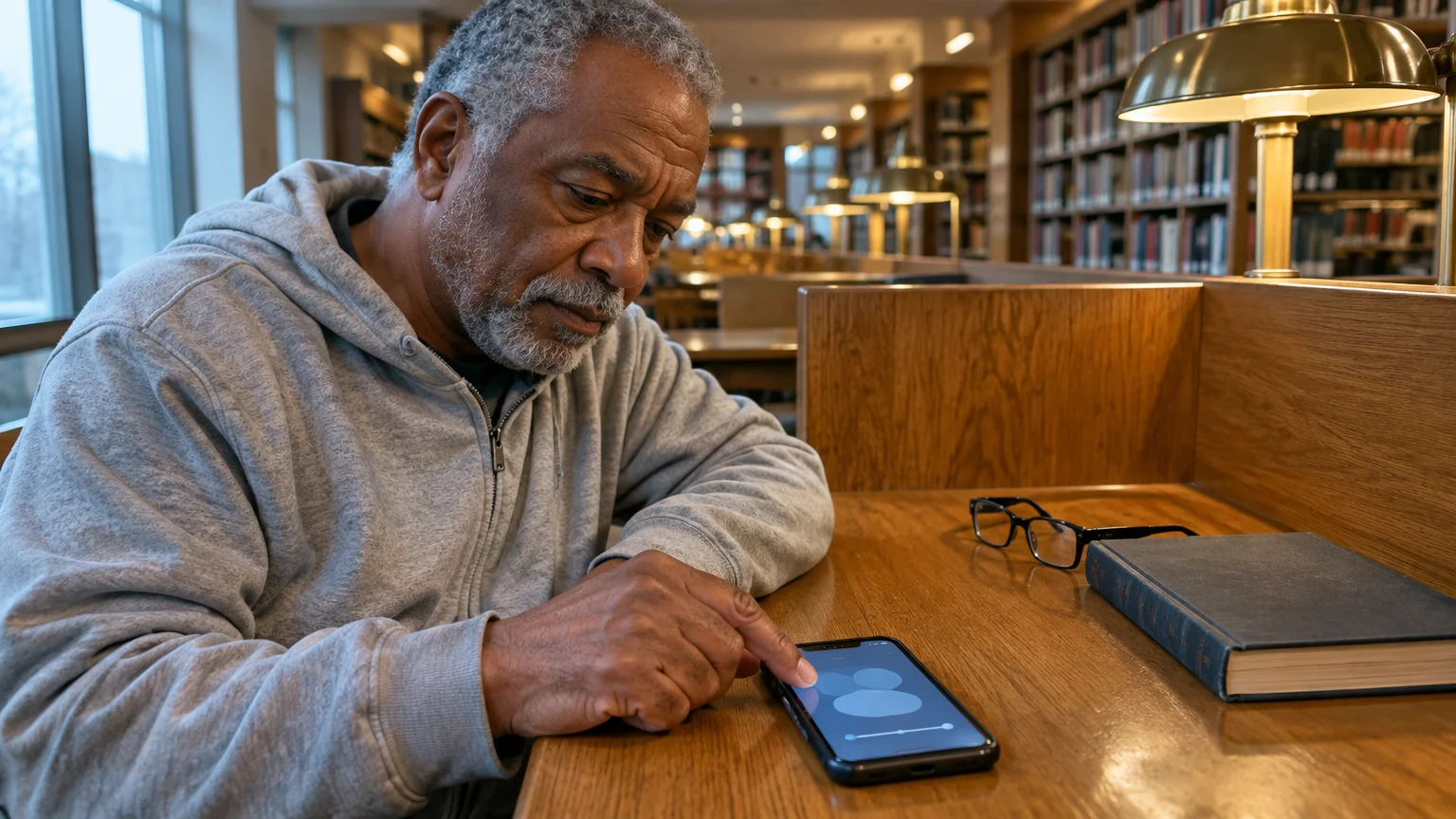
Touch accommodations are accessibility settings that control how long your finger must remain on the screen before a tap registers. Increasing this duration ignores brief tremors and accidental brushes.
Similarly, if swipe gestures feel awkward or frustrating, you can adjust your accessibility settings to answer phone calls with a single tap.
Consider a worked example: a reader with hand shakiness set their phone hold duration to 0.30 seconds. That fraction of a second allowed standard deliberate typing while ignoring brief, involuntary slips against the camera icon.
Review Apple’s guide to iPhone accessibility features for an overview of motor assistance tools. Follow these steps to configure touch hold times on an iPhone:
- Open the Settings app on your iPhone.
- Tap Accessibility in the main settings list.
- Tap Touch under the Physical and Motor header.
- Tap Touch Accommodations near the top of the screen.
- Tap the toggle switch next to Touch Accommodations to turn it on.
- Tap the toggle switch next to Hold Duration to activate the timer.
- Tap the plus symbol until the screen displays 0.30 Seconds.
This setting applies across all apps. You must press and hold any button for roughly one-third of a second before the phone reacts.
Prevent Accidental FaceTime Calls on iPhone
In the Messages app, Apple positions a green or gray video camera icon at the top right of every chat. A minor twitch while scrolling can dial a contact instantly.
If you want to stay in touch with relatives without relying on finicky mobile app screens, you can explore how to video call someone who has no smartphone through dedicated displays and simpler alternatives.
Warning: Turning off FaceTime disables incoming video calls from family members until you turn the feature back on in your settings.
If you prefer regular phone calls and simple text messages, disabling FaceTime offers the most reliable way to prevent accidental facetime calls.
- Open the Settings app on your iPhone home screen.
- Scroll to the bottom, tap Apps, and then tap FaceTime.
- Tap the green toggle next to FaceTime to switch it off.
Turning this switch off completely removes the video camera icon from your Messages conversations. The phone will no longer place video calls from that screen.
Consult Apple’s official iPhone User Guide if you ever need to restore your calling preferences.
Stop Unintended Video Calls on Android
Android devices also place video calling buttons inside messaging apps, often linked directly to Google Meet. You can prevent misdials by modifying touch timing or revoking camera access.
Detailed options appear in Google’s Android accessibility overview. Use these steps on your Android device to slow touch response:
- Open the Settings app on your Android device.
- Scroll down and select Accessibility.
- Tap Interaction and dexterity or Timing controls.
- Tap Touch and hold delay.
- Select Medium or Long to prevent brief touches from triggering a long press; on Samsung phones, enable Touch duration instead to ignore brief accidental taps.
You can also create a digital safety barrier by removing camera permissions from the messaging app. This stops accidental dials from opening your camera feed without confirmation.
- Open Settings on your Android device.
- Tap Apps, then tap See all apps.
- Select Google Meet, Phone, or your messaging app from your app list.
- Tap Permissions, then tap Camera.
- Select Don’t allow to remove access.
If you accidentally tap the call icon later, Android will display a security warning asking for permission instead of connecting the call.

Adjust Display Zoom and Keyboard Spacing
Display Zoom is a screen option that enlarges controls, icons, and buttons across your operating system. Larger visual targets give your fingers extra room to land accurately.
While you cannot manually move video call buttons, enlarging screen elements makes keys and icons bigger so you are less likely to mis-tap.
Review Apple’s instructions on making text bigger to see how font scaling works alongside display enlargement. Follow these steps to enable zoom:
- Open Settings on your iPhone.
- Tap Appearance (or Display & Brightness on earlier iOS versions).
- Scroll to the bottom and tap Display Zoom.
- Select Larger Text and tap Done at the top right.
- Tap Use Zoomed to confirm your selection.
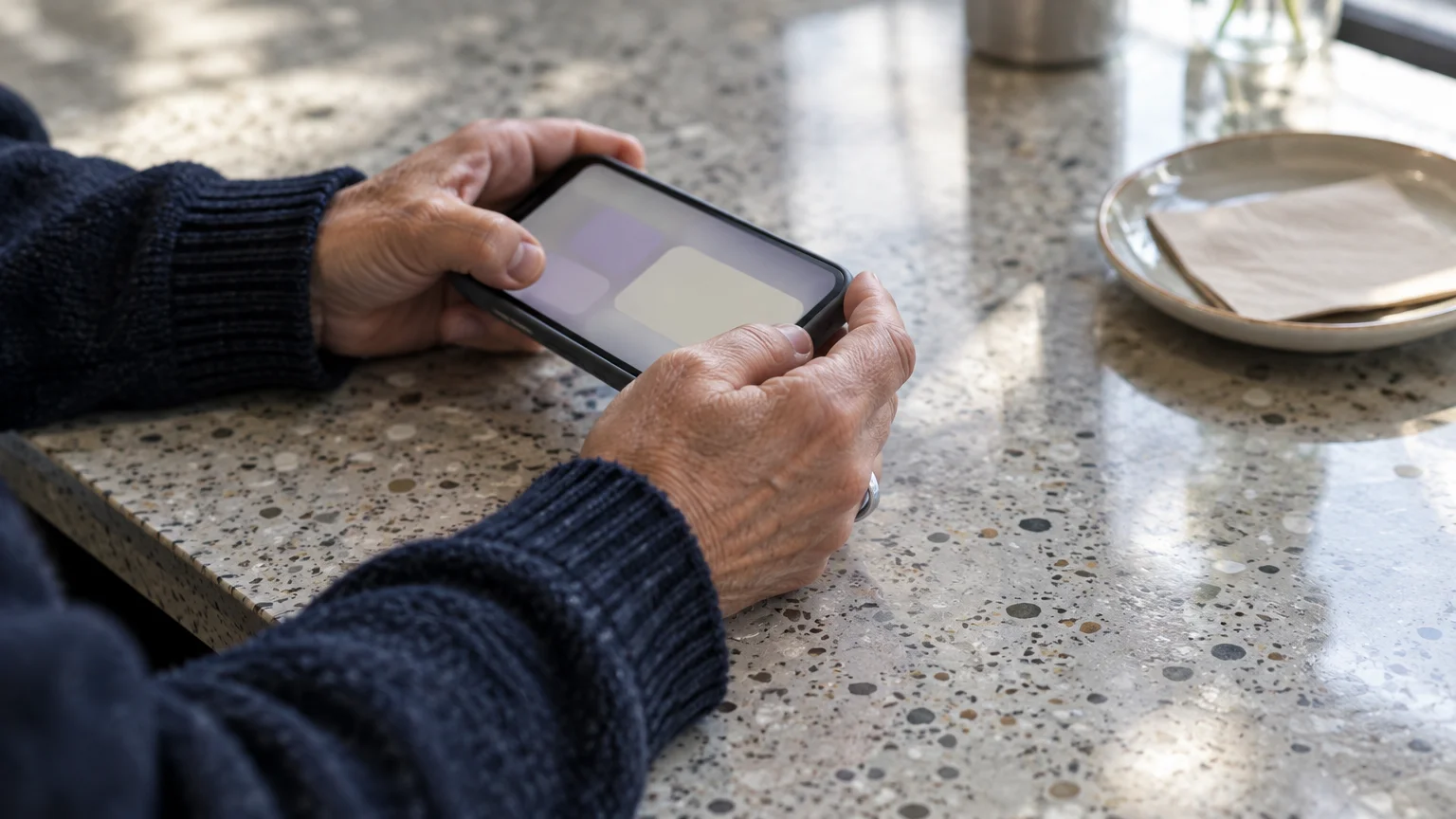
Rotating your phone into landscape mode also separates screen controls. The keyboard widens horizontally, giving your thumbs wider keys with more side-to-side room.
- Use landscape typing if you want wider keys with more horizontal spacing.
- Enlarge system text to give your fingers larger tap boundaries.
- Rest your typing hand on a flat table to steady finger motion.

Comparing Layout Adjustments for Touch Accuracy
Each adjustment method solves accidental touches through a different mechanism. Review this comparison table to choose the best configuration for your hands.
| Adjustment Method | Setup Time | Tremor Protection Level | Impact on Other Apps |
|---|---|---|---|
| Hold Duration (0.30s) | 2 minutes | High (ignores taps under 300 milliseconds) | Requires deliberate presses everywhere |
| FaceTime Deactivation | 1 minute | Complete (removes video call icon entirely) | Stops all incoming video calls |
| Camera Permission Block | 2 minutes | High (displays confirmation popup instead) | Cannot send camera photos inside texts |
| Display Zoom (Larger Text) | 1 minute | Moderate (enlarges onscreen buttons and text) | Fits fewer text lines on the screen |
Combining a 0.30-second hold duration with Display Zoom creates the most reliable setup for typing without false taps.
Frequently Asked Questions
Does the other person know if I accidentally start a video call and hang up quickly?
Yes, mobile networks register the call immediately. Even if you disconnect within one second, the recipient will see a missed video call notification on their screen.
Can I move the video call icon to a different corner of the screen?
No, standard messaging apps do not permit dragging or rearranging header icons. You must rely on hold delays, zoom adjustments, or feature deactivation to stop accidental activation.
Will setting a hold duration slow down my typing speed?
A delay of 0.30 seconds feels almost imperceptible during standard typing. However, it filters out unintentional finger grazes and twitches effectively.
What should I do if a video call starts by mistake?
Tap the red circle button immediately to end the call. Afterward, send a quick text message explaining that your finger slipped on the screen.
Note: Menus and button names change with software updates. These steps were written for current versions as of 2026; if a screen looks different on your device, the maker’s support page linked above has the latest wording.
ClearTechGuide is independent and is not affiliated with Apple, Google, Microsoft, Amazon or any other company mentioned.