
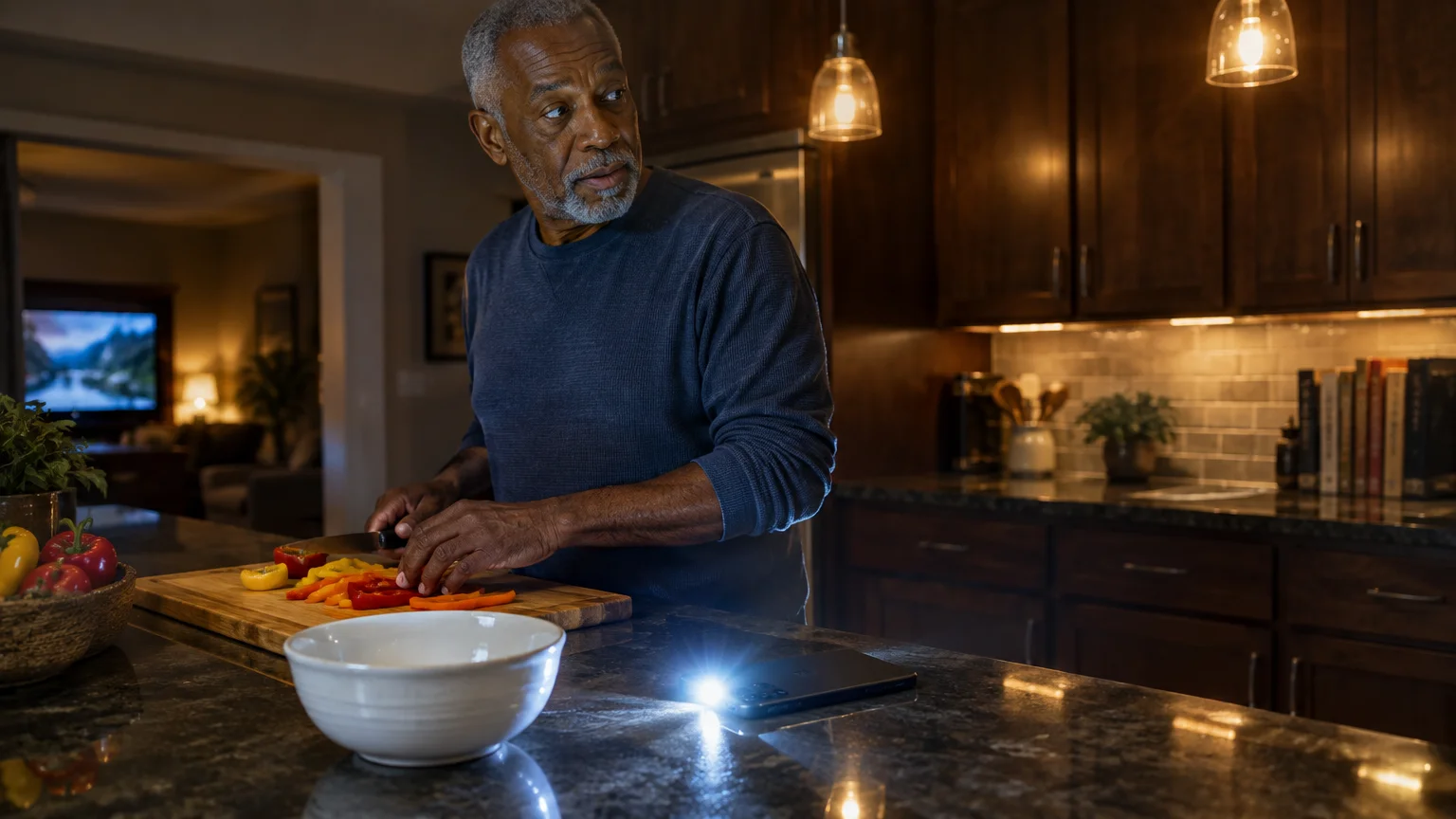
High-frequency hearing loss makes standard phone ringers difficult to hear, especially when television dialogue fills your living room. Setting your smartphone camera flash to blink during incoming calls provides an immediate visual cue across the room.
Along with setting up clear visual cues for calls, you can also set up Emergency SOS on your smartphone to quickly request assistance during an urgent situation.
If your device stays completely silent even with the ringer active, check our guide on troubleshooting a phone that isn’t ringing first.
You do not need to silence your phone or choose between audio and light. Both systems operate together natively on modern devices, piercing background noise without requiring external hardware or paid third-party applications.
This guide explains how to activate flashlight ringing on Apple iPhone and Android phones. We show you how to preserve your normal ring volume while adding bright optical alerts for every call.
In this guide9 sections
- How Flash Alerts Solve Missed Calls During Television Viewing
- How to Turn On LED Flash Alerts on iPhone and iPad
- How to Enable Flash Notifications on Samsung Galaxy Phones
- How to Set Up Flash Notifications on Google Pixel and Stock Android
- Worked Example: Living Room Television Audio Versus Visual Alerts
- Comparing Phone Alert Methods: Light, Sound, and Vibration
- Battery Life, Positioning, and Glare Considerations
- Troubleshooting Flash Alerts That Stop Working
- Frequently Asked Questions
How Flash Alerts Solve Missed Calls During Television Viewing
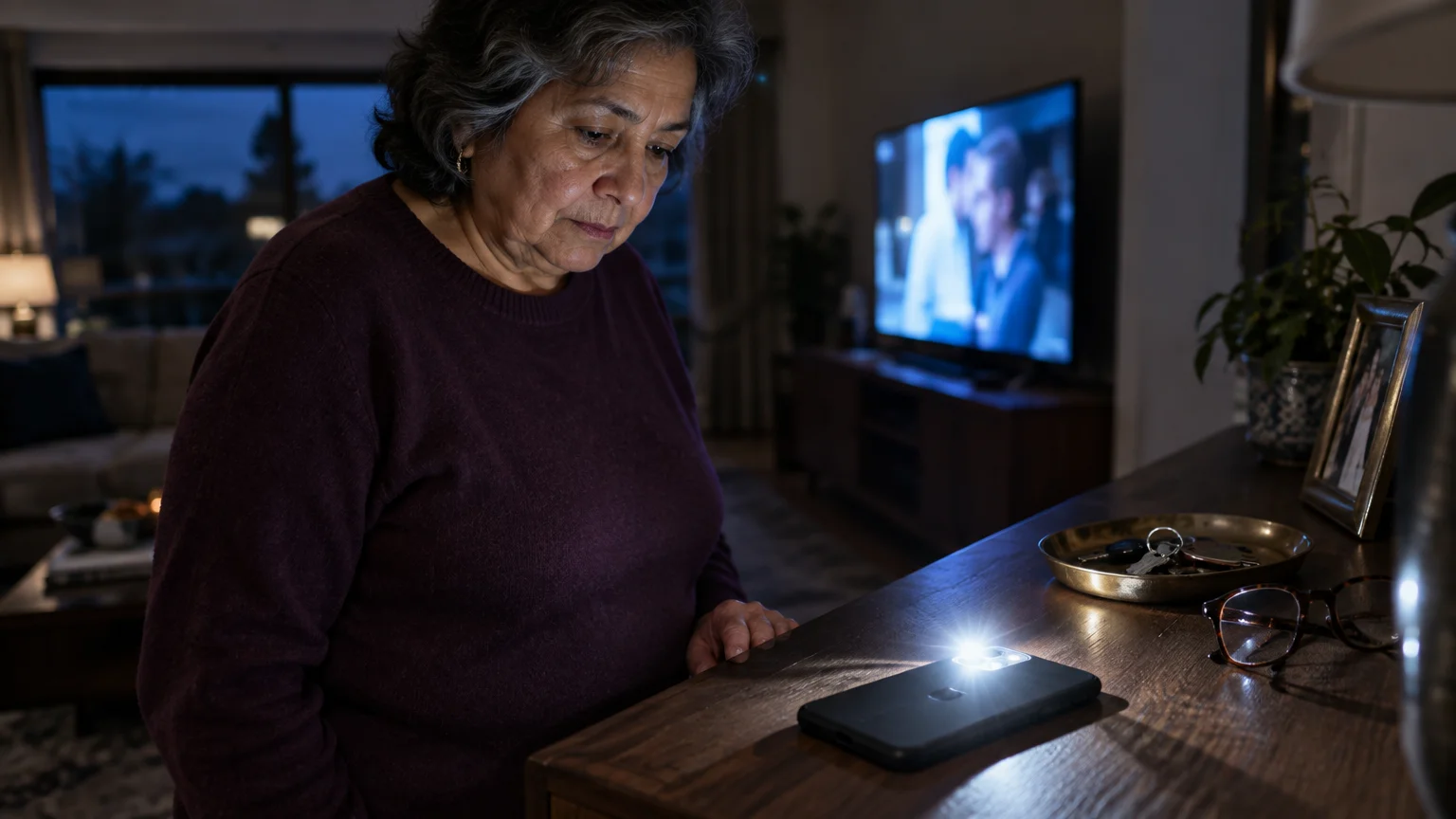
Age-related hearing changes often reduce your ability to detect higher acoustic frequencies first. Common smartphone ringtones produce sounds between 2,000 and 4,000 Hertz, which compete directly with recorded television audio.
To prevent bright optical strobes from going off for telemarketers, you can easily block unwanted calls on your smartphone.
If you wear compatible hearing devices, you can also learn how to route phone calls directly to your hearing aids for clearer audio.
You can also reduce your television volume without missing key dialogue by learning how to use closed captions on your smart TV.
When dialogue or background music plays through television speakers, your ears struggle to isolate ringtones coming from an end table. Raising the ringer volume can cause acoustic distortion without making the incoming call any easier to register.
An LED flash alert—meaning a rapid pulsing of the rear camera light bulb—uses your peripheral vision instead of your hearing. The human eye detects abrupt shifts in ambient room lighting even when you look directly at a television screen.
You can review the FCC guide on hearing aid compatibility for wireless phones for broader equipment standards. Camera strobes complement these tools by adding an independent visual channel that never relies on earpieces.
Both Apple iOS and Google Android include this accessibility feature at no extra charge. We will configure your device so that sound, vibration, and light trigger at the same time.
How to Turn On LED Flash Alerts on iPhone and iPad
Apple includes native flash notification controls inside its hearing accessibility settings. These steps apply to devices running iOS 18 as of 2026, though earlier versions follow nearly identical paths.
If your tablet is muted and misplaced somewhere around your home, learn how to ring a silent iPad to find it.
To ensure you do not miss incoming SMS notifications either, see our guide on making text message alerts louder and repeat.
Note that iPad models must feature an integrated rear camera flash to support this tool. If you find small text difficult to locate in your system menus, review Apple’s text enlargement instructions to boost menu legibility first.
- Open the Settings app from your home screen or App Library.
- Scroll down and tap Accessibility.
- Look under the Hearing section and select Audio & Visual.
- Scroll to the bottom of the list and tap LED Flash for Alerts.
- Turn on the toggle switch next to LED Flash for Alerts so it displays green.
- Turn on the toggle switch next to Flash while Unlocked if you want alerts while actively holding your phone.
- Turn on the toggle switch next to Flash in Silent Mode to ensure visual alerts remain active if you flick your mute switch.
You can discover additional vision and hearing tools through Apple’s iPhone accessibility features guide. Keeping both sub-switches active guarantees your flash operates whether your phone is locked on a table or resting in your hand.
Your ringtone volume remains untouched by this change. The next incoming call will sound your chosen chime while pulsing the camera bulb on the rear casing.

How to Enable Flash Notifications on Samsung Galaxy Phones
Samsung Galaxy smartphones run Android with Samsung’s custom One UI software interface. As of 2026, Galaxy devices on One UI 6 and One UI 7 offer two distinct visual notification tools.
If you want your screen to stay visible longer after an alert wakes the display, review how to stop your phone screen from going black so fast.
Samsung allows you to illuminate the rear camera light, the front glass screen, or both simultaneously. This flexibility helps if you usually set your phone screen-up on side tables.
- Open the Settings app by swiping down from the top edge and tapping the gear icon.
- Scroll down and tap Accessibility.
- Select Advanced settings from the menu options.
- Tap Flash notification near the top of the list.
- Turn on the toggle switch labeled Camera flash notification.
- Tap the words Camera flash notification to choose which apps trigger the light, ensuring Phone and Messages are selected.
- Turn on Screen flash notification if you want your display screen to pulse yellow during calls.
- Tap Preview at the bottom of the display to view the flash pattern before exiting.
The camera bulb will emit bright pulses whenever an incoming telephone call arrives. Your audible ringer volume remains entirely unaffected by these accessibility selections.
If you activated screen flashes, your display will glow softly in your chosen color. This ensures you catch alerts even when the rear camera faces down against a blanket or pillow.
How to Set Up Flash Notifications on Google Pixel and Stock Android
Google Pixel devices and Motorola phones use stock Android software. Google integrated visual flashing natively into the accessibility suite starting in Android 14 and continuing through current Android releases as of 2026.
If your Android phone is placed silent and out of view in another room, you can pinpoint its location by using the Find My Device feature.
If the screen flash feels too intense in a dim room, you can easily adjust your phone’s screen brightness to a more comfortable level.
You can reference Google’s Android accessibility overview for system requirements across different hardware partners. Follow these steps to activate the feature on standard Android software.
- Open the Settings app on your Android smartphone.
- Scroll down and select Accessibility.
- Scroll down to the Audio & on-screen text section and tap Flash notifications.
- Turn on the switch next to Camera flash.
- Turn on the switch next to Screen flash if you want the display surface to light up alongside the camera.
- Tap Screen flash color to pick a high-visibility tint such as yellow, green, or purple.
- Tap Preview to check the brightness level and ensure the flash pattern meets your visual needs.
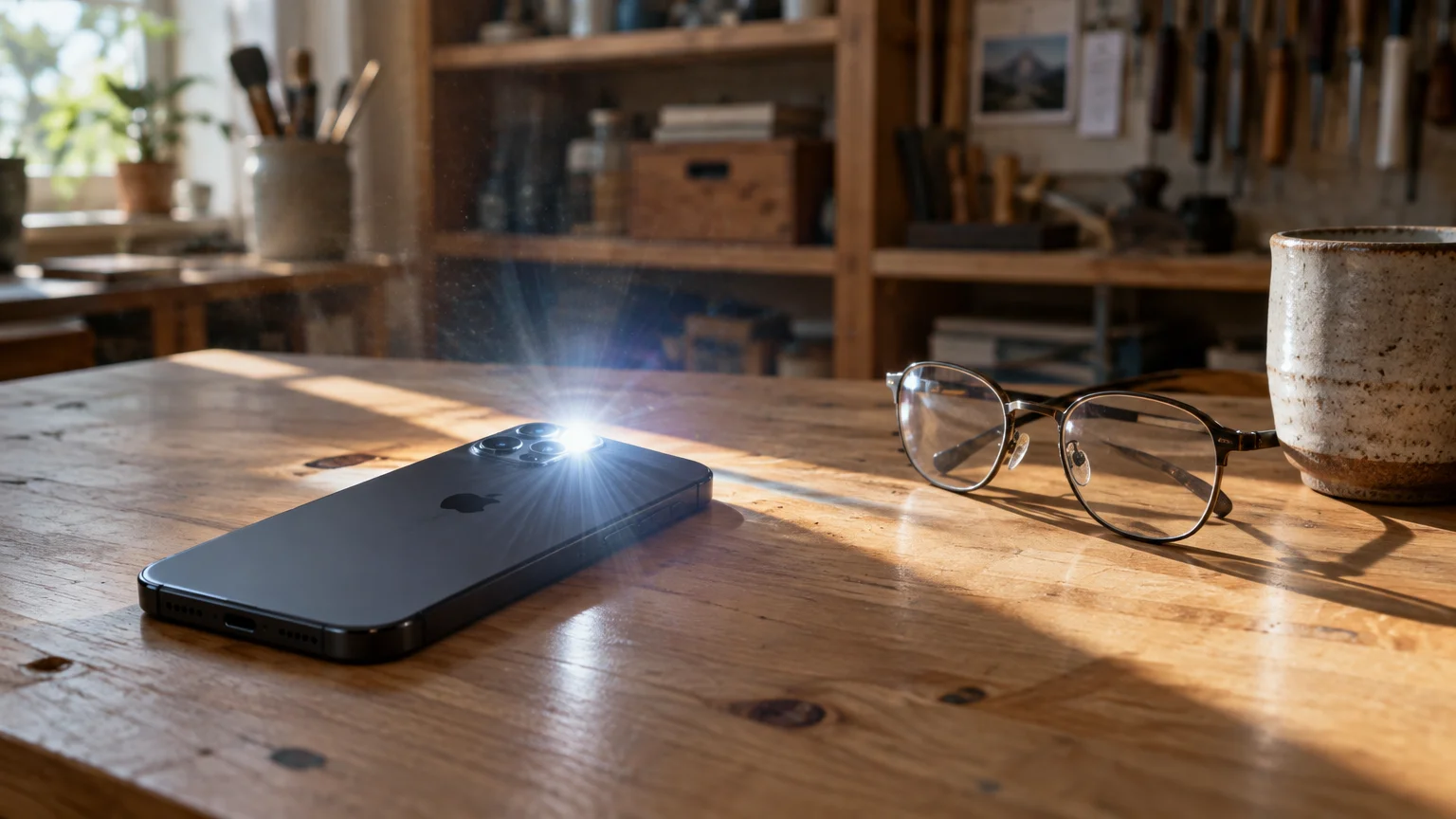
Once activated, incoming calls trigger a rapid strobing sequence from the rear lens module. You do not need to alter your existing ringtones, vibration patterns, or volume sliders.
On some Motorola models, manufacturer-specific menus place this feature inside Moto Actions or Display. Searching for “flash” inside your top Settings search bar will take you directly to the correct toggle.
Worked Example: Living Room Television Audio Versus Visual Alerts
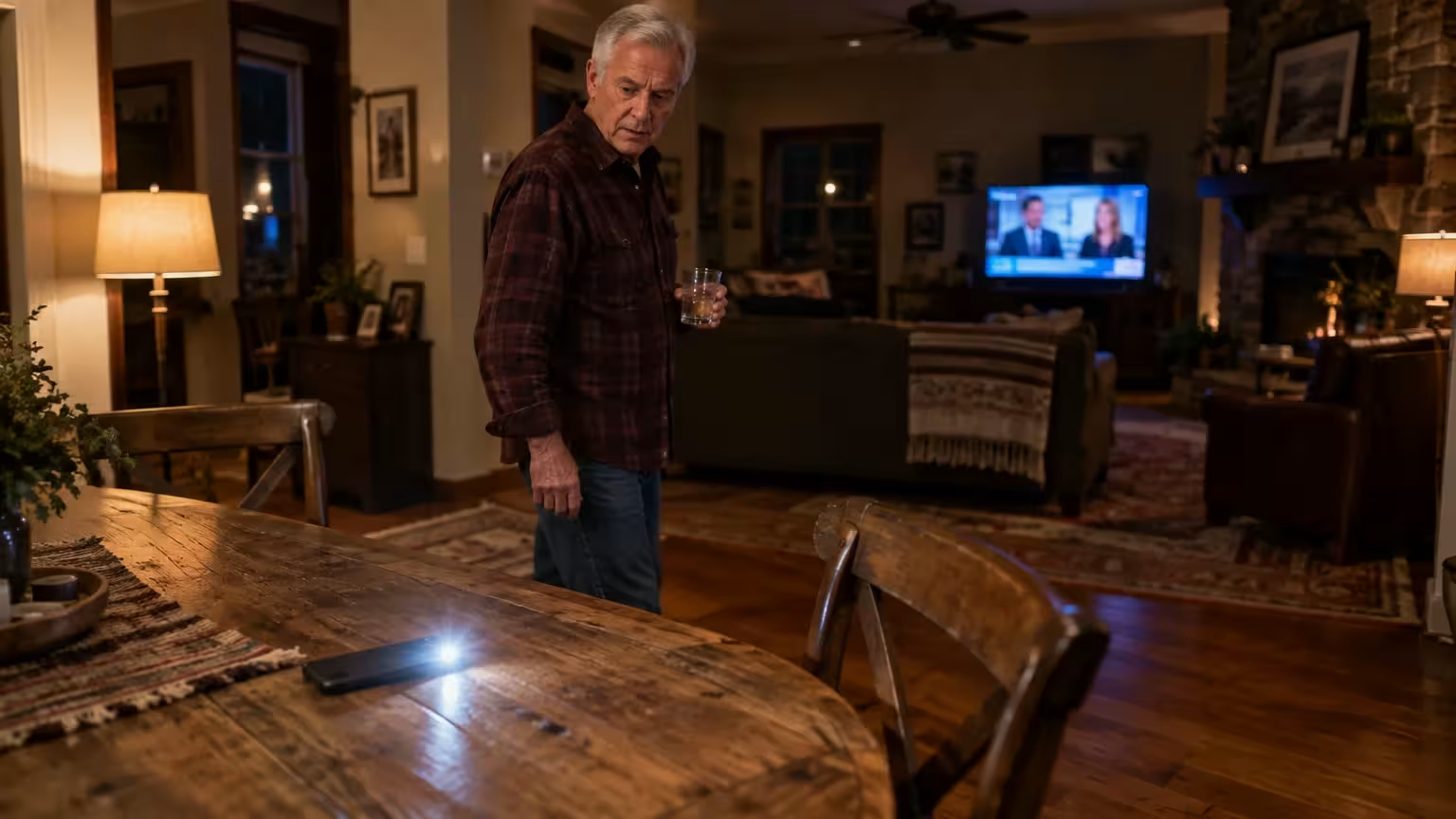
Consider Eleanor, an 81-year-old living in Ohio who experiences moderate high-frequency presbycusis above 2,500 Hertz. Eleanor consistently misses afternoon phone calls from her pharmacy when her living room television is on.
When a strobe catches your eye during an incoming face-to-face chat, follow our simple steps on how to answer a video call without stress.
Once you spot the optical cue, you can also set up your device to answer phone calls with a single tap instead of swiping.
To make identifying who is calling just as effortless once you reach your phone, consider making incoming caller ID full screen.
In her setup, her soundbar plays cable news at 68 decibels (dB) measured from her recliner. Eleanor keeps her iPhone 14 resting on a wooden coffee table 8 feet away.
Eleanor’s audible ringtone produces 74 dB at a 1-foot distance, but sound levels diminish over open floor space. At 8 feet, the ringtone reaches her ears at roughly 56 dB, completely drowned out by the 68 dB broadcast.
Eleanor opens her iPhone settings and enables LED Flash for Alerts while leaving her ringer set to 85% volume. When her pharmacy calls, the rear camera emits 250-millisecond optical pulses at roughly 50 lumens.
Because the coffee table has a semi-reflective varnish, the flash projects wide light bursts across the living room wall. Eleanor perceives the light shift in her peripheral vision within two seconds, despite the television sound.
She answers the call promptly without having to blast her ringer at maximum volume. Eleanor’s phone consumed less than 1% of its battery capacity during the entire 30-second ringing cycle.
Comparing Phone Alert Methods: Light, Sound, and Vibration
Smartphones provide several notification channels, but each functions differently depending on where your device rests. The table below outlines how common alert methods compare across measurable household conditions.
| Alert Method | Effective Range Across 65 dB TV Noise | Hardware Requirement | Detection on Soft Surfaces (Couch/Bed) | Estimated Battery Impact per 20 Calls |
|---|---|---|---|---|
| Audible Ringtone (75 dB) | Under 4 feet for high frequencies | Built-in speaker | High acoustic transmission | Negligible (under 0.5%) |
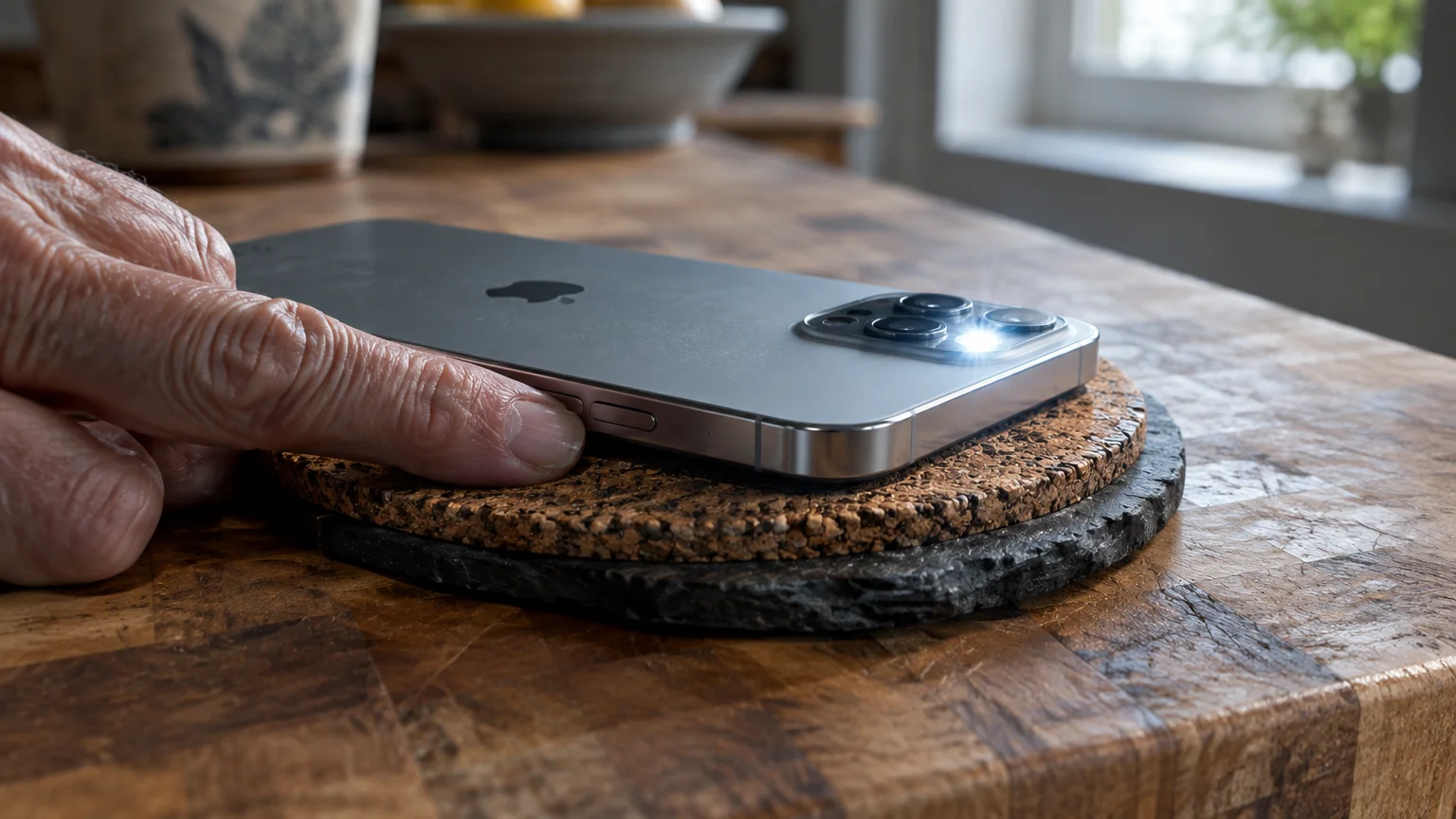
| Rear Camera LED Strobe | 12 to 15 feet in standard lighting | Camera flash module | Visible if reflected or face-down | Low (approximately 1.0% to 1.5%) |
| Screen Flash Alert | 6 to 8 feet in front field of view | Display panel (OLED/LCD) | Blocked if placed face-down | Low (approximately 0.8%) |
| Haptic Motor Vibration | 0 feet (requires physical contact) | Internal vibration motor | Muffled completely by cushions | Moderate (approximately 2.0%) |
Combining audio with camera flashes yields the highest detection rate across typical living rooms. You maintain your normal acoustic ringer while letting light bridge the physical distance.
Vibration alone fails whenever you set your phone on upholstered furniture or deep cushions. Soft fabrics absorb motor vibrations entirely, eliminating both the tactile sensation and the buzzing sound.
Battery Life, Positioning, and Glare Considerations
Camera flash units use small light-emitting diodes that draw very little electrical current. Letting your phone flash during incoming calls consumes approximately 1% extra battery charge across an entire day.
The orientation of your phone on household surfaces dictates how effectively you notice the flash. Keep these positioning habits in mind to maximize visibility throughout your home:
- Place your phone screen-down on tables so the rear camera bulb points toward the ceiling.
- Place the device on hard surfaces like wood, glass, or stone to produce reflections if resting screen-up.
- Avoid setting your phone inside deep baskets, fabric pouches, or enclosed magazine racks.
- Keep the camera lens clear of heavy leather wallet flaps that fold backward over the bulb.
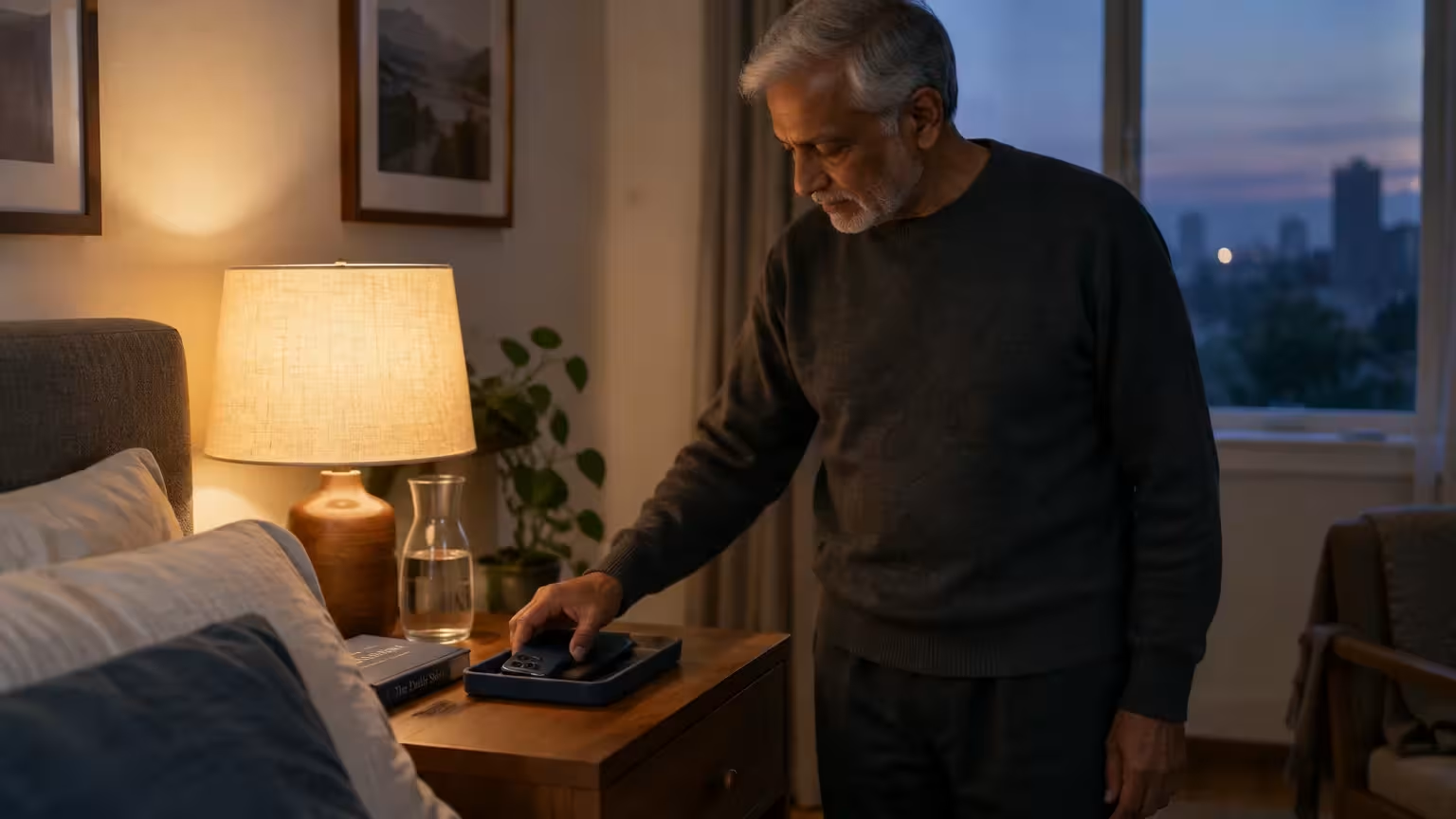
A flashing LED can startle you in a dark bedroom at night. If you charge your phone on a nightstand, consider turning the screen face-up or establishing scheduled Do Not Disturb hours.
Frequent telemarketing calls can trigger unwanted strobing sequences across your living space. You can review the FTC guide on blocking unwanted phone calls to stop robocalls from triggering your camera light.
Combining call blocking with visual alerts ensures your phone illuminates only when legitimate family members or doctors reach out. This protects both your battery life and your household calm.

Troubleshooting Flash Alerts That Stop Working
If your phone stops flashing during incoming calls, the underlying hardware or software settings may require adjustment. Work through these checks in order to restore proper operation.
- Check your phone case to ensure protective plastic does not obscure the small glass circle next to your camera lenses.
- Verify that Low Power Mode or Battery Saver is turned off, as some Android manufacturers disable flashes below 20% battery.
- Ensure your phone is not locked into an active Focus mode or Do Not Disturb profile that silences calls entirely.
- Test your flashlight manually from the Control Center or Quick Settings shade to confirm the bulb illuminates.
- Restart your smartphone by turning it off, waiting 30 seconds, and turning it back on to clear temporary system errors.
Some thick waterproof cases feature tinted rubber plugs over the camera assembly. These plugs muffle optical output significantly, reducing the strobe’s visible range across your room.
If the flashlight button in your shortcut menu fails to turn on, your camera hardware may require inspection. A dead flash bulb cannot trigger notification strobes, even if the accessibility menus remain properly configured.
Frequently Asked Questions
Does turning on flashlight alerts silence my regular ringtone?
No. Flashlight alerts function independently alongside your standard ringtone and vibration settings. Your phone will ring, vibrate, and flash simultaneously unless you deliberately turn down your sound volume.
Will the flashlight stay on continuously until I answer the call?
No, the camera light does not stay on as a solid beam. It pulses on and off in rapid succession to create a strobing pattern that stops immediately when you answer or decline the call.
Can I make the flashlight blink for text messages as well as phone calls?
Yes. Both Apple iOS and modern Android systems use the same accessibility toggle for incoming phone calls, standard text messages, and urgent system alerts.
Does the camera flash work when my phone is inside a purse or pocket?
The light will pulse, but thick fabrics block the light from shining into the room. If your phone remains in a handbag, keep your audio volume high or keep the bag unzipped nearby.
Note: Menus and button names change with software updates. These steps were written for current versions as of 2026; if a screen looks different on your device, the maker’s support page linked above has the latest wording.
ClearTechGuide is independent and is not affiliated with Apple, Google, Microsoft, Amazon or any other company mentioned.
