
You might remember a time when computers took up an entire desk and required a thick manual just to turn them on. Today, you can hold more power than those old machines in the palm of your hand.
If you find your smartphone screen too small for comfortable reading or your laptop too heavy and complicated to use in your favorite armchair, a tablet is the perfect middle ground.
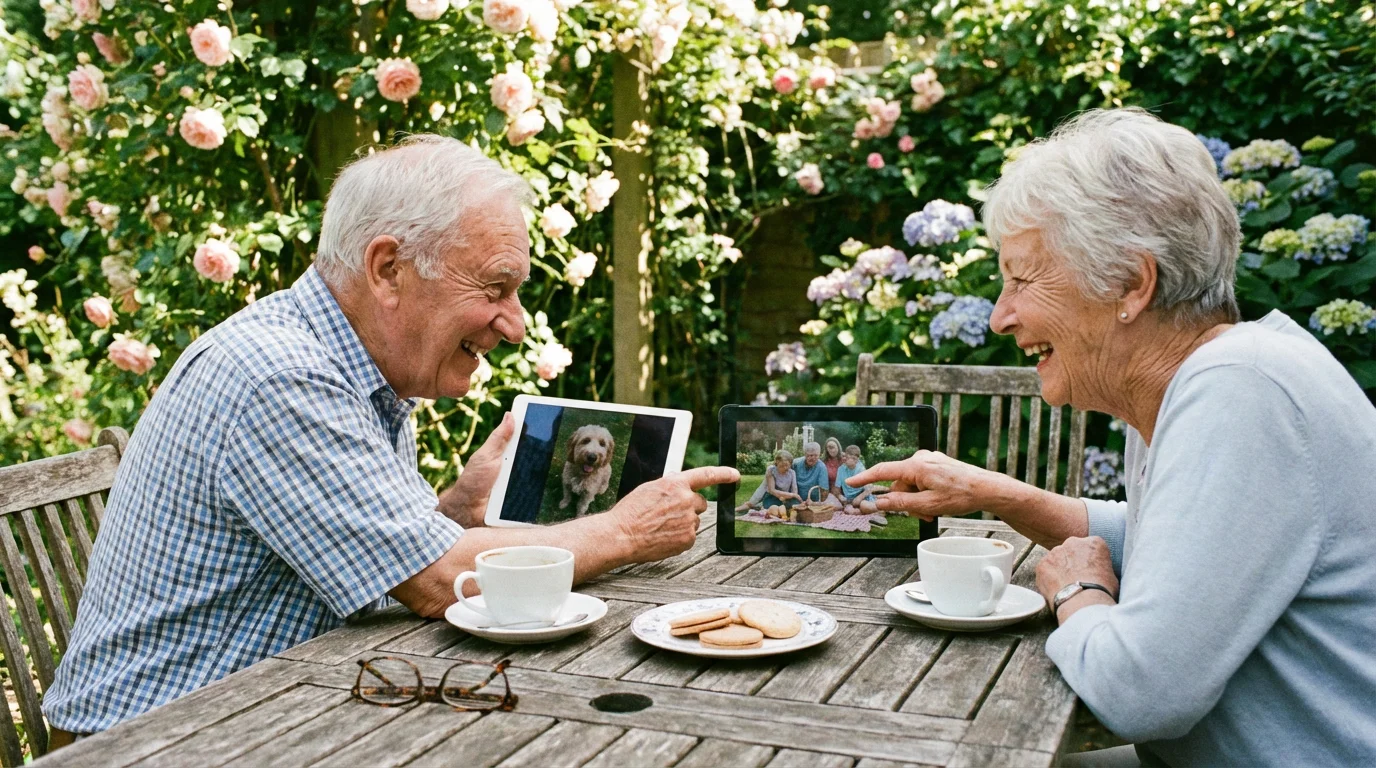
These sleek, lightweight devices act like a digital window to the world, allowing you to video chat with grandkids, read the morning news, and play games with a simple touch of your finger.
Many seniors also find that using a smartwatch is a great companion to a tablet for tracking health goals throughout the day.
Once you get used to the screen, you can explore recommended apps for brain training that help keep your memory sharp and provide hours of entertainment.
Choosing the right tablet feels overwhelming because there are hundreds of options on the store shelves. You want a device that works with you, not against you.
This guide will help you identify the specific features that make a tablet senior-friendly.
Whether you are looking for your first device or upgrading from a flip phone, we will walk through the best choices, the most helpful settings, and how to get everything up and running smoothly.
In this guide9 sections
- Why Choose a Tablet Over a Computer?
- Essential Features to Look For
- iPad vs. Android: Which is Right for You?
- Top iPad Recommendations for Seniors
- Top Android Recommendations for Seniors
- Accessibility Features You Should Use
- Setting Up Your New Tablet for Success
- What to Do if Something Goes Wrong
- Frequently Asked Questions

Why Choose a Tablet Over a Computer?
Many people find that a tablet simplifies their digital life. Unlike a laptop, a tablet does not have a physical keyboard or a mouse.
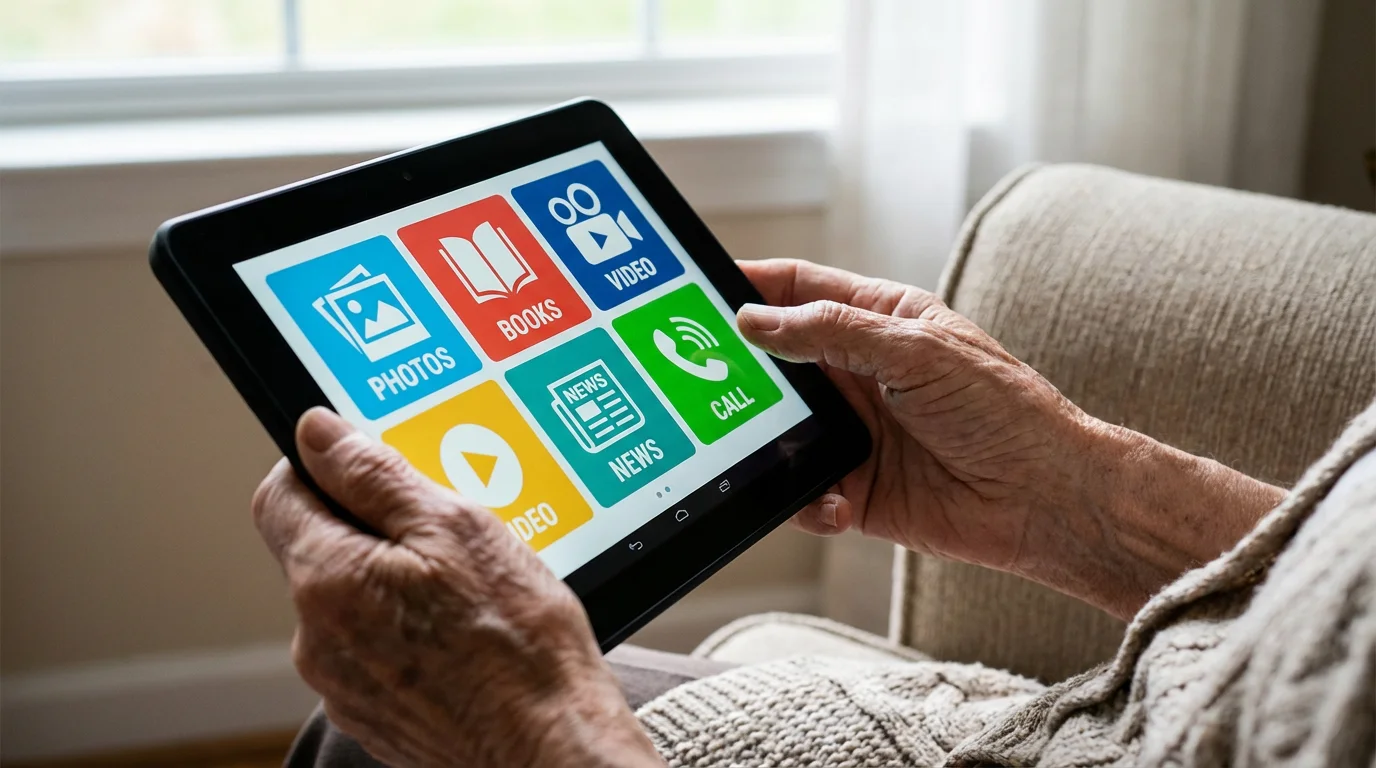
Instead, you interact directly with the screen. To open a program—which we call an “app”—you simply tap it.
To “tap,” gently touch the screen once with your finger, just like you would press a physical button. To “swipe,” slide your finger across the screen to turn a digital page or scroll down a list.
If you find your current computer is slow, switching to a tablet can provide a much faster and more responsive experience for daily tasks.
Tablets also offer better portability. Most weigh about one pound, making them easy to hold while sitting on the sofa or lying in bed.
According to data from AARP Technology Resources, tablets have become one of the most popular devices for adults over 50 because they bridge the gap between the portability of a phone and the large, readable screen of a computer.
You get a bright, clear display that makes photos look vibrant and text much easier to read without squinting.
“Learning a new device is a journey, not a race. Give yourself permission to explore and press buttons; you won’t break the internet, and every tap helps you become more confident.”
Essential Features to Look For
When you shop for a tablet, do not get distracted by technical jargon like “gigahertz” or “processor cores.” Instead, focus on these five practical features that will impact your daily enjoyment.
To avoid tiring your hands while watching movies or talking to family, you might also consider using a tablet stand for a more comfortable experience.
1. Screen Size and Quality
Look for a screen that is at least 10 inches measured diagonally. This size provides enough room for large buttons and easy-to-read text.
High-definition (HD) screens are also important because they offer higher contrast, which helps if you have “tired eyes” or vision challenges.
2. Weight and Grip
Hold the tablet in the store if possible. You want something light enough to hold for 20 minutes while reading an e-book but sturdy enough that it doesn’t feel fragile.
Some tablets have slightly textured backs that make them easier to grip.
3. Battery Life
You should look for a device that offers at least 10 hours of battery life. This ensures you can use it throughout the day for calls and games without constantly searching for a wall outlet.
Most modern iPads and high-end Android tablets meet this standard easily.
4. Storage Capacity
Storage is where the tablet keeps your photos, emails, and apps. For most seniors, 64 gigabytes (GB) of storage is the “sweet spot.”
It provides plenty of room for thousands of photos and dozens of apps without paying the high price of professional-grade storage.
5. Simple Charging
Some tablets now use a “USB-C” charging port, which is an oval-shaped hole. The best thing about USB-C is that the cable works no matter which way you plug it in—there is no “upside down.”
This is much easier for those with arthritis or limited dexterity compared to older styles of plugs.
iPad vs. Android: Which is Right for You?
The biggest decision you will make is choosing between the two main “operating systems,” which is just a fancy way of saying the software that runs the tablet. These are Apple’s iPad (iPadOS) and Google’s Android.
The Case for the iPad:
The iPad is famous for being intuitive. If you already use an iPhone, an iPad will feel exactly the same, just larger.
Apple devices are known for their high security and excellent customer support. You can visit an Apple Store in person to get hands-on help, which is a huge benefit if you prefer face-to-face learning.
For more help with Apple products, you can visit Apple Support online.
The Case for Android:
Android tablets, like those made by Samsung or Lenovo, offer more variety. You can find them in many different sizes and price points.
Android is often better if you want to customize your screen, such as putting your most-used contacts directly on the home page as large icons. If you use a Gmail account or have an Android smartphone, your information will sync perfectly to an Android tablet.
You can find detailed help at Google Support.

Top iPad Recommendations for Seniors
Apple makes several versions of the iPad, but two stand out as the best choices for seniors.
The Standard iPad (10th Generation)
This is the best all-around choice. It has a large 10.9-inch screen and comes in several bright colors.
It uses the modern USB-C charging port and has a very fast brain, so apps open instantly. It is excellent for video calling your family via FaceTime.
The iPad Air
If you find the standard iPad a bit heavy, the iPad Air is a premium alternative. It is thinner and lighter, making it easier to hold for long periods.
It also has a “laminated display,” which means the glass is very close to the screen underneath, reducing glare from overhead lights.
Key iPad Controls:
On modern iPads, you won’t find a physical button on the front. To “wake up” the tablet, you simply tap the screen or press the Top Button located on the top edge of the device.
To return to your main screen (the “Home Screen”), swipe your finger up from the very bottom edge of the glass.
Top Android Recommendations for Seniors
If you prefer the Android system, these two options offer the best balance of ease and quality.
In addition to reading, you can also learn how to listen to audiobooks on your new device for a hands-free storytelling experience.
A large Android screen also makes it much easier to use mobile banking apps safely without needing to visit a bank branch.
Samsung Galaxy Tab S9 FE
Samsung is the leader in Android tablets. The “FE” stands for “Fan Edition,” which means it includes the best features at a lower price.
It is water-resistant, which is great if you like to keep your tablet on the kitchen counter while following a recipe. It also comes with a “stylus” (a digital pen) called the S-Pen.
If you find typing with your fingers difficult, you can use the pen to write or tap with precision.
Amazon Fire HD 10
If you are on a budget, the Amazon Fire tablet is a very affordable option. It is specifically designed for entertainment.
If you love reading books on the Kindle app or watching movies on Prime Video, this tablet makes those tasks very easy. However, it does not have the “Google Play Store,” so some popular apps might be missing.
Key Android Controls:
Most Android tablets have three icons at the bottom of the screen. The Triangle or arrow is the “Back” button; it takes you to the previous screen.
The Circle is the “Home” button; it takes you back to your main apps. The Square shows you all the apps you currently have open.

Accessibility Features You Should Use
Both Apple and Android have built-in “Accessibility” settings. These are tools designed to make the tablet easier to see, hear, and touch.
You should set these up immediately after buying your device.
If you choose an iPad, you can even use Siri for everyday tasks like setting reminders or opening apps with just your voice.
Making Text Larger (On iPad):
1. Find the Settings icon on your home screen (it looks like a set of grey gears).
2. Tap Accessibility on the left-hand menu.
3. Tap Display & Text Size.
4. Tap Larger Text and slide the button at the bottom to the right until the words are easy to read.
Making Text Larger (On Android):
1. Tap the Settings icon (usually a gear shape).
2. Scroll down and tap Display.
3. Tap Font size and style.
4. Use the slider at the bottom to increase the size.
You can also turn on Bold font to make the letters thicker and darker.
Magnification and Zoom:
If you find a specific photo or a small piece of text hard to see, you can “pinch” the screen. Place two fingers together on the glass and then spread them apart.
This will zoom in. To zoom back out, bring your two fingers back together while they are touching the screen.

Setting Up Your New Tablet for Success
Once you bring your new tablet home, you will need a few things ready before you begin the setup process. This ensures the experience is smooth and frustration-free.
To keep your new device connected without breaking the bank, consider these practical tips for saving money on internet bills.
Before you begin, ensure you have a reliable connection and consider these tips for saving money on your home internet bills to stay connected affordably.
What You Will Need:
1. Your Wi-Fi network name and password.
2. Your Apple ID or Google Account email and password (if you have one).
3. The tablet’s charging cable and wall plug.
4. A comfortable place to sit with good lighting.
Step-by-Step Initial Setup:
1. Power On: Press and hold the power button (usually on the top or side edge) until you see a logo on the screen.
2. Language: The tablet will ask you to select your language. Tap “English (United States).”
3. Connect to Wi-Fi: Look for your home network name in the list. Tap it and carefully type your password. Remember that passwords are “case-sensitive,” meaning capital letters and small letters are different.
4. Sign In: The tablet will ask you to sign in. If you are on an iPad, use your Apple ID. If you are on Android, use your Gmail address. This allows you to download apps and save your photos.
5. Security: The tablet will offer to set up a “Passcode” or “Fingerprint.”
This keeps your information safe. Choose a 4 or 6-digit number that you can easily remember, and write it down in a safe place at home.
“Don’t worry about memorizing every step. The most important thing is to keep your passwords in a secure notebook.
If you get stuck, most tablets have a ‘Help’ or ‘Tips’ app already installed that can guide you through the basics.”

What to Do if Something Goes Wrong
It is perfectly normal for a tablet to “freeze” or act strangely occasionally. Usually, this is a minor software glitch and not a sign that the tablet is broken.
Here is how to fix the most common issues.
If you encounter a problem you can’t solve alone, there are many ways to get tech support through professional services or manufacturer help desks.
The Screen is Frozen:
If the tablet stops responding to your touch, perform a “Restart.” On most devices, you do this by holding down the Power button for about 10 seconds until the screen goes black and the logo reappears.
This is like giving the tablet a quick nap; it wakes up refreshed and usually works fine afterward.
The App Isn’t Working:
If one specific program (like your Email or a Game) isn’t working, “close” the app and reopen it.
On iPad, swipe up from the bottom and hold your finger in the middle of the screen for a second, then flick the app window off the top of the screen. On Android, tap the Square icon at the bottom and swipe the app away.
Wi-Fi Keeps Disconnecting:
Check your distance from your internet router (the box with blinking lights). If you are too far away, the signal gets weak.
If you are close and it still won’t connect, go to Settings, tap Wi-Fi, turn the switch Off, wait five seconds, and turn it back On.
When to Ask for Help:
If the screen is physically cracked, if the tablet gets very hot to the touch, or if you see a message saying your account has been “locked” for security reasons, it is time to call a professional.
You can visit a local Best Buy (Geek Squad), an Apple Store, or ask a tech-savvy family member to take a look.
Frequently Asked Questions
Do I need to pay for a monthly data plan for my tablet?
Not necessarily. Most tablets come with Wi-Fi, which means they use the internet you already have at home for free.
You only need a monthly “Cellular” plan if you want to use the internet while you are in a car, at a park, or somewhere without Wi-Fi.
Can I use my tablet to make phone calls?
Yes! While tablets don’t usually have a “dialer” like a flip phone, you can use apps like FaceTime (iPad only), Zoom, or Google Meet to make video or audio calls.
These apps use the internet to connect you to your loved ones for free.
Will my tablet get viruses?
Tablets are much more secure than older home computers. As long as you only download apps from the official “App Store” (Apple) or “Google Play Store” (Android), your risk of getting a virus is extremely low.
Avoid clicking on “pop-up” ads that claim you have won a prize or that your device is infected.
Do I need a screen protector or a case?
Yes, we highly recommend both. A “folio case” covers the screen like a book cover and can also act as a stand so you don’t have to hold the tablet while watching a video.
A screen protector is a thin layer of glass or plastic that prevents scratches.
To keep your tablet in top shape, develop a routine. Charge it every night next to your bed or in a designated “charging station.”
Clean the screen once a week with a soft, dry microfiber cloth (the kind used for eyeglasses) to remove fingerprints. Most importantly, use your tablet every day.
The more you explore, the more natural it will feel.
If you want to continue learning, organizations like Senior Planet from AARP offer free online classes specifically for seniors. They cover everything from basic tablet use to advanced photography.
Taking a class can help you meet other people who are also learning, making the process social and fun.
Quick Reference Checklist:
- Choose a tablet with at least a 10-inch screen.
- Select “iPad” for simplicity or “Android” for customization.
- Go to Settings to increase the text size immediately.
- Buy a protective case with a stand.
- Keep your Wi-Fi password and Apple/Google password in a safe notebook.
Disclaimer: This article is for informational purposes only. Screens and menus may look slightly different depending on your device model and software version.
When in doubt, visit your device’s official support website or ask a trusted family member for help.