
In today’s connected world, staying in touch with family and friends across distances makes a big difference in your daily life. WhatsApp offers a straightforward way to communicate through messages and calls, all for free. If you have felt a bit unsure about how to get started with this popular communication tool, you are in the right place. This guide walks you through every step of setting up and using WhatsApp, from downloading the app to making your first call.
In addition to messaging apps, using Facebook is another popular way to see updates from your social circle.
WhatsApp simplifies keeping up with loved ones, no matter where they are. You can send quick text messages, share photos of your grandkids, and even have face-to-face video chats with people across the globe. We designed this guide specifically for you, providing clear, easy-to-follow instructions so you can confidently use WhatsApp to connect and communicate.
Table of Contents
- What WhatsApp Does for You
- How to Download WhatsApp on Your Device
- Setting Up Your WhatsApp Account
- Sending Messages with WhatsApp
- Making Voice and Video Calls with WhatsApp
- Using WhatsApp on Your Computer (WhatsApp Web and Desktop App)
- Tips for Getting the Most Out of WhatsApp
- Common Questions and Problems with WhatsApp
- Frequently Asked Questions

What WhatsApp Does for You
WhatsApp is a free messaging app that allows you to send text messages, share photos and videos, and make voice and video calls over the internet. You can communicate with individuals or groups of people who also use WhatsApp, regardless of whether they have an iPhone or an Android phone. Think of it as a universal communication tool that bypasses traditional phone company charges for international calls or texts, using your existing internet connection instead.
To keep these visits consistent, you may find it helpful to set up a weekly video call routine with your loved ones.
If you are looking for other ways to see your friends, you might also enjoy learning how to use Facebook Messenger for video calls.
Here are some key benefits you gain from using this messaging app:
- Stay Connected, Affordably: Send unlimited messages and make calls to friends and family anywhere in the world without incurring extra costs, as long as you have a Wi-Fi connection or cellular data. This is particularly useful for connecting with relatives abroad.
- Group Chats: Create a group chat for your family, a book club, or your neighborhood watch. This allows everyone to share updates, photos, and plans in one place, making coordination simple and efficient.
- Share Moments Instantly: Easily share photos and videos from your phone’s camera roll with just a few taps. You can also send short voice messages if typing feels too cumbersome.
- Video Calls: Enjoy face-to-face conversations with loved ones, even when they live far away. This feature helps you feel closer to your grandchildren or siblings, providing a visual connection that traditional phone calls cannot offer.
- Security: WhatsApp uses “end-to-end encryption,” which means your messages and calls are secure and private. Only you and the person you are communicating with can read or listen to them.
WhatsApp offers a straightforward way to keep in touch, bridge distances, and share life’s moments. You only need a smartphone, tablet, or computer and an internet connection to begin.
You can truly connect with others using WhatsApp. Imagine video calling your grandchildren from your living room or sharing photos with a family group. It is easier than you might think.
How to Download WhatsApp on Your Device
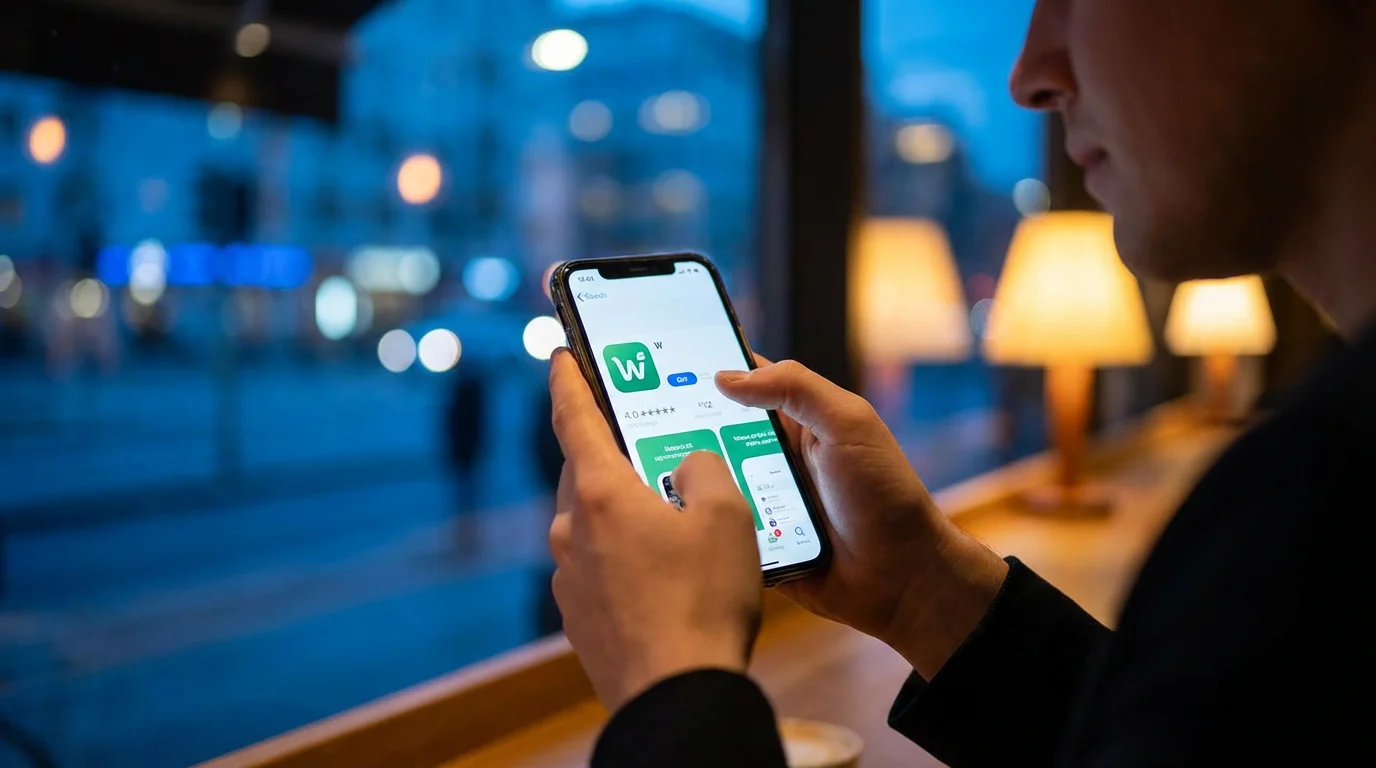
Before you can use WhatsApp, you need to download and install the app on your device. An “app” is a program you can download and use on your phone, tablet, or computer. “Download” means getting the app from the app store and putting it on your device. “Install” means setting up the app so it is ready to use.
After you learn how to download apps, you might also want to explore how to use YouTube to find helpful tutorials or entertainment.

For Your Phone or Tablet (iOS and Android)
Most people use WhatsApp on their smartphone or tablet. The process is similar for both Apple (iPhone, iPad) and Android (Samsung, Google Pixel, etc.) devices.
On an Apple iPhone or iPad (iOS)
- Find the App Store: On your home screen, look for an app icon that looks like a blue square with a white “A” inside, or sometimes just a white star on a blue background. This is the App Store. Tap it to open.
- Search for WhatsApp: At the bottom of the App Store screen, you usually see several options. Tap the one labeled Search. A search bar will appear at the top.
- Type and Search: In the search bar, type “WhatsApp” and then tap the Search button on your keyboard.
- Select WhatsApp Messenger: You will see a list of results. Look for “WhatsApp Messenger” by WhatsApp LLC. It has a green icon with a white speech bubble and a phone receiver inside.
- Download the App: Next to the app’s name, you will see a button. It might say GET or show a cloud with a downward arrow. Tap this button. You might need to confirm with your Face ID, Touch ID, or your Apple ID password.
- Wait for Installation: The app will begin to download and install on your device. This can take a few moments depending on your internet speed. You will see a progress circle filling up.
- Open the App: Once installed, the button will change to OPEN. Tap it to launch WhatsApp, or find the new green WhatsApp icon on your home screen and tap it there.
On an Android Phone or Tablet
- Find the Play Store: On your home screen or in your app drawer, look for an app icon that looks like a colorful triangle. This is the Google Play Store. Tap it to open.
- Search for WhatsApp: At the top of the Play Store screen, you will see a search bar that says “Search for apps & games.” Tap on it.
- Type and Search: Type “WhatsApp” into the search bar and then tap the magnifying glass icon or the Search button on your keyboard.
- Select WhatsApp Messenger: Find “WhatsApp Messenger” in the search results. It has a green icon with a white speech bubble and a phone receiver inside. Make sure the developer is “WhatsApp LLC.”
- Download and Install: Tap the green Install button. The app will begin to download and install on your device. This process can take a few minutes.
- Open the App: Once installed, the button will change to Open. Tap it to launch WhatsApp, or find the new green WhatsApp icon on your home screen and tap it.

For Your Computer (Windows PC or Apple Mac)
You can also use WhatsApp on your computer. This is convenient for typing longer messages or if you prefer a larger screen. You have two options: WhatsApp Web (in your web browser) or a dedicated desktop app.
Using WhatsApp Web (No Download Needed for the Computer Itself)
WhatsApp Web allows you to use WhatsApp directly through your internet browser, like Chrome, Firefox, or Safari. You do not need to download anything specific to your computer for this option, but you do need WhatsApp installed and set up on your phone.
- Open Your Browser: On your computer, open your preferred internet browser.
- Go to WhatsApp Web: In the address bar at the top, type
web.whatsapp.comand press Enter. - You Will See a QR Code: A page will load showing a square pattern called a QR code. This code links your phone to your computer.
- Scan the QR Code with Your Phone:
- On your phone: Open WhatsApp.
- For Android: Tap the three dots (More options) in the top right corner, then tap Linked Devices. Tap Link a Device.
- For iPhone: Tap Settings at the bottom right, then tap Linked Devices. Tap Link a Device.
Your phone’s camera will open. Point your phone’s camera at the QR code on your computer screen. Make sure the code fits within the frame on your phone.
- WhatsApp Connects: Once scanned, your WhatsApp chats and messages will appear in your computer’s browser. Your phone needs an internet connection for WhatsApp Web to work.
Downloading the WhatsApp Desktop App
If you prefer a standalone program on your computer, you can download the WhatsApp desktop app. This is a good option if you use WhatsApp frequently on your computer and want it to behave like any other program on your machine.
- Go to the Official Website: Open your internet browser and go to the official WhatsApp download page:
whatsapp.com/download. - Select Your Operating System: The website will usually detect if you have a Windows PC or an Apple Mac. Look for buttons that say “Download for Windows” or “Download for Mac.” Click the appropriate button.
- Download the Installer: A file will download to your computer, usually into your “Downloads” folder. This file is the “installer” program.
- Run the Installer:
- For Windows: Find the downloaded file (it might end in
.exe) and double-click it. Follow the on-screen instructions. You might need to confirm that you want to allow the program to make changes to your device. - For Mac: Find the downloaded file (it might end in
.dmg) and double-click it. Drag the WhatsApp icon into your “Applications” folder, as prompted.
- For Windows: Find the downloaded file (it might end in
- Launch WhatsApp Desktop: After installation, open the WhatsApp desktop app. You will find it in your Start Menu (Windows) or Applications folder (Mac).
- Link Your Phone: Just like with WhatsApp Web, the desktop app will show a QR code. Use your phone to scan this code by going to WhatsApp > Settings (iPhone) or More options (Android) > Linked Devices > Link a Device.
Now that you have WhatsApp installed, you are ready for the next step: setting up your account.
Setting Up Your WhatsApp Account
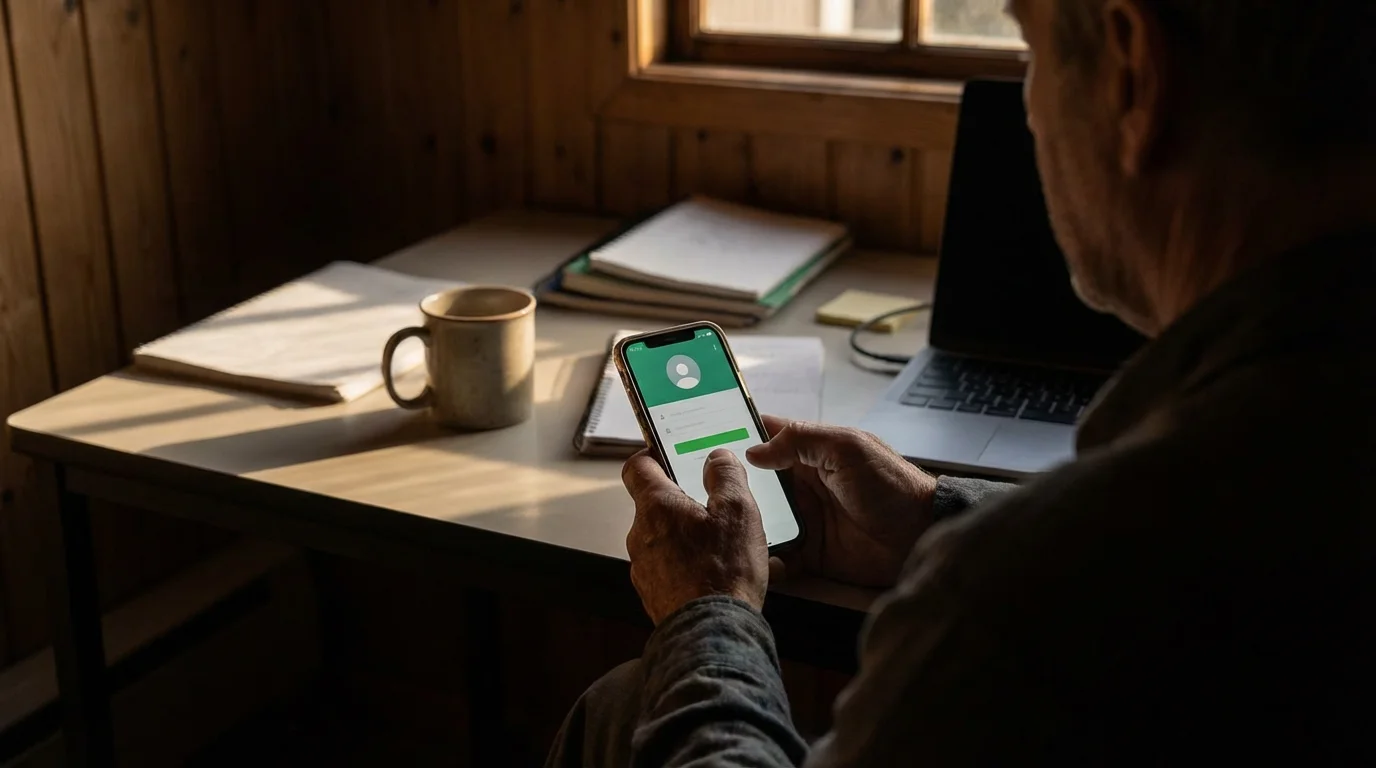
Setting up your WhatsApp “account” is straightforward. An account is your personal login with a unique identifier. For WhatsApp, this identifier is your phone number.
Once your account is ready, you can start chatting and even add emojis to your messages to make them more personal.
While you are configuring your communication settings, it is a great time to also set up Emergency SOS on your phone for peace of mind.
To find your friends easily in the app, it is helpful to know how to add contacts to your phone first.
- Open WhatsApp: Tap the green WhatsApp icon on your phone or tablet.
- Agree to Terms and Conditions: You will see a welcome screen with WhatsApp’s Terms of Service and Privacy Policy. Read them if you wish, then tap Agree & Continue to proceed.
- Enter Your Phone Number: WhatsApp will ask for your phone number. Make sure you enter it correctly, including your country code (for the USA, this is +1). WhatsApp needs your phone number to identify you and to verify your account. Tap Next.
- Confirm Your Number: WhatsApp will display the number you entered and ask you to confirm it is correct. If it is, tap Yes. If you made a mistake, tap Edit to correct it.
- Verify Your Phone Number: WhatsApp sends a verification code to your phone number via a text message (SMS).
- Automatic Verification: On many phones, WhatsApp automatically detects and enters this code for you.
- Manual Entry: If it does not automatically detect the code, check your phone’s text messages. You will receive a message from WhatsApp containing a 6-digit code. Go back to WhatsApp and type this code into the boxes provided.
You might also see an option to receive a call for verification if the text message does not arrive.
- Grant Permissions (Optional, but Recommended): WhatsApp will likely ask for permission to access your contacts and media (photos/videos).
- Contacts: Granting access to your contacts allows WhatsApp to automatically find people in your phone’s address book who also use WhatsApp. This makes it easy to start conversations. Tap Allow or Continue when prompted. You can manage these permissions later in your phone’s settings if you change your mind.
- Media: Allowing access to photos and videos enables you to share them directly within chats. Tap Allow when asked.
- Set Up Your Profile:
- Profile Name: Enter your name. This is what your contacts will see. You can use your full name, first name, or a nickname.
- Profile Picture (Optional): Tap the camera icon to add a profile picture. You can choose one from your photo gallery or take a new one. A recognizable picture helps your friends know it is you.
Tap Done or Next.
Your WhatsApp account is now set up! You will see your main chat screen. If any of your phone contacts already use WhatsApp, their names will appear, and you can start messaging them immediately.

Sending Messages with WhatsApp
Sending messages is WhatsApp’s core function. You can send text, photos, videos, and even voice recordings.
Finding Contacts and Starting a New Chat
- Open WhatsApp: Tap the WhatsApp icon.
- Start a New Chat:
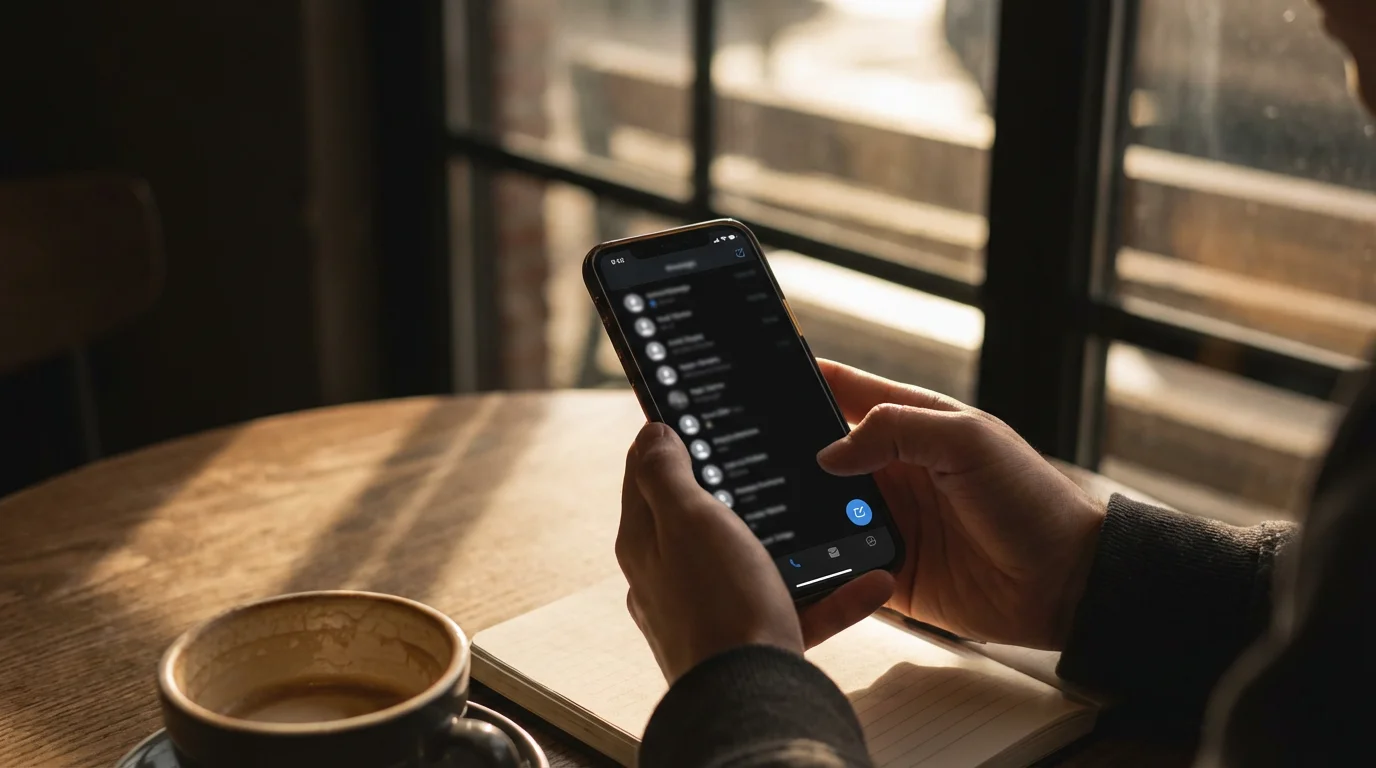
- On iPhone: Tap the “New Chat” icon, which looks like a square with a pencil inside, usually located in the top right corner of the Chats screen.
- On Android: Tap the green circle with a speech bubble icon, usually located in the bottom right corner of the Chats screen.
- Select a Contact: You will see a list of your phone contacts who also use WhatsApp. Scroll through the list and tap the name of the person you want to message. If you do not see them, make sure they have WhatsApp installed and their number is in your phone’s contacts. You can also use the search bar at the top to find a contact by name.
- Start Typing: Once you tap a contact’s name, a chat screen will open. You will see a text box at the bottom. Tap it to bring up your keyboard.
- Send Your Message: Type your message. When you finish, tap the send icon (it looks like a paper airplane, usually green). Your message will instantly appear in the chat.

Sharing Photos, Videos, and Voice Messages
- Open an Existing Chat: Go into the chat conversation with the person or group you want to share with.
- Attach Media:
- On iPhone: Tap the plus sign (+) icon to the left of the text box.
- On Android: Tap the paperclip icon to the right of the text box.
A menu will pop up with options like Document, Camera, Gallery (or Photos & Videos), Audio, Location, and Contact.
- Select Your Media Type:
- Photos & Videos (Gallery/Camera Roll): Tap Gallery or Photos & Videos to choose existing pictures or videos from your phone. You can select multiple items. If you want to take a new photo or video, tap Camera. After selecting or taking your media, you can add a caption if you wish. Tap the send icon.
- Voice Message: Instead of tapping the attach icon, you can send a voice message directly. To the right of the text box, you will see a microphone icon. Tap and hold this icon to record your message. Release your finger to send it. If you slide your finger up while holding, it locks into recording mode, so you do not have to keep pressing. Tap the send button when you finish recording.
WhatsApp shows two checkmarks next to your sent message once it reaches the other person’s phone. Two blue checkmarks indicate the other person has read your message.

Making Voice and Video Calls with WhatsApp
WhatsApp allows you to make free voice calls and video calls to other WhatsApp users using your internet connection. These calls work over Wi-Fi or your cellular data plan, meaning you do not use your phone company’s call minutes. Data charges may apply if you use cellular data.

Making a One-on-One Voice or Video Call
- Open WhatsApp: Tap the WhatsApp icon on your device.
- Go to the Chat: Open the chat conversation with the person you want to call.
- Initiate the Call:
- For a Voice Call: In the top right corner of the chat screen, tap the phone icon (it looks like a classic telephone receiver).
- For a Video Call: In the top right corner of the chat screen, tap the video camera icon.
- Permissions (First Time): The first time you make a call, WhatsApp will ask for permission to access your microphone (for voice calls) and camera (for video calls). Tap Allow or OK to grant these permissions.
- Start Talking/Seeing: The call will connect. For video calls, you will see the other person on your screen, and they will see you. For voice calls, you will hear them.
- End the Call: When you finish, tap the red phone icon to hang up.

Making Group Voice or Video Calls
WhatsApp also supports group calls, letting you connect with multiple people at once. This is perfect for family gatherings or catching up with several friends simultaneously. WhatsApp group calls support up to 32 participants for both voice and video.
- Start a Group Chat (if you do not have one):
- On iPhone: From the Chats screen, tap the “New Chat” icon (square with pencil), then tap New Group. Select the contacts you want to add, then tap Next. Give your group a name and tap Create.
- On Android: From the Chats screen, tap the three dots (More options) in the top right, then tap New group. Select your contacts, then tap the green arrow. Give your group a name and tap the green checkmark.
- Initiate the Group Call:
- From an Existing Group Chat: Open the group chat. In the top right corner, tap the video camera icon to start a group video call, or the phone icon to start a group voice call.
- Adding Members During a Call: If you are already on a one-on-one call, you can add more participants. During the call, tap the Add Participant icon (usually a person with a plus sign). Select the contacts you want to add.
- Manage the Call: All participants will receive an invitation to join the call. Once they answer, they become part of the group conversation.
Using WhatsApp calls is an excellent way to bridge distances and truly connect with your loved ones, making you feel present even when you are physically apart.
Using WhatsApp on Your Computer (WhatsApp Web and Desktop App)
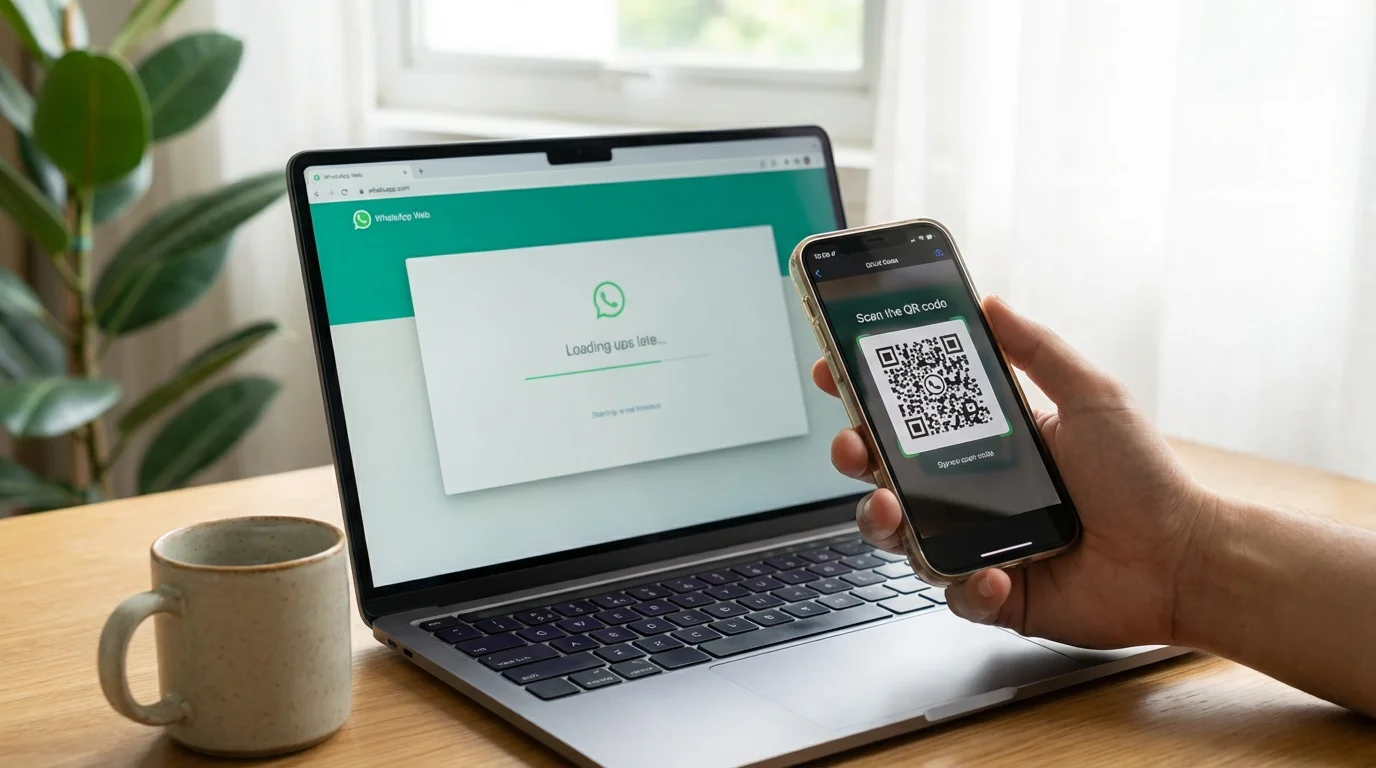
Using WhatsApp on your computer through WhatsApp Web or the desktop app offers convenience, especially if you spend a lot of time on your computer. It allows you to type faster, view media on a larger screen, and keep your conversations going without constantly checking your phone.
How WhatsApp Computer Versions Work
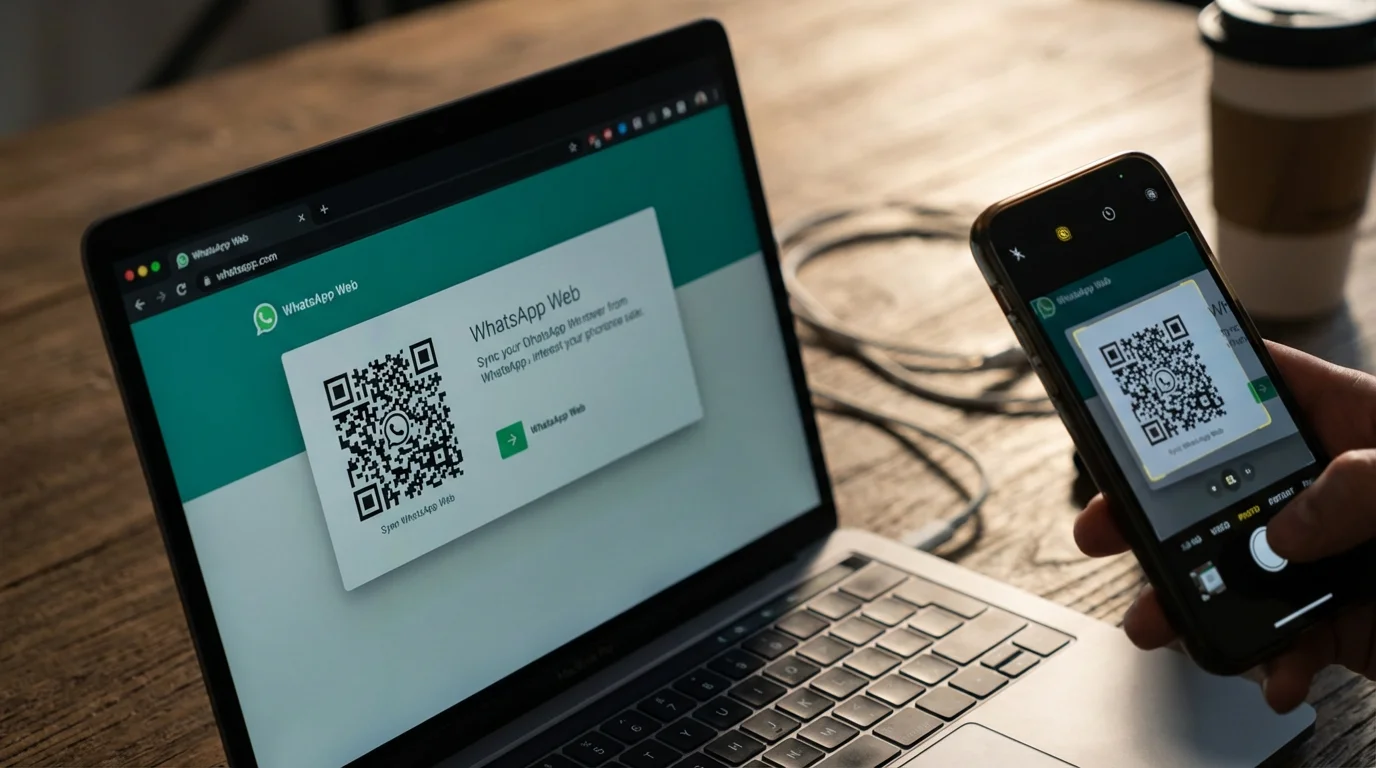
Both WhatsApp Web and the desktop app “sync” with your phone. “Sync” means when information on different devices matches automatically. Your phone remains the primary device for your WhatsApp account. Your computer simply mirrors what is happening on your phone. This means your phone needs to be on and connected to the internet for the computer version to work. All your messages and calls are still managed through your phone’s connection.

Key Features and Benefits of Using WhatsApp on Your Computer
- Easier Typing: Use your full-sized keyboard for quicker and more comfortable typing, especially for longer messages.
- Larger Screen for Media: View photos and videos from your chats on a bigger display.
- Multitasking: Keep your WhatsApp conversations open alongside your other computer applications, reducing the need to switch between devices.
- Notifications: Get desktop “notifications” (alerts or messages from an app) for new messages directly on your computer, so you do not miss important updates. You can manage these in the app’s settings.
- File Sharing: Easily share documents and files from your computer directly into WhatsApp chats.
Switching Between Phone and Computer
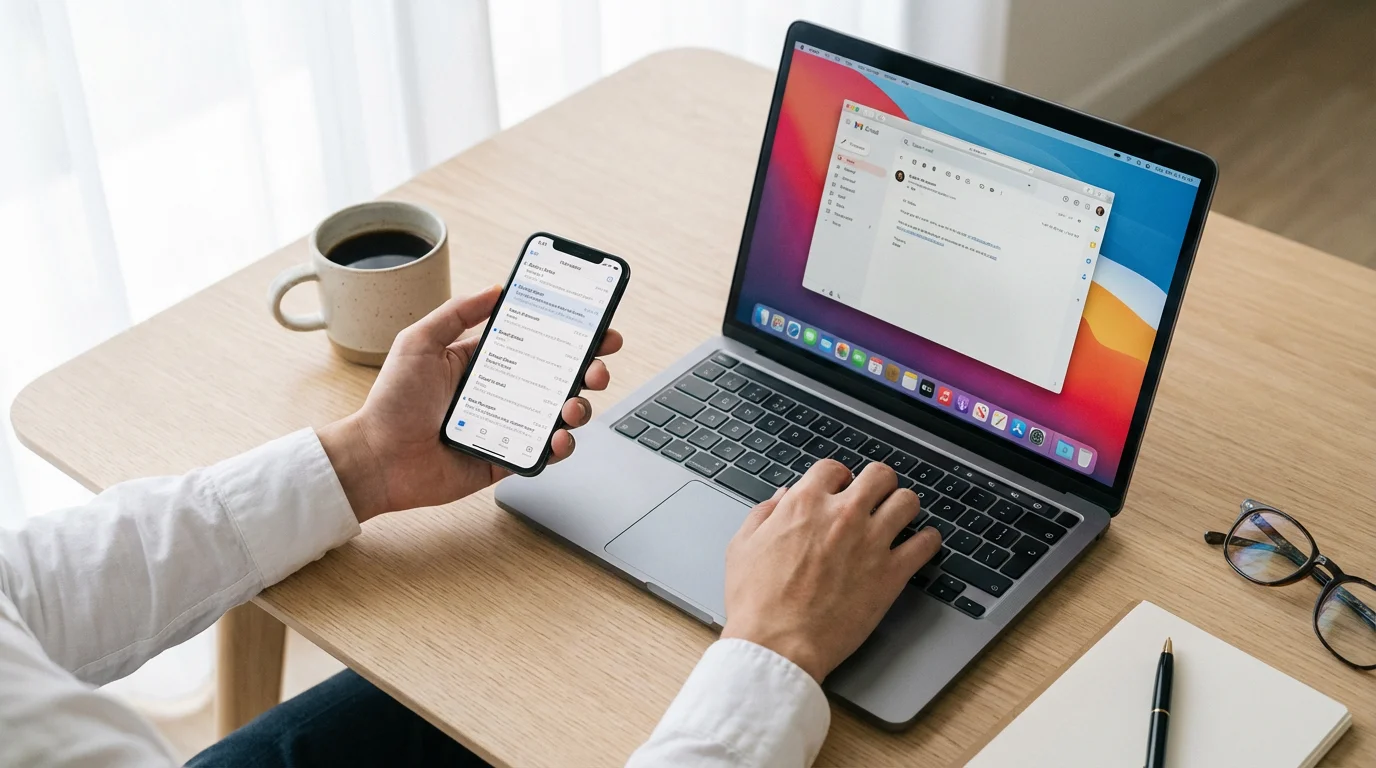
You can seamlessly switch between your phone and computer for WhatsApp. If you start a chat on your phone and then move to your computer, the conversation history will be there, and you can pick up right where you left off. The same applies to starting a chat on your computer and continuing on your phone.
Using WhatsApp on your computer simplifies managing conversations, particularly when you want to respond quickly or share files from your desktop. This helps you stay organized and efficient.
Tips for Getting the Most Out of WhatsApp
Once you are comfortable with the basics, these tips will help you enhance your WhatsApp experience and ensure your communication is both effective and secure.
1. Adjust Privacy Settings:
- Who Sees Your Information: WhatsApp gives you control over who sees your profile picture, “Last Seen” status (when you were last active), and “About” information.
- Go to Settings > Privacy.
- Here, you can choose between “Everyone,” “My Contacts,” or “Nobody” for these details. Selecting “My Contacts” is a good balance for privacy while still allowing friends and family to see your updates.
- Read Receipts: These are the blue checkmarks that show someone has read your message. You can turn them off in Settings > Privacy if you prefer not to let others know when you have read their messages. Keep in mind that turning them off for yourself also means you will not see them for others.
2. Manage Notifications:
- A “notification” is an alert or message from an app. WhatsApp can send alerts for new messages, calls, and group activity.
- Go to Settings > Notifications.
- You can customize how you receive notifications, choosing whether they make a sound, vibrate, or appear as pop-up alerts. Adjust these to your preference so you are alerted to important messages without feeling overwhelmed.
3. Back Up Your Chats:
- Losing your phone does not mean losing all your precious conversations. WhatsApp allows you to back up your chat history to cloud services like Google Drive (for Android) or iCloud (for iPhone).
- Go to Settings > Chats > Chat Backup.
- Set it to back up automatically, perhaps weekly or monthly, to ensure your conversations and media are saved. This protects your memories and contact information.
4. Use “Starred Messages” for Important Information:
- If someone sends you an important address, a phone number, or a recipe, you can “star” that message to easily find it later.
- Tap and hold the message you want to save.
- Tap the star icon that appears.
- To find your starred messages, go to Settings > Starred Messages. This saves you from scrolling through long conversations.
5. Conserve Data Usage:
- If you use WhatsApp over your cellular data plan, video calls and media sharing can consume a significant amount of data.
- Go to Settings > Storage and Data.
- Under “Media auto-download,” you can choose when to download photos, audio, videos, and documents (e.g., “When using Wi-Fi” only).
- You can also toggle “Use Less Data for Calls” to reduce data consumption during WhatsApp calls, though this might slightly reduce call quality.
WhatsApp offers many features to make your communication experience personal and secure. Taking a few minutes to explore these settings will help you use the app more effectively and comfortably.
Common Questions and Problems with WhatsApp
As with any technology, you might encounter a few hiccups while using WhatsApp. Here are some common issues and their straightforward solutions:
1. My Messages Are Not Sending or Receiving:
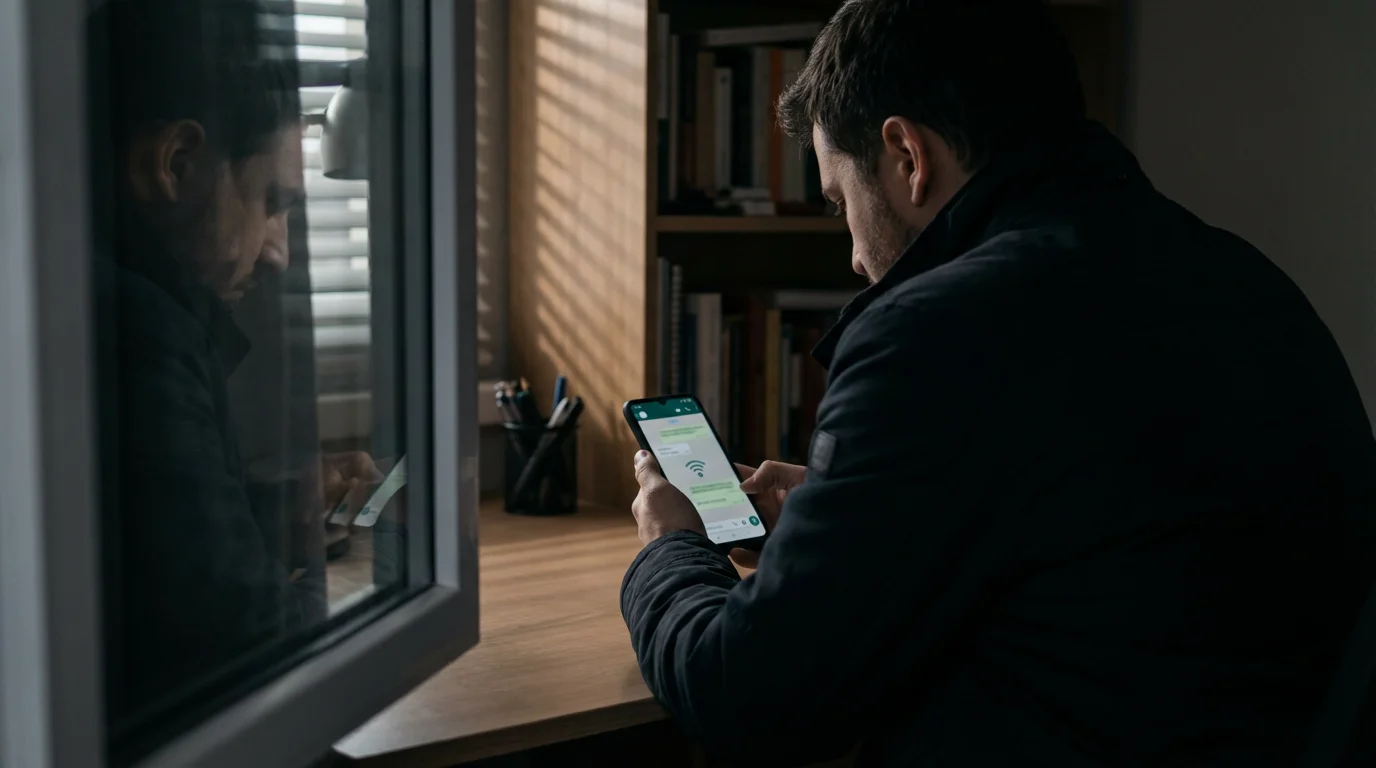
- Check Your Internet Connection: WhatsApp requires an active internet connection (Wi-Fi or cellular data) to send and receive messages. Ensure your phone or computer is connected to the internet. Try opening a web page or another app to confirm your connection works.
- Restart WhatsApp: Sometimes, simply closing the app completely and reopening it can resolve temporary glitches.
- Restart Your Device: Turning your phone or computer off and then back on often clears up many software issues.
- Check for Updates: An “update” means getting the newest version of an app. Outdated versions can cause problems. Visit your device’s app store (Apple App Store or Google Play Store) and check if a WhatsApp update is available. Install any pending updates.
2. I Am Not Receiving Verification Codes:
- Double-Check Your Phone Number: Make sure you entered your phone number correctly, including the country code (+1 for the USA).
- Check Your Signal: Ensure your phone has good cellular reception, as verification codes arrive via text message.
- Wait and Retry: It can take a few minutes for the code to arrive. If it does not, WhatsApp usually offers an option to “Resend SMS” or “Call Me.” Tap “Call Me” to receive an automated voice call with the code.
3. My Calls Are Disconnecting or Have Poor Quality:
- Strong Internet Connection: Voice and video calls require a stable and strong internet connection. If you are on Wi-Fi, try moving closer to your router. If on cellular data, ensure you have good signal strength.
- Close Other Apps: Other apps running in the background can consume bandwidth. Close any unnecessary apps to free up resources for WhatsApp.
- Update WhatsApp: Again, ensure you have the latest version of WhatsApp installed. Updates often include performance improvements for calls.
4. I Cannot See My Contacts in WhatsApp:
- Grant Contact Permission: WhatsApp needs permission to access your phone’s contacts.
- On iPhone: Go to Settings > WhatsApp > and make sure Contacts is toggled On.
- On Android: Go to your phone’s Settings > Apps (or Applications/App Manager) > WhatsApp > Permissions > and ensure Contacts is allowed.
- Refresh WhatsApp Contacts: Inside WhatsApp, go to the New Chat screen (where you select contacts).
- On Android: Tap the three dots (More options) in the top right, then tap Refresh.
- On iPhone: There is usually no manual refresh needed, but you can try closing and reopening the app.
- Ensure They Have WhatsApp: Remember, you can only message people who also have WhatsApp installed on their device.
5. My WhatsApp Desktop App is Not Syncing:
- Check Phone Connection: Your phone must be on, have an active internet connection, and have WhatsApp running in the background for the desktop app or WhatsApp Web to sync.
- Relink Device: If problems persist, try unlinking and relinking your computer.
- On your phone: Go to WhatsApp Settings (iPhone) or More options (Android) > Linked Devices. Tap on your computer’s entry and choose Log Out. Then, follow the steps to link a device again.
Most issues with WhatsApp are easily fixable. Taking a moment to check your internet connection, update the app, or restart your device often resolves the problem quickly. If you need more detailed support, you can visit the official WhatsApp Help Center or look at resources like GCFGlobal’s technology tutorials.
Frequently Asked Questions
Is WhatsApp a free app to use?
Yes, WhatsApp is completely free to download and use. You do not pay for sending messages or making calls. It uses your phone’s internet connection (Wi-Fi or cellular data), so standard data charges from your mobile provider may apply if you are not connected to Wi-Fi. Many people find the data usage minimal for basic messaging.
Is WhatsApp safe to use?
Yes, WhatsApp prioritizes your privacy and security. It uses end-to-end encryption for all messages and calls. This means that only you and the person you are communicating with can read or listen to your conversations, and no one in between, not even WhatsApp itself, can access them. This makes it a very secure platform for communication. You can also adjust privacy settings to control who sees your profile information.
Do I need a smartphone to use WhatsApp?
Yes, you generally need a smartphone (iPhone or Android) with an active phone number to set up a WhatsApp account. While you can use WhatsApp Web or the desktop app on a computer, they still require your phone to be linked and connected to the internet to function. Your phone acts as the primary device for your WhatsApp account.
Can I use WhatsApp to call landlines?
No, WhatsApp calls only work between two devices that both have the WhatsApp app installed and an active internet connection. You cannot use WhatsApp to call traditional landline phones or mobile numbers that do not have WhatsApp. It is designed specifically for app-to-app communication.
What is an “update” for WhatsApp?
An “update” means getting the newest version of the WhatsApp app. Developers regularly release updates to fix bugs, improve performance, add new features, and enhance security. It is always a good idea to keep your apps updated to ensure you have the best and safest experience. You can find updates in your device’s App Store (iPhone/iPad) or Google Play Store (Android).
You have now learned how to find, download, install, and use WhatsApp for both messaging and calls on your phone, tablet, and computer. This powerful app simplifies staying in touch with the people who matter most. Start sending messages, sharing photos, and making calls today, and enjoy the ease of connection WhatsApp provides.
Disclaimer: This article is for informational purposes only. App interfaces change frequently with updates, so screens may look slightly different from what’s described. Always download apps from official app stores (Apple App Store or Google Play Store) to ensure safety.






Leave a Reply