
You can stop unexpected overage fees on your mobile bill by forcing your phone to download app updates only when connected to home Wi-Fi. A single silent app update can consume hundreds of megabytes of your monthly cellular allowance without warning.
Cutting mobile overages is just one part of lowering your monthly expenses; check out our guide on saving money on internet bills for more practical household budgeting advice.
Most smartphone guides suggest switching off your internet entirely, but that prevents you from receiving driving directions or important family text messages. Instead, adjusting two exact store toggles protects your 2GB monthly budget while preserving every essential communication feature.
We will show you the exact settings menus on both Apple and Android devices to prevent unexpected $15 overage penalties forever.
In this guide7 sections
- The Real Cost of Background App Downloads on a 2GB Plan
- How to Turn Off Cellular App Updates on iPhone and iPad
- How to Turn Off Cellular App Updates on Android Devices
- Disabling Background App Refresh for Maximum Data Protection
- Data Usage Comparison Across Popular Everyday Apps
- Safe Wi-Fi Habits for Updating Apps at Home
- Frequently Asked Questions
The Real Cost of Background App Downloads on a 2GB Plan
Cellular data connects your phone to the internet through mobile carrier towers whenever you step outside your home. In contrast, Wi-Fi transmits data through your home internet router at no metered charge.
If you are not sure how to link to your wireless router, review how to connect your smartphone to Wi-Fi before leaving home.
If you are unsure how much monthly bandwidth your daily habits require, understanding data usage on your smartphone is the best place to begin.
A gigabyte, abbreviated as GB, is a standard measurement unit containing roughly 1,024 megabytes (MB). When your phone downloads app updates in the background, it transfers new program code silently without displaying a prompt.
If your device lacks a Wi-Fi connection during that transfer, the download consumes your cellular allowance. Major software publishers issue updates every two weeks to address programming errors and patch security vulnerabilities.
A single routine software update for an everyday utility like Facebook or Google Maps often requires 150MB to 250MB. Four simultaneous application updates can easily consume an entire gigabyte of transmission within thirty minutes.
Consider the scenario of Eleanor, a 79-year-old Ohio resident who maintains a strict monthly budget. Eleanor subscribes to a 2GB monthly mobile plan that costs $20 as of 2026.
Her wireless provider charges an automatic $15 overage fee for an extra 1GB block whenever she exceeds her 2GB cap. Eleanor uses roughly 1.2GB each month for driving directions, doctor portal messages, and checking bank balances away from home.
That regular usage leaves her with an 800MB safety margin beneath her 2GB limit. However, her smartphone holds six regular applications: Facebook, Google Maps, The Weather Channel, a local bank app, Gmail, and a crossword game.
One afternoon while Eleanor visits friends, four of those applications push automatic updates across the mobile network. Google Maps pulls 140MB, Facebook downloads 210MB, the weather utility pulls 95MB, and the crossword game takes 185MB.
Those four background downloads consume 630MB in less than an hour. Combined with her normal 1.2GB usage, her cellular total reaches 1.83GB.
Ten days later, a second set of updates pushes her total to 2.25GB. Her carrier immediately applies a $15 overage fee to her bill, raising her monthly expense from $20 to $35.
Over a full year, those unnoticed background downloads drain $180 in preventable fees. Adjusting your phone toggles to stop app updates on cellular stops this monthly financial loss.
How to Turn Off Cellular App Updates on iPhone and iPad
Apple devices use iOS on smartphones and iPadOS on tablets. The directions below reflect iOS 18 and iOS 17 as of 2026, though older systems follow almost identical paths.
If you are brand new to Apple devices, our guide on how to download apps from the App Store walks you through installing new software safely.
Keep in mind that store downloads differ from operating system upgrades, so check our step-by-step guide on how to update your iPhone to the latest software when Apple releases major system fixes.
If you plan on traveling outside your provider’s network, learning how to turn off data roaming on your phone will provide extra protection against surprise charges.
Warning: Changing these options prevents automatic store downloads on mobile data, but will not interrupt your active internet browsing. If small icons make screen selections difficult, consult Apple’s guide to making text bigger on iPhone and iPad before adjusting these options.
You must configure two separate toggles to secure your Apple device against background update overages. The first toggle commands the App Store platform to wait for a Wi-Fi connection.
- Open the Settings app on your home screen.
- Scroll down the main menu list and tap App Store.
- Find the heading labeled Cellular Data (or Mobile Data on some regional devices).
- Locate the switch labeled Automatic Downloads directly beneath that heading.
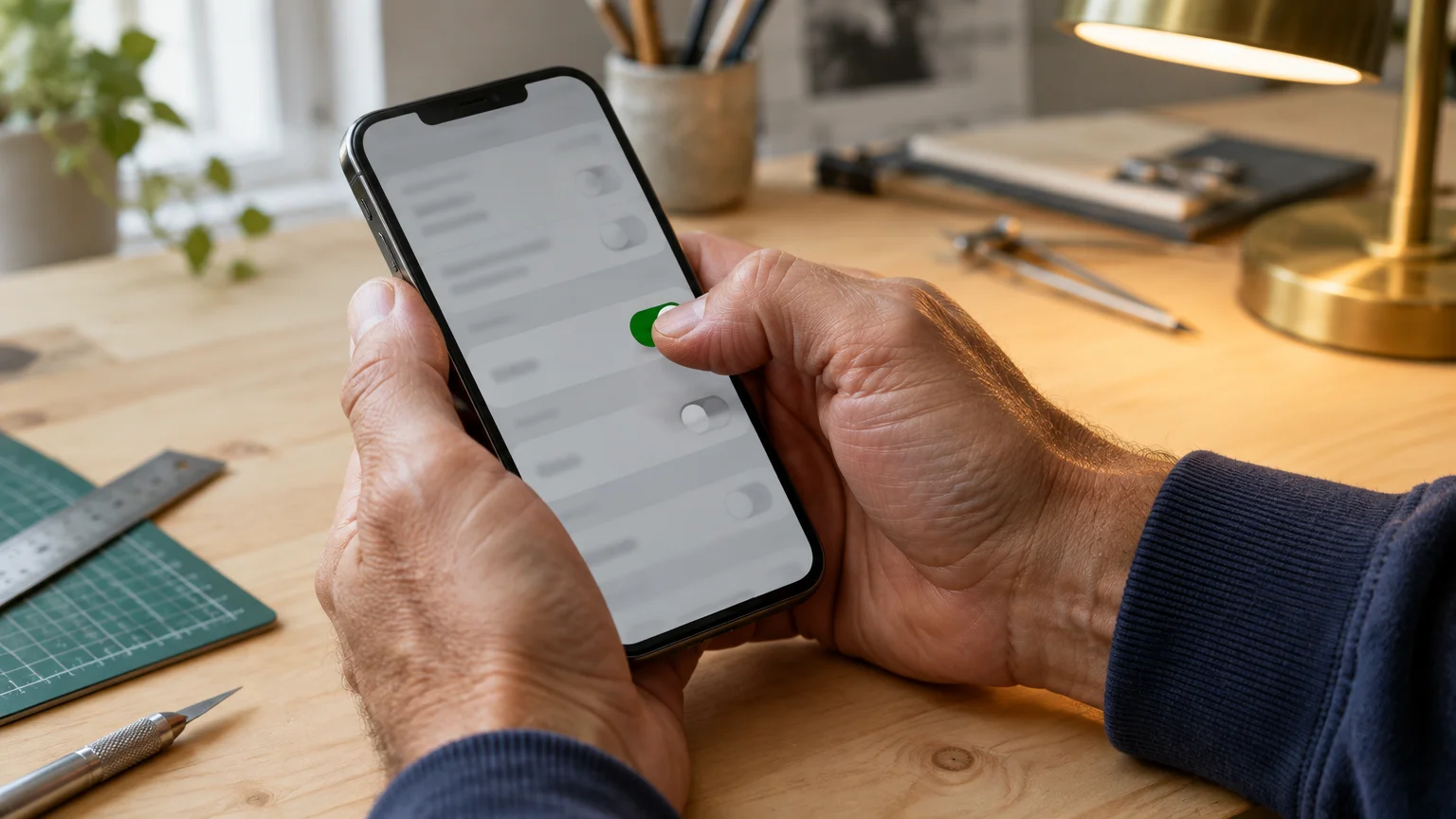
- Tap the switch next to Automatic Downloads so the green indicator disappears.
- Tap App Downloads immediately below that toggle and select Ask If Over 200 MB or Always Ask.
This change prevents the App Store from downloading routine patches while you travel away from home. Next, we advise you to turn off cellular data for app store access completely.
This second step prevents you or family members from manually triggering a large download over mobile towers by mistake.
- Open your device Settings app.
- Tap Cellular near the top of the menu (labeled Mobile Data on certain networks).
- Scroll past your carrier subscription details to view the alphabetical list of installed applications.
- Scroll down until you find App Store.
- Tap the green switch next to App Store so it turns gray and unselected.
If your carrier interface presents non-standard headings, consult Apple’s official iPhone User Guide for device variations. With that toggle switched off, the App Store cannot consume a single byte of cellular data.

How to Turn Off Cellular App Updates on Android Devices
Android smartphones and tablets come from diverse manufacturers, including Samsung, Google, and Motorola. Although phone makers apply custom screen themes like Samsung One UI, application updates route through the Google Play Store.
Be especially mindful of these settings if you know how to use your smartphone as a mobile hotspot, as connected tablets and laptops can consume cellular megabytes rapidly.
While app patches happen inside the store, see how to update your Android phone to ensure your entire device remains secure.
If you are unfamiliar with navigating the app marketplace, review our walkthrough on how to download apps from the Google Play Store.
These instructions apply to Android 15 and Android 14 as of 2026. If touch targets or screen labels appear too faint, read Google’s Android accessibility guide to enlarge your buttons.
You must adjust the network preferences inside the Google Play Store app first to save mobile data updates from draining your balance.
- Open the Google Play Store app from your home screen or app drawer.
- Tap your circular Profile icon in the upper right corner of the search bar.
- Tap Settings near the bottom of the pop-up menu.
- Tap Network preferences to display the data settings.
- Tap Auto-update apps from the expanded list.
- Select the radio button next to Over Wi-Fi only.
- Tap Done to save your setting.
Choosing Over Wi-Fi only suspends all application maintenance until your phone reaches a home or office wireless network. You can also select Don’t auto-update apps if you prefer to review every pending update manually.
To add complete protection, disable background mobile transmission for the Play Store inside Android system settings.
- Open the main Settings app on your Android phone.
- Tap Apps (or Apps & notifications on Motorola models).
- Tap See all apps, then scroll down to tap Google Play Store.
- Tap Mobile data & Wi-Fi (named Mobile data on Samsung Galaxy phones).
- Tap the switch labeled Background data to slide it to the off position.
For extra assistance with custom carrier layouts, review the official Google Android Help center. Your Android device will now wait patiently for a verified home connection before pulling updates.

Disabling Background App Refresh for Maximum Data Protection
Background app refresh differs fundamentally from application software updates. Software updates deliver brand-new programming files directly from an online app marketplace.
Along with controlling background data, learning how to manage app permissions on your phone ensures apps only access your camera, location, and files when necessary.
Background app refresh allows installed software to fetch new messages, news headlines, and weather reports while closed. Both activities draw from your monthly data pool if configured improperly.
Halting background cellular refresh does not stop critical phone calls or emergency alerts. Your apps simply refresh their data screens when you physically open them.
Here is how to restrict background refresh to Wi-Fi on an Apple device.
- Open the Settings app on your iPhone or iPad.
- Tap General.
- Tap Background App Refresh.
- Tap Background App Refresh at the top of the submenu.
- Select Wi-Fi instead of Wi-Fi & Cellular Data.
Selecting Wi-Fi allows news and email apps to sync at home without tapping cell towers. On Android hardware, you can activate the integrated Data Saver feature to accomplish the same goal.
- Open the Android Settings app.
- Tap Network & internet (or Connections on Samsung Galaxy models).
- Tap Data Saver.
- Toggle the switch for Use Data Saver to the on position.
Data Saver prevents applications from running background network connections unless you actively touch them on screen.
Data Usage Comparison Across Popular Everyday Apps
Application download packages have grown substantially larger over recent operating system releases. The table below illustrates the standard data footprint for six widely used mobile applications as of 2026.
Deleting unused apps not only eliminates unwanted update downloads, but it also helps free up storage space on your smartphone.
| Application Name | Average Update Size | Monthly Update Frequency | Monthly Cellular Impact | Share of a 2GB Plan |
|---|---|---|---|---|
| 175 MB | 2 updates per month | 350 MB | 17.5% | |
| Google Maps | 130 MB | 2 updates per month | 260 MB | 13.0% |
| The Weather Channel | 90 MB | 2 updates per month | 180 MB | 9.0% |
| Candy Crush Saga | 160 MB | 2 updates per month | 320 MB | 16.0% |
| Zoom Workplace | 140 MB | 1 update per month | 140 MB | 7.0% |
| Amazon Shopping | 125 MB | 2 updates per month | 250 MB | 12.5% |
Updating these six typical programs across a cellular connection demands 1,500MB each month. That total absorbs 75% of Eleanor’s entire 2GB monthly allowance before she opens a single web page.
Stopping cellular downloads preserves that 1.5GB entirely for personal communication and travel navigation.
Safe Wi-Fi Habits for Updating Apps at Home
Preventing updates on cellular data does not mean you should avoid updating software altogether. Software patches correct critical flaws that criminals exploit to compromise private accounts.
To ensure your phone links properly before starting any manual downloads, review our guide on how to connect your smartphone to Wi-Fi.
Review CISA’s guidance on software updates to understand how prompt patches defend personal privacy. Establish a weekly routine to update your device safely over home Wi-Fi.
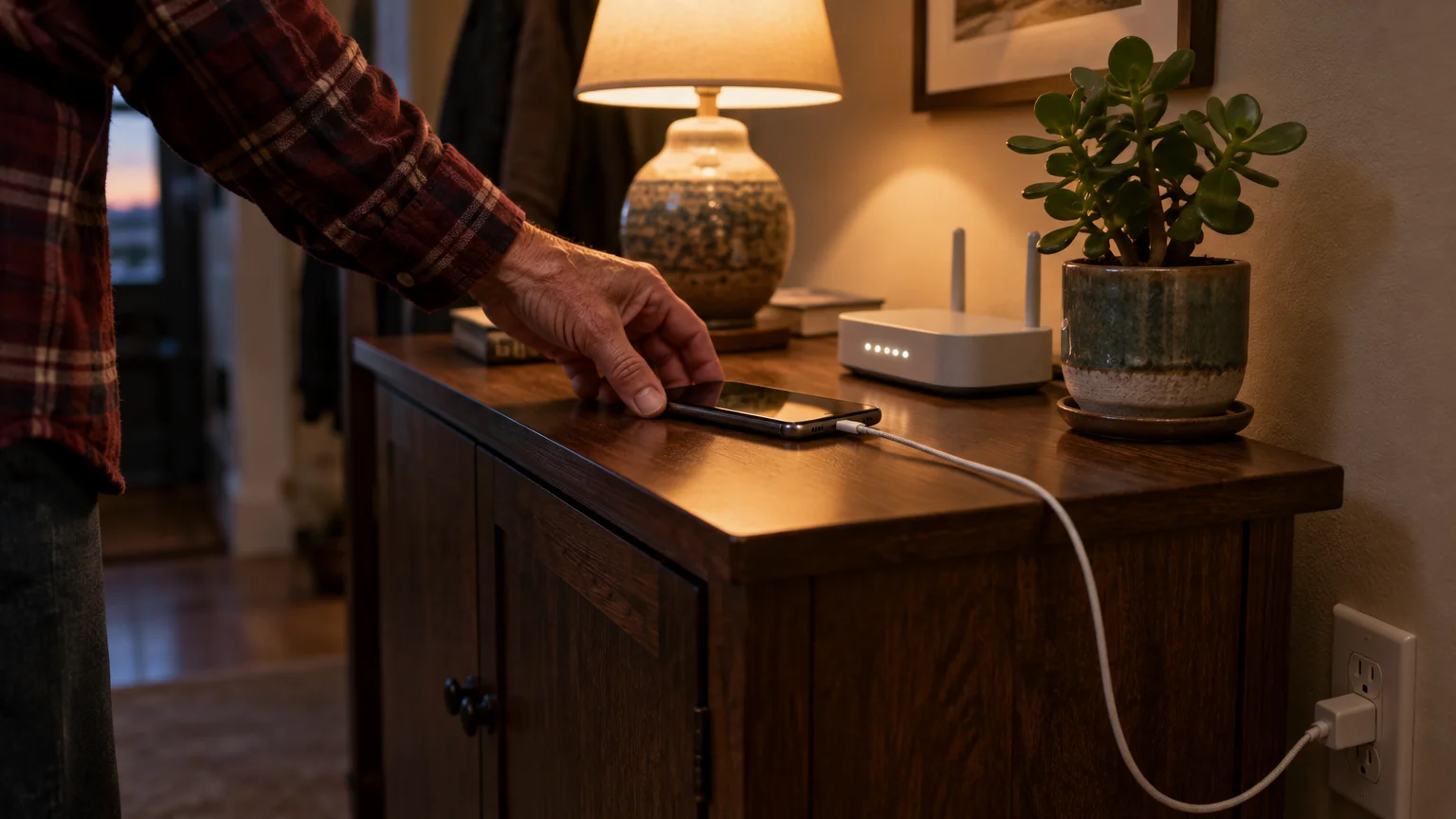
Connect your phone to its home charger every Sunday evening while linked to your personal wireless router. Overnight charging on home Wi-Fi lets your phone complete pending maintenance tasks without cost or effort.
If internet expenses strain your monthly budget, explore the FCC’s Lifeline assistance page for affordable connectivity benefits. Home wireless networks provide unlimited data bandwidth, eliminating the threat of overage penalties.
Frequently Asked Questions
Will turning off cellular updates stop my apps from working away from home?
No, your installed applications will continue operating normally when you travel away from home Wi-Fi. You can still browse websites, check email, and look up driving directions on your cellular connection.
Your phone simply delays downloading new programming files until you return home to your Wi-Fi router.
How do I know when an app needs an update if it does not update automatically?
You do not need to track updates manually if you select Wi-Fi auto-updating. Your device will quietly download all pending updates the moment you reconnect to home Wi-Fi.
If an app requires a vital update before running, it will display a clear message on your screen.
Why did my phone update an app even though I turned off the setting?
This rare issue occurs when a phone connects briefly to an unmetered public Wi-Fi hotspot. It can also happen if you accidentally tap the update button while viewing the store on mobile data.
Enabling both the store-level setting and the system-level cellular restriction prevents this accidental download.
Does turning off cellular app updates also stop phone operating system updates?
Yes, both Apple and Android operating systems separate app updates from full system updates. System upgrades for iOS and Android require several gigabytes and default to Wi-Fi connections automatically.
Your smartphone will never download a multi-gigabyte operating system file over a metered cellular connection without explicit approval.
Note: Menus and button names change with software updates. These steps were written for current versions as of 2026; if a screen looks different on your device, the maker’s support page linked above has the latest wording.
ClearTechGuide is independent and is not affiliated with Apple, Google, Microsoft, Amazon or any other company mentioned.
